


When you get a new Pixel 10 phone, setting it up is usually a very smooth and fast experience. One of the unique features is that as long as you wear headphones, Gemini will automatically read the received notifications, so you don’t need to take out your phone to check them. Sounds very helpful, right? So you turn this feature on and plan to turn it off manually if you don’t need it in the future.

How do I stop Gemini from blabbering notifications into my headphones?
But in fact, Gemini keeps interrupting your thoughts as it rattles off chats on WhatsApp, LINE, and even random app notifications, as if someone is nagging in your ear. When you want to turn it off, you think you can simply turn off the notification in the settings, but you spend a lot of time looking around in the list, but you can’t find the relevant setting method. So what do you do?
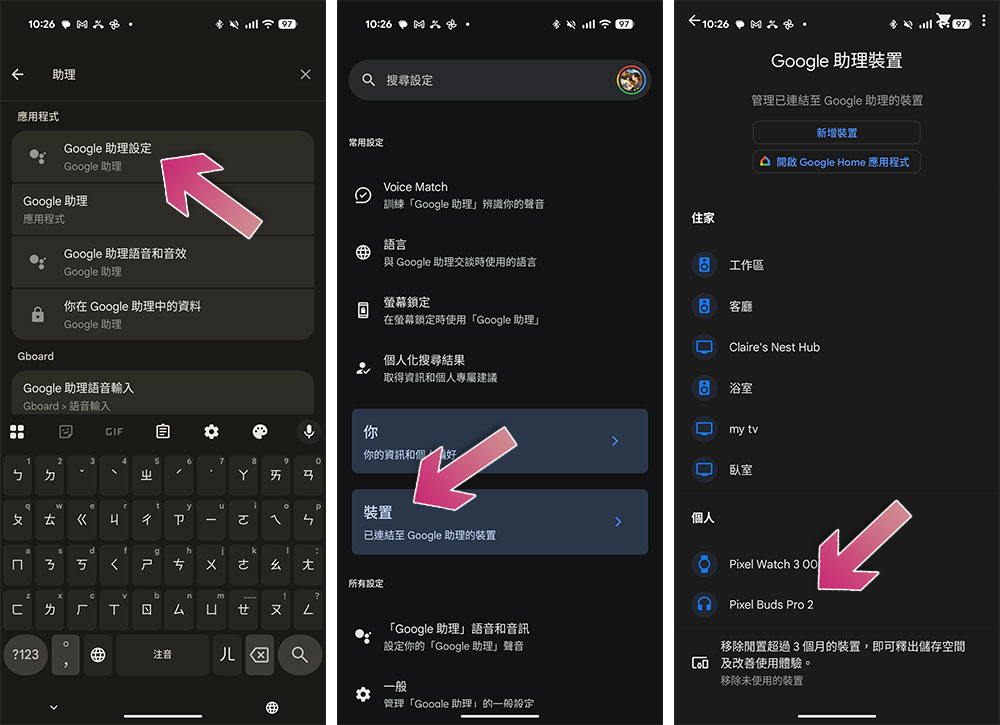
- Open the Settings app on your Pixel.
- Enter “assistant” in the search field.
- Click “Google Assistant Settings.”
- Click “Device”.
- In the “Personal” section, tap your headphones. In my case, it’s Pixel Buds Pro 2.
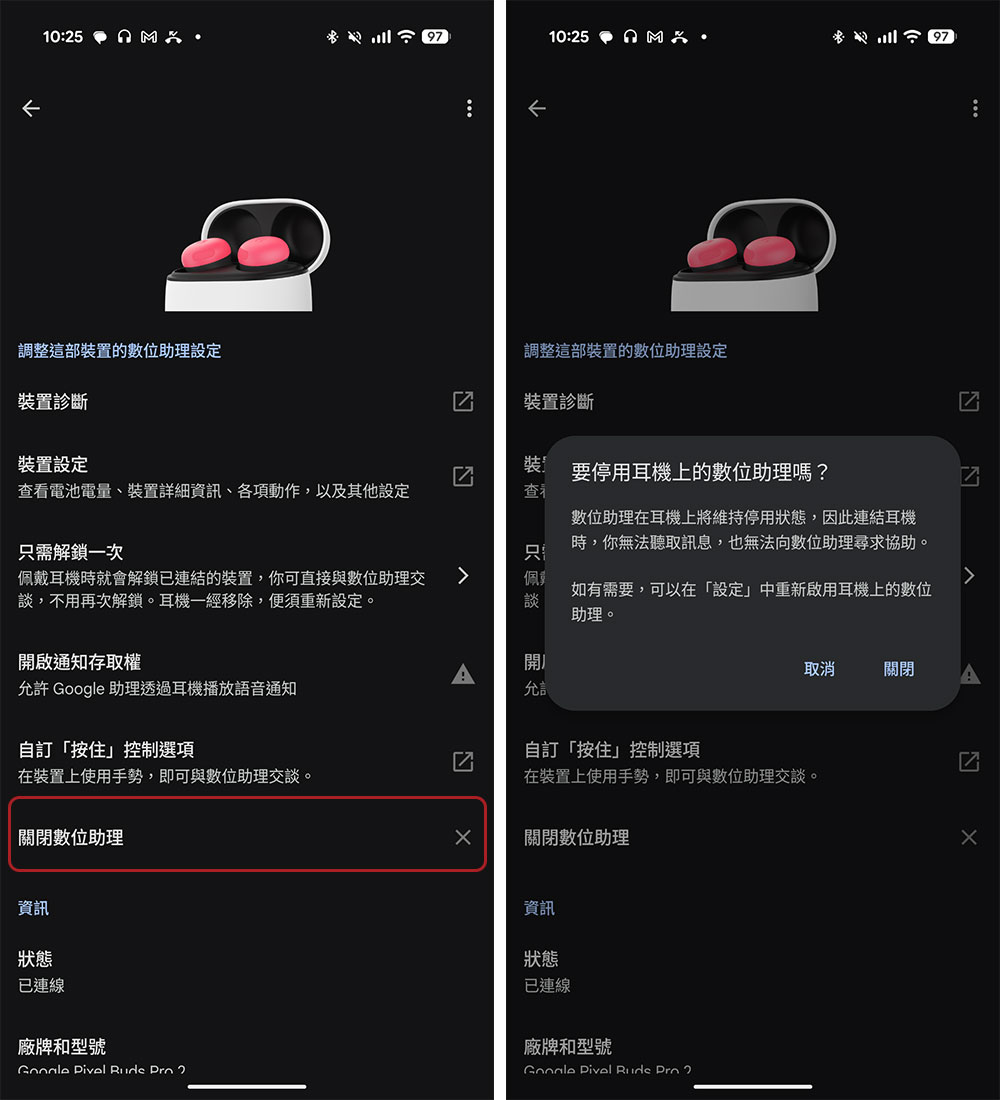
- Scroll down and click the “X” next to “Close Digital Assistant.”
- Click “Close” to confirm again. Your headphones will no longer read your notifications the next time you connect them to your Pixel phone. All you disable here is a steady stream of voice notifications. Gemini no longer reads every message reminder, but it’s still there when you actually want to use it.
On the surface, this feature actually makes sense. If you’re out for a run with your phone slung on your arm, or sitting on a crowded train with headphones on, having Gemini read out text messages or reminders can save you the hassle of pulling out your phone every few minutes. Google even gives you some control, so if Gemini starts reading something you don’t care about, you can press the volume button to cut it off from the sentence. In theory, this means that only important things get to your ears.

But the crushing part is that Gemini doesn’t know when to shut up. This feature is very useful, but it has flaws and makes users feel uncomfortable in an outdated experience. Settings is not just hidden, it’s buried in a checklist that feels like it’s been passed over a lot, and feels like a part of Android that’s been left behind. Everything else on the Pixel 10 feels smooth and modern, and this menu shouldn’t be stuck in the past.
Source: KOCPC Chinese