


This tutorial article will introduce how to create a realistic brushed metal effect in Photoshop, suitable for designers or enthusiasts who want to enhance the texture and professional feel of their works. This article will simply teach you how to make flat graphics show detailed metallic texture and luster, increasing visual layering and realism. By combining gradients, bevel reliefs, shadows, and noise and blur filters, you can easily create a reflective effect similar to that of a metal surface:
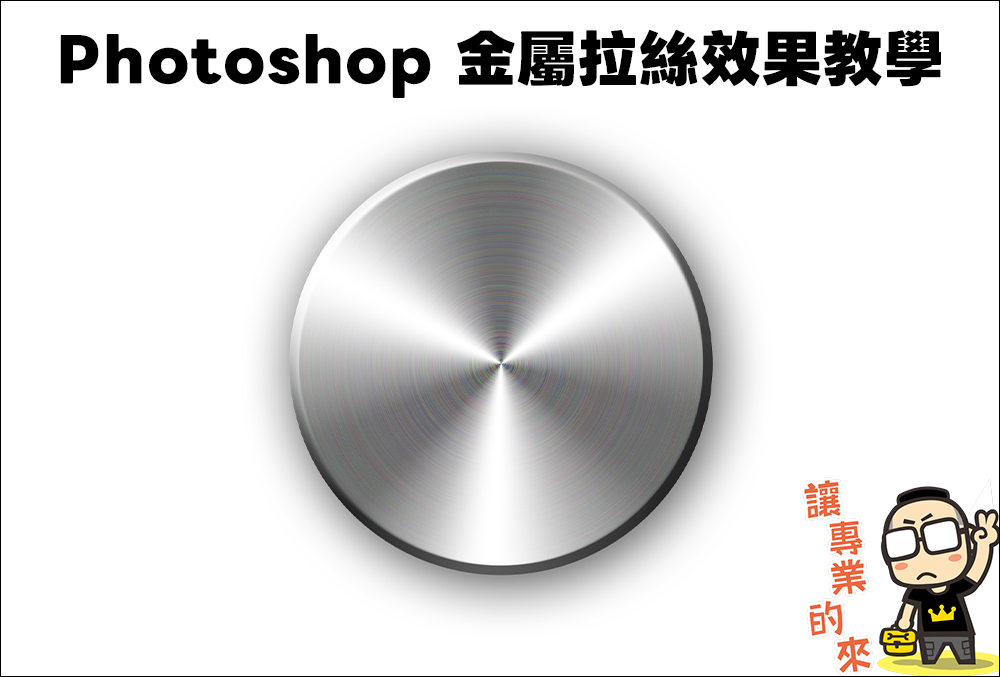
Photoshop metal brushed effect tutorial
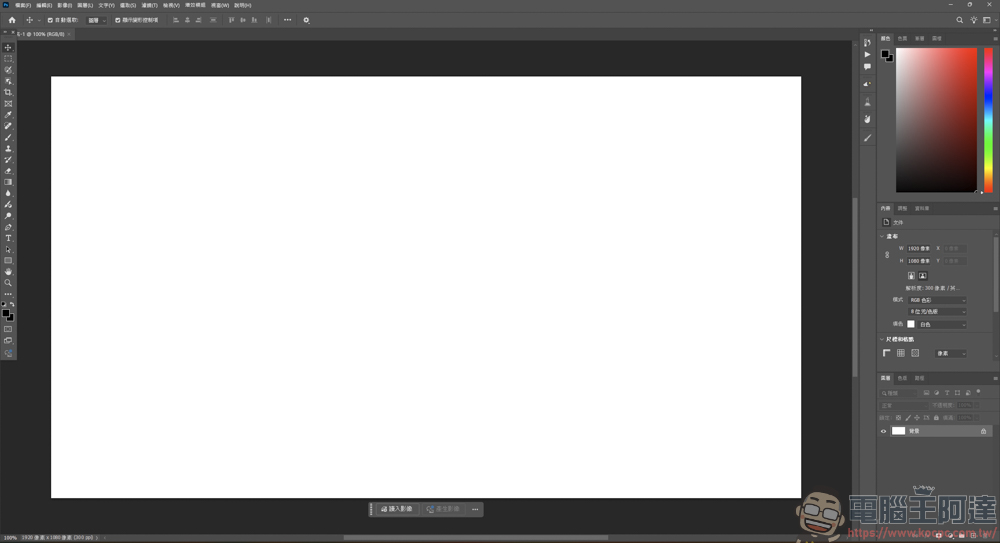
First create a new project:
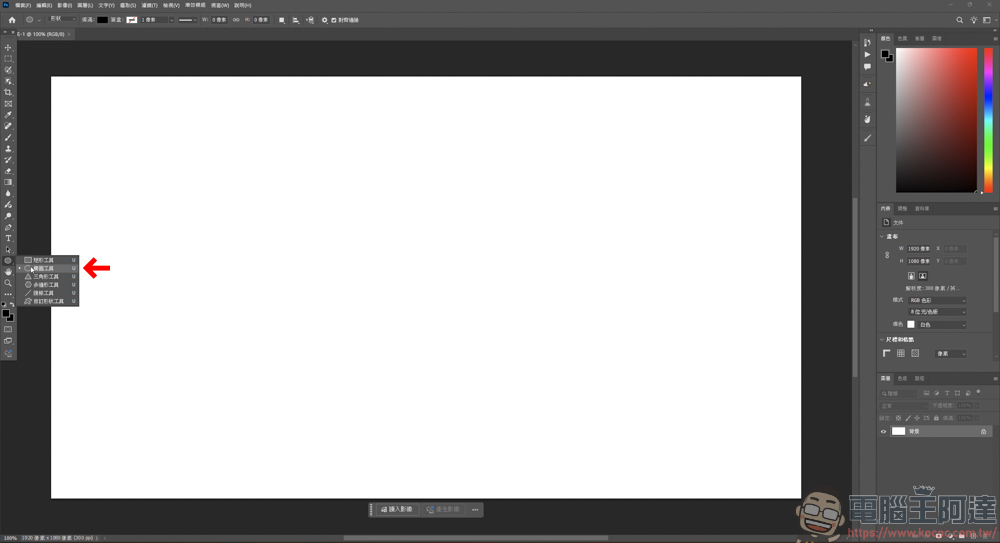
Select the Ellipse Tool:
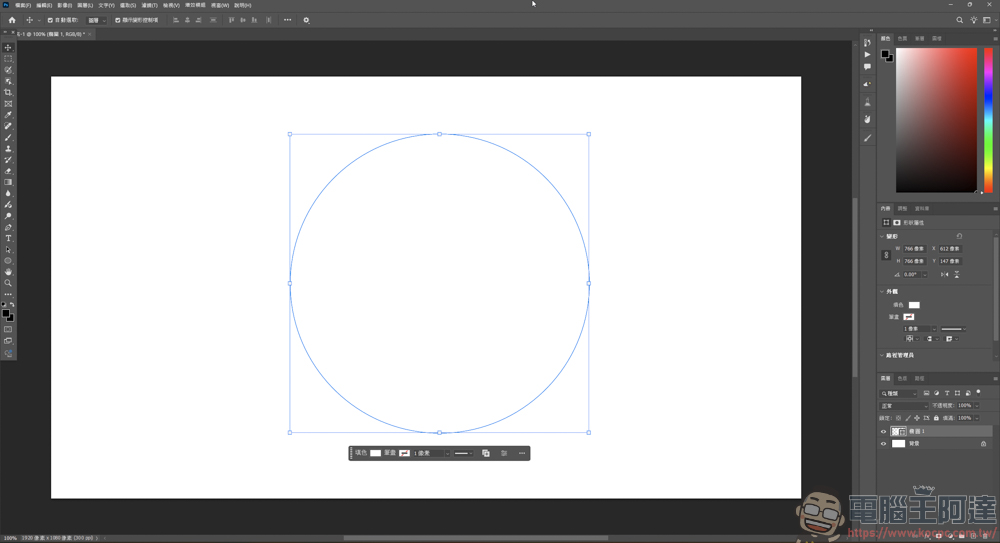
Draw a perfect circle:
Then change the color of the circle to a black and white gradient:
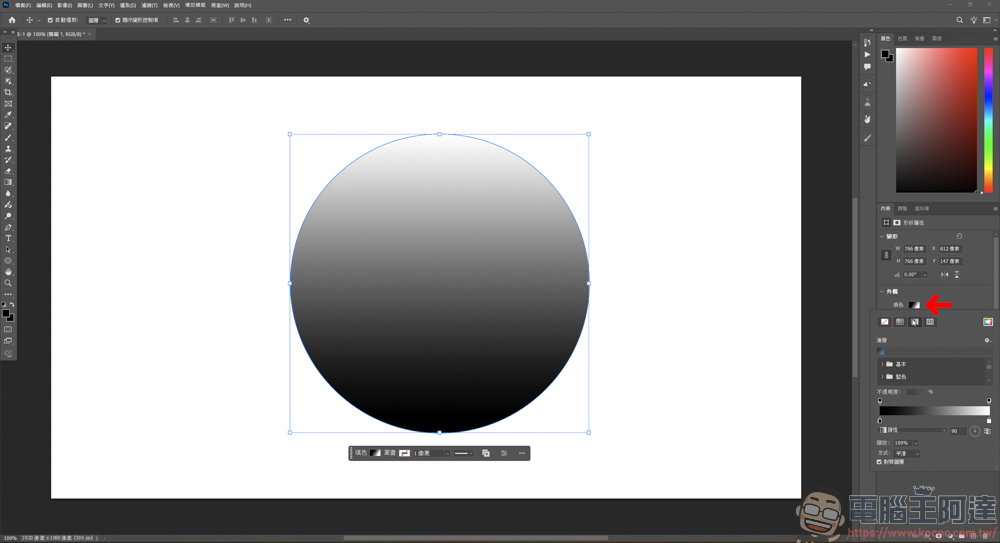
In the gradient options, change the gradient color to black and white:
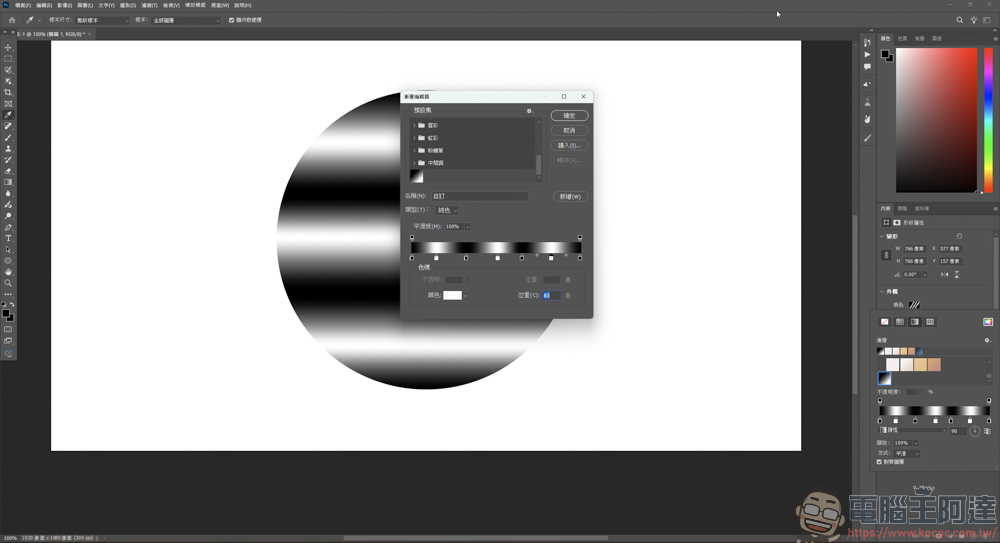
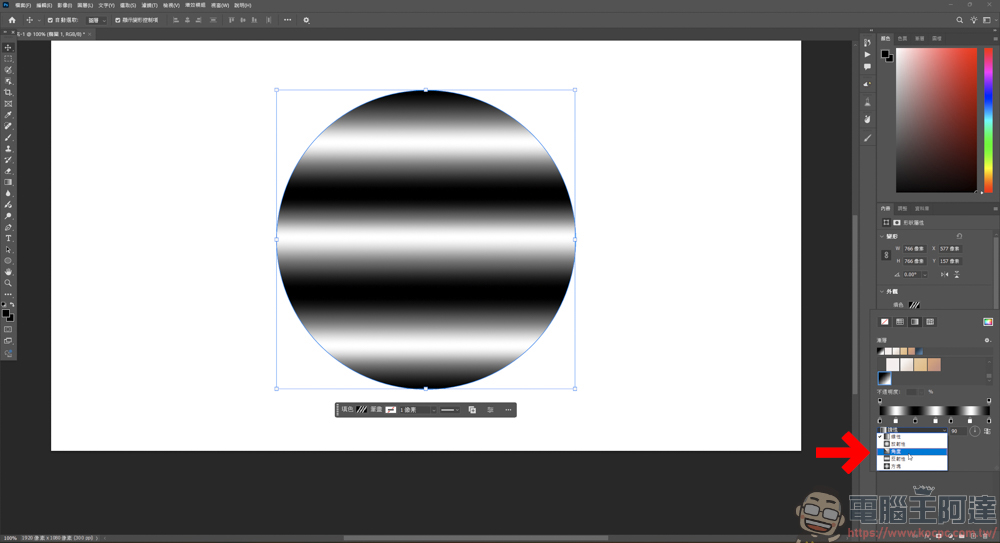
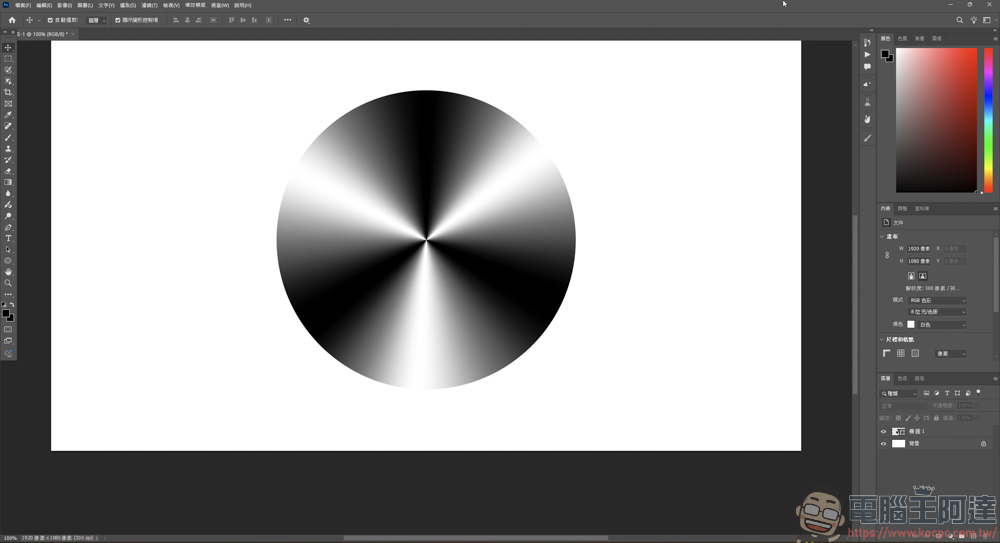
After the modification is completed, change the gradient from the original “linear” to “angle”:
At this time, the circle has begun to take shape. If you feel that the reflective range is not satisfactory, you can go back to the gradient and change the white position:
Then right-click on the circle layer → Blending Options:
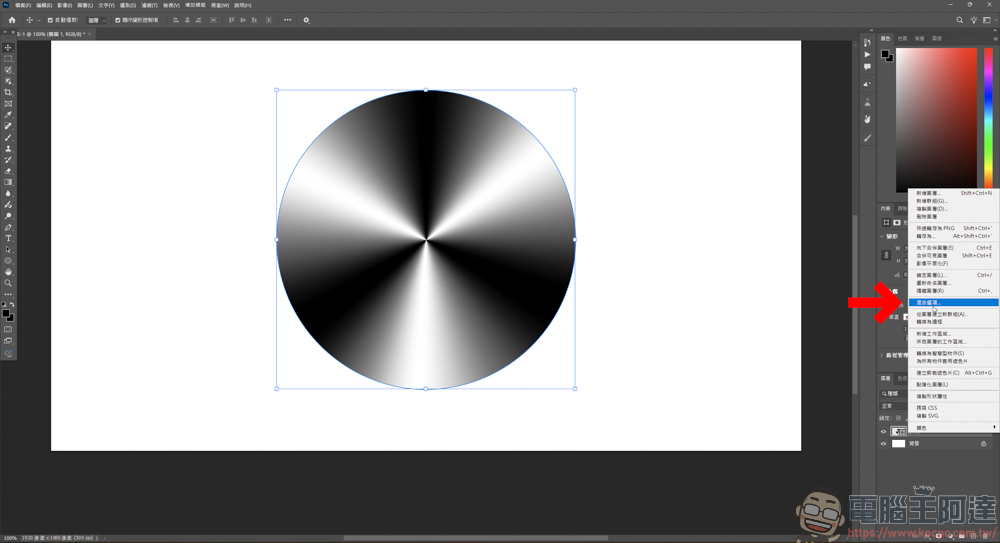
First add a bevel and emboss effect:
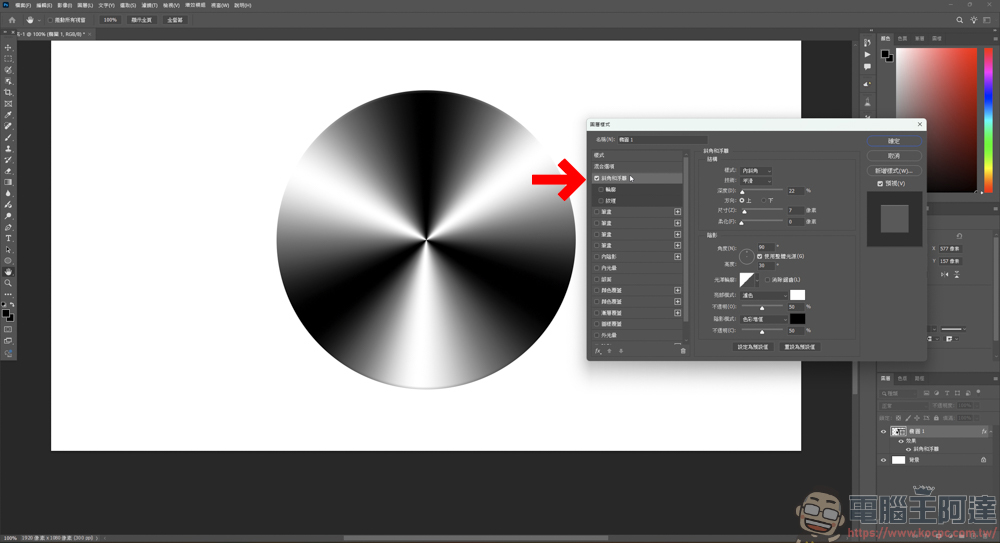
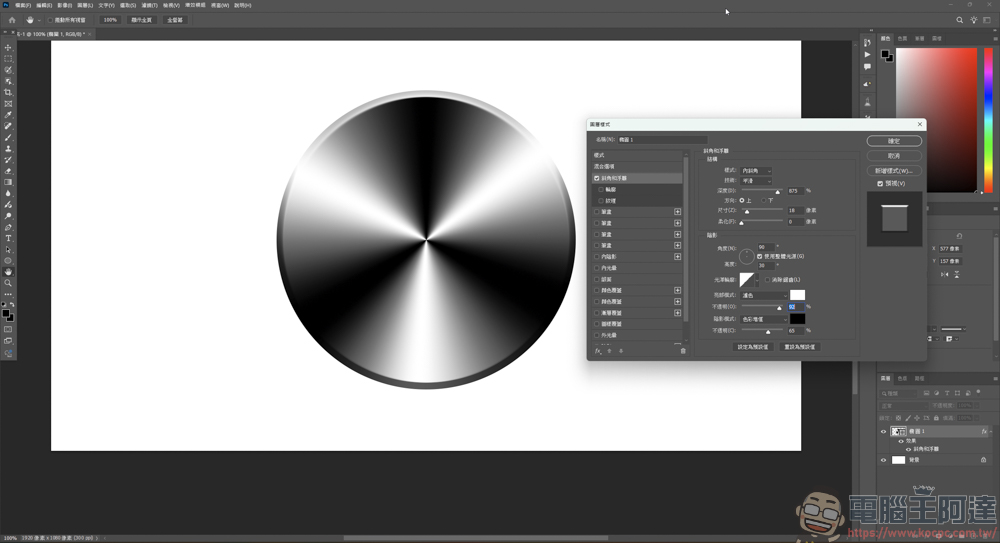
You can refer to the numerical values. The main purpose of this is to make the circle look metallic. Adding the surrounding relief effect will make it more three-dimensional:
Then add a shadow effect, it doesn’t matter if you don’t add it, it just enhances its three-dimensionality:
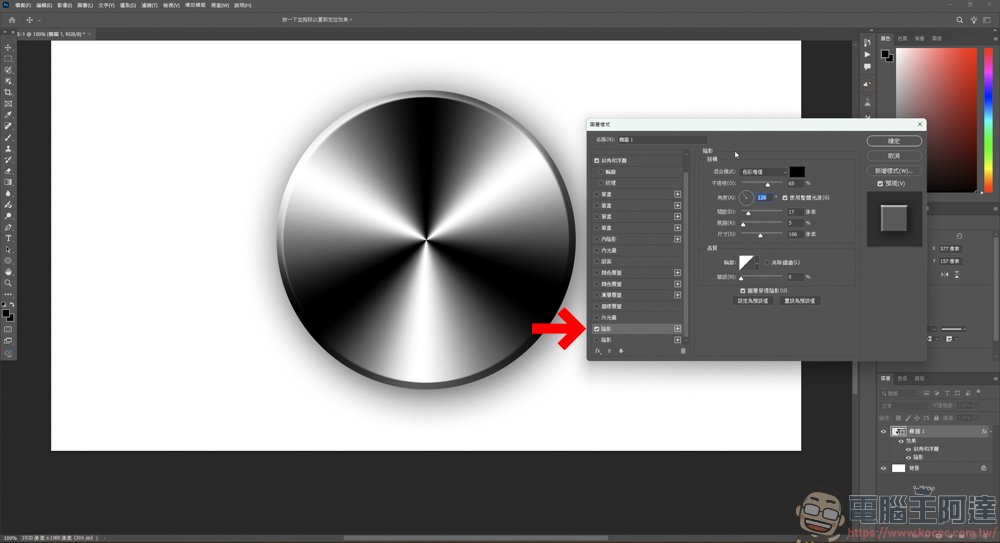
After setting the above parameters, the circle is actually a nice-looking metal object. But if you still want this metal object to look brushed, you have to add a few more effects:
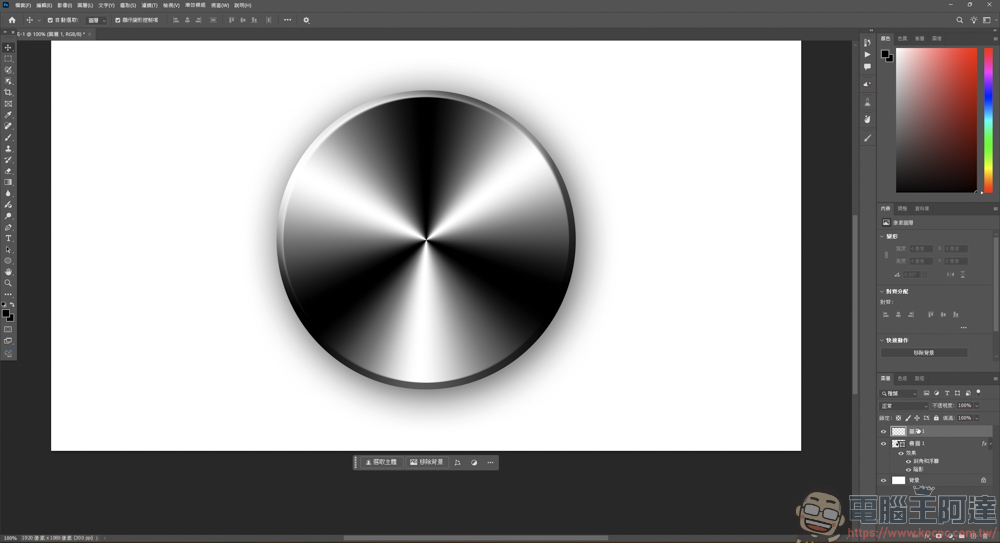
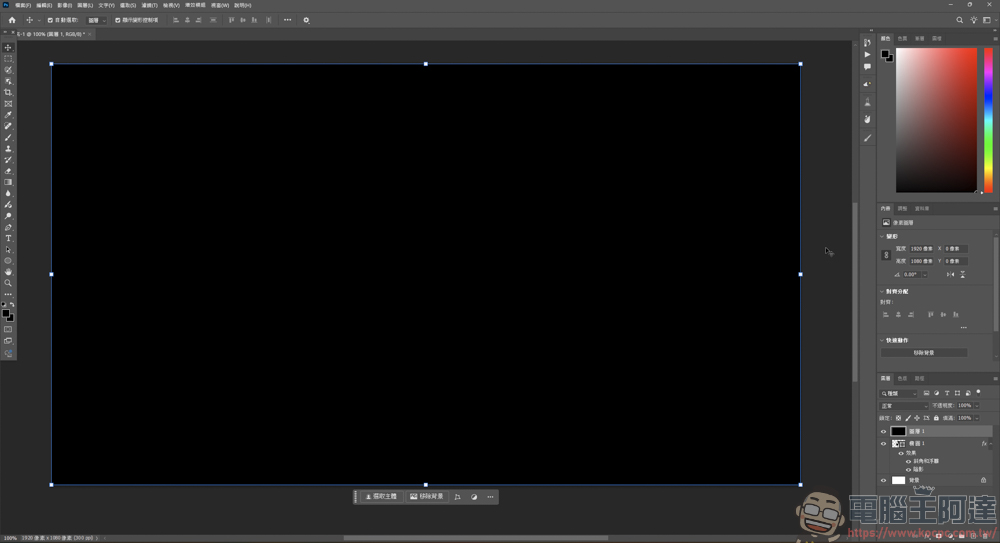
The method is also very simple. After creating a layer, fill the entire layer with black:
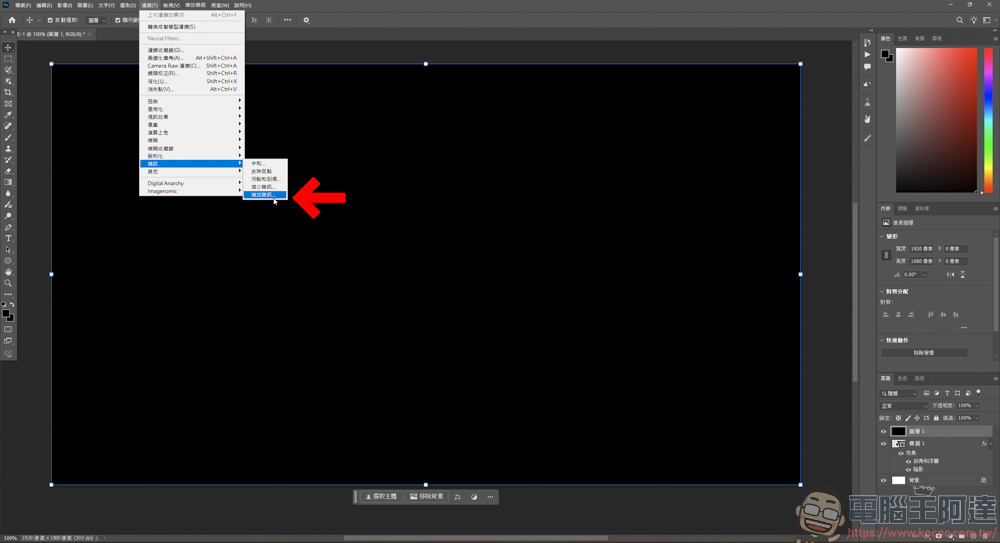
Then add a filter effect to this black layer, click “Filter” → “Noise” → “Add Noise”:
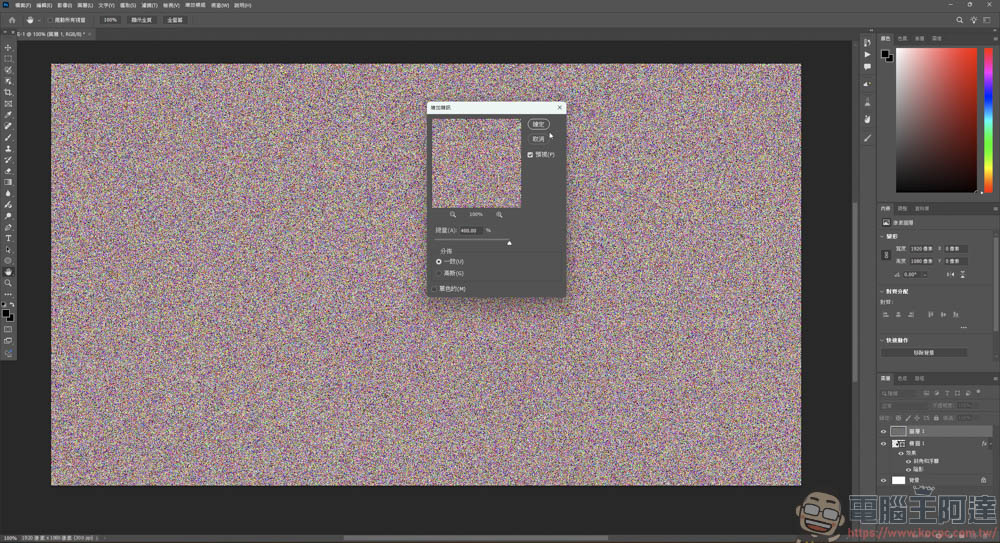
If the noise value is fully increased, the original black layer will be full of noise:
To add one more filter effect, click “Filter” → “Blur” → “Radial Blur”:
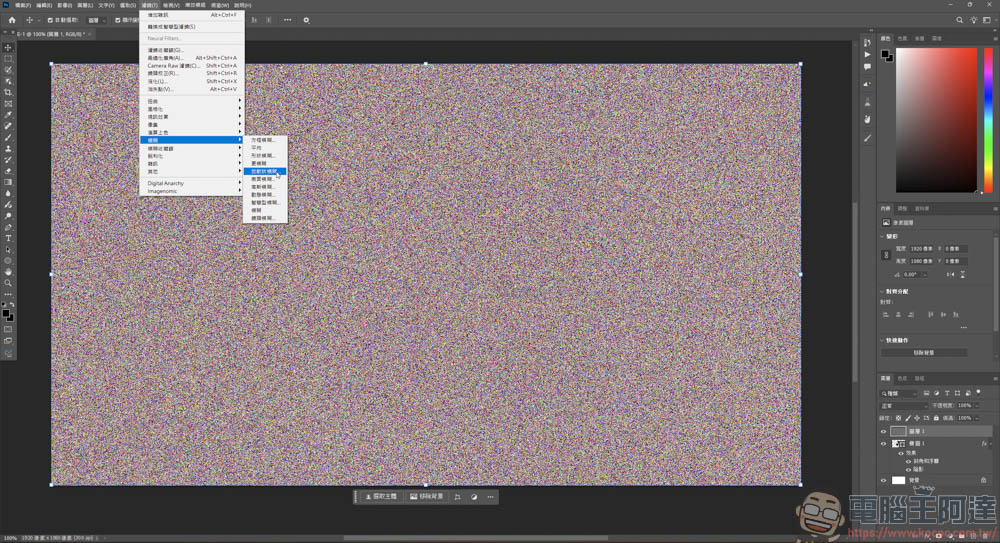
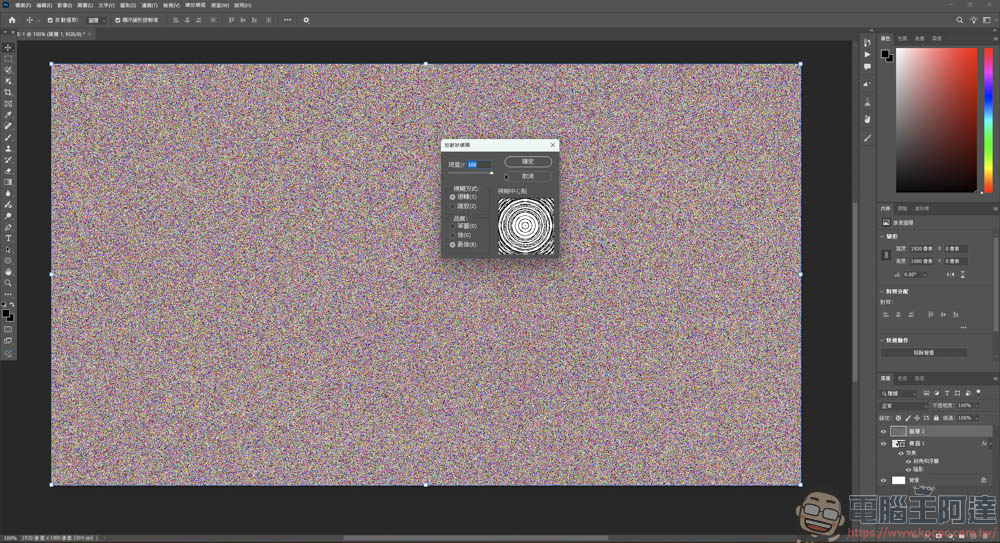
The total value can be expanded to make the fuzzy center point appear like a circle:
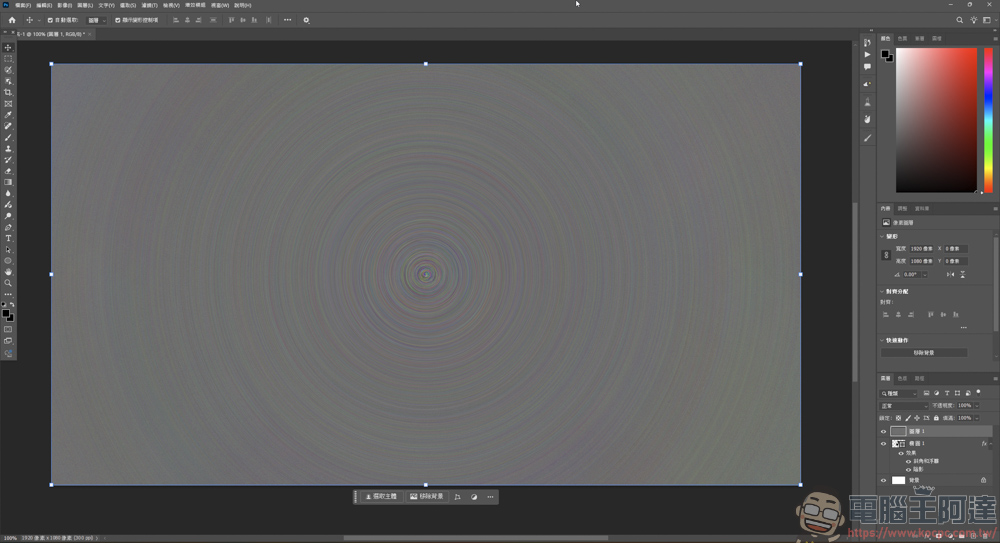
Then you will get an effect that looks like an abstract painting:
Right-click on the layer → Create Clipping Mask:
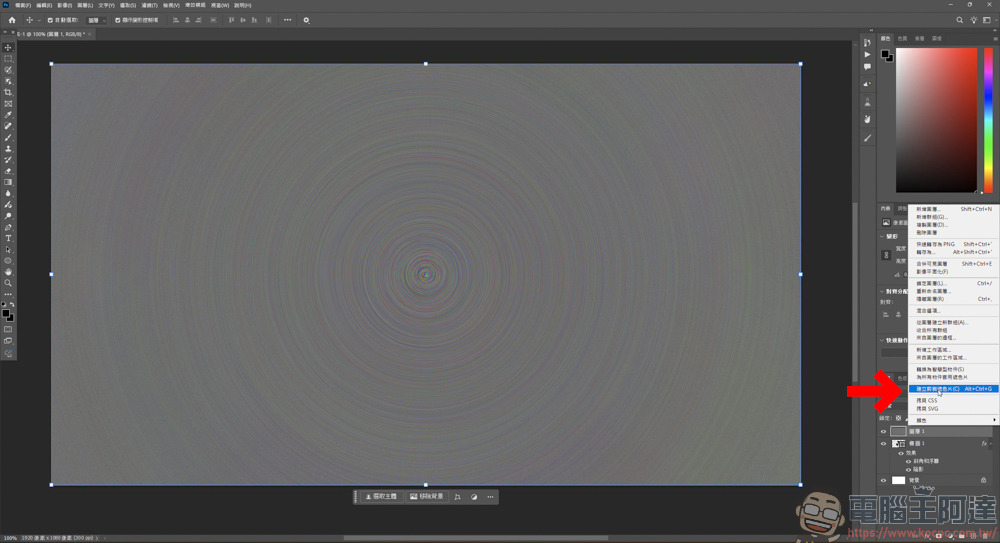
The effect you just created will cover the original circle, but the effect at this time looks very chaotic, not like a metal brushing effect:
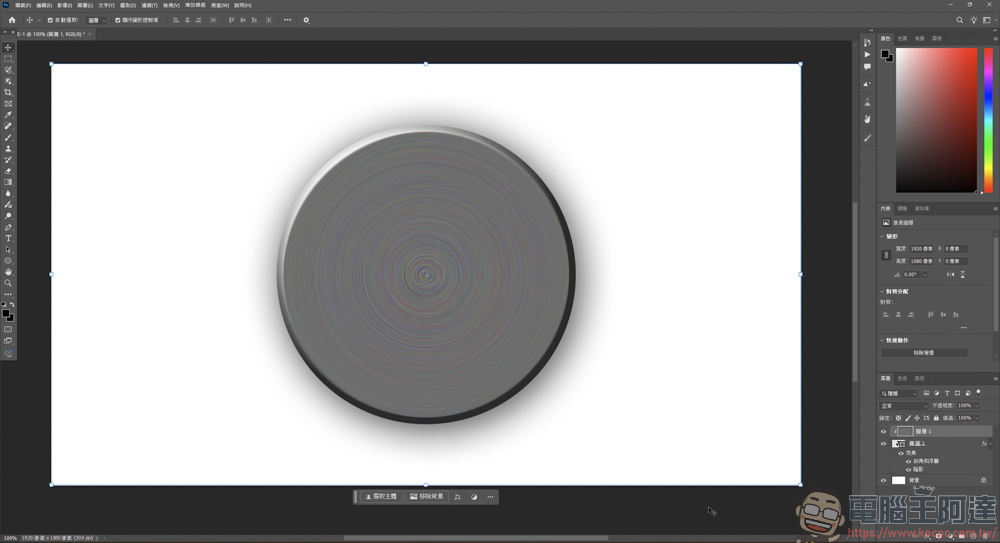
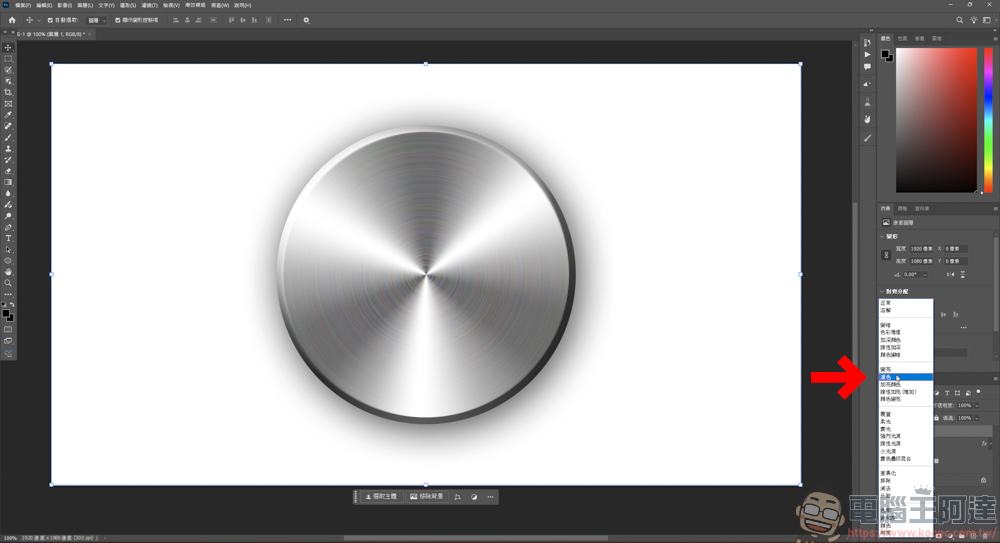
It is also very simple to turn it into brushed metal. Just change the layer style on this layer. Generally, if you want to have a metallic luster, choosing “Screen Color” is the best way:
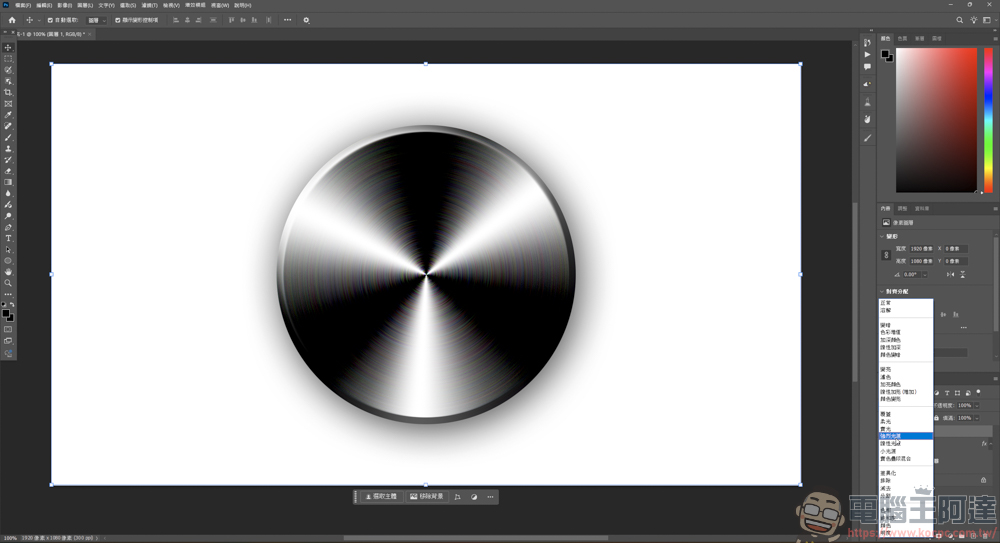
Of course, not only color filters are available, you can also try other effects to get different metallic luster styles:
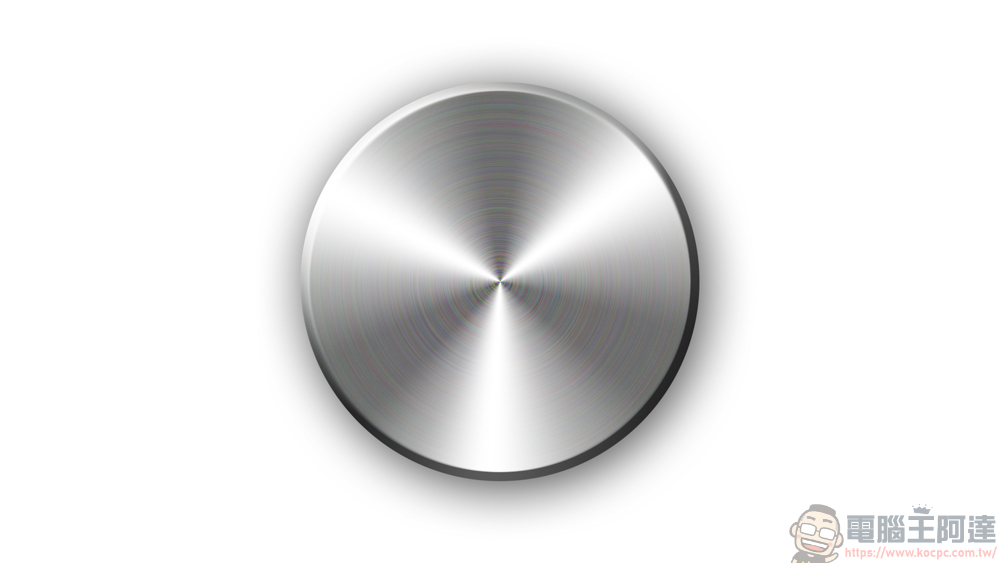
The above is the tutorial on how to create a metal brushed effect in Photoshop. You can use this method to create many different metallic and metal brushed effects:
Source: KOCPC Chinese