


When you’re lying in bed getting ready to end the day and drift off to sleep, getting notifications on your phone can make you want to check them, which can do more harm than good. Bedtime mode provides a way to silence late-night notifications, and you can set a schedule to get better rest by eliminating distractions during your sleep time. This time we will tell you how to set up and use bedtime mode on your Android phone to ensure you have a good night’s sleep without interruption.
How to set up and use bedtime mode on your Android phone?
First, let’s understand what “Bedtime Mode” is. This is a digital health feature that allows you to limit device activity when you need to rest. Through Bedtime Mode, you can set sleep and wake-up times, and repeat alarms every day. Digital health features set a Do Not Disturb filter during bedtime to block calls, messages and notifications.
Bedtime mode also creates a dark and quiet atmosphere and saves power. This mode activates grayscale and dark modes to reduce visual stimulation and prevent your attention from being attracted to the phone. You can turn it off if you don’t want it, but it will make bedtime mode less effective.
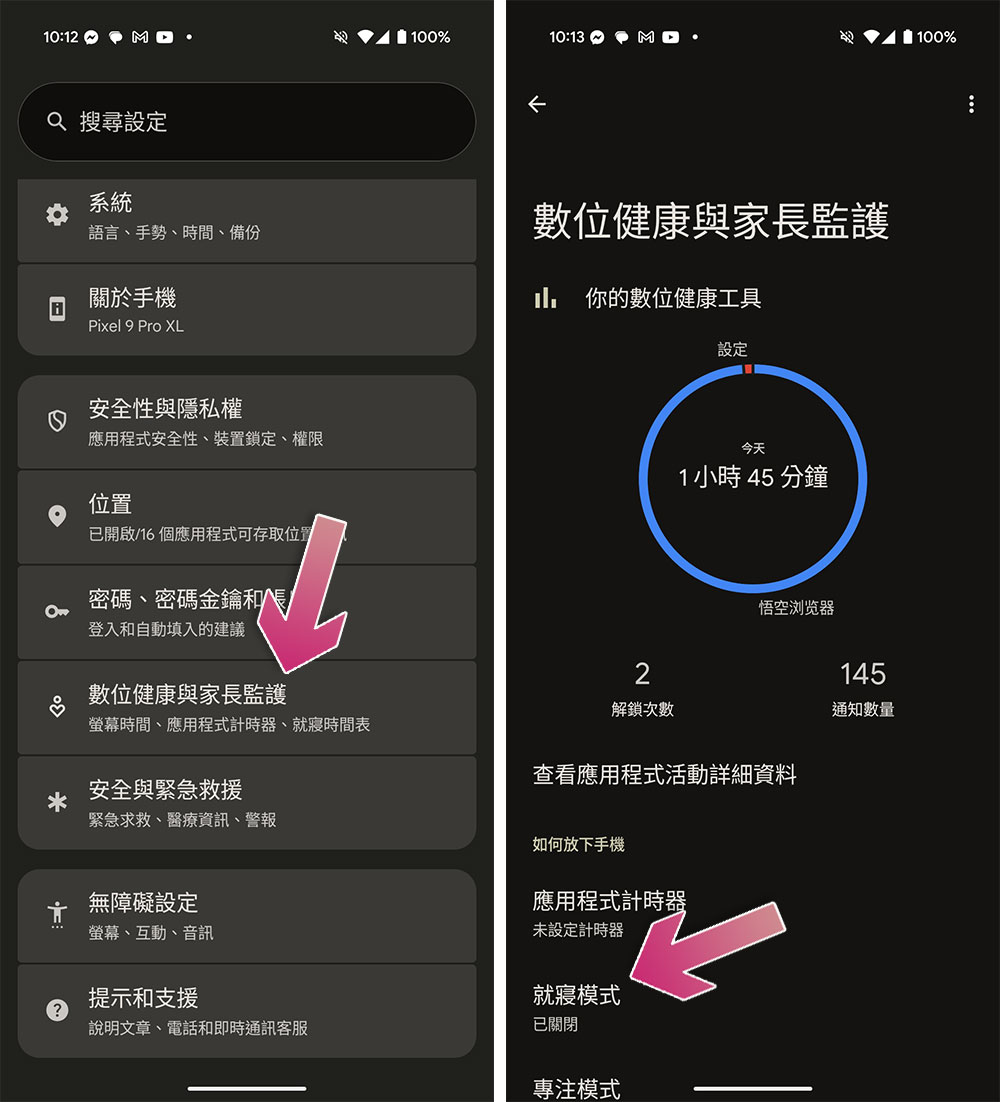
The Digital Wellness Dashboard provides statistics on how you use your phone and tools to manage screen time. This panel is in the settings menu, but if you’re using a Pixel phone, you can pin the mode to the quick menu. If you want to set the bedtime mode, you can do the following:
- Open the Settings app.
- Scroll down to find “Digital Health and Parental Control”.
- After entering, click “Bedtime Mode”.
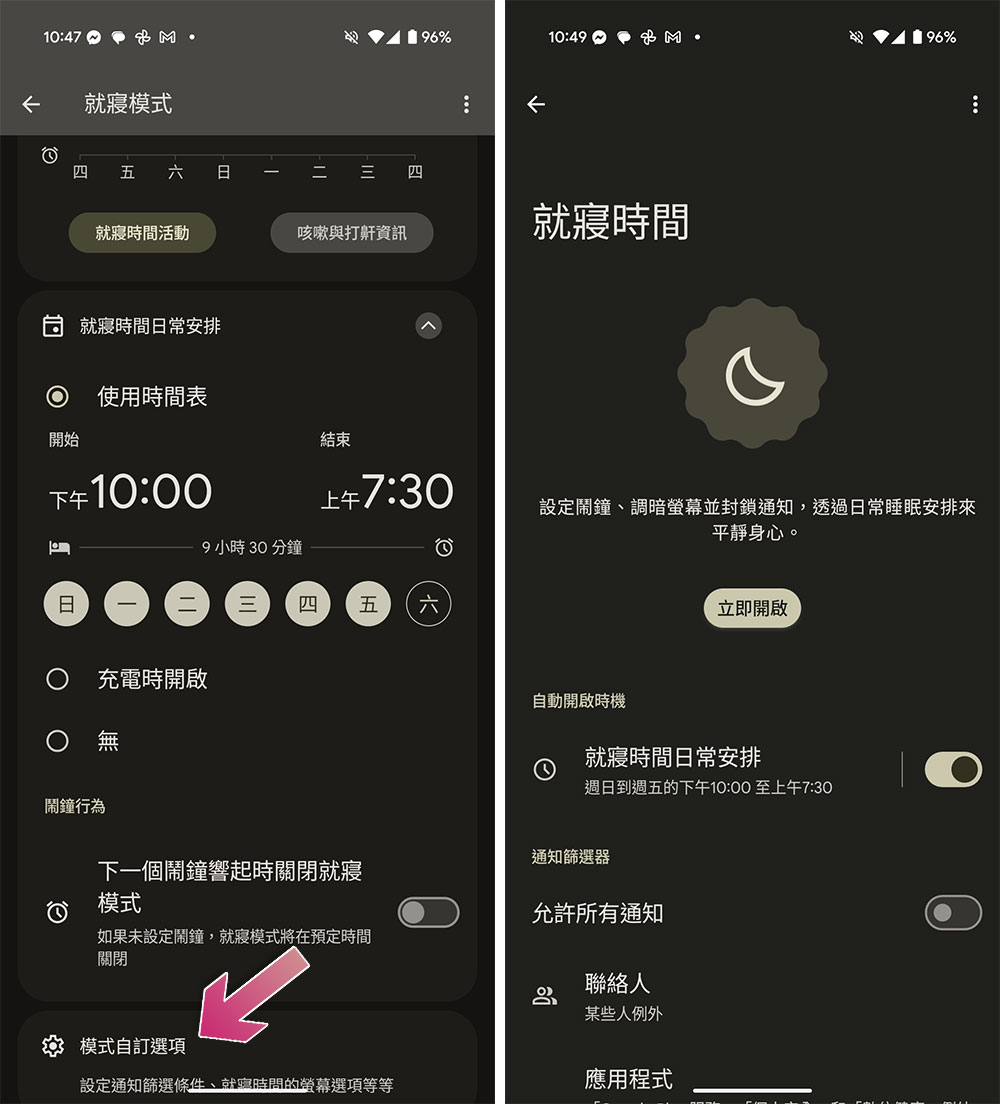
- Set up a “Bedtime Routine” where you can set the start and end time. If you are used to charging your phone before going to bed, you can set it to “on while charging”.
- In addition, you can also click “Mode Customization Options” at the bottom to further fine-tune notification filtering conditions, bedtime screen options, etc.
You can also set bedtime mode from within the Google Clock app. Not all Android phones have bedtime mode integrated into their default clocks, so if you don’t see the feature on your phone, download Google Clock.
- Open Google Clock.
- Click the Bedtime tab in the lower right corner.
- Click “Get Started”.
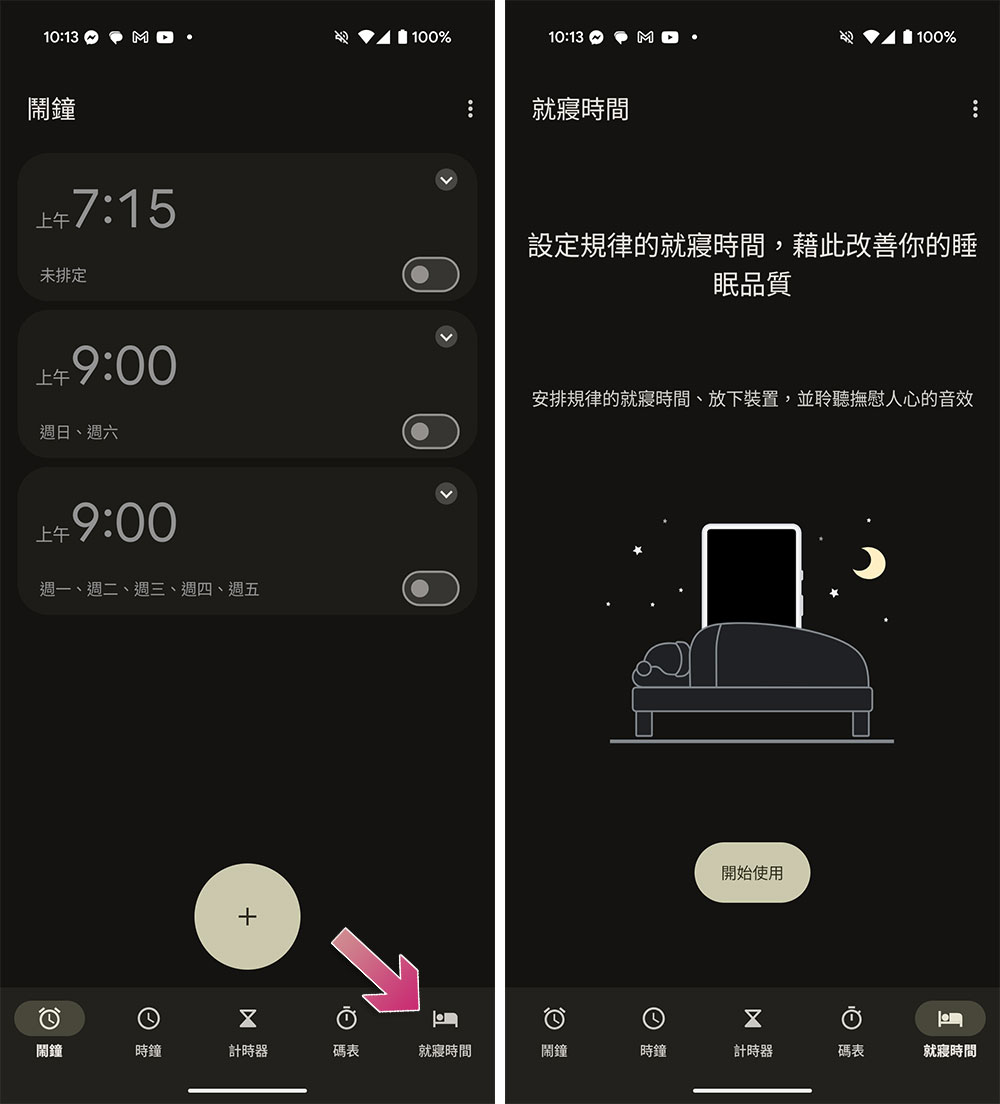
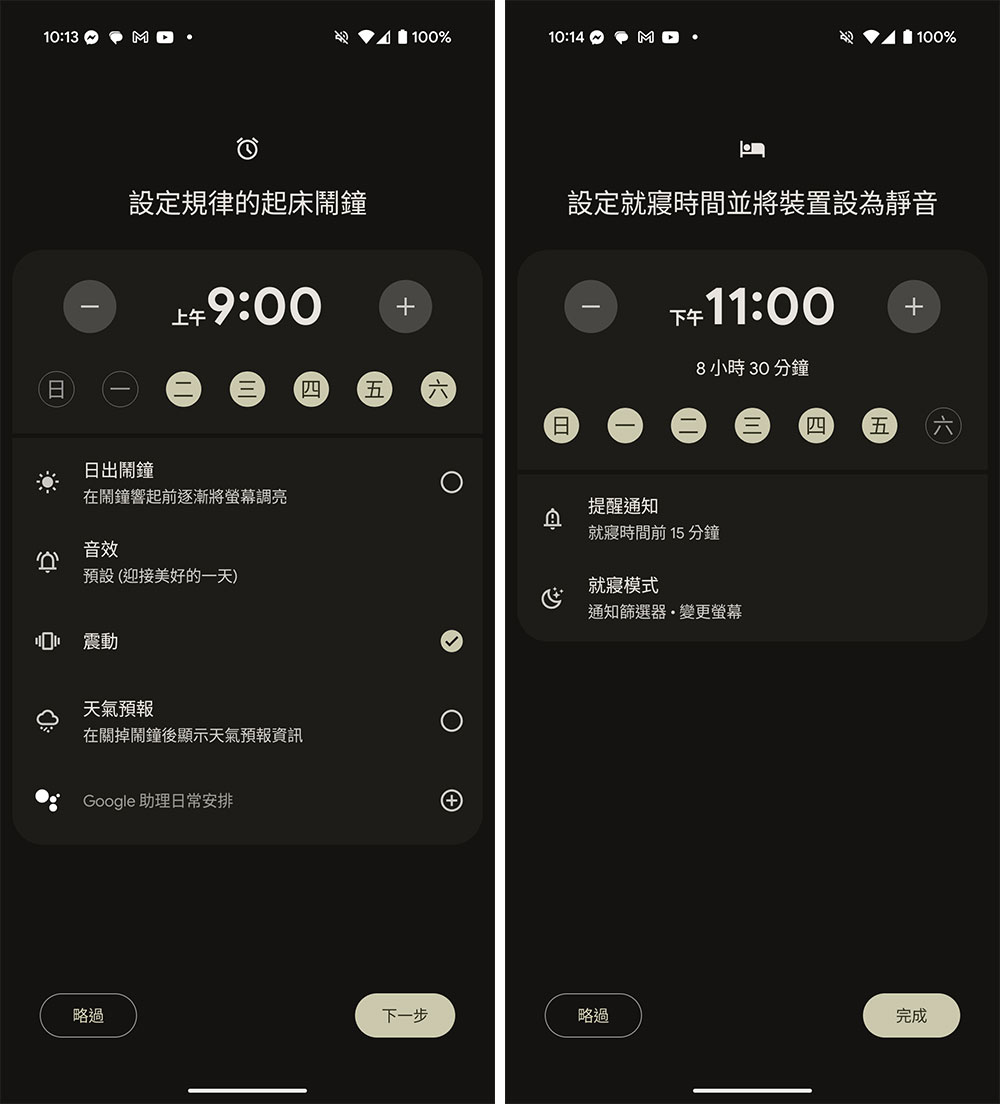
- Use the schedule to set the wake-up time and bedtime, and select repeat dates and alarm clock methods, and finally click Done.
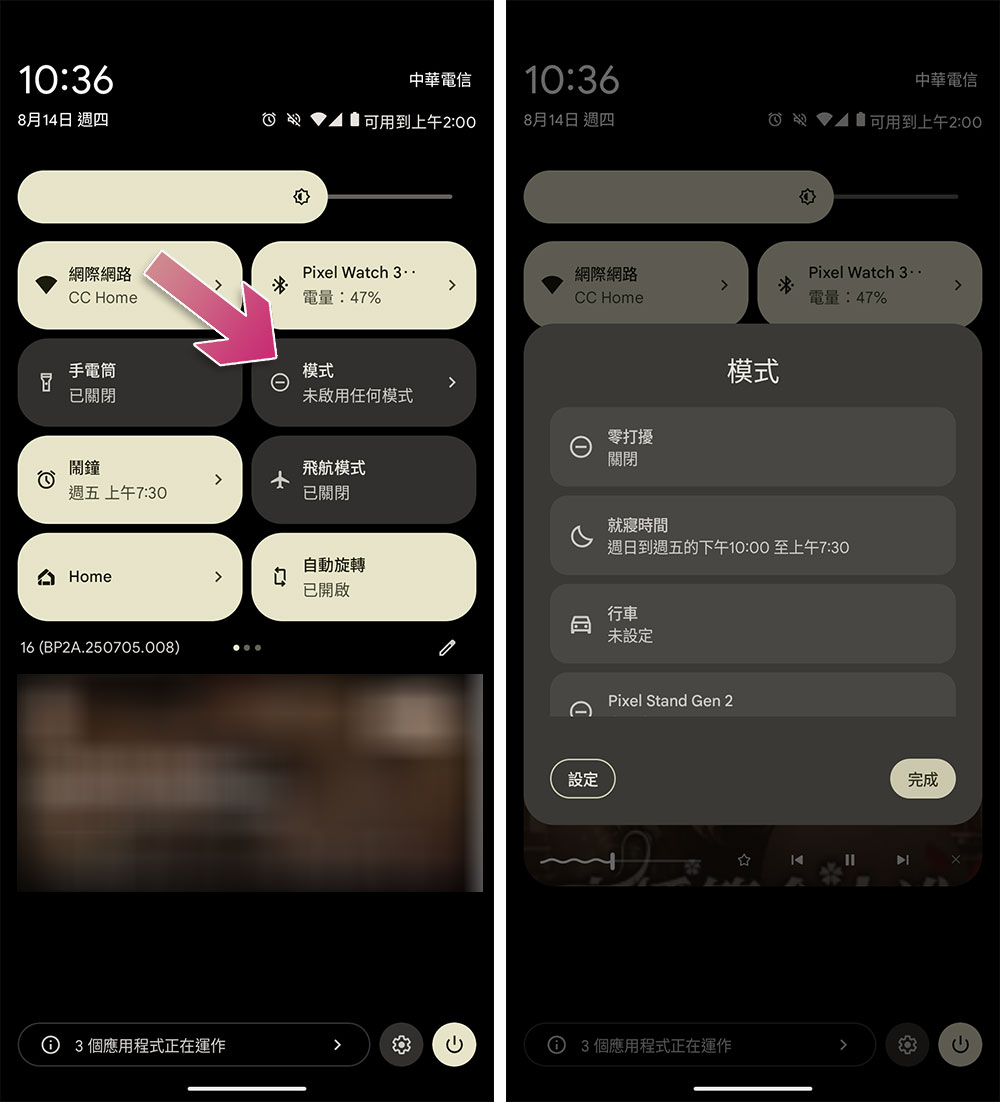
So, how to activate sleep mode in quick settings? You can access quick settings by swiping down from the top of the screen.
- After opening quick settings, click “Mode”.
- Select “Bedtime” from there.
Bedtime mode can reduce distractions during sleep, and if you are the kind of person who can’t help but check notifications immediately when they see or hear them, this can help you improve your sleep quality, and this mode will dim the screen and gently wake you up at waking time.
Source: KOCPC Chinese