


Smartphones can do a lot of things these days. Pre-installed apps let you make calls, send and receive text messages, and capture high-definition images, but it’s the ever-expanding app store that makes smartphones truly smarter. Of course, your smartphone experience depends largely on the speed of your Internet connection. If you notice long loading times for web pages or frequent buffering of videos or videos, an unstable or slow Internet connection should be the main suspect.

How to get faster internet speeds on your Android phone?
First, your internet speed is determined by the maximum upload and download speeds provided by your plan, and you can’t try to exceed this limit by making changes on your device. If you mainly use your home Wi-Fi network to access the online world on your Android phone, it is best to run it once on a device with a wired connection to the same network (such as a desktop or laptop)Speed test. Next try running the same test on an Android phone to compare the results.
If there’s a huge difference between speed test results and you notice that your Android phone’s internet speed is significantly slower than what your service provider is offering, then you’ll want to check and adjust some settings to maximize your device’s internet speed.
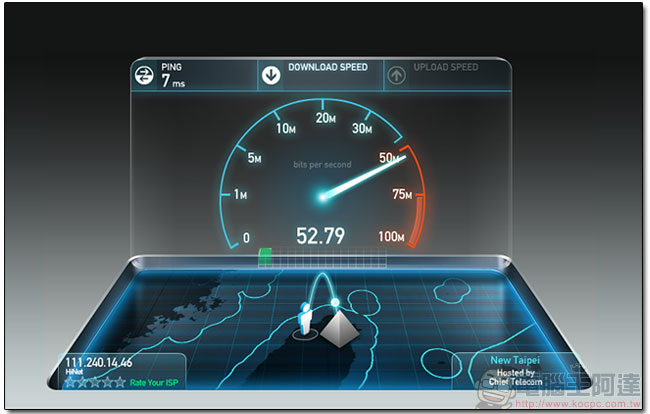
Fix common troubleshooting issues for slow Internet access on Android
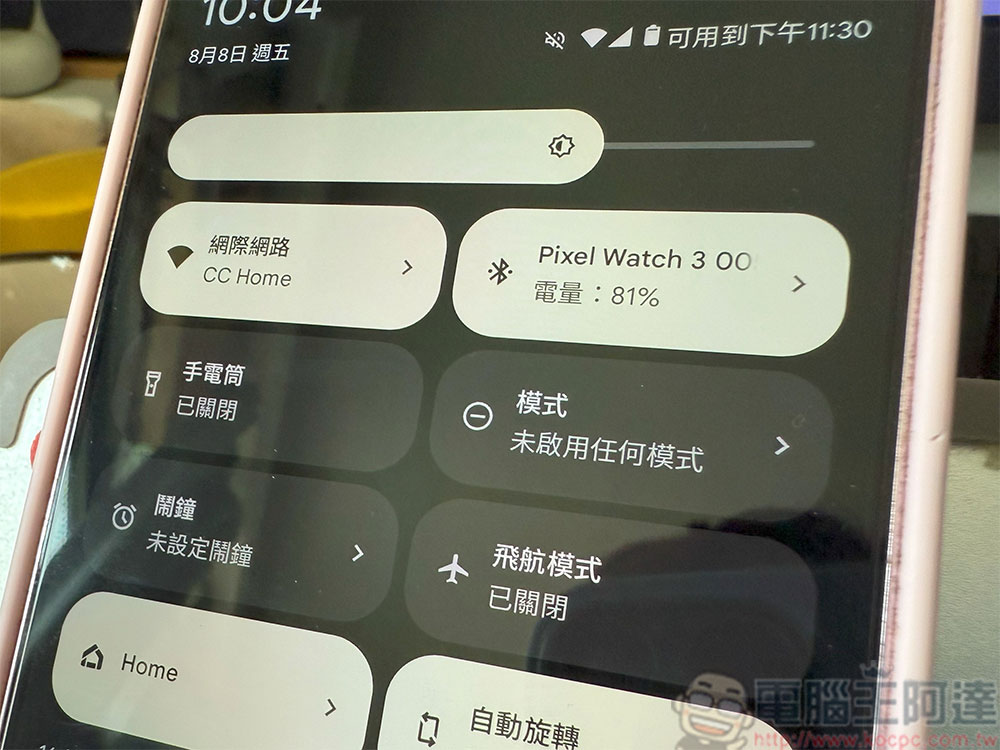
An unstable network connection can have a huge impact on network performance. The quickest way is to reset network services on your Android phone by turning airplane mode on and off. You can do this by swiping down on the screen to bring up quick settings, or by going to the Settings app and searching for the option. Doing this forces your phone to disconnect from the current connection and search for the strongest signal around it, which is especially useful if you’re traveling and relying on a mobile network. In addition, restarting the phone is also an effective way to solve network instability.
The next thing to note is whether your Android device is connected to a VPN. While a VPN is a useful service when trying to access geo-restricted content on the web, leaving it open 24/7 can significantly impact your internet speed. Go to Settings >> Network & Internet >> VPN and make sure all active connections are disabled. Note that the exact location to get these settings may vary slightly depending on the make and model of your phone. In addition, under network settings, you should also check whether data saving mode is enabled. If so, please turn it off.
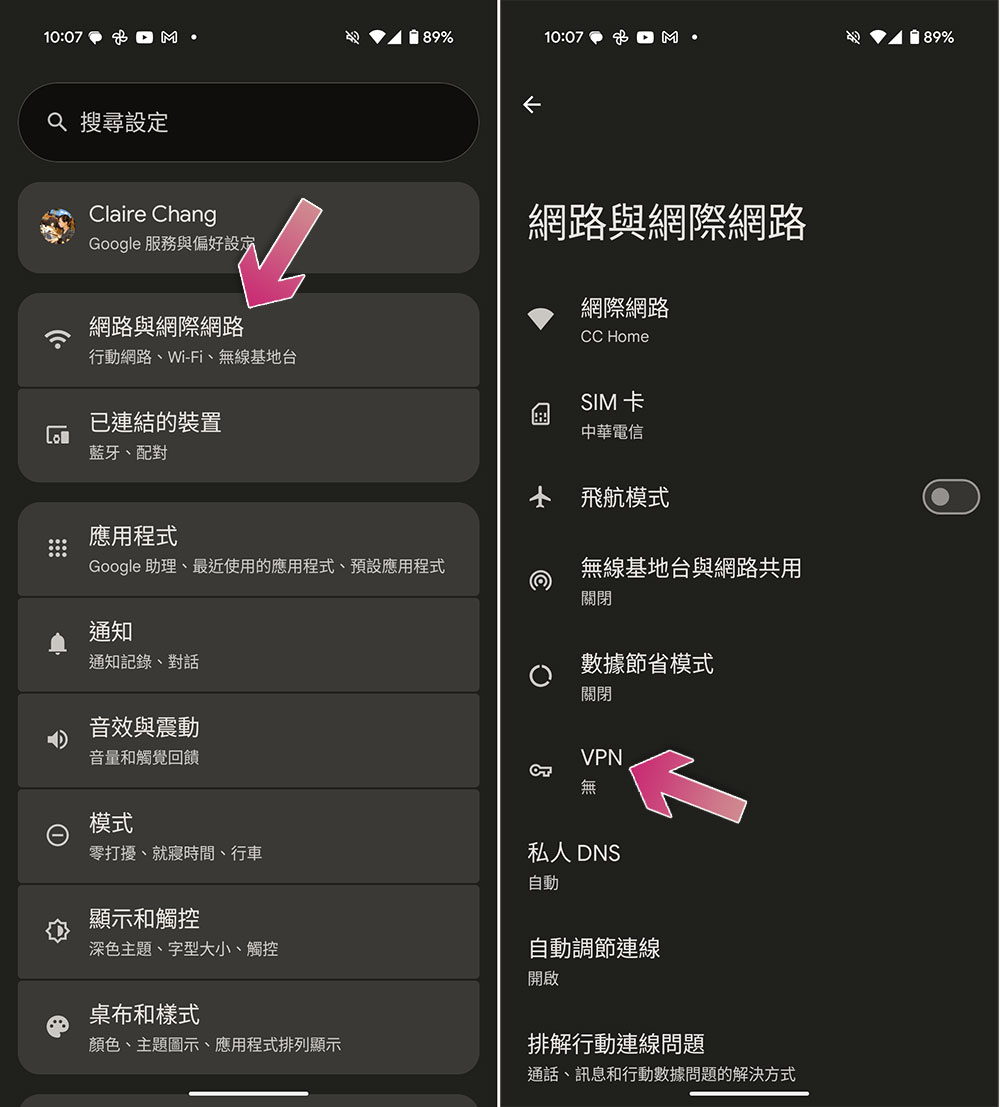
Optimization steps for faster internet speeds on Android
If you rely on your mobile phone service to browse the web or download files, it’s worth taking a moment to check that everything is set up correctly.
Go to “Settings >> Network & Internet >> SIM card”, click on your primary SIM card, then scroll down and select “Preferred network type” and make sure it is set to the fastest option. 5G is available on newer phones, which has faster speeds compared to LTE and 3G.
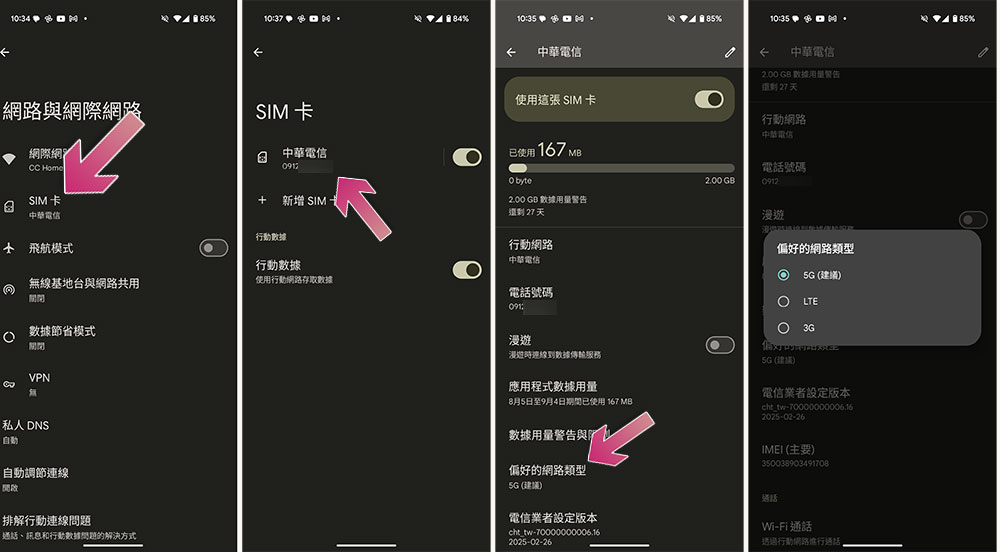
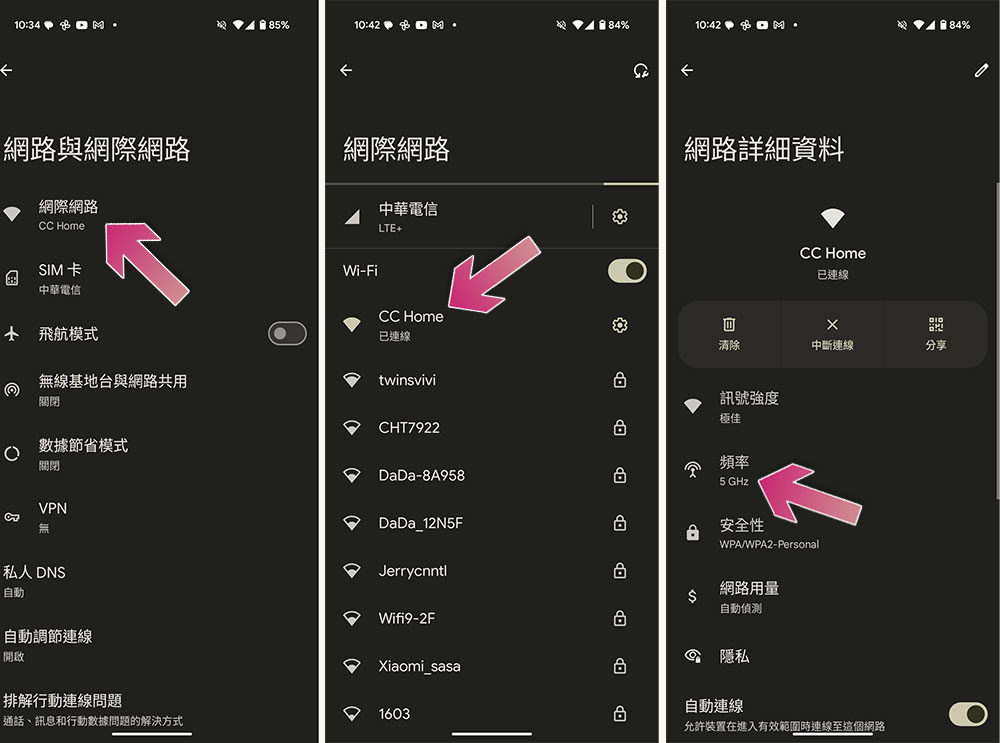
If you have a lot of apps installed on your phone and you suspect that some may be consuming a lot of background resources, you can actually check Android’s data usage and if you notice anything unusual, you can uninstall the app or limit its access to background data. You may also want to confirm the fastest band you’re connected to on your Wi-Fi router, which is usually 5GHz.
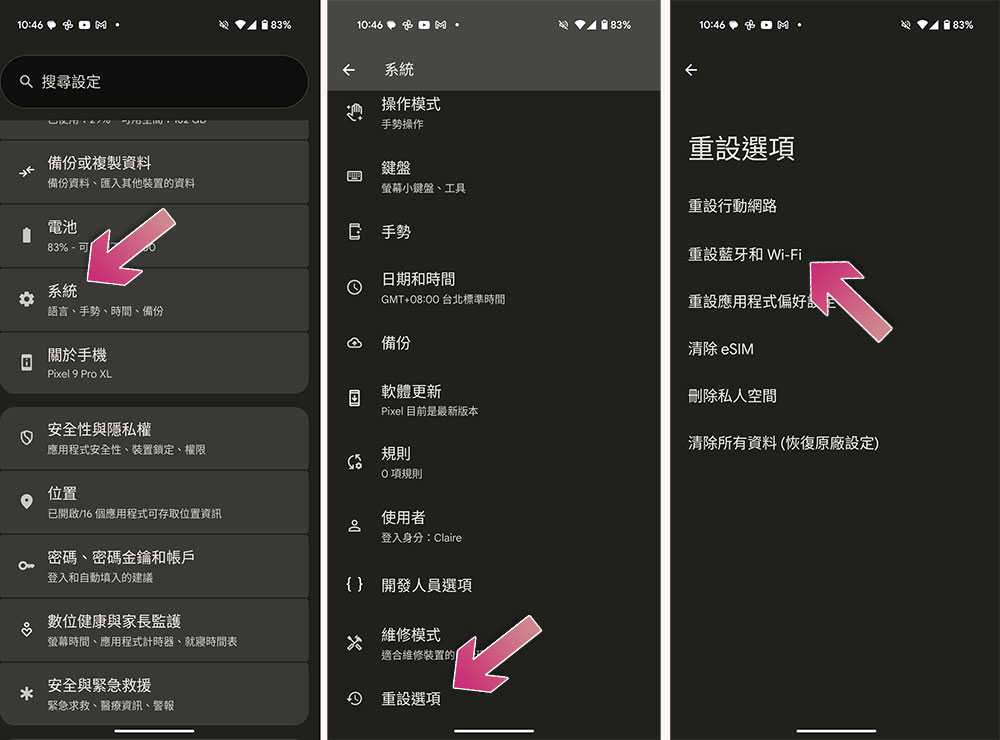
If all else fails, you can reset your network settings immediately. This won’t affect any apps or files on your phone, but you’ll need to enter your Wi-Fi password again. To reset network settings on Android, go to Settings >> System >> Reset Options, select Reset Bluetooth & Wi-Fi, and follow the on-screen instructions.
Source: KOCPC Chinese