


Modern laptops from well-known brands have SSDs soldered to the motherboard, which means that if you want to upgrade your storage capacity, you have to rely on an external hard drive to expand the space. Usually, using something like an SSD or external hard drive is as simple as plugging it into a port and transferring files. But in some cases, you may encounter some problems when connecting external devices to your computer, especially when it comes to Windows computers. The most common problem is the “Unknown USB Device” error.
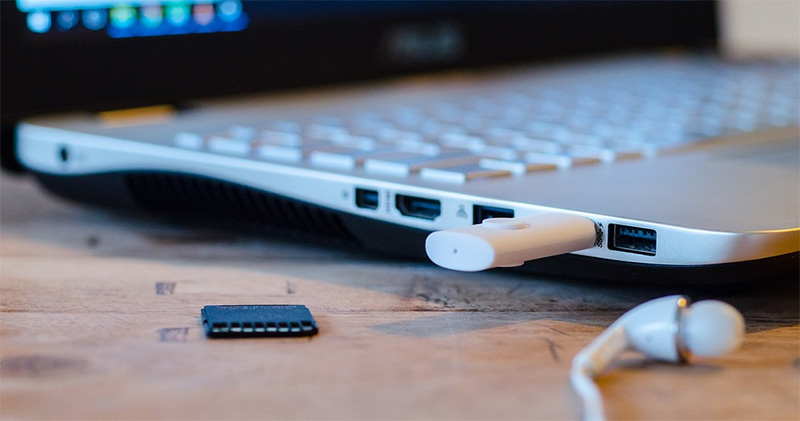
Computer displays “Unknown USB device” error? 4 solutions worth trying
“Unknown USB device” errors not only occur on storage devices, but also on external devices such as smartphones, keyboards and mice, or input/output devices such as web cameras and printers. It usually appears as soon as you plug your device into a USB port, preventing you from using the device or transferring files. Whether you’re facing problems with one device or multiple devices, it can be annoying when it happens, but before you get mad, try our simple fixes.
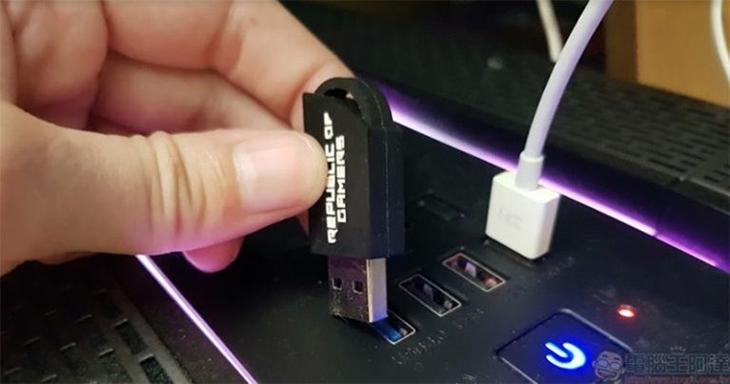
Try a different USB cable/port
When you encounter an “Unknown USB device” error, one of the most basic yet effective solutions is to unplug the device and plug it into a different USB port. Most laptops or desktops have multiple USB ports, unplug it from the original port and plug it into another port. Some older devices may not work with USB 3.0, in which case try plugging them into a USB 2.0 port. If plugging the device into a different port doesn’t work, try changing the cable. Some devices, such as external SSDs, require cables to connect to your computer, and over time, the original cables can become damaged and rendered unrecognizable by your computer.
Likewise, you will need a cable to connect your smartphone, printer, or other such device to your computer. Try using other cables to see if the problem is resolved. You can use any USB cable that facilitates data transfer. The last resort is to connect it directly to the computer without using any Dock or adapter to eliminate possible errors caused by the intermediate interface.
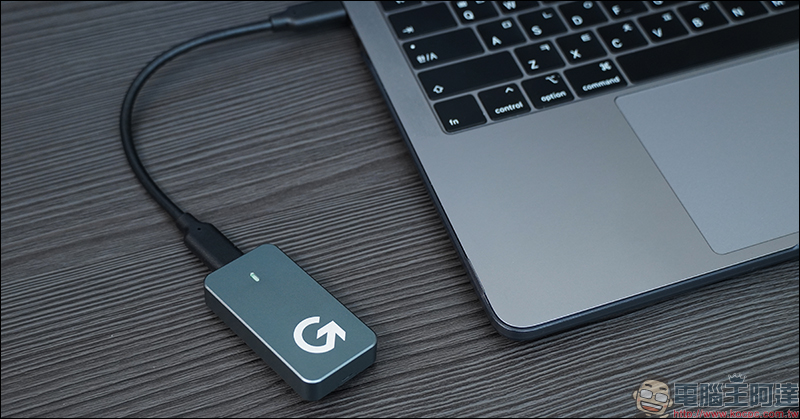
Install missing drivers
Windows computers require drivers to connect to any external accessories or peripherals that are plugged into the computer. A driver is essentially a piece of software that allows your computer to communicate with and perform functions on a connected device. Everything from smartphones and printers to external SSDs and keyboards require relevant drivers to function the way they are supposed to. If you see an “Unknown USB Device” error, there may not be drivers installed on your PC that can communicate with the connected device. To verify this, you can go to Device Manager on your PC and look for the yellow triangle, which indicates a problem with the driver.
If you see this icon, it’s time to install the correct driver. Most removable USB devices come with driver software, either embedded on the hard drive (in the case of a storage device) or in the form of a download link to the manufacturer’s website from a source that installs the relevant driver for your device. If a driver isn’t included and you’re trying to plug into a generic device like an Android phone, you can find the driver with a simple Google search. If you’re setting up a printer, look for the brand name and specific printer model to find the appropriate driver. Once you find it, right-click the yellow triangle twice and select Update Driver to go to the location where you downloaded the driver and install it.
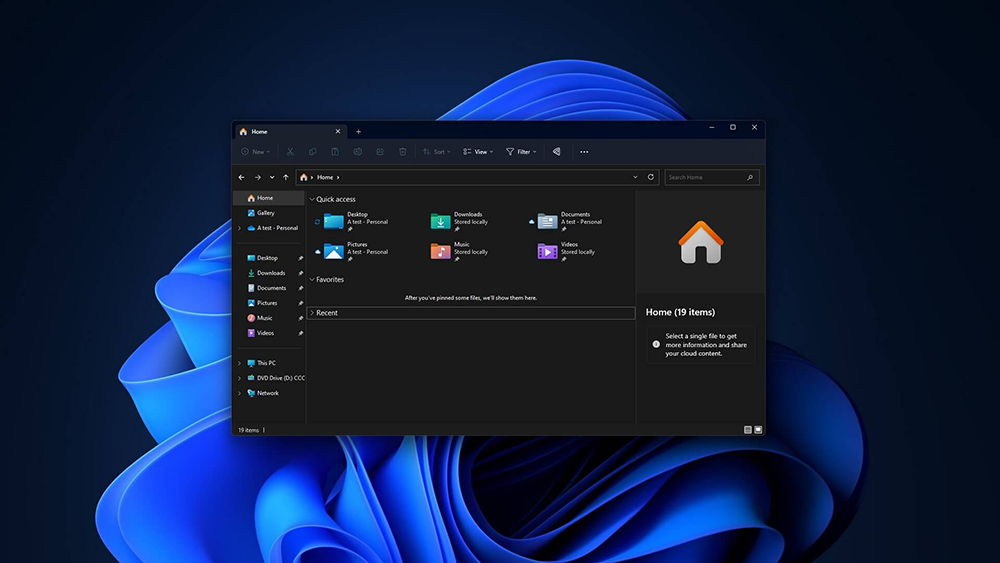
Make sure the storage device is formatted correctly
Different operating systems handle storage devices differently, this is because all storage devices are formatted in various formats, there are NTFS, FAT32, exFAT, etc., and while most of these formats are compatible with all major operating systems, some of them may have limitations. For example, NTFS doesn’t work on macOS. Therefore, if you plan to use an external hard drive on your Mac, it should use a different format. However, it is worth noting that if you format a hard drive on macOS, Windows itself does not support formats such as HFS+, macOS Extended, and APFS. Therefore, if you plug an external storage device formatted in these formats into a Windows PC, you may see an “Unknown USB Device” error.
In this case, it’s best to plug the hard drive into a device it’s compatible with and format the drive in a format that’s compatible across all platforms. exFAT should be your default option as it is compatible with the most popular operating systems such as Windows, macOS, Linux, and iOS and Android. After that, you should be able to use the hard drive with your Windows PC without any errors. However, before changing the format, please make sure to back up the contents of the external storage to local storage or cloud storage, as all contents will be deleted after formatting.
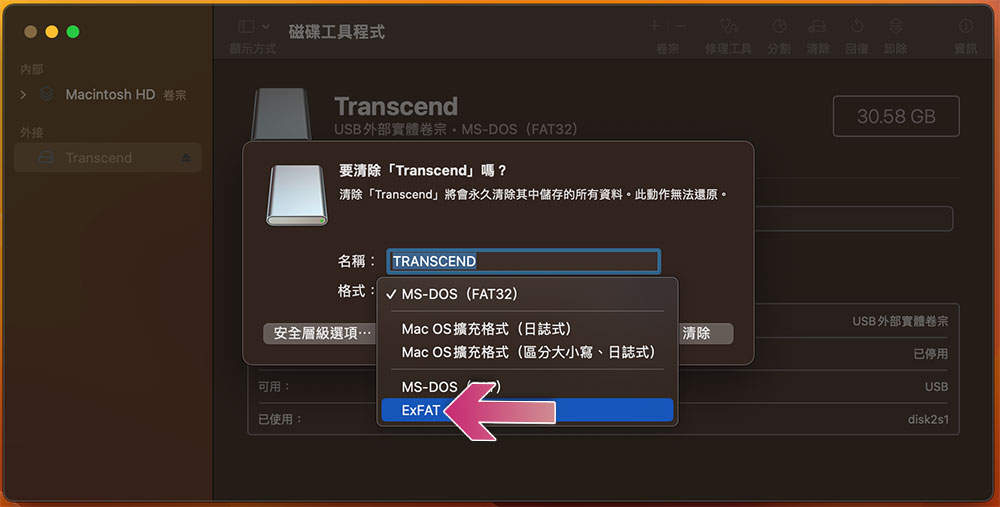
Further reading:How to format a pen drive/external hard drive that can be shared between macOS and Windows?
Unplug all devices, reboot and try again
Sometimes, in situations like this, the simplest solutions end up working wonders. If you’ve followed all the steps above and you’re still seeing “Unknown USB Device” errors, it’s time to disconnect all other external devices that use USB ports from your computer, including keyboards, mice, web cameras, printers, and any external hard drives. After unplugging all devices, restart the computer. At this stage, you can use a wireless mouse or keyboard to interact with your computer (do not plug in a wired mouse or keyboard). Performing these steps on a laptop is easier because you can use the built-in trackpad and keyboard. After the computer restarts, please wait for a moment and then plug the external device into the USB-A port.
Please make sure the device is plugged directly into the computer and not through any adapters, docks, extenders, etc. If all goes well, your external device or accessory will be detected by the computer and you will be able to use it normally. Once the device is detected, you can plug it and the accessory back into your computer. For safety reasons, please back up the contents of the external hard drive to local storage or another hard drive detected on the computer, then format the problematic hard drive to a relevant format and then copy the content back. This will ensure that the probability of errors is reduced the next time the hard drive is plugged in.
Source: KOCPC Chinese