


Most of what I do every day involves typing, so whenever possible, I don’t want to disrupt the current stage of my work by moving my hands to reach for the mouse, and shortcut keys are very helpful in this situation. File Explorer in Windows is an application that you use almost every day, so I have listed 7 of my most commonly used shortcut key combinations, hoping it will be helpful to you too.
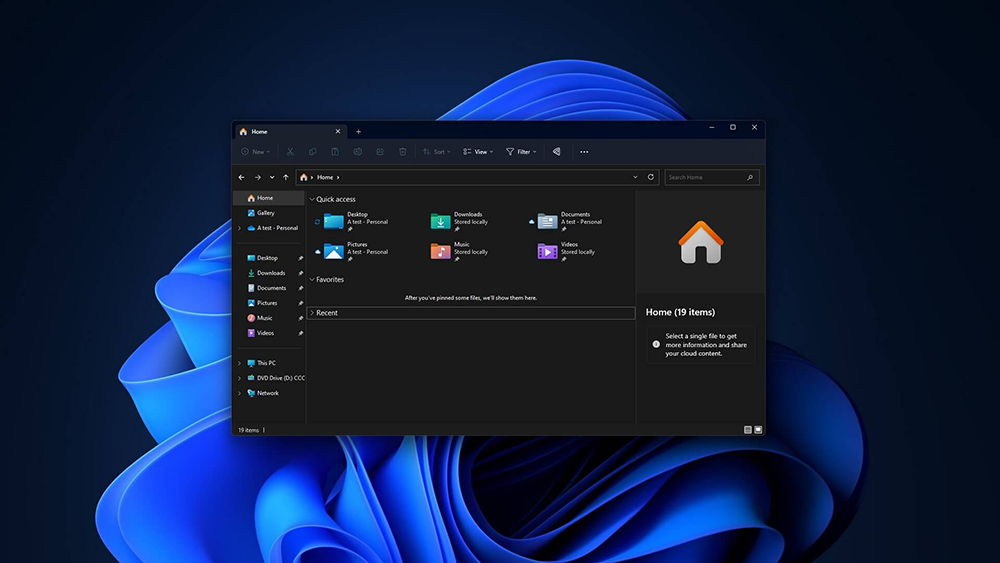
7 Useful Windows File Explorer Shortcuts
Windows + E: Open File Explorer
If you don’t want to spend time clicking to open File Explorer from the desktop or the Start menu, you can quickly open it using “Windows + E”. Generally speaking, key combinations involving the Windows key will work in any application, with the exception of certain full-screen applications, which sometimes prevent key combinations from being used.
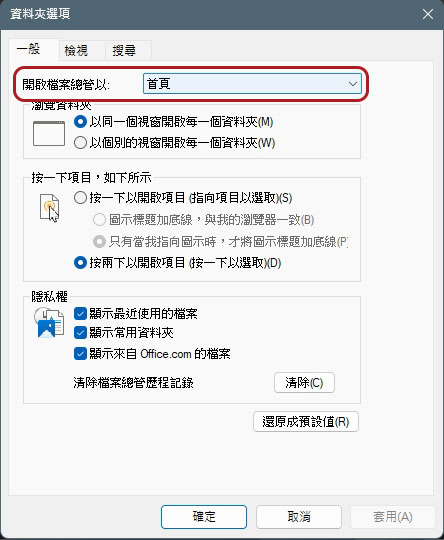
By default, this key combination will take you to the File Explorer homepage. However, if you want it to lead somewhere else, you can click the three-dot menu in the File Explorer window, and then change the topmost “Open File Explorer with:” on the “General” tab to something else.
Ctrl + T: Open a new File Explorer tab
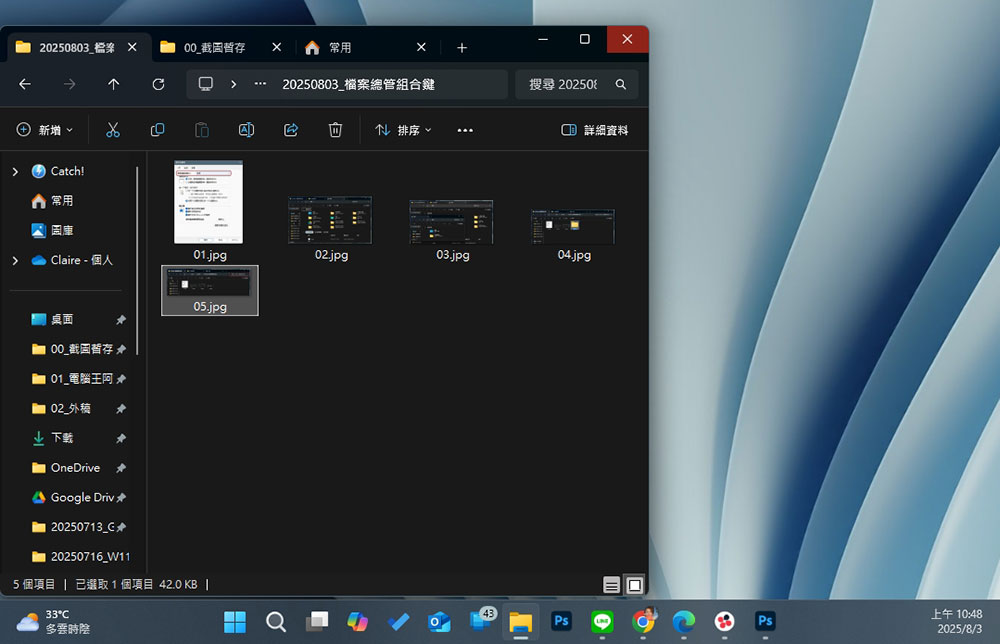
File Explorer opts for browser-like pagination, one of the best additions to the app in decades. Since the introduction of paging, I’ve almost only really used separate windows when I expected to need to move files between folders. If you want to open a new tab, just press Ctrl + T with File Explorer open. Like Windows+E, Ctrl+T will open any folder you specify in the Open Explorer drop-down menu.

Ctrl + N: Open a new file manager window
When I need to move files between folders, it’s easier to open different File Browser windows side by side rather than open tabs. The quickest way to open a new File Explorer window is to click CT+N. This should be the author’s second most commonly used file manager shortcut key, because there is no quick button to open a new window in the file manager interface, and you cannot click the + sign to call up a new window like opening a tab.

Ctrl + Shift + N: Create a new folder
When you create a new folder and need to name it, you need to switch between mouse and keyboard operations. In fact, you can use the mouse to select a new folder from the options without moving your hand. You can directly use “Ctrl + Shift + N” to add a new folder, then enter the name directly, and all can be executed on the keyboard.

Ctrl + F: Search
Although you work hard to organize files, as the number of files in the folder increases, it is inevitable to search for the target in the complex files. You don’t need to specifically click on the search bar, just use “Ctrl + F” in the file manager interface to enter keywords to search. Unfortunately, this only allows you to quickly enter the search, but does not help the speed of the search at all.

Windows + Arrow: Quickly snap windows up/down/left/right
It’s easy to click and drag a window under the screen with your mouse, but if you want to pin the window to a specific side of the screen, shortcut keys may be faster, especially if your hands are already on the keyboard. To quickly snap a window to a specific side of the screen, hold down the Windows key and then press the corresponding keyboard key. For example, if you want to snap the current window to the left side of the screen, just click “Windows + Left Arrow.” This is not a shortcut unique to File Explorer, but I personally use it the most in File Explorer.
Ctrl + W: Close File Explorer
Ctrl + W is a bit like a miniature version of Alt + F4 in File Explorer, it will immediately close the current window. After I use Ctrl + V to paste the file, I most often use this shortcut key to close the window without having to click the little X with the mouse.
Source: KOCPC Chinese