


always being iPhone Are you annoyed by the little red dot in the upper right corner of your app icon? In fact, these red dots are used to remind you that you have unread messages ornotify, but if you want your desktop to look cleaner and reduce distractions, you can turn them off through simple settings. Next, I will quickly share two methods, which can hide the notification marks of a single or multiple apps respectively. This not only makes the screen cleaner, but also can be flexibly adjusted according to personal needs.
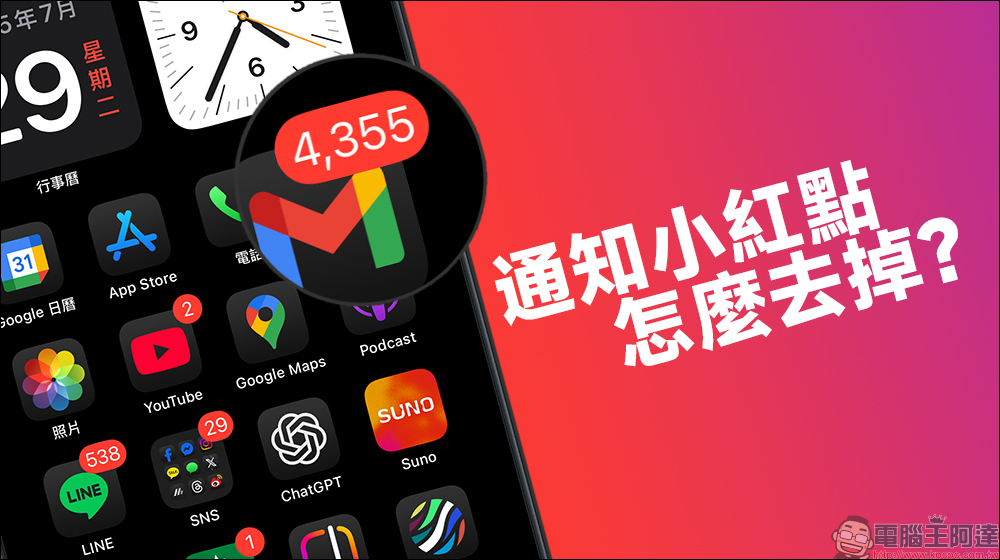
How to remove the little red dot on the iPhone home screen App? Learn these methods
I believe many iPhone users are the same. Looking at the little red dots in the upper right corner of a bunch of apps on the iPhone desktop, do you feel stressed? You’ve obviously read the message, or you don’t want to see certain notifications at all, but that little red dot refuses to disappear, which is visually disturbing. In fact, these red dots are functions added by Apple to remind you that “there is unread content” or “there are new notifications.” From a certain perspective, they are indeed practical, but some people really don’t like this kind of reminder.
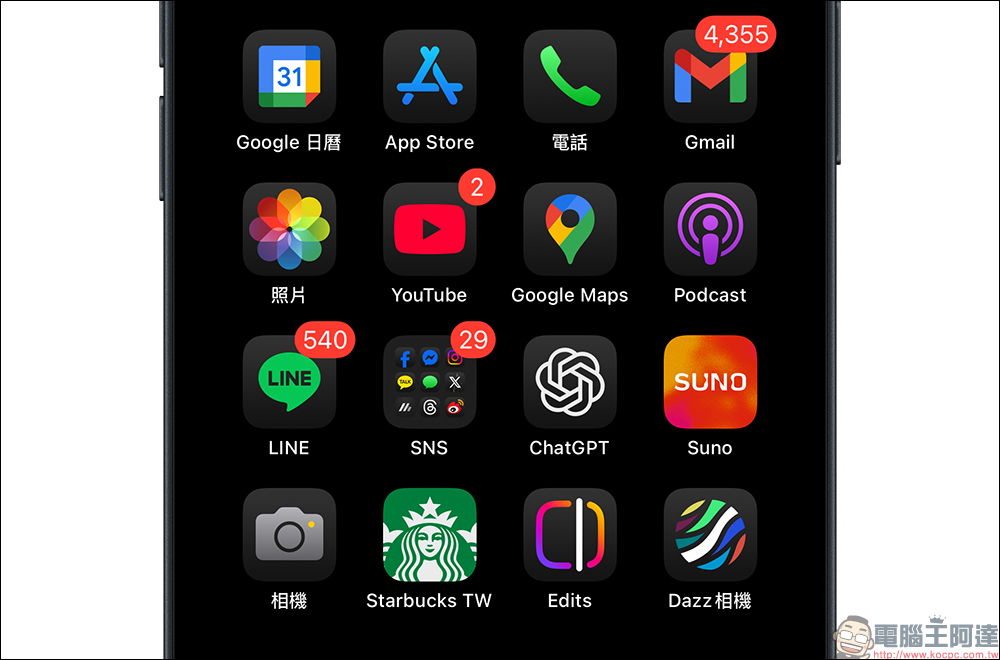
The good news is that this red dot is not impossible to turn off. Today I will teach you a few methods, so that you can “hide the little red dot next to the app icon” according to your own needs, and the screen will be instantly refreshed. If you are in the opposite situation and the red dot is accidentally turned off, you can also reverse the settings in the same way and get it back.
Whether you are a minimalist, a person who doesn’t like to be reminded, or a cell phone organizer, this article is suitable for your collection! Next, let’s take a look at how to make the iPhone desktop cleaner and more pleasing to the eye!
Method 1: Hide red dots for a single app, the best choice for fine-grained notification control
The focus of this method is “detailed adjustment”, which allows you to decide which apps should retain notification red dots and which ones should not be based on your own usage habits. The steps are as follows:
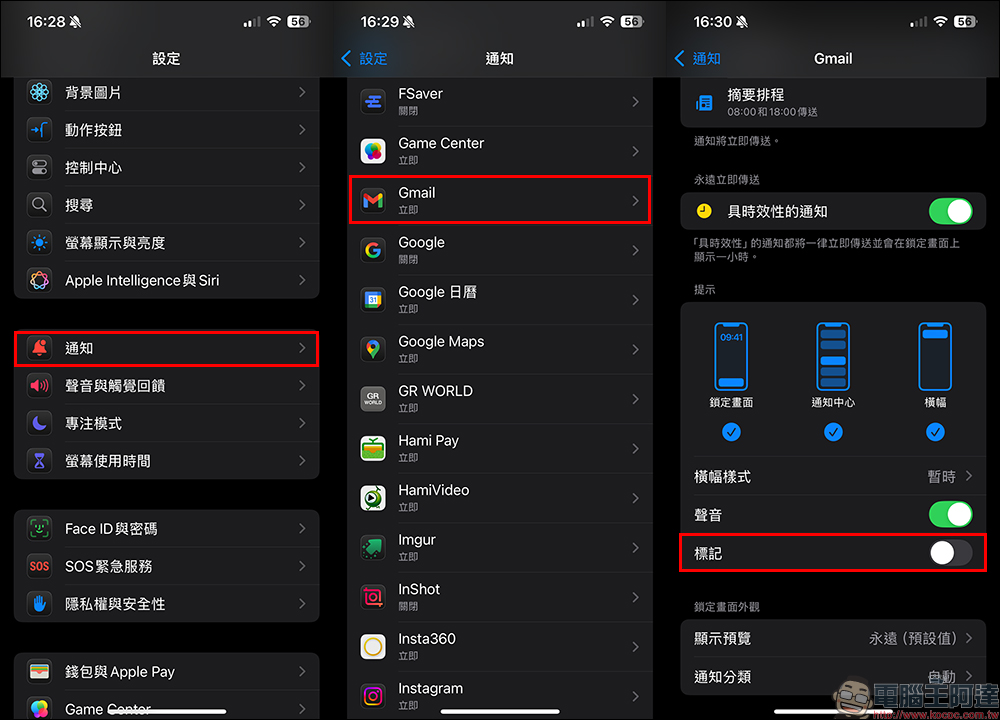
First, open the iPhone’s “Settings” app and click “Notifications.” Then swipe down on the notification page, find the app you want to turn off the red dot (for example: Gmail App), click on it and turn off the “mark” option.
It’s that simple. When you return to the desktop, you will find that the red dot in the upper right corner of the app is gone.
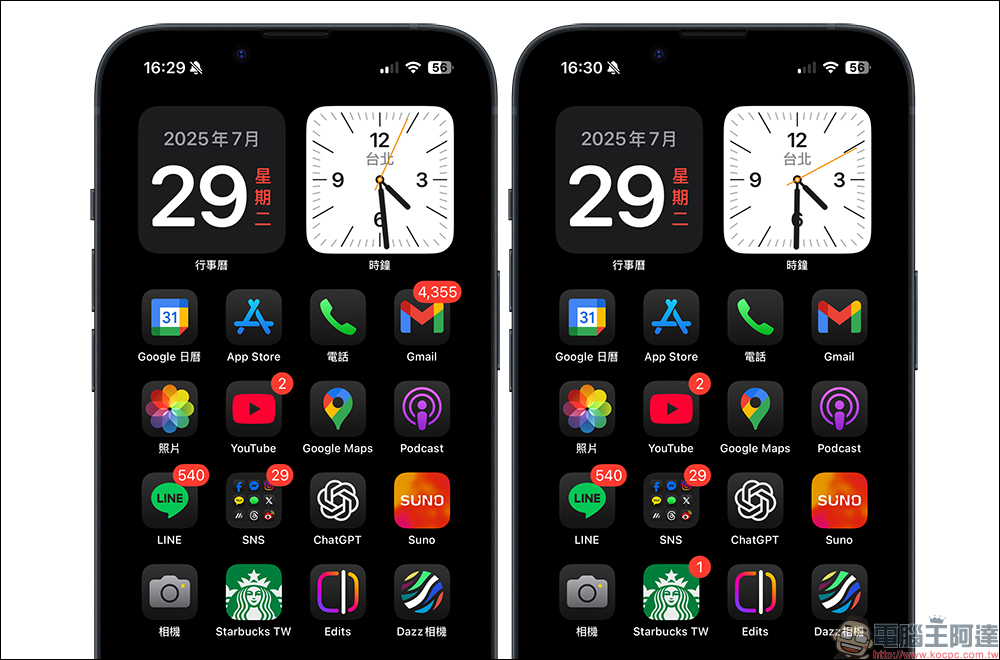
The best thing about this trick is that it does not affect notification sounds and pop-up windows, it just makes the red dot disappear. So even if you are someone who needs to respond immediately, you don’t have to worry about missing important messages. This is one of the most recommended practices currently.
Method 2: Use “Focus Mode” to hide all app little red dots at once, a must-learn for ultimate clean control!
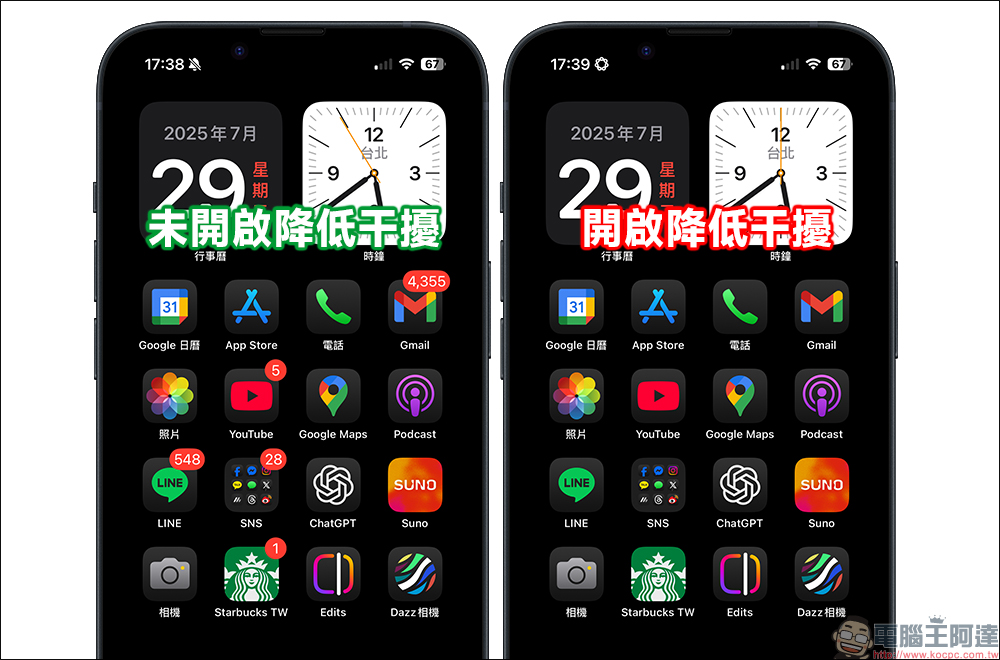
If you don’t just want to turn off one or two, but want the entire desktop to be as clean as if it had just left the factory – without any red dot interference, then you can use “Focus Mode” to get rid of all notification marks at once.
But before you start, there are two things you must know first. First of all, if it is turned on, strange calls may be automatically muted, and all app notifications will also be muted (unless you manually add it to the exception list). If you confirm that this will not affect daily use, then we will set it up!
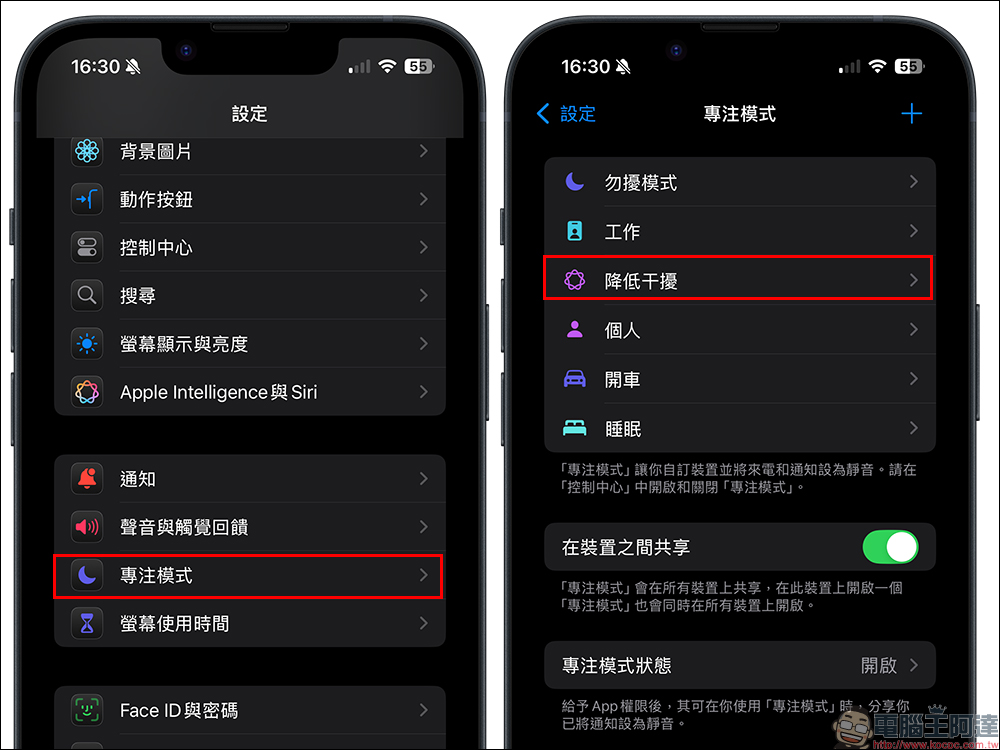
Open “Settings” → “Focus Mode” and choose to reduce interference or it is recommended that you add a dedicated focus mode yourself (so as not to interfere with the original work mode or sleep mode).
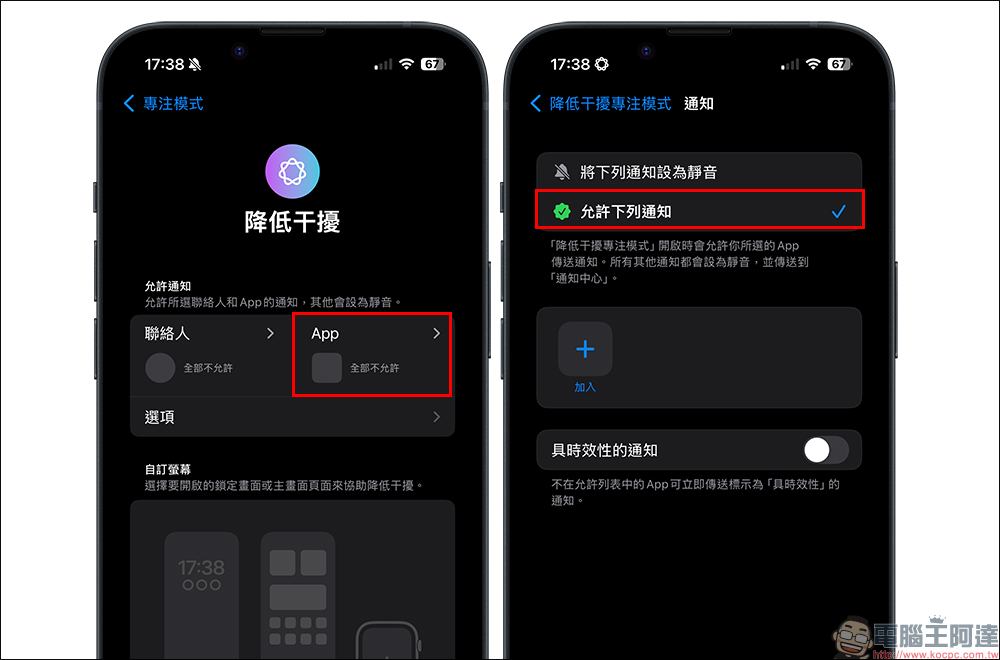
In the “Allowed Contacts” column, please select “Mute the following notifications”, and then do not select anyone, so that all incoming calls will be muted. In the “Allowed Apps” column, please do not select any apps (or if you want to keep notifications for some apps, you can also add them).
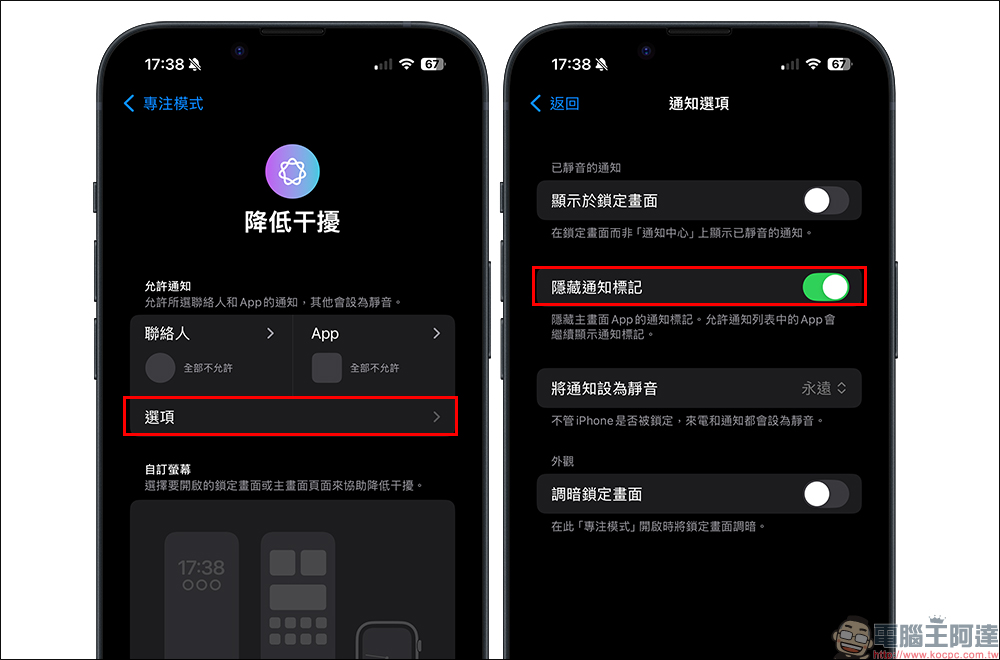
Then go back to the previous night, click the “Options” button, and turn on the “Hide notification flags” option.
After setting it up, just pull out the drop-down menu from the iPhone Control Center and enable the focus mode you just set. All the red dots of apps that are not allowed will disappear immediately, and the screen will instantly become super healing!
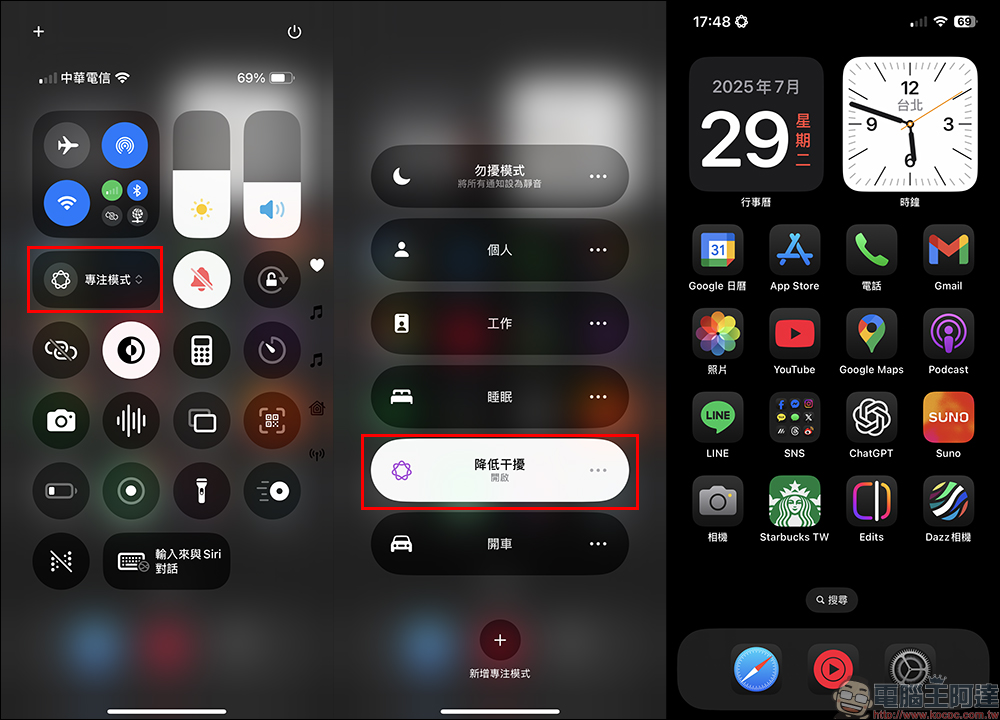
This method is especially suitable for people who need to be distracted, such as those who are reading, giving presentations, meditating, or doing digital detoxification. If they don’t want to be distracted by a bunch of little red dots, it’s perfect to turn on this ultimate clean mode!
Conclusion
In fact, whether you find the little red dot annoying or are worried about missing notifications, Apple has provided a flexible enough setting method that allows you to adjust it according to your own usage habits. For example, turning off red dots individually for a single app is suitable for people who want to keep notification sounds and prompts; and if you pursue an extremely simple screen and don’t want any red dots to disturb your mood, you can also use focus mode to clear all notification marks at once.
No matter what kind of user you are, the focus is to make the process of using the phone more pleasing to the eye and more comfortable, rather than being led by the preset design. After all, mobile phones are the tools we use most every day. The pictures are pleasing to the eye, comfortable to use, and the quality of life will be improved unconsciously. Next time you see those red notification dots, try adjusting them with the tips shared today to make your iPhone desktop look brand new, concise and orderly.
Further reading:
Source: KOCPC Chinese