


RAM It plays a vital role in the performance of the computer, and any failure may bring the entire system to a halt. When your computer system is unstable, one of the possible reasons is RAM, which often leads to system crashes, freezes, file corruption, and even inability to boot properly. While RAM issues aren’t immediately apparent, they often have very clear warning signs that can be confirmed through targeted software checks or manual inspection.
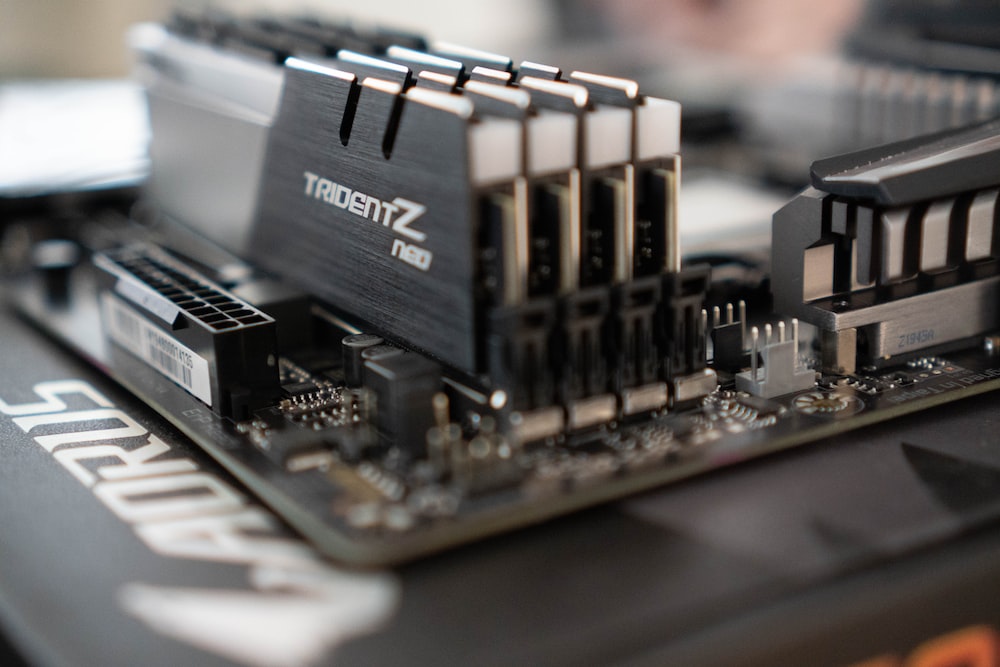
What should you do if these signs indicate that your RAM may be failing?
Unlike a hard drive, which stores long-term data, RAM temporarily stores active computing data while the computer is running, including all open applications and background processes. Even minor damage can disrupt these actions, leading to application errors, performance degradation, data loss, and even blue screen crashes (BSOD). However, in most cases, RAM failure doesn’t happen overnight and usually wears out over time, causing problems as the wear and tear becomes more severe. RAM can fail for many reasons, including mishandling, power fluctuations, cooling issues, or long-term wear and tear, and identifying these signs early is key to minimizing damage and restoring overall functionality.
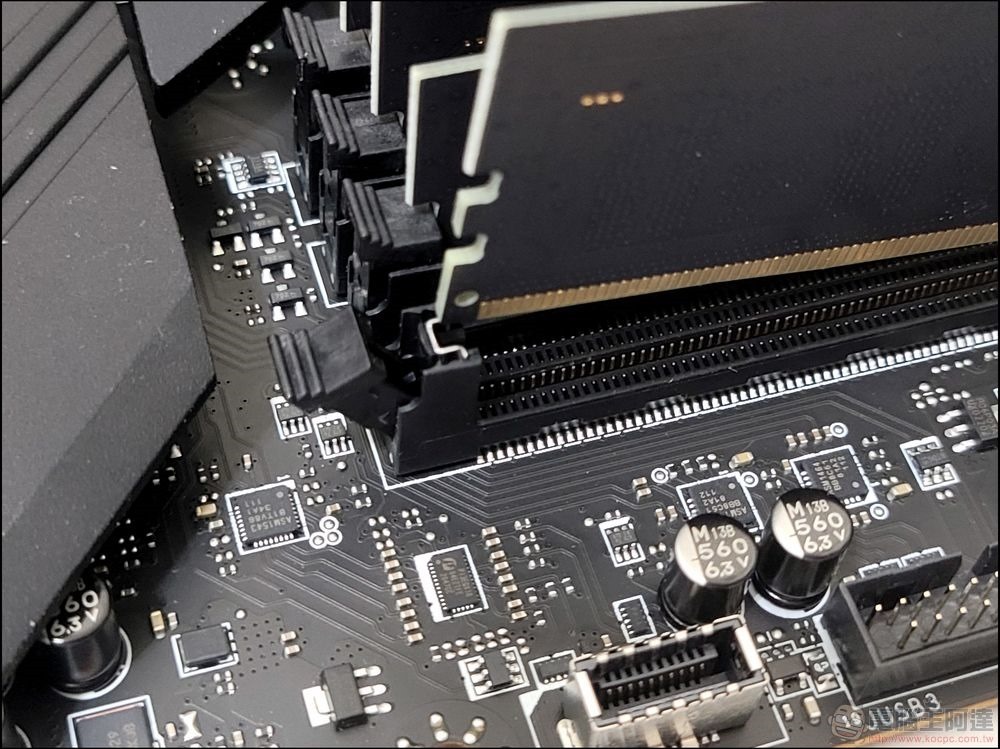
Common warning signs of RAM failure
While faulty RAM can be harmful to your computer, it will show obvious signs of failure long before it becomes completely damaged, and these signs often include frequent crashes or slow performance while playing computer games or editing videos. These crashes can involve a single application shutting down, an unexplained error, or even forcing an entire computer to reboot. If these crashes have no obvious pattern and occur under different workload states, it could be a sign that the RAM is starting to fail.
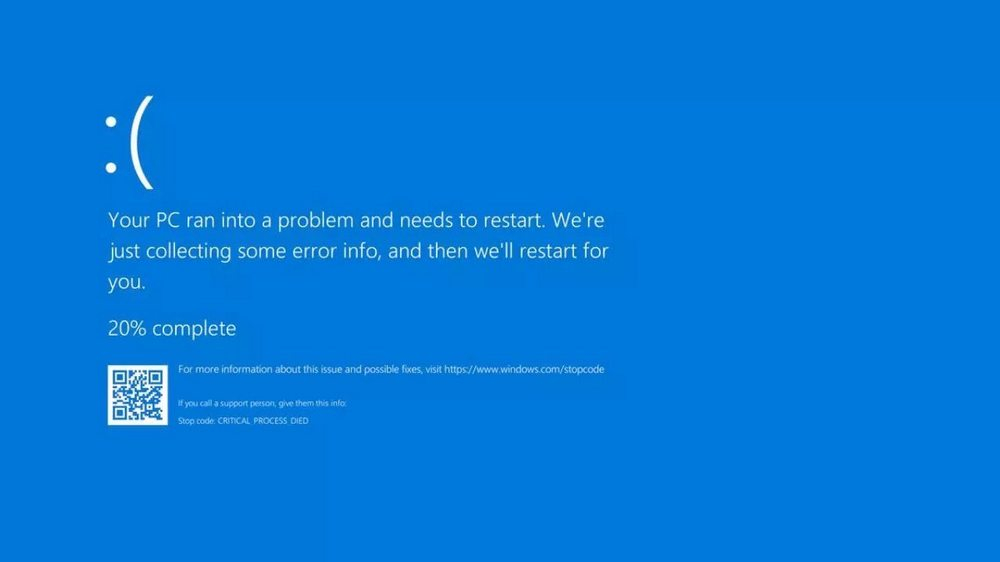
Corrupted files are another common sign of RAM failure. Because RAM processes temporary data as your computer writes or transfers files, any problems can cause those files to become unreadable, even if the hard drive they reside on is functioning properly. Likewise, when you experience random slowdowns, it’s usually blamed on insufficient storage or malware issues, but it can also be caused by a RAM failure that can no longer reliably save data for multiple processes at the same time.
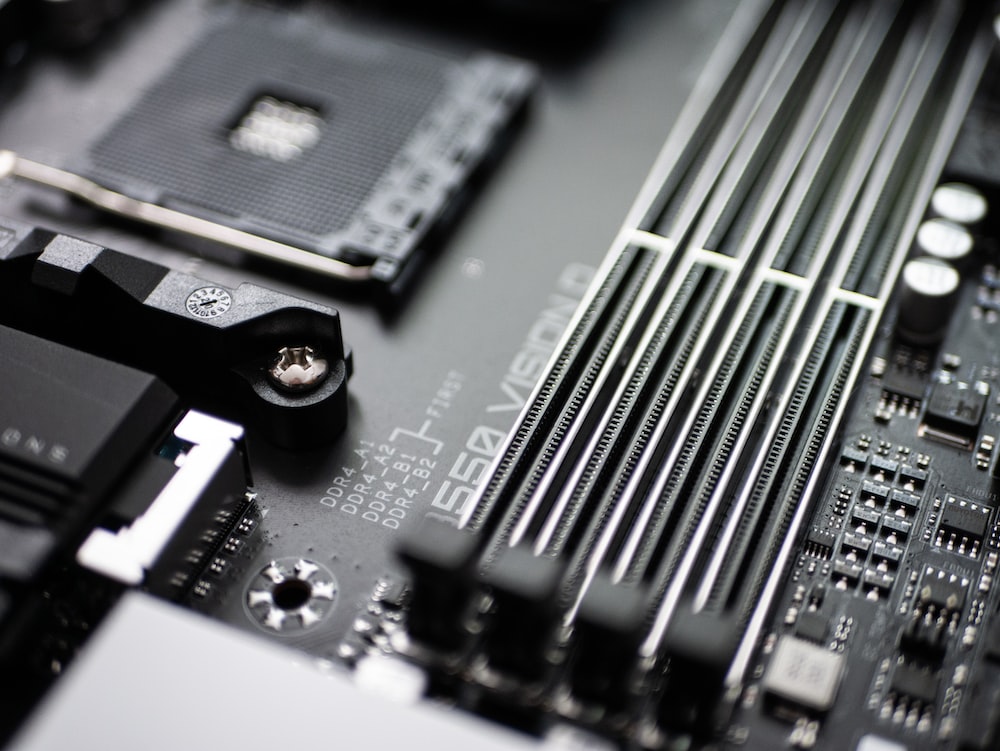
The main signal will appear during the startup process, and sometimes it will prevent the computer from starting normally. If the display remains black and the system emits short or long beeps, it may be a POST (Power On Self Test) error. Computers with BIOS firmware perform self-diagnostics on startup. If the diagnosis fails, it will use audio to alert the user that there is a problem. Repeated or regular beeps usually point directly to RAM-related problems, and the specific sound effect depends on the manufacturer.
Test and fix faulty RAM
The first step in diagnosing RAM problems is to use software testing. Windows computers can use the Windows Memory Diagnostic tool (find it by searching for it). When turned on, it will restart the system and check for problems in RAM. For Linux and macOS systems, you can choose to use MemTest86, which is available for free online. Similar to the diagnostic tool, after the test is completed, the computer will restart and display the RAM results. However, these tests are not conclusive, and some subtle problems will escape the scanning of automated tests.
For a more in-depth inspection, check the module manually and it may need to be replaced. After shutting down and unplugging the computer, remove and reseat the single RAM module in sequence. Even if you have multiple RAMs, a single faulty RAM can cause problems. In some cases, gently cleaning the slots and contact points with a dry, lint-free cloth can also resolve poor contact issues due to dust or oxidation.
If the problem hasn’t been resolved, the problem may be more serious and a professional can diagnose whether it’s the RAM, the motherboard, or another component. Most desktop computers allow users to replace components, and high-performance RAM is relatively inexpensive compared to other hardware in the computer. Replacing or upgrading problematic RAM is one of the easiest ways to restore performance and functionality.
Source: KOCPC Chinese