


translateWhen reading content, some people may want to compare multiple translation services to see which one has the best translation results. This article will recommend a very useful one. Pot is a free open source local translation tool that can be installed on Windows, Mac and Linux. It supports more than 20 translation services, not only the common Google Translate, Microsoft Translate, and DeepL, but also OpenAI, Gemini, and local Ollama are available. You can add the required translation services according to your needs.
In addition, Pot has built-in OCR text recognition, screenshot translation, and voice playback, which is very comprehensive as a translation tool.
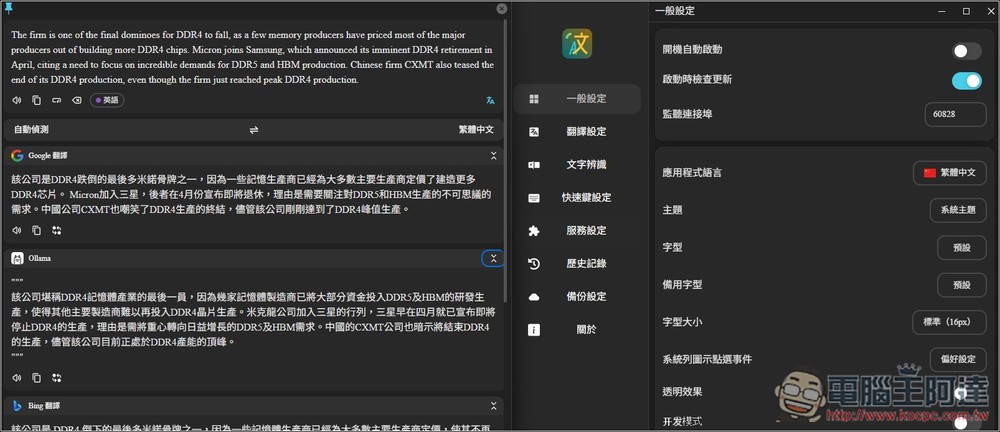
Pot Free Local Translator Introduction and Operation Tutorial
Pot is a free open source tool. It has code shared in GitHub projects, as well as installation files for Windows, Mac and Linux. Everyone can easily download and install it. It also has a Traditional Chinese interface, so you don’t have to worry about incomprehension.
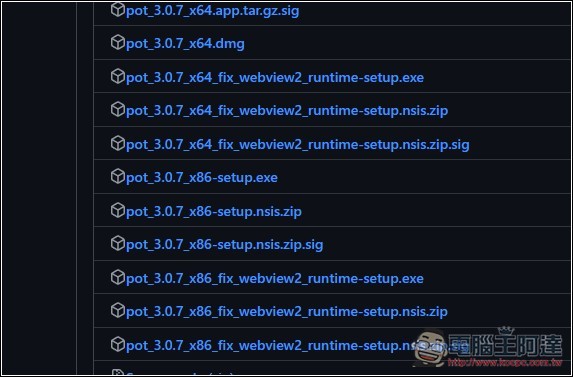
At the time of writing this article, the latest version of Pot is 3.0.7, and the installation file can be found in Release on the right side of the project. My computer is Windows 64-bit, so I downloaded the x64 .exe installation file. If you are ARM, remember to download the ARM version. Don’t download the wrong version:
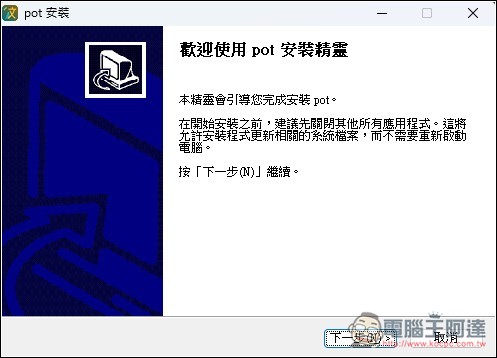
Just keep pressing Next during the installation process:
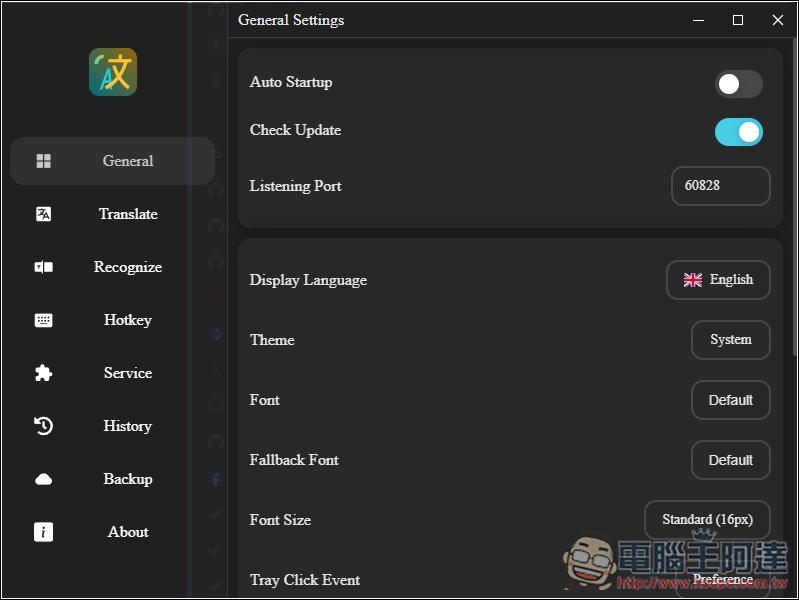
After installation, open it. The default interface is English, and the Display Language can be changed to other languages:
I changed it to Traditional Chinese. There are also some background-related settings in the general settings, and those who need them can adjust them themselves:
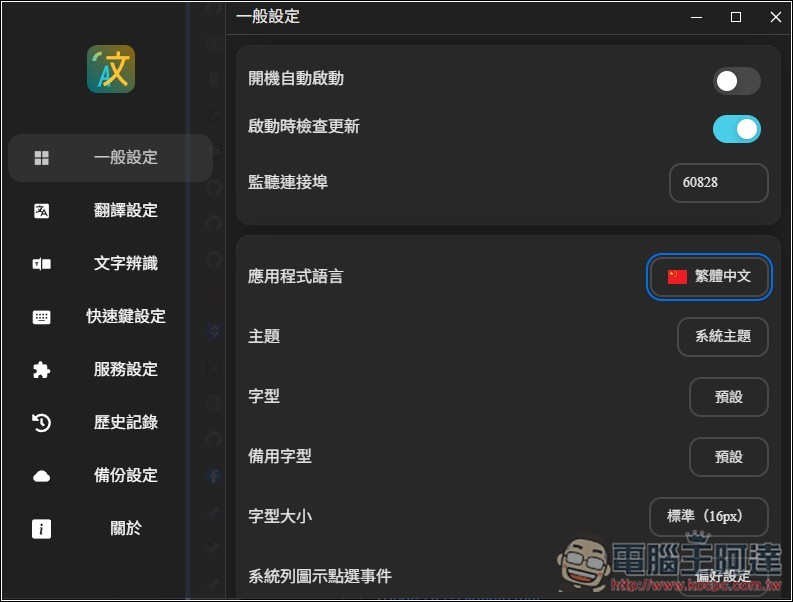
Remember to change the translation settings first and adjust the translation language to Traditional Chinese, so that you can get the translation result of Traditional Chinese, otherwise it will be Simplified Chinese:
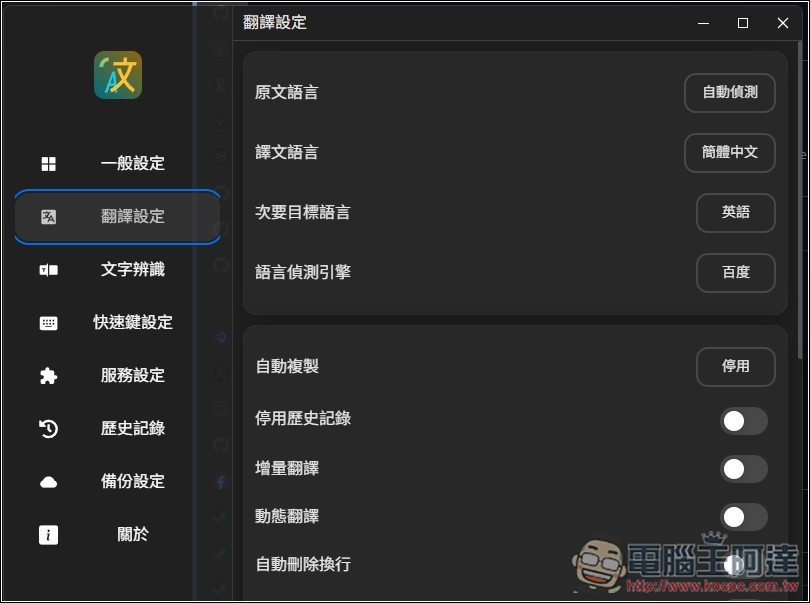
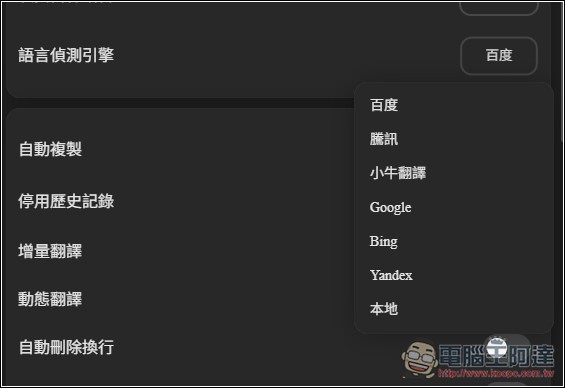
The default language detection engine is Baidu, which can be changed to Google or Bing:
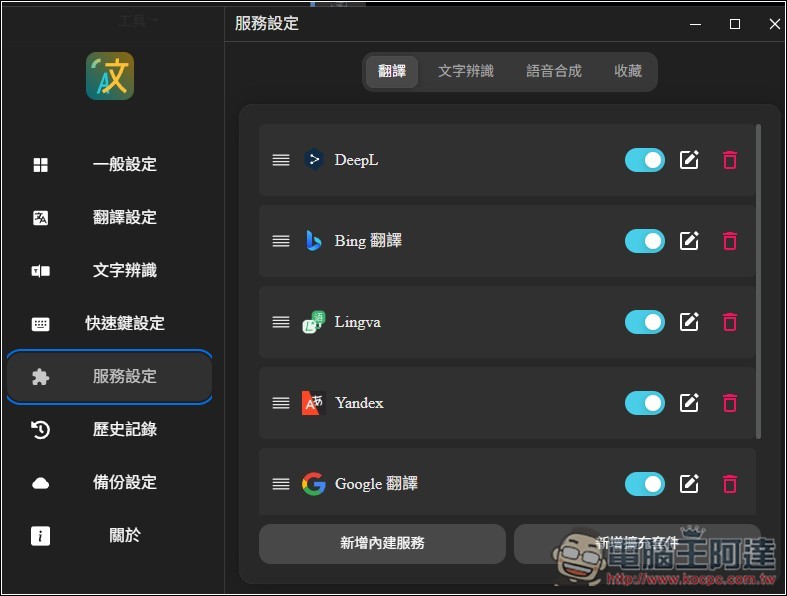
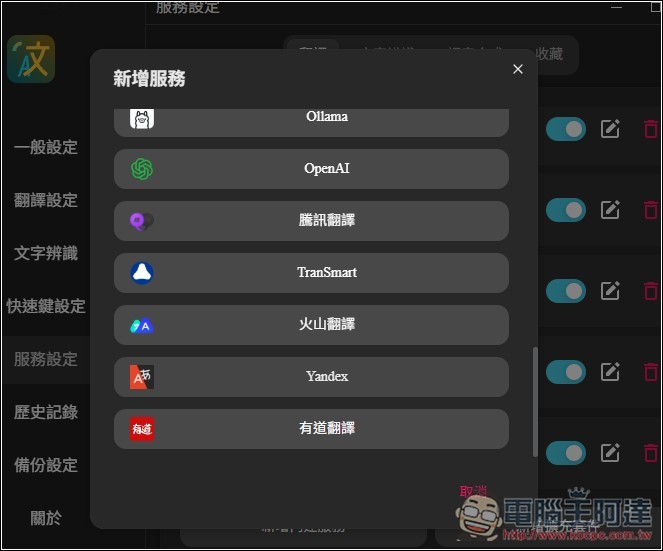
The translation service you want to use can be specified in the service settings. DeepL, Bing Translation, Lingva, Yandex, and Google Translate have been preset. The position order can be adjusted. If you don’t want to use it, click the red icon on the right to delete it, and “Add built-in service” below can add more translation services:
Such as Gemini, Ollama, OpenAI, Youdao Translation, Huoshan Translation, etc.:
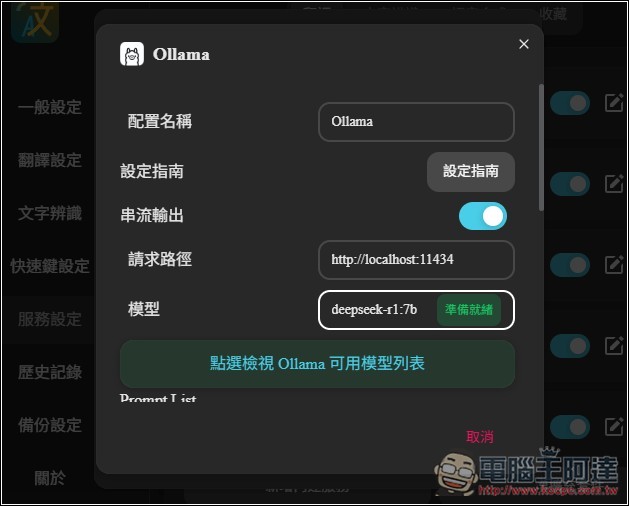
Ollama settings are very simple, just fill in the name of the model you use, like I filled in deepseek-r1:7b. In addition, there is a Prompt setting when you scroll down the screen. It has been preset, but it is in English. Therefore, it is recommended to add “Please translate to Traditional Chinese” at the end to ensure that you will get the Traditional Chinese translation result. The same method is used to set OpenAI or Gemini:
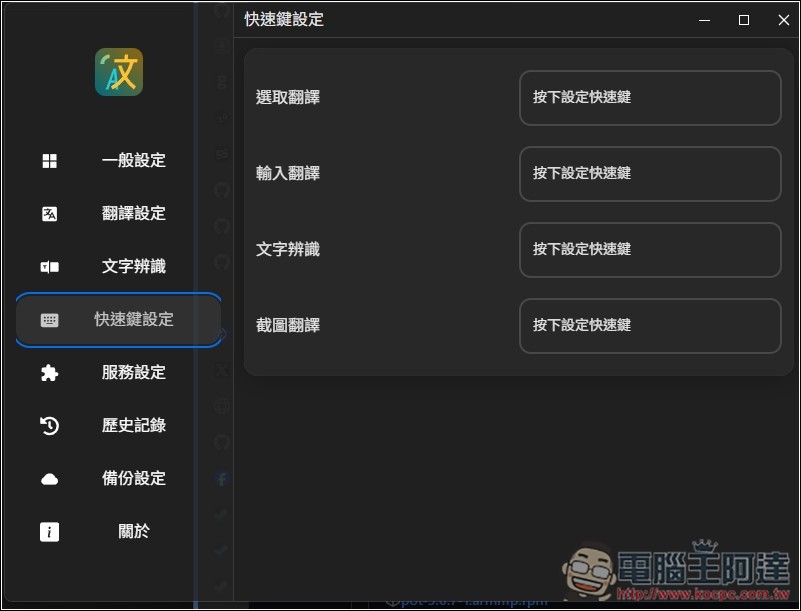
Remember to set the shortcut keys before use. “Select Translate” is to translate the text content you selected, “Enter Translation” will open a window for you to enter content for translation, “Text Recognition” is the OCR function, and “Screenshot Translation” is to translate your screenshot content:
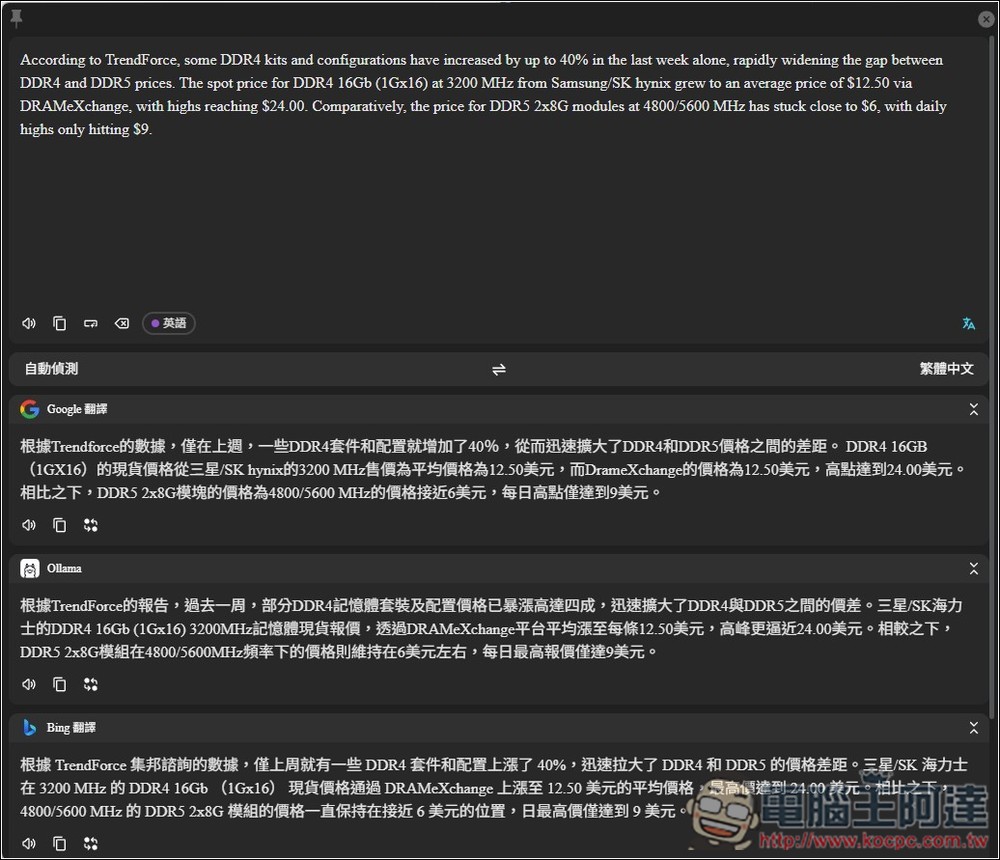
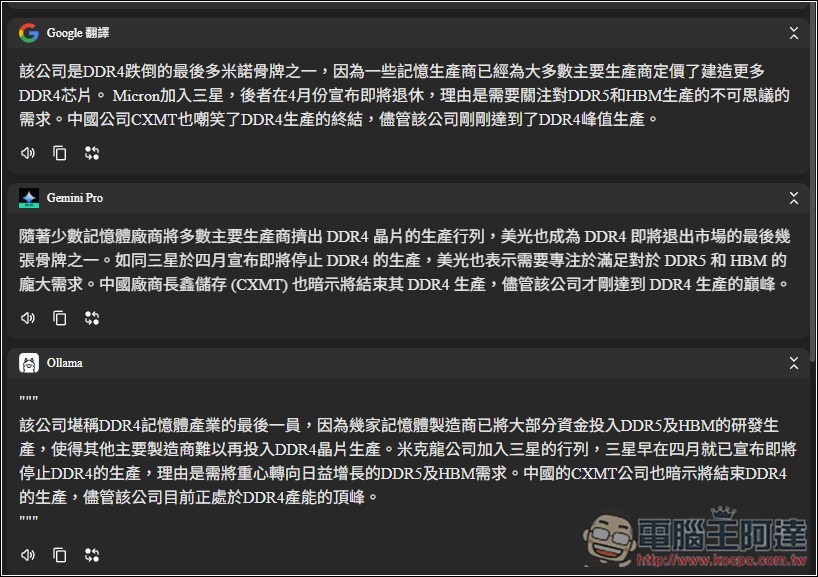
Once everything is set up, it’s time to get started. The picture below shows the input translation function. This window will open. Paste the content to be translated above and press the Enter key to start translation. The translation results of each translation service are displayed below:
I tested Gemini Pro and it was successful. Google provides free quota every day, so I highly recommend adding it:
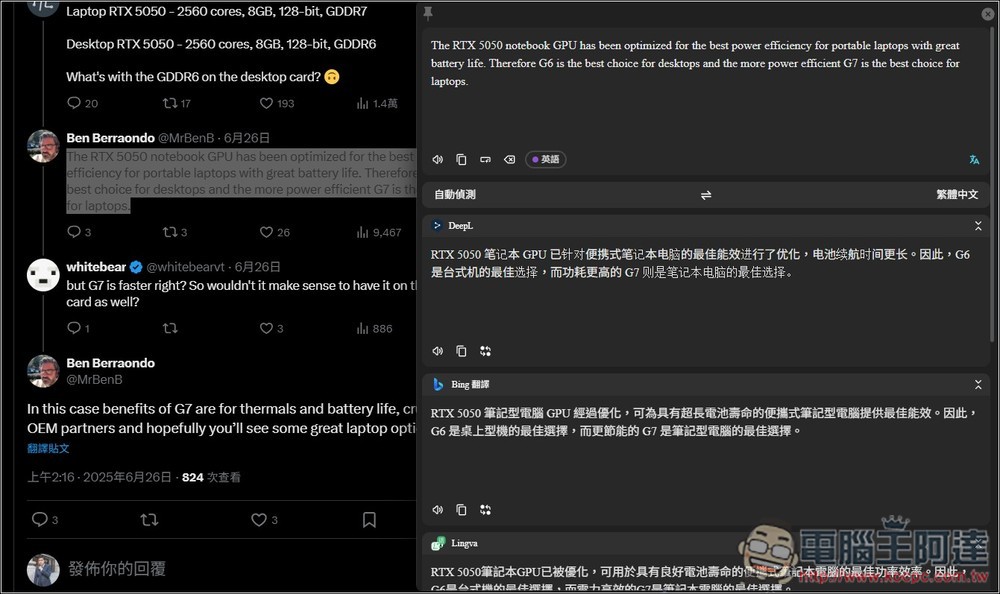
Circle the content you want to translate, then press the “Select Translate” shortcut key, and Pot will enable and translate the content:
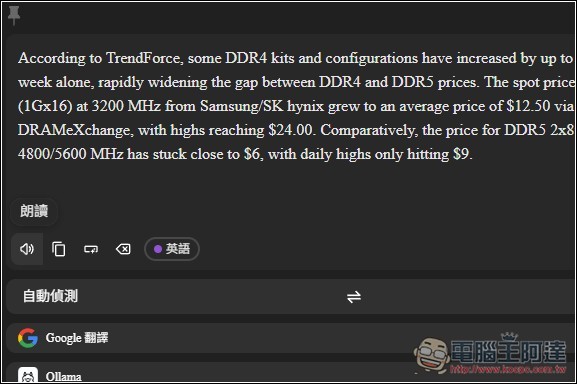
There is also a built-in reading function:
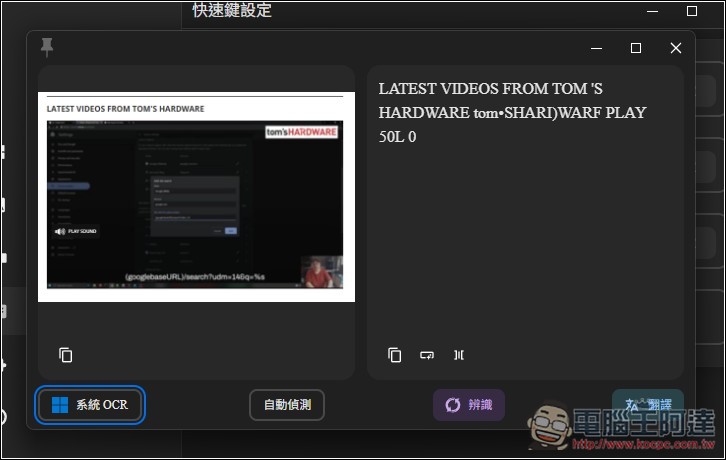
Although the text recognition uses system OCR, the recognition is quite accurate:
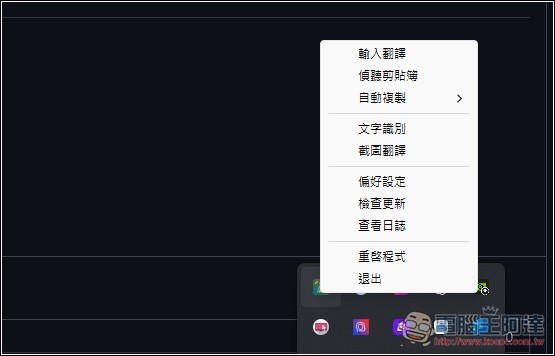
From the menu in the lower right corner of Windows, you can find Pot’s function icon:
Source: KOCPC Chinese