


Sometimes we use our favorite idols or furry children as the tablecloth of our iPhone. However, when we put the mobile phone on the table during a meeting with clients, if we don’t want our private collection of tablecloth to be seen and feel embarrassed, today I will teach you how to hide it! Just use the built-in background image setting of iOS to quickly switch between keeping the favorite wallpaper and hiding the wallpaper! Continue reading this article to learn how to enable this wallpaper trick that many people don’t know about!
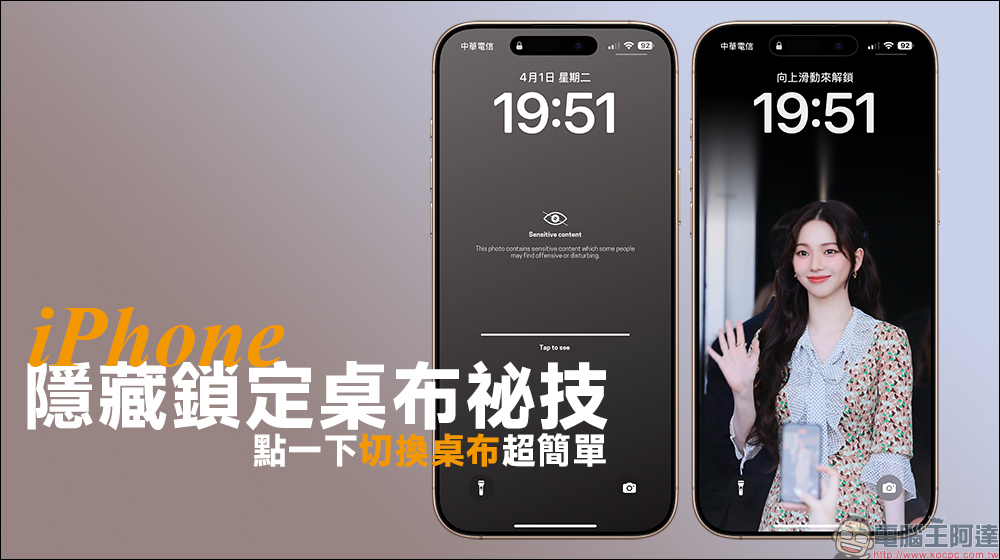
Tips for hiding locked wallpapers on iPhone: Don’t want to hide your favorite wallpapers from being seen? It’s super easy to switch with just one click!
On social platforms such as Facebook and If we don’t want the wallpaper of the iPhone lock screen to be seen by others, but at the same time we want to be able to browse our favorite pictures at any time in our private time, we can actually achieve a similar effect on the iPhone! And the setting steps are beyond everyone’s imagination, so keep reading!

First, iPhone users can find “Background Image” in “Settings” and then set a new lock screen image. Then click “Shuffle photos” when adding a new background image setting:
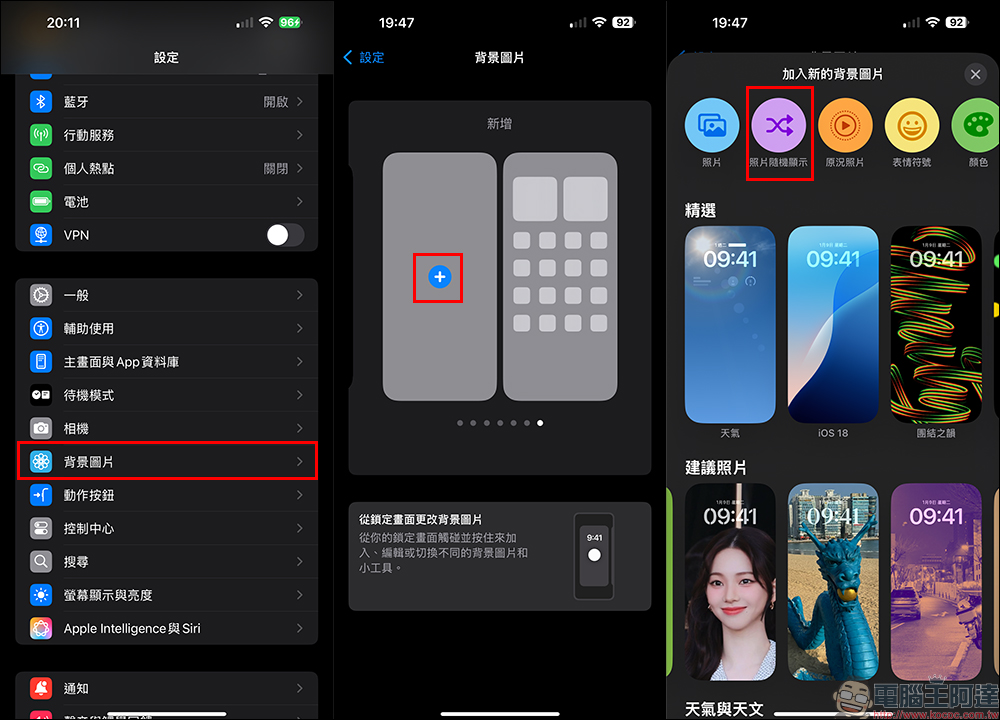
In the past, this function mostly randomly displayed certain types of pictures, but what we want today is to switch between only 2 pictures, so you can click “Manually Select Photos” below. When selecting photos, choose the one you want to treasure and the other masked camouflage tablecloth image. After confirming that both images are selected, click “Finish” to proceed to the next step.
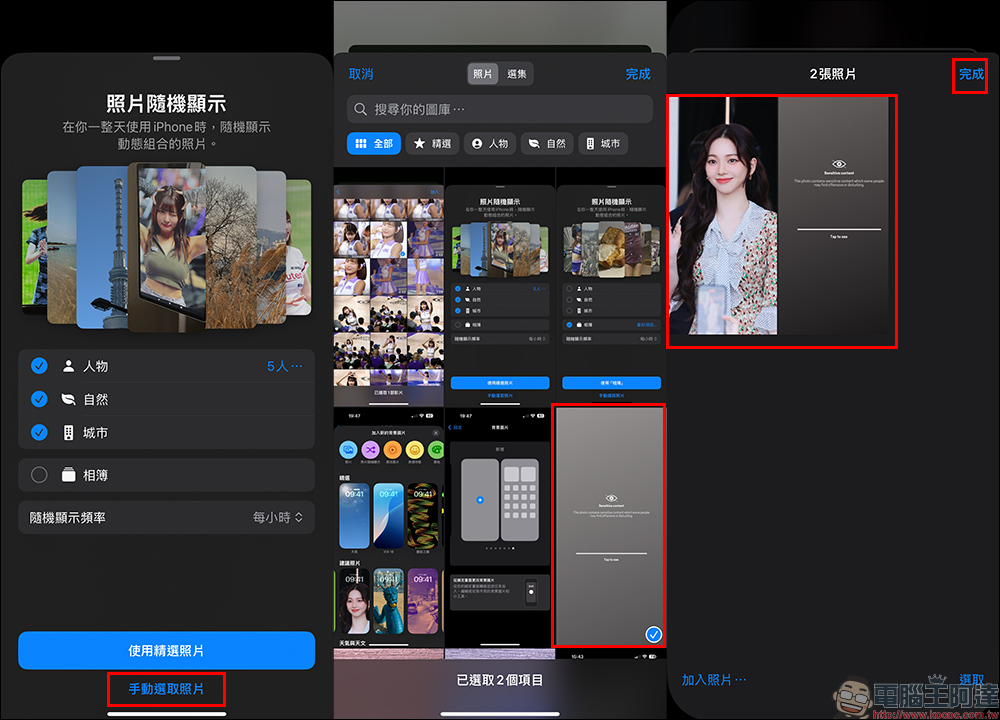
In order to obtain the best display effect, it is necessary to set the ratio and position of the two pictures to lock the screen. Then the most important thing is to select “When clicked” in the “Random display frequency” setting. This setting must be selected so that when the iPhone wakes up the screen, the wallpaper can be switched directly by “clicking” the screen.
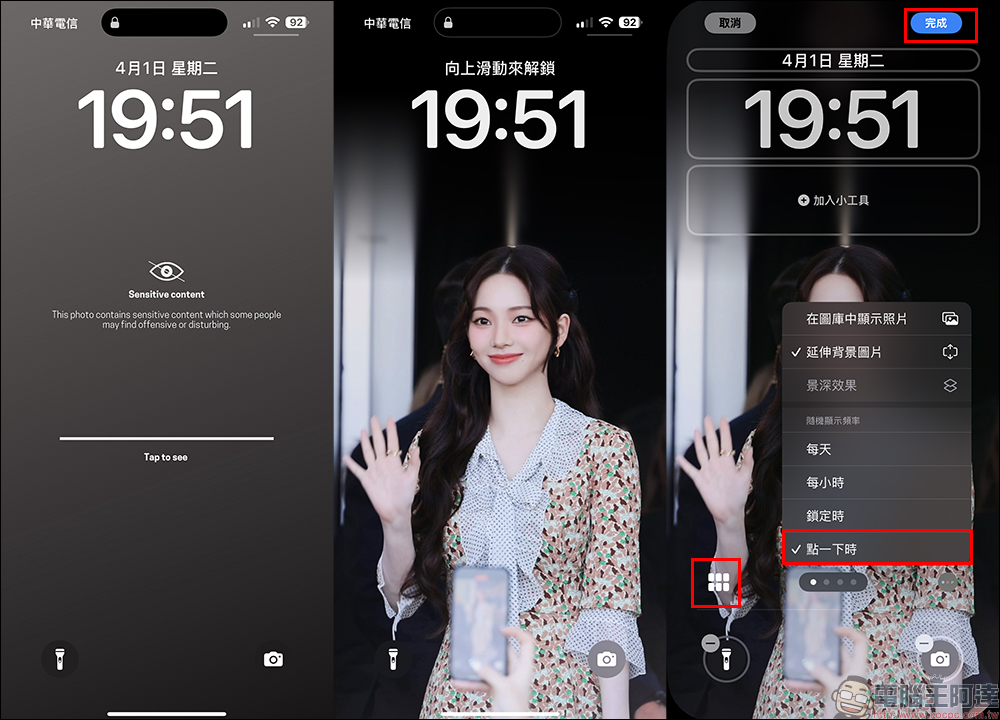
If you don’t know which hidden wallpaper to use, here is a hidden wallpaper for everyone to access and use directly! Of course, you can also choose a conservative and safe picture and set it with your favorite wallpaper.

Conclusion
To sum up, this “click to switch wallpaper” function is basically like adding an “invisibility cloak” to your phone! Whether you want to secretly hide the cute photo of your cat owner turning belly up, or the selfie of you gazing lovingly at your idol, as long as you set up this random wallpaper switching technique, you can easily switch between “work mode” and “private hiding mode” to protect your personal preferences from being discovered by others ~ Isn’t it super convenient and considerate!
Moreover, the entire setting process does not require downloading an additional app. It is completely built into iOS, which not only saves space, but is also safer. Next time you have a meeting with your supervisor, or borrow your phone from a friend to read messages, you don’t have to worry about others seeing your secret wallpaper. Switch with one click, cool and low-key, and have your own small universe of wallpapers in your hands at any time!
If you have friends who always use pictures of cats, idols, etc. as tablecloths, but are often seen naked in public, you might as well throw this article to them and let everyone join the advanced class of tablecloth protection! After all, tablecloths can be very personal and emotional, and it’s up to you to decide how and when to display them!
Further reading:
iOS 18.4 is officially launched! 35 functional updates are included in one place, and the key updates are included for lazy people.
Source: KOCPC Chinese