


Windows has a lot of settings that you may want to turn on or off, but don’t know where to start. This article recommends RyTuneX, a very useful all-round system optimization open source tool. It integrates many Windows optimization functions, allowing you to quickly find and set them up with one click, including privacy, network, and repair. What’s even better is that it also has a built-in restore point function. If you feel that Windows has become weird after setting it, you can restore it instantly.
Supported by Windows 11 and Windows 10.
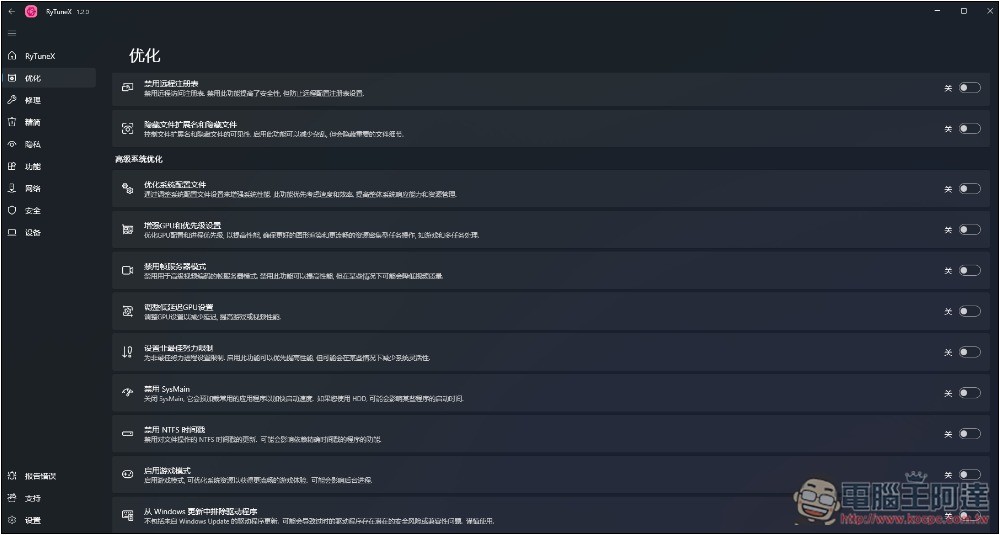
RyTuneX, an all-in-one Windows system optimization open source tool
RyTuneX is an open source tool, and the source code is shared on GitHub. According to the developer, this is a one-stop solution for improving the performance of Windows 11 and Windows 10. It has two features: easy optimization and smart functions. Users can also use this tool to improve privacy.
Click the link above to enter RyTuneX’s GitHub page, scroll down and find the installation file download point in the Assets area. At the time of writing this article, the v1.2.0 version is:
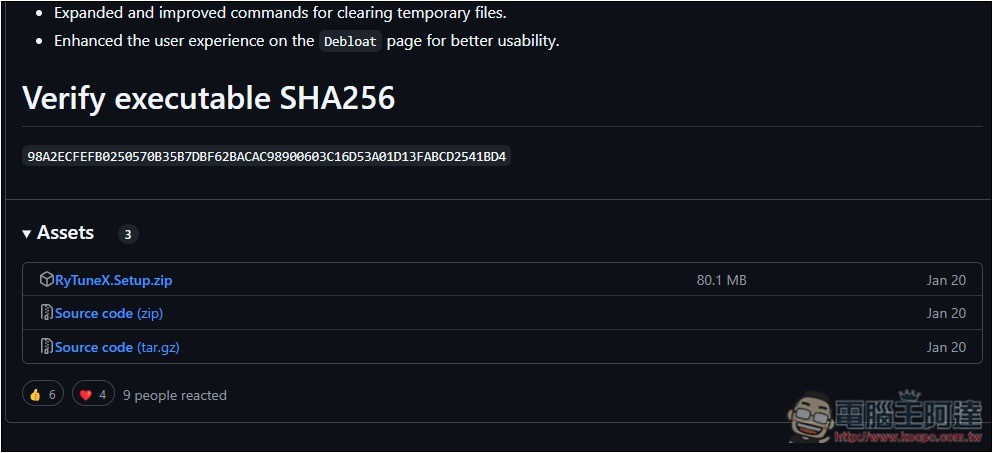
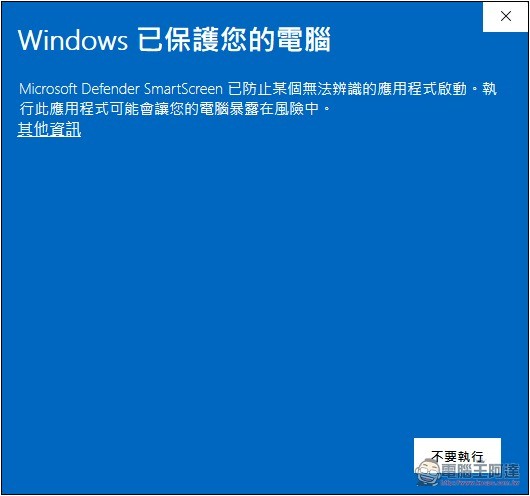
After downloading and unzipping, open the installation file. This screen will pop up. Please click “Other Information”:
An option to “Run anyway” will appear:
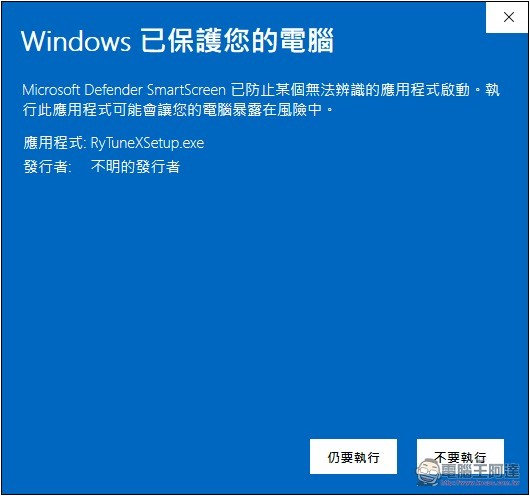
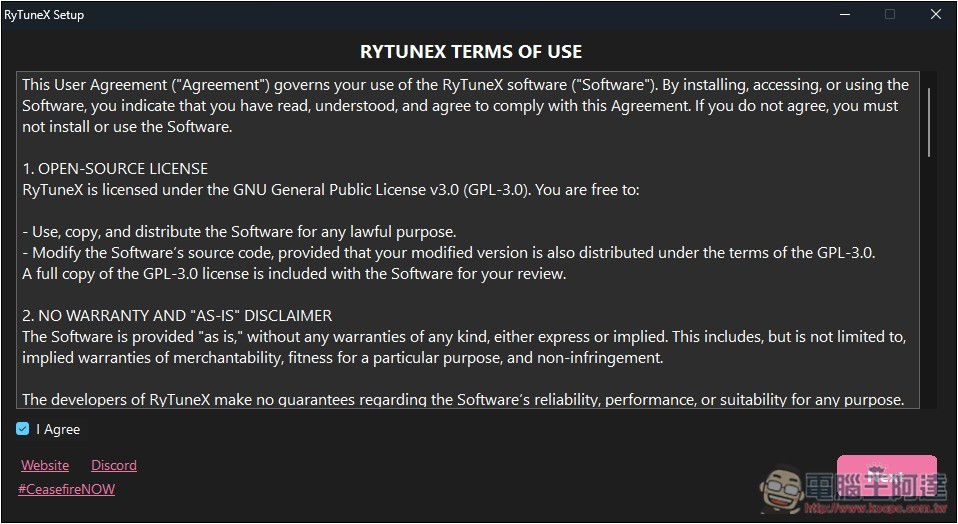
Then follow the on-screen instructions to install:
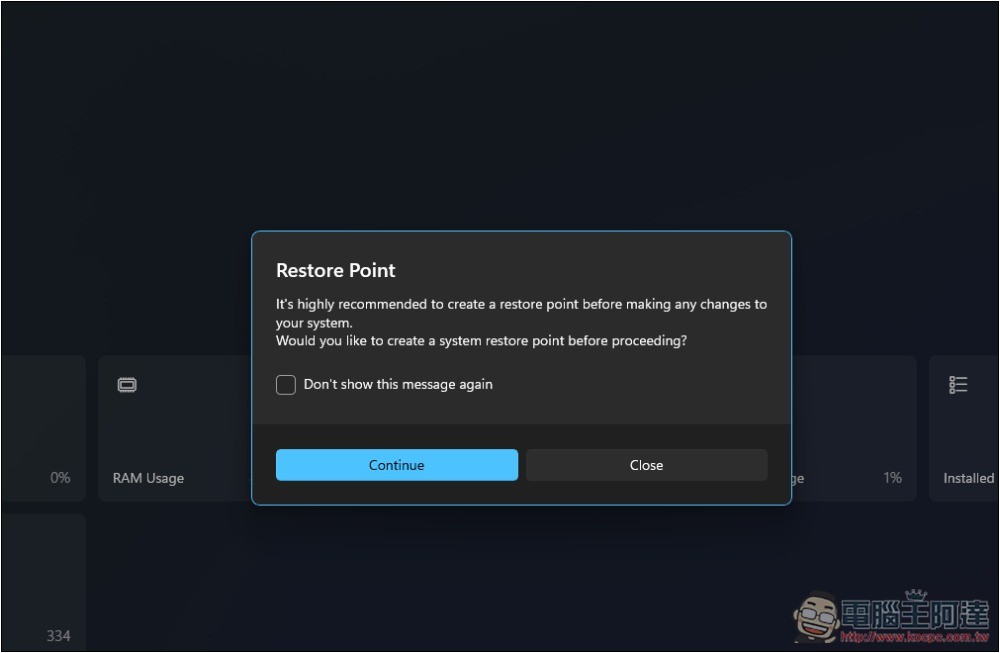
After opening RyTuneX, you will be asked if you want to create a restore point. If so, click Continue. However, please note that it may take a while to build, and it will not display a progress bar:
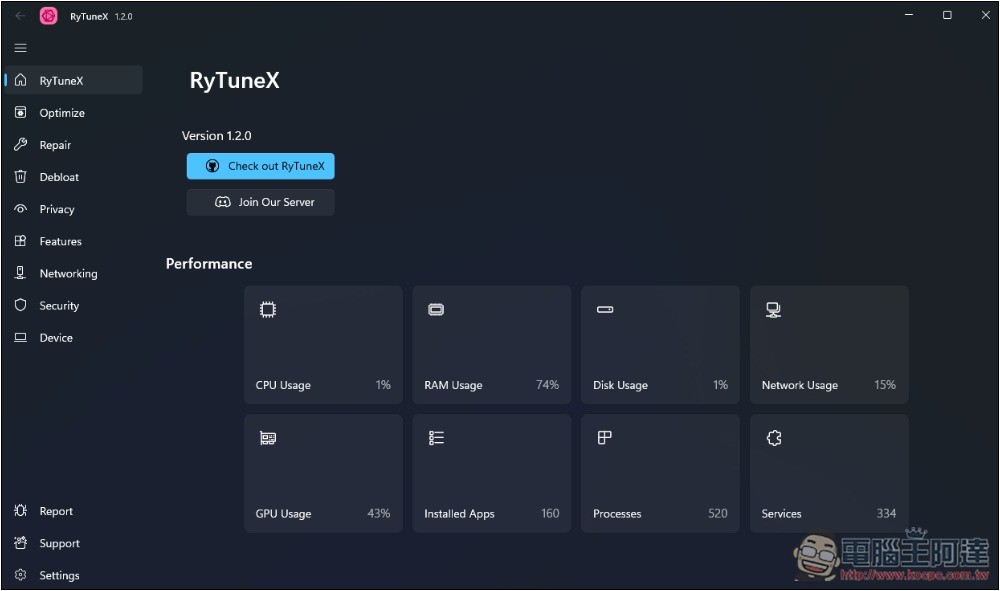
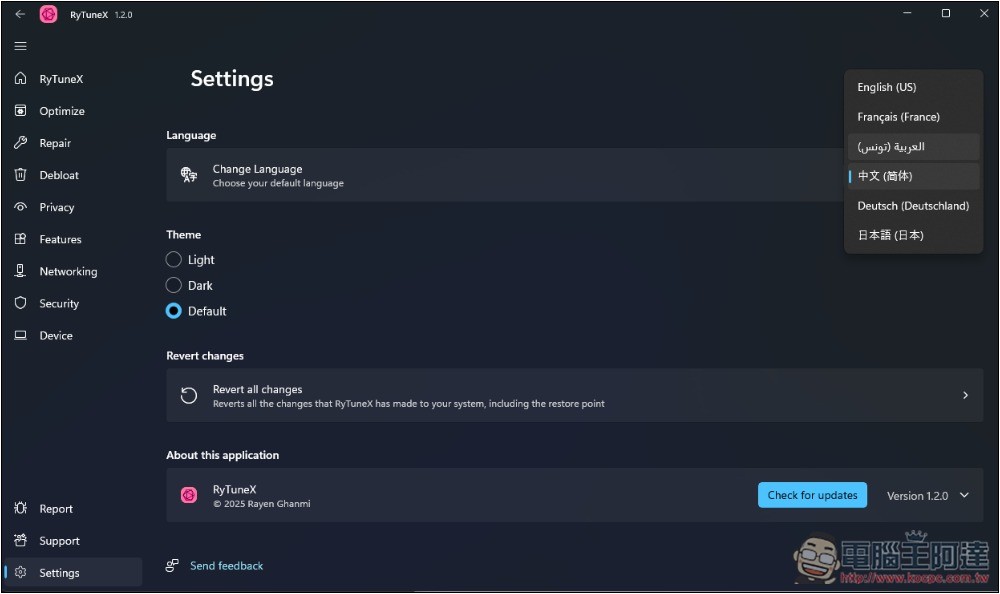
After entering the main screen, the default interface is English. If you want to switch to Chinese, go to Settings on the lower left:
You will see the language settings, currently only supports Simplified Chinese:
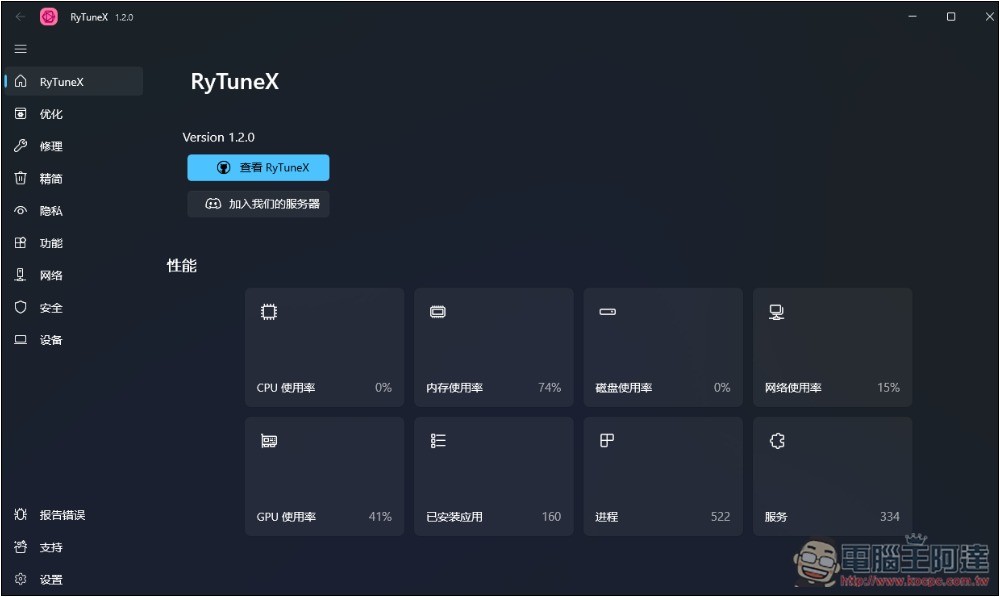
After switching, please reopen RyTuneX and the interface will become Simplified Chinese! On the RyTuneX page, the usage of your current computer hardware will be displayed, including CPU, hard disk, disk, network, GPU, number of installed applications, processes, and services:
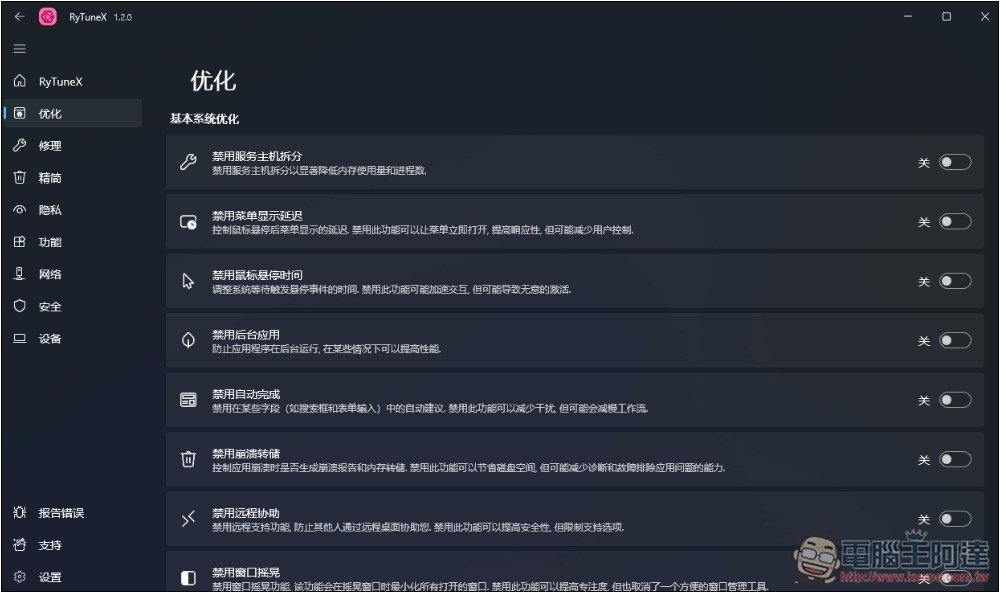
The optimization page is divided into three parts, basic system optimization, advanced system optimization, and other settings. You can find many settings that can improve performance speed, such as disabling menu display delay, disabling mouse hover time, disabling background applications, enhancing GPU and priority settings, adjusting low-latency GPU settings, setting non-best effort limits, etc.:
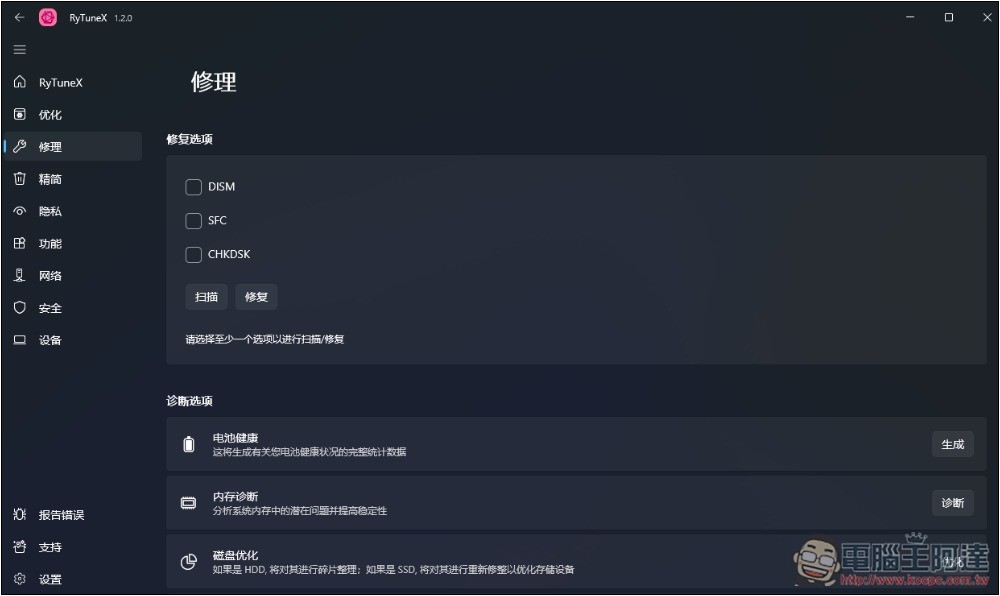
The repair page has three repair options and four diagnostic options, and laptop users can generate a battery health report from here. If you feel that there is something wrong with your computer’s memory, you can use the memory diagnostic function to detect:
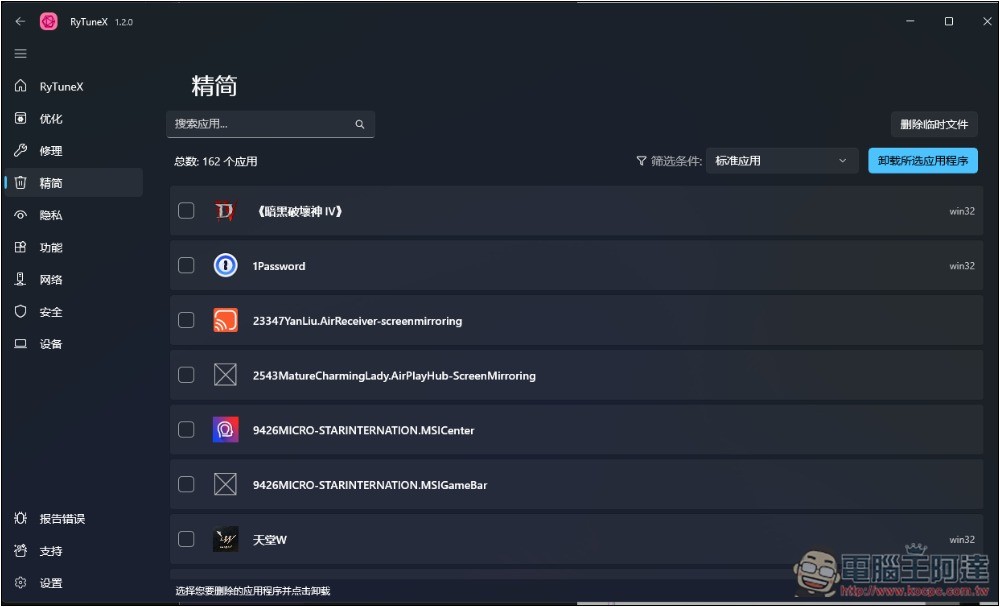
The streamlined page will display the applications installed on your computer, allowing you to quickly find the applications you are not using, check them and remove them at once:
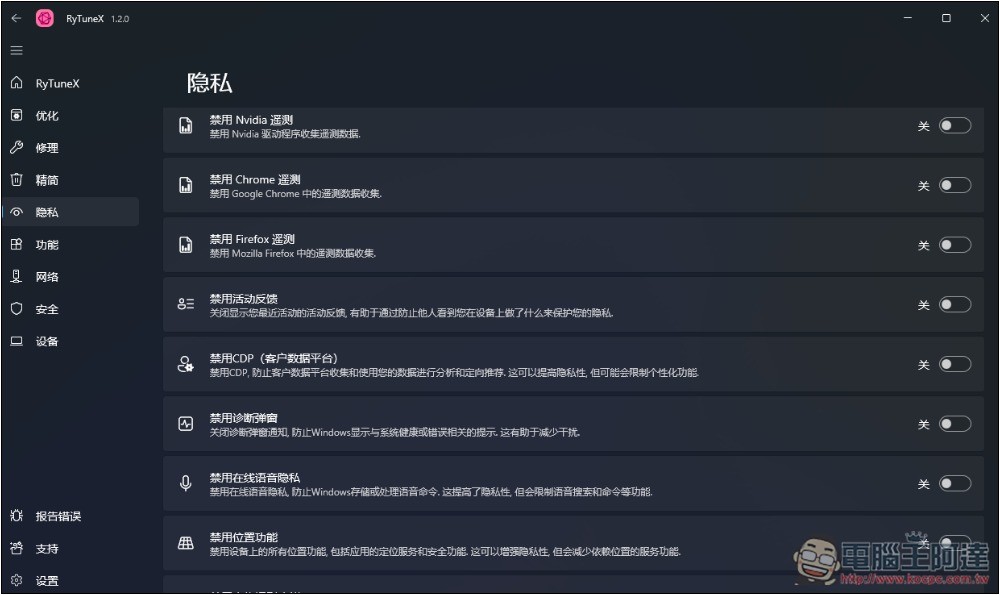
The privacy page is, of course, a unified Windows security and privacy setting, including disabling data collection by NVIDIA, Chrome, Firefox and other software, disabling location functions, disabling handwriting data sharing, disabling activity uploads, disabling voice activation, etc.:
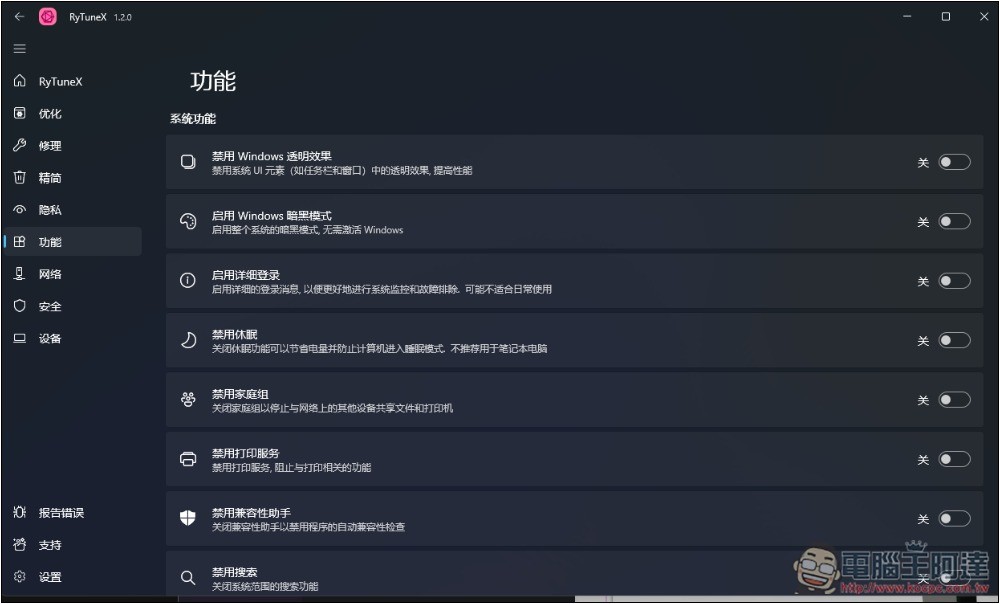
The function page has many system function settings, such as disabling VBS, disabling fax service, disabling sensor service, disabling Windows Ink, etc.:
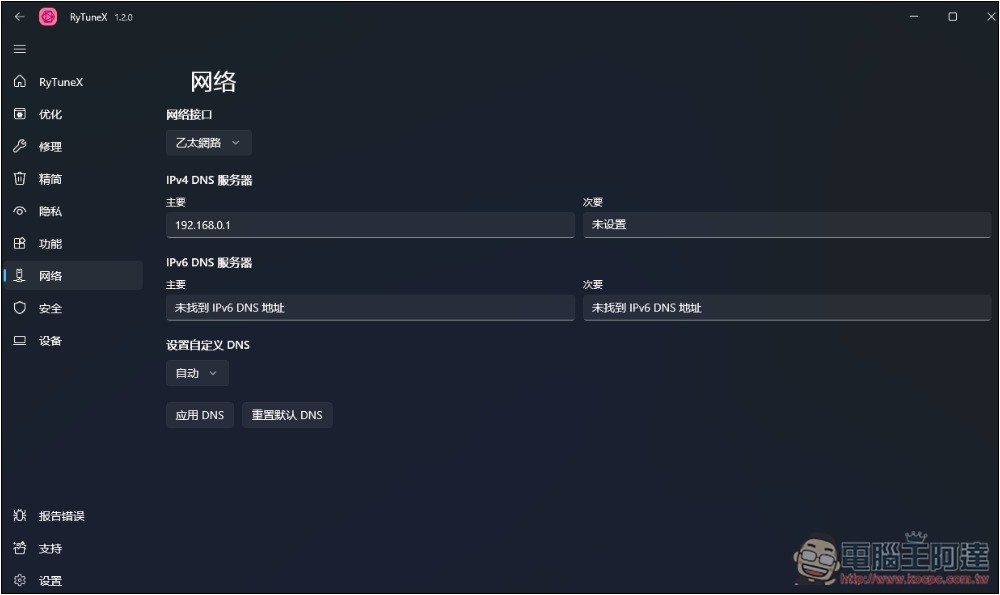
The network page will display various values of the network you are currently connected to:
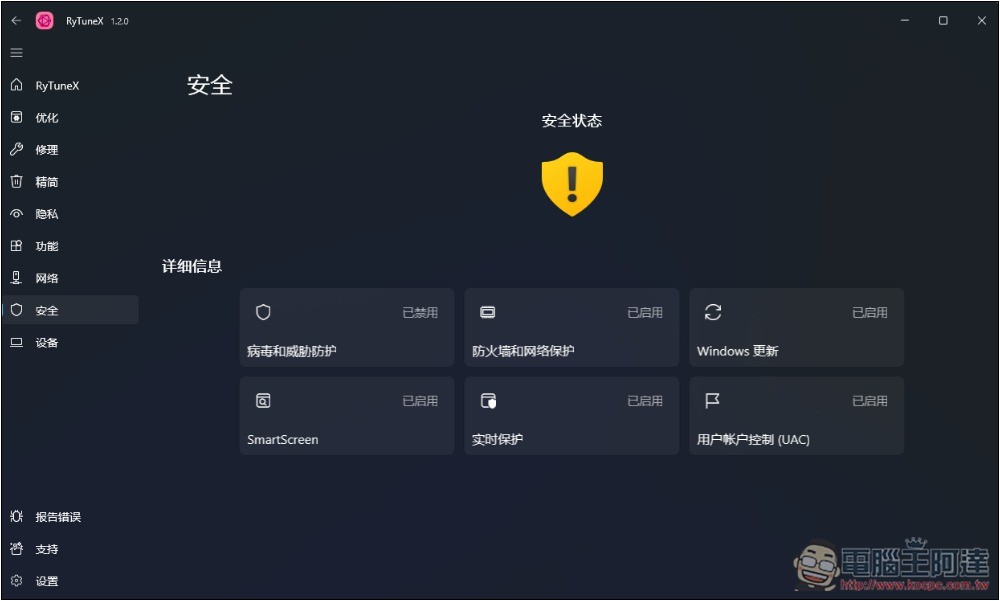
The Security page will display the status of Windows security settings, such as whether your virus and threat protection, real-time protection, firewall and network protection are enabled:
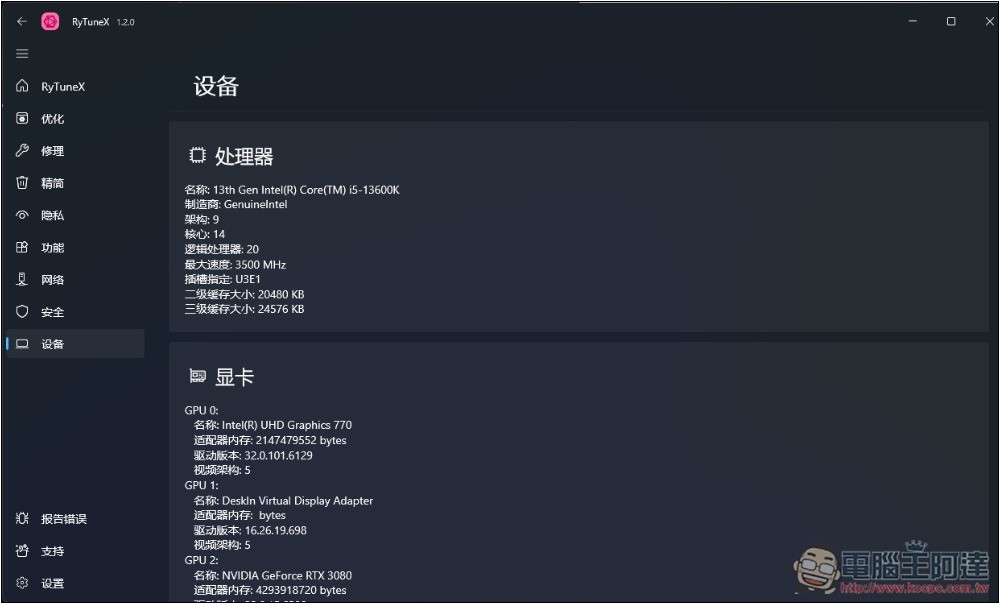
The final device page displays computer hardware information:
Source: KOCPC Chinese