


Many people are probably like me. They unconsciously open more and more pages on web pages. Although browsers now provide functions such as categorizing and creating paging folders, they still find it difficult to use in some cases. For example, some web pages will be used later and do not need to be saved after use. If they are placed in a folder, they must be removed manually.
Recently, I discovered that this Tab Reminder extension can solve this problem. You can set the automatic opening time of web page tabs, which means that after setting, you can turn off this page, and when the time is up, it will automatically open in a new page.
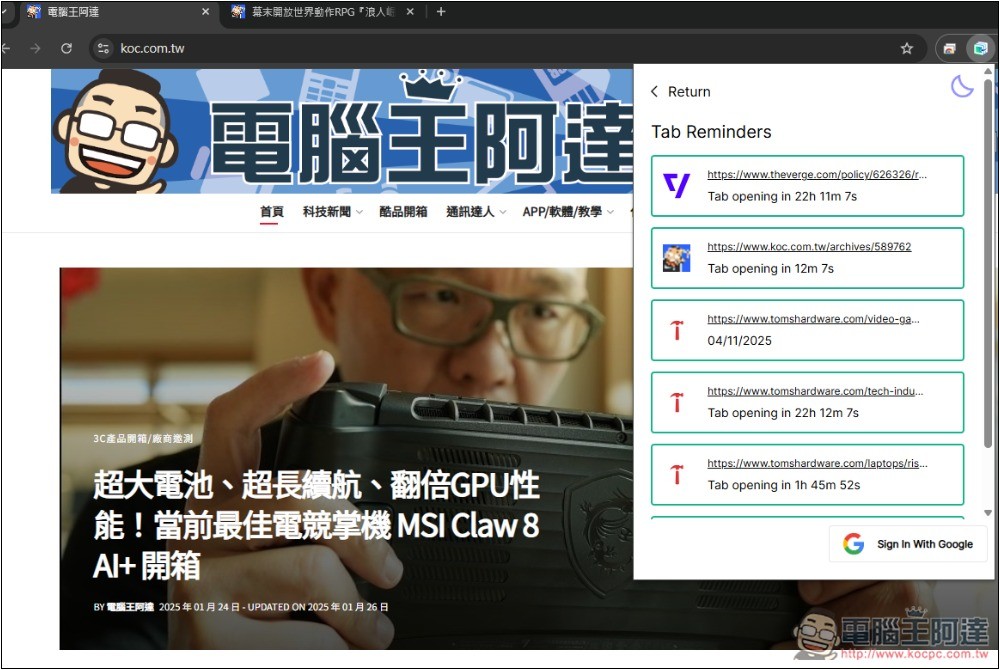
Tab Reminder extended function introduction and operation tutorial
Tab Reminder is a Chrome extension that can be installed and used in basically any browser developed with Chromium core, such as Microsoft Edge. Although it is only in English, the operation is very simple.
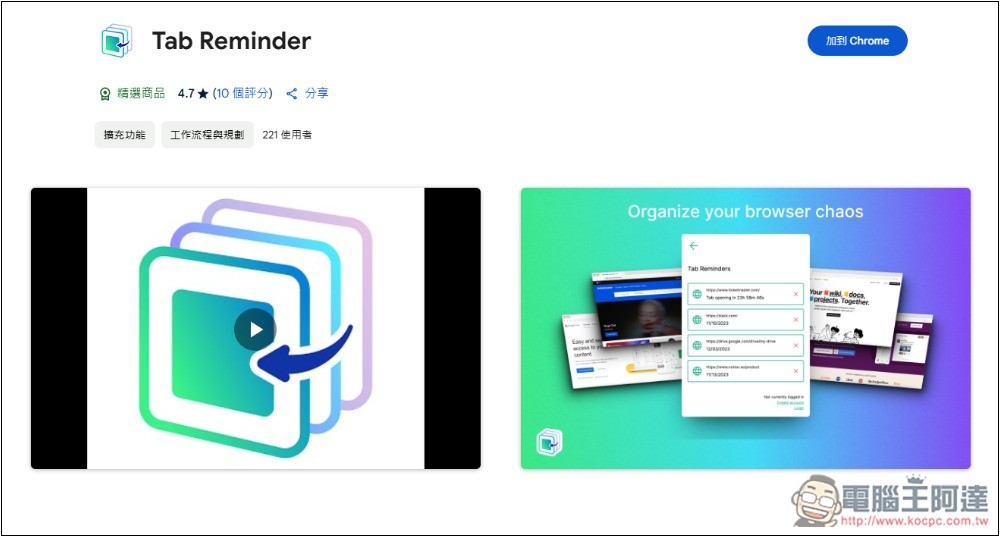
Click the link above to enter Tab Reminder’s Chrome extension store page, and click Add to “Chrome” in the upper right corner:
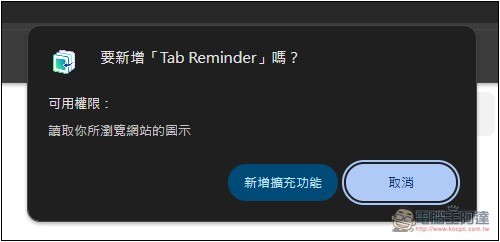
This prompt will pop up above, click on Add Extension Function:
This completes the installation:
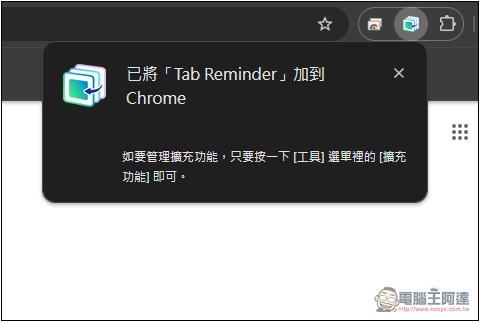
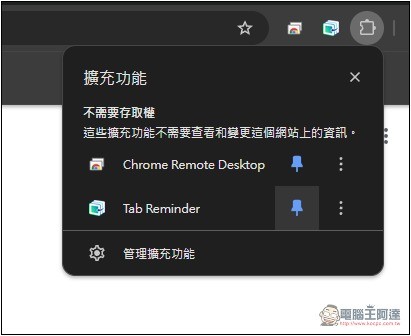
Current browsers will hide newly installed extensions by default, so you need to go to the icon on the far right and pin the Tab Reminder to display it in the upper right:
The method of use is very simple. After opening the webpage where you want to place a reminder, press Tab. Reminder’s expansion can be better illustrated. Check whether the topmost page is the URL of the current webpage. If there is no problem, set the time you want to remind below. Quick Reminders provides four quick settings of 1 day, 1 week, 1 month, and 1 year. Set a custom Reminder time is a custom time. You can select the date and time. After setting, click Add Reminder below to add the reminder:
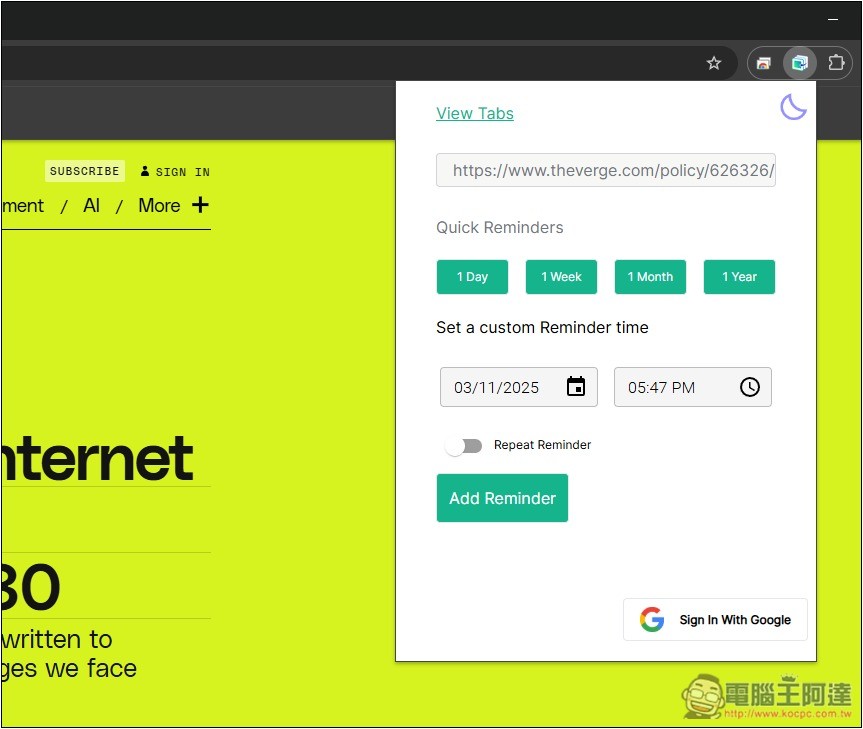
If you wish to repeat the reminder, remember to turn on Repeat Reminder.
Enter the View Tabs function to view the page tabs of the currently set reminders:
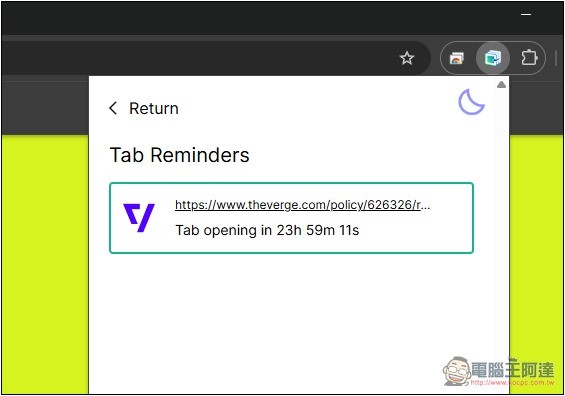
Each one will display how long it will take before it opens automatically. Of course, you can also directly click on the URL to open it immediately:
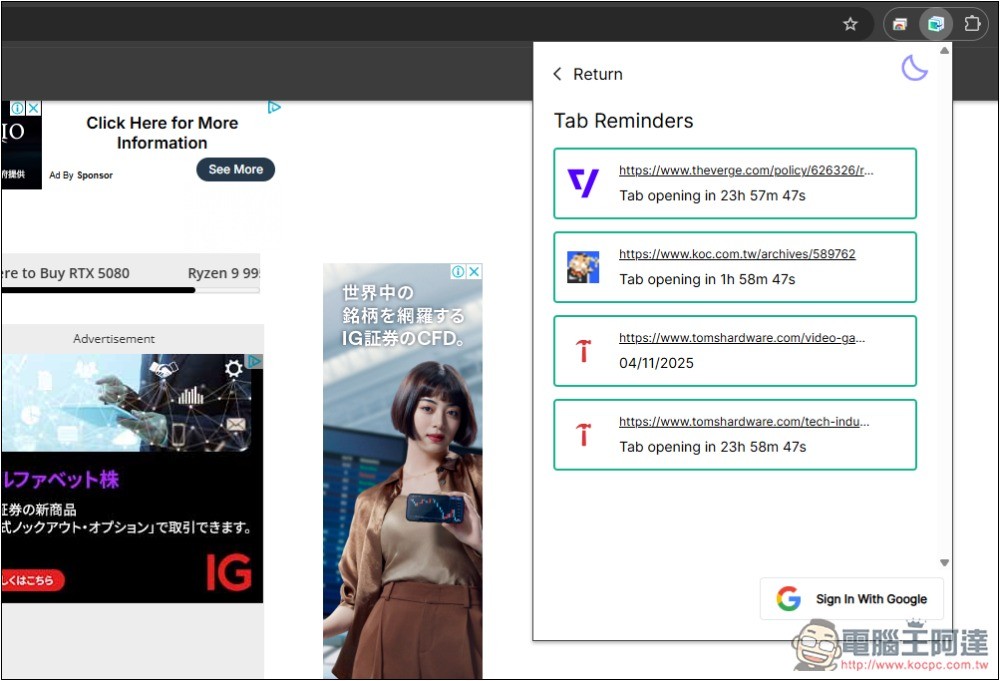
When the time you set is up, you will see that the webpage will automatically open in a new tab without you having to do anything.
With this extended function, you can divide the web pages you want to keep into two parts, and organize the frequently used web pages through folders. For web pages that will only be used during a certain period of time or read later, you can use this Tab Reminder to set the automatic opening time, so that the browser will not have many tabs open all the time.
For people with good computer hardware specifications, a lot of page pagination may not have any impact. However, if the computer hardware is poor, proper management can make your computer run more smoothly and the browser takes up less resources.
In addition, there is a moon icon in the upper right corner. If you are busy with something and do not want to be affected by the automatic opening of web page paging, you can turn on this function, which is similar to the concept of Do Not Disturb mode.
Source: KOCPC Chinese