


During the New Year, you only want to go abroad for fun, but are you worried that you will forget to post a message, and would it be disrespectful to send New Year greetings to relatives and friends (online) as soon as possible? Threads launched several new features before the new year. One of them, I personally think, is just right for use during the festival. This function is “Schedule”. This article will also teach you how to use it. Continue reading How to use the new function of scheduling posts in Threads? This article teaches you how to report content.
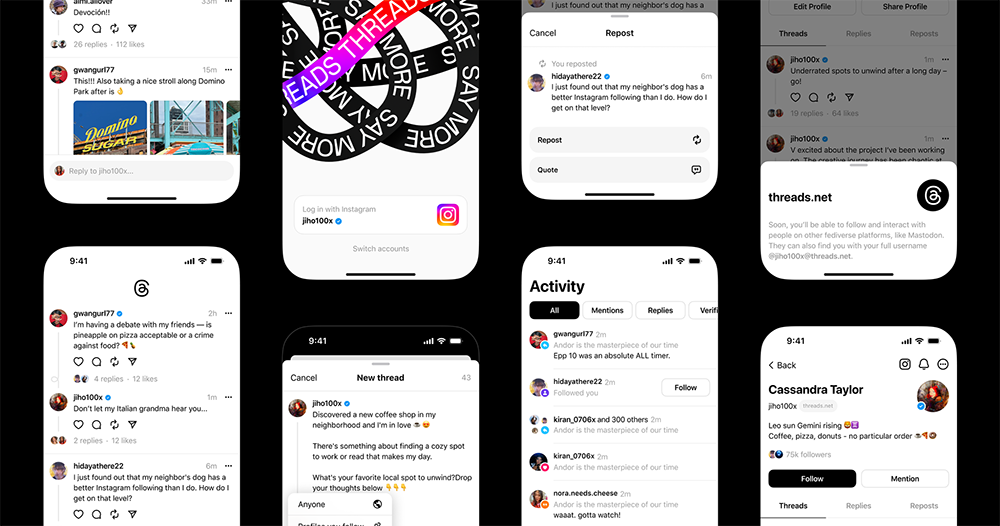
▲Image source: Meta
How to use the new function of scheduling posts in Threads? This article teaches you
During the New Year, you only want to go abroad for fun, but are you worried that you will forget to post a message, and would it be disrespectful to send New Year greetings to relatives and friends (online) as soon as possible?
Threads launched several new features before the new year. One of them, I personally think, is just right for use during the festival. This function is “Schedule”. This article will also teach you how to use it.
“Schedule” is just what it sounds like. It basically allows you to prepare Threads posts to be posted at a specific time in advance. It is quite suitable for blessing at a specific time point, to grasp the best time point to reach, or for purposes where posts need to be updated regularly at intervals.
But I personally believe that most people use it for memo purposes, right? So, I suddenly thought that I could schedule some posts for specific festivals first. I don’t have to worry about being away from home or busy and not being able to post at the first time, so as to get the best impression or reach the post.
How to use Threads to schedule posts
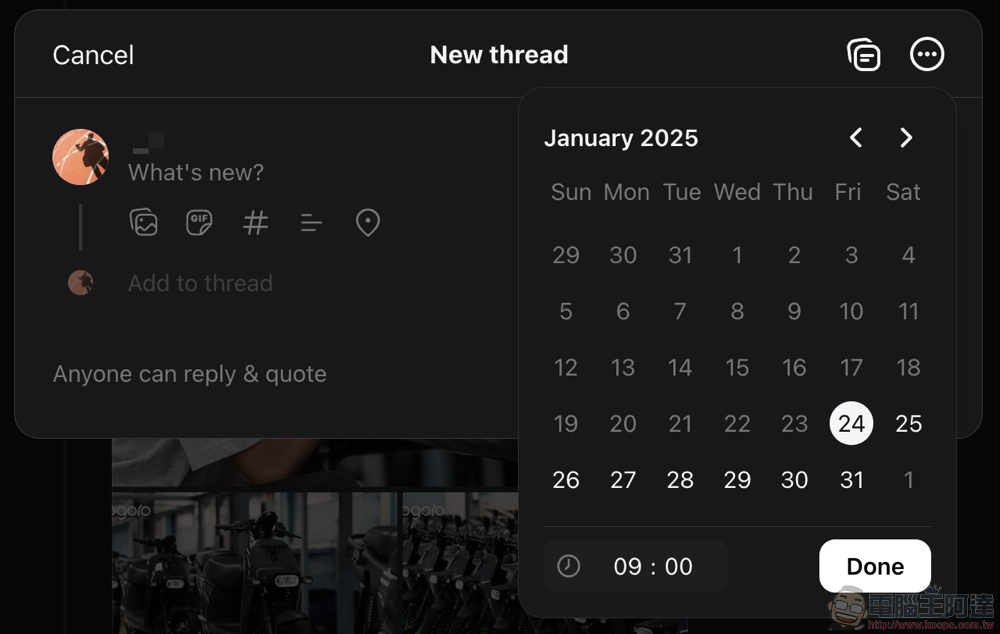
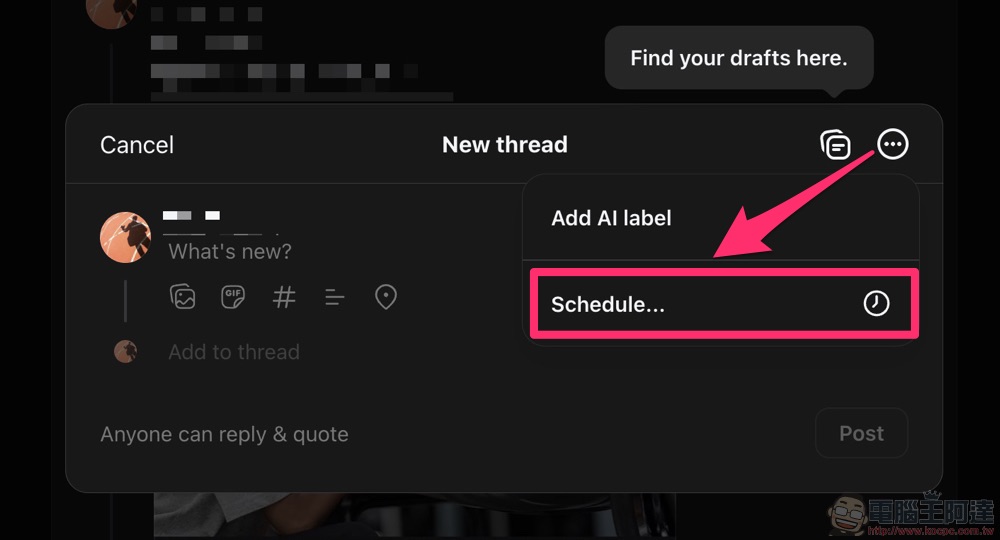
The scheduling function of Threads is a bit low-key, and is currently included in the “…” additional options in the posting interface. After clicking it, you can see the “Schedule…” button listed in it. After selecting, you can see the calendar and time setting interface.
I tested the scheduled post function and found that the earliest it can be set is about 5 minutes, and the smallest unit is “minutes” – if you use the arrows to adjust up and down, it will jump in units of 15 minutes, but you can use the keyboard to enter a specific time point. In addition, the longest time can be set to 75 days later.
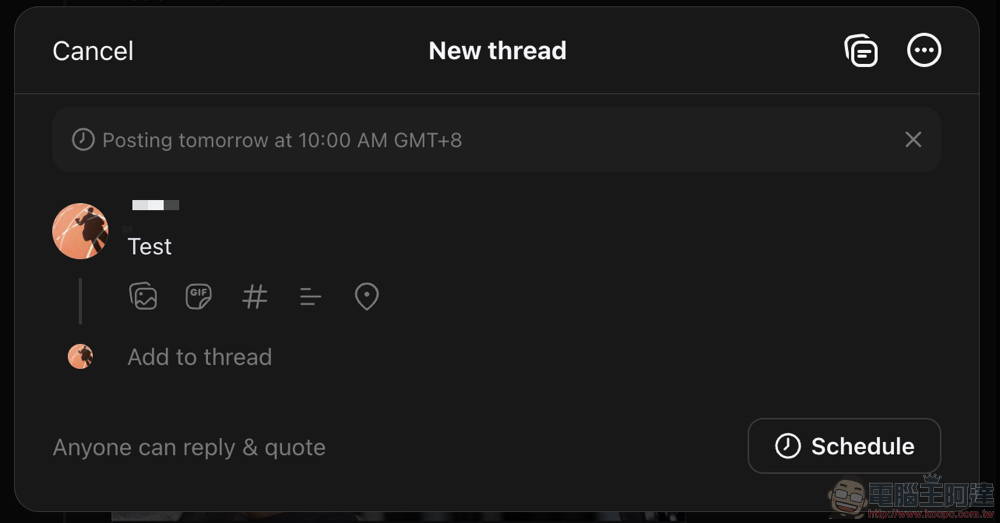
After completing the settings, you can press “Done” and the rest of the operations will be the same as normal posting methods – but you will not post immediately. The original “Post” post button will be changed to “Schedule”.
After setting the post schedule, the posted time will be displayed – as well as time zone information, which is quite considerate.
How to manage scheduled posts in Threads
Interestingly, Threads currently does not seem to provide a dedicated management interface for post scheduling. If you want to know what posts are being queued and at what time they will be posted. We found that Threads currently collects these posts in the Drafts functional area.
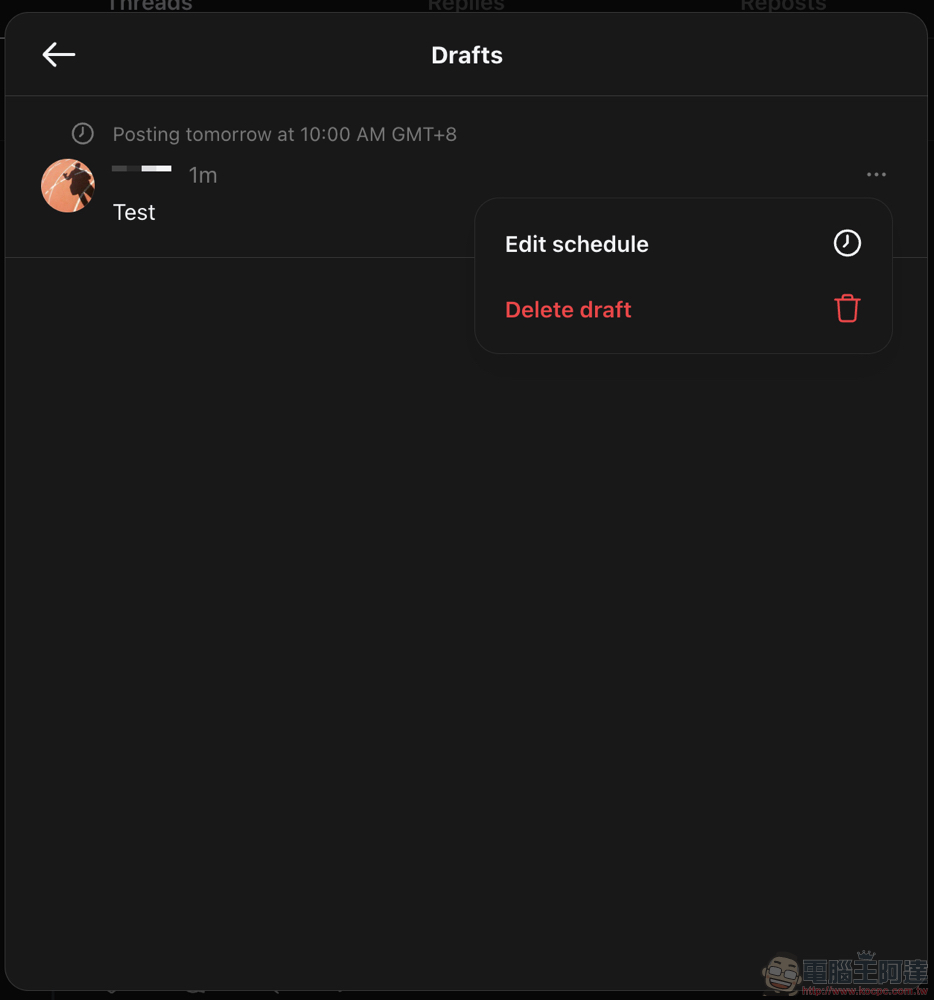
If you want to use it, you still need to click on the posting interface first. To the left of the “…” additional options in the upper right corner, you can see a button similar to copy text. Here you can find all posts that have been scheduled and saved as drafts. The management method is the same as that of drafts. You can use the “…” on the right side of the list to select the posts that you want to change the schedule time or delete the schedule.
Further reading:

Source: KOCPC Chinese