


When you want to convert a file on Mac to a PDF format that doesn’t want the recipient to make any changes to the content, you must read this article! There is no need to download any file conversion software, it can be achieved directly through the built-in functions in Mac, and you are done in one click. What’s interesting is that this feature is in a place you might never expect.
How to create PDF using Mac’s built-in features?
As mentioned at the beginning, creating PDF on Mac is surprisingly easy. There is no need to download third-party software or any web version tools. You can do it directly with the built-in function, but it is very hidden.
- First, open the file you want to convert on your Mac, whether it’s in Word, Pages, Safari, or another application.
- Click “File” in the top toolbar, then click “Print.”

- You can see “PDF” at the bottom of the preview, click the arrow next to it to call up the menu.
- Then select “Save as PDF”.
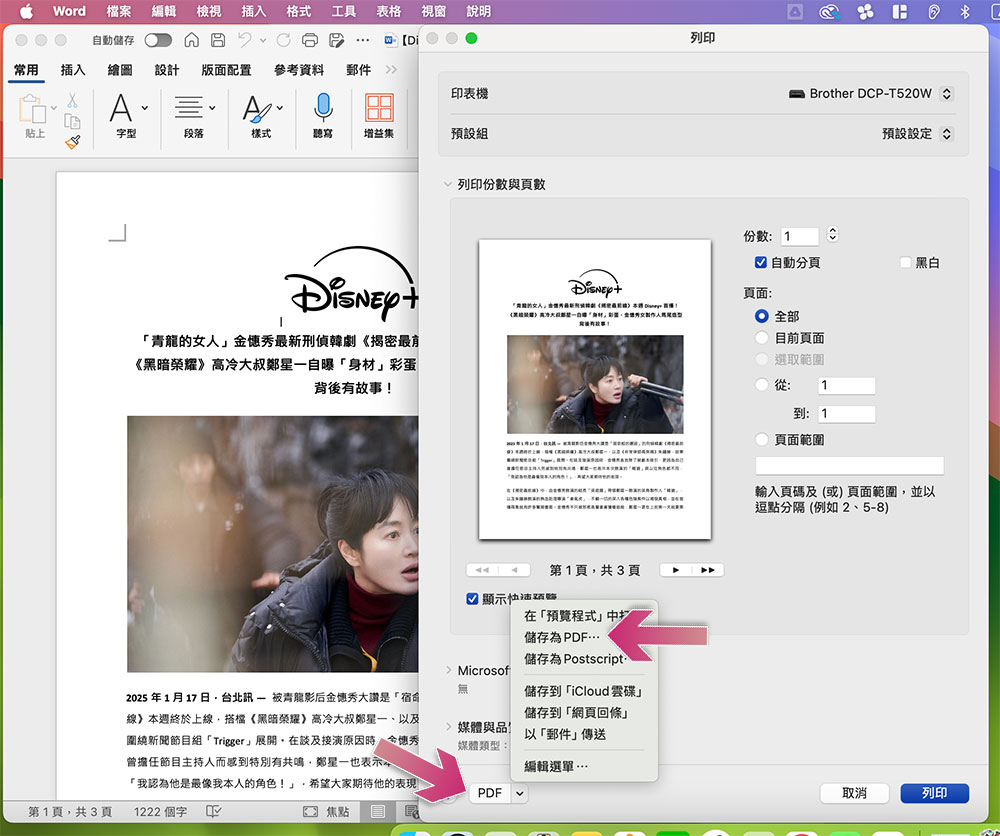
- Select the location where you want to save the PDF and click Save.
More password protection
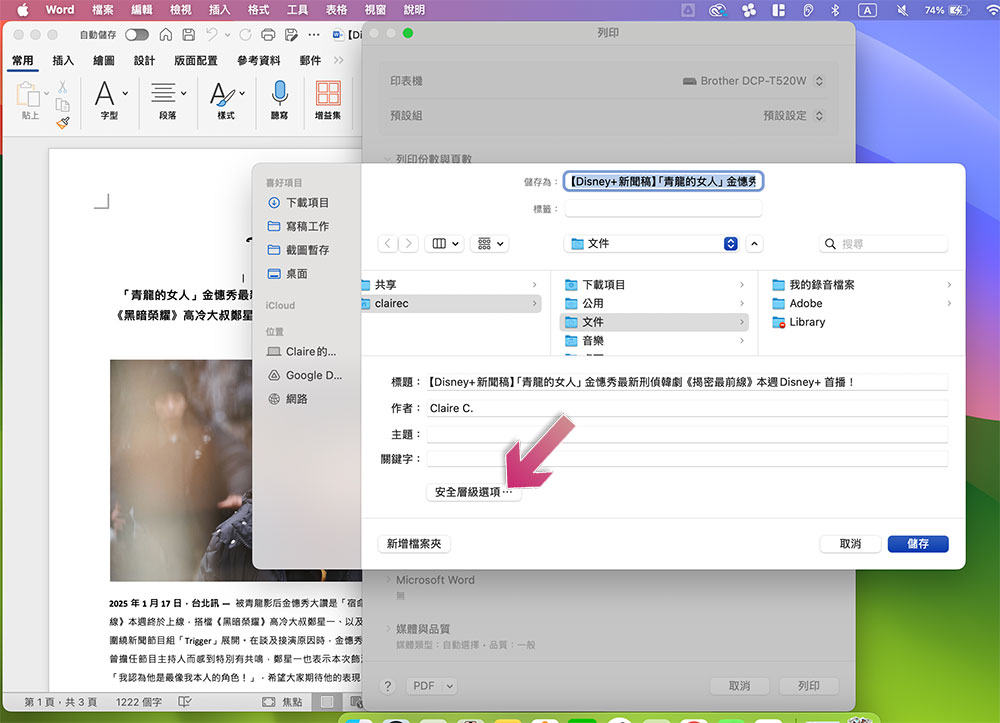
If you want to add an additional password protection, you can click the “Security Level Options…” button to customize the password before pressing Save.
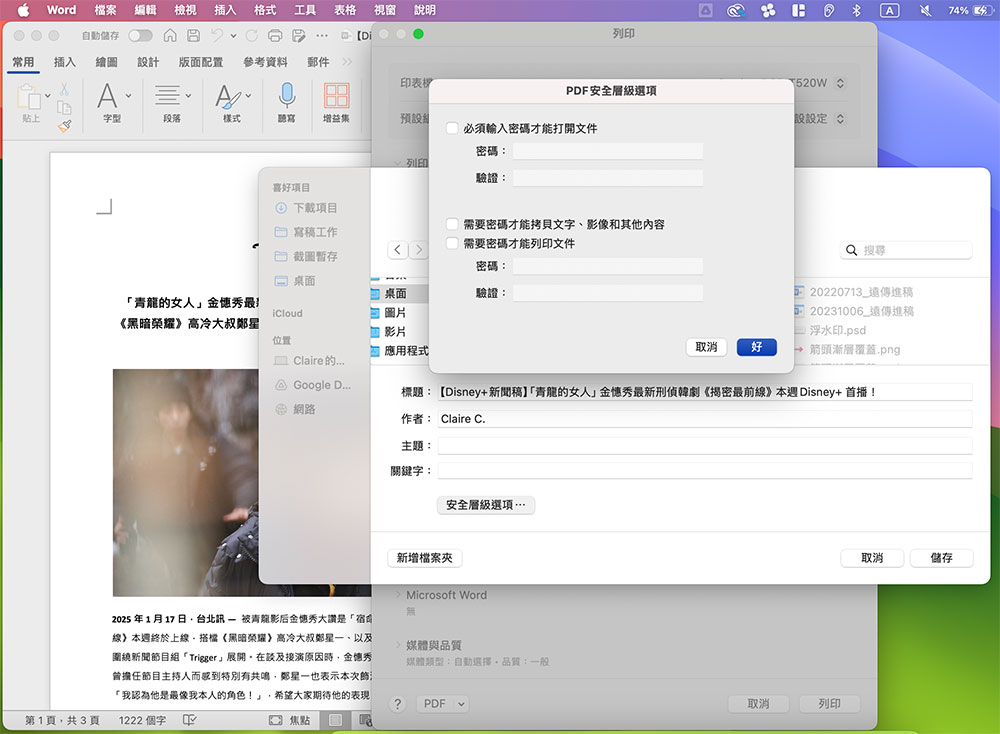
When setting the password, you can choose to enter the password before opening, copying content or printing documents. Click “OK” after setting. Finally, press “Save”.
Unexpectedly! This very useful Save PDF function is actually hidden in Print. Generally, people who do not have a printer or rarely print documents will not click on the print function in “Toolbar >> File”. This built-in conversion function can be applied to traditional documents, web pages, images, and almost any static file, and can be saved immediately. There is no need to upload the file first and download it after conversion like a web tool. Have you learned such a simple, fast and convenient way to create PDF?
Source: KOCPC Chinese