


Previously, we introduced a Wispr Flow ‘s AI Voice inputtext workertoolIt can be said to be quite well-received, and many people really like it after using it. However, the free version has a monthly text quota that isn’t very large and fills up easily. If you want unlimited access, you have to pay for a subscription, which becomes a considerable burden over time. This article introduces a great alternative: “Handy,” which is completely free and open-source, and supports OpenAI ‘s Whisper With the Parakeet model, I tested that the conversion speed is super fast, and what is said is also automatically saved as an audio file, which is very practical for recording things.Windows、Mac They can all be installed.
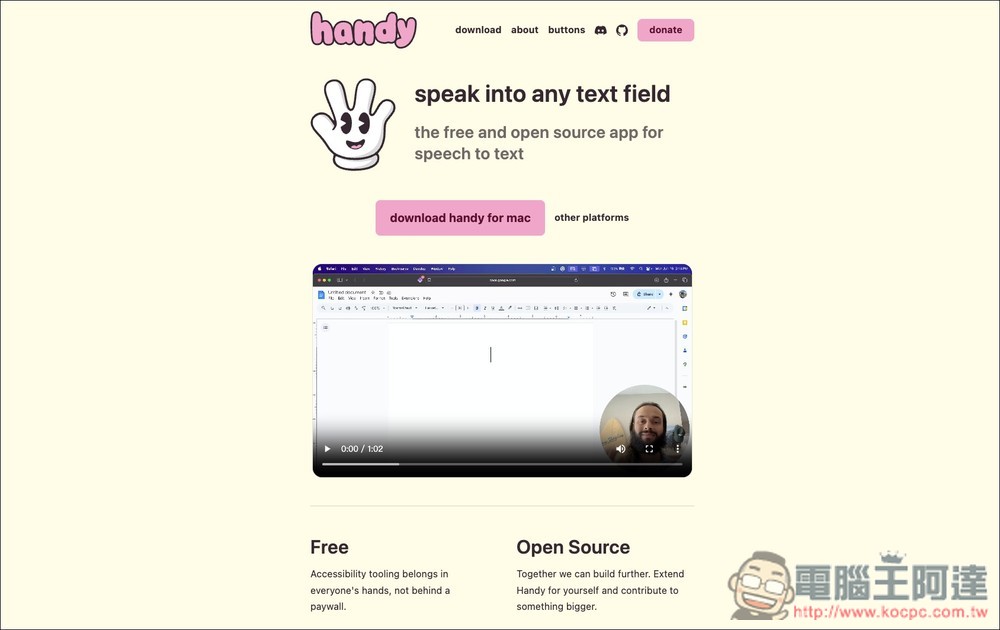
Handy local AI speech-to-text free open-source tool, super fast, supports Whisper and Parakeet models (Win/Mac).
Handy is a free, open-source, fully offline voice-to-text input tool that emphasizes “privacy-first” and “highly extensible” design. Built with the Tauri (Rust + React) framework, it strikes a solid balance between performance and resource usage. Like its competitors, you hold down a hotkey to speak, and release it to automatically convert speech to text and paste it into the app you’re currently using—whether that’s a browser, document editor, or chat window.
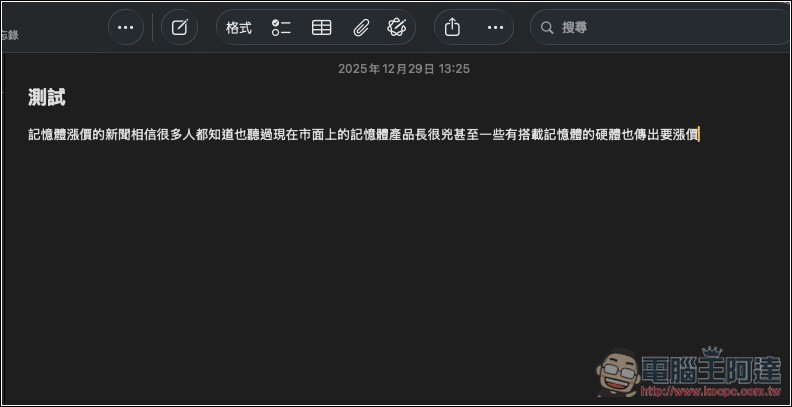
All recording and recognition are done locally on your device, so you don’t have to worry about your voice data leaking out. For privacy-conscious users, this is a definite plus. It supports multiple speech models, including the GPU-accelerated Whisper series and the CPU-based Parakeet model, so you can freely choose based on your hardware performance. The only thing to note is that in my testing, the Chinese language support currently doesn’t seem to automatically add punctuation (even if there are pauses mid-speech). This means that after transcription, you’ll need to add punctuation manually or use other AI-assisted tools.
Main Features
- Fully offline operation: no network required, no voice uploads, privacy and security guaranteed.
- Open source and free (MIT License): you can modify, extend, or further develop it yourself.
- Cross-platform support: available on macOS, Windows, and Linux
- Shortcut key for instant input: Once you finish speaking, the text is immediately pasted into the currently active app.
- Multi-model selection: Supports Whisper and Parakeet models
- GPU / CPU acceleration: Better performance on Apple Silicon or with a graphics card
- Voice Activity Detection (VAD): Automatically filters out silence to improve transcription accuracy
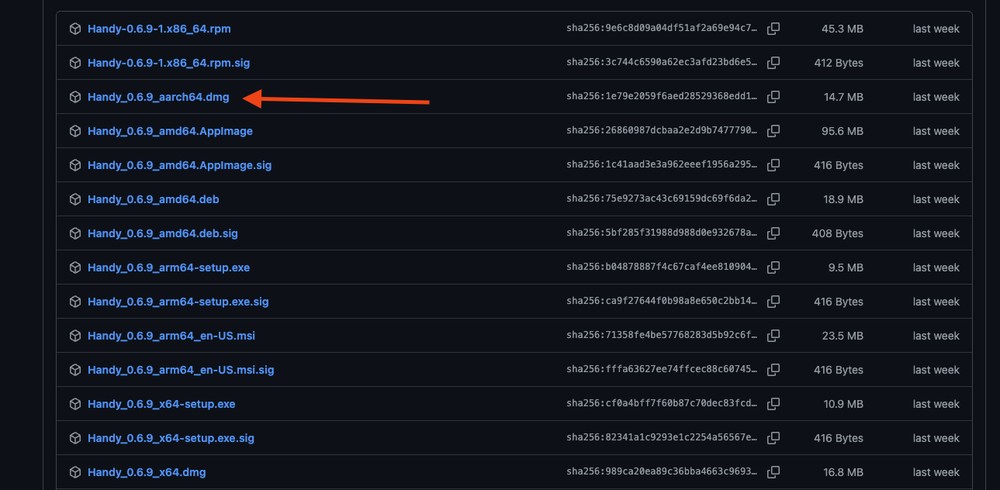
After following the link above to the Handy GitHub download page, the latest version is currently 0.6.9. Choose the installer that fits your computer. Since I have an Apple Silicon Mac, I download the aarch64.dmg installer:
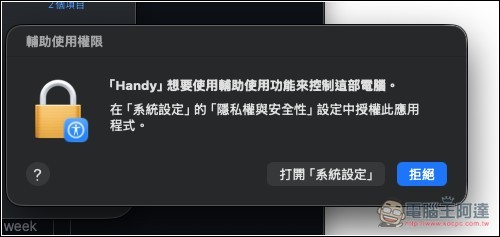
After installation, when you open it, you will need to grant certain permissions. First is the accessibility feature—tap to open “System Settings”:
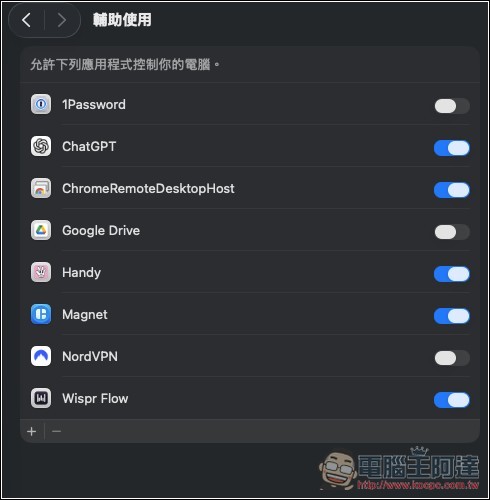
Turn on the switch on the right side of the Handy.
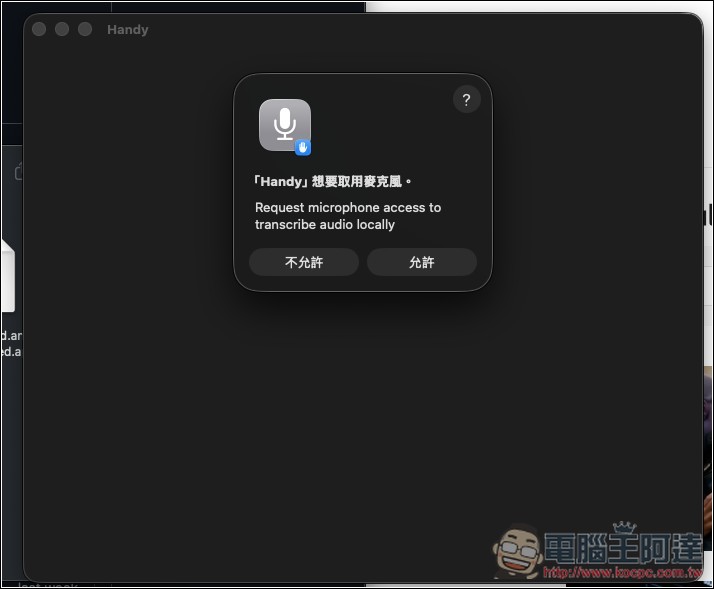
Also, allow microphone:
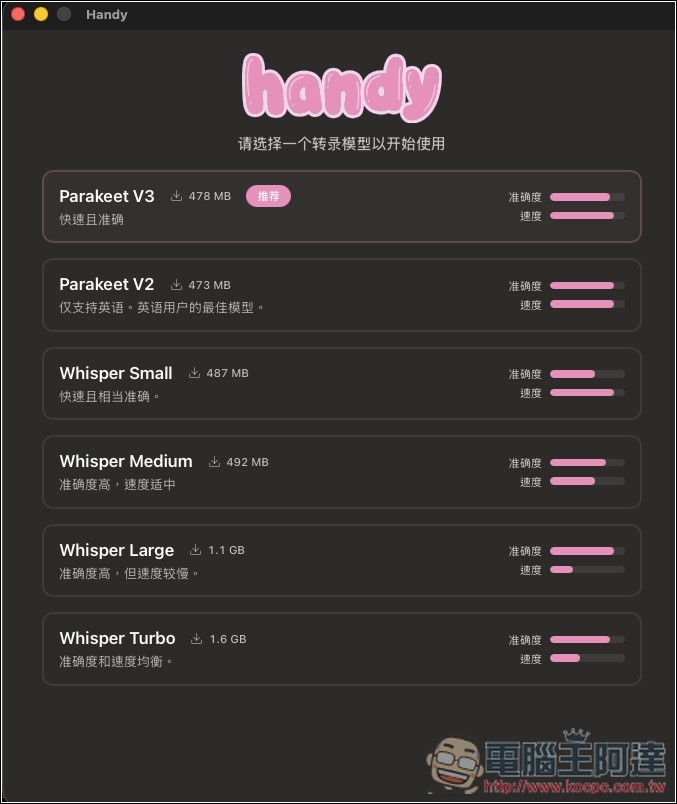
Then it will open the model page, select the one you want to use. Personally, I recommend Whisper Turbo or Whisper Large:
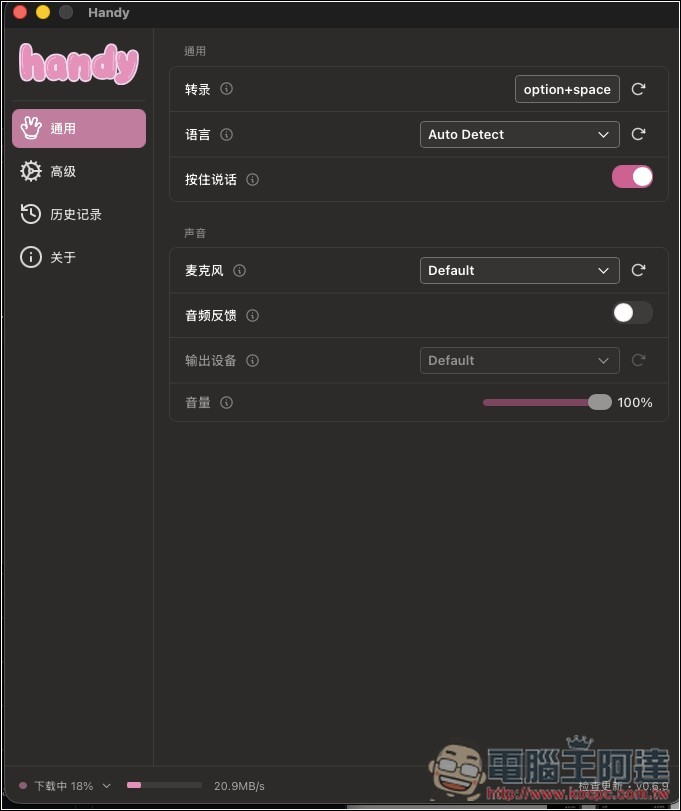
After you make your selection, the model will start downloading, and you’ll see a progress bar in the bottom left corner. Next, you’ll be taken to the settings menu where you can adjust things to your preference. For example, the default shortcut for enabling transcription is Option + Space—if that doesn’t work for you, just change it to something else.
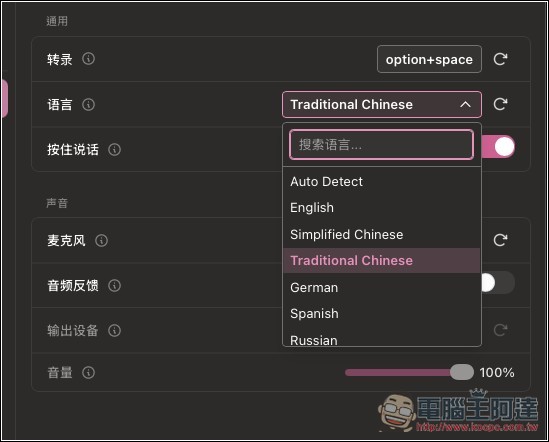
If the language is often detected incorrectly when you transcribe, you can specify Traditional Chinese instead of using auto-detection:
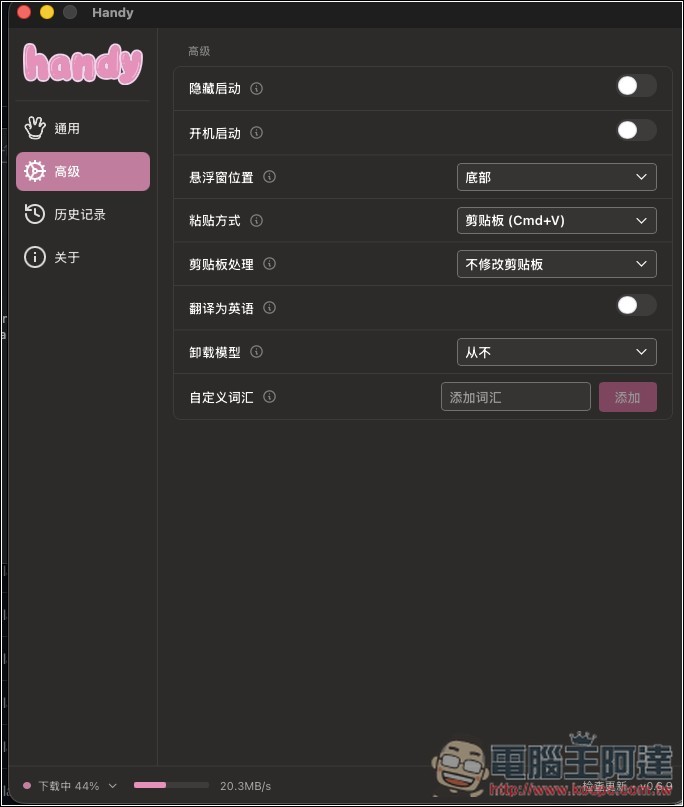
The advanced menu also has some nice settings, such as: startup, paste method, translate to English, custom vocabulary, etc.:
Press and hold the hotkey to speak, release when done, and the text will be input in less than a second. But as mentioned earlier, it seems that automatic punctuation is not supported:
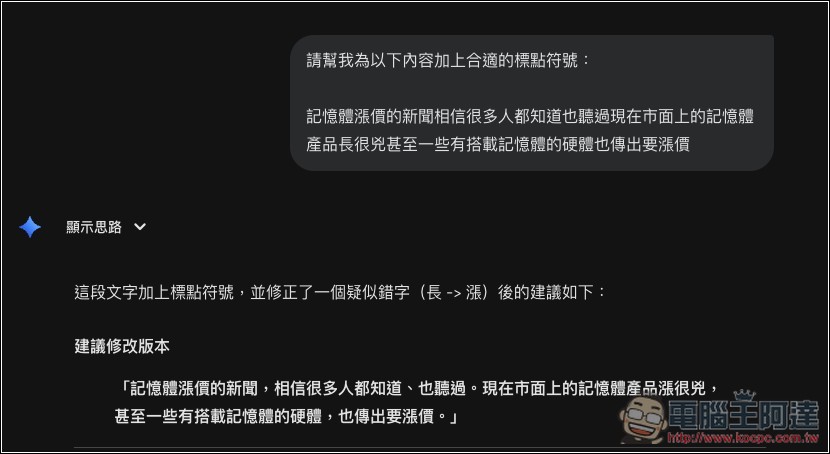
You can add it manually yourself, or ask AI to help add it. I guess future versions should improve this:
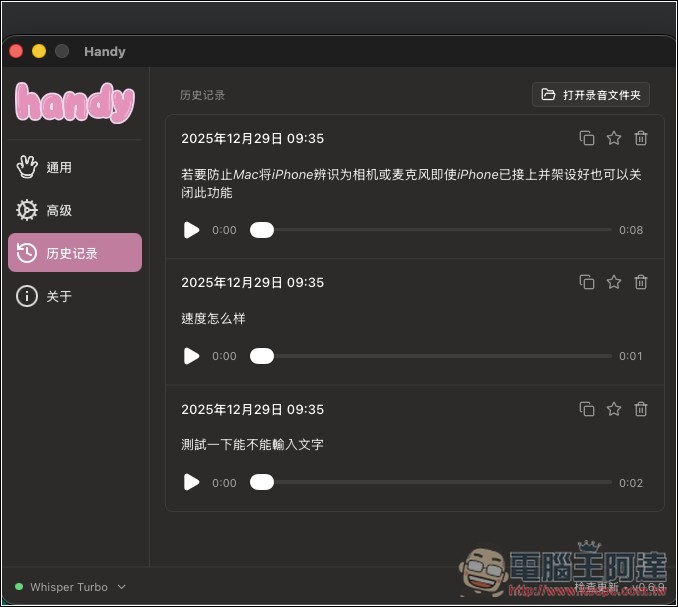
All previously transcribed text and audio recording files can be found in the history:
Source: KOCPC Chinese