


Everyone knows that rebooting can cure minor problems that appear inexplicably on most electronic products. To keep your iPhone running smoothly, you need to have good usage habits. Restarting your iPhone regularly can clear temporary files, update system processes, and enhance security. So how can you let Shortcut, a good helper, handle the matter of regular reboots for you? Let’s learn together below.

Restarting your iPhone regularly can improve performance and security. Teach you how to set up automatic processing.
The simplest but most forgotten way to improve the performance of your iPhone is to restart it regularly. For example, applications often store temporary data, which can become cluttered over time. Restarting can clear this cluttered data so that your iPhone can run more efficiently.

Another advantage of regular rebooting is that it is good for security. System processes will be updated during the rebooting process, effectively reducing the risk of vulnerability exploitation. While Apple’s own security measures are already strong, rebooting provides additional protection by interrupting any potentially malicious activity that relies on extended operations. Additionally, restarting can resolve minor issues such as app crashes, slow performance, or connection issues, saving you the trouble of manually troubleshooting problems yourself.
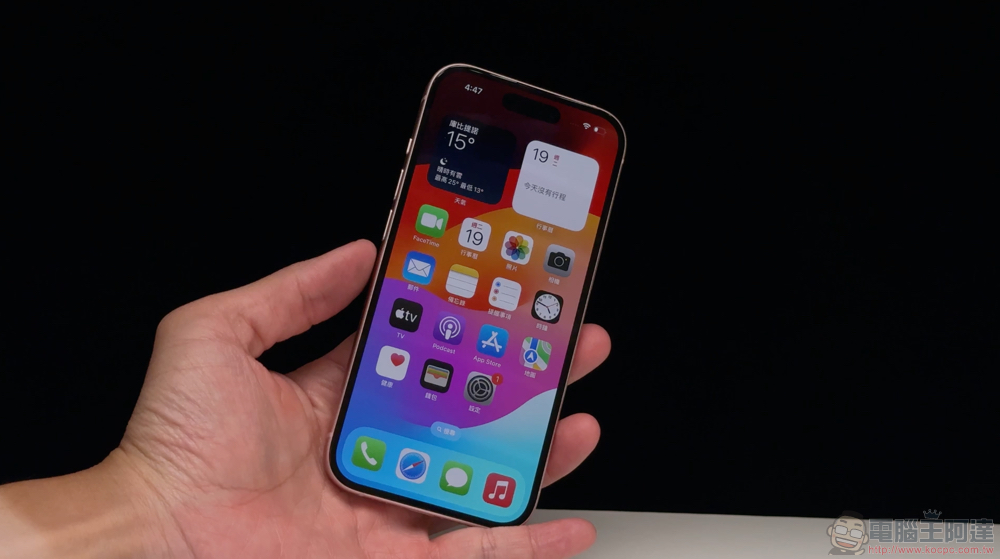
Make good use of the Shortcuts app to fully automate regular reboots, simplifying the manual intervention process while keeping your iPhone in optimal condition, allowing you to enjoy the process of using your iPhone instead of managing and maintaining it.
- Open the Shortcuts app.
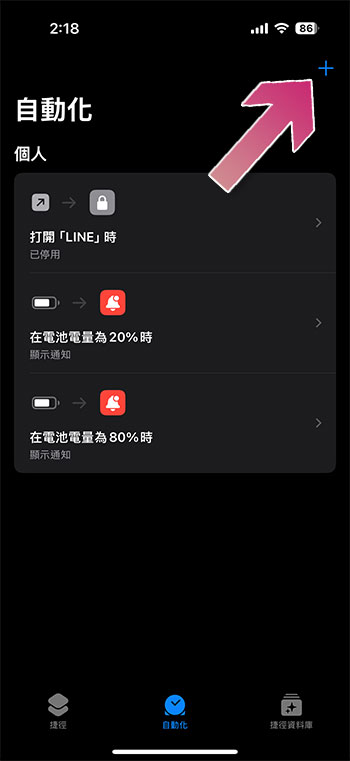
- Switch to the “Automation” tab, and then use the “+” sign in the upper right corner to create a personal automation operation.
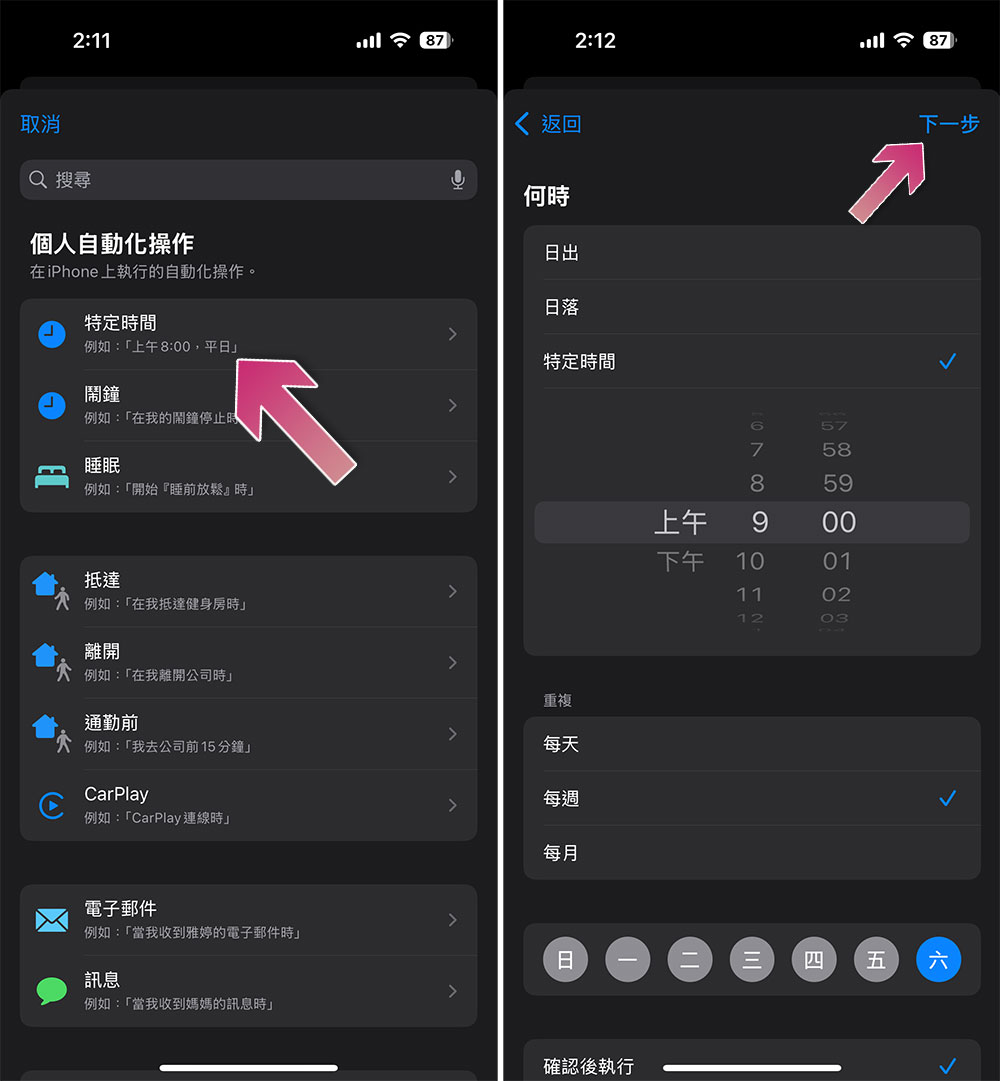
- Click “Specific time” to specify the time when this automated operation should run, such as the day and time of the day, week, or month, etc. The picture below shows that the specified execution time is “9 a.m. every Saturday”. After setting the time, click “Next”.
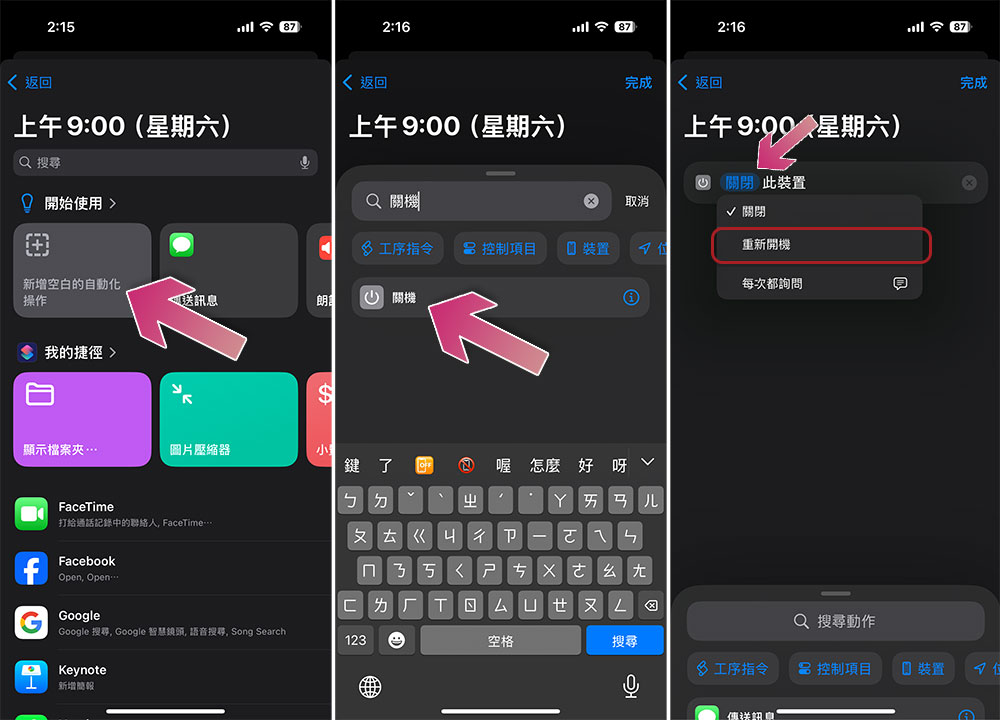
- Next, click “Add blank automation action.”
- Type “shut down” in the search action field and click it.
- Next, click on the word “Shutdown” that turns blue to see the “Restart” option.
- Finally click “Finish”.
When the time you set is up, you will receive a notification confirming the shutdown, and you need to power on the device again to complete this operation. You can also choose to shut down rather than restart in the last step, and schedule the shutdown at the most suitable time.
Source: KOCPC Chinese