


along with ChatGPT Search is open to free usersI believe that many people will now use ChatGPT to search for the information they want. However, there is a disadvantage. Every time a new search is performed, a chat record will be occupied. In the long run, the chat record will become very messy, and it is very troublesome to delete it manually.
This article will teach you how to set ChatGPT search as a temporary chat. When you close the window, the chat history will disappear and it will no longer occupy your chat history. Searching directly through ChatGPT web version or application, or browser address bar is supported.
Search the address bar using ChatGPT, how to set it up as a temporary chat
We have taught beforeHow to set the address bar search engine of each browser to the ChatGPT Search method, if you have set it before, you only need to modify the URL. Here I take Chrome as an example. If you want to know how to set up Edge and Firefox, you can refer to the previous article.
After opening Chrome settings, go to the search engine options on the left and click “Manage search engines and site searches”:
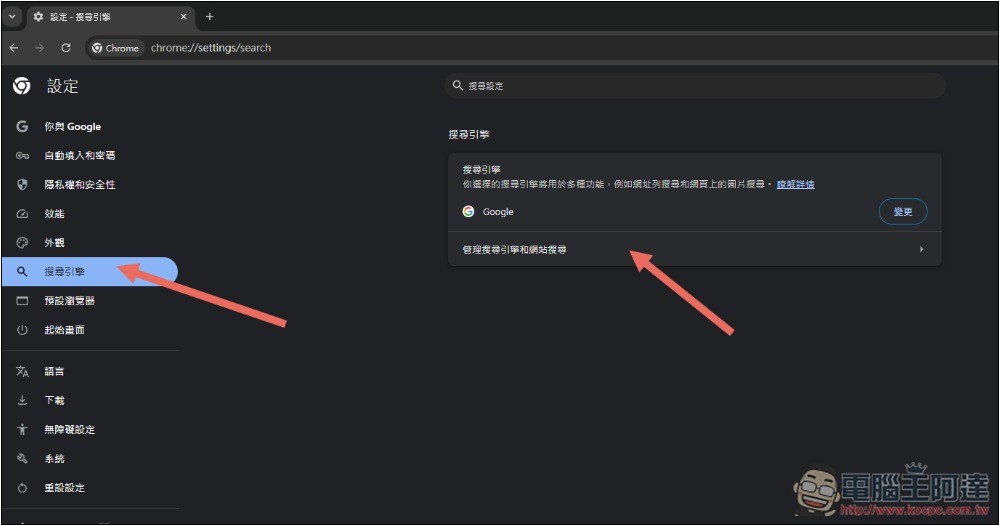
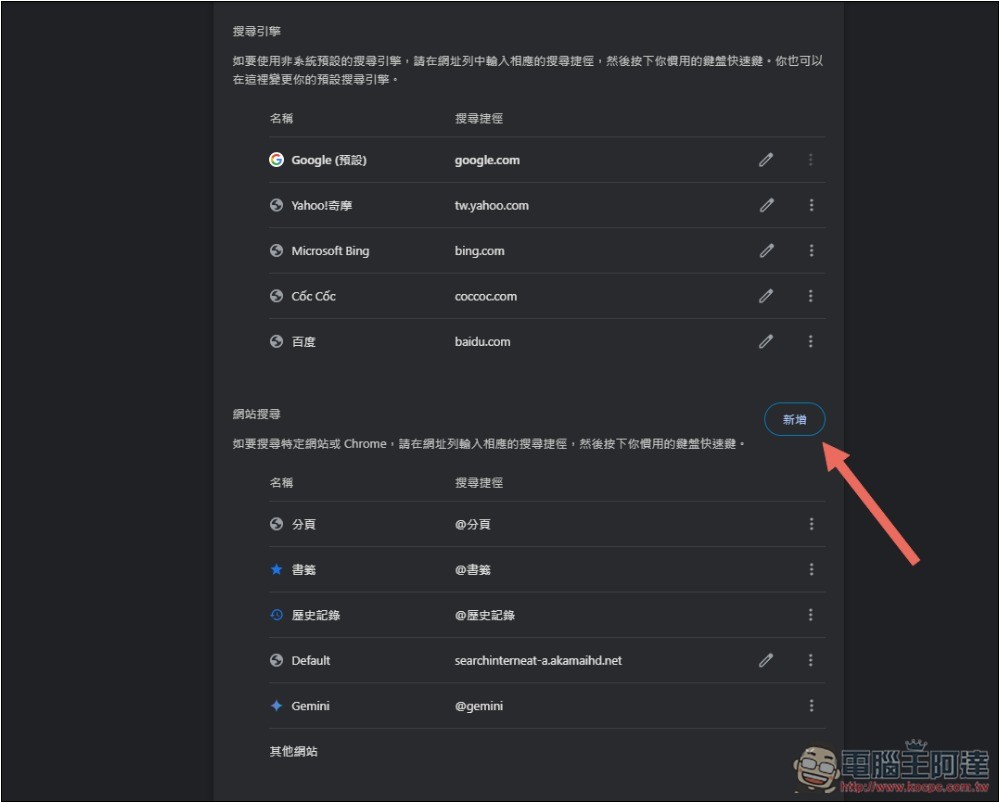
Click New next to Site Search on the right side of the screen. If you have added a ChatGPT search before, click the pencil icon on the right to modify it:
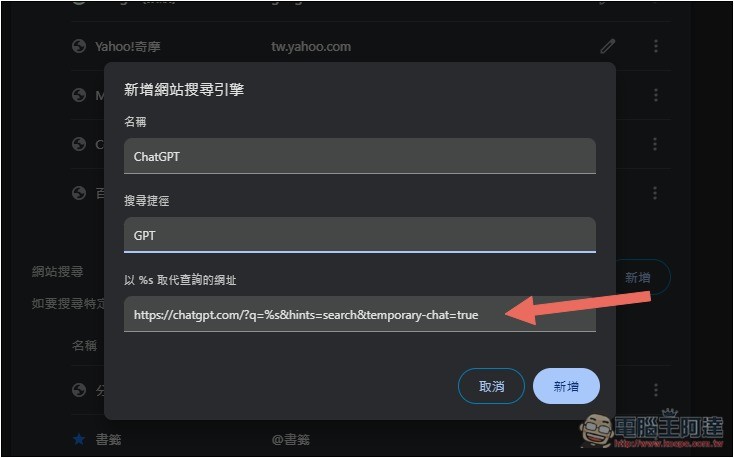
In the three options of adding a new website search engine, fill in the corresponding content respectively. You can refer to the figure below:
- Name: ChatGPT (this can be chosen casually to help you identify what search engine this setting is)
- Search shortcut: GPT (you can also set custom English for searching in the address bar, enter this keyword to enable ChatGPT search)
- Replace the query URL with %s: https://chatgpt.com/?q=%s&hints=search&temporary-chat=true
&temporary-chat=true in the second half of the URL part enables the ChatGPT temporary chat mode.
After adding it, I entered gpt in the address bar, and a prompt to search for ChatGPT appeared. At this time, I pressed the space key:
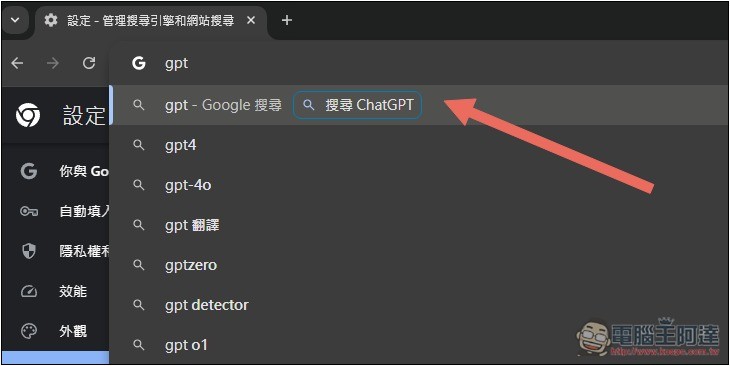
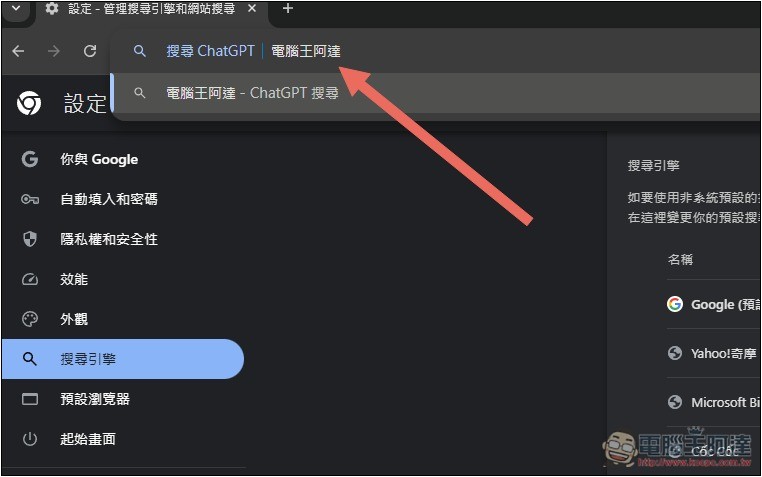
The left side will change to Search ChatGPT, and then you can enter the keywords you want to search for:
ChatGPT will open a temporary chat and perform a web search function. After getting the results, you can continue searching:
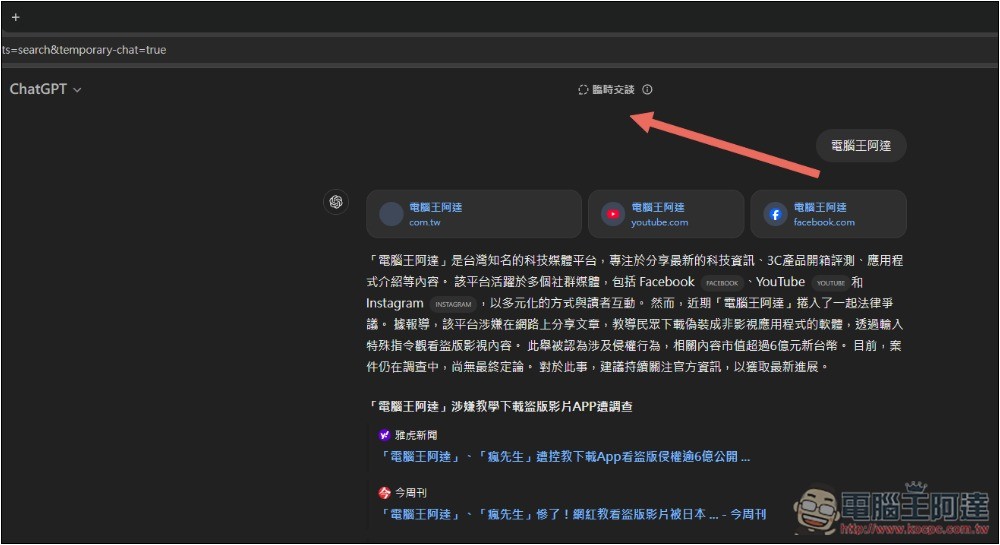
It should be noted that after closing the temporary chat window, the search history and chat content will be lost. Therefore, if you want to keep the search history, I would recommend setting up another search engine. The search path can be set to GPTKEEP or the like, and then the URL is changed to: https://chatgpt.com/?q=%s
In this way, when you enter GPTKEEP in the address bar to perform a ChatGPT search, the search history will be retained; if you use GPT to perform a ChatGPT search, it will be a temporary chat and will not be retained, making it more flexible to use.
How to enable ad-hoc chats in ChatGPT web and app
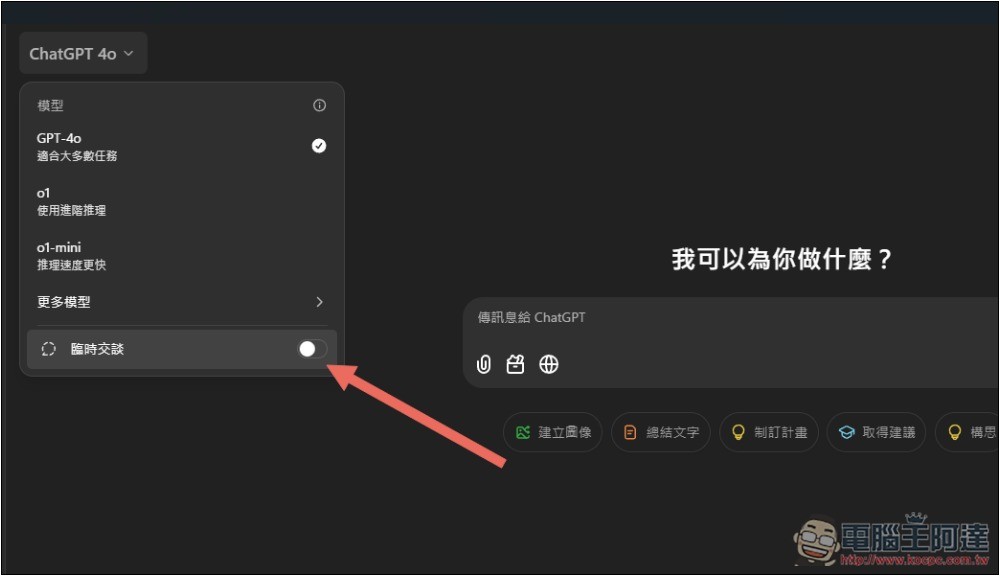
If you search directly in the ChatGPT web version or application, if you don’t want to keep the chat history, open the menu on the upper left and you will find the temporary chat option:
Source: KOCPC Chinese