


When you take a photo with your Android phone, the camera app not only captures the image on the screen, but also records the EXIF (Exchangeable image file format). EXIF can be used to organize photos and relive memories, with details like phone model, photo timestamps, and most importantly, GPS of where the photo was taken. Although there are many advantages, there are also disadvantages, such as significant privacy risks when you share these photos.
How to delete a photo’s location from an Android phone?
Why is GPS on EXIF a privacy risk? For example, when you share photos with others on social platforms, you may inadvertently expose sensitive details about your life, such as where you live, where you work, or places you frequently visit. If this location information is misused, it may compromise personal privacy and even security. Removing location information from photos helps protect this sensitive information from potential risks and vulnerabilities.
Editing and deleting EXIF location information from photos on Android is now easier than ever, and you can completely prevent the camera app from embedding location information, eliminating the need for subsequent deletion. This time, we will tell you how to delete and set it up one at a time so that you can safely store photos and share them with confidence.
※Demo model: Pixel 9 Pro XL running Android 15
Remove and annotate approximate location information from Android photos
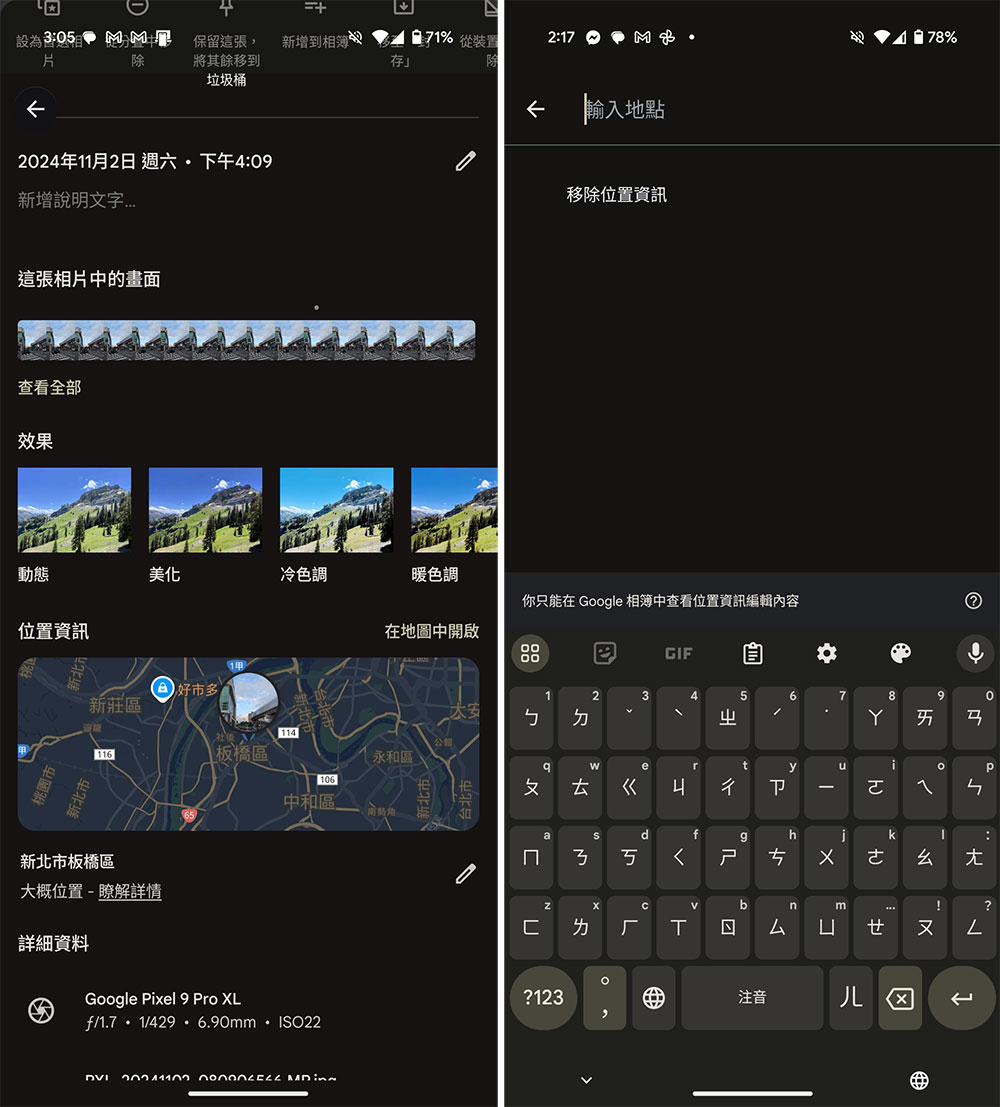
It is important to note here that Google Photos only allows you to update or remove your approximate location information. If you have turned on the automatic addition of photo or video location information in the camera, you will not be able to remove or edit it.
- Open the Photos app on your phone.
- Click on a specific photo and slide the photo up.
- Relevant information about the photo will be displayed below, including the shooting time, aperture, shutter, focal length, etc. Scroll to the bottom and you will see a “Add location information”. After clicking it, you can find an approximate location and mark it. You can also delete the location at the same location in the future.
Some brands, such as Samsung Galaxy, have built-in methods for easily deleting photo location information in their photo album applications. The location is not much different from the one mentioned above, so you no longer need to rely on third-party applications to handle it.
Use the third-party application “Photo Exif Editor” to delete location information
As mentioned above, the location information generated by the camera application cannot be deleted or edited from the photo album application. In this case, you can use the power of third-party applications to achieve this. This time we introduce a free tool “Photo Exif Editor”.
- First go to the Play Store to download “Photo Exif Editor》。
- After installation, grant it access to the photo album.
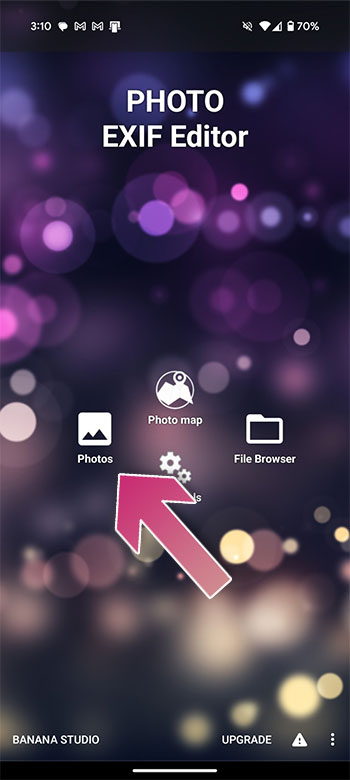
- Next, click “Photos” on the home screen.
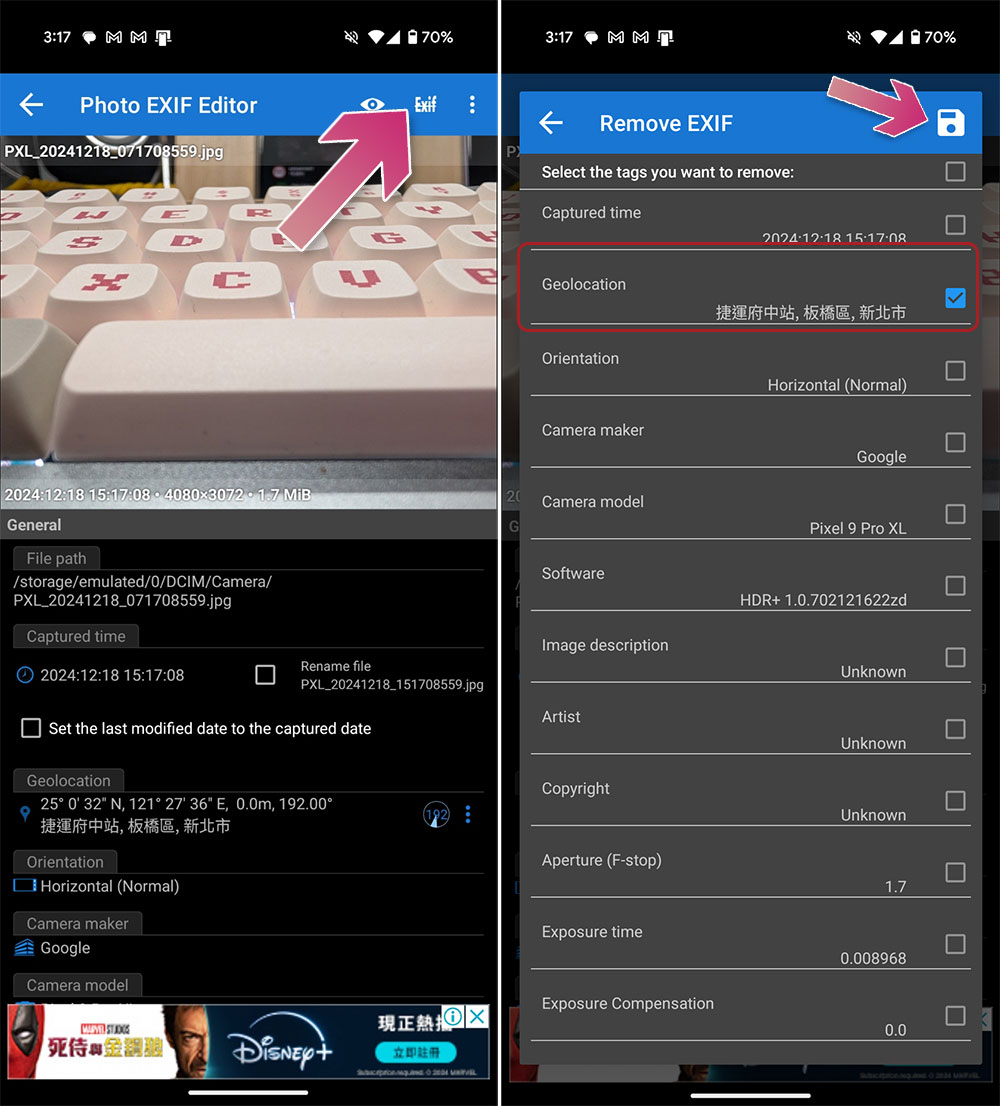
- Select the photo you want to edit EXIF from the album and click “EXIF” in the upper right corner.
- Check the checkbox behind “Geolocation” and click the save icon in the upper corner.
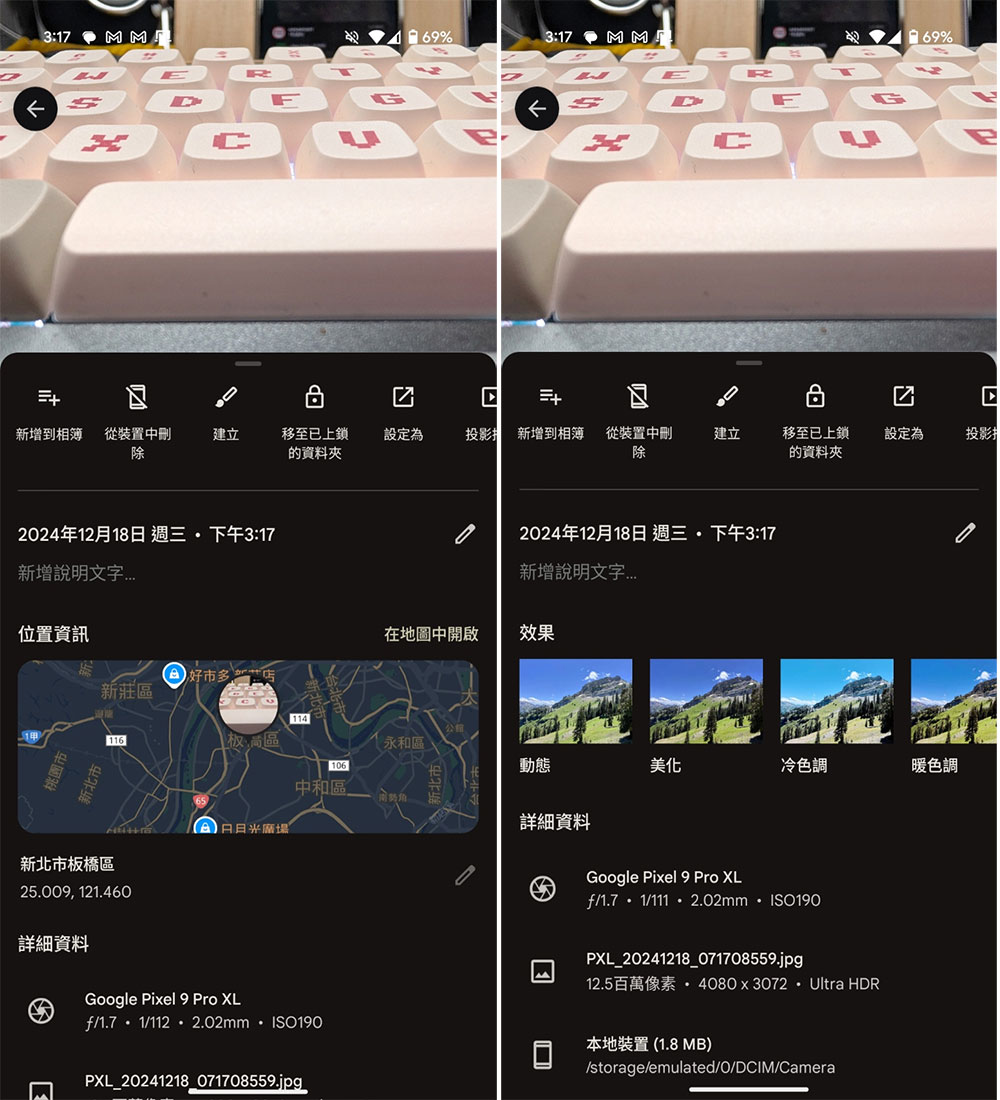
- Take a look at the comparison below. The screenshot on the left shows the positioning information in the photo album application before processing; the picture on the right shows the positioning information deleted after processing.
Close the camera app to add location information
The process of manually processing positioning information every time you access it is tedious. If you want to be able to close the camera app and write the location information when shooting, you only need to set it from the camera app.
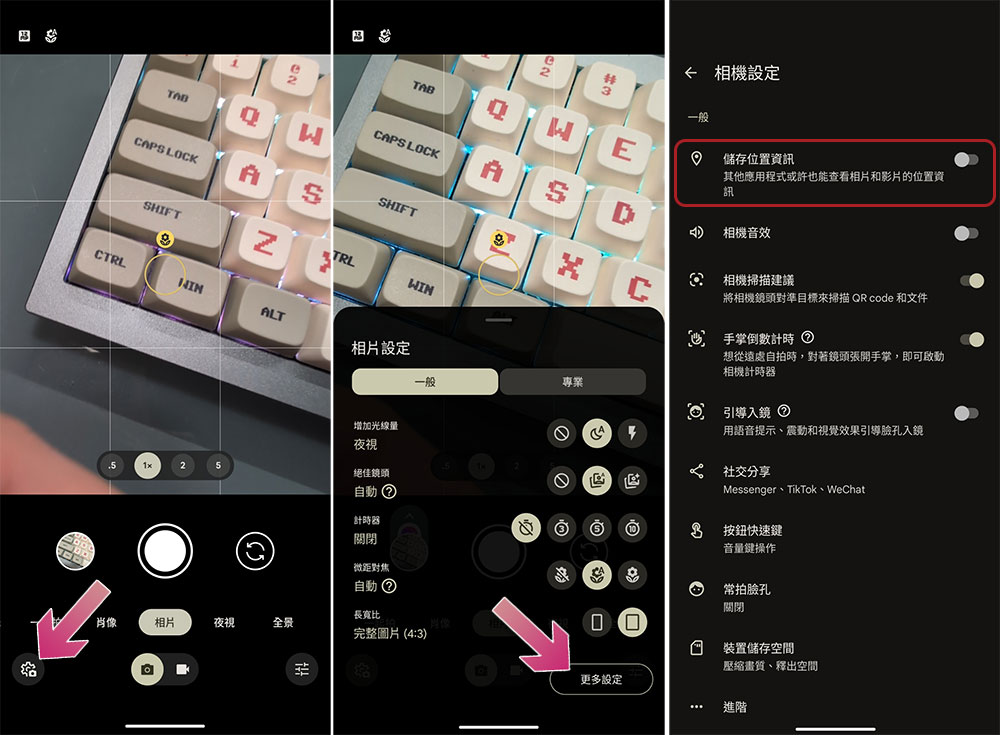
- Open the camera app and click “Settings”.
- Click “More Settings” at the bottom.
- Just turn off “Save location information” at the top.
Turn off camera app location permissions
If you have given positioning permission when you first use the camera app, you can use this method to turn it off in the settings. After that, the camera app will not have positioning capabilities or only rough positioning capabilities, but it will not affect the location information generated before setting.
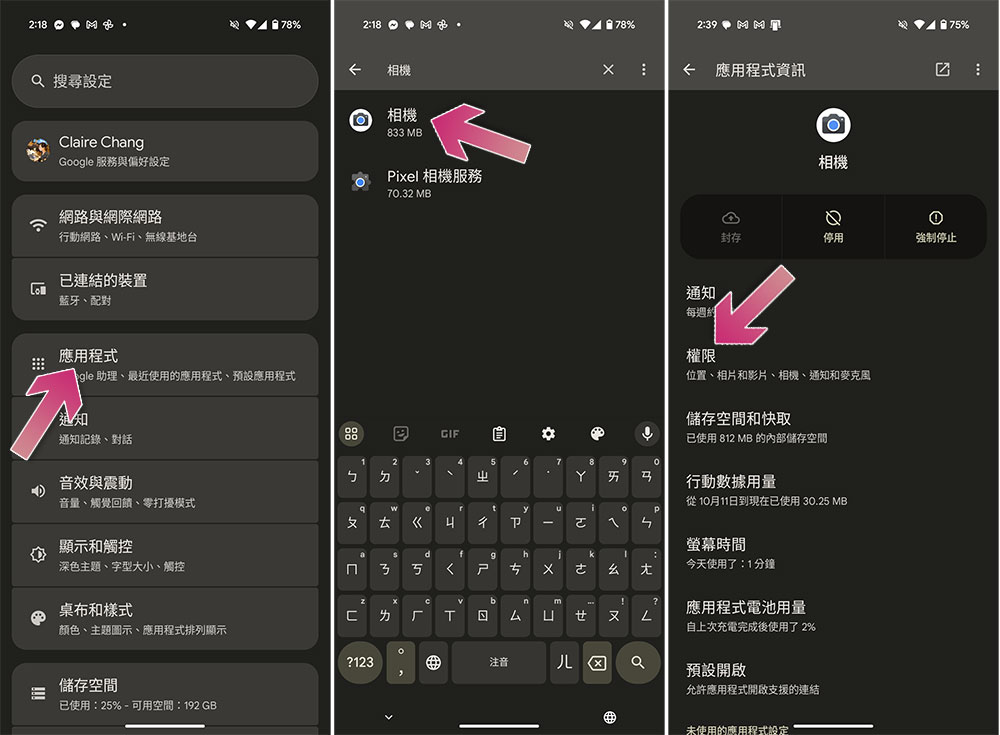
- Open “Settings” and click “Applications”.
- Query “Camera”, click to enter, and click “Permissions”.
- Click “Location”.
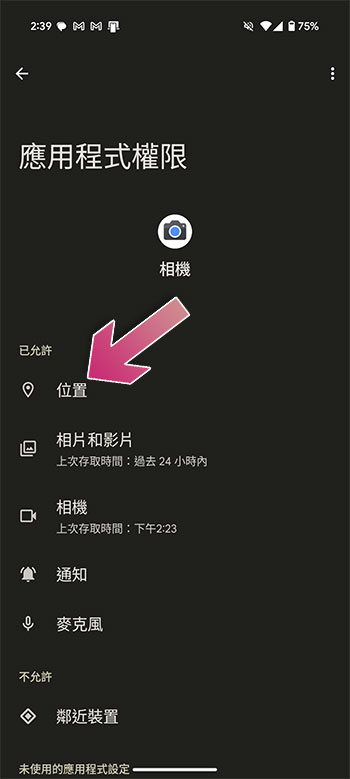
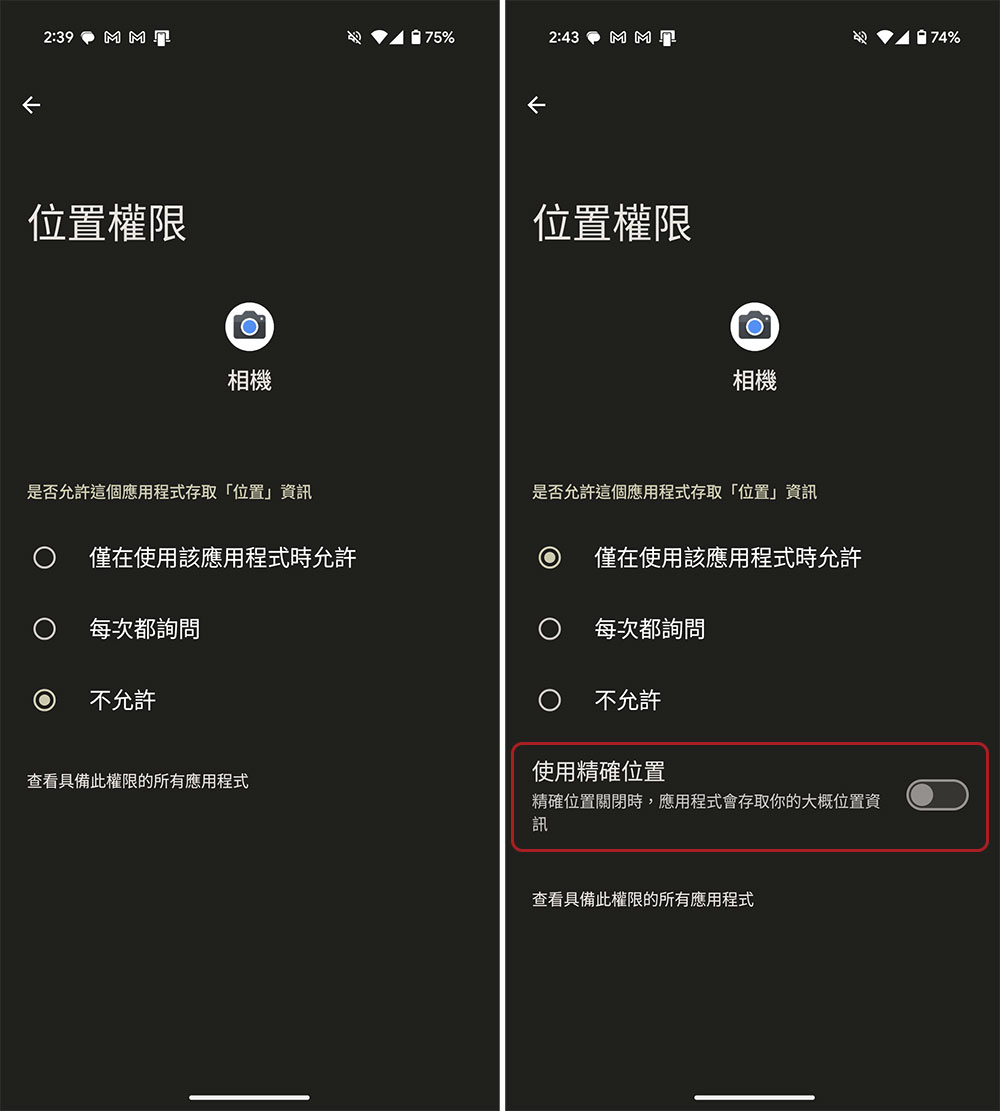
- There are two recommended setting methods to choose from:
- If you need to disable flagging at all, change the permissions to “Don’t allow.”
- If you want to have an approximate location for future memories, just turn off “Use precise location” below. In the future, it will only record your approximate location information.
Source: KOCPC Chinese