


In the best-case scenario, your phone would run at its best all day long, with fast responses and stable temperatures, but the reality isn’t always that good. Just like any other electronic product, your phone can heat up or cool down for a variety of reasons, mainly depending on how you use it and what the weather is like that day. Google now provides Pixel users with a new feature called “Device Temperature” that uses a simple method to determine if the temperature of the phone is suitable for special attention.
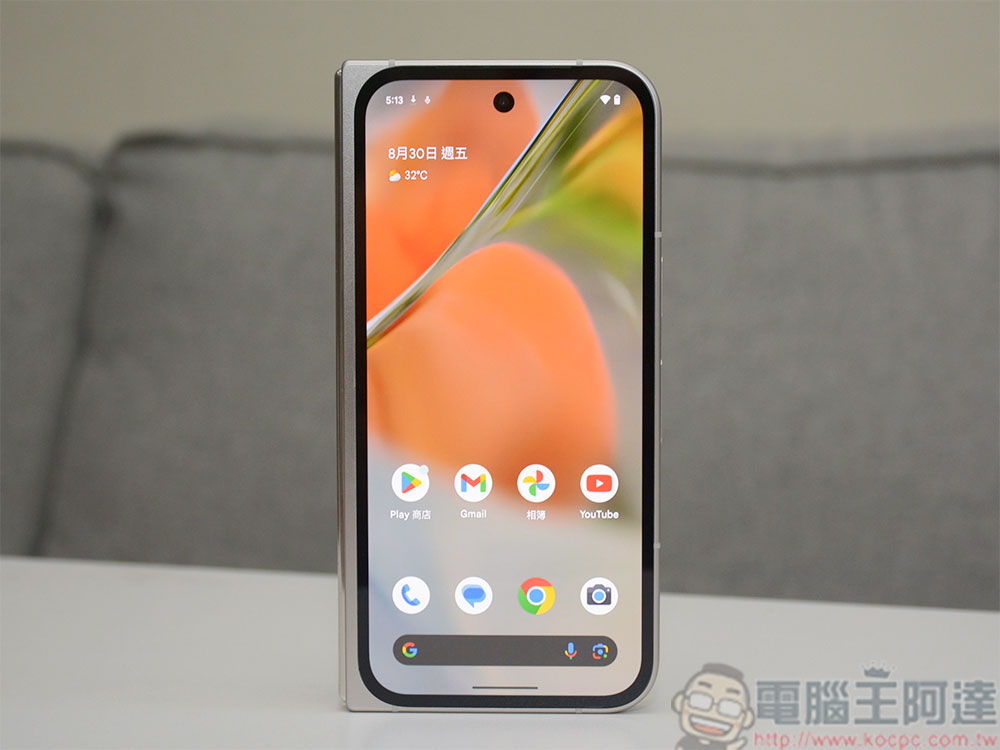
How to check device temperature on Google Pixel phone?
Although it is normal for the phone temperature to fluctuate, when the temperature of the phone is too hot or too cold, it always makes you panic and wonder. Is this really normal? Will my previous cell phone be like this? I wonder if anyone else has encountered the same situation? Then you start searching on Google about the reasons why your phone is overheating or cooling down and the next steps to prevent damage to your phone. If you’re a Pixel phone owner, luckily you can skip the tedious and potentially confusing process of searching online. This feature is a bit hidden, but we’ll tell you how to use it:
- Open the Settings app and click to enter “Battery”.
- Scroll to the bottom of the page and click “Battery Diagnosis”.
- Then select “Phone Heating” on the battery diagnosis page.
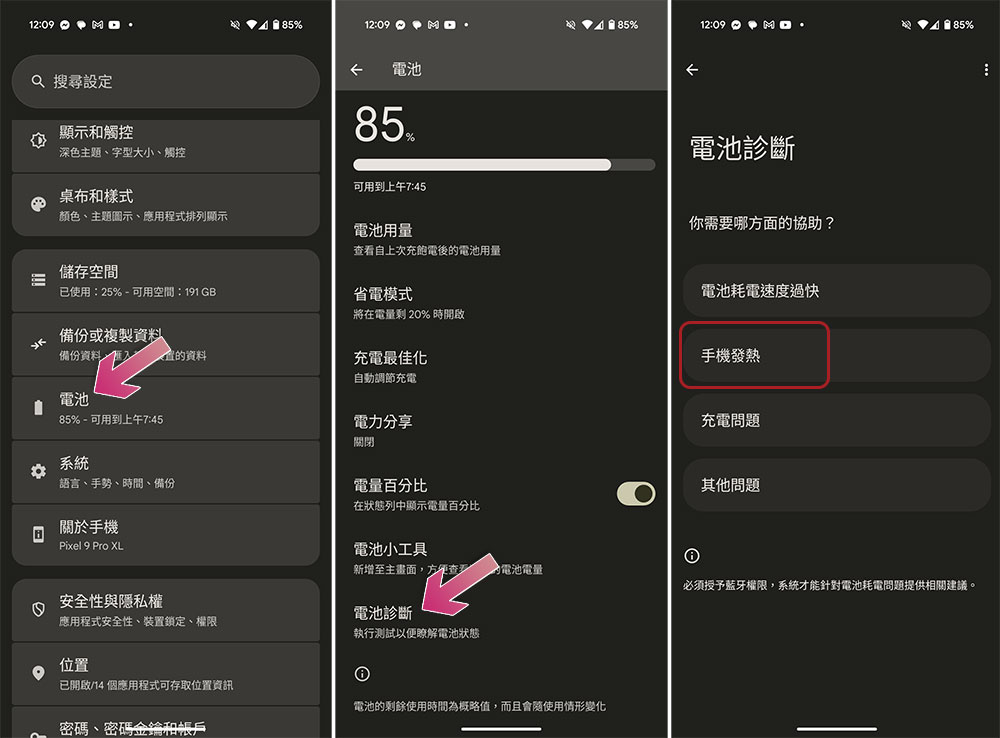
- The estimated temperature will be displayed on the device temperature page with color markings. Blue means low, green means normal, orange means slightly hot, and red means the temperature is high.
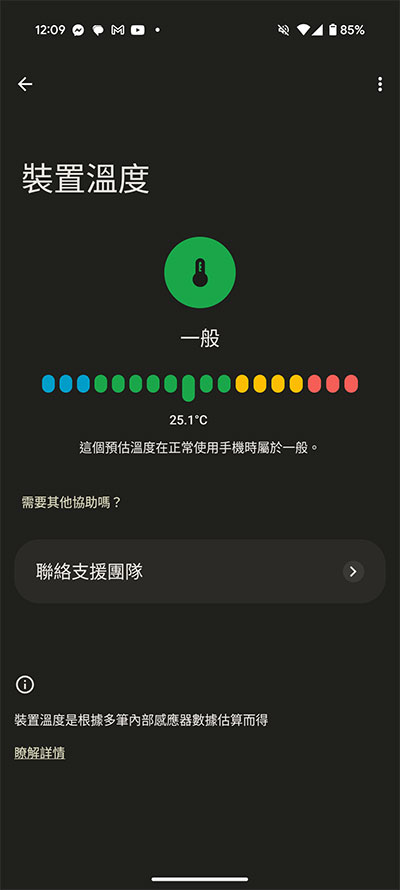
“Device Temperature” supports models from Pixel 6a to the latest Pixel 9 Pro and Pro Fold. Essentially, this feature is designed to make it easier and simpler for you to know if your Pixel’s temperature is within a safe range. There are three main types of indicators available in the diagnostics page. The first is the estimated temperature of the device. Since the processor, camera and wireless antenna all generate heat when operating, the temperature is estimated based on different sensors inside the phone. Next is the temperature state and some brief description of that state. The third is the improvement tips provided by Google when the phone temperature is not in the normal state.
- Low temperature (blue)
When the device temperature drops to 0 degrees Celsius, it may start to freeze or shut down completely. - Temperature is average (green)
According to Google’s safety guidelines, the so-called normal temperature refers to a temperature range between 0 degrees Celsius and 35 degrees Celsius, which is the temperature range for normal operation of the first Pixel phone. - Temperature slightly warm (orange)
The temperature of the slightly heated paper is slightly higher than the normal state, but there is no need to worry. Usually at this stage, the device will start to take some measures to try to cool down, such as lower screen brightness, slower network speed, etc. - Temperature is high (red)
This tells you that the phone has entered a high temperature area and may automatically power off to prevent damage to internal parts.
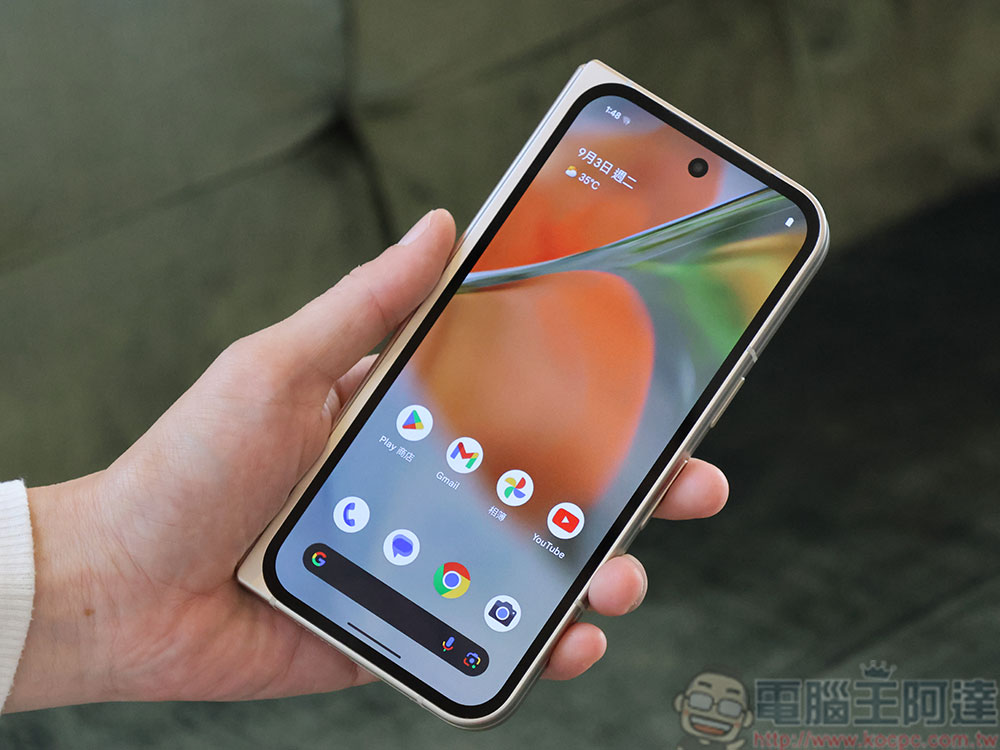
While your Pixel phone does have built-in auto-regulation to protect it from getting too cold or too hot, you also have to do your best to stabilize your device’s temperature. If it’s cold, stop using your phone and place it at a warmer room temperature for a few minutes to a few hours, preferably letting it sit so it can warm up on its own. If your Pixel’s temperature reaches a “high” state, it may be due to excessive video calling or recording, streaming, mobile data usage, or running too many resource-hogging apps. In this case, the first thing you need to do is pause what you are doing, lower the screen brightness to minimum, and switch to Wi-Fi if you are using mobile data. If you are charging while doing any of these activities, be sure to unplug your phone. You can then place your phone in a well-ventilated area away from direct heat or sunlight, and if conditions warrant, you can even turn off the device to help it cool down faster.
Source: KOCPC Chinese