


and ChatGPT Search Same,Perplexity It is also a very popular AI search engine, and basic searches are completely free, even if you don’t have an account. This article will teach you how to set Perplexity as a search engine for Chrome, Edge and Firefox. After setting it up, you can use Perplexity AI search directly in the address bar in the future without having to open a web page.

How to set Perplexity as Chrome’s search engine
Perplexity AI has officially developed a dedicated extension for Chrome. If you want to directly replace the original Google search, it is easiest to install the extension. After installation, the search engine will become Perplexity.
But if you want more flexibility and can switch between Google or Perplexity at any time, here’s how to do it.
Open Chrome settings, go to search engine options, and click the Add button next to Site Search:
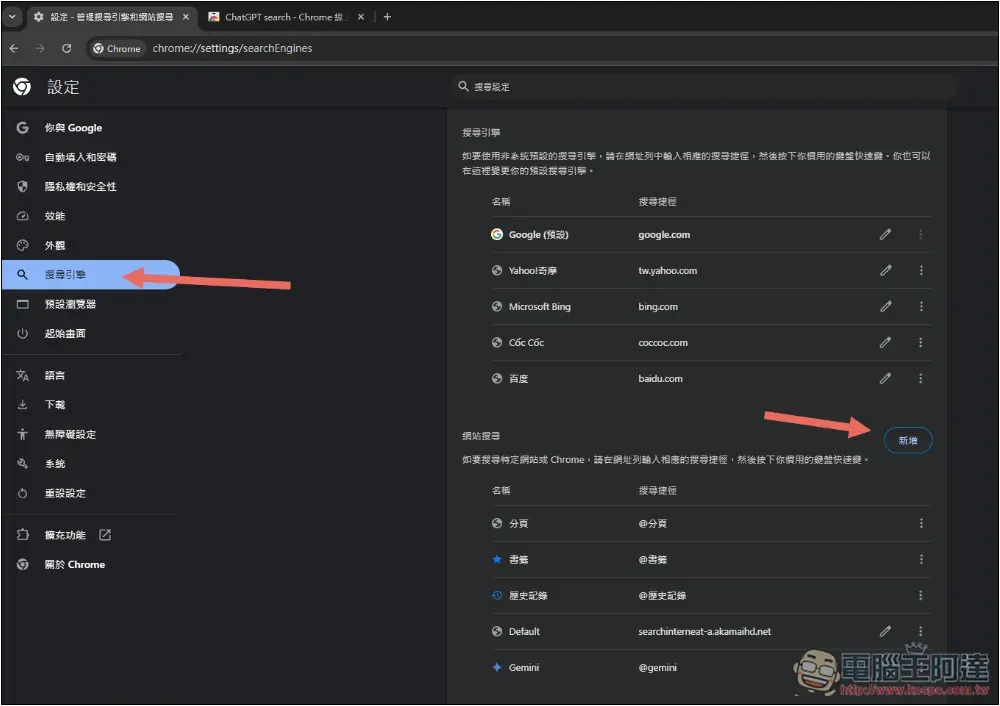
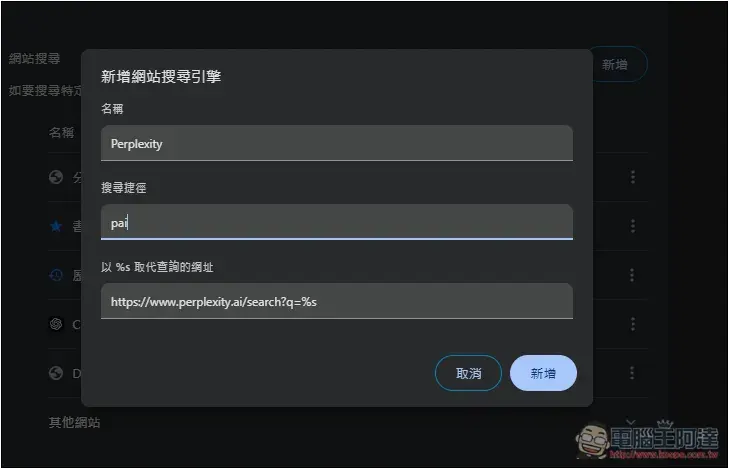
The name depends on what you want to choose. I set up Perplexity. The search shortcut is to enter something to enable Perplexity AI search. It is recommended not to type too long. Like I entered pai, then enter pai + blank key in the address bar to enable Perplexity AI search. Please fill in “https://www.perplexity.ai/search?q=%s” for the URL, and click Add after completion:
I enter pai in the address bar and press the space bar. “Search Perplexity” will be displayed on the left, which means the activation is successful. Then enter the content you want to search:

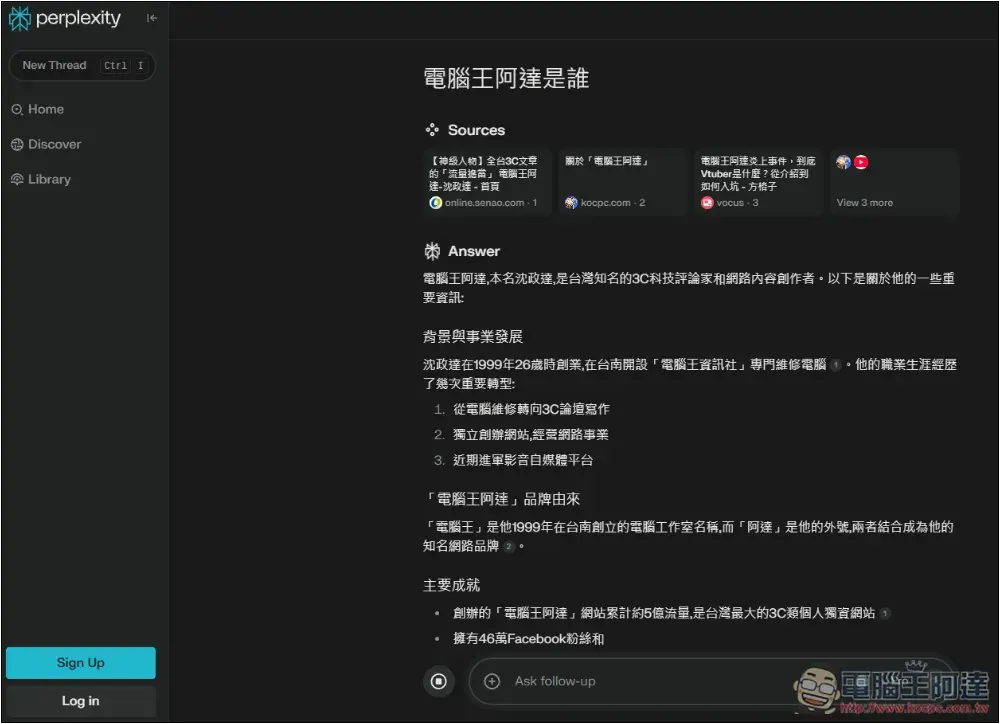
Pressing the Enter key will open Pleplexity and search. As you can see in the picture below, it can be used without logging in:
How to set up Perplexity as the Microsoft Edge search engine
Microsoft Edge is also developed using Chromium core. It means that the setting method is the same as Chrome. You can choose to install the official extension to directly replace the default search engine, or go into the settings and set a specified string to enable Pleplexity AI search.
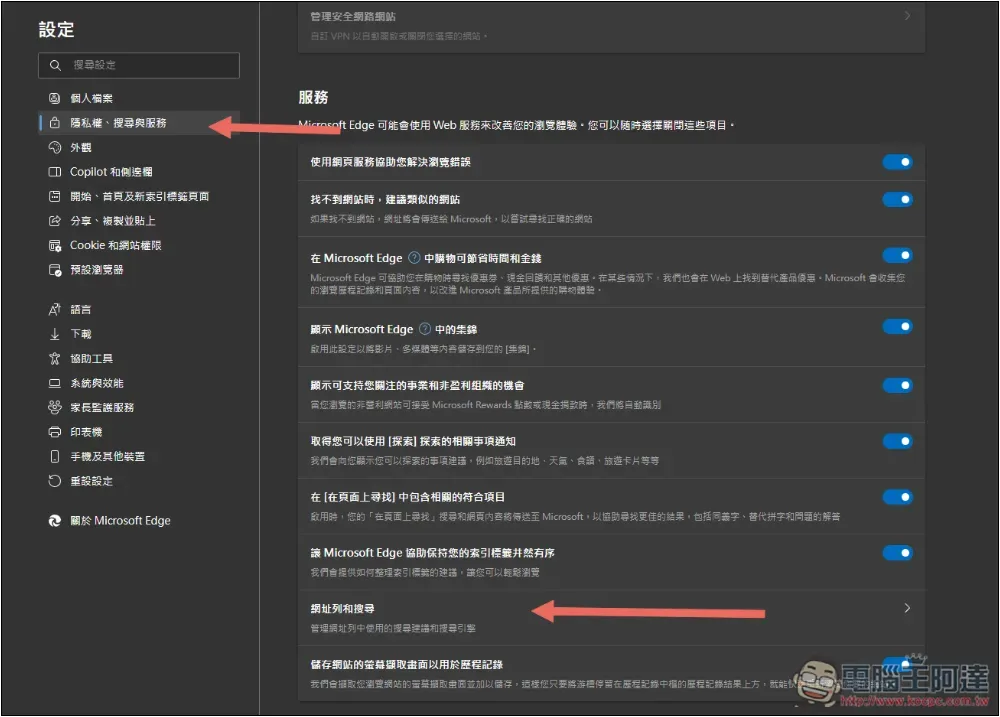
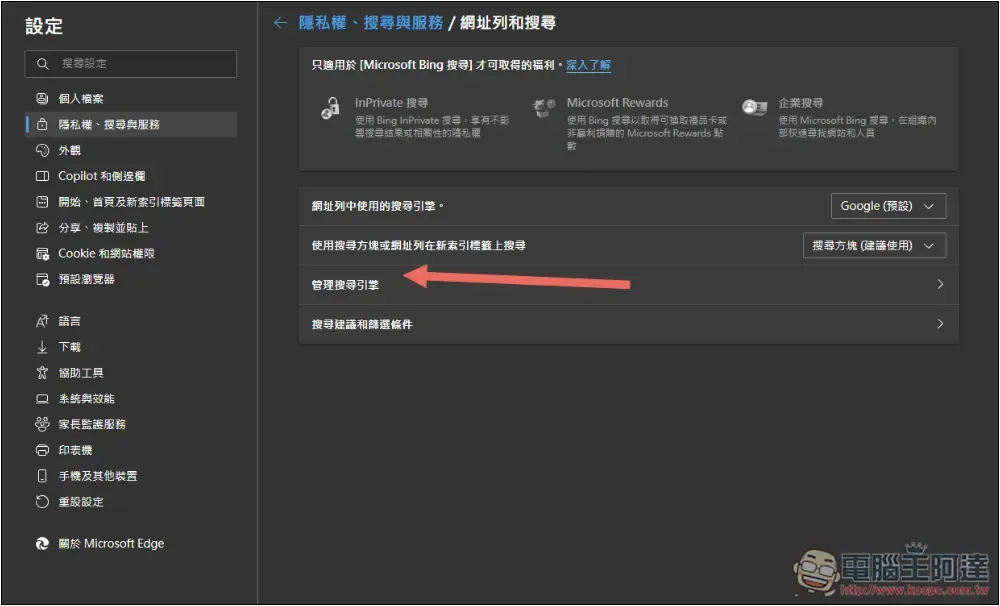
If you want to set it manually, please open Edge Settings, enter “Privacy, Search & Services”, scroll down on the right menu, and find the Services section. There is an “Address Bar & Search” below:
Once logged in, select “Manage Search Engines”:
Click Add in the upper right corner:
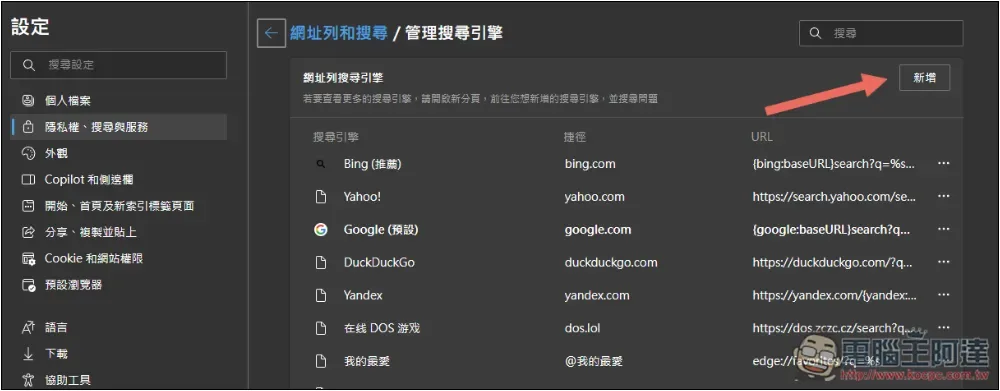
Again, the search engine looks like it can retrieve whatever it wants. I set up Perplexity. The shortcut is to enable Perplexity AI search strings, just like I set up pai. Please fill in “https://www.perplexity.ai/search?q=%s” for the URL, and click Add after completion.

In the future, typing pai in the address bar and pressing the spacebar will enable Search Perplexity:

How to set Perplexity as your Firefox search engine
Firefox is a little more troublesome because it does not provide manual addition of search engines, so it must be implemented through third-party extensions. First please install this one:
This enables the ability to manually add search engines:
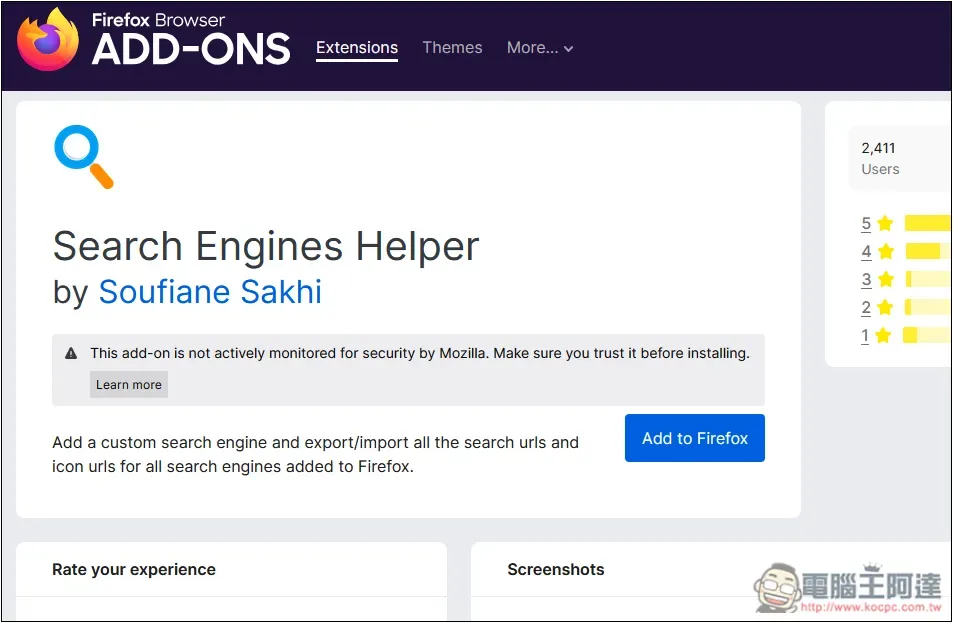
After installation, enable the extension and press the first Add a new search engine:
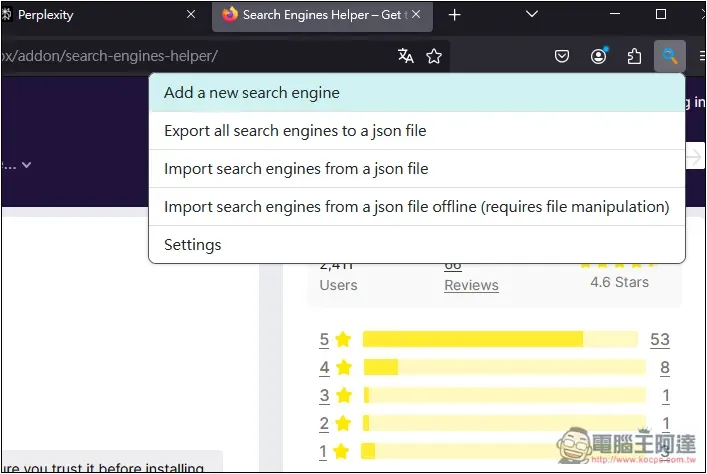
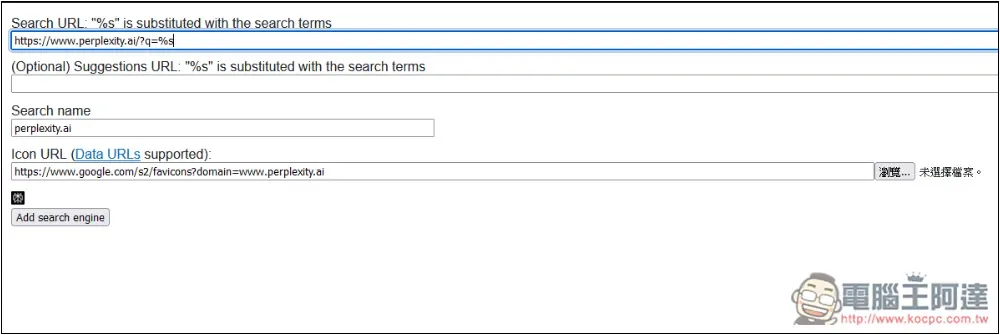
Enter the URL “https://www.perplexity.ai/search?q=%s”. After entering, other information will be automatically filled in. Click Add search engine:
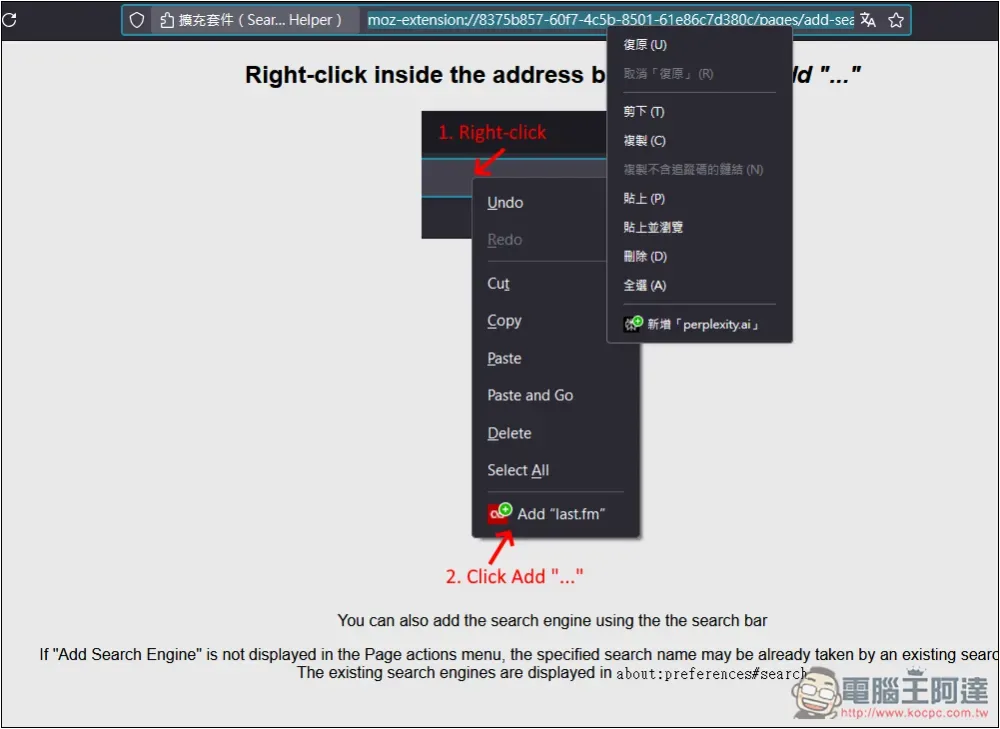
A page will open that requires you to right-click on the address bar. Just follow the instructions, open the right-click menu on the address bar at the top, and click “Add perplexity.ai” below:
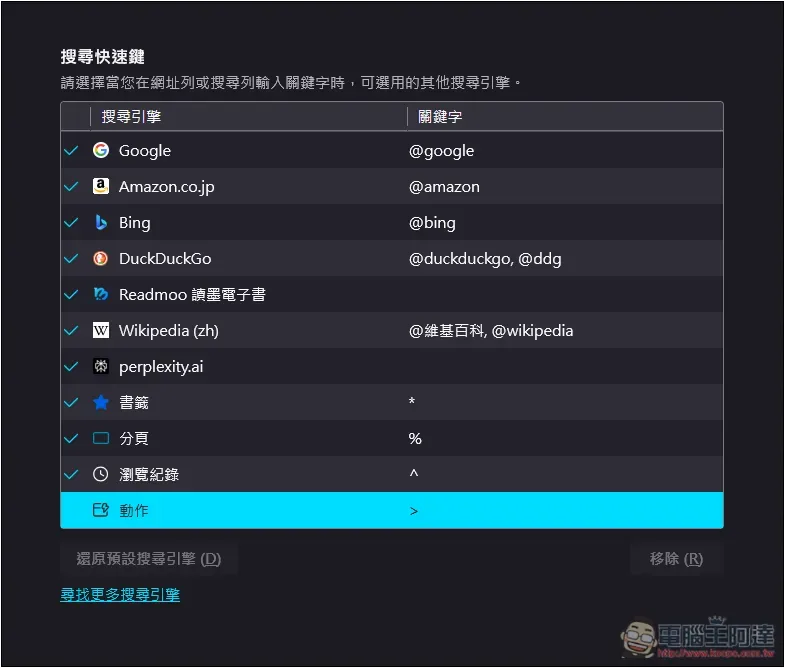
After adding it, go to the search engine settings in the settings and you will see perplexity.ai. Check on the right to see if you want to set keywords. If you set it, you can achieve the same effect as Chrome and Edge. Enter the specified string to enable AI search. If you do not enter it, the default search engine will be used, such as: Google:
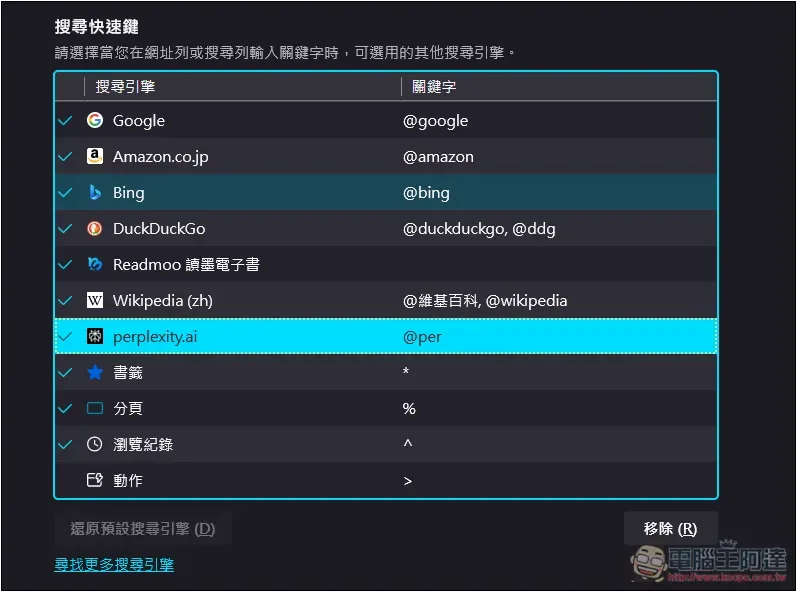
I set up @per so that future searches of @per in the address bar will be enabled:
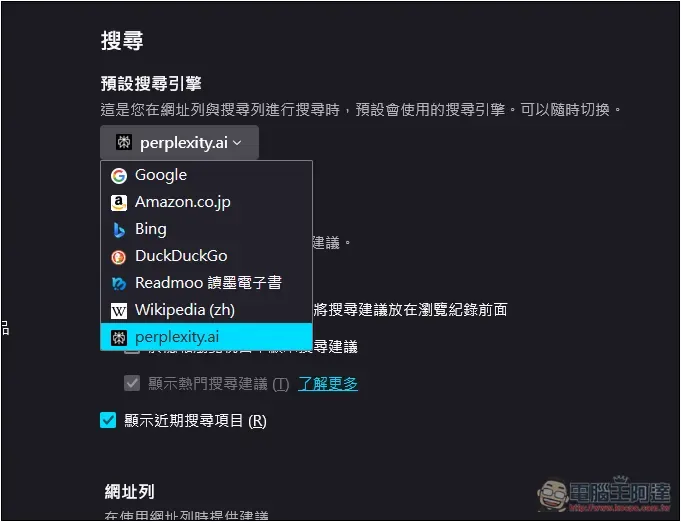
If you don’t want to set it and want to replace Google directly, change the default search engine above to perplexity.ai:
Source: KOCPC Chinese