


With the latest Android anti-theft security features, you can prevent unscrupulous individuals from accessing your data if your smartphone is stolen. You can have your smartphone automatically lock when it detects suspicious threat activity and enter lockdown mode if a thief takes your device offline. You can also remotely lock your device to protect sensitive information, increasing security and data security.
How to easily enable Android phone theft protection?
While you can’t control when your device is stolen, you can prevent thieves from accessing your sensitive information. This guide will teach you how to enable these new theft detection features on your Android smartphone.
How to enable theft protection on an Android smartphone?
The new theft detection feature is available on all Android devices running Android 10 or higher. To use this feature, your device should have screen lock protection set up. Because Theft Detection relies on Google services, you need a device signed in with a Google account.
If you want to enable theft protection on Android, follow the steps below:
- Open the Settings app on your phone, scroll down and tap Google.
- Switch to the “All Services” tab, scroll down, and click “Theft Protection” in the “Personal and Device Security” section.
If you don’t see this feature, make sure your device is updated to the latest version of Android. Go to “Settings >> System >> Software Update” to check and update Google Play Services. After following the steps, restart your computer and confirm whether the feature has appeared. If you still don’t see this option, please wait a few days and try again as the feature is gradually rolling out to all users.
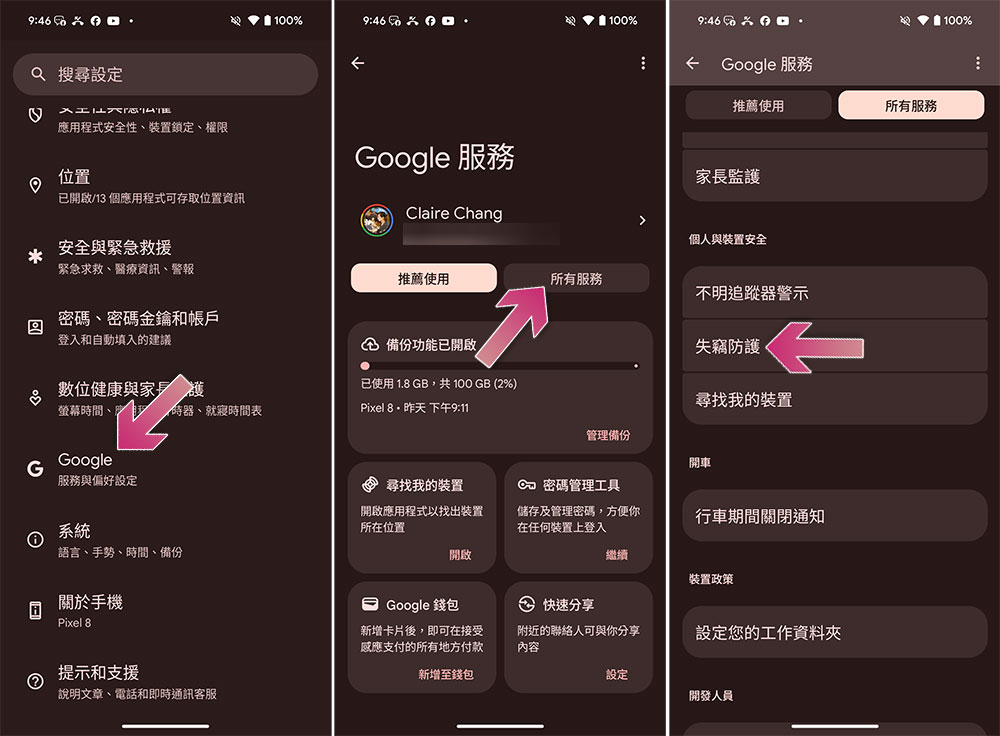
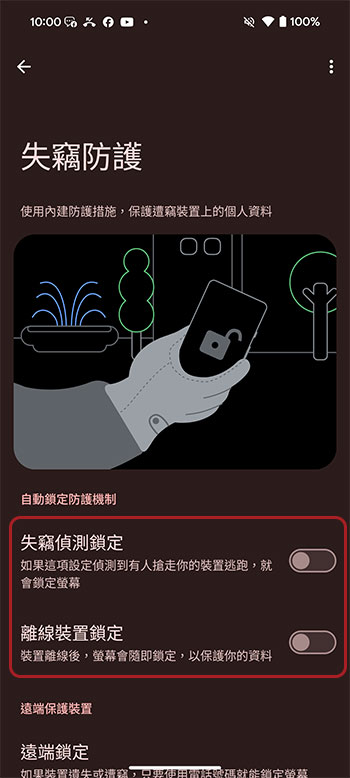
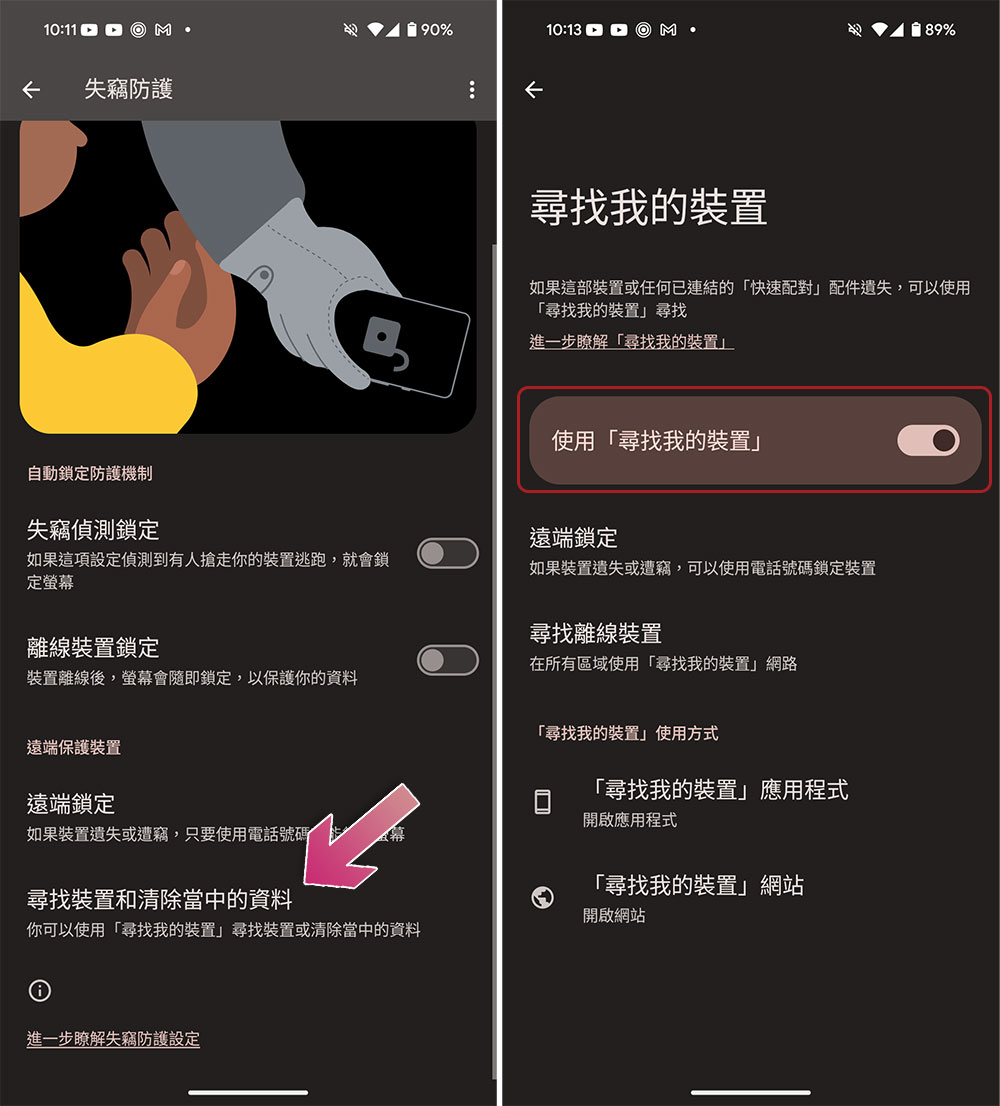
- In this case, the theft detection lock switch is turned on to automatically lock the device when theft is detected.
- For added security, you can also enable Offline Device Lock, which automatically locks your device when it’s offline.
- Since anti-theft protection cannot always be effective, please enable the “Remote Lock” function and then verify your phone number to remotely lock your device.
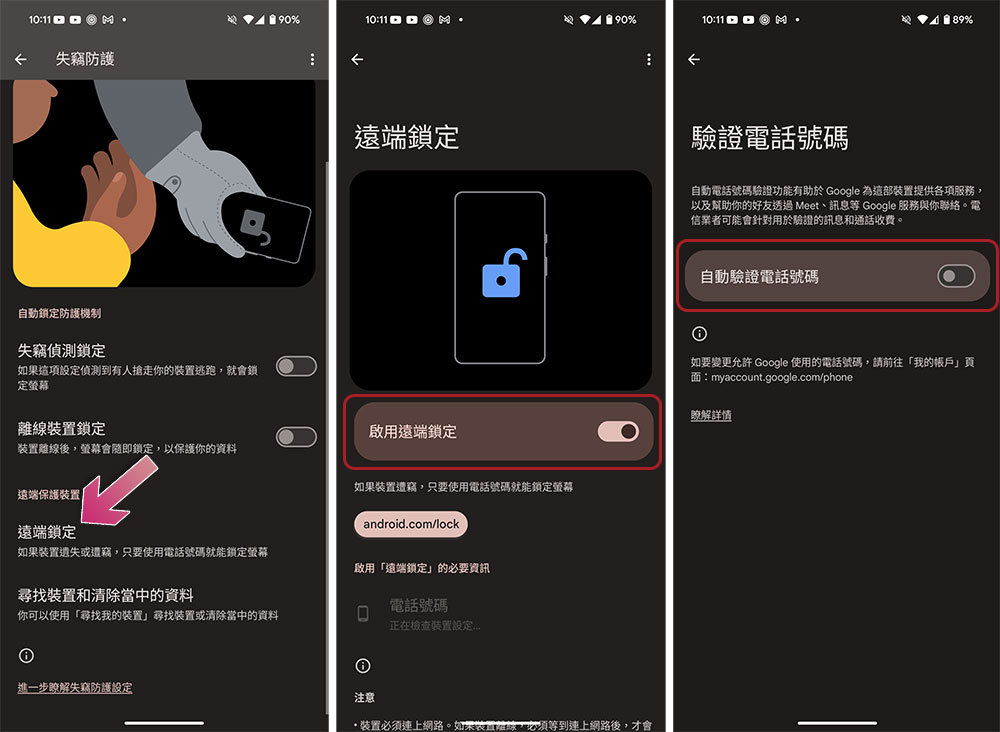
- In addition, you can also click the “Find device and clear data” option to ensure that the search function is turned on, or to clear the phone if necessary.
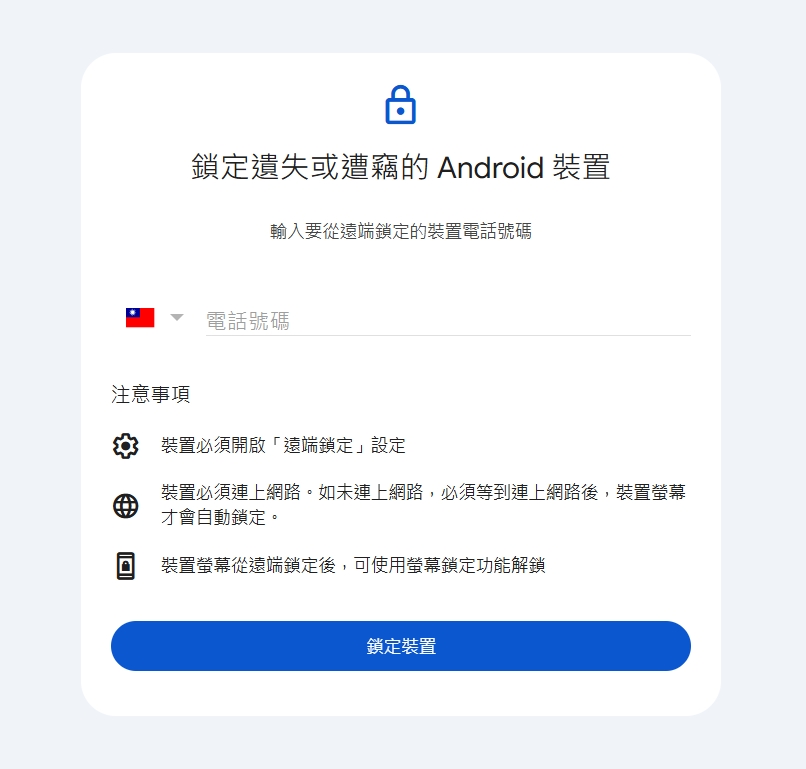
To remotely lock a stolen device, visitandroid.com/lock”, enter the device’s phone number, then click to lock the device. Google says it can take up to 1 minute to lock your device, and it can only be done twice per day. But I personally tested this function and sometimes it doesn’t work.
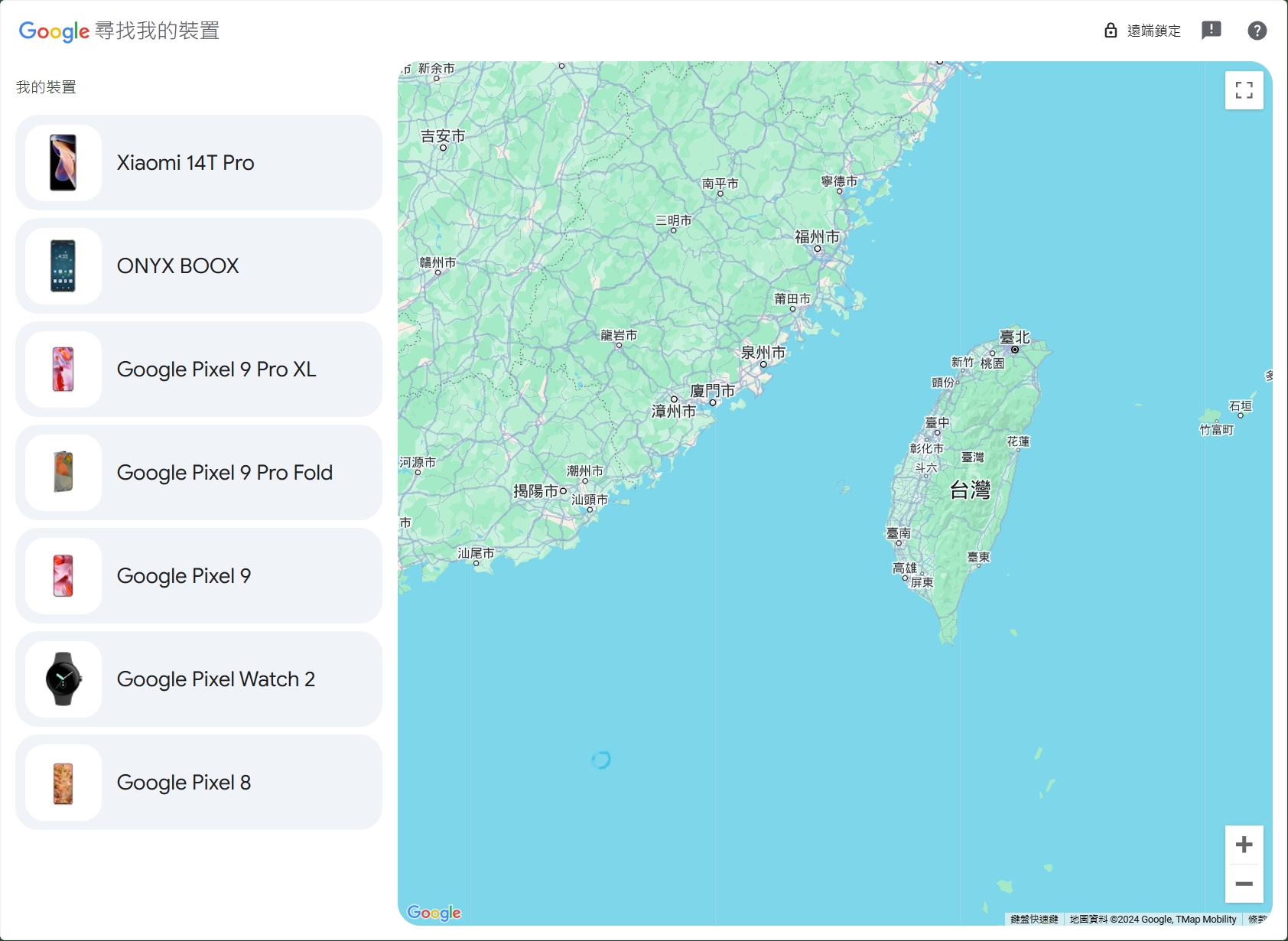
How do I use “Find My Device” to clear data that has been transferred to my phone?
Since Google’s anti-theft tools can sometimes be a bit showy, I suggest you use the Find My Device network to clear your data. This feature is available for all Android devices that are logged in with a Google account. You need to have the same Google account credentials on your lost Android device to use “Find My Device”. It also lets you find your device, lock it, and display a custom message on your lost phone. How to use it:
- Open a web browser on your computer, tablet or other mobile phone and visitAndroid.com/find/」。
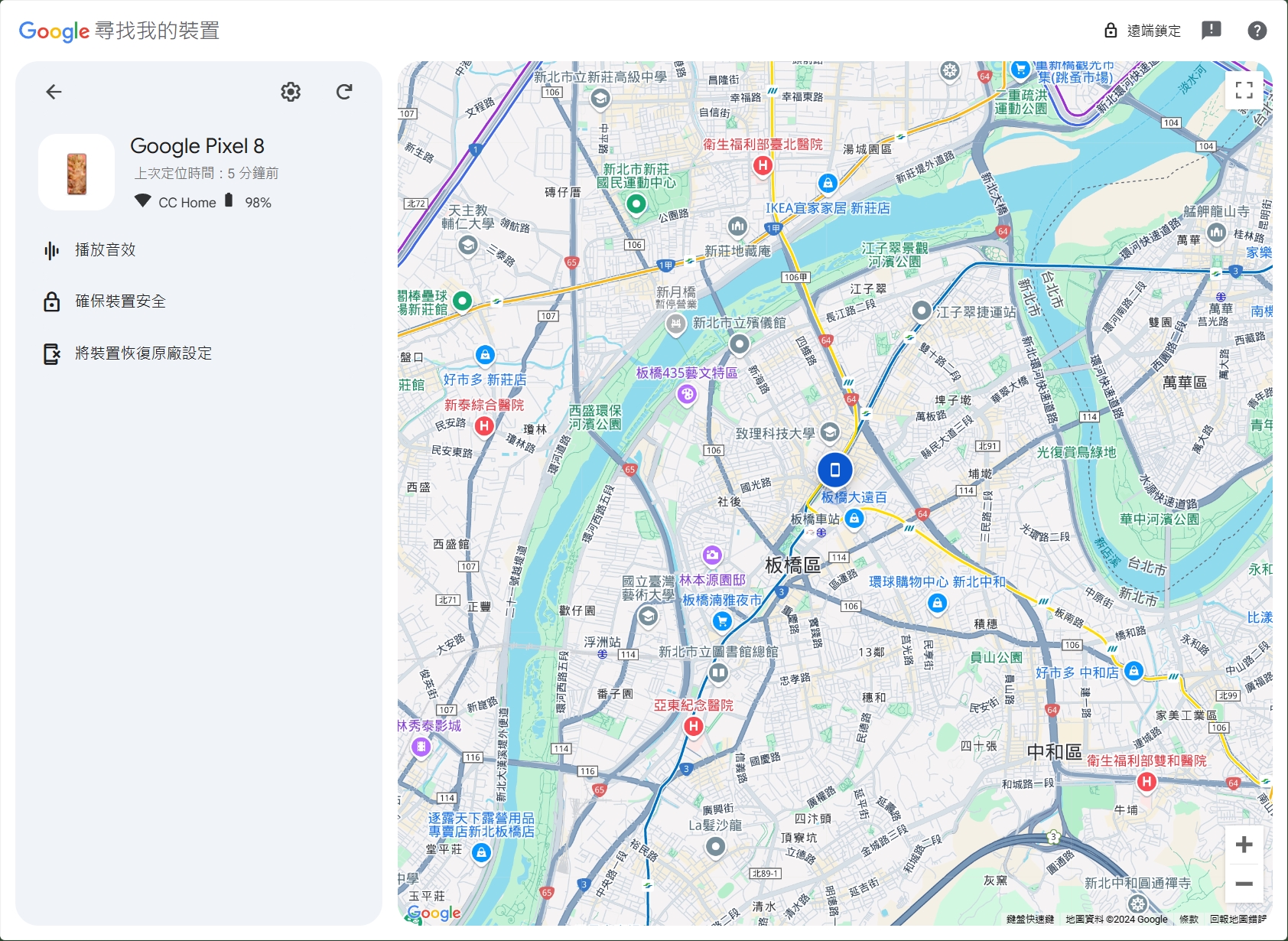
- Once logged in, select the device you want to wipe.
- Click “Restore Device to Original Factory Settings” and then follow the instructions displayed on the page.
Protect your phone from theft
Since smartphones have become the center of our lives by storing all of our important information, they risk exposing personal data if stolen. To address the increasing number of smartphone thefts, Google is launching new security features to protect your data if your device is stolen. However, if your device is stolen, there’s no guarantee that anti-theft protection will work, so you can use Find My Device to locate your device, lock it, and remotely delete data from your phone.
Android Theft Protection FAQ
- What if Theft Prevention doesn’t show up on my Android device?
Please make sure you are using the latest version of Android operating system. Theft protection is available on phones running Android 10 or higher and signed in with a Google account. If you still don’t see the option, update Google Play Services. - If my phone is rooted or running a custom ROM, will I still be able to use these anti-theft features?
Google Anti-Theft may not work properly on rooted devices or devices with custom ROMs. However, if it has Google Play Services, features like Find My Device will still work. - If my phone runs out of battery or is turned off, will theft detection and offline device lock still work?
Theft detection and offline device lock require your phone to be online. If your device is out of battery or turned off, they won’t work. However, your device will automatically lock and you will need to turn on screen lock after a restart or reboot. - What happens if I reach the limit of 2 locks per day? Are there other ways to protect my device?
You can use Find My Device to protect your device. Using the Secure Device feature on Find My Device, you can remotely lock your device and log out of your Google Account on the device. However, you can still use the Find My device to locate. - What should I do if I accidentally trigger the anti-theft lock on my phone?
Simply unlock your smartphone and use the device normally, which automatically disables theft detection.
Source: KOCPC Chinese