


For a long time, locking private apps and protecting personal files on Pixel phones has required the help of third-party apps. However, this situation has changed in Android 15, which brings a native solution “Private Space” to protect sensitive apps and files on the device. What is private space? How does it work? When should you use it? Follow us to explore this new feature and learn how to set it up on your Pixel phone.
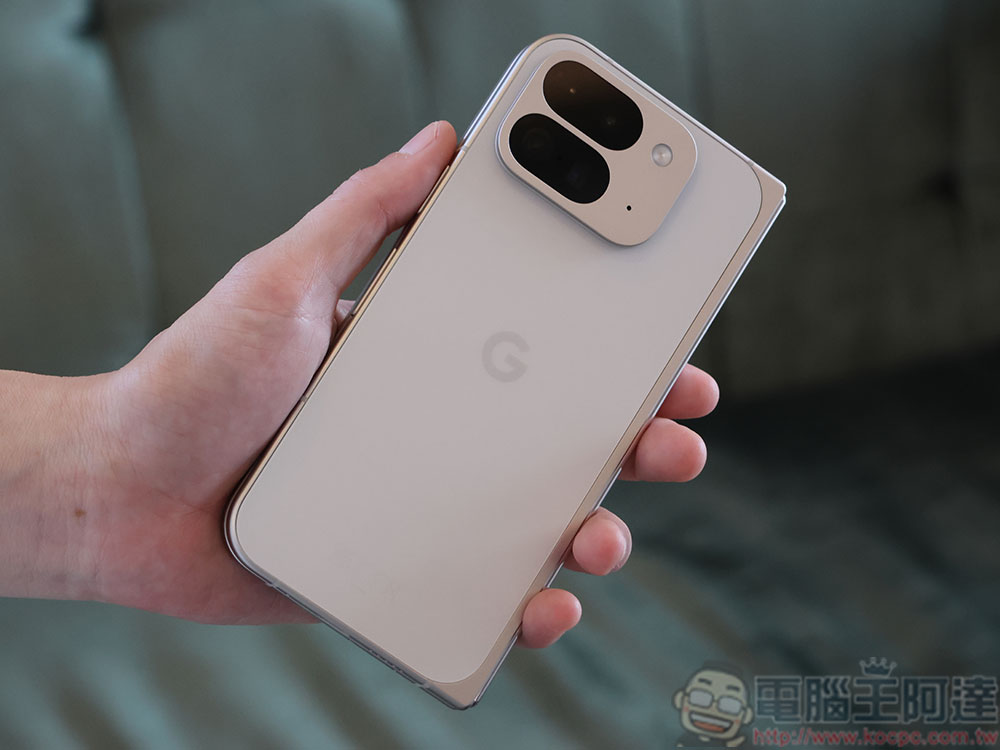
What is the new feature “Private Space” in Android 15? How to use?
What is Private Space in Android 15?
Private Space is a secure environment where you can isolate private apps, personal photos, and other sensitive files from the rest of your phone. This space can be locked using the same or a different lock that is used to unlock your phone to prevent others from accessing it. If desired, you can even hide private spaces for enhanced privacy.
Private Spaces is functionally similar to Secure Folder on Samsung devices, however, there are significant differences in implementation and functionality.
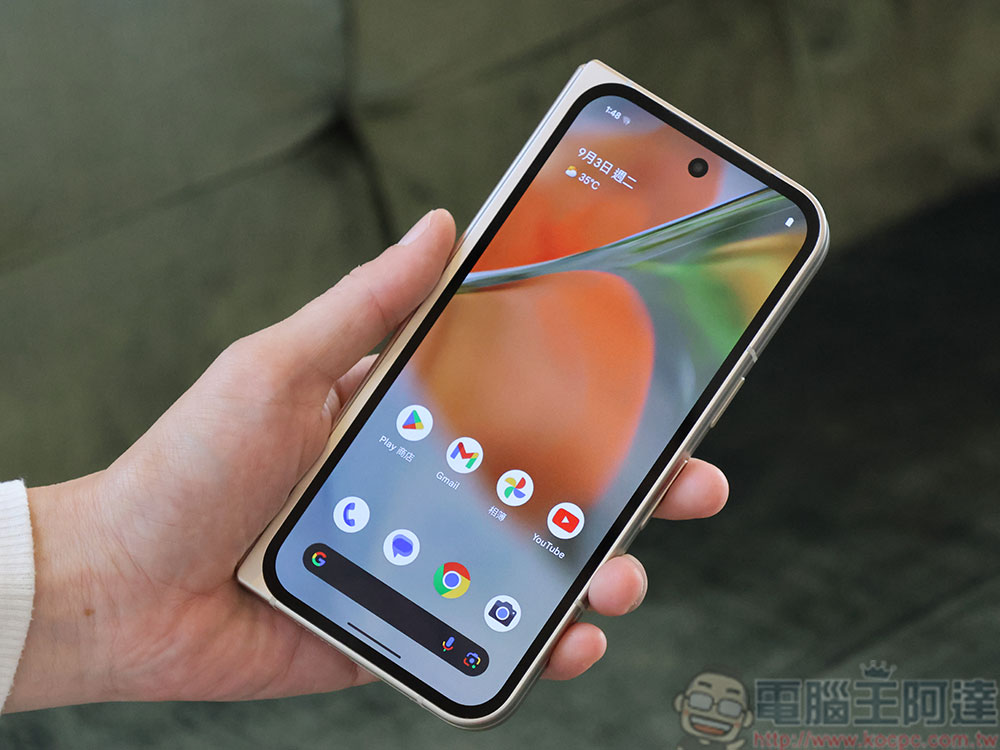
What you need to know about using Private Spaces on your Pixel phone
Before you start setting up a private space on your Google Pixel phone, you need to know a few things about the feature:
- You can set up your private space using an existing Google Account (the same one you’re signed in to on your phone), or you can create a separate account for more privacy. The latter is suitable for people who want to prevent material from their private space from appearing outside it.
- Private Spaces are like separate profiles on your Pixel phone, so anything you put in them is isolated from the rest of the phone. This means that you can only access the content of a private space after entering it. Likewise, when you are in a private space, you will not be able to access things outside your private space.
- As of this writing, you cannot move an existing app into Private Space. You must install the app separately in Private Space, where it can only be seen and accessed.
- When you put an app into a private space and lock it, the app will be suspended, which means there will be no background activity and you won’t receive any notifications.
- Apps added to a private space won’t appear elsewhere on your phone, such as the main app drawer, the recent apps view, or the Settings app when the space is locked.
- Likewise, you cannot move files from applications outside the private space to applications within the space. However, you can use cloud storage to upload content to your computer and download it for access in mobile apps inside and outside the space.
- When changing to a new device, the private space cannot be migrated with it, so after you change the device, you must set up the private space again on the new device.
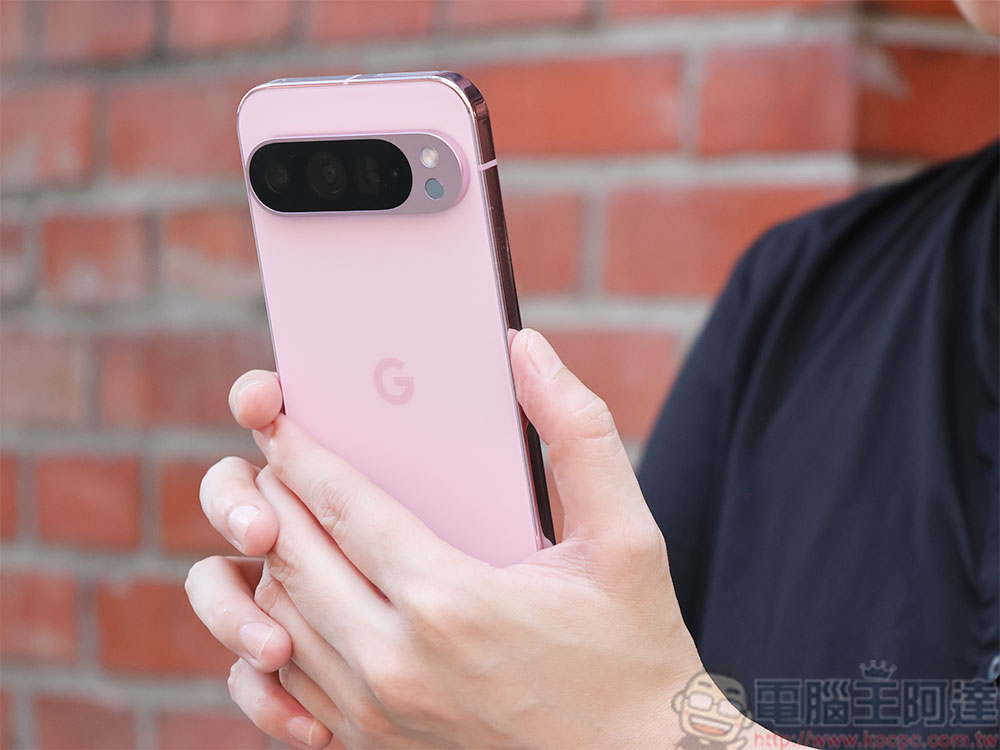
How to set up a private space on a Pixel phone?
Private Spaces is disabled by default on Pixel phones, so you must manually turn it on and set it up.
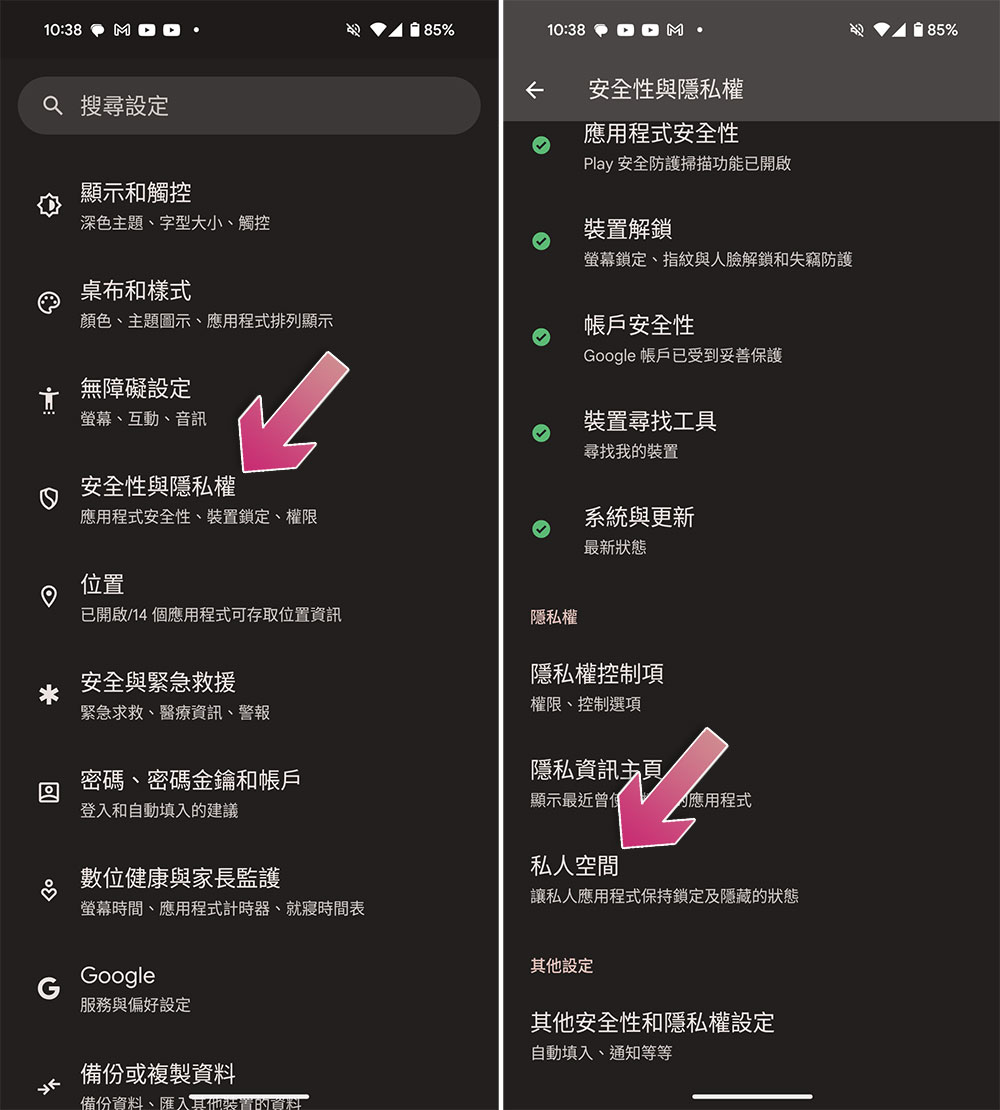
- Open the Settings app and click “Security & Privacy.”
- Scroll down to the Privacy section and click “Private Space.”
- When prompted, verify your identity using your biometric information or password.
- Then click “Settings” in the lower right corner of the screen, and then follow the instructions to create an account until the message “You’re done” appears on the screen.
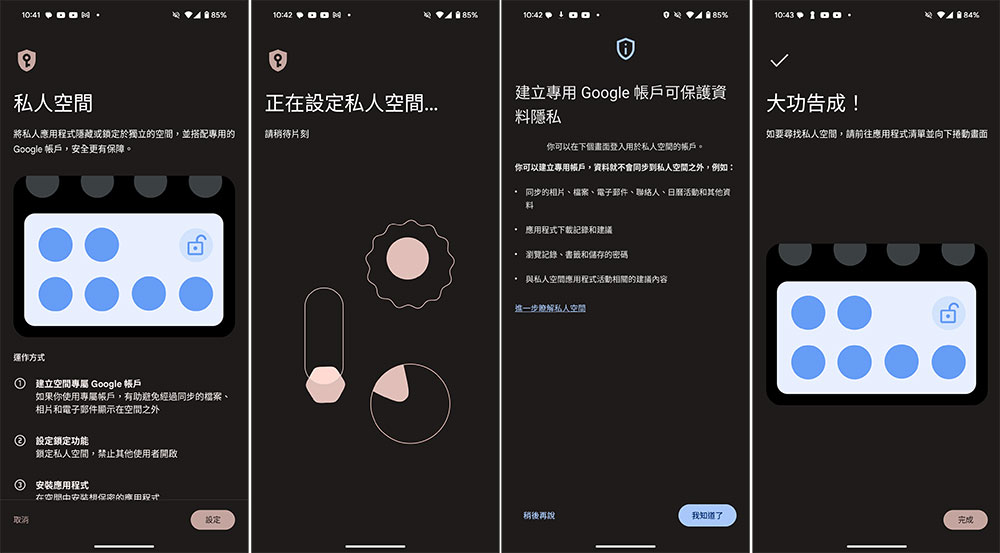
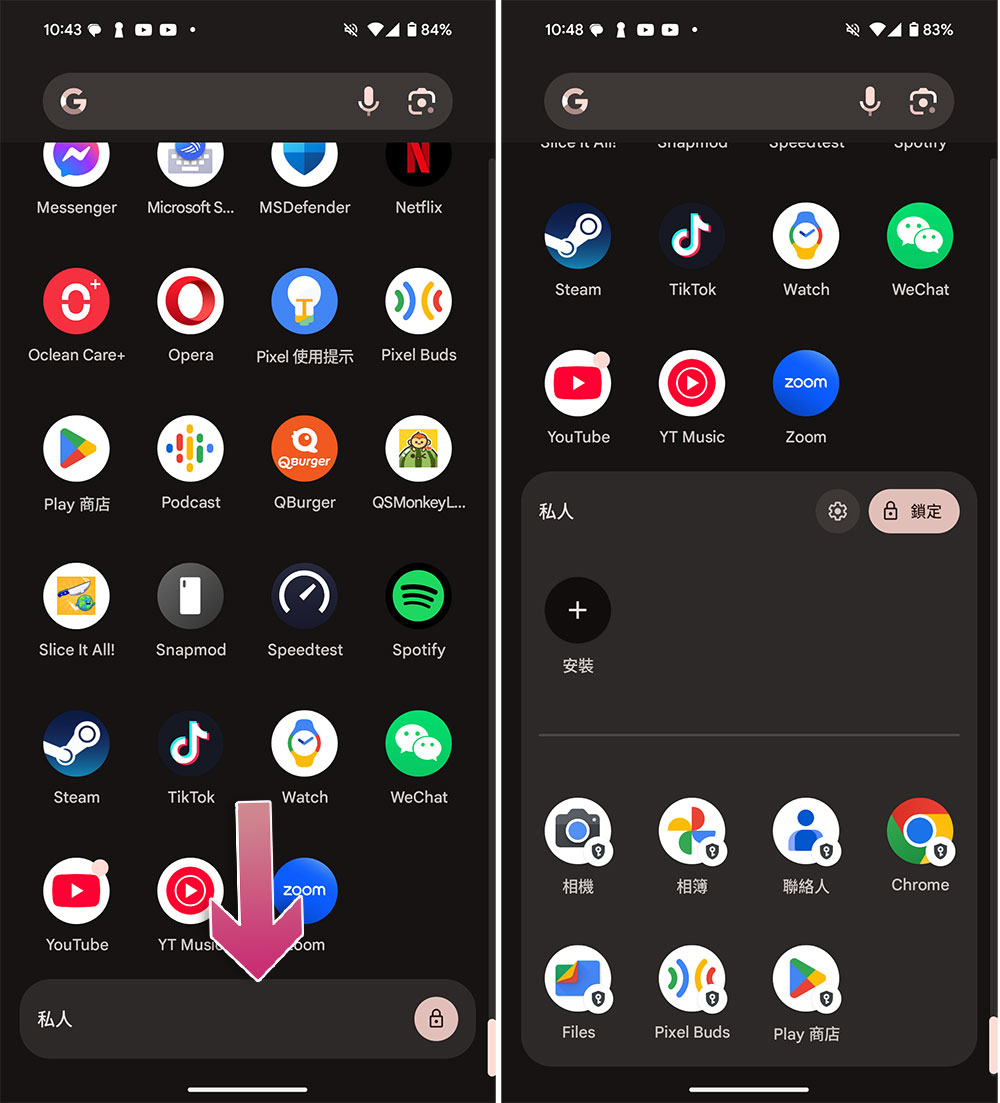
- After setting up, your private space is ready for use. You can scroll to the bottom of the main app drawer, click “Private”, and then unlock it with the method you set to use it. Of course, you can click the lock button to lock the space immediately after use. The gear icon allows you to access and configure the private space, or click the install “+” symbol to add new applications to the private space.
How to add an application to a private space?
As mentioned before, Google only allows you to add apps to your private space by installation, which means that if an app is already installed on your phone, you must download and install it from the Play Store in your private space. Here’s how to install an app into a private space:
- Scroll to the bottom of the main app drawer, click “Private”, and then unlock it with the method you set.
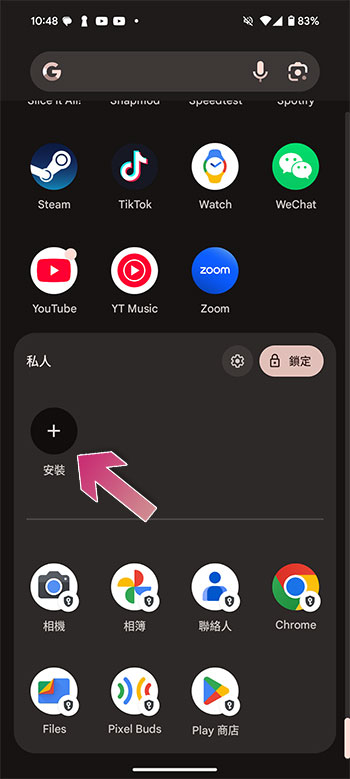
- Clicking the Install button will take you to the Play Store, where you’ll be signed in with the same Google Account you used to set up your private space.
- From here, click the “Search” tab at the bottom, find the application you want to install, and then click “Install” to start the download.
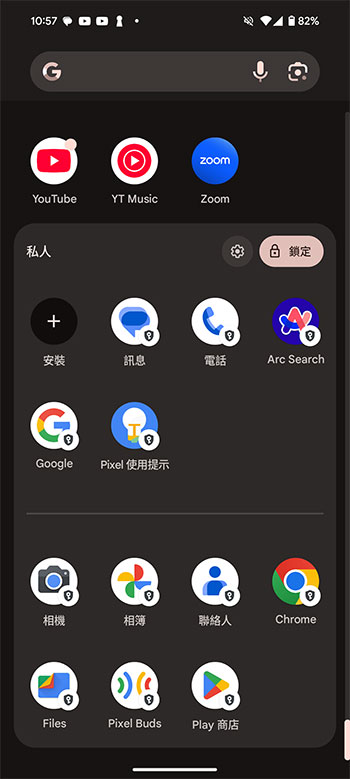
- After the installation is complete, you will see the application in the private space, and all the applications you have installed will be displayed in the upper half of the private space.
How to set up a private space?
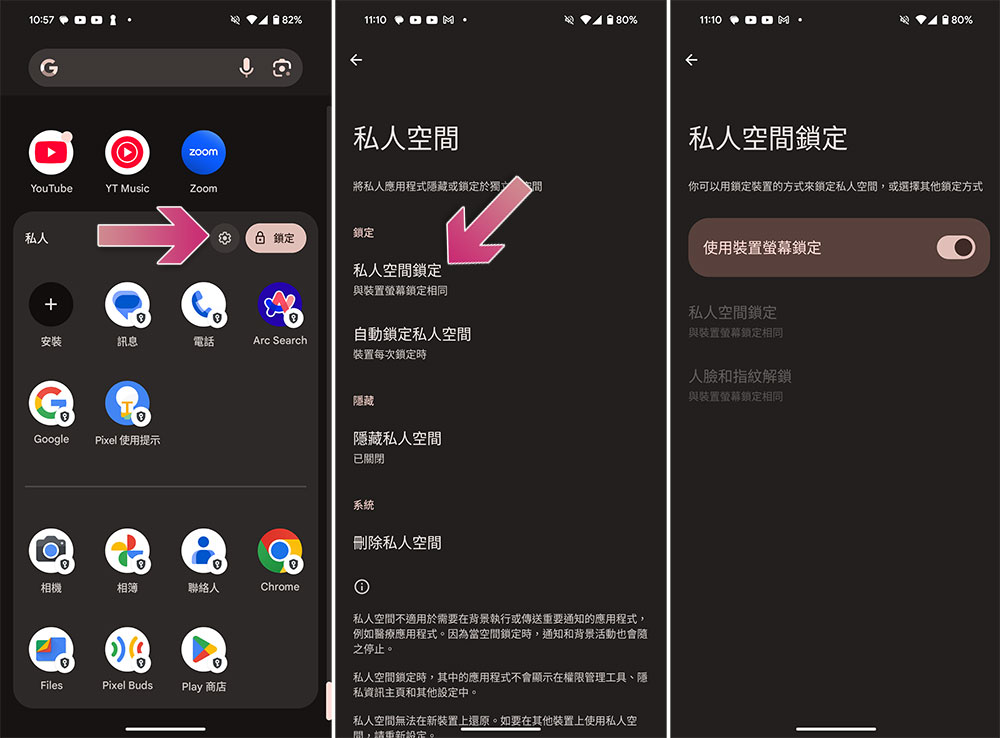
Change private space lock
- Unlock your private space.
- Click the gear icon to enter settings.
- Click “Private Space Lock”.
- Select the locking method you want to use.
Set auto-lock
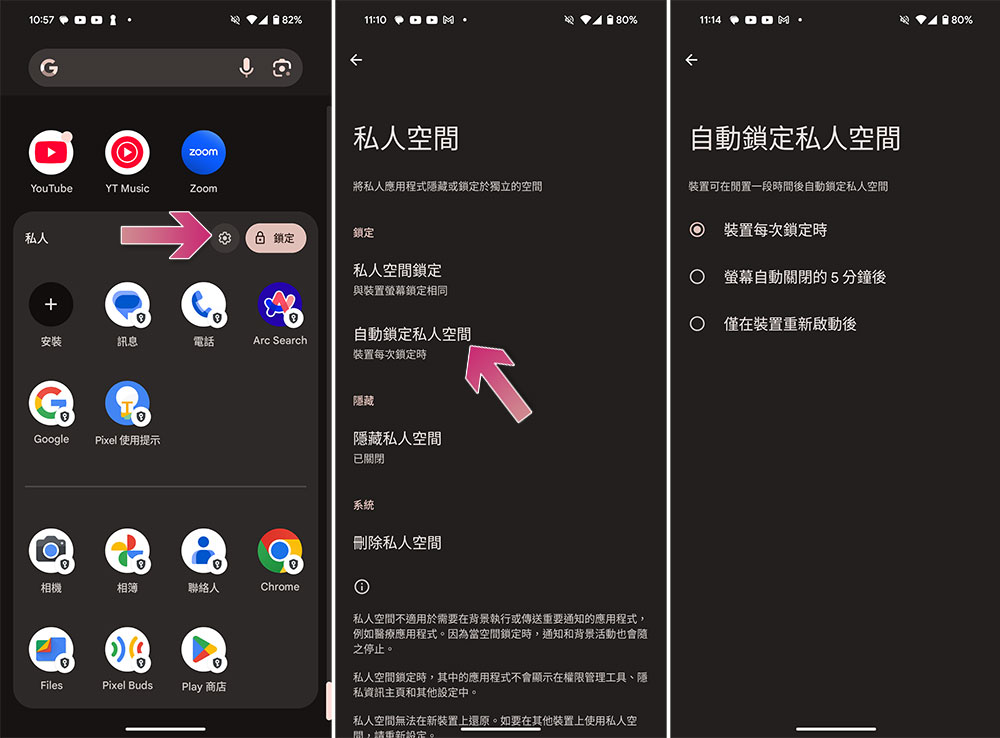
By default, your Private Space is set to lock every time you lock your phone, and while that’s fine, if you want to increase your protection, you can set your Private Space to automatically lock when it’s not used for a specific period of time, here’s how:
- Unlock your private space.
- Click the gear icon to enter settings.
- Click “Automatically lock private space”.
- Select “Screen automatically turns off after 5 minutes.”
Hide private spaces for more privacy
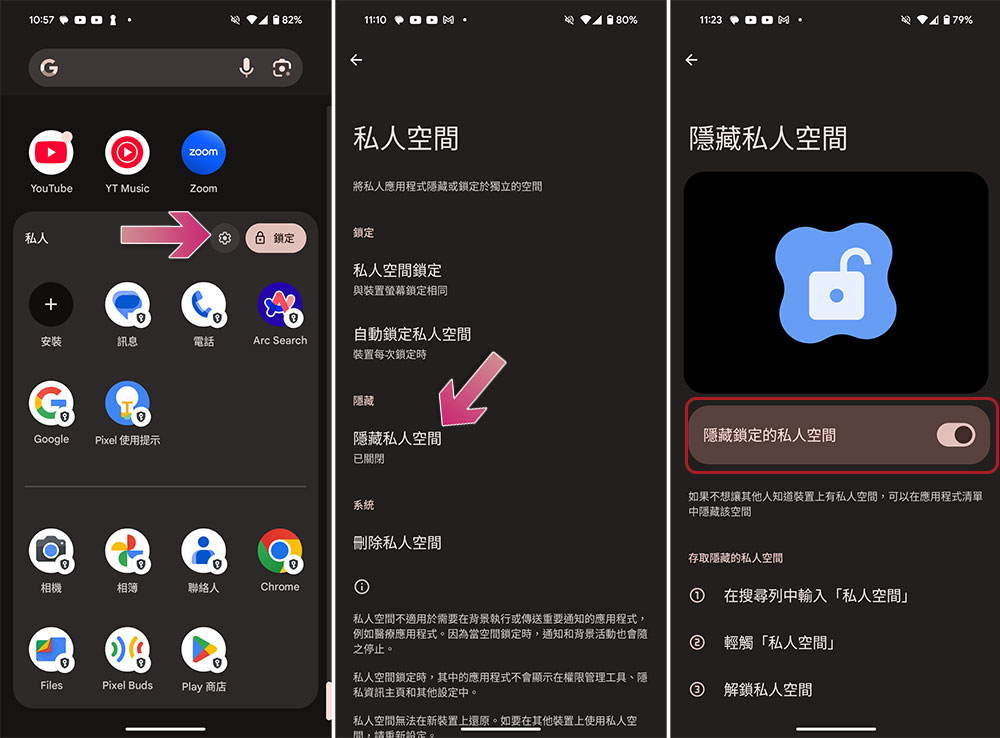
While locking helps prevent unauthorized access, you can also hide your private space for more privacy. This will hide Private Spaces from the app drawer when locked, so if someone takes a look at your phone, they won’t know you have Private Spaces enabled on your device:
- Unlock your private space.
- Click the gear icon to enter settings.
- Click “Hide Private Space”.
- Turn on the switch behind the hidden locked private space and click “I Got It”.
- After the setting is completed, when you want to visit the private space next time, you can directly enter “Private Space” in the search bar to find it and tap to unlock it.
How to delete an app from private space?
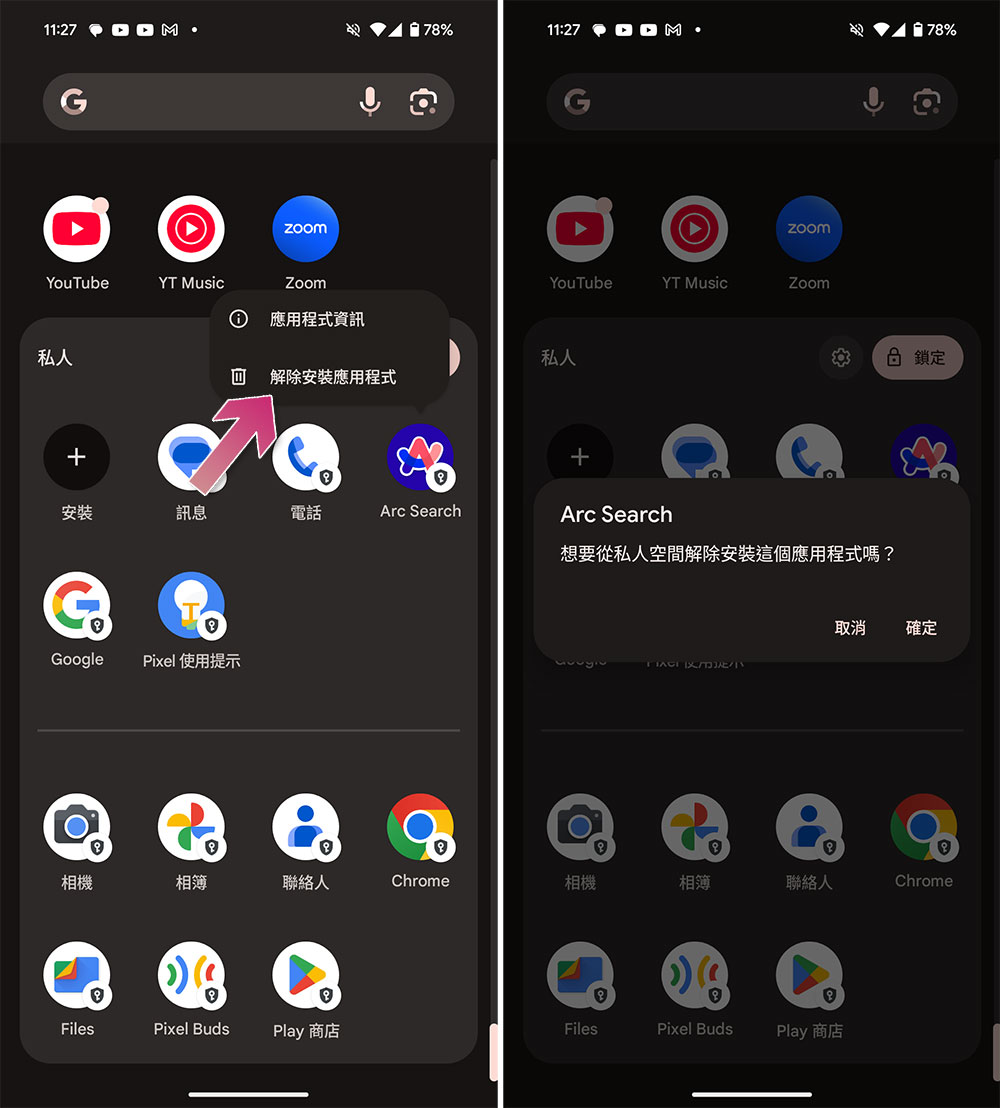
If at any time you want to remove an app from your private space, follow these steps:
- Enter the app drawer and unlock your private space.
- Press and hold the icon of the app you want to delete, then select “Uninstall app” from the functions.
- Click “OK” to uninstall the app from the private space.
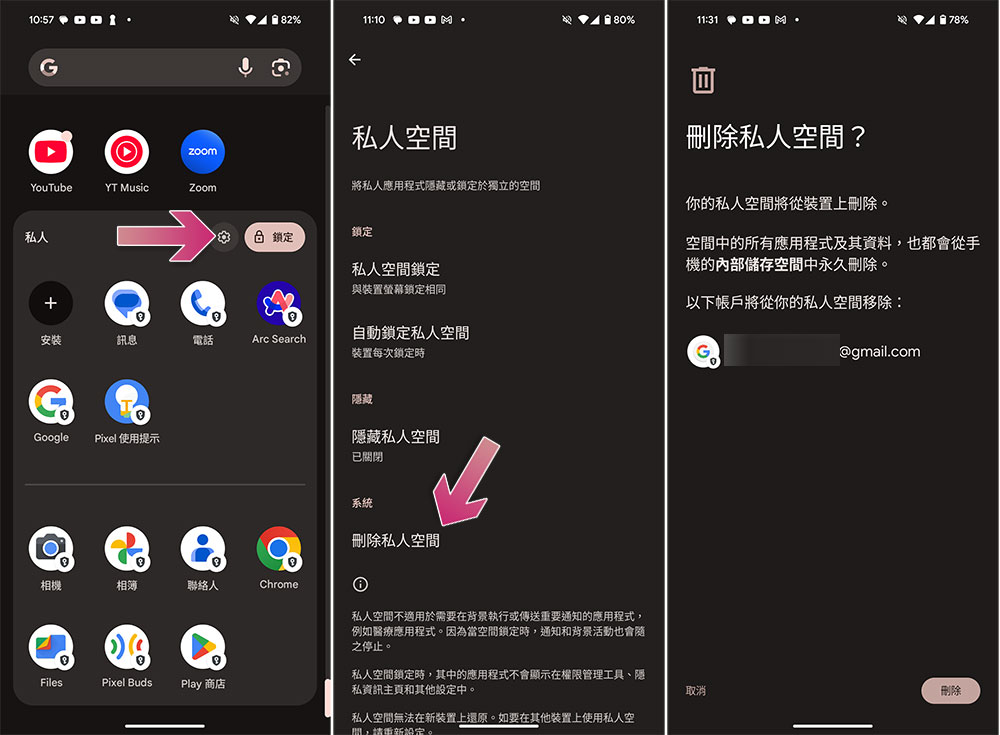
How to delete private space?
Finally, when you no longer need the private space, you can delete it entirely and delete its contents, including apps, documents, and other files. Before doing this, be sure to back up or copy any important files and archives that you may need later.
- Unlock your private space.
- Click the gear icon to enter settings.
- Click “Delete Private Space”.
- After repeatedly confirming the deletion, unlock it with the unlocking method you selected, and then the deletion process will begin.
Private Space is a powerful solution for keeping your personal files and sensitive apps private on your Pixel device. Although it’s a bit hard to understand because of how it works, you’ll find it useful after you use it for a while.
Source: KOCPC Chinese