


Although the computer’s SSD is unlikely to die suddenly, some situations may occur before it is about to fail, such as a sudden blue and white screen. However, if you can regularly check the health of the SSD, you can take precautions before problems occur, such as buying a new SSD quickly, backing up the entire system, and avoiding important data.
If you still don’t know how to check, here are 4 methods, ranging from using command prompts, third-party software, to SSD’s own software.
- You can also read:5 things that may shorten the lifespan of your SSD

Under what circumstances should we pay attention to SSD health?
Before the SSD is about to die, some suspicious symptoms will appear. If the following has happened to you, you must quickly confirm the current health of the SSD:
- Your computer is running slower than before
- A blue-and-white screen (BSOD) often appears, or the system sometimes fails to start.
- When you find that some files suddenly disappear, become unreadable, or become corrupted
- The SSD is set to “read-only mode” and you cannot write to it.
4 Ways to Check SSD Health in Windows
1. Use Windows command prompt to check SSD health status
This is a relatively quick and simple method, but it is less detailed than the health status you gain. If the SSD is already abnormal, it is not recommended to use this method.
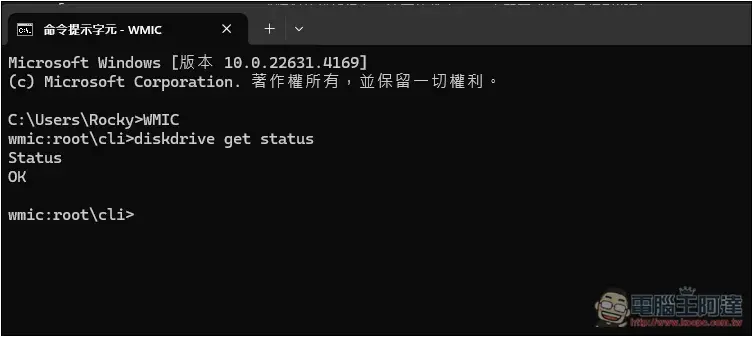
- Enter CMD in Windows search to open the command prompt
- Type WMIC and press Enter
- Then type diskdrive get status and press Enter
- Then you will get the status result. If it is OK, it means that the SSD is running normally. But if it is Pred Fail, then your SSD may be malfunctioning. Please back up as soon as possible.
2. Use CrystalDiskinfo to check SMART
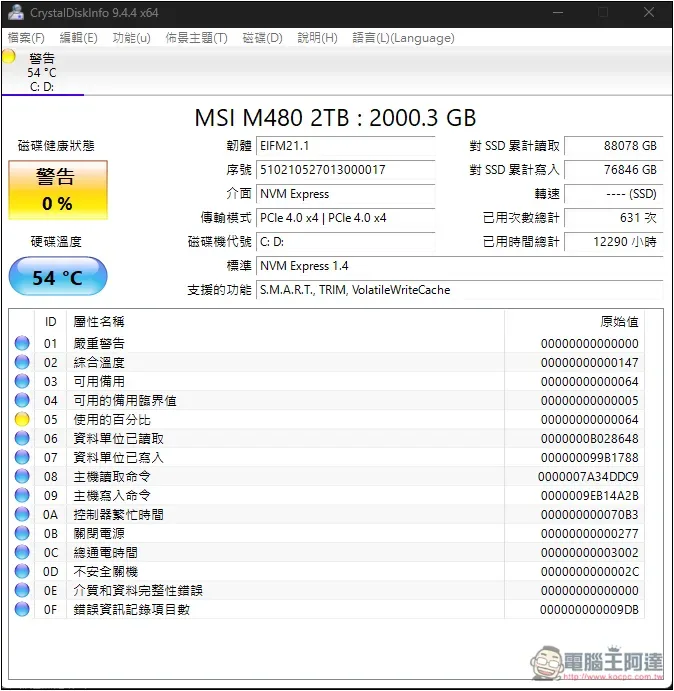
CrystalDiskInfo It is a very easy-to-use hard disk status check tool, and it can be used without installation. It is also completely free. It is also available in Traditional Chinese language, so you don’t have to worry about incomprehension.
After opening the tool, you will get a very detailed report, including disk health status, hard disk temperature, cumulative reads/writes to the SSD, total usage time, and the current status lights of each attribute name:
3. Use AIDA64 Extreme to check SMART
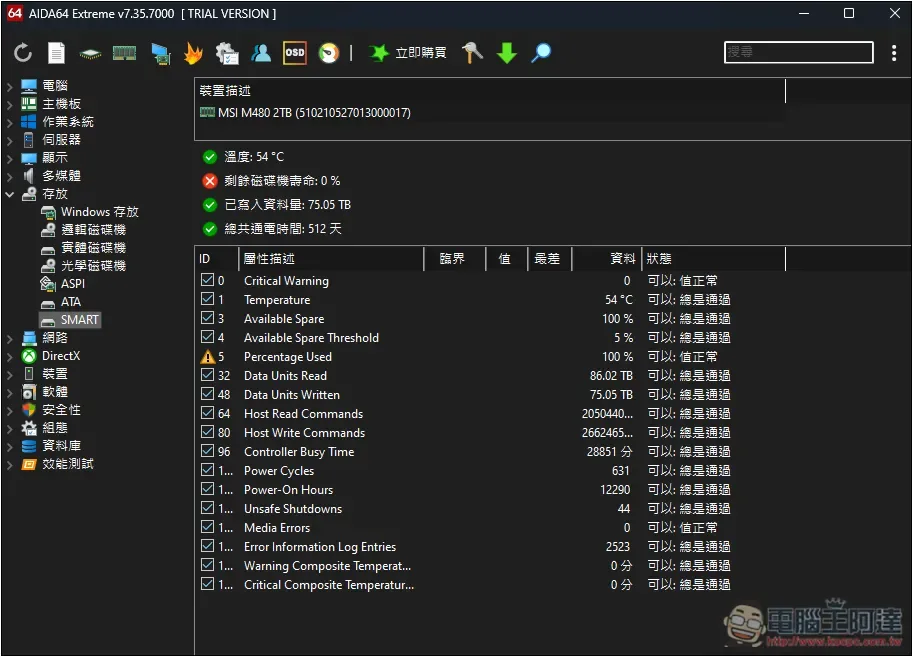
AIDA64 Extreme It is a powerful computer checking software that can check the current status of each hardware and also provides a burn-in function.
For hard drives, SMART information is also provided, and it is as detailed as CrystalDiskInfo. It also provides total power-on time information. However, it is not free software. There is a 30-day free trial. After that, you must register and purchase:
4. Use SSD brand’s own software
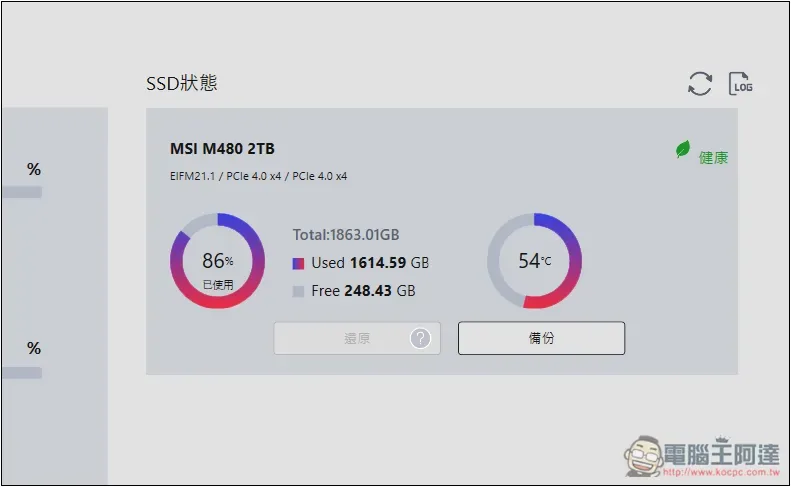
Almost every SSD brand provides its own health check software, which is more accurate than third parties.
For example, I use an MSI SSD, and both CrystalDiskinfo and AIDA64 Extreme show a health level of 0%. The only problem is that the SSD space is almost running out. Everything else is normal and there is no abnormality. Therefore, it is unclear whether there is really a problem with the SSD health.
After I switched to MSI Center’s system diagnostics, I was able to get the SSD healthy symbol:
Source: KOCPC Chinese