


We all want our computers to be responsive, and the Internet is a treasure hunt for tips and tricks on how to get the most out of Windows 11. But not everything you read online is correct, and a lot of what was once considered good advice doesn’t really have the positive impact you might think. Therefore, before you start modifying your computer settings according to online suggestions, you can skip these six common suggestions mentioned today that are actually not very helpful.

6 “Tip Tips” That Are Passed By Word of Mouth That Don’t Actually Help Windows 11 Performance
1. Hide desktop icons
If you used a PC in the early to mid-2000s, you might have heard that having a lot of icons on your desktop can make your PC take longer to boot up and slow it down, and many people still follow this advice to this day. In fact, for modern computers, hiding desktop icons will not have much impact on performance. Today’s computers are too fast to really slow down for something as small as loading a desktop icon, so deleting or hiding desktop icons won’t do anything.
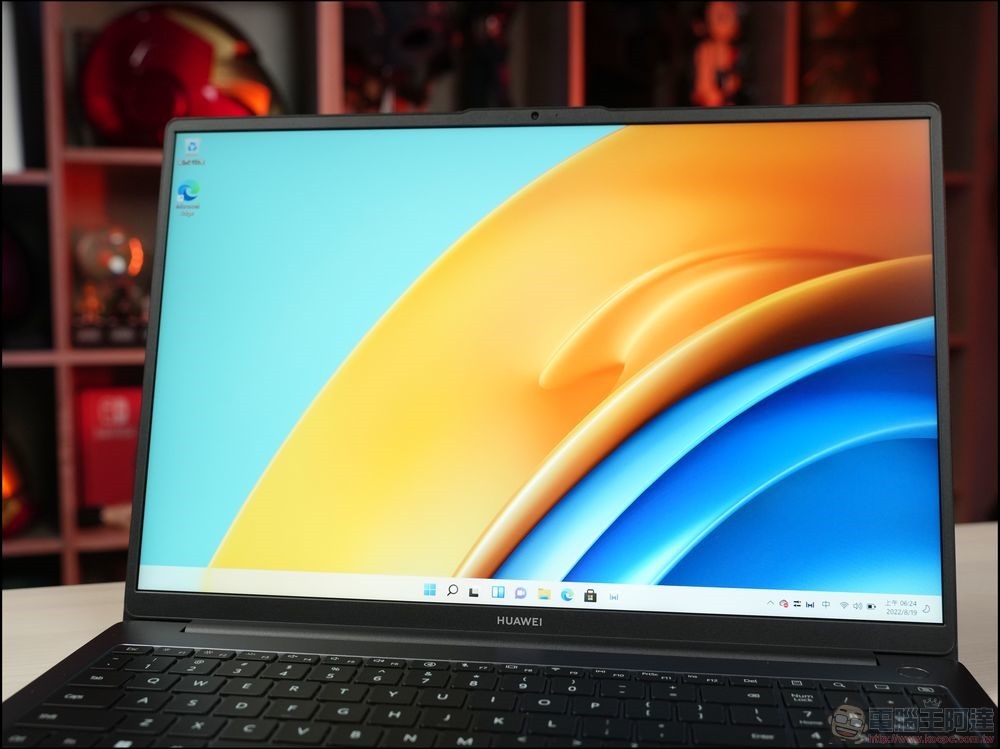
There are good reasons for hiding them, whether it’s for aesthetics or to prevent static elements from sitting on the screen for too long (very important for OLED panels), but performance isn’t one of them. Personally, I just like my desktop to look clean.
2. Turn off visual effects
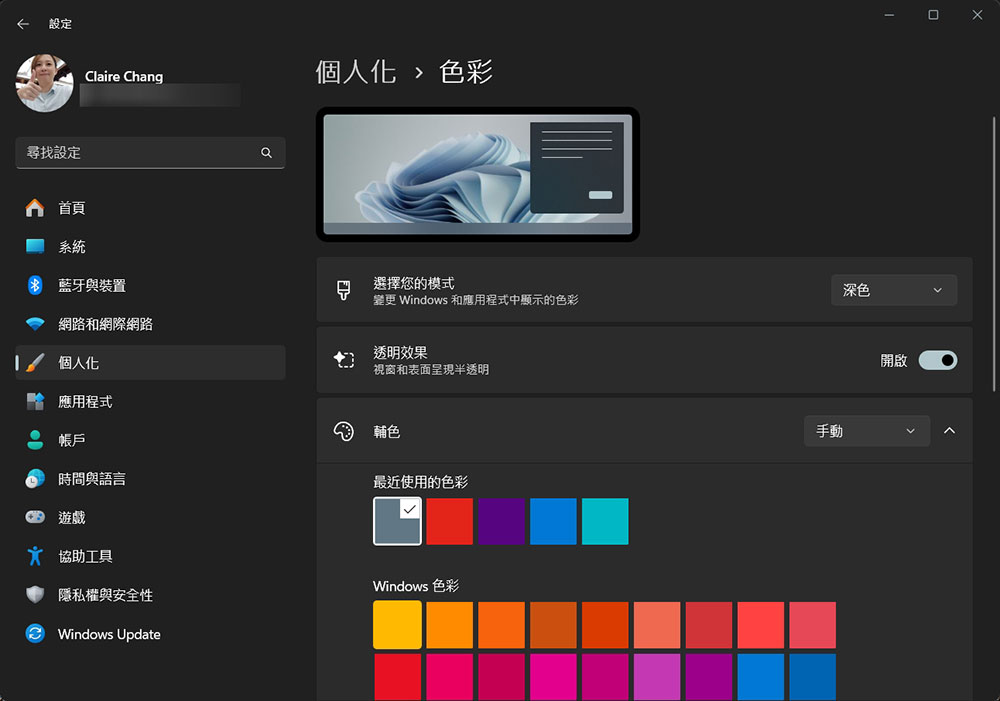
Another common suggestion you might see from time to time is to turn off visual effects in Windows 11, which seems to make sense. But like desktop icons, these visual effects use very few resources, so any modern computer won’t suffer from them, and unless you’re still using a computer from 25 years ago, turning visual effects on or off won’t make any difference. Only very low-end computers will benefit from this, but usually at this point it’s time to buy a new computer.
3. Clean up temporary files
Over time, Windows 11 creates a large number of temporary cache files that can take up a lot of storage space on your computer. Some files are related to updates, others may be cache items to speed up loading. While they take up valuable space, the purpose of most temporary files is to improve speed and reliability, and deleting these files won’t really improve your computer’s performance unless your SSD is approaching 100% usage.
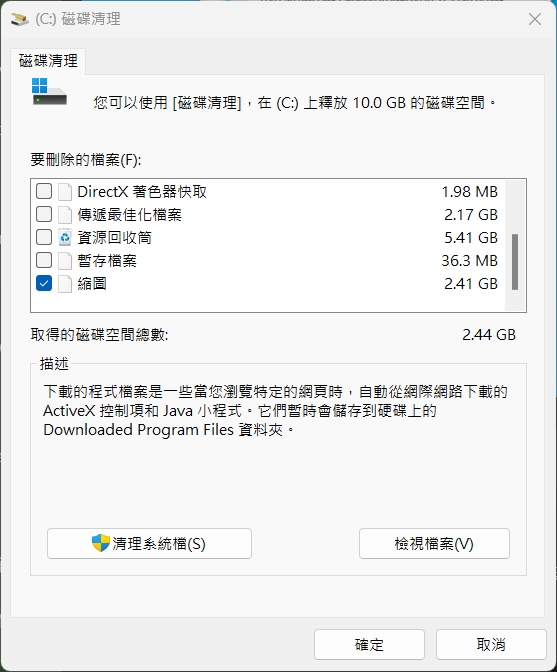
Freeing up storage space is a good thing because it makes room for more files that are more important to you. But instead of running a disk cleanup every day or every week to get the best out of your computer, you can run it every few months to free up some storage space.
4. Defragment the hard drive
Another thing that has been recommended in the past is defragmenting the hard drive, which to be fair has had some impact. File fragmentation can be a problem when computers primarily have mechanical hard drives (HDDs) because files take more time to look for within the hard drive if they are not stored contiguously.
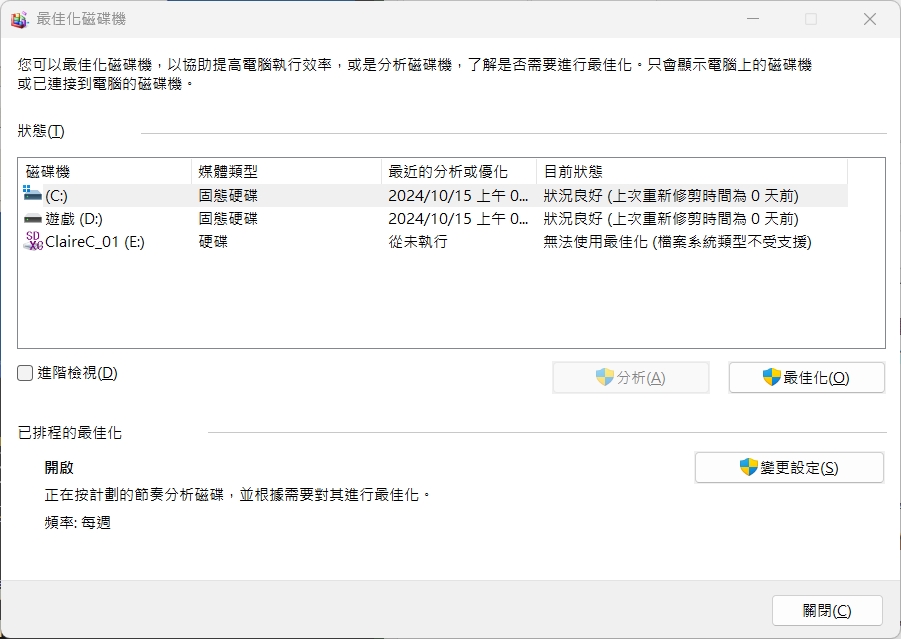
However. As hard drives get faster, this becomes less of an issue, and now with SSDs, there’s really no benefit, and there’s not even an option for defragmentation in Windows 11 if you have an SSD. Instead, Windows 11 will optimize the SSD by executing trim commands, which can slightly speed up data writing by completely clearing the empty portions of the drive. The thing is, Windows 11 optimizes your hard drive by default every week, so why bother yourself manually when your computer can handle it just fine?
5. Turn off Core Parking
This one in particular is more technical than the other features mentioned in this article, and computer enthusiasts have probably heard of it at some point. Core suspension means that the operating system will shut down certain cores in the computer when they are not needed. The purpose of this is to help reduce the power consumed. However, some believe that core stalling can result in significant slowdowns, as those cores have to take extra time to start up or shut down as the situation demands. But in reality, cores in a processor wake up faster than the blink of an eye, so for most people, the performance impact of core suspend is essentially non-existent.
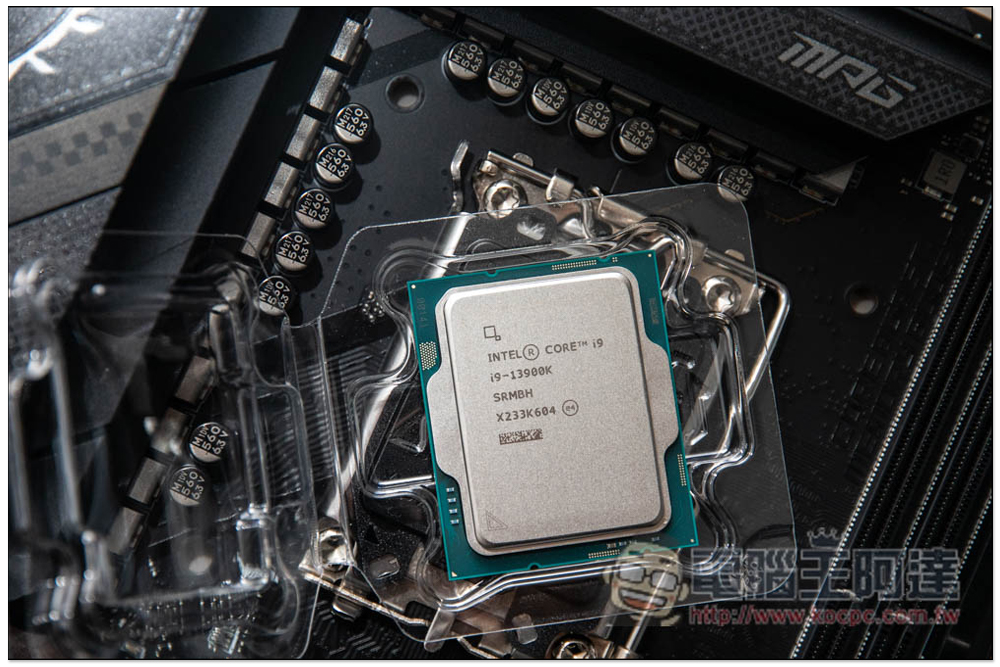
If you’re experiencing minor stuttering in a game, maybe turning off core suspension will help, but it should never be your first solution for performance issues. In fact, you can change the core suspension behavior by using Windows’ built-in power plan, simply setting it for optimal performance to ensure that the core is always ready.
6. Clean up your login files
This has to be one of the most ridiculous misconceptions when it comes to performance, there are so many PC optimization apps that claim they can speed up your computer by cleaning up your Windows login files. Login files contain many small settings that determine how certain features are configured or whether certain features are available to you. Many login file items may be unused or have empty settings, so these login file cleaners claim to optimize your performance by removing these items.
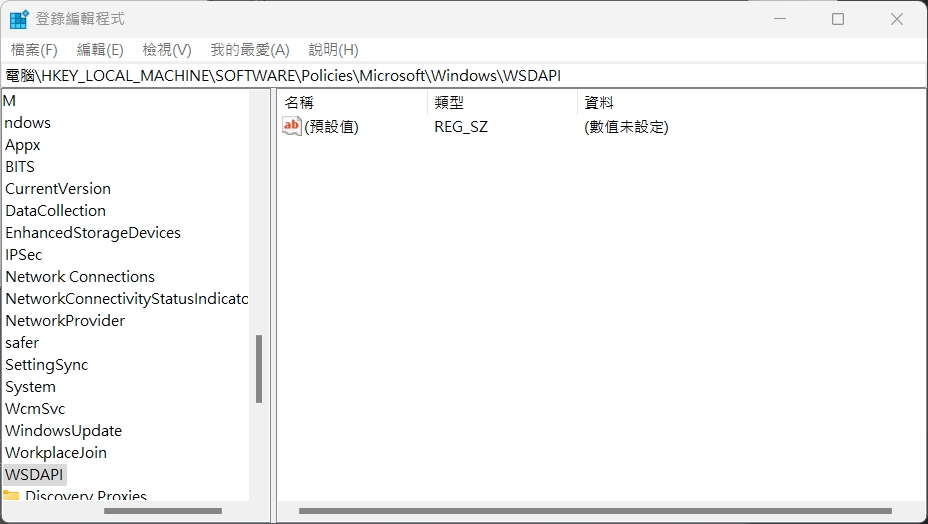
But let’s be clear: Invalid or unused registry entries will have virtually no performance impact on your computer. What’s more, deleting registry entries deemed invalid by these third-party tools is more likely to cause problems than fix them. Certain applications and even Windows features may not work properly, especially if you have modified your login file before. Seriously, do yourself a favor and avoid using these tools, they don’t do any good.
It’s never fun when you see your computer struggling to keep up with your workload, and asking someone for help is a great way to figure out what might be causing your problems. But that’s not the case with these tips you sometimes see online. Don’t waste time installing login cleanup programs or entering the BIOS to disable core suspension. There are other factors that may affect your computer’s performance, or, if your computer is very old, you may need to do more practical things: upgrade the hardware or replace the computer.
Source: KOCPC Chinese