


If you need to expand your laptop’s additional ports, you will purchase additional peripherals to do so. These products come in countless shapes, sizes, and prices, ranging from a gum-pack-sized USB HUB that fits neatly into your bag to a giant brick-sized USB DOCK that requires extra power and can support multiple monitors or other devices. . There doesn’t seem to be any rhyme or reason to the names; all of these devices serve a similar role, with the main differences being port selection, size, transfer speeds, and power.
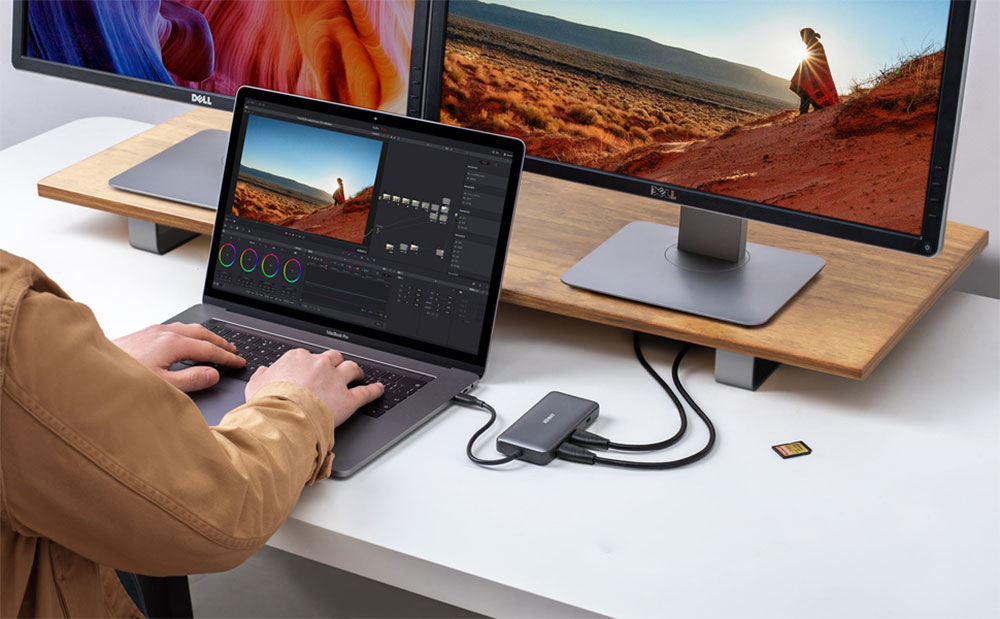
What is the difference between USB HUB and USB DOCK? Which one do you need?
Before distinguishing the difference between USB HUB and USB DOCK, you need to know that buying the wrong port expansion device may exacerbate the problem because you may not get enough transfer speed, portability or power. As long as you understand their various functions, you will be able to determine which one is best for you. For example, if you need to be able to transfer large files very quickly, the read and write speeds of an underpowered USB HUB or USB DOCK will become more limited, slowing down your efficiency. Or maybe you need portability so you can quickly turn a coffee shop into your office on the go. In this case, you might sacrifice a little speed. So, let’s dive into the differences between USB HUB and USB DOCK to find the right option for you.
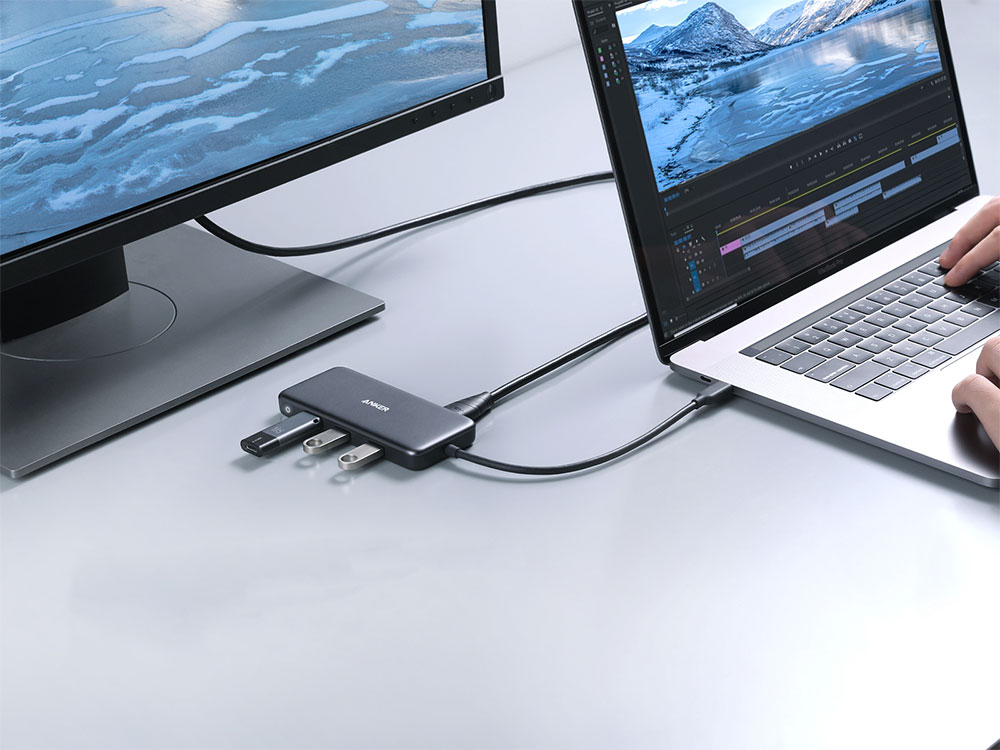
What is the difference between USB HUB and USB DOCK?
There is no consensus on the difference between a USB HUB and a USB DOCK, but many people agree that a USB HUB is a device that connects to a USB port on a computer to add more USB ports or various functions. USB DOCKs, on the other hand, are typically larger, more powerful stationary devices that connect to a computer via a USB port to facilitate desktop setups using external monitors and peripherals. They also usually have their own power supply to provide extra power for charging laptops and demanding USB accessories.
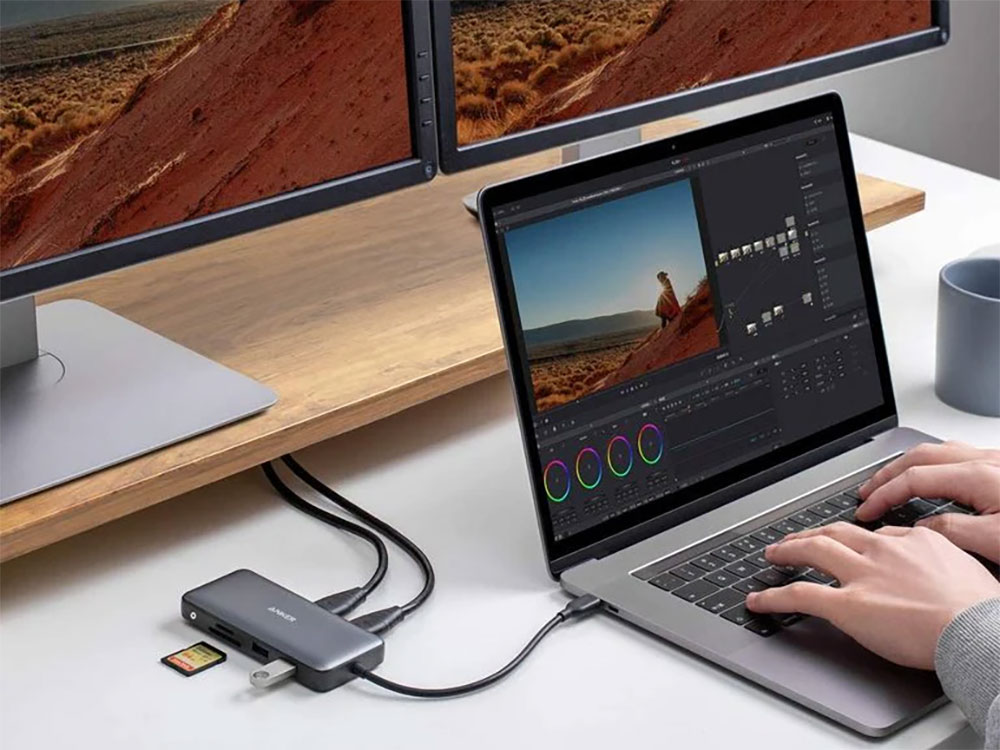
Due to the lack of consistent definitions, manufacturers have relatively loose definitions of USB HUB and USB DOCK. When purchasing one of the two, please pay attention to the product’s dimensions, type and number of connection ports, rather than the name. Now, let’s take a look at two products from the Anker brand. The 575 USB-C Docking Station includes 13 ports, including HDMI, USB-A, 3.5mm headphone jack, and more. Based on its larger size and more powerful specs, it’s a USB DOCK, but Anker also makes a 7-port USB 3.0 HUB. In use cases, a HUB can refer to a separate device that adds an additional USB port. You may see larger, more powerful, and less portable dongles labeled DOCK, while more portable dongles are labeled HUB.
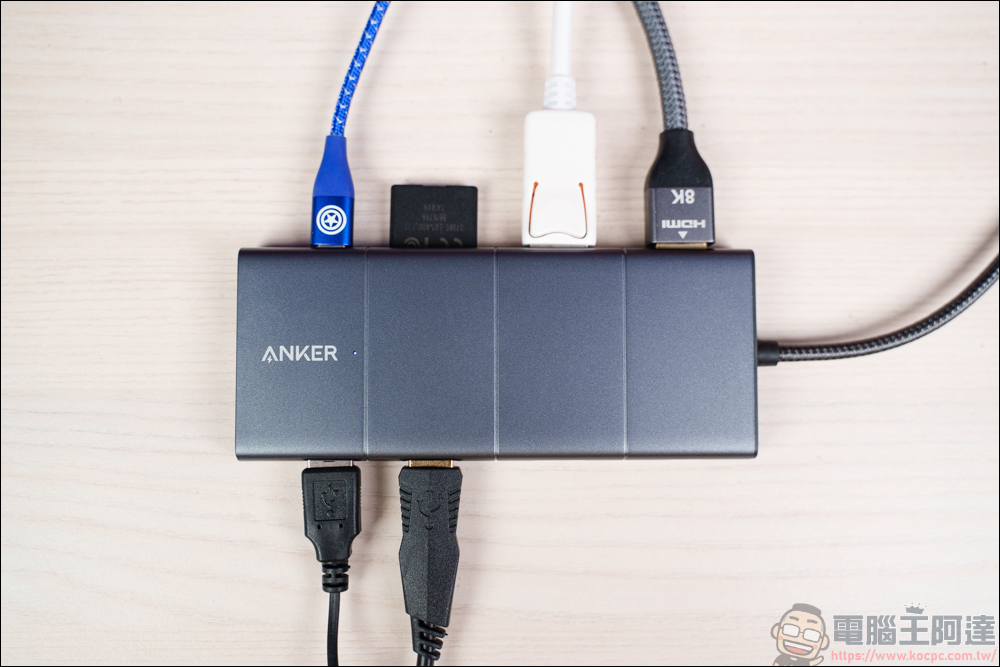
Why do you need a USB DOCK?
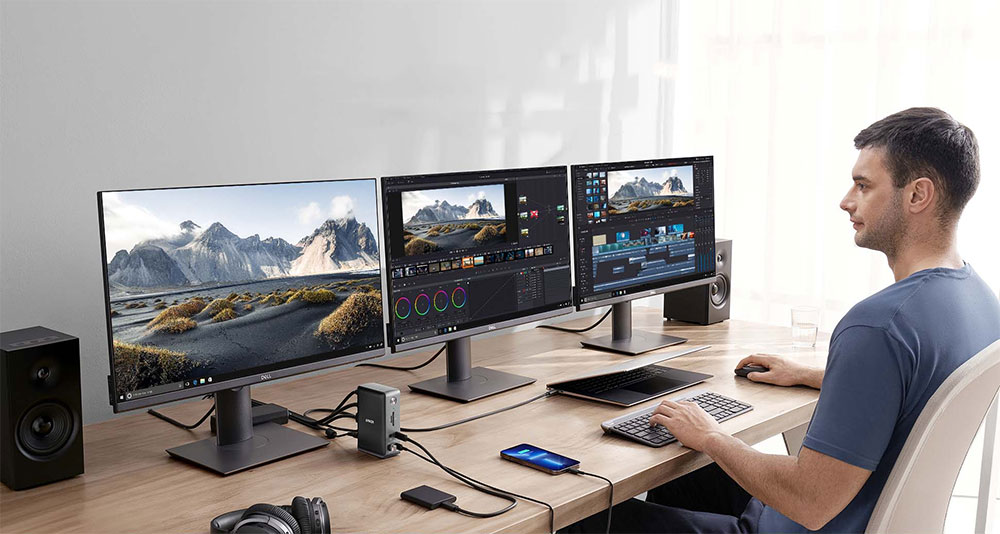
Now that you hopefully have a clearer understanding of USB HUB and USB DOCK, let’s discuss why you might need one or the other, starting with DOCK. If you are the type of person who works from a specific seat in the office or at home every day, and you mainly need extra I/O while working in that seat, then DOCK is your best choice, they can usually have more ports due to their larger size, and the port specifications are more powerful. For example, if you want to connect your laptop to multiple monitors on your desk, then you should choose DOCK.
Why do you need a USB HUB?
Compared with USB DOCK, USB HUB is more suitable for people who need strong mobility. If you frequently work in a coffee shop and need additional I/O, then you may want a USB HUB. These HUBs can add various ports to your laptop, which is especially helpful if your laptop is a model with few ports like a MacBook Air.

When choosing, focus on specs, not labels
The best way to choose a DOCK or HUB is to know what you need, which means considering the dimensions, ports and specifications you need, and then choose based on your needs, rather than worrying about whether you want to buy a DOCK or a HUB. Below we list some quick reminders to remember.
If you want to connect an external monitor or TV, note whether you need HDMI or DisplayPort. The latter only transmits video signals, so if you want to transmit audio up there as well, the audio will not be output from the monitor, so you need to pay attention to whether your computer and monitor support the DisplayPort or HDMI version.
When adding a new USB port, pay close attention to the type of port you need (the most common are USB Type A and C), and what generation of USB it is. For example, the data transfer speed of a USB 2.0 port is 1/10 that of USB 3.0, so when you want to move a large number of files, the speed will be significantly slower. Then there’s the Thunderbolt port, which uses a USB-C connection form factor, but isn’t quite the same.
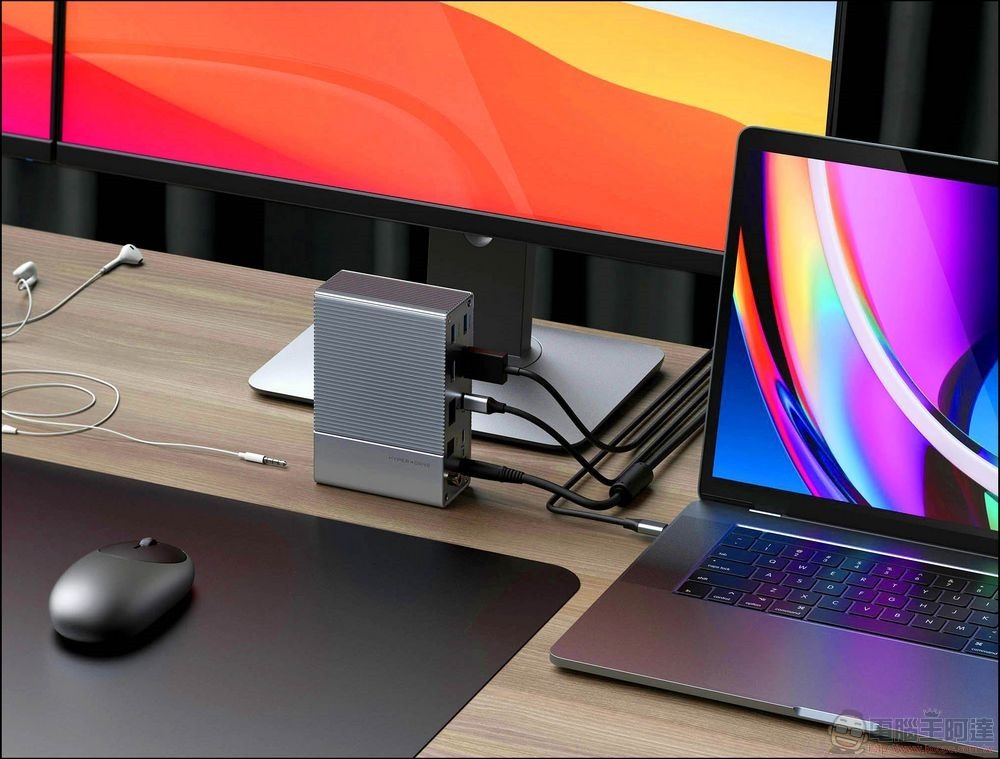
USB ports and cables are not the same. USB-C ports are an amazing invention that allow the same connector to be used for data, power, display output, and more, but not all USB-C ports support all of these uses. It’s common for the USB-C port on a USB HUB to be used exclusively for power, meaning if you plug anything other than a charging cable into it, nothing will happen.
Source: KOCPC Chinese