


If your computer has been used for a long time, you must have a lot of software installed. Sometimes you will receive new version updates, and each software must be updated manually. This process can be said to be time-consuming and cumbersome. This article will recommend a very easy-to-use UniGetUI. It is an open source software that can update all software versions in the computer with one click, whether it is grabbed from the Internet or installed from the Microsoft Store. This is really amazing.
More importantly, UniGetUI also provides a removal function, which can not only remove the software you installed, but also Windows built-in tools.
UniGetUI updates all software versions on your computer with one click and removes unwanted Windows built-in tools
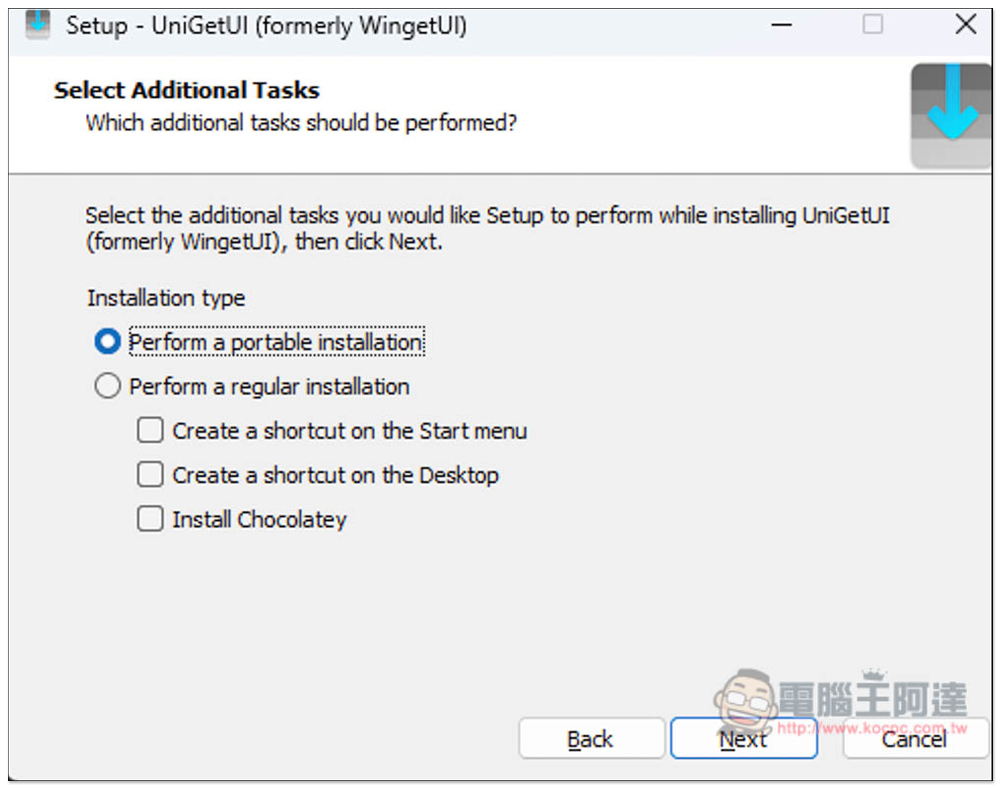
Although there is no Chinese language during the installation of UniGetUI, it will be there after installation, so you don’t have to worry about not being able to understand it. In addition, when installing, you can also choose whether you want a free installation version or a complete installation on your computer.
The method of use is very simple, just select the function you want to use, such as: update the software version, it will scan all the software in your computer for new versions, then select the software you want to upgrade, press Install, and you are done.
But be aware that sometimes a Windows notification will pop up during installation, and you still have to manually press to continue. However, there is no need to operate the installation process of each software or download the installation file. Everything is completed in the background. The installation speed will be slightly longer than if you update manually.
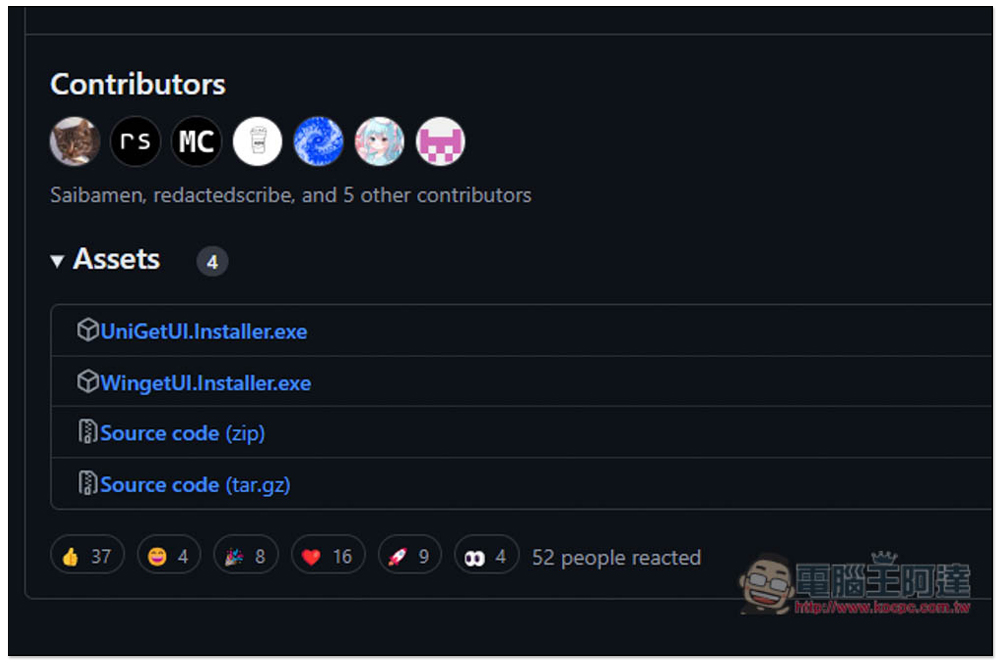
Click the link above to enter the GitHub project and download the installation file of UniGetUI in the latest version of Assets:
This step of the installation process is to choose whether you want the installation-free version (portable) or the normal installation:
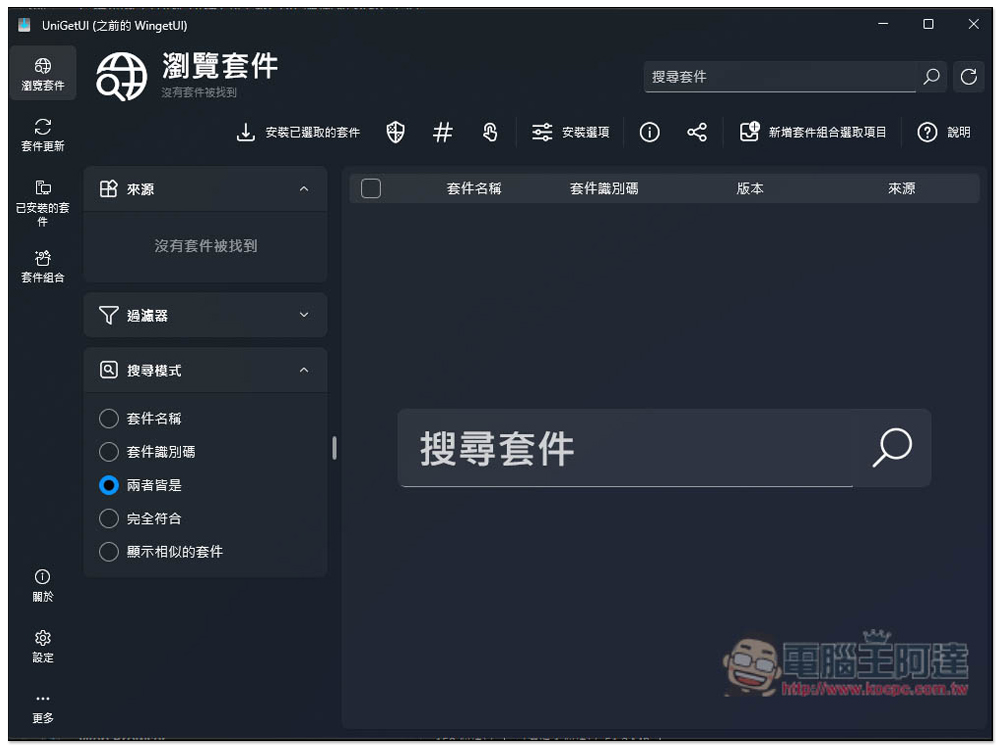
After installation, open it and the page for browsing the package will be displayed. This is mainly used to install software. Enter the name of the software you want to install, such as: Chrome and press search, and the software installation download point that matches the results will appear. This also means that new computers can also use this software to install your commonly used free software:
The second “Package Update” on the left is a one-click function to update installed software on your computer. When you click on this function menu, it will start scanning. After completion, it will display which software has new versions. Not only the ones you installed, but also the ones built into Windows:
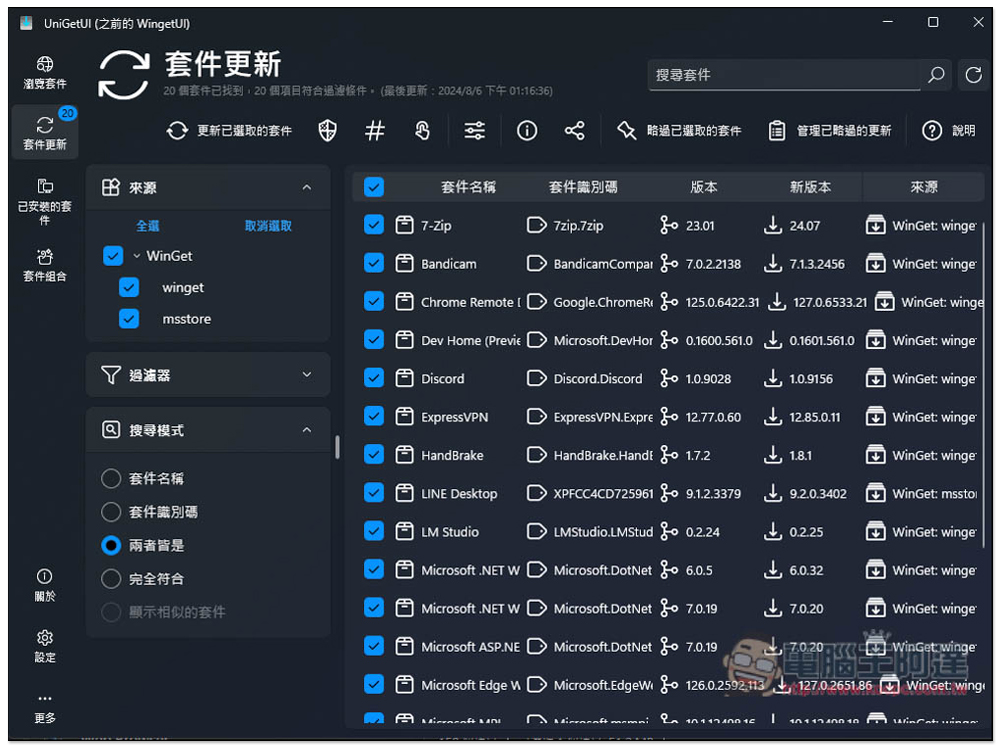
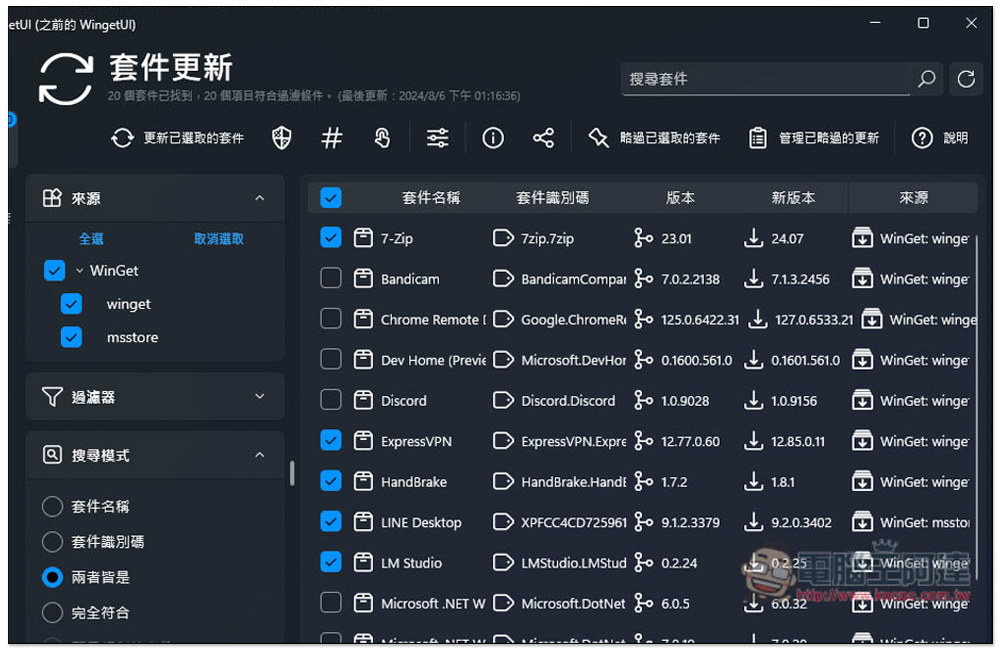
You can update all, or select the software you want to update, check it and click “Update selected packages” above, and the update will start:
The update progress will be displayed at the bottom. Every product actually performs the installation steps automatically, so you don’t have to click manually. It’s super convenient:
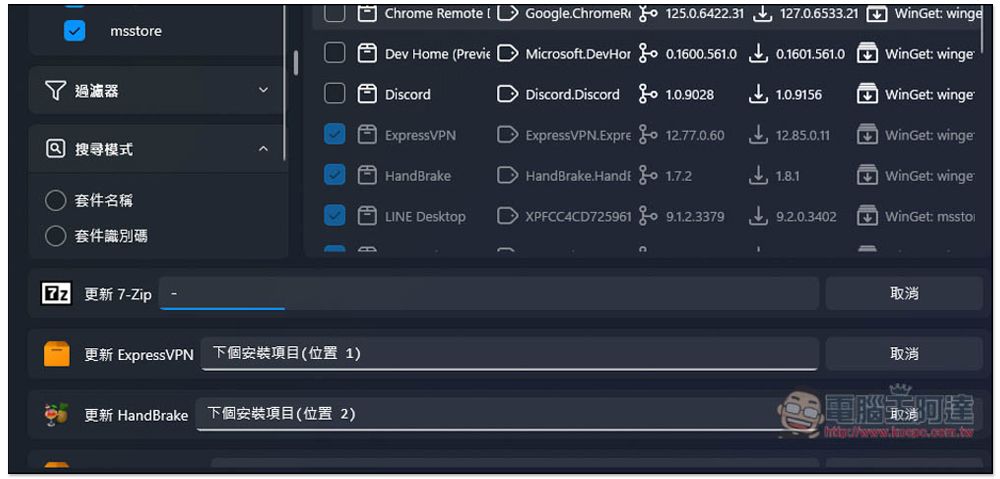
However, the update speed of some software may be slower. For example, ExpressVPN on my computer took two or three minutes to complete.
Click the software name at the bottom to view the current installation progress:
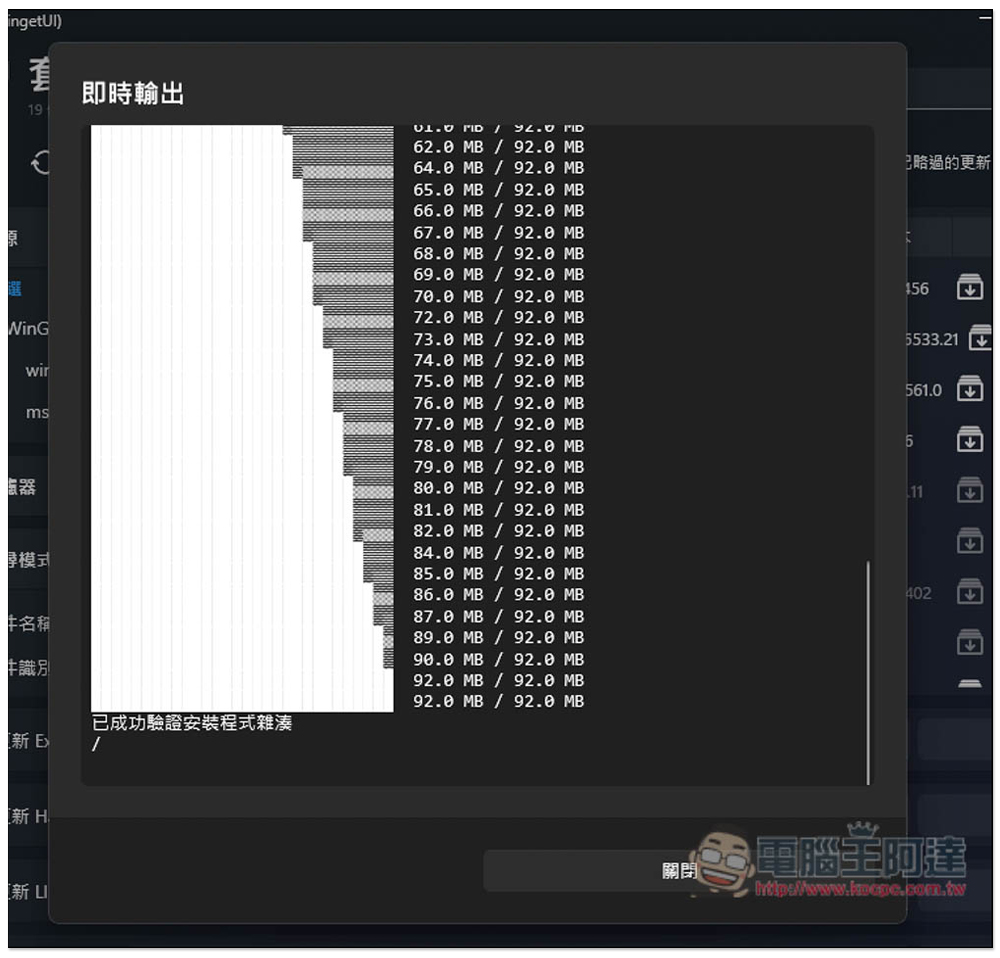
If you want to remove software, or remove built-in Windows features and tools, go to the third “Installed Packages”:
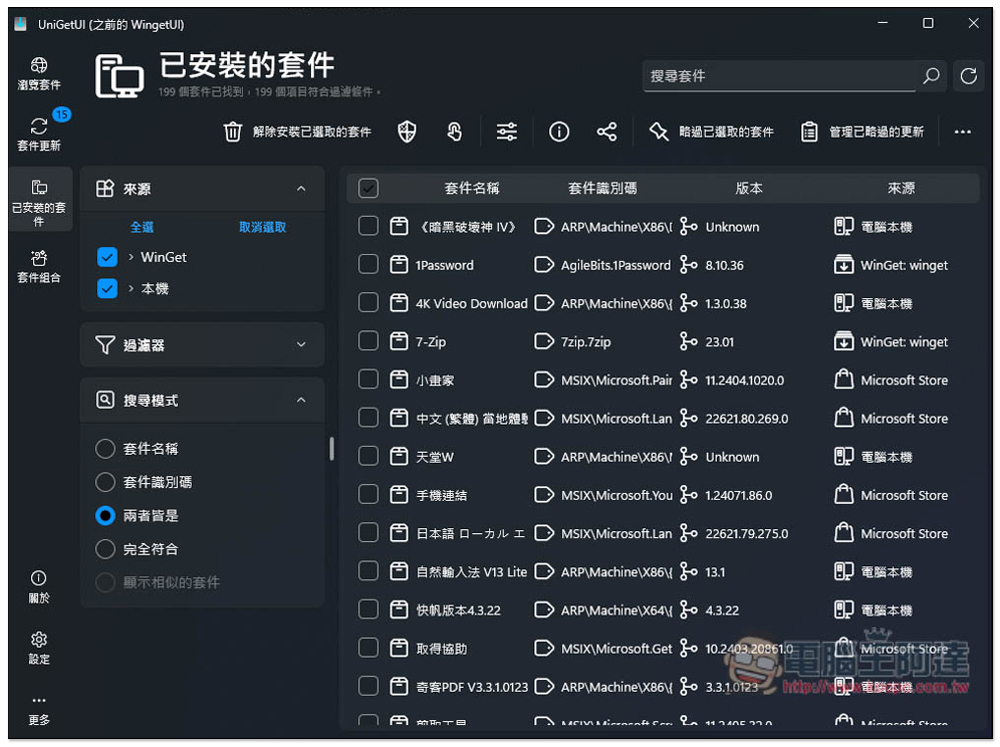
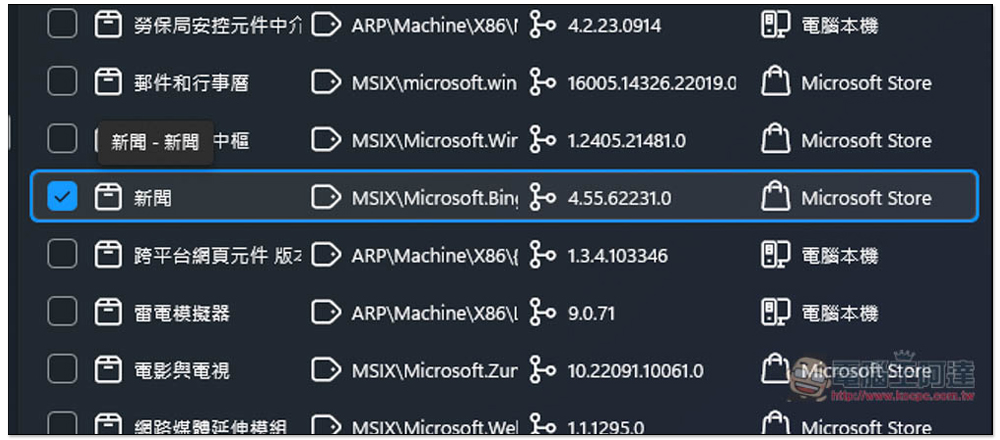
Likewise, check the software or features you want to remove. For example, I don’t even use Windows’ built-in news, so I decided to delete it. Check the box next to it:
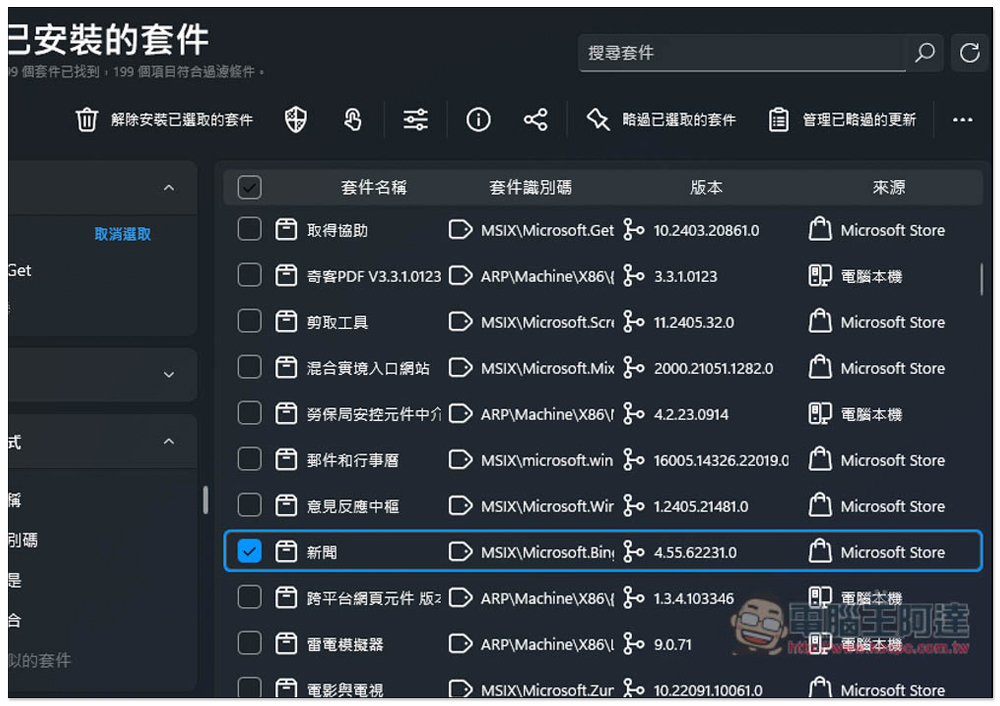
Click “Uninstall the selected package” above and the execution will begin:
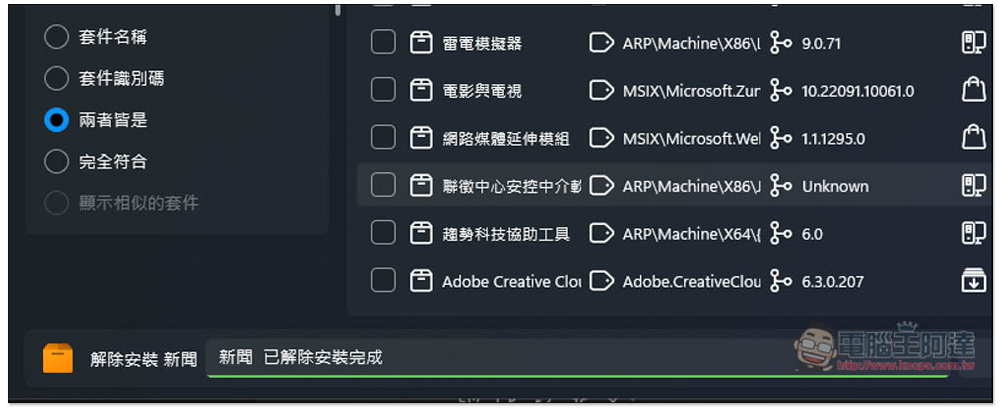
The same removal status will be displayed at the bottom:
Source: KOCPC Chinese