


Are you running out of storage space on your iPhone or iPad? Is it already clear? What if I told you that there is actually a ton of space that could be cleared out? Don’t worry, this is not about permanently deleting apps or videos. Instead, you need to clean up the “system data” in your storage space to free up some space on your iOS device.
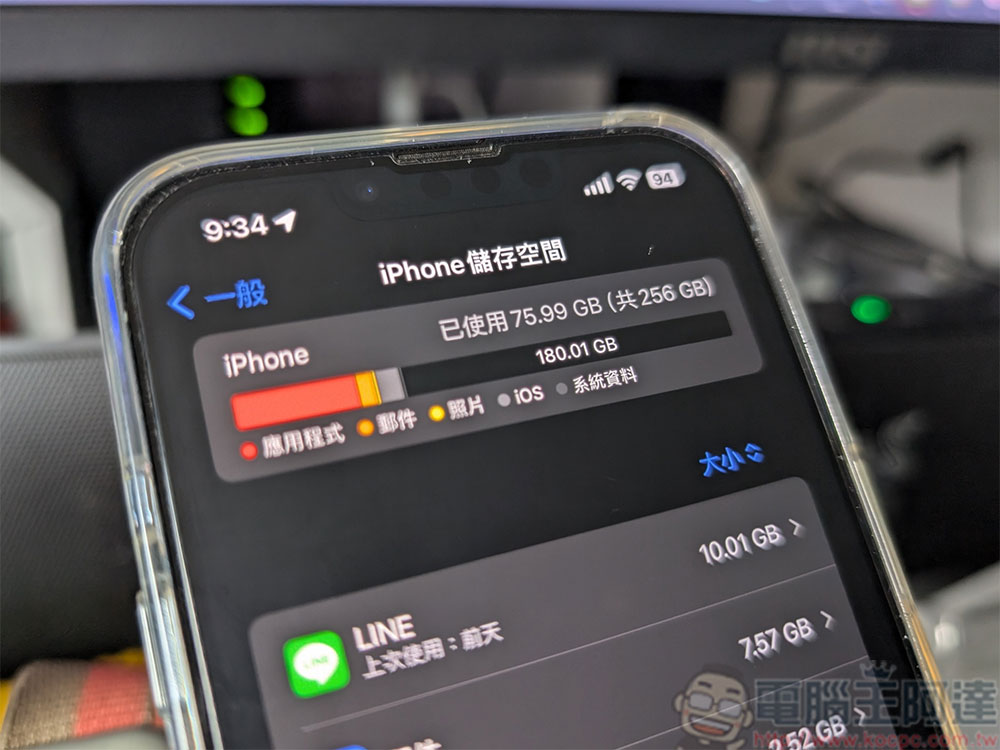
What is “system data” in iPhone and iPad storage? How to reduce its occupancy?
Before explaining what system profile is, you should first check how much space it actually takes up on your iPhone or iPad.
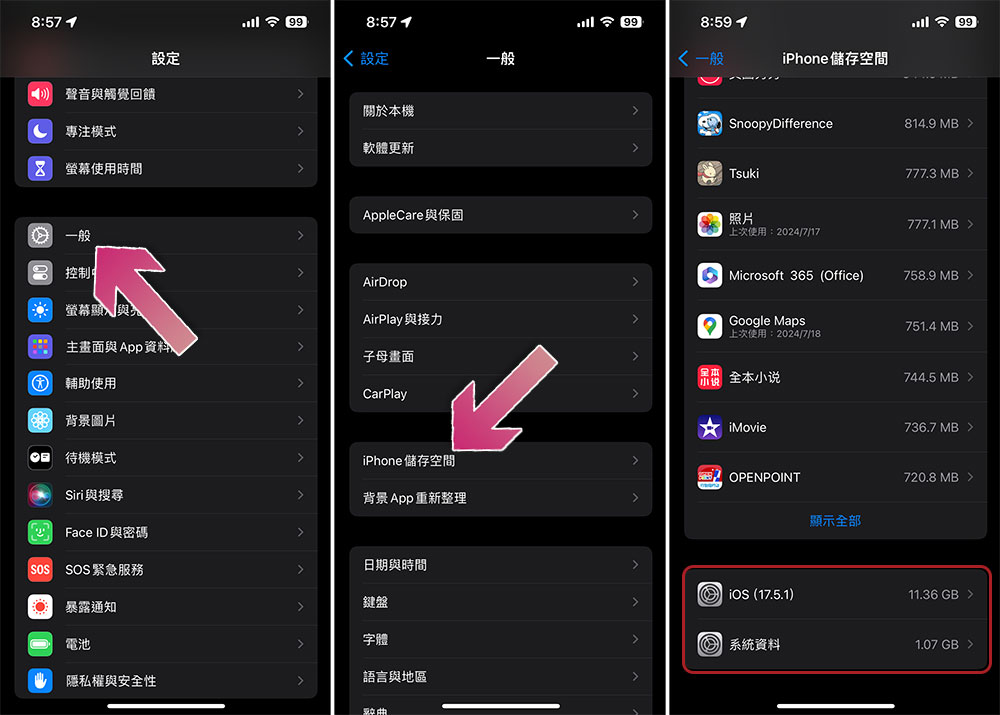
- Open the Settings app.
- Click “General”.
- Select “iPhone/iPad Storage”.
- Wait a moment for system statistics, scroll to the bottom and you will see how much space is occupied by the operating system and system data.
In the past, system data was called “Other,” but Apple renamed it to clarify what it represents. System data is the total amount of cached data stored on your iPhone or iPad, which includes a combination of each app’s downloads, Safari cache, Mail app cache, downloaded emails and attachments, Safari reading list pages, notes, voice memos, and backup files. Essentially, it is the general name for the temporary storage used by the operating system.
How to release system data on iPhone or iPad storage?
You can’t completely clear system data on your iPhone or iPad, but here’s how you can reduce the size.
Clear Safari history
The first thing you should do is clear your Safari cache:
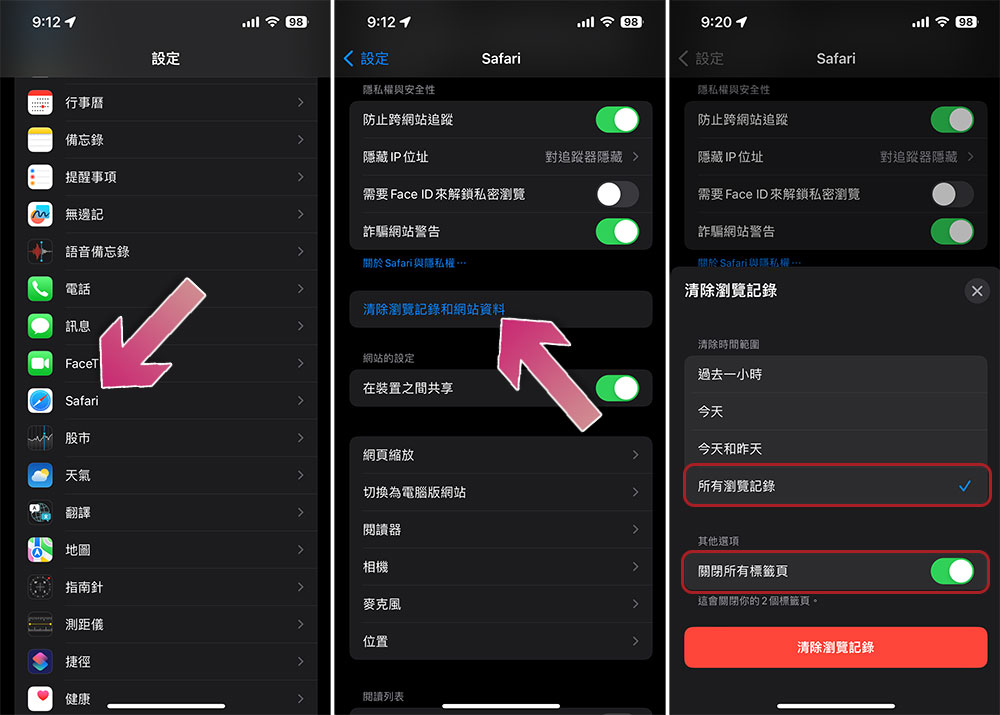
- Open the Settings app and select Safari.
- Scroll down and click “Clear browsing history and website data”.
- Check “All browsing history” and turn on the “Close all tabs” switch. Please note that after deleting your history, you may need to log in to the website again, so please make sure you have saved important passwords.
Force restart
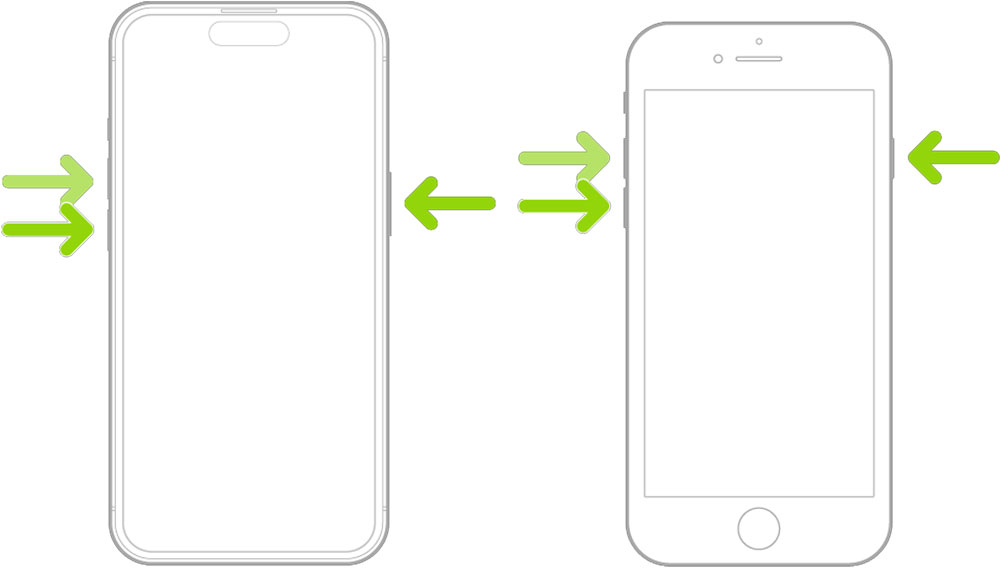
Forcefully restarting your iPhone or iPad can help clear a lot of system data.
- Press the volume up button and quickly release it.
- Press the volume down button and release it quickly.
- Press and hold the side power button until the Apple logo appears on the screen, then release it.
- Your iPhone or iPad will now automatically force restart. After restarting, you can check the system data for differences.
Reinstall the application
Unlike Android, you don’t have the option to clear the cache of every app on your iOS device. As a result, applications installed on the device accumulate cached data that is not always necessary. The only way to delete these unwanted data is to reinstall the application. You can delete it in the following ways:
- Open the Settings app and select General.
- Click “iPhone/iPad Storage”.
- Click on the individual app you want to delete and select Delete App.
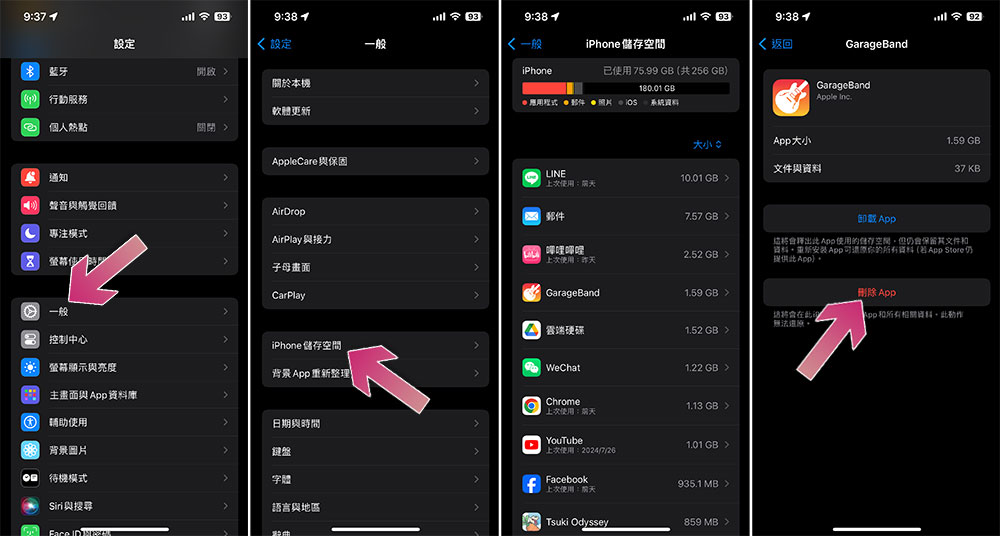
After reinstalling the application, you can check the differences in the system data. You should especially target major apps like Instagram and YouTube, which tend to build large caches based on the content you watch on the platform.
Change messaging app settings
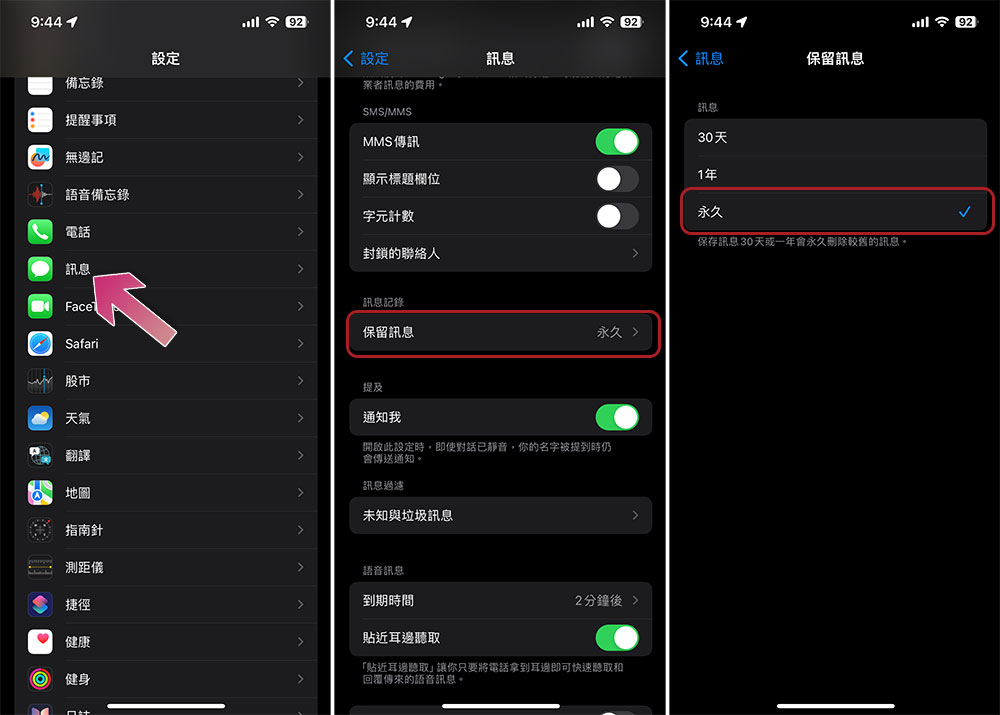
By default, the Messages app on your iOS device permanently retains all the messages you receive. This means the messages you received two years ago are still on your phone. While one message takes up very little space, thousands of messages can take up a lot of storage space on your device. Therefore, you should set the Messages app to automatically delete messages you send or receive after a certain number of days, which will help free up space.
- Open the Settings app.
- Click “Messages”.
- Scroll down and click “Keep Message”.
- Click “1 year” and any messages received from your phone 1 year ago will be deleted. You can also select 30 days, which will delete any messages received within 30 days.
Enable ProRes in the camera app
If you have an iPhone Pro model, you can enable the ProRes feature in the Camera app to free up some system data.
- Open the camera app.
- Slide to the “Recording” function.
- Click “ProRes” in the upper left corner, and you will see a “Release Resources” prompt.
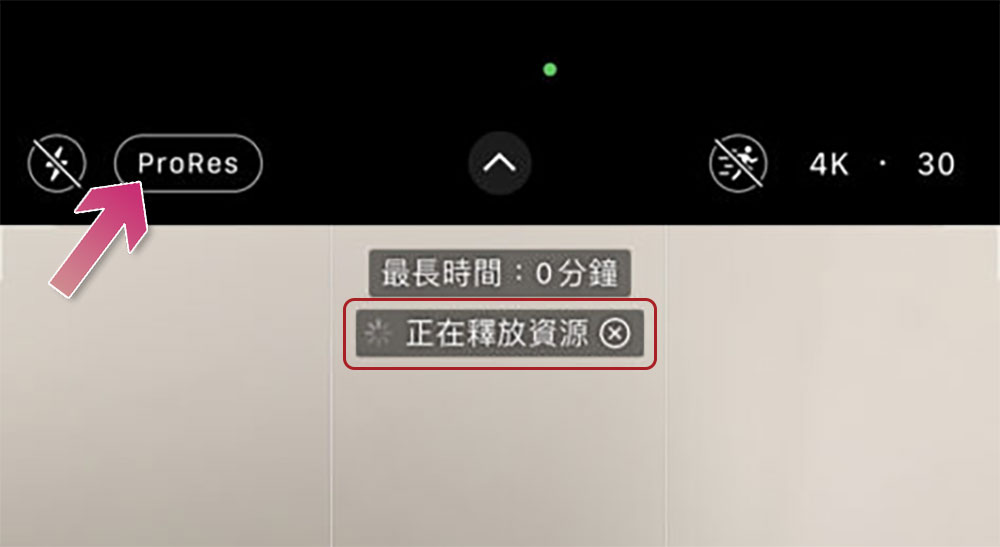
Once completed, you will notice a reduction in system data. The reality is that the ProRes function requires a lot of storage space to record. To ensure that there is enough space, your iPhone will automatically clear unnecessary data from the system data.
Back up and factory reset your iOS device
While the above methods will help you reduce the space occupied by your system data, you may not see a huge difference. This may be because the system data contains corrupted cache files that cannot be cleared using these methods, in which case the only option is to wipe everything on the device and start over. In the worst case, restoring the device from a backup may restore the system data you tried to clear. If this happens, you may want to wipe the device’s data instead of overwriting it with the backup and just set up your device from scratch. Data stored online (such as your email) will not be affected, so you can recover most of your important data after doing this.
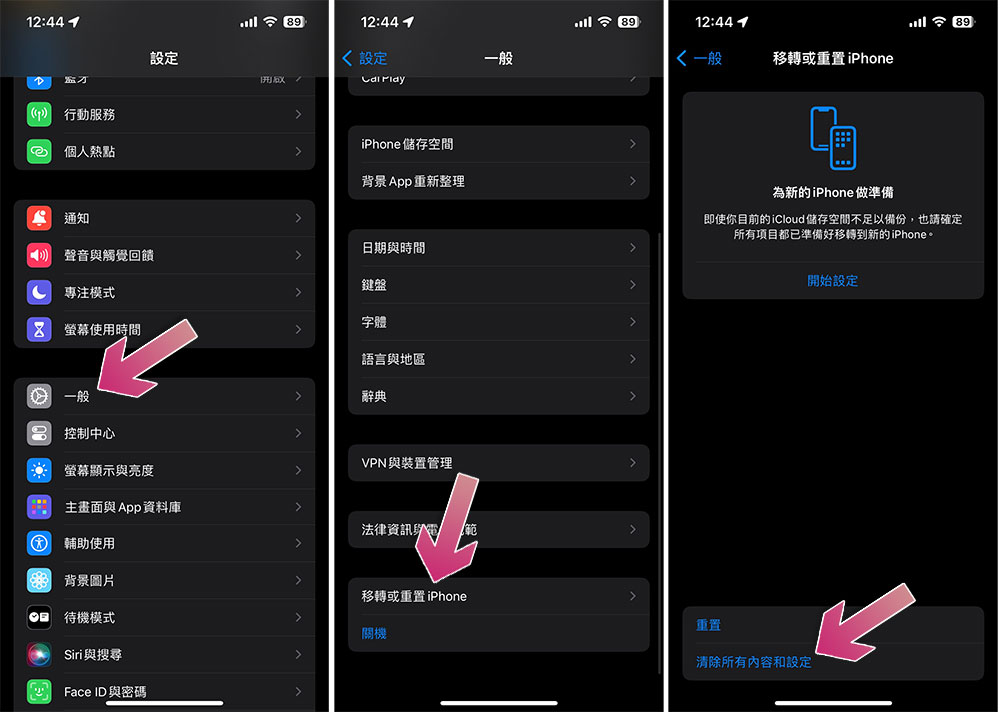
It is completely normal for the system data in iPhone and iPad to occupy 8 – 10GB, so don’t worry too much. But if the system data takes up a large proportion of the total storage space, such as 20 – 25GB, then you should try to reduce it using the above method.
Keep in mind that these methods will not permanently reduce the size of your system data, as it is your iPhone’s temporary file cache and will naturally grow and shrink in size as you use your iOS device, which is one of the reasons why you should buy iPhones and iPads with more storage space.
Source: KOCPC Chinese