


For people who like to multi-task, opening a bunch of web pages to check information, listening to music, and watching videos must be a normal thing. As far as YouTube is concerned, as long as you press the mini player function on the video, the video will automatically shrink to a small screen in the lower right corner for you to watch. However, this function will only work when browsing the YouTube page.
If you want to browse other webpages while watching YouTube videos, you must shrink the YouTube webpage to view it on other webpages, and both webpages must be shrunk to watch them on the same screen at the same time (unless you have dual screens). This is not conducive to fishing at work. The fact is that it is too unsmart. If you also need to watch videos while browsing the web, this “Picture-in-Picture – Floating Video” plug-in can definitely meet your needs of fishing at work!
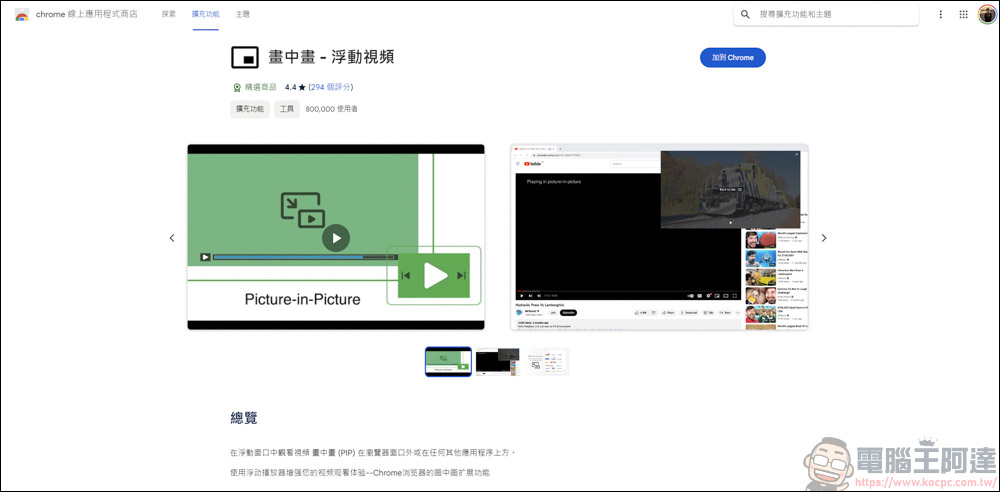
Web plug-in – “Picture-in-Picture-Floating Video”
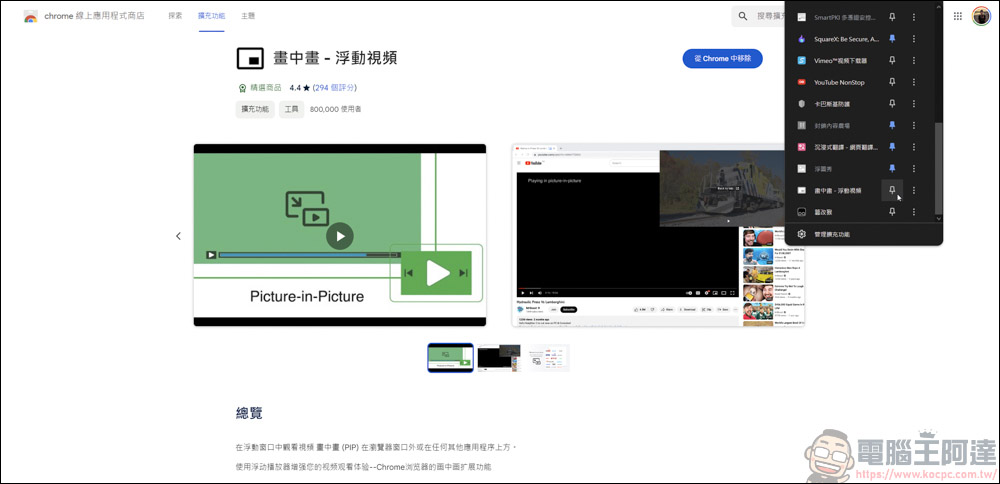
This time we use Chrome as an example. We also first go to the Chrome online app store to find the Picture-in-Picture-Floating Video installation, and fix it on the plug-in bar above ( Click here to go ) :
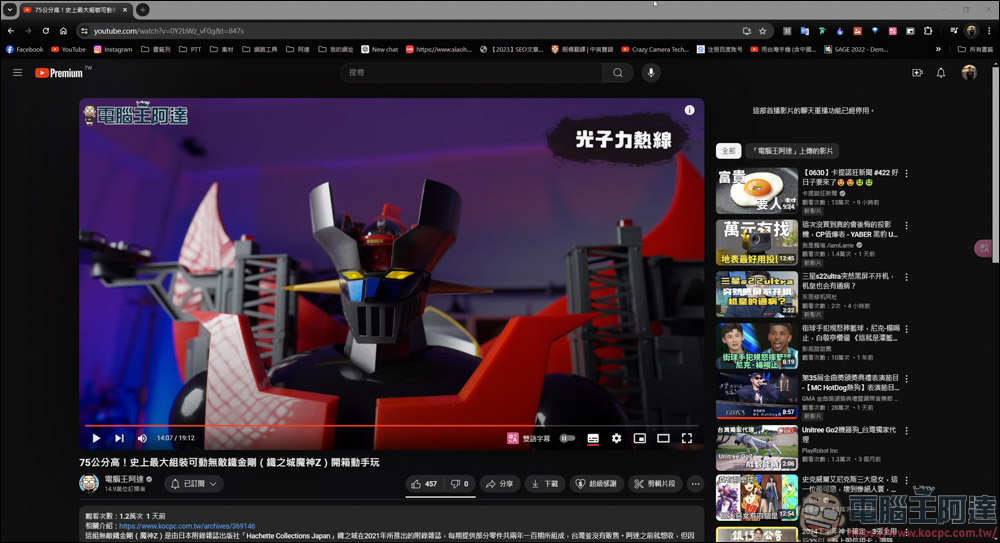
The method of use is also very simple. First, find a video you want to watch. Here we take YouTube as an example. RememberSubscribe to Computer King Ada’s channelAh!
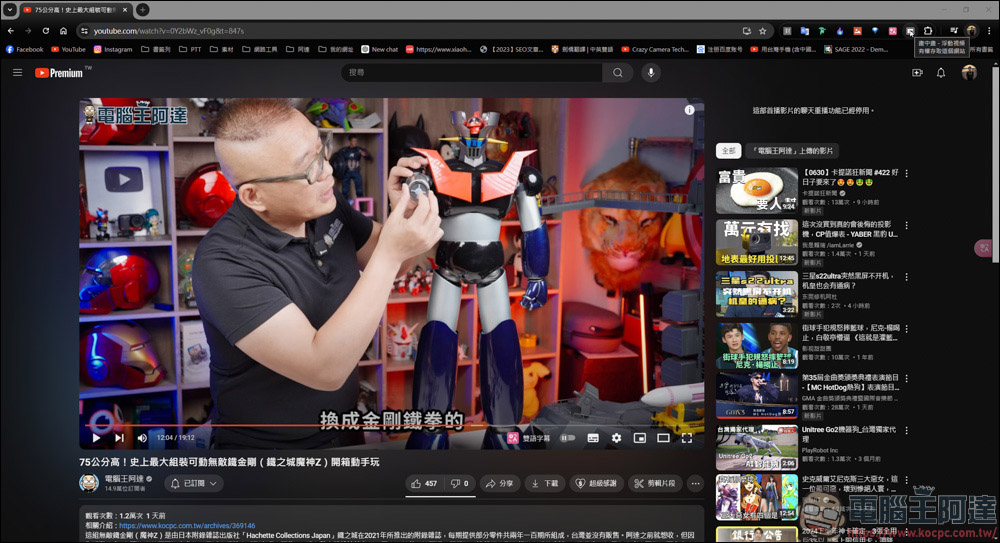
As long as the video on this page can be picture-in-picture, the picture-in-picture plug-in will display black and white. At this time, click the plug-in on the upper right:
Then you will see that the video has been reduced to the lower right corner of the screen:
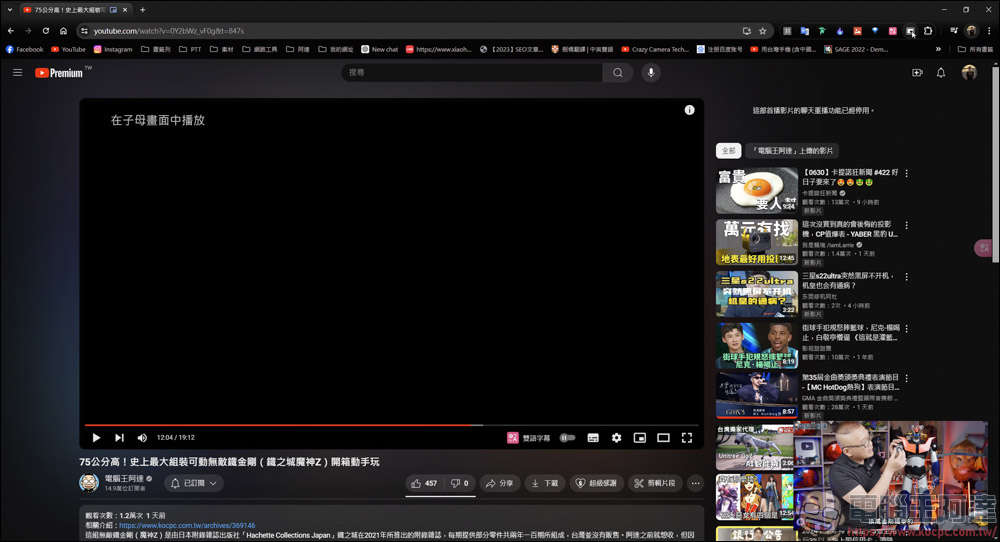
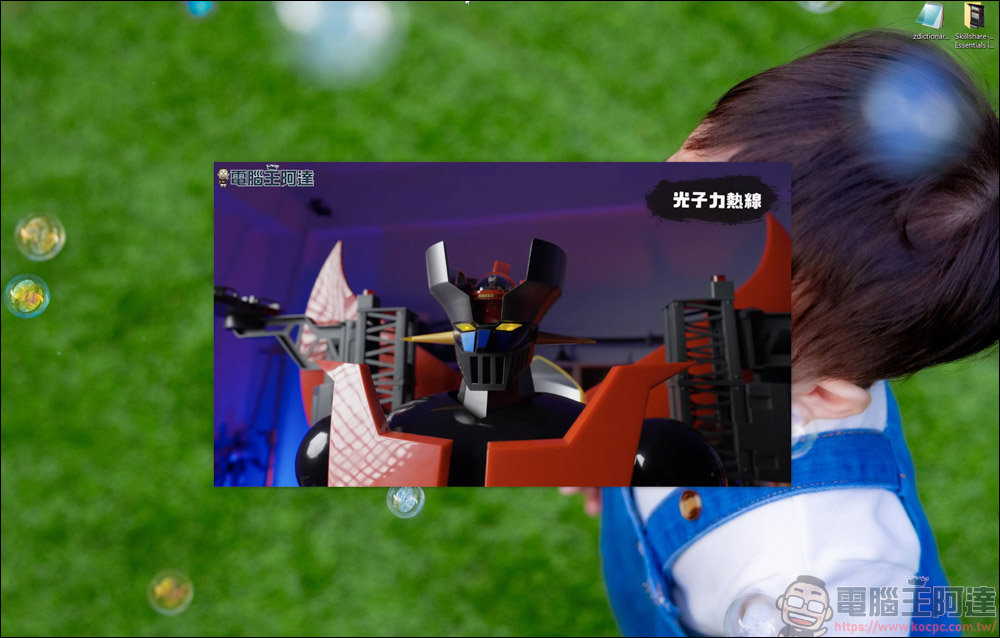
As long as the video’s webpage is not closed, you can even see a small window of this video on your computer desktop:

If you feel the screen is too small, just pull the edge of the window to enlarge it:
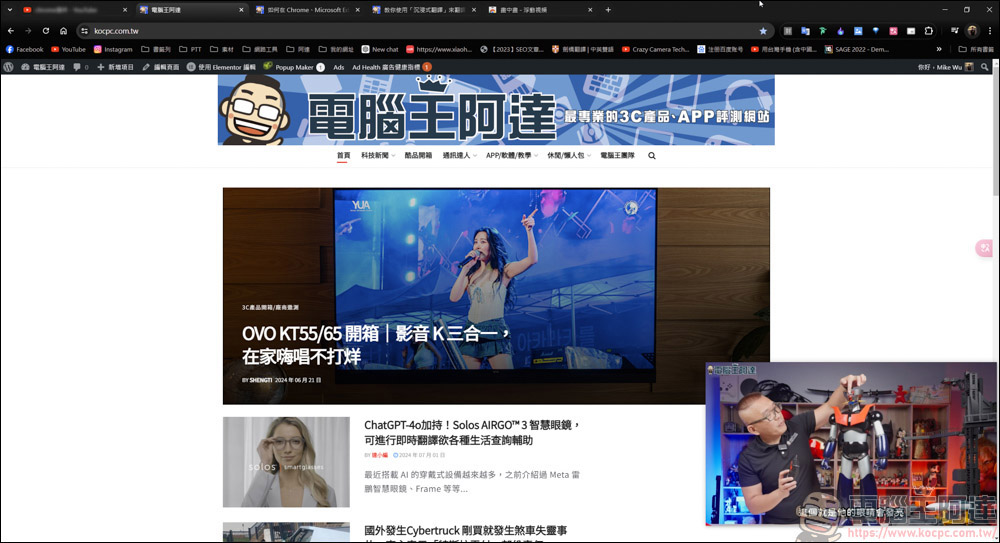
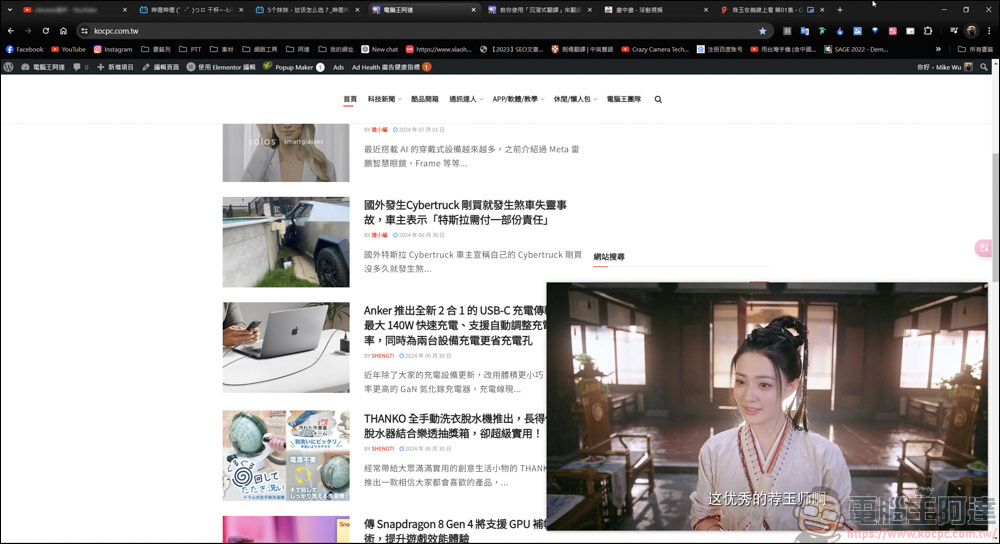
Through the picture-in-picture method, even if you are browsing other pages, it will still play at the position you set, and it will always be in front of other pages, and will not be covered after you click on other pages:
YouTube also has a mini-window function, but its function is more mature:
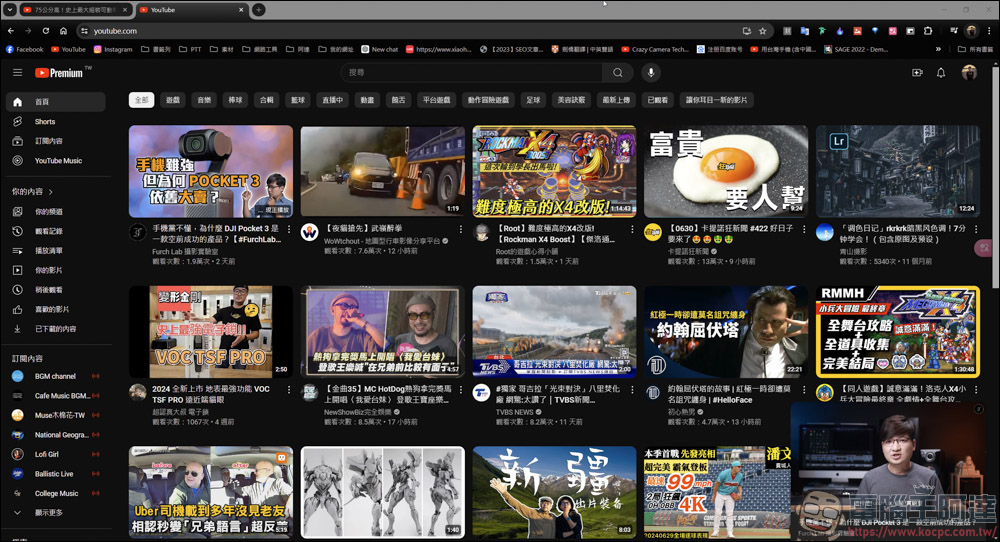
It can only play on the YouTube page when the window is reduced. Even if you switch to other windows, although it will play, you will only hear the sound and the picture will not follow. At the same time, he cannot adjust the size of his screen, so his functionality is limited:

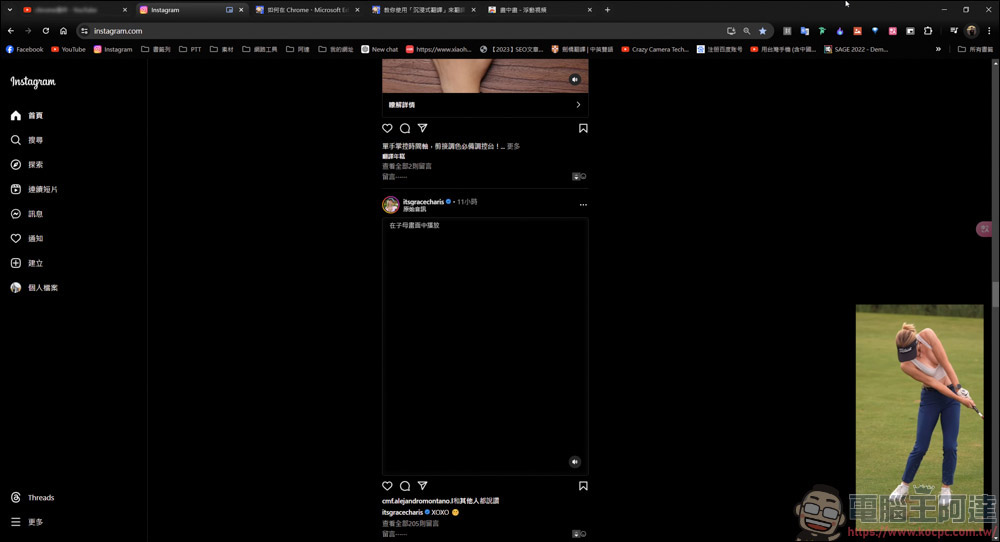
In addition to YouTube, the audio and video platforms I have also tried, such as IG, can indeed do the picture-in-picture function, but once you switch to other pages, the video cannot continue to play:
Use bilibili platform for testing:
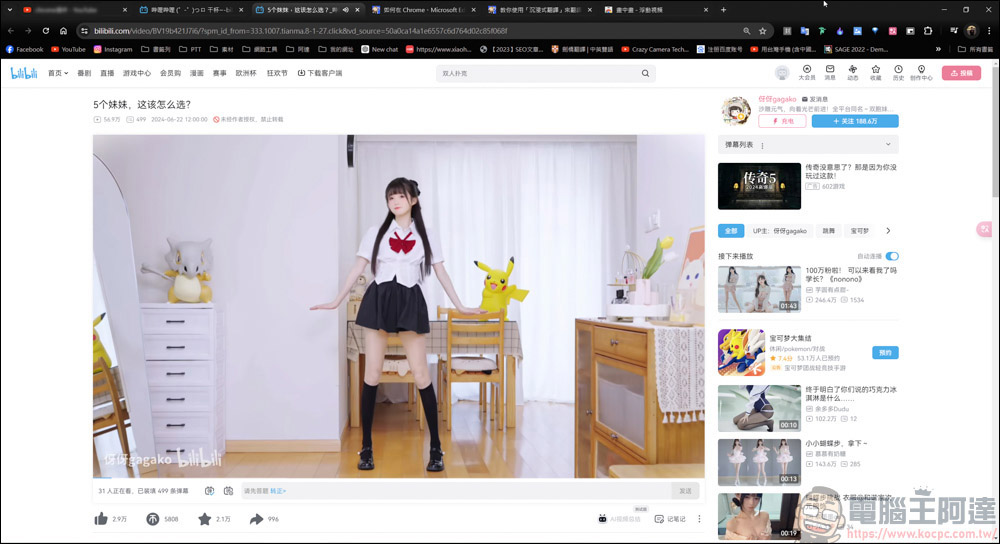
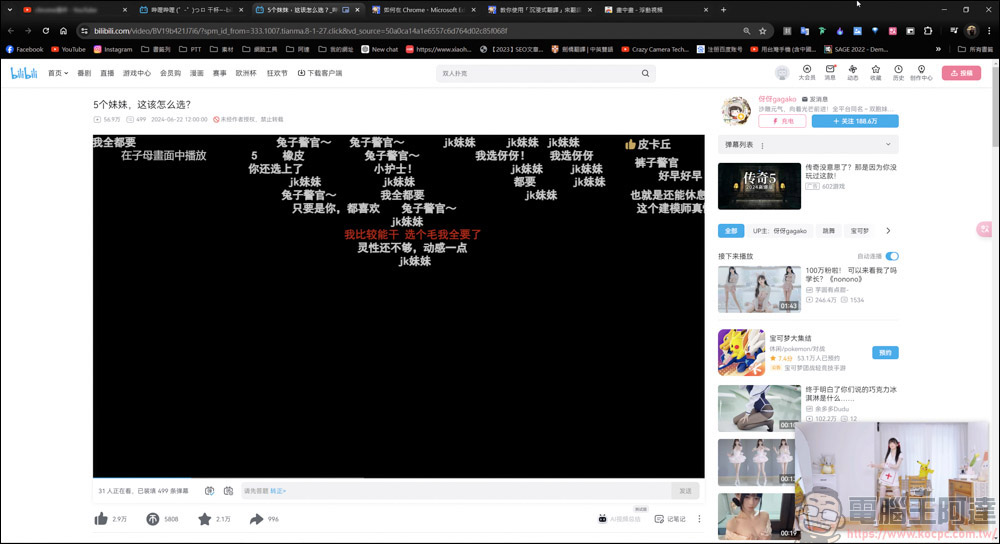
It is indeed possible to draw pictures within pictures:
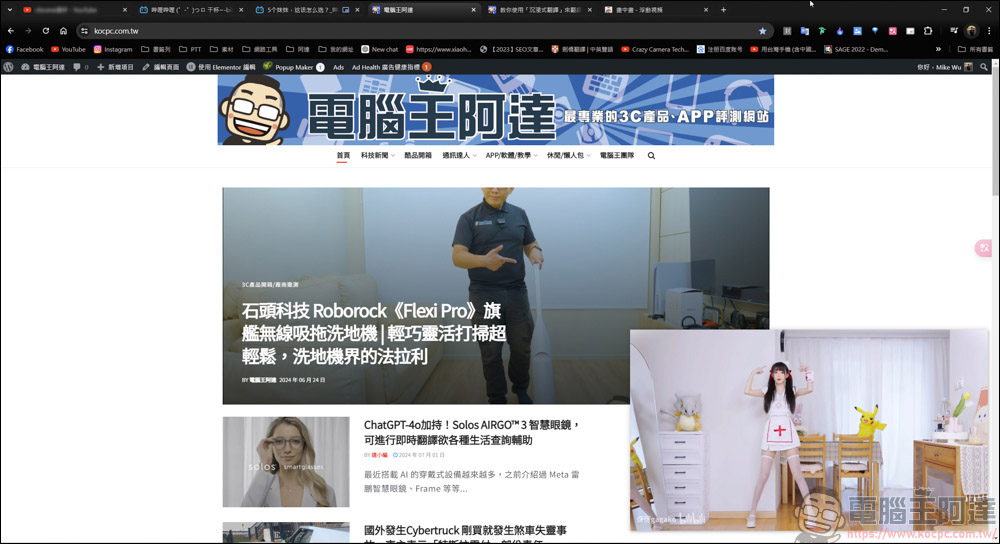
There is no problem browsing other pages:
In addition, I also tested the webpages viewed online. The picture-in-picture function also works, but I won’t mention the webpages here. You can find the source by yourself! In short, this set of “Picture-in-Picture – Floating Video” plug-in allows you to watch the videos you want to watch during multi-tasking. Even if you are doing other things on other web pages, it can still shrink the window for browsing. Even if you don’t browse the web, you can still use this plug-in to watch videos while working on your computer desktop, in Word, PTT, etc., and it is easy to install and set up. For those who like to multi-task or work hard at work and want to use a small window to watch videos, this plug-in is a must-have plug-in for you!
Source: KOCPC Chinese