


A few days ago, Stability.ai launched the new Stable Diffusion 3 Medium open source model. This is a 2B version, which means that the hardware requirements are not very high. The official also claims that it takes up low resources and can be easily run even on general consumer GPUs.
Many people will definitely want to try it out to see if the generated quality is as good as previous models. This article will introduce an online tool that allows you to try it out without installation, and it doesn’t matter how many AI images you want to generate.
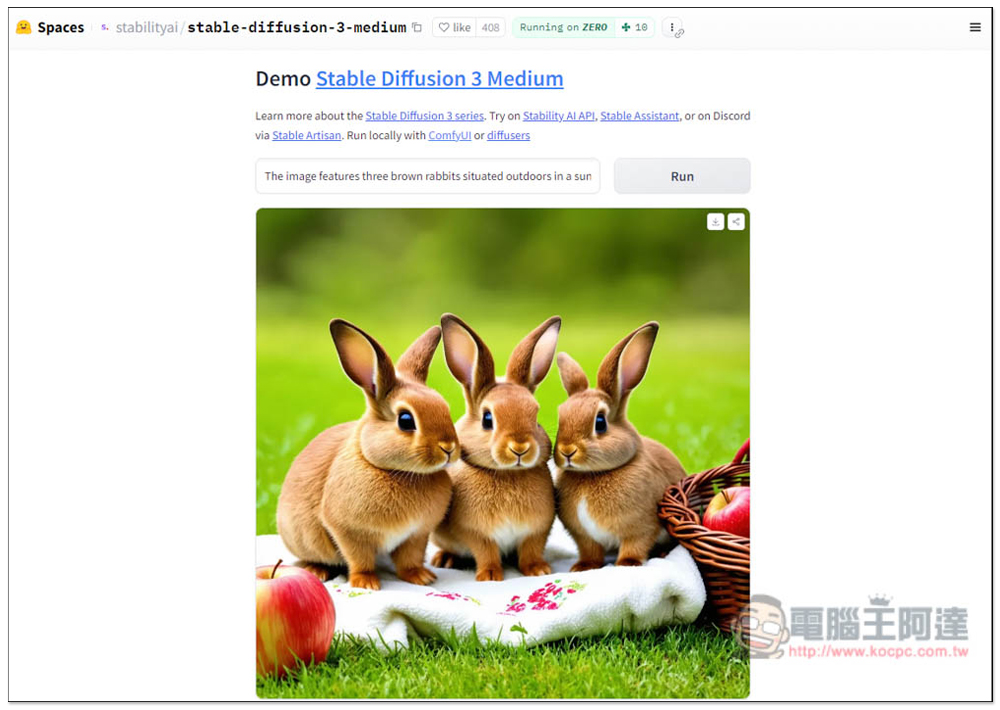
Want to experience the AI image generation effect of the latest Stable Diffusion 3 Medium model? This free tool lets you try it
- experience Stable Diffusion 3 Medium Online tools
According to Stability.ai, although the Stable Diffusion 3 Medium model is small, it also has excellent details, colors and lighting, and can output high-quality pictures, even in real style.
We have written an article before Stable Diffusion Installation instructions, through the ComfyUI open source tool, if you want to generate AI images locally on your computer, you can refer to this article, but remember to download the latest Stable Diffusion 3 Medium for the model part.
There are four types, the top two are basic model and pre-training, followed by fp16 and fp8:

However, before installation, it is also recommended to try the online tools first, and then install them if you are satisfied with the effect.
One thing to note is that although Stable Diffusion 3 Medium is an open source model, the AI images generated cannot be commercially used. If you want to use it in the commercial field, you need to upgrade the paid plan. For details, go to Stability.ai learn more.
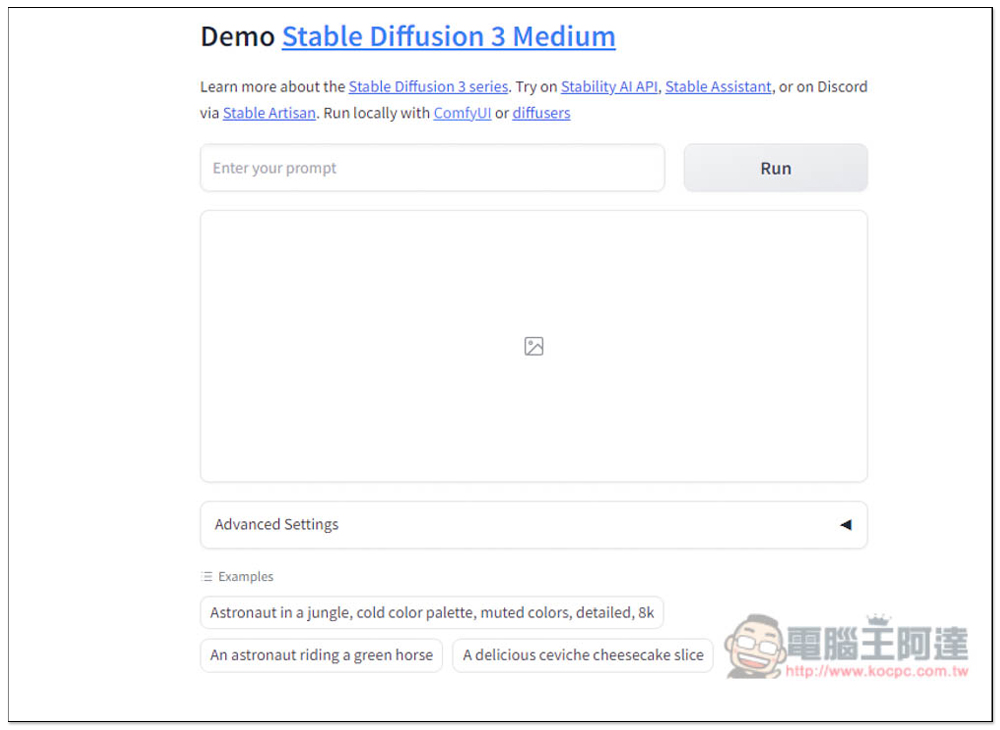
The online version of Stable Diffusion 3 Medium is installed on Huggingface. It is very simple to use. After entering the website, enter the picture description you want in Enter your prompt:
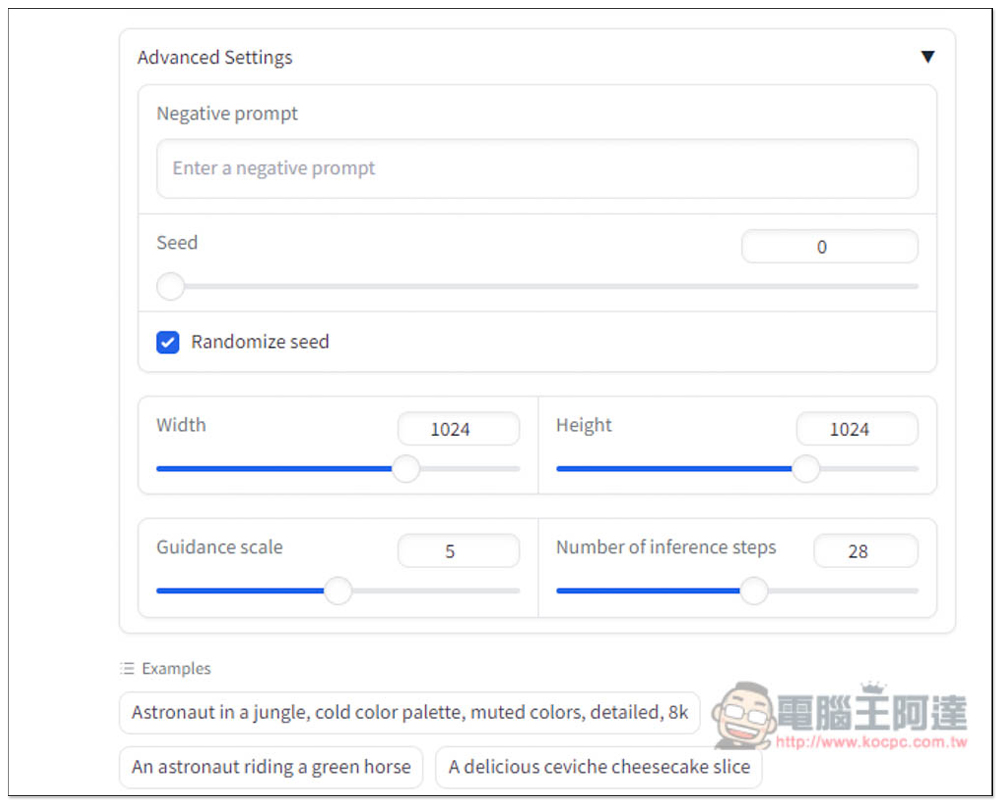
In the Advanced Settings below, you can add a description (Negative prompt) that you do not want to appear in the image. You can also adjust the Seed, the width and height of the image, and the Guidance scale and Number of inference steps:
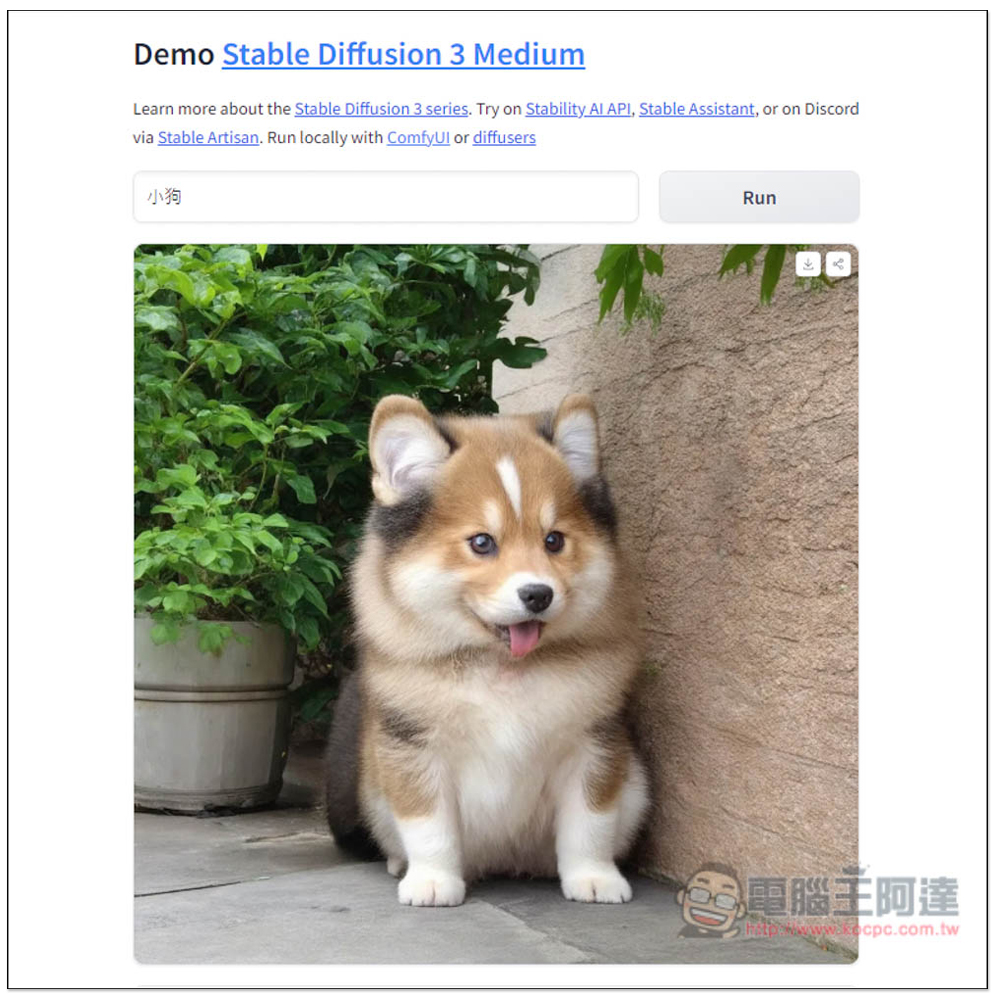
After entering the description, press Run and execution will begin. Let me first test whether the Chinese language is supported:
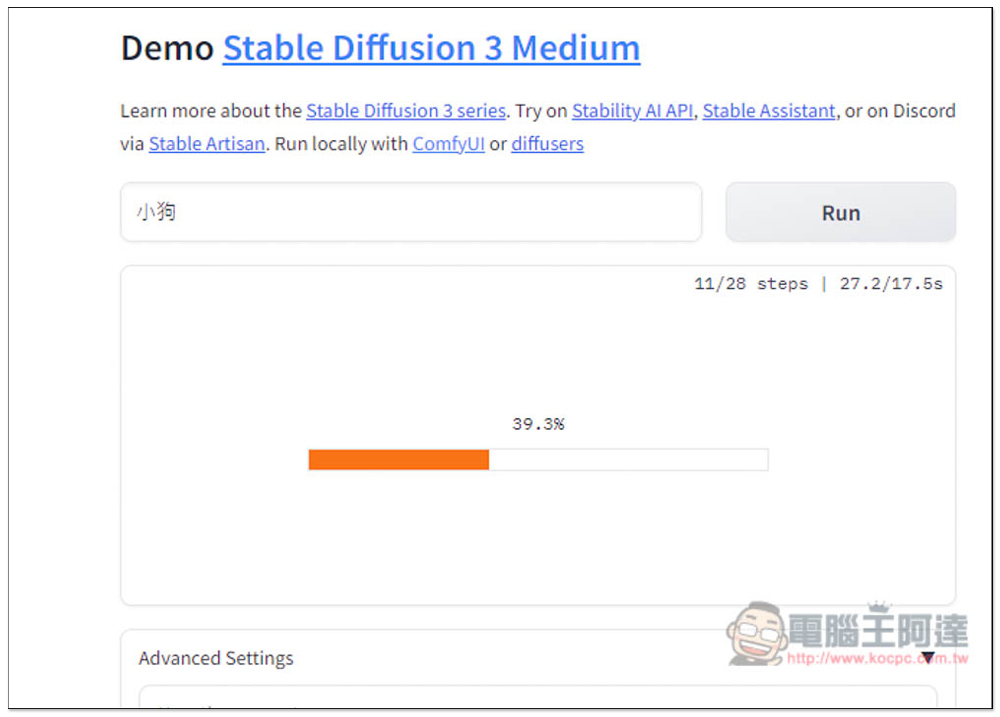
I didn’t expect that it could actually generate a picture of a puppy:
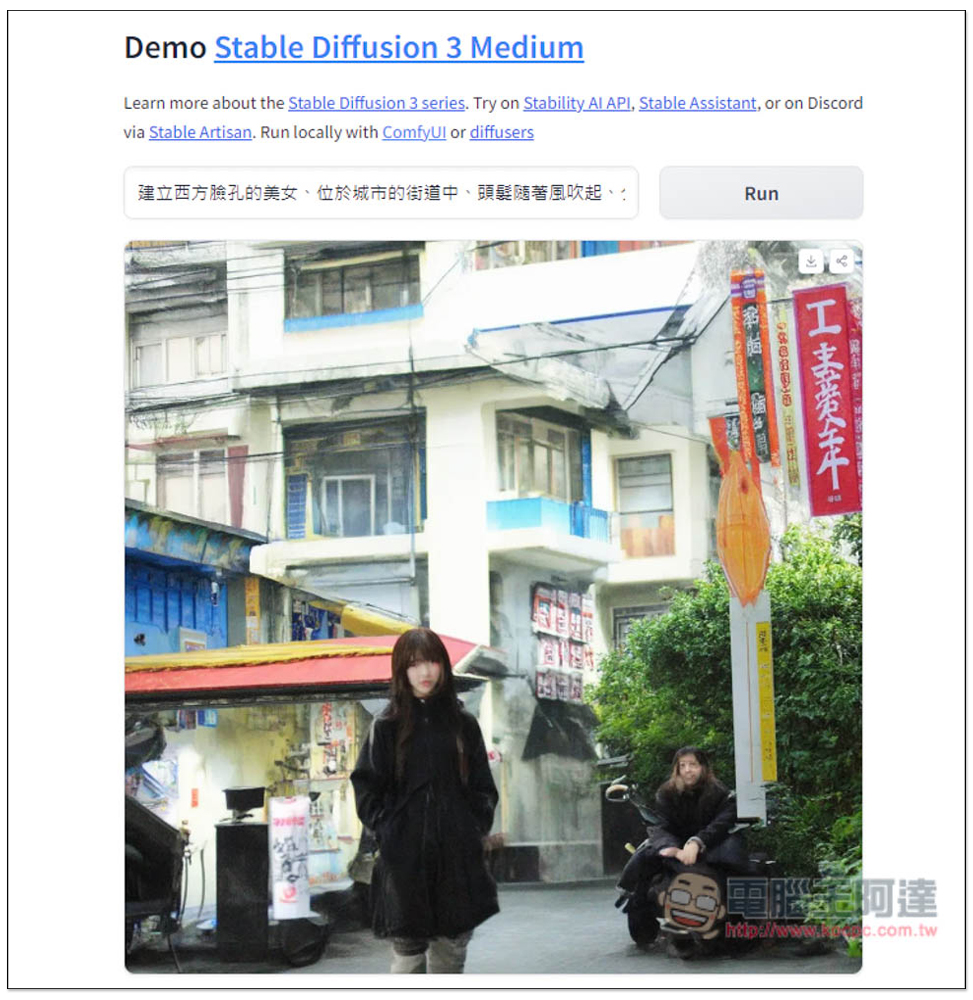
Then I tried a longer Prompt. Although the picture was somewhat similar to my description, it was obvious that the generation quality was not very good. This shows that the Chinese support is still not very good:
After I changed it to English, there was no problem:
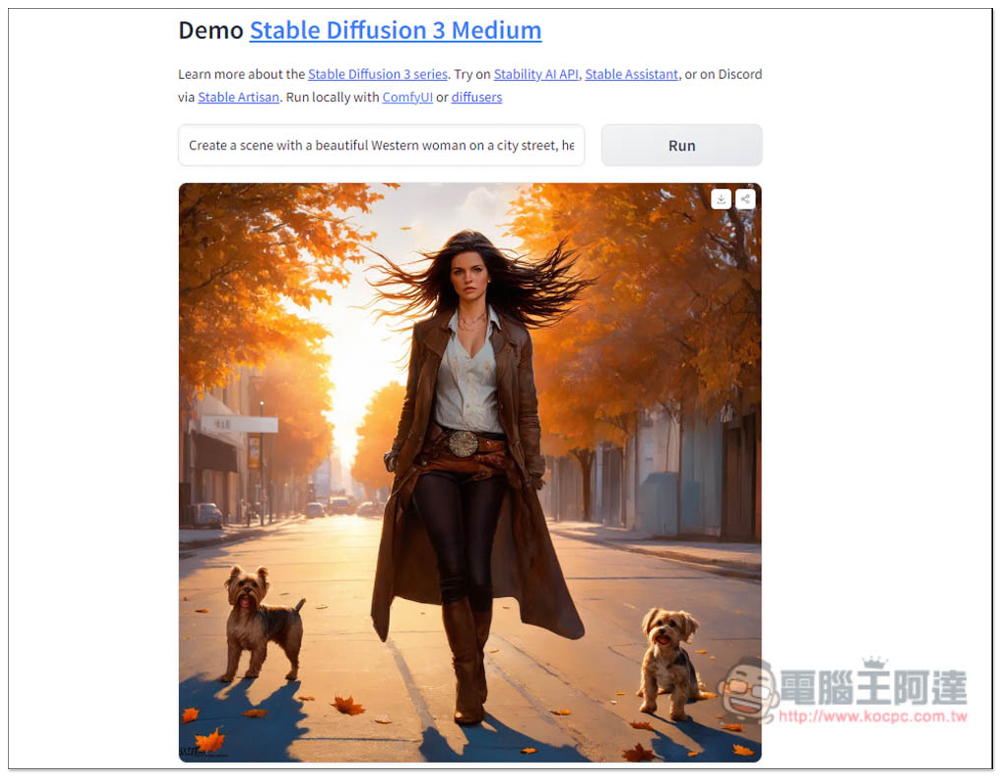
The quality of this realistic style generation is also quite high:
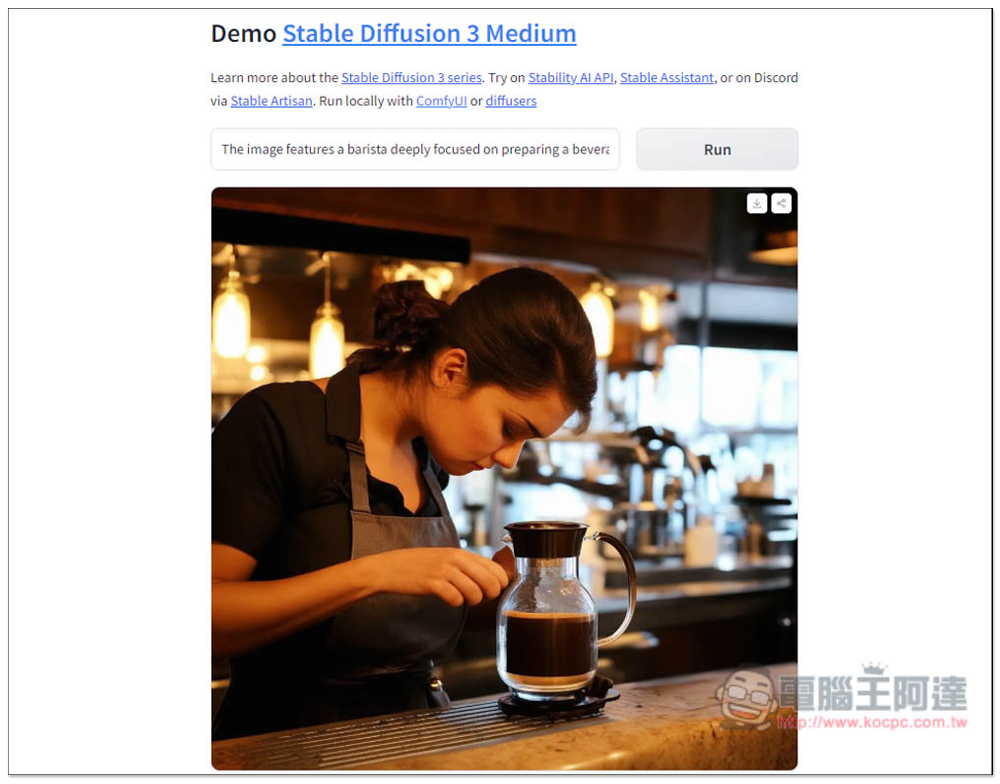
In addition to portraits, you can also generate great interior design pictures:
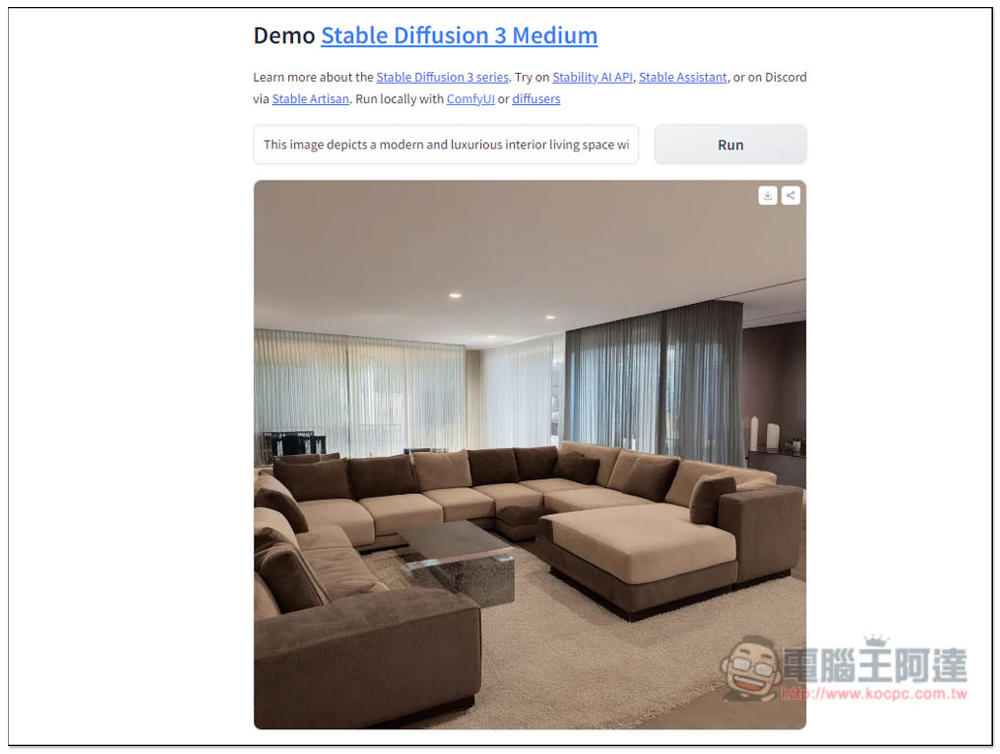
Although it is a small model, I have to say that the effect is amazing after testing. I also tested the speed of local generation. My graphics card is RTX 3080. Four 1280×720 images were generated at one time, and it was completed in dozens of seconds.
Source: KOCPC Chinese