


When you browse and read web pages, there will often be advertising or formatting issues that make it harder to read. Whatever the reason, some content on a website may not match your reading habits, and that’s where Safari’s built-in Reader Mode comes in to make your reading more enjoyable.
How to use Reader Mode in Safari on iPad
When you open any text-based webpage in Safari, you can use Reading Mode to help you focus on the text content without being distracted by other ads. In fact, turning on reader mode is very simple, please follow the steps below:
- Click “Large” to the left of the address barSmall“icon.
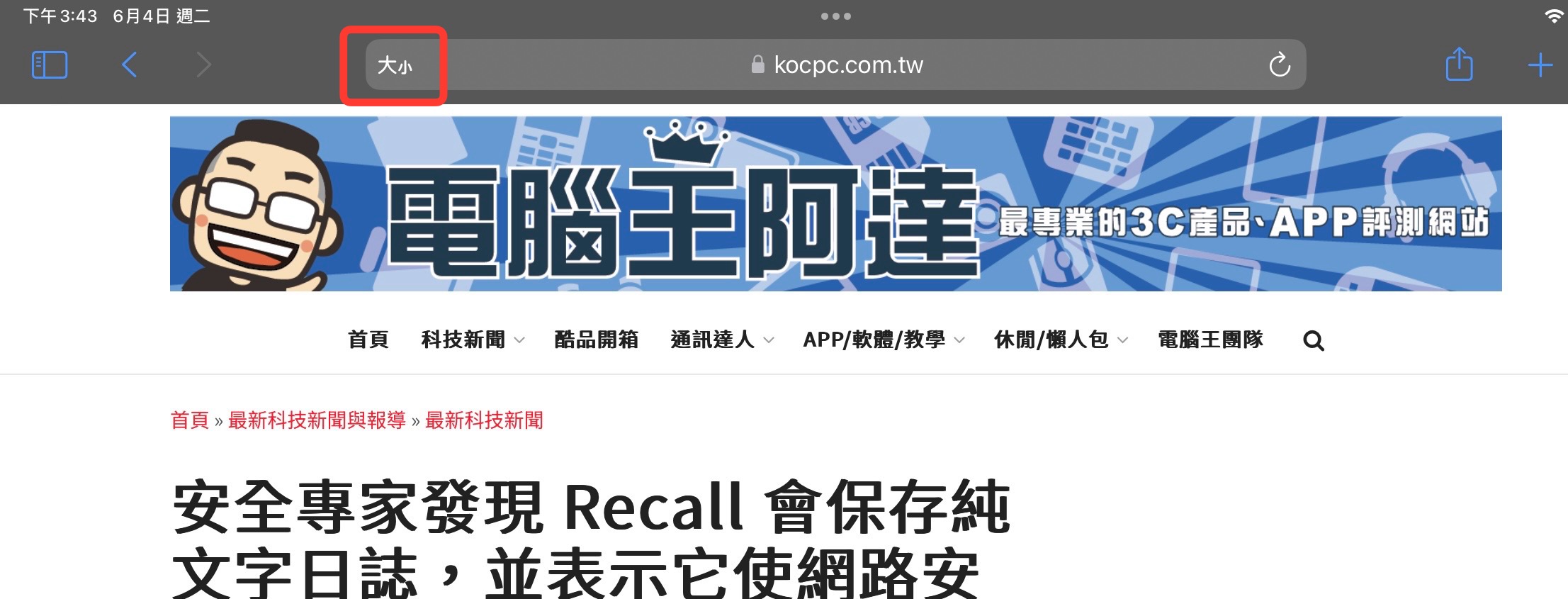
- Next, you will see an option called “Show Reader” appear in the menu.
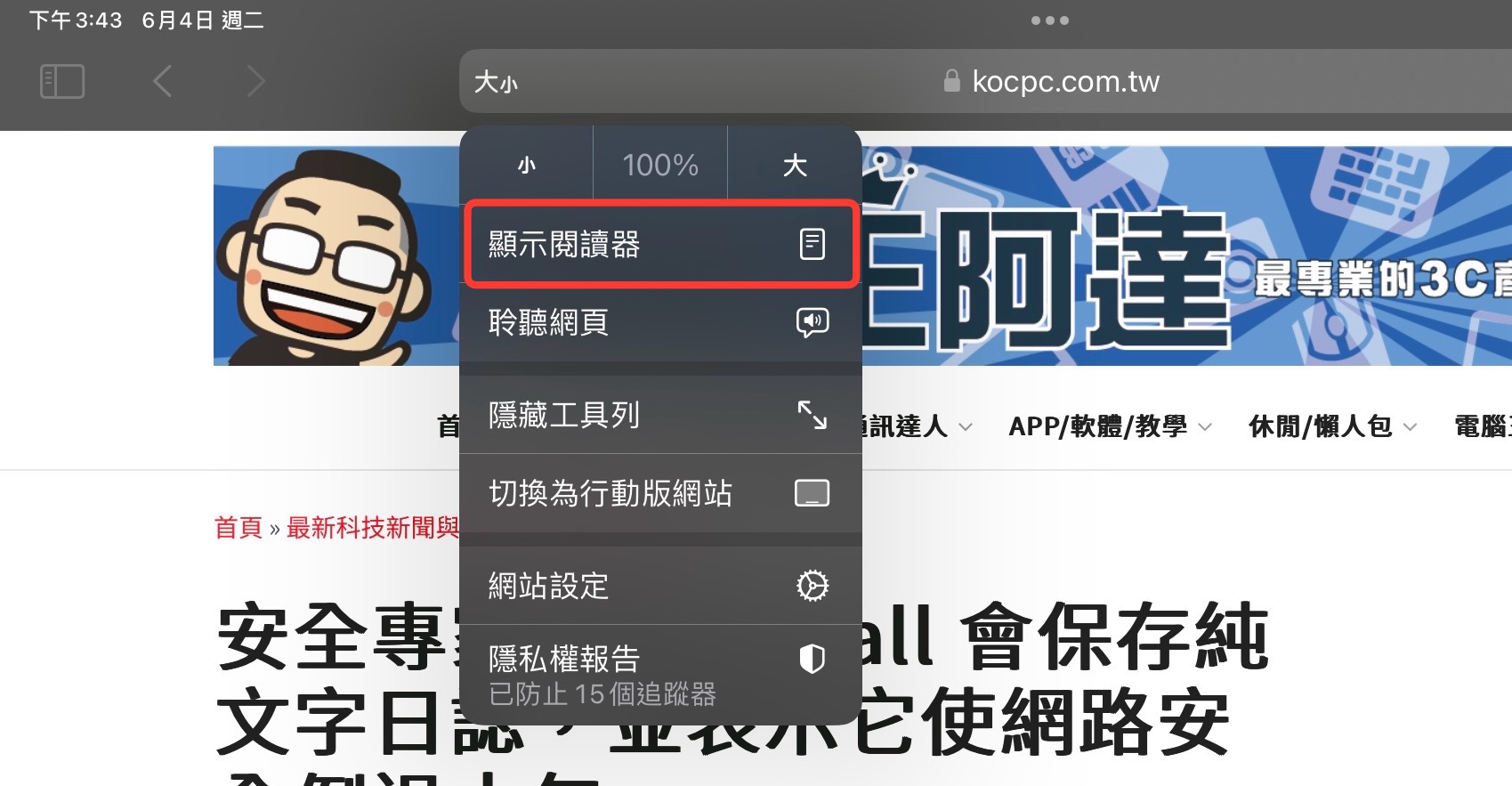
- Next, you can see that the entire web page is transformed into a very simple text block with a complete image.


Almost every text-based web page offers a “Show Reader” option. For image-based websites such as Instagram or Amazon, even if you can enable reading mode, it will not provide any valuable help to the user, which means that clicking on it will be a waste.

When entering Reader mode, all ads and suggested content from any given website will be removed for a clean reading experience, and with this in mind, you may still run into some issues. Some web pages do not display correctly despite being primarily text, in some cases this may be due to the way the site is written, and in other cases it may be because the text on the page is embedded in an image. Another issue that may arise is with multi-page articles and how they work with Reader Mode. In most cases, Reader Mode only displays the first page of a multi-page article when turned on. For such pages, you must repeatedly turn Reader mode on and off to continue reading the article.
In addition, after entering reader mode, you can also make some appearance adjustments to help you adjust the overall look to your liking. Of course, the process is also very simple. You also need to click the button on the left side of the URL. What you can set includes:
- Adjust font
- Adjust font size
- Change background color
- Personal website settings
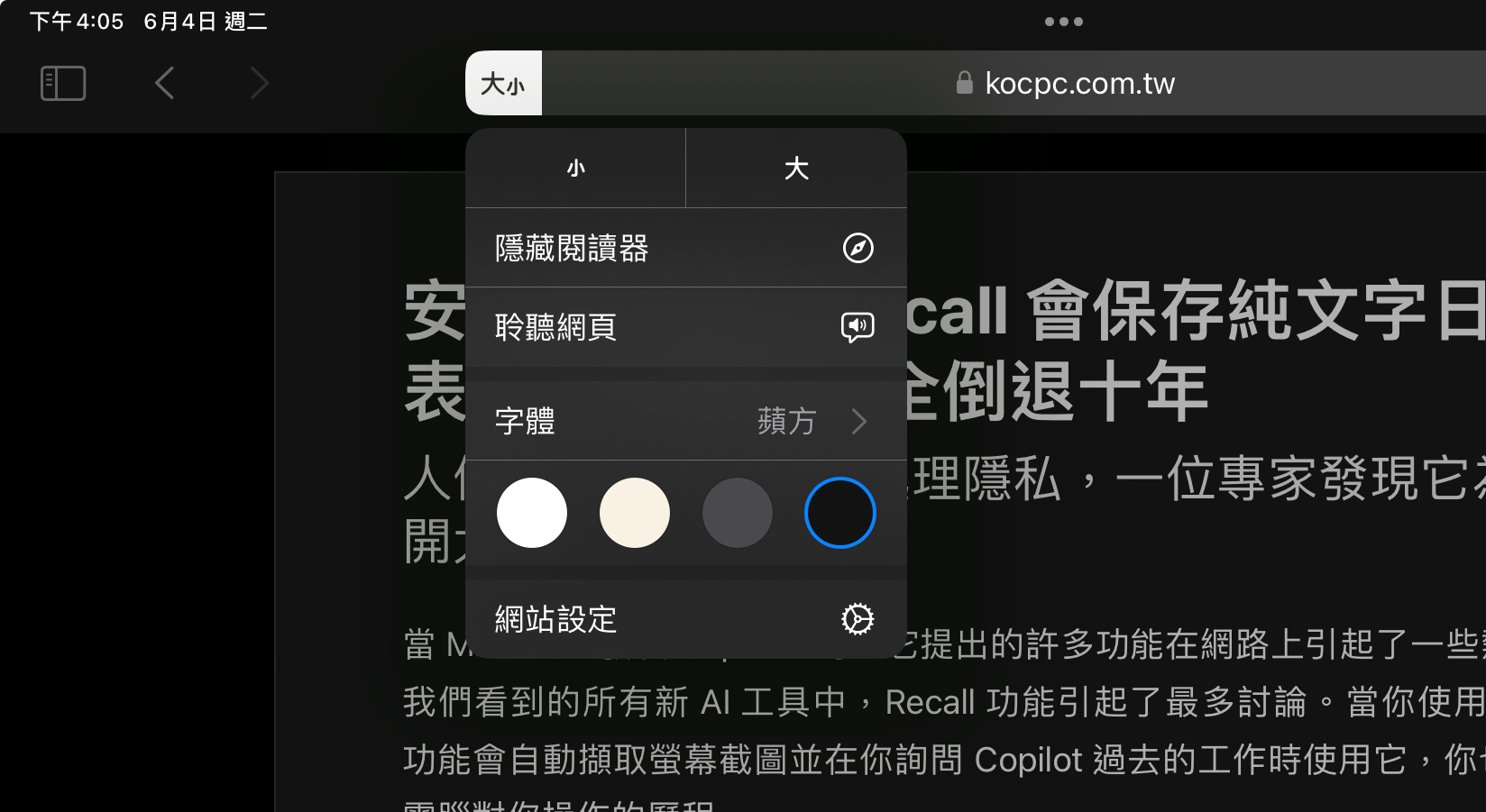
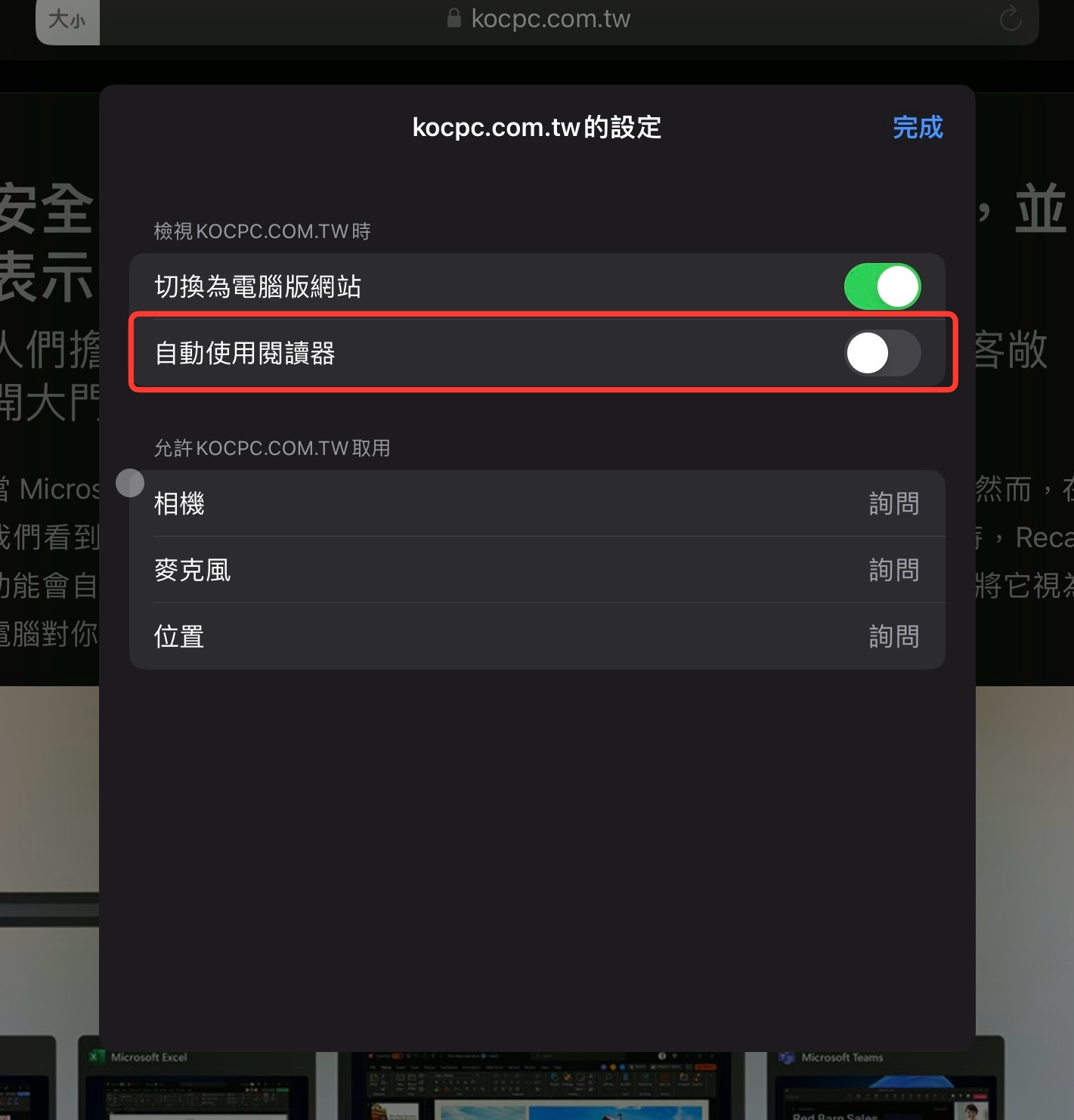
All of these options work exactly as they appear on the text. The individual site settings don’t offer much related to Reader mode, but here you can enable an absolutely game-changing setting: automatically use Reader. This option, found in Website Settings, tells Safari to automatically enable Reader Mode when opening a page on a specific website. This feature must be set up for each site individually, so you don’t have to worry about it converting other sites into something weird.
Source: KOCPC Chinese