


Apple’s ecosystem is a tightly knit, closed loop of products connected through features like iMessage, FaceTime, and AirDrop. This idea of giving users a clear sense of what “works” creates a seamless experience, but some people may want to set a clear line between Mac and iPhone. So what to do?
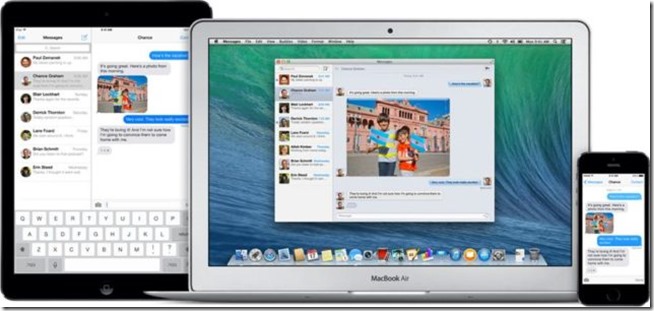
How to stop receiving iMessages on Mac
For example, receiving messages via iMessage on macOS can distract you while you’re working. Luckily you can turn off iMessage on macOS Sonoma and slightly older operating system versions by following the detailed steps listed below.
How to stop receiving iMessages on Mac
To turn off iMessage on Mac, you have to set it up in the Messages app and from the menu. Here are the specific steps you need to follow:
- Open the built-in messaging application.
- Click “Messages” in the top menu bar.
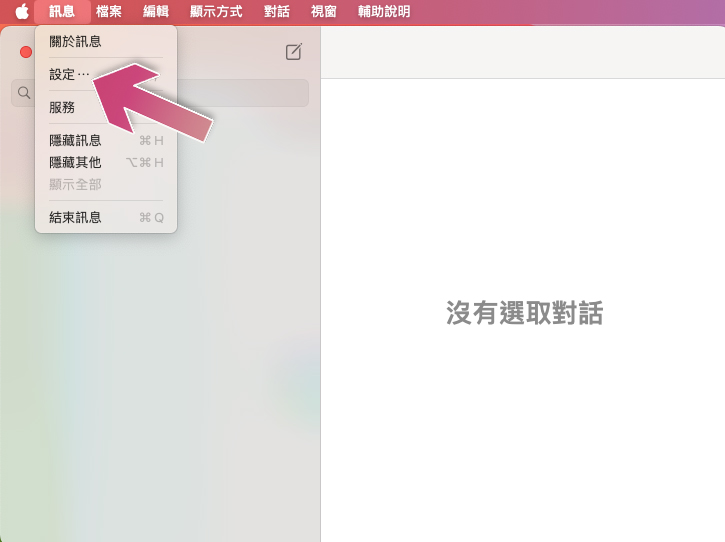
- Switch to the “iMessage” tab and click the “Sign Out” button behind your Apple ID. If you don’t want to log out completely, you can also uncheck the “Enable iCloud Messages” checkbox below.
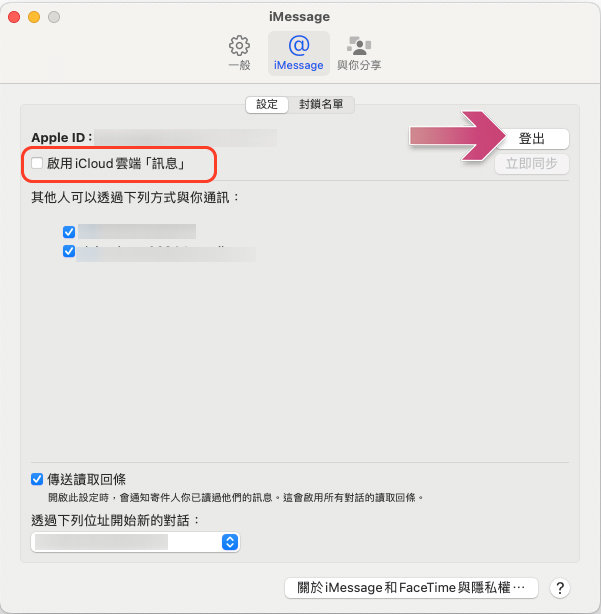
- Then confirm to exit.
That’s it, once you sign out, as prompted in the last step, you will no longer receive iMessages on your Mac, which will help you avoid distractions on your Mac while you’re working. If you change your mind, you can always enable iMessage again by following the same path above.
How to disable iMessage notifications
If you still want to access iMessage but don’t want to be interrupted by constant notifications, turning off notifications is a temporary solution. You can do the following:
- Click the Apple logo on the menu and select System Settings.
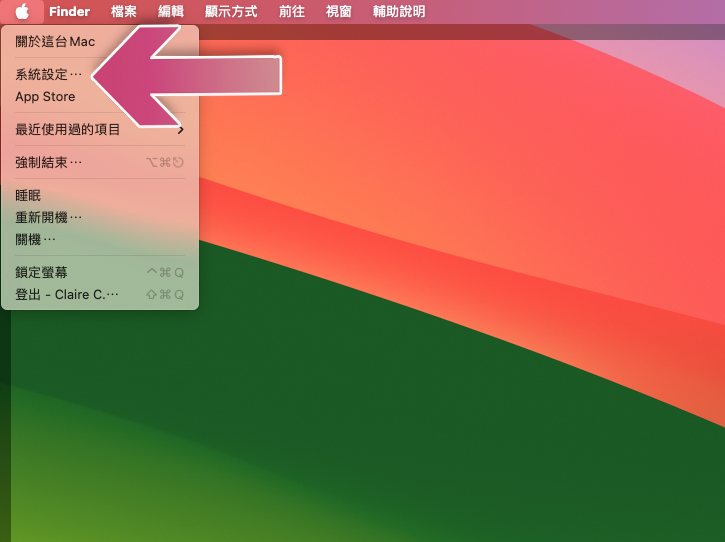
- Then click “Notifications” on the sidebar.
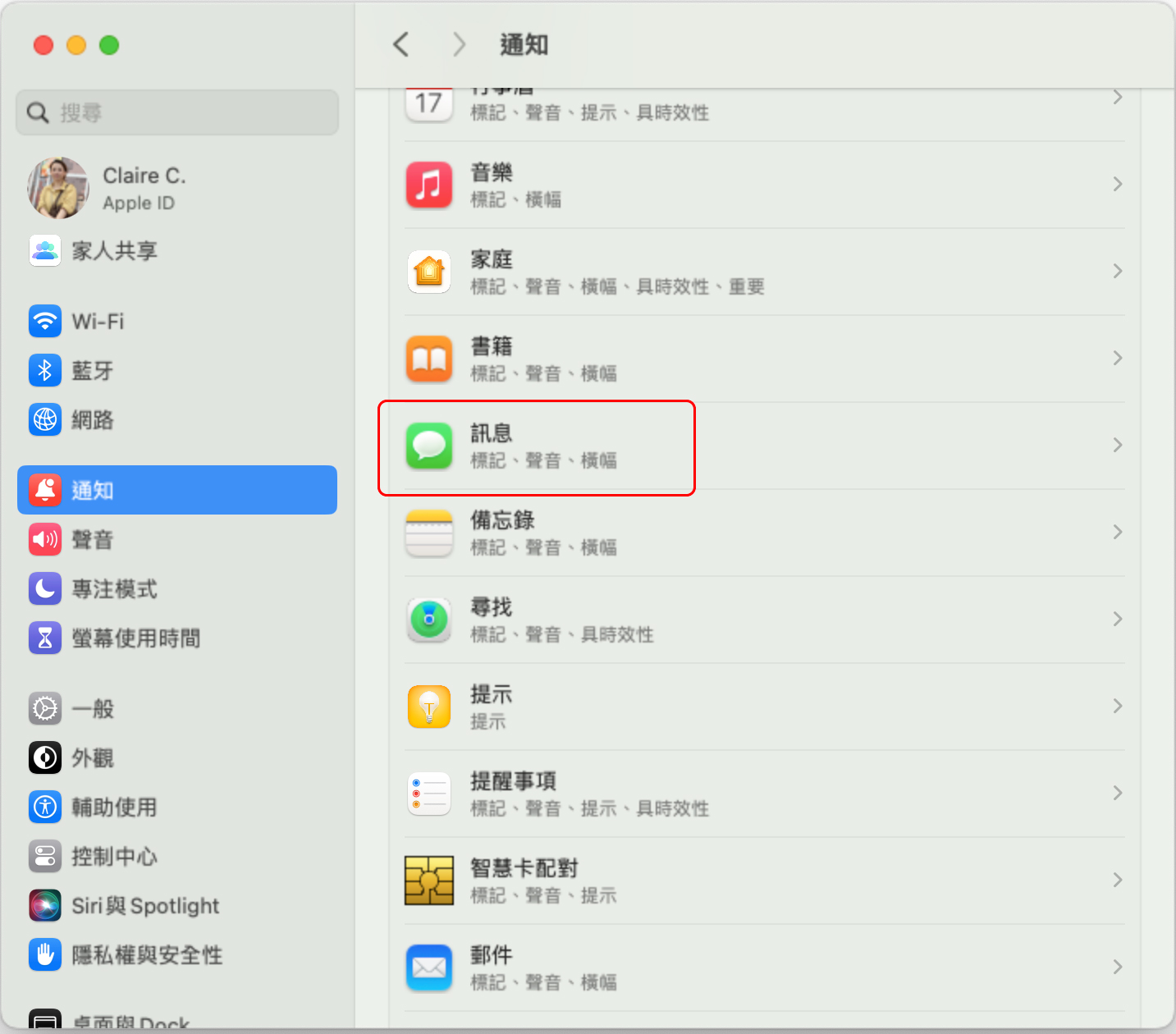
- Scroll down to find “Messages” and turn off the “Allow Notifications” switch there.
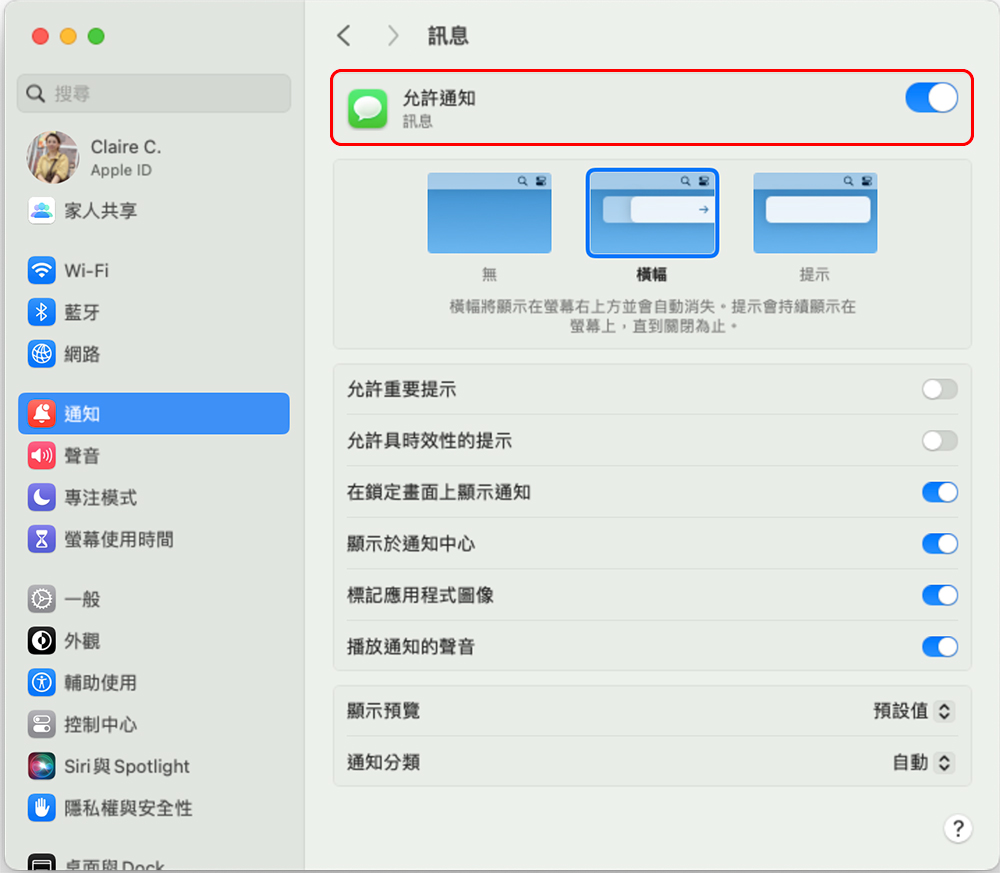
When you disable notifications, you won’t receive any notifications from the Messages app. If you still think this is a bit too much, consider using Focus Mode, a feature that lets you filter app notifications and create multiple profiles tailored to your every need. This way, instead of completely muting iMessage on your Mac, you can block notifications from the Messages app when your work profile is enabled.
Source: KOCPC Chinese