


Most websites today (including Computer King Ada’s own website), in order to speed up users’ web browsing, use thumbnails on the homepage. Even if you click on the content to view the images, the images are compressed. Regardless of whether you are looking at Computer King Ada, YouTube, shopping platforms, etc., the homepage images of these websites are all reduced to small sizes, almost without exception.
As for the Chrome plug-in “Picture Show” introduced this time, after installing this plug-in, you only need to move the mouse over the thumbnail, and it will help you enlarge the picture like a magnifying glass. In addition to the magnification function, it can also quickly help you save enlarged high-quality images. It is really a must-have plug-in for Chrome users:

Introduction of Chrome plug-in “Float Show”
Before using it, go to the chrome online app store to download Butu Show (please click me) :
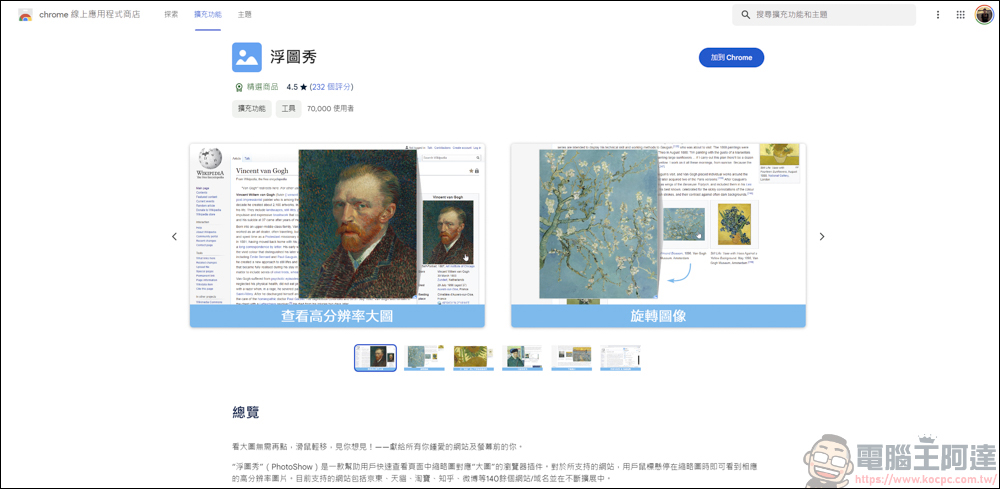
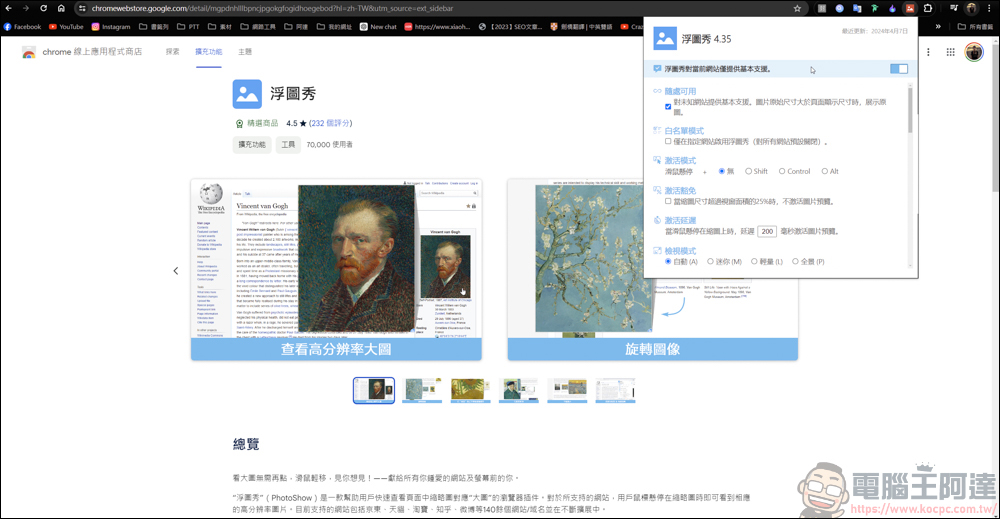
After installation, Butu Show will appear in your plug-in. You can click in to make some function settings. The basic settings have been officially listed:
- Website switch: You can individually turn on/off Futu Show for a supported website (domain name)
- Activation mode: Set the Shift/Ctrl/Alt key to trigger the image display when the mouse moves over
- View mode: switch between image preview windows of different sizes
- Size display: Set whether to display the size of high-definition pictures in the picture preview window
- Shadow display: Set to display a shadow between the picture preview window and the source thumbnail
The usage is very simple, here we use bilibili as an example:
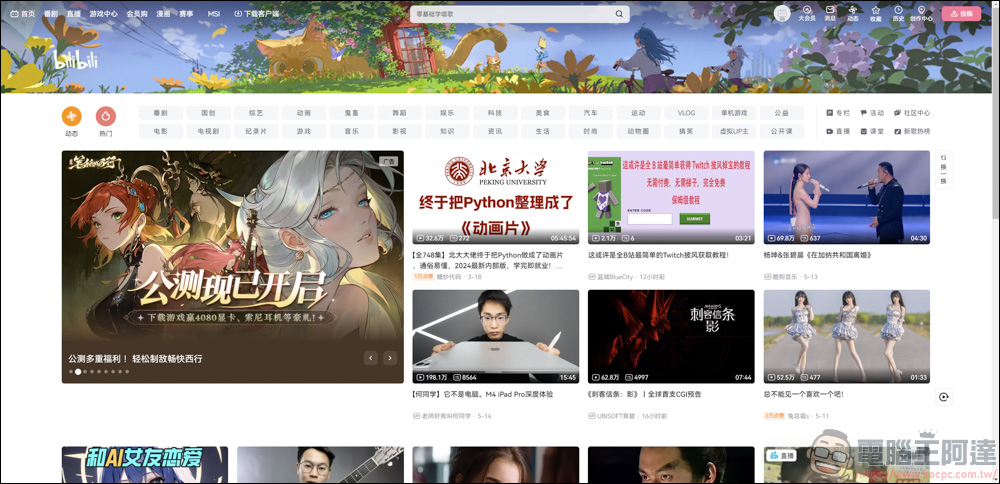
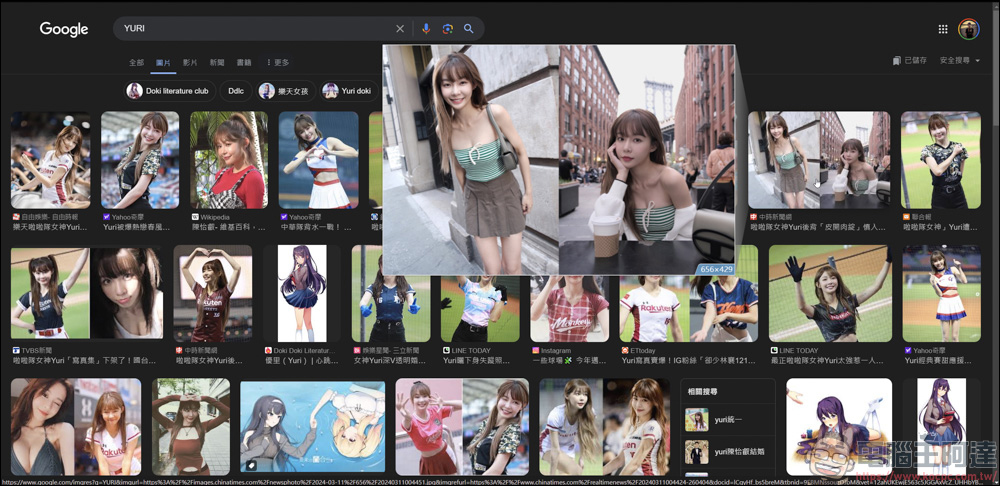
Under the default settings, as long as you move the mouse over the thumbnail, an enlarged image of the video cover will appear next to the thumbnail, so that you can know in more detail what the video is about:

In the case of YouTube, there is no way to use the pop-up function on the homepage:
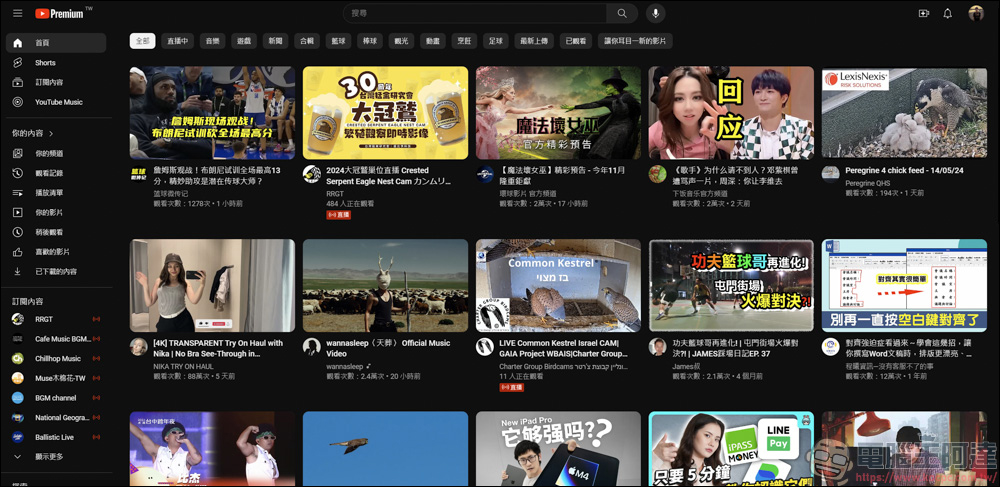
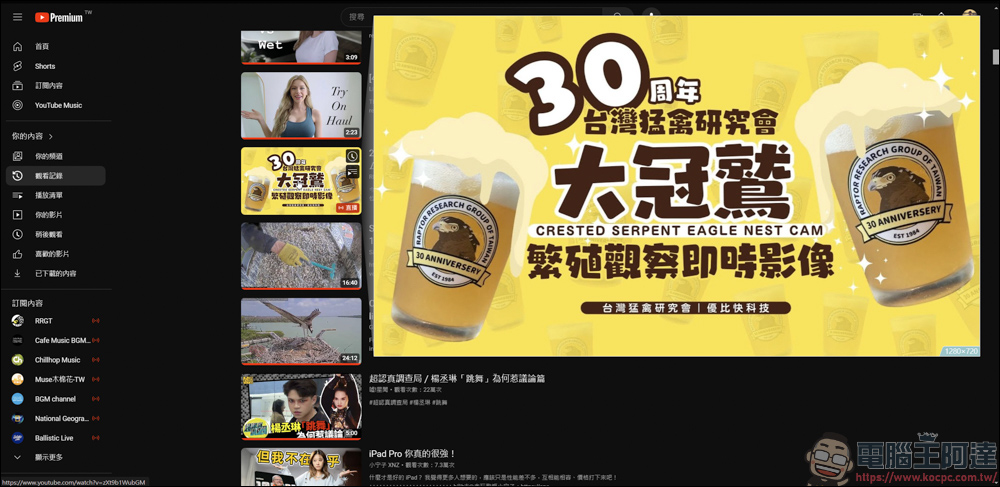
However, in the playlist or on the homepage of the channel, the picture show is available, and the size of the image also varies according to the original cover size of the video:
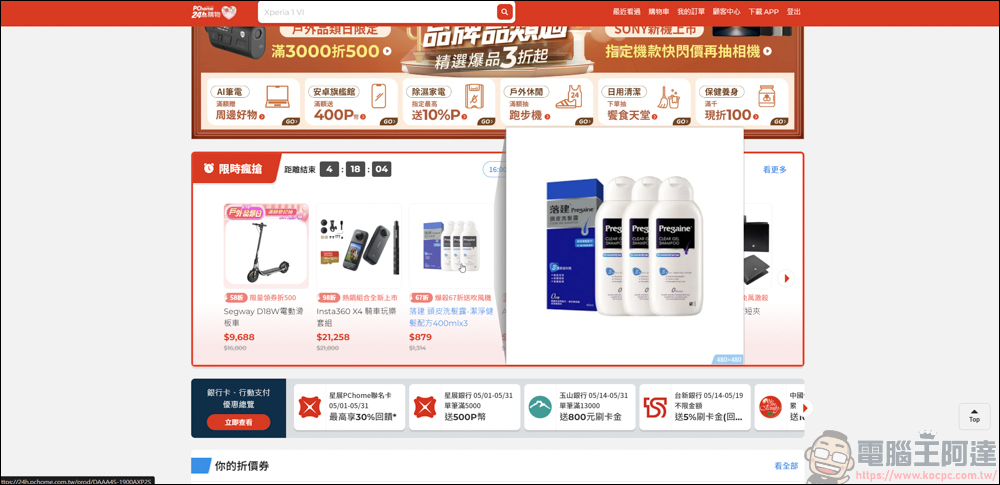
Do you often visit shopping platforms? Those tiny product thumbnails require you to click on the product page every time to see the details of the product clearly. It is really a bit time-consuming, but you can easily do it with Picture Show! You can use it like PChome:
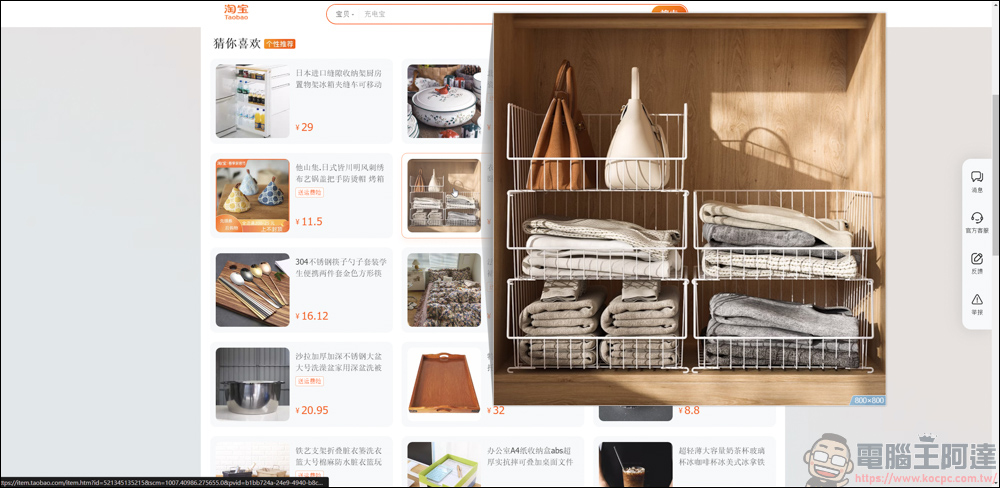
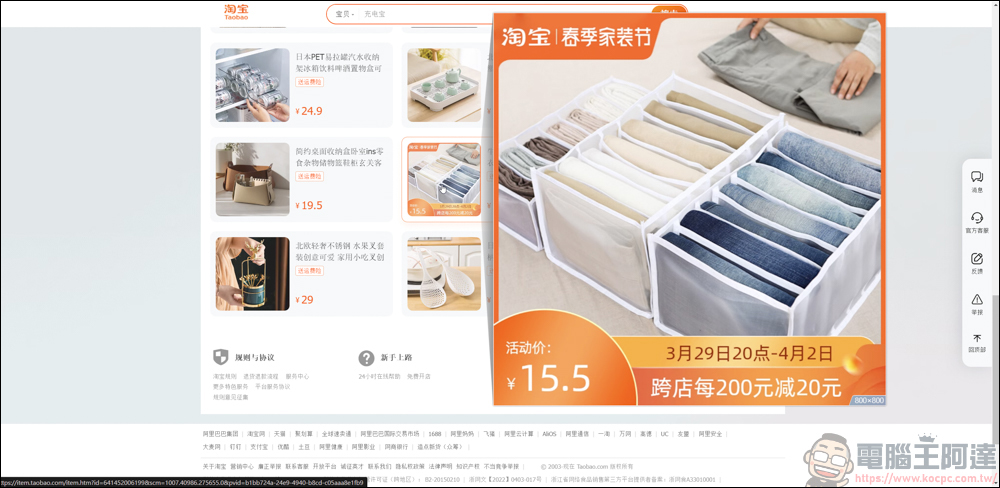
The same goes for Taobao. Every time you click on the product page, you have to spend extra time running the image to see the big picture. Now with the picture show, you can directly enlarge the cover product:
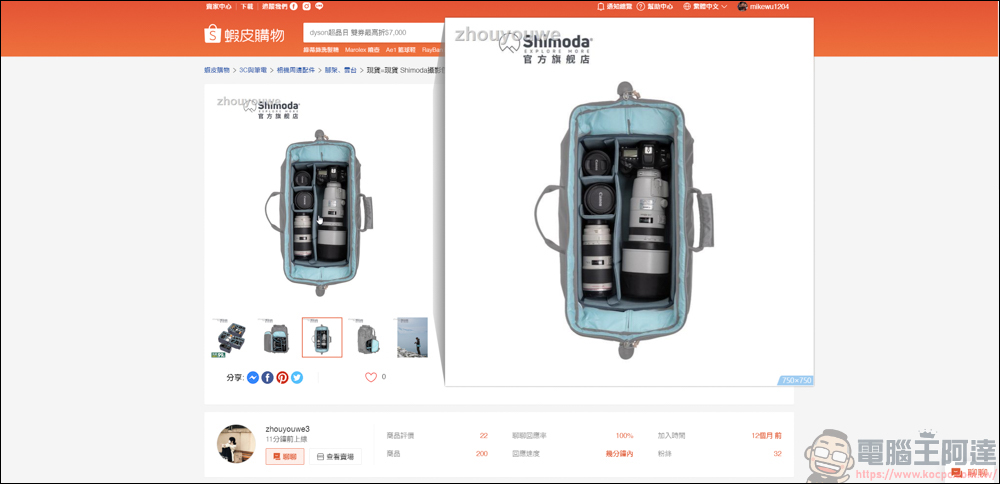
However, the pictures displayed by Shopee when I test it are currently weird. Neither the homepage nor the searched products can be enlarged:
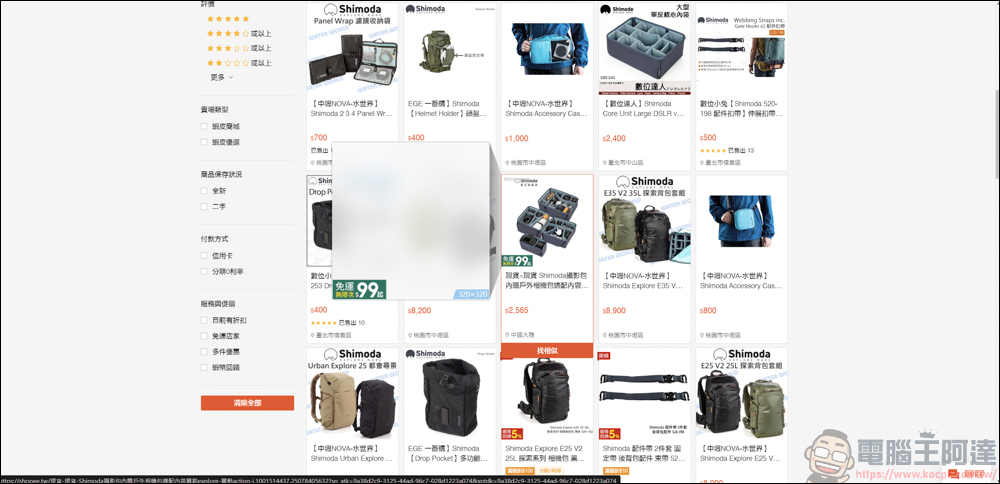
You can only enlarge the details of the picture by going to the product page. I don’t know if this will be improved in the future:
If Futu Show only has the zoom function, it would be really inferior. It can even save the zoomed pictures in high quality. The settings can be as follows:
- Esc: Close the image preview window
- Shift + Ctrl + ←: Rotate the image counterclockwise
- Shift + Ctrl + →: Rotate the image clockwise
- ↑ / → / ↓ / ←: up / right / down / left
- Scroll picture PgUp/PgDn: up/down according to the visible height of the picture
- Scroll picture Home / End: Scroll to the top / bottom of the picture
- M/L/A/P: Switch view mode
- V: Switch to the last used view mode
- Tab: View high-resolution images in a new tab
- S: Save high-resolution images
- C: Copy the high-resolution image address
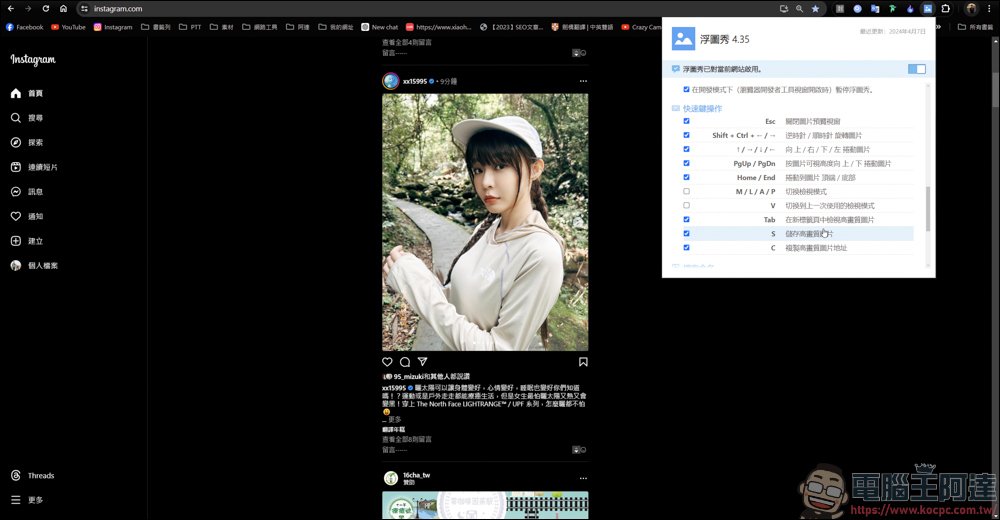
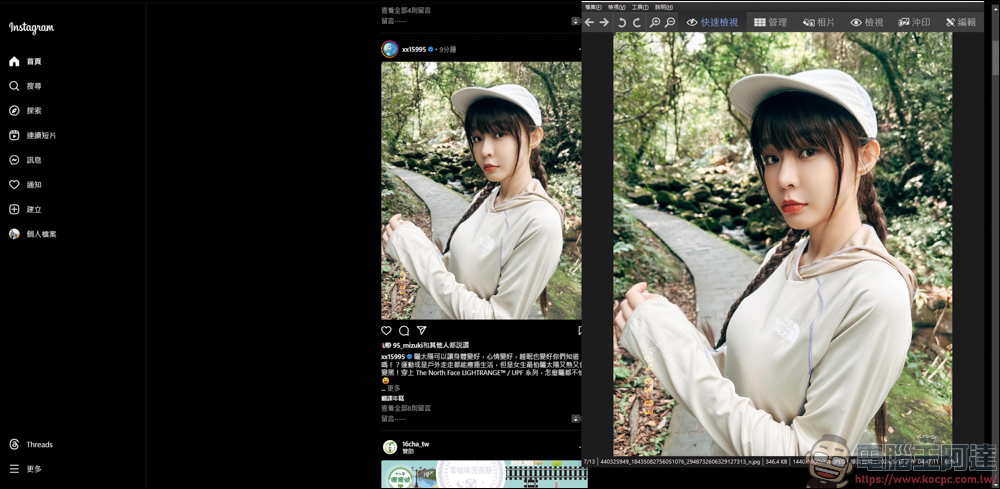
Take IG as an example. In the default mode, after pressing S, Butu Show will automatically save an enlarged version of this picture for you:
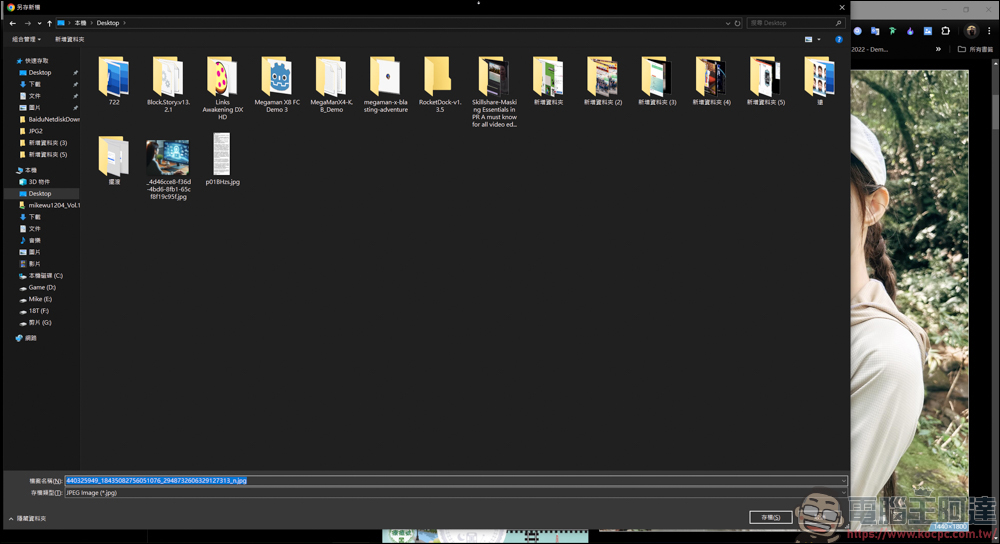
There is no need to right-click on the image → Save Image As. Just move the mouse over and press S to save it quickly. It is a very convenient tool:
Futuxiu usage experience
Using the plug-in “Picture Show”, you can quickly enlarge the browsed pictures for appreciation, and even save the pictures without having to click on the website to enjoy the large pictures. If you just want to enjoy pictures, this method can also reduce the chance of being poisoned by full-page advertisements when entering the website. It is a very useful Chrome plug-in! However, there are some problems in use. For example, some of its enlarged pictures will cover some clickable options. In this case, you must manually turn off the floating picture show to click on the option. However, the enlarged image is transparent to the web page, and you can still blindly access this function, but this method is honestly a bit deducted. I recommend it to everyone for reference:
Source: KOCPC Chinese