


We introduced it a while agoSubscribe to Prime Video for NT$19 per month without a VPN method. Although almost all Prime Video original movies have Chinese subtitles, many high-end movies or newly released movies do not have Chinese subtitles. Therefore, many people will definitely know. Is there any way to add subtitles by yourself? Yes, you just need to use the expanded functions introduced in this article.
How to add external subtitles to Amazon Prime Video, no problem if there are no Chinese subtitles
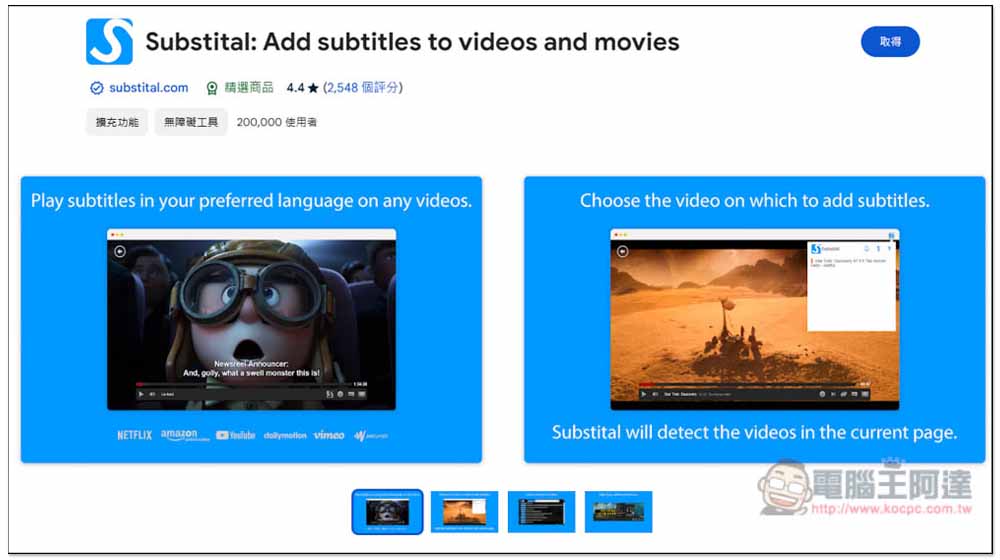
In the Chrome extension store, there is this one Substital:Add subtitles to videos and movies The extended function can add subtitles to the video on the current web page. I tested it to support Amazon Prime Video, Netflix, and many audio and video websites.
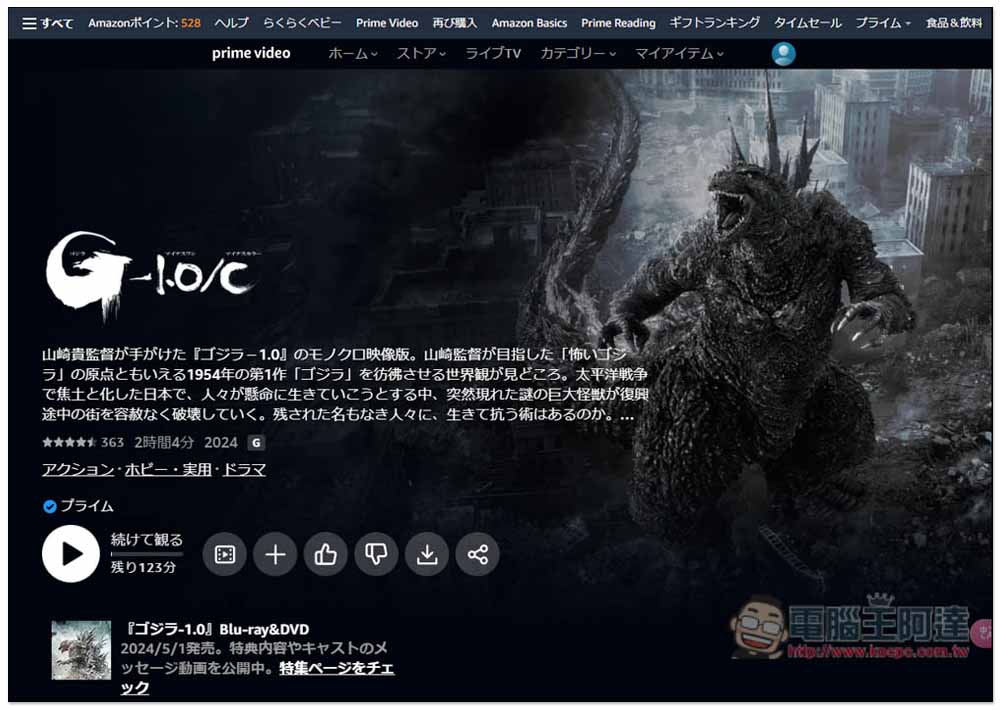
Below I will demonstrate the very popular Godzilla 1.0, which was recently released on Amazon Japan. This movie does not have any subtitles, neither in Chinese nor English.
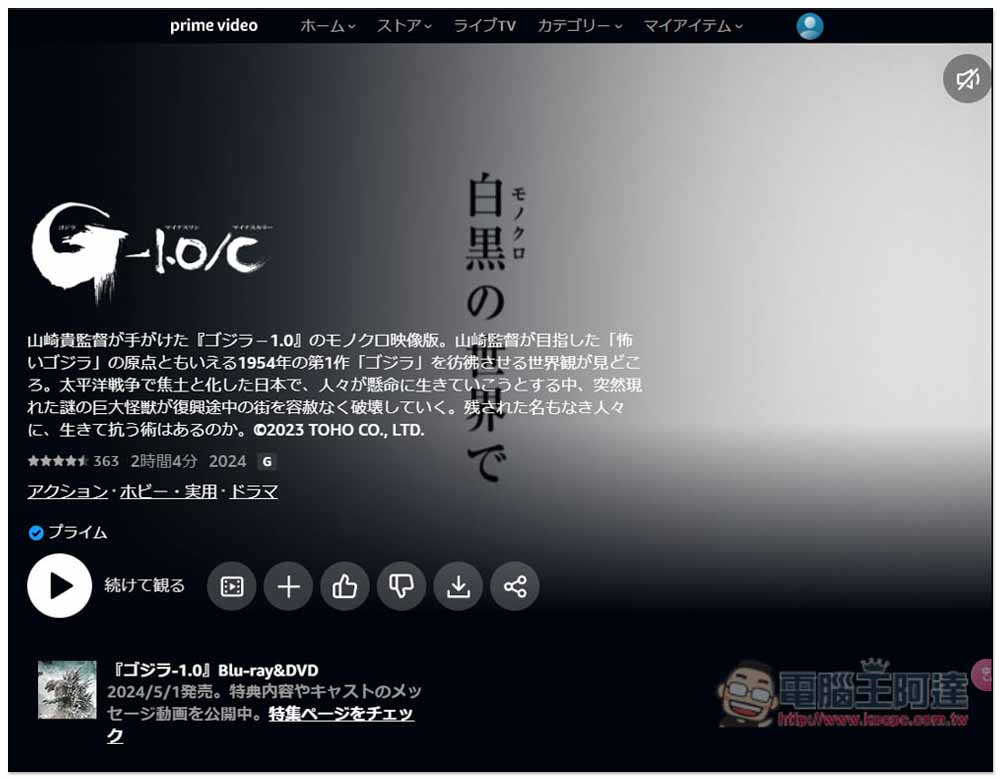
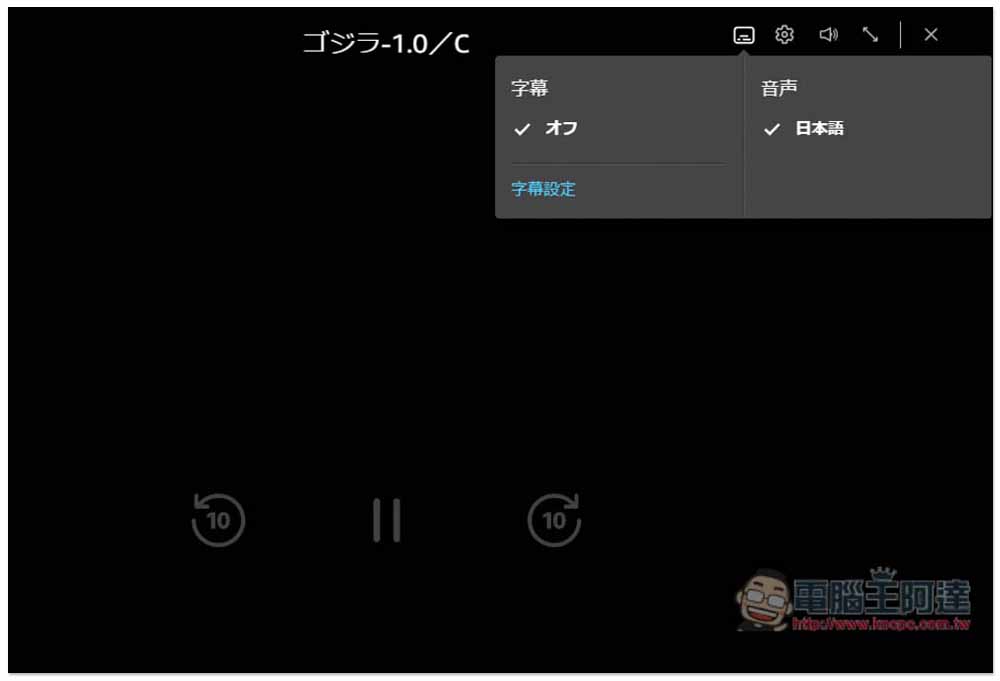
The audio is only in Japanese, so for people who don’t understand Japanese, normally they can just look at the picture without knowing what is being said:
Please go to the Chrome store to install it first Substital:Add subtitles to videos and movies For extended functions, click on the upper right corner to obtain:
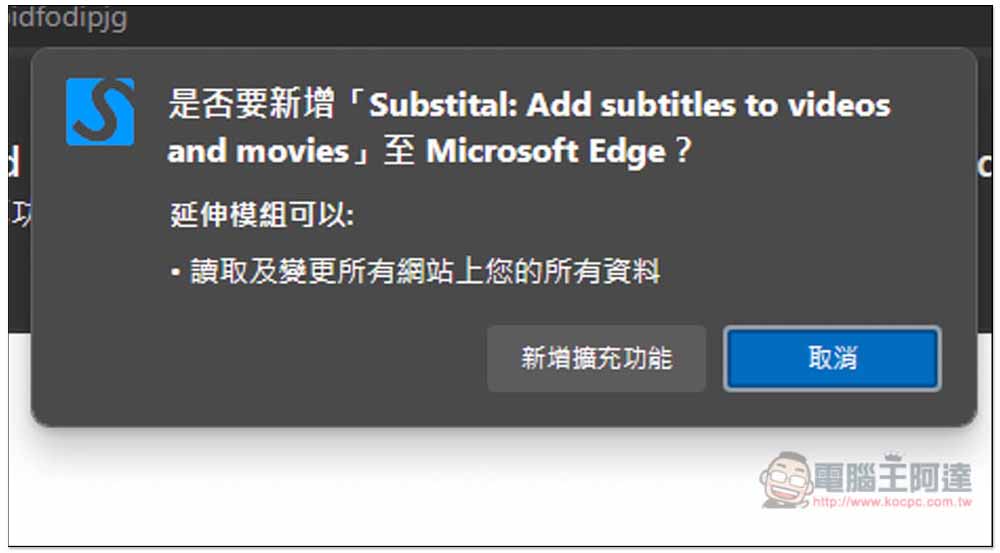
This message will pop up at the top, click “Add Extension”:
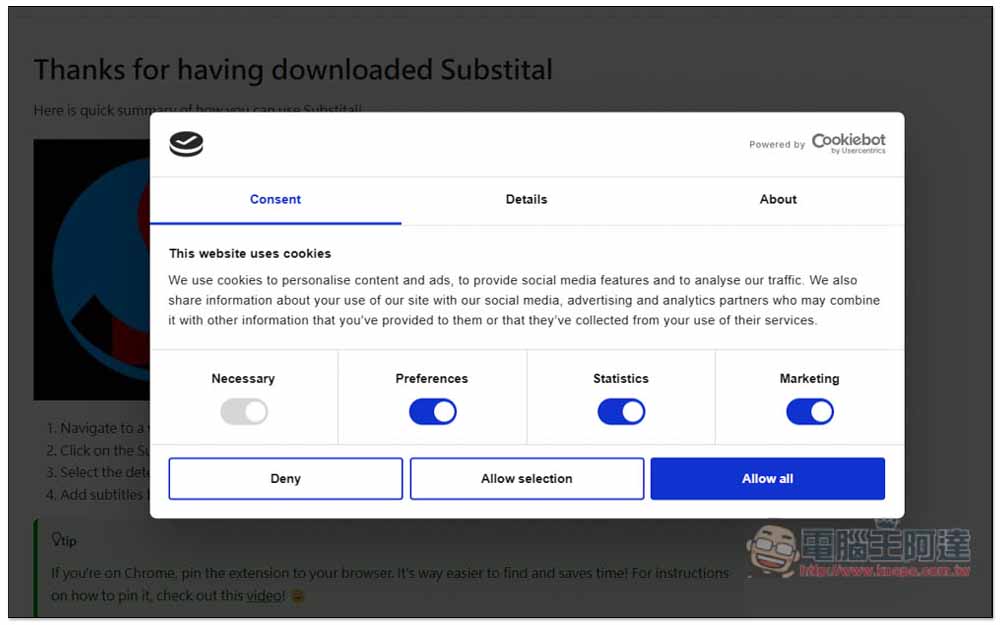
After the installation is completed, a new tab will automatically open and the privacy settings will pop up. Here it depends on what you want to share. I turned off Marketing, and then pressed Allow selection:
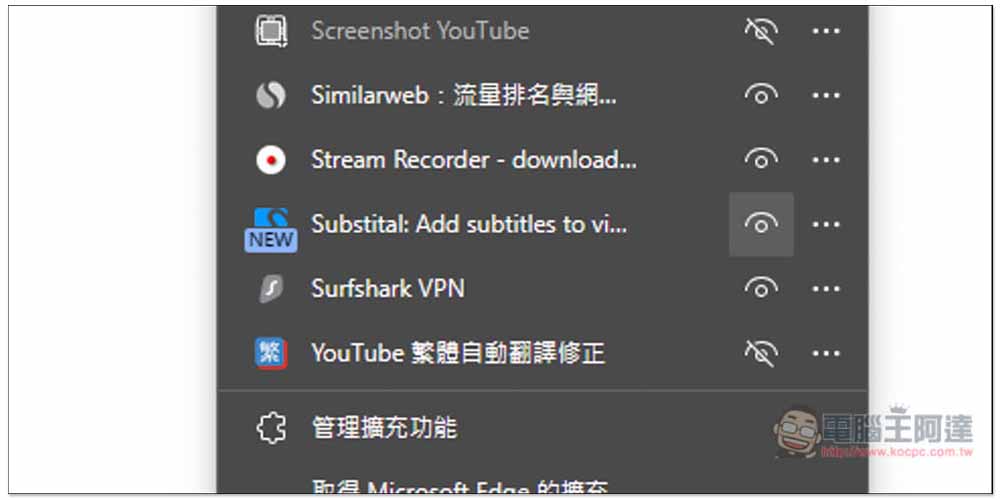
Remember to go to the extension menu on the far right and pin Substital:Add subtitles to videos and movies to the toolbar:
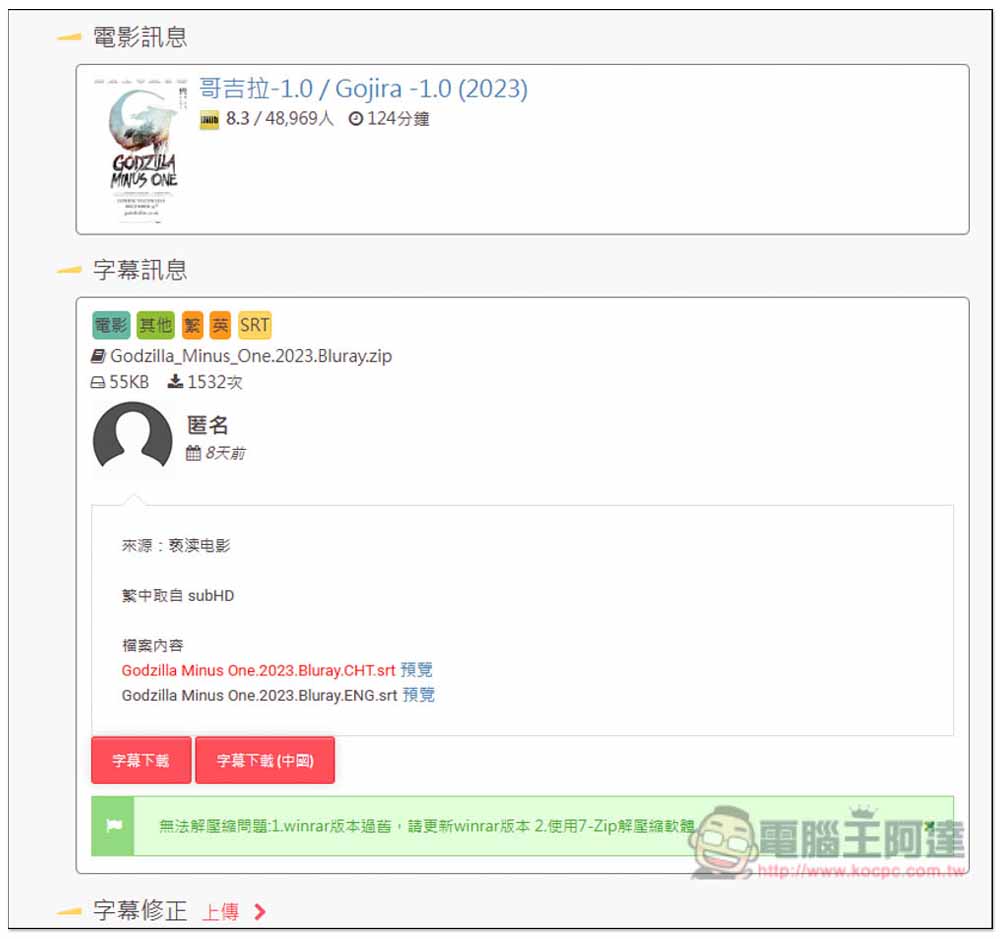
The next step is to obtain Chinese subtitles. There are many websites that provide them. I will demonstrate this one from R3SUB. This website already has Godzilla 1.0:
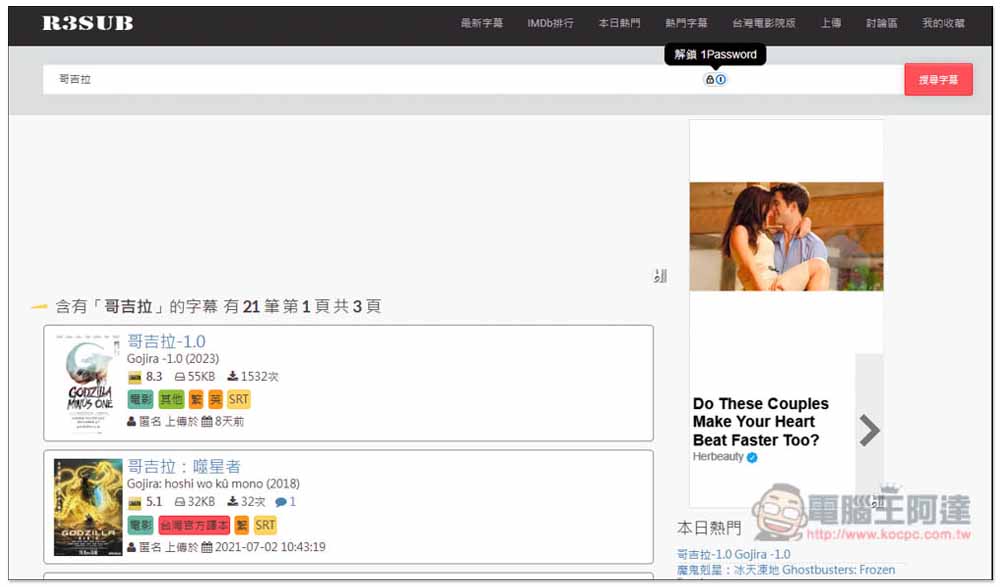
Make sure there are Chinese subtitles:
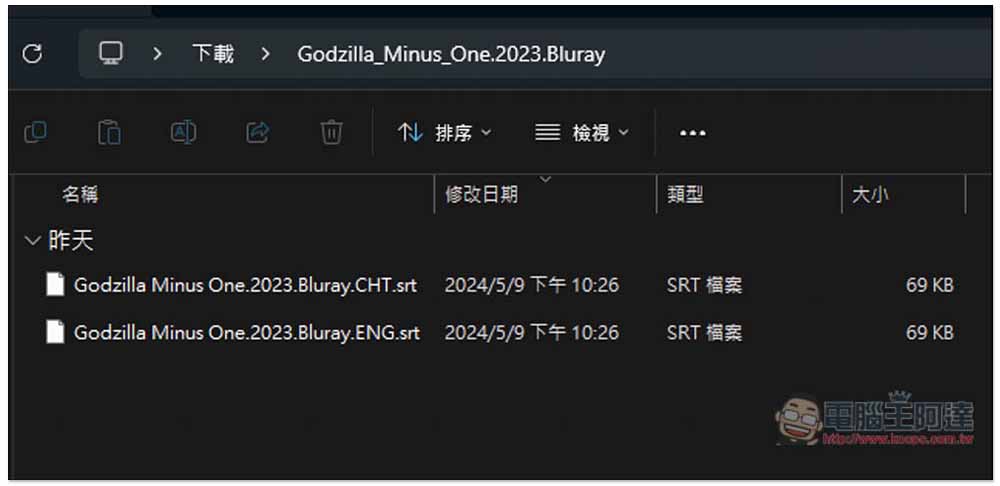
After decompression, there will be two subtitle files. The one ending with CHT is Chinese subtitles:
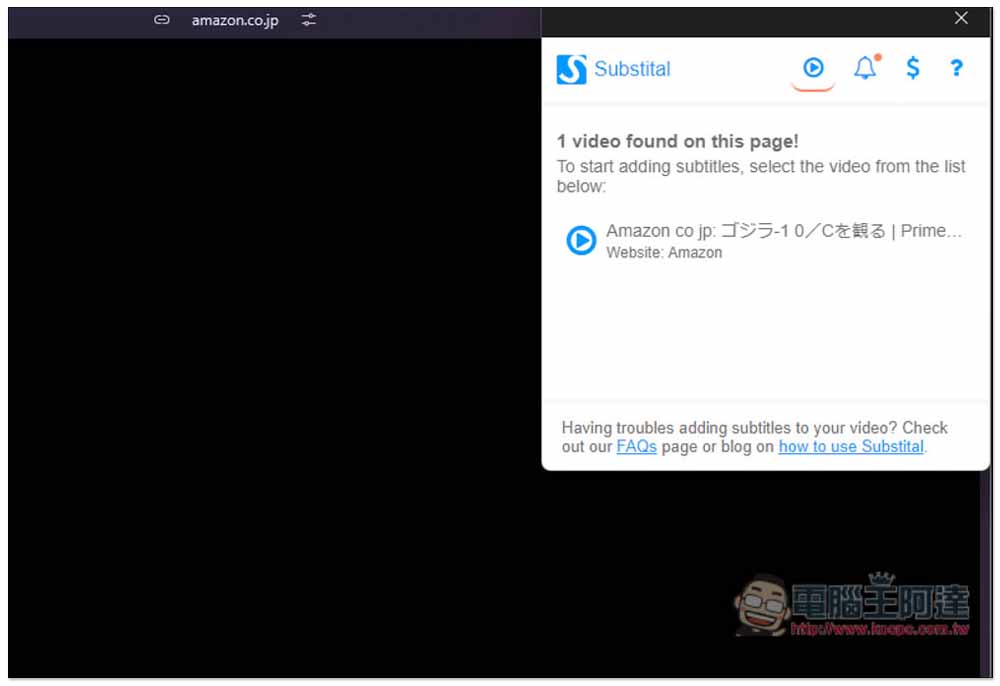
At this time, open the Prime Video video again, and then click the Substital extension. You will see that it detects this video, and click the play button:
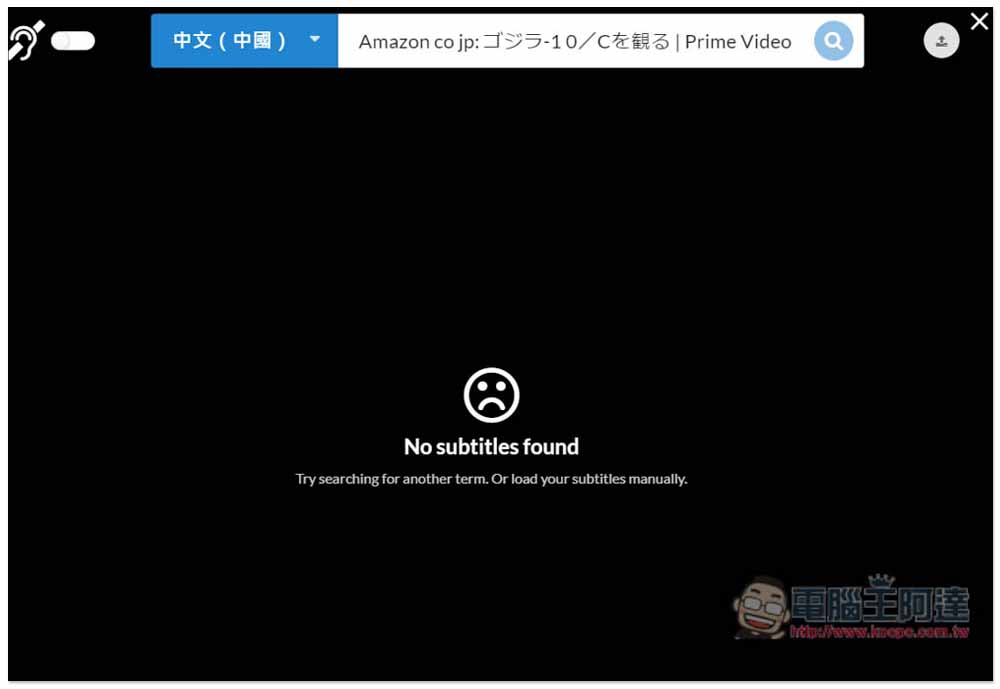
A toolbar will pop up at the top, ignore this part and click “Upload Icon” in the upper right corner:
Select the subtitles to be plugged in:
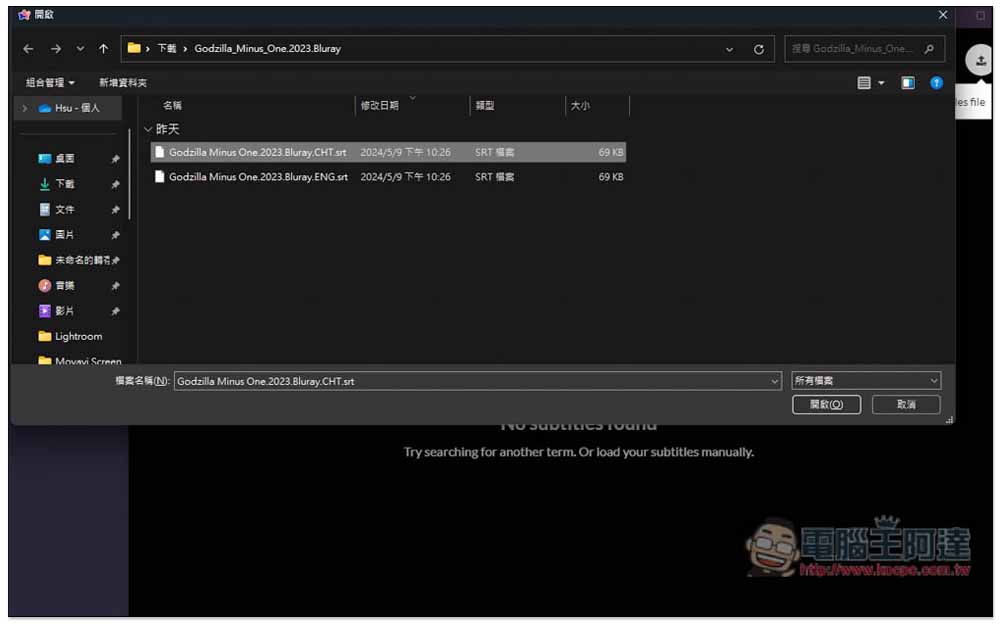
Then you will see subtitles appear on the video! However, one thing to note is that the speed of subtitles may be faster or slower than Prime Video, which can be adjusted through the built-in function. For example, in my Godzilla 1.0, the subtitles appear too fast:
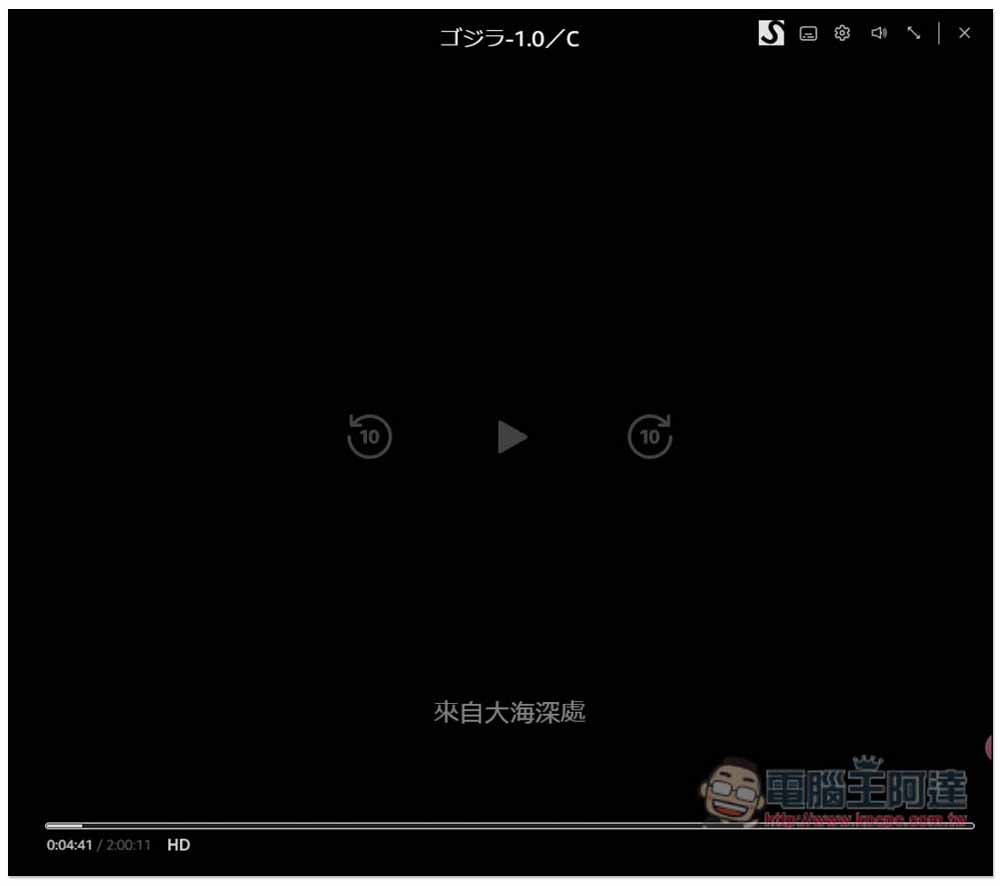
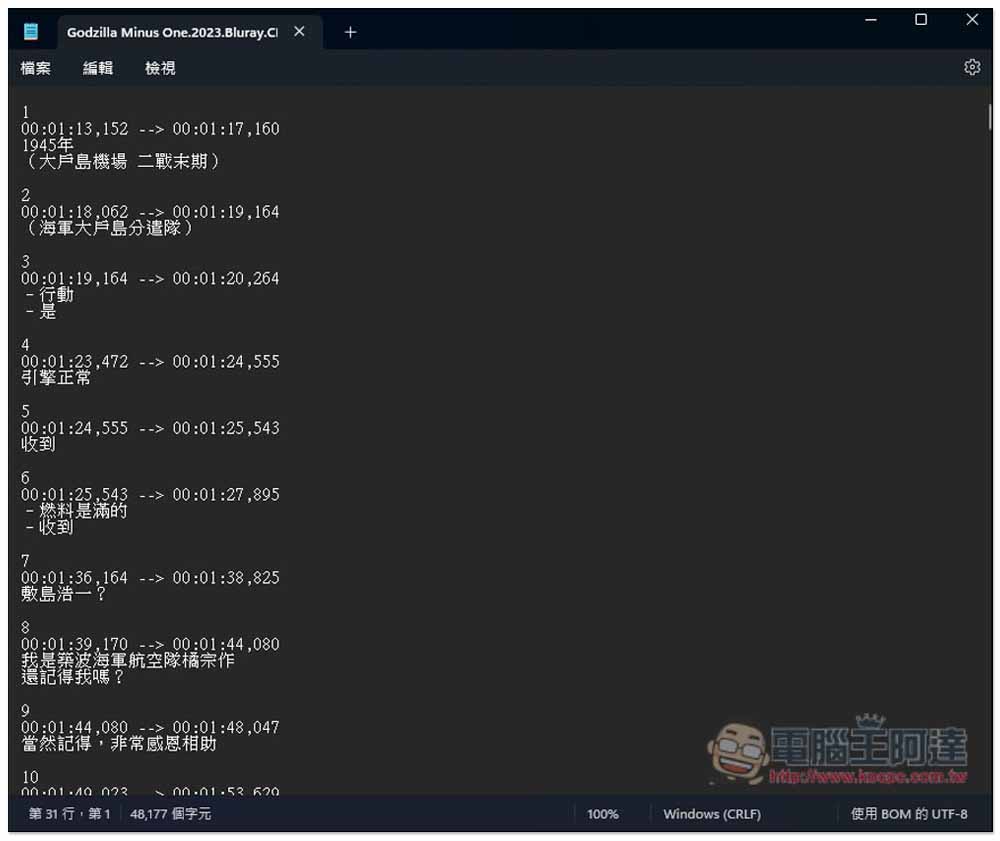
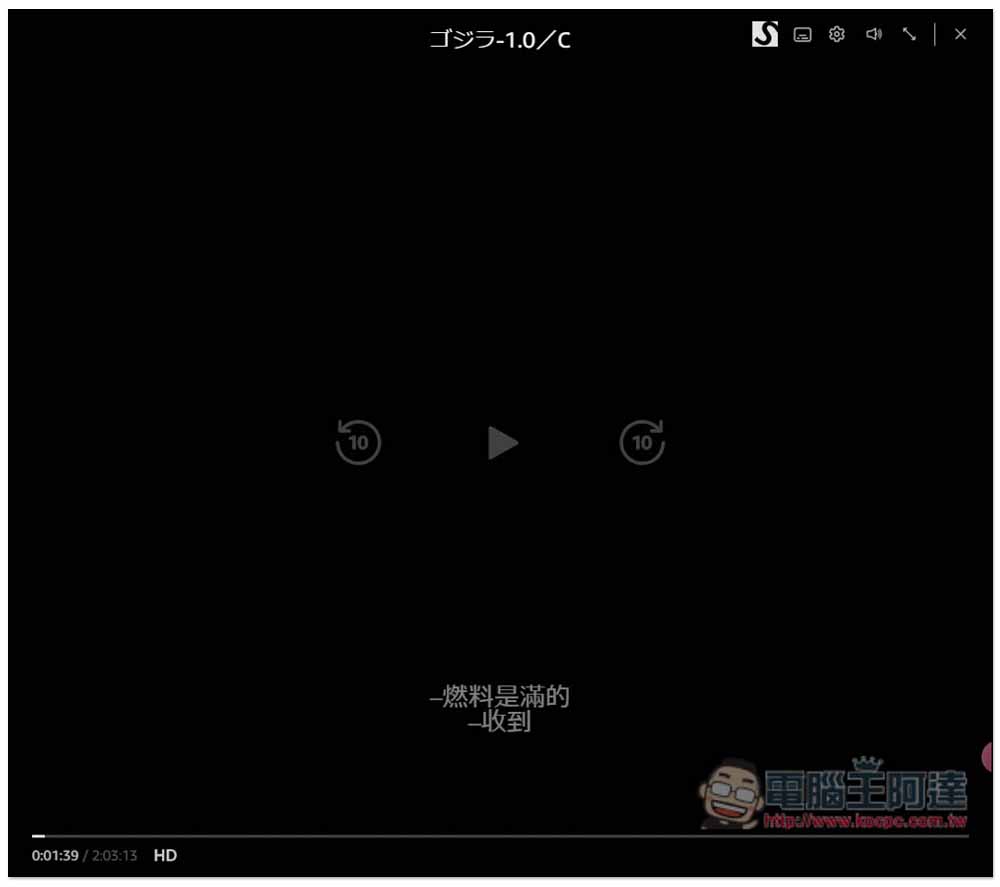
At this time, I suggest opening the subtitle file first, and then comparing it to any time point in the video that you know what it is talking about, or directly comparing it to the first sentence. For example, in my case, I checked and compared it with the sixth “fuel is full” subtitle. Prime Video’s sentence is about 01:39 seconds, which means that the subtitles are 14 seconds faster:
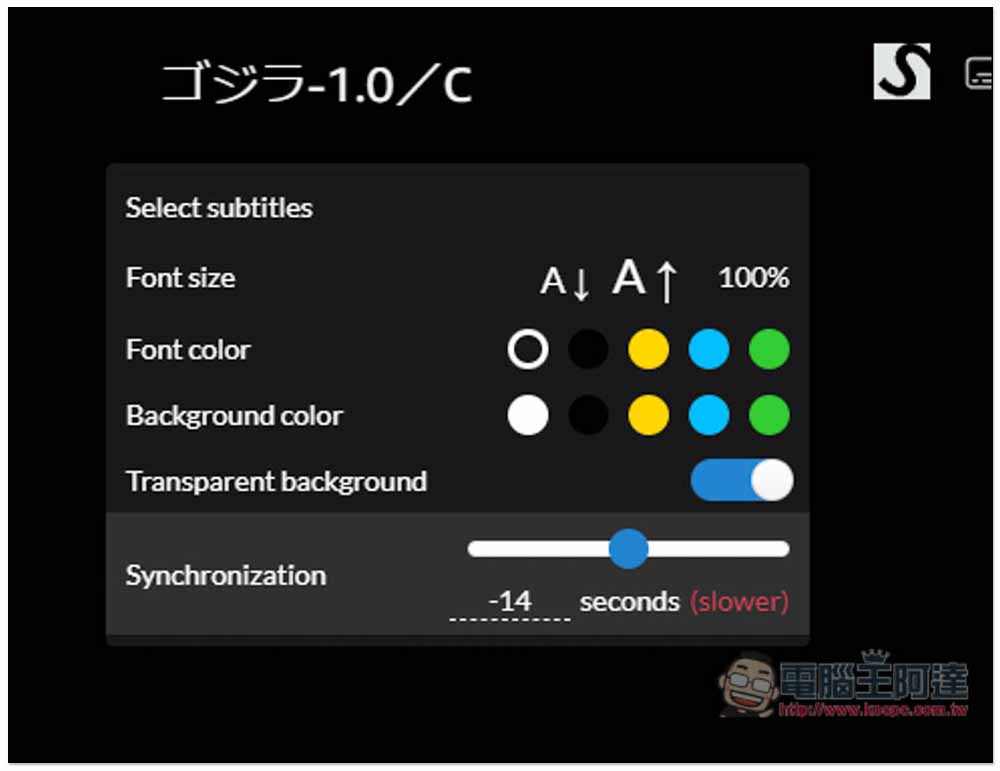
Press Prime Video. There is an S icon in the upper right corner of the video. This is the subtitle setting. You can adjust the subtitle size, color, background, etc. The Synchronization at the bottom is the subtitle appearance time. I set -14, which means that all subtitles will appear 14 seconds later:
Then press play and you will see that the subtitles appear at normal times:
Source: KOCPC Chinese