


Many people use LINE in their daily life and work. Especially during work, it is an essential tool for everyone to maintain smooth communication with colleagues and customers through the computer version of LINE. However, do you want to make your use of LINE PC version more effective and efficient? This time I would like to share with you the efficient guide to LINE PC version, sorting out 5 recommended LINE functions that only insiders know.

LINE PC version productivity guide, 5 recommended features that only experts know (teaching)
Some time ago, the LINE APP was updated to allow users to hide messages from specific members of the LINE community on their mobile phones. This feature is very popular among many heavy users of the LINE community. In fact, the computer version of LINE also has many useful shortcut keys and various convenient functions, which can make you use the computer version of LINE more efficiently!
shortcut key
LINE PC version supports many convenient shortcut keys for quick access to various LINE functions. According to different conditions, corresponding shortcut keys for each item are provided.
Basic shortcut keys
| macOS | Windows | |
| close window | Cmd+W | Ctrl+W |
| Minimize window | Cmd+M | Ctrl+M |
| Enable lock mode | Cmd+L | Ctrl+L |
| Go to the Friends tab | Cmd+1 | Ctrl+1 |
| Go to the Chat tab | Cmd+2 | Ctrl+2 |
| Go to the “Add Friends” tab | Cmd+3 | Ctrl+3 |
| screenshot | Cmd+Shift+P | Ctrl+Shift+P |
| Turn on Keep *Keep will end service on July 31, 2024 |
Cmd+Shift+K | Ctrl+Shift+K |
| Show shortcut key tips | Cmd+Shift+/ | Ctrl+Shift+/ |
Friends, chat list
| macOS | Windows | |
| search | Cmd+Shift+F | Ctrl+Shift+F |
| Move to previous chat room | Ctrl+Tab | Ctrl+Tab |
Chat shortcut keys
| macOS | Windows | |
| newline | Shift+Enter | Shift+Enter |
| search | Cmd+F | Ctrl+F |
| Open notebook | Cmd+N | Ctrl+N |
| Open the sticker window | Cmd+E | Ctrl+E |
| Send files | Cmd+O | Ctrl+O |
| Turn on Keep *Keep will end service on July 31, 2024 |
Cmd+K | Ctrl+K |
| screenshot | Cmd+P | Ctrl+P |
| Arrange chat rooms | Cmd+Alt+T | Ctrl+Alt+T |
| Unqueue chat room | Cmd+Alt+Shift+T | Ctrl+Alt+Shift+T |
| Go to the bottom of the chat room | pgDn, END, Cmd+Down | pgDn, END, Cmd+Down |
call
| macOS | Windows | |
| Turn microphone on/off | Cmd+Shift+A | Ctrl+Shift+A |
| Turn camera on/off | Cmd+Shift+V | Ctrl+Shift+V |
text format
| macOS | Windows | |
| Bold | Cmd+B | Ctrl+B |
| italics | Cmd+I | Ctrl+I |
| strikethrough | Cmd+Shift+X | Ctrl+Shift+X |
| red text box | Cmd+Shift+C | Ctrl+Shift+C |
| paragraph box | Cmd+Shift+D | Ctrl+Shift+D |
screenshot
| macOS | Windows | |
| Reset the screenshot range | Space | Space |
| rollback | Cmd+Z | Ctrl+Z |
| Cancel restore | Cmd+Shift+Z / Cmd+Y | Ctrl+Shift+Z / Ctrl+Y |
| clone | Cmd+C | Ctrl+C |
| store | Cmd+S | Ctrl+S |
| Draw lines, rectangles and circles | Shift | Shift |
media player
| macOS | Windows | |
| save file | Cmd+S | Ctrl+S |
| copy file | Cmd+C | Ctrl+C |
| Show full screen | Enter | Enter |
| play/pause | Space | Space |
| Video forward/forward 5 seconds | Cmd+Left, Right | Ctrl+Left, Right |
| Increase/lower video volume | Cmd+Up, Down |
Ctrl+Up, Down |
| Zoom in/out pictures | Cmd+Shift+Plus / Cmd+Minus | Ctrl+Shift+Plus / Ctrl+Minus |
Chat room classification
| macOS | Windows | |
| mobile classification | Cmd+Opt+Left, Right Cmd+Shift+ [, ] |
Ctrl+Opt+Left, Right Ctrl+Shift+ [, ] |
Turn off reminder display for incoming calls
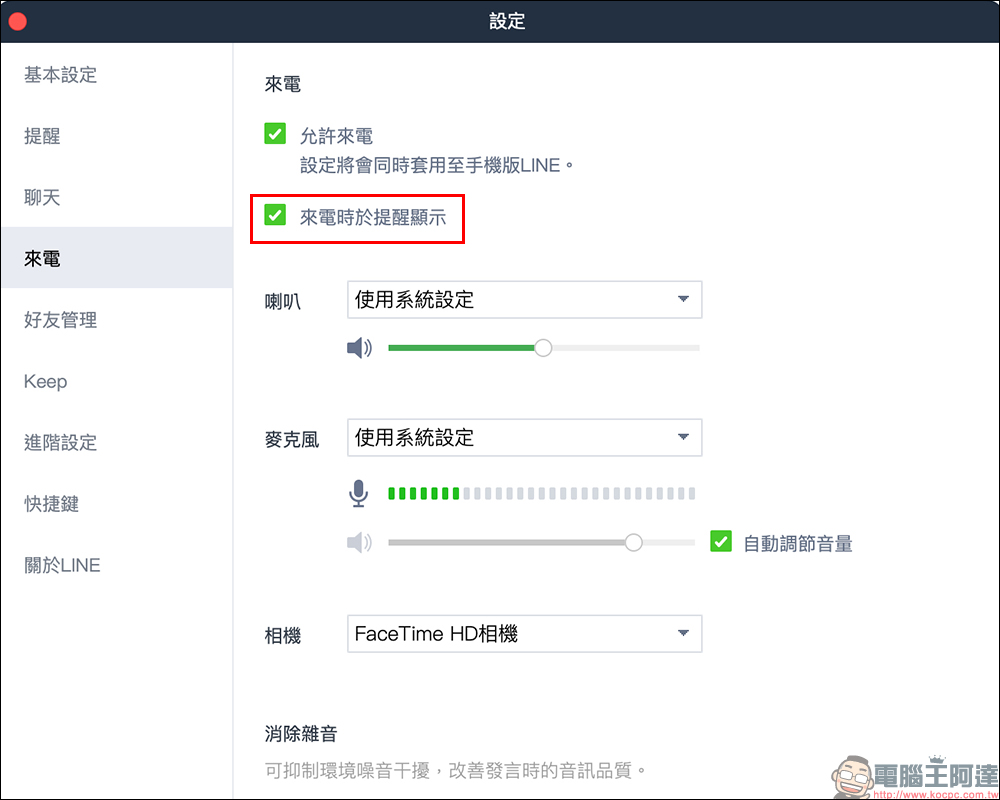
Whenever I’m working on a report or concentrating on a project or meeting, I’m most worried about someone suddenly making a LINE voice/video call to interrupt my inspiration! At this time, you can turn off the “Show reminders for incoming calls” function in the settings (uncheck it), so that if there is an incoming call, you will not receive reminders on the computer version of LINE.
Keyword reminder
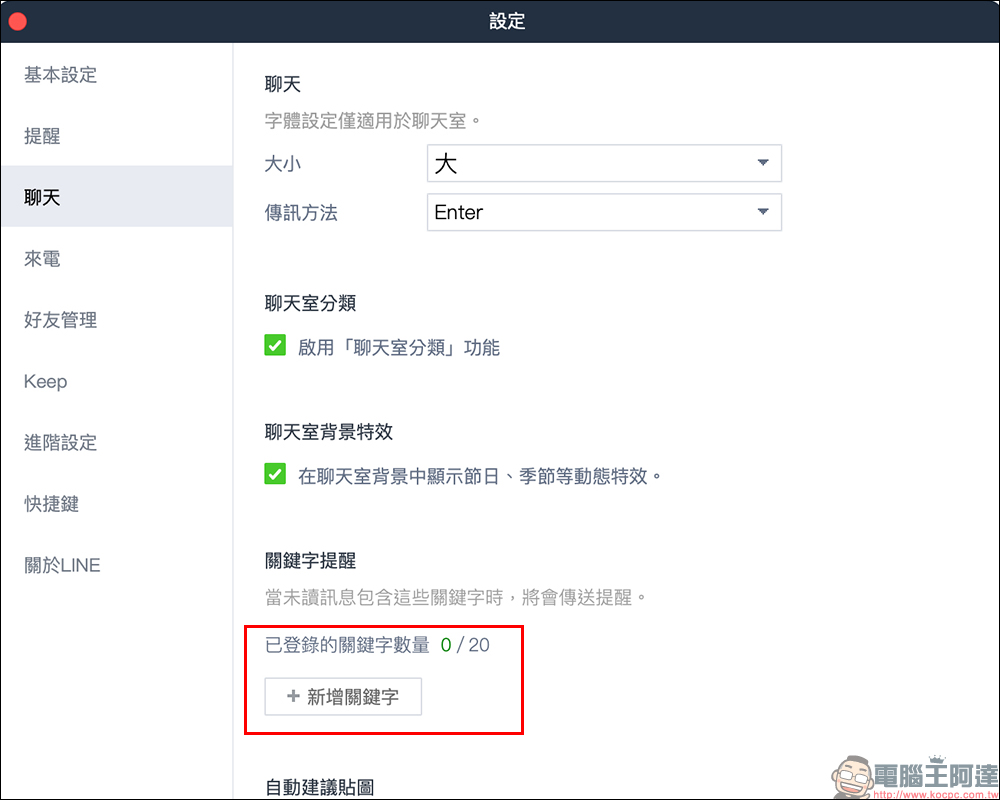
For heavy users who have too many LINE chat rooms, every time they are busy at work and do not pay attention to LINE messages, they are likely to find “999+” unread messages. If you are worried that directly turning on the “mark all as read” function will cause you to miss specific key message content that you care about, you only need to set up keyword reminders in the settings of the PC version of LINE. After setting keywords, whenever this set of keywords is mentioned in the group, you will see the same reminder in the chat room list as when you were tagged.
Chat room classification
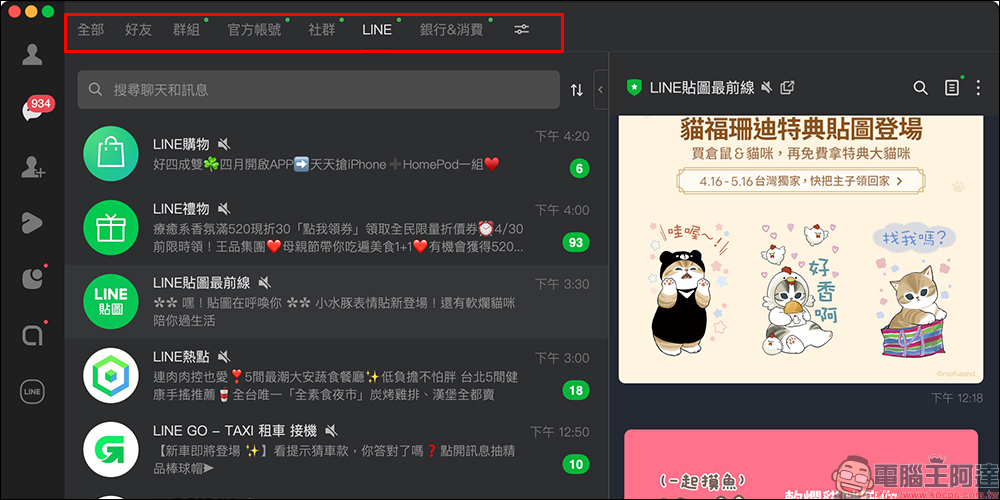
The computer version of LINE supports the “Chat Room” classification function, allowing users to create various categories to distinguish LINE message objects. Moreover, chat rooms can be dragged and changed to change the order, so that you can find important chat rooms faster.
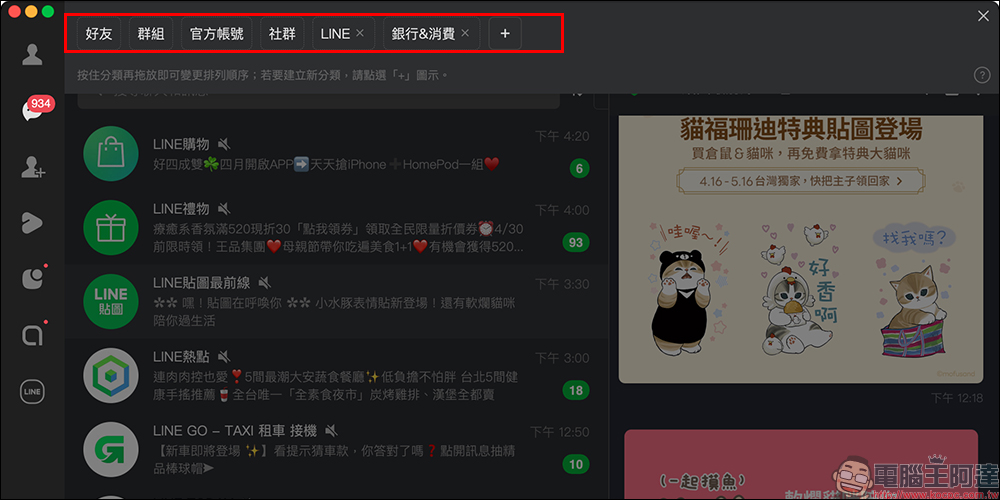
For example, by separating the official accounts of LINE-related services and bank-related official accounts, it is easier to find information instantly.
Atomized chat room
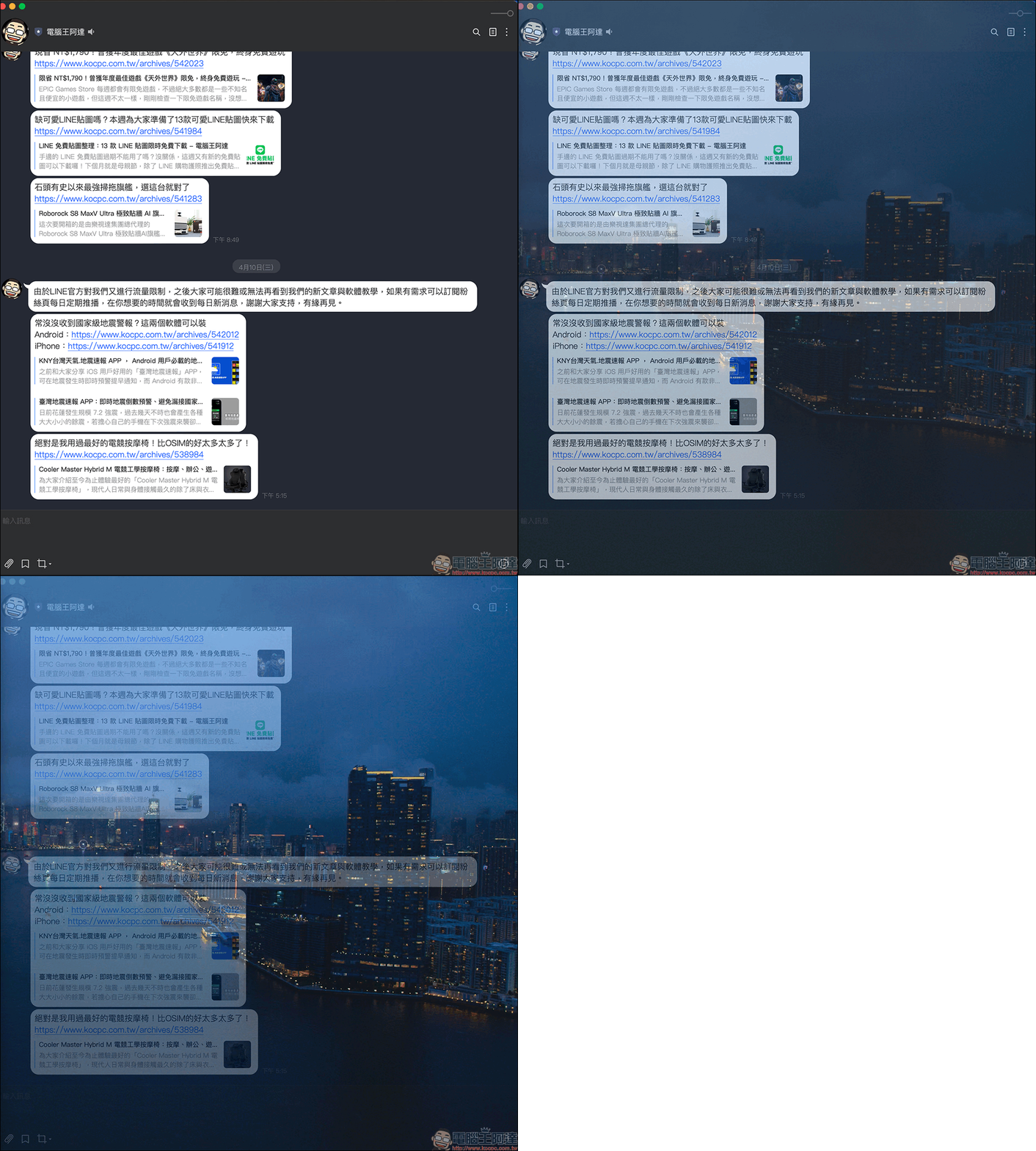
If it is inconvenient to use LINE to chat during work, or if there are some chat room topics that you do not want others to see easily, just pull the horizontal axis in the upper right corner of the chat room to the left to make the chat room transparent! Transparency can be adjusted at any time according to your needs. However, I still recommend that everyone should work hard at work! In addition, if you want to atomize the chat room, you need to pull the chat room out of the chat list first before you can see this function!
Further reading:
LINE 14.5.0 updated! LINE communities have launched a useful new feature that can hide community-specific user messages!

Source: KOCPC Chinese