


Does your Windows laptop or PC occasionally shut down on its own? Issues such as a faulty laptop battery, loose power cord, overheating, incorrect power settings, outdated drivers, or faulty PC components may be the culprit. If you are troubled by this problem, please try the solution we provide this time.
Windows PC or laptop randomly shuts down? Check these 8 things first
Conduct preliminary inspection
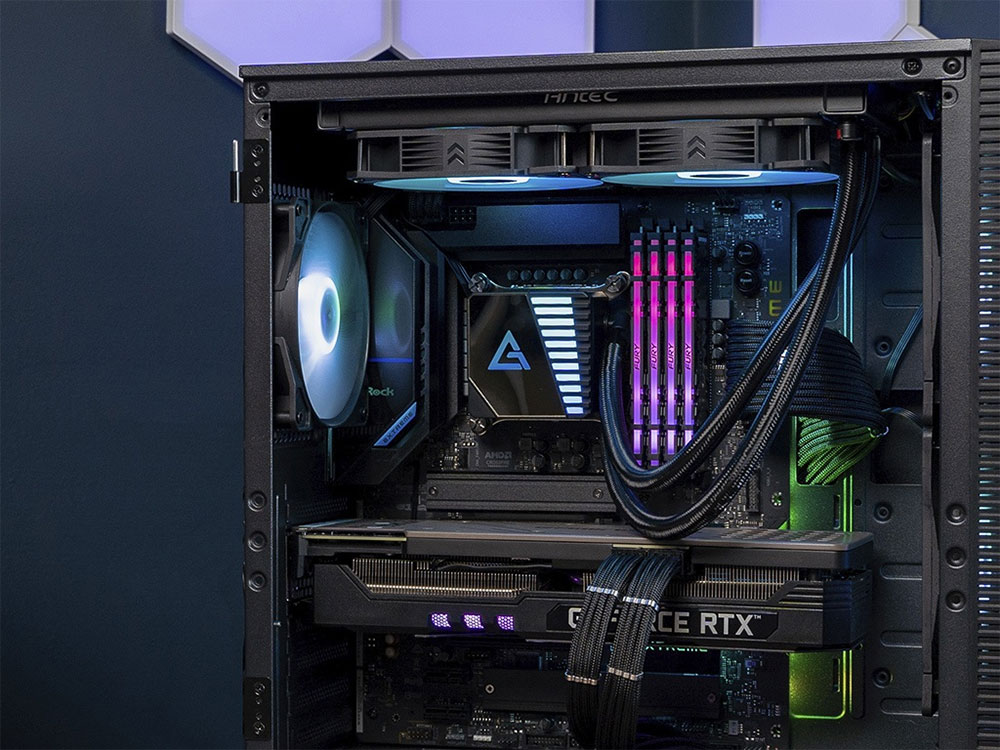
Unlike laptops, which draw power from batteries, personal computers rely on a stable connection to an external power source to keep them running. If the connection between the power cord and the computer or the outlet is loose, even a slight disturbance can disrupt the power supply and cause a shutdown. Therefore, before troubleshooting, be sure to check whether both ends of the power cord are firmly and securely plugged into the computer and socket. Also, check the power cord for any signs of damage and try connecting to a different outlet to rule out an outlet problem. If you use a UPS to manage your power supply during a power outage, make sure the UPS itself is not faulty and is providing stable power.
Check if there is any problem with the battery
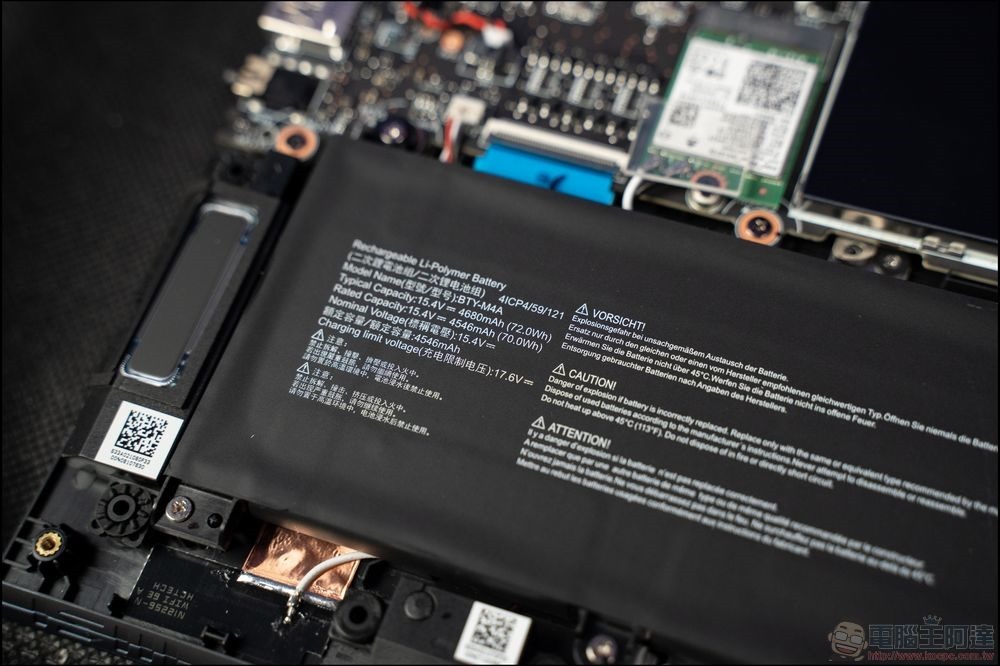
If you encounter this problem when using a laptop, please check the battery first to make sure it is not caused by battery failure. If your battery is removable, please take it out first, connect the original charger directly to the laptop, and power on the laptop directly from the socket to see if the laptop is running normally. If there is no problem with the use of the pass-through power supply, then the cause of the failure is the battery; if the power still cuts off on its own during the pass-through power supply, then the battery is not the culprit.
Make sure the device is not overheating
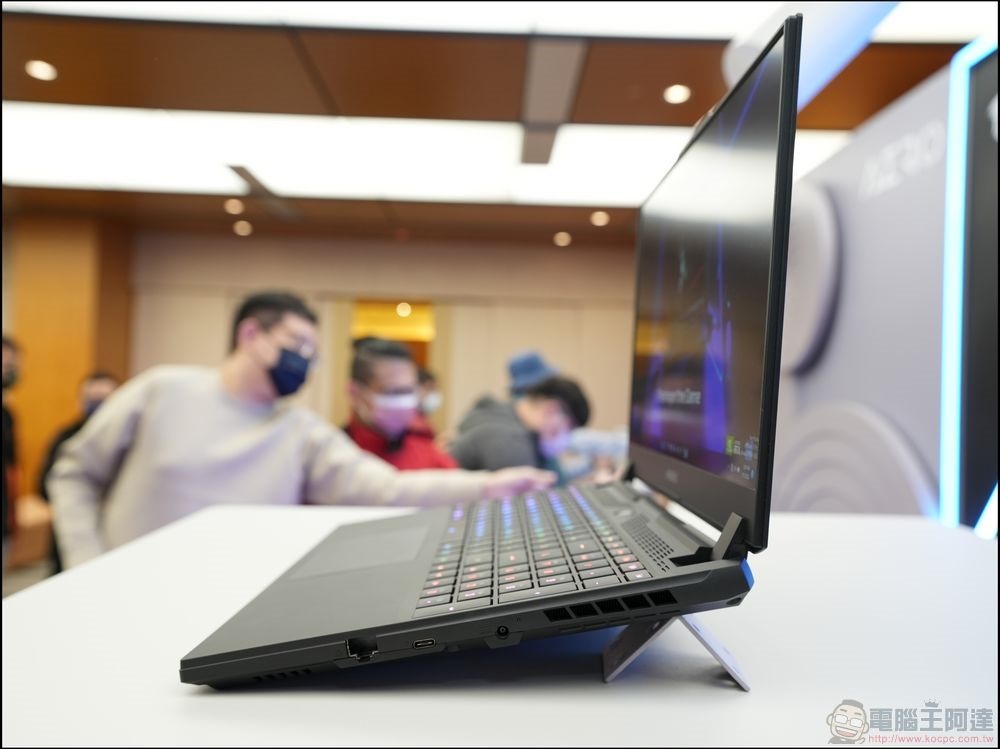
If your computer only shuts down during heavy use, waste heat may be the problem. Overheating and power outage are usually the computer’s own protection mechanism to prevent damage to hardware components. To confirm whether there is an overheating problem, perform some low-intensive work. If the computer is fine at this stage and only crashes when running high-intensive applications (such as photo or video editing software, games, etc.), then you need to check the cooling configuration. (You can also check which application is taking up a lot of system resources in the work manager)
Disable fast startup
Fast startup is a convenient feature that can make your device standby faster, but it can also cause unforeseen problems, such as blocking system updates, preventing you from accessing BIOS or UEFI settings, and occasionally causing random shutdowns. You should turn it off temporarily to rule out fast boot as the cause of random shutdowns. If you want to do this, you can do it as follows:
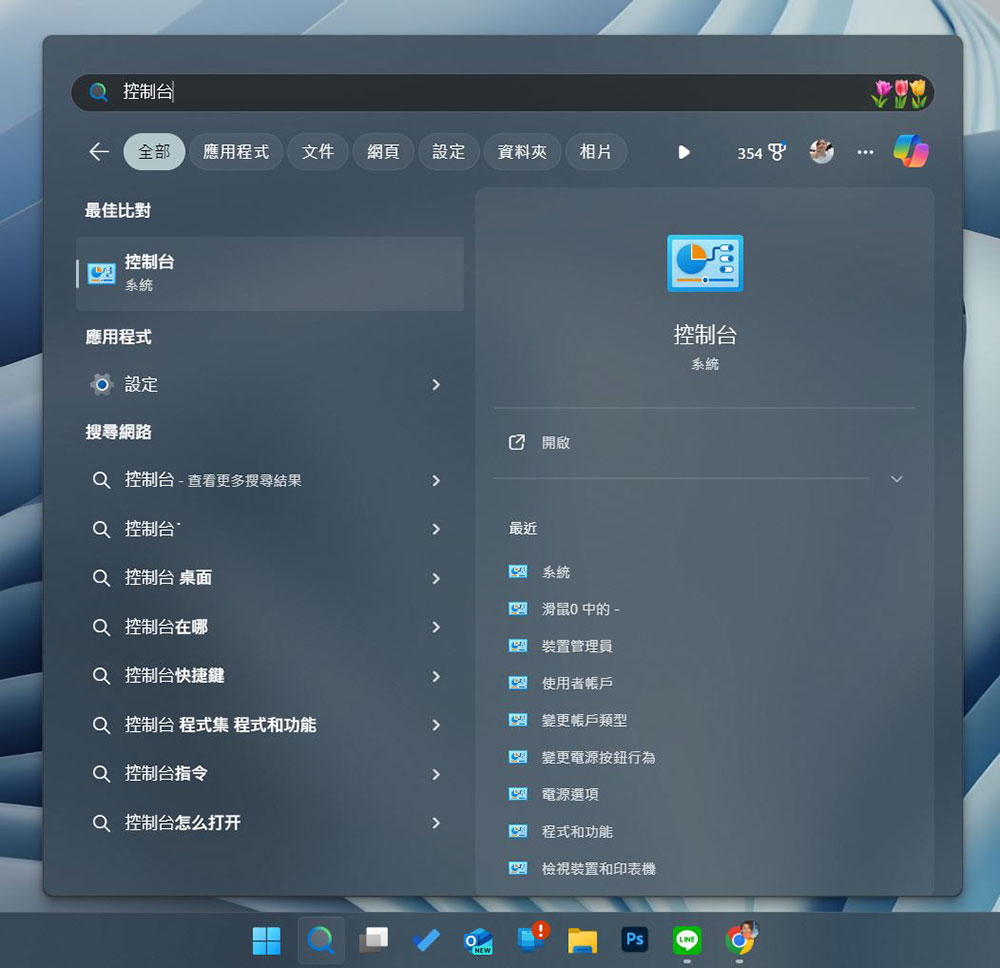
- Type “Control Panel” in the Windows search bar and open it.
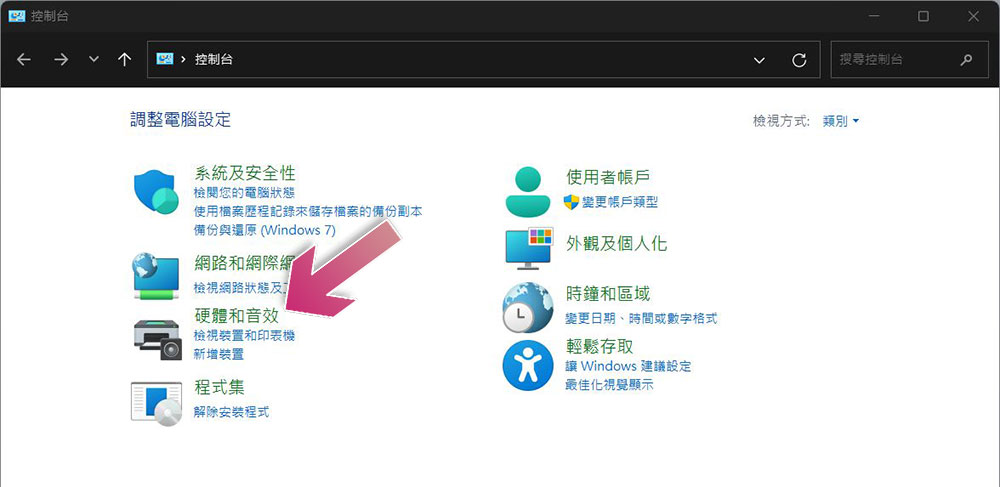
- Click “Hardware and Sound Effects”.
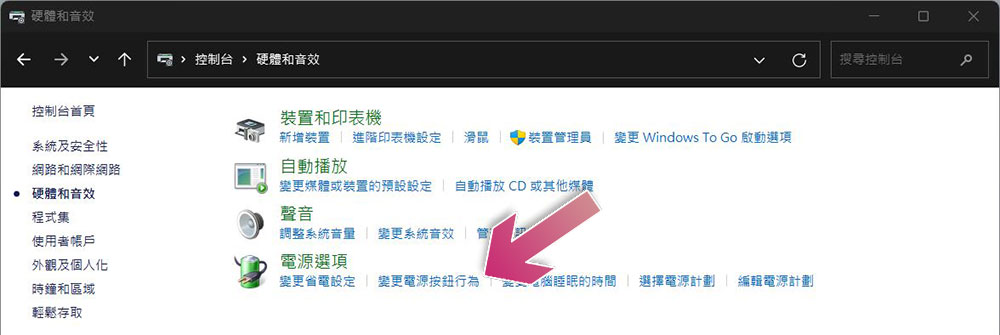
- After entering, click “Change power button behavior” under “Power Options”.
- First click “Change settings that are currently unavailable” above, then uncheck the checkbox for “Turn on quick startup (recommended option)” below, and finally click Save Changes.
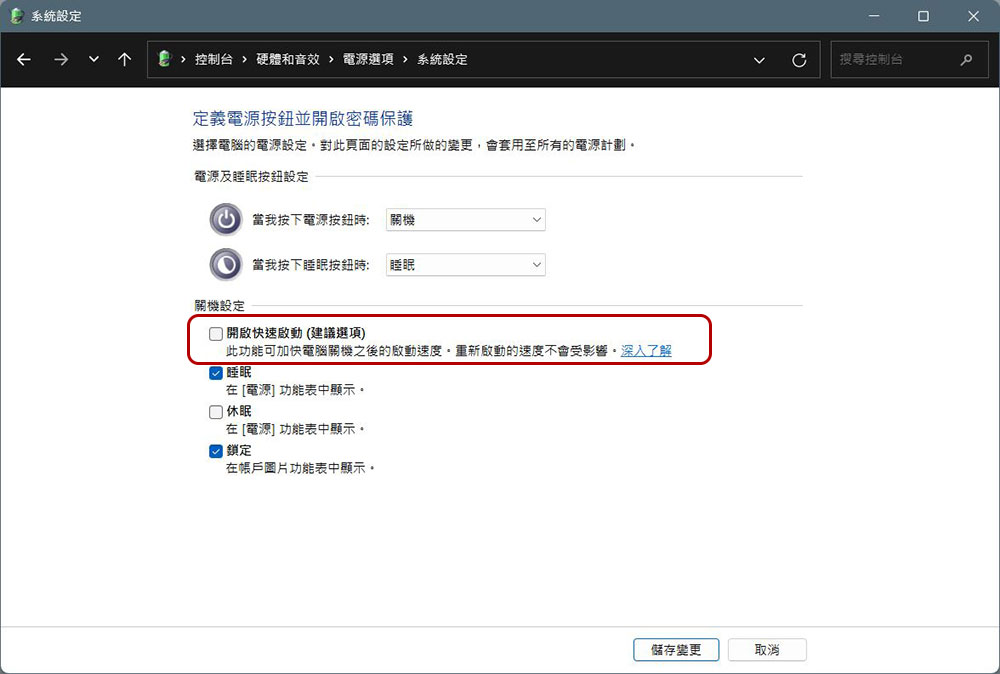
If turning off Fast Startup doesn’t resolve the issue, turn it back on and try the following additional troubleshooting steps.
Make sure the power supply unit (PSU) is not the culprit
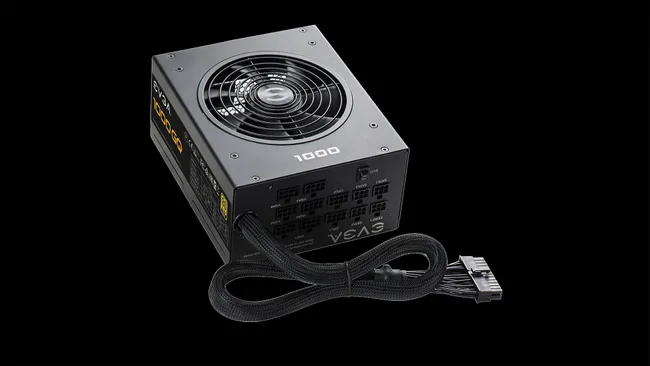
Random shutdowns may also occur if your PSU is not powerful enough to handle the demands of other system components. To check this, calculate the power consumption of your computer based on the specifications of the installed components. If the total wattage required is less than what the PSU can supply then that’s fine, but if it exceeds the capacity that the PSU can supply then you will need to upgrade the PSU. If your PSU can theoretically supply the required power, do a jumper test on it to see if there are any hardware issues. (For information on jumper testing, please refer toBare testing tutorial PDF provided by SilverStone)
Make sure the RAM and storage hard drive are not faulty
Like a weak or damaged PSU, RAM failure can also cause random shutdowns. There are two options to check whether the RAM is normal. One is to use Windows’ built-in memory diagnostic tool, or try a simple tool called MemTest86 to help you find memory problems more easily. In addition, if the hard drive on which the operating system is installed fails, it may also cause the same problem. You can use CrystalDiskInfo Perform SMART testing to check its operation and ensure it is functioning properly.
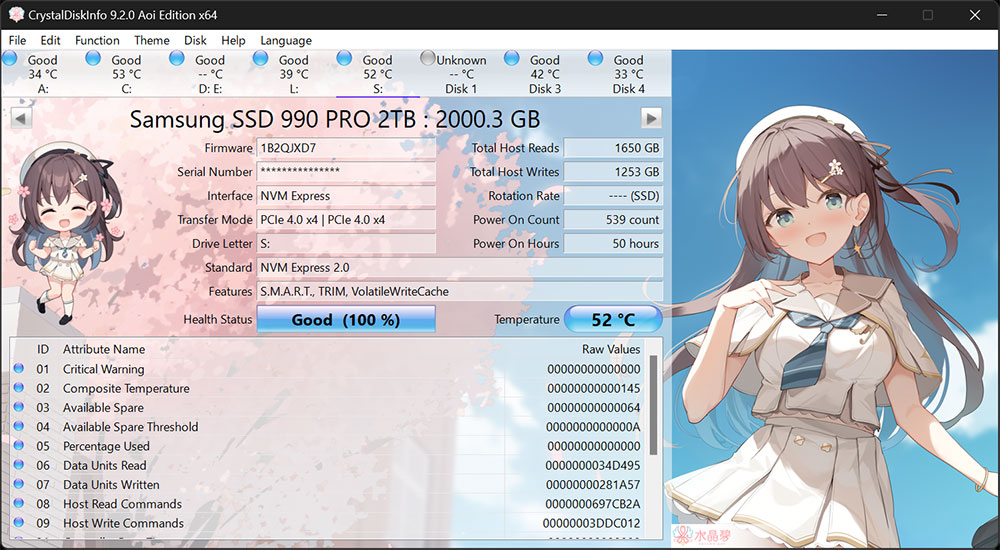
If the RAM or storage hard drive is damaged, there’s no practical way to repair it, so if either one fails, you’ll have to replace them.
Update driver
Defective drivers may also be the cause of your computer shutting down randomly. To rule out this possibility, try opening it by searching for “Device Manager” in Windows search. If a warning sign or exclamation point appears next to the hardware, it means the driver is out of date or corrupted and you need to update it or reinstall it from scratch.
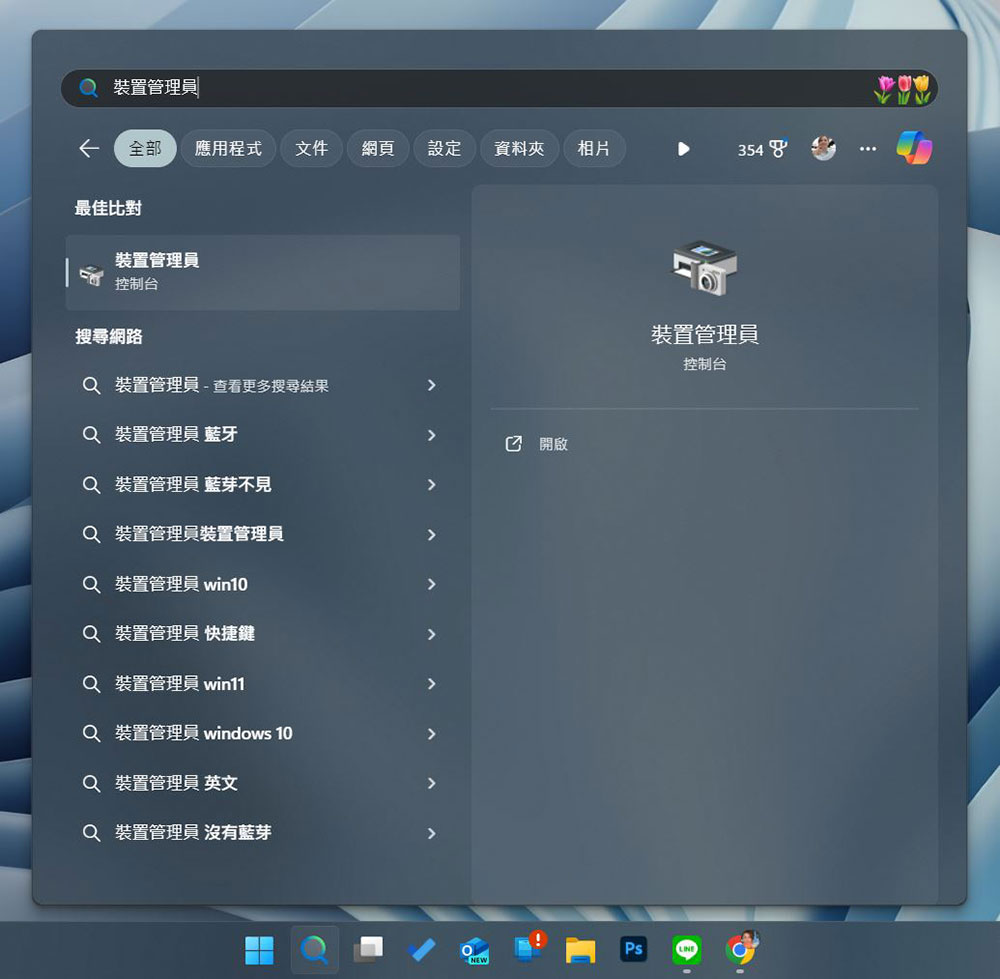
If you want to update the driver, you can download the driver from the hardware brand’s website. If the manufacturer provides an executable file, you only need to double-click to install it. Otherwise, please update the driver manually through the device administrator. Make sure to update drivers for your GPU, battery, disk drives, processors, USB controllers, and other hardware components, even if they don’t have a warning sign next to them.
Change advanced battery settings
If the above solutions don’t resolve the issue, double-check your battery settings, especially low-battery settings, to make sure they are correct.
- Type “Control Panel” in the Windows search bar and open it.
- Click “Hardware and Sound Effects”.
- Click “Edit Power Plan” under “Power Options”.
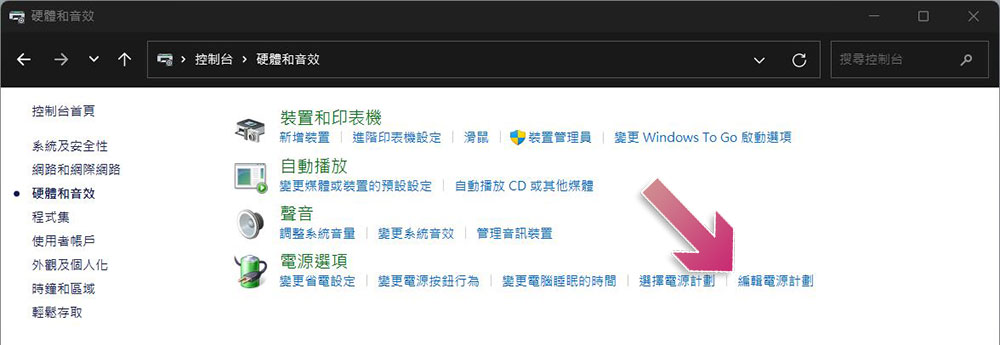
- Click “Change advanced power settings.”
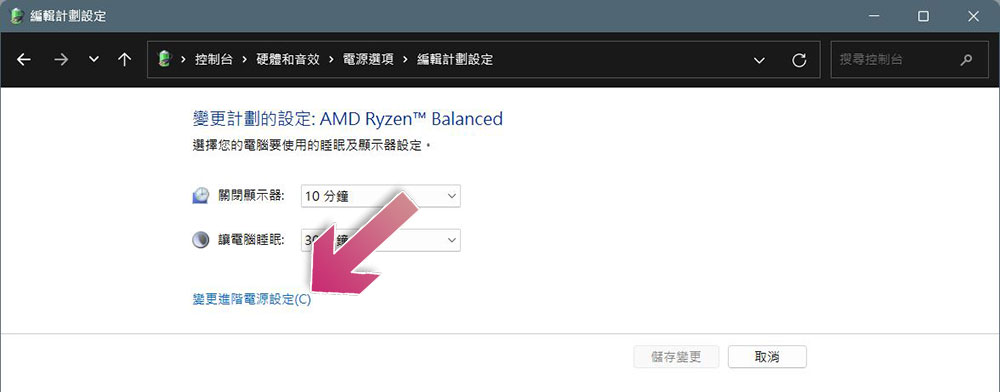
- Change the low battery action in the battery item to “Do not perform any operation” and click Apply and OK.
If your computer randomly shuts down for one of the reasons discussed earlier, you should have resolved the issue by now. If the problem persists after trying the suggested fixes, or if you’re not sure whether to follow the above steps, you can seek professional help.
Source: KOCPC Chinese