


When you are working on iPad and need to perform two tasks at the same time to complete your work, for example, you may need to view a specific file while composing an email, or check digital data on two different applications, etc., the split display function on iPad allows you to open two applications side by side, making the workflow smoother. But what would be the reason if the split display function suddenly becomes unavailable? I will teach you the repair method this time.
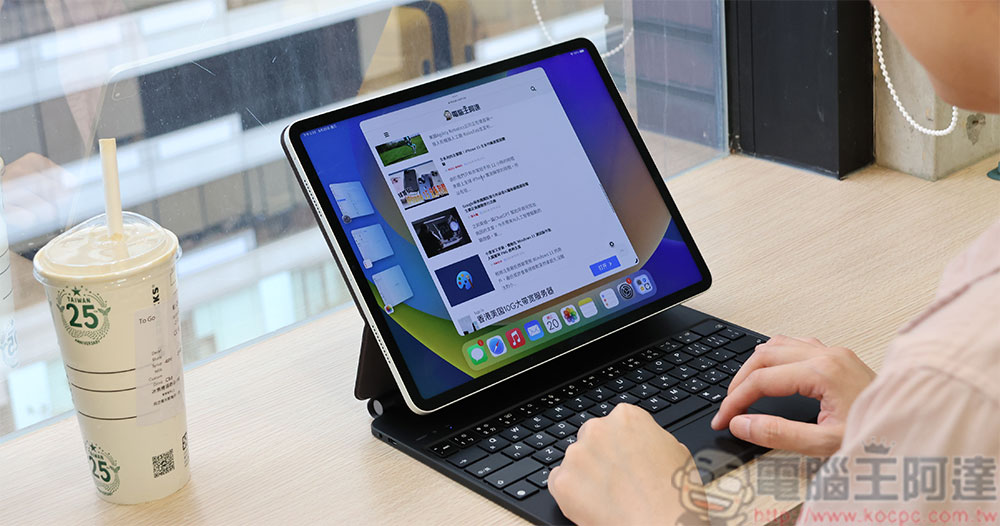
4 reasons why split display view doesn’t work on iPad and how to fix it
Split display view on iPad makes multitasking easier by eliminating the need to switch back and forth between tabs and apps. So you decide to give it a try and your iPad screen won’t listen to you, what could be causing this? There are many reasons why split display might not work as expected, from outdated software to incompatible applications. Let’s find out why split display isn’t working on iPad and explore all the possible fixes.
Your iPad model is incompatible
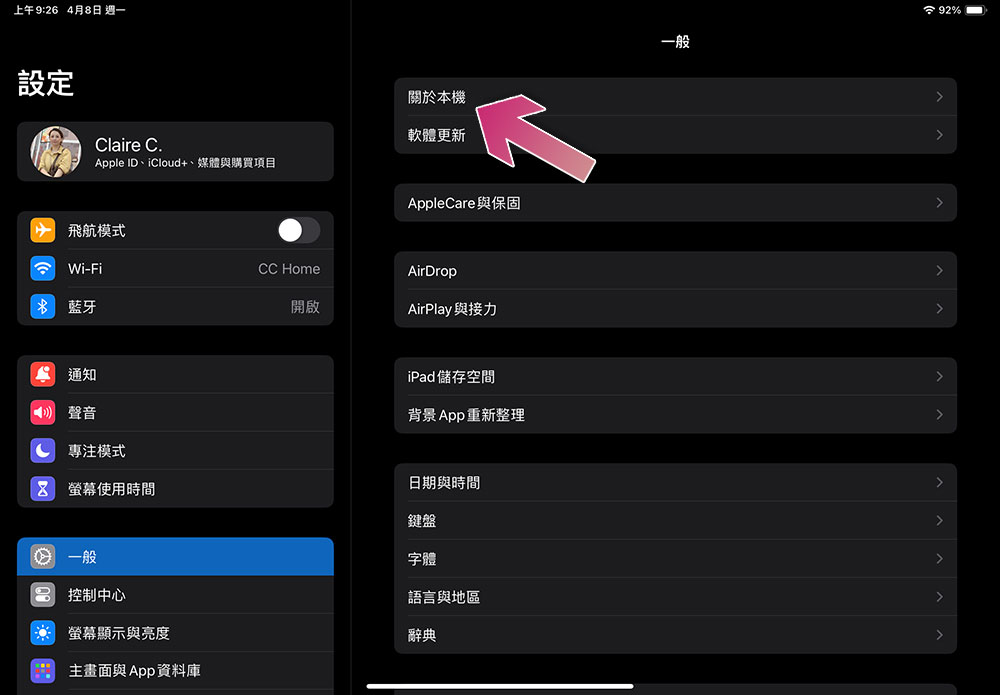
Split Display is available on iPad Pro, iPad (5th generation and above), iPad Air 2 and above, and iPad Mini 4 and above. Unfortunately, if you have an older device, such as an iPad Air (2013), the split display view feature won’t work. To check your iPad model and see if it supports Split Display, open the Settings app on your iPad, go to General, then click About This Mac to check the iPad’s Model Name field to confirm the version of your device.
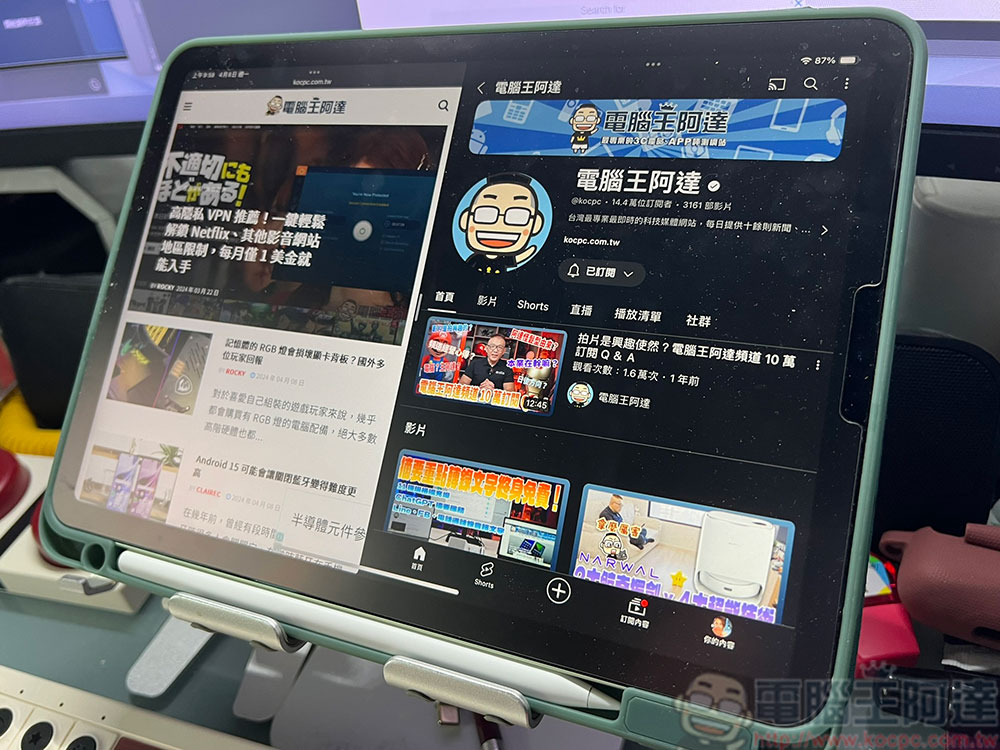
As long as your iPad model does support this feature, but you’re still having trouble getting it to work, it’s possible that the apps just don’t support split display. Not all apps (especially those from third-party developers) can use Split Display, and both apps you want to use side by side must support this feature in order to use it. If you try to use an app that doesn’t support split display with an app that does, the app that doesn’t support split display will take up the full screen. Or, you end up with “slideshows” where the app covers a small portion of the right or left side of the screen. Sometimes, both apps support split display view, but they can get stuck when you try to use the iPad feature. Seeing a blank screen or loading page can be very annoying, but you can quickly fix the problem by quitting the app entirely. Swipe up from the bottom to see all your open apps, then swipe up on the apps you’re using in the split display to close them. After closing apps, you should be able to open them again in split display without any issues.
Operating system or application needs updating
Make sure your iPad operating system is up to date, as older versions may not support split display. Since Split Display was introduced in iOS 9, you won’t be able to use this feature on any devices with earlier versions. It’s always a good idea to keep your system updated, as it will not only help with split display, but it can also help with other minor niggles you might encounter while using your iPad. Ideally, your iPad should be running a newer version of iPadOS (starting with iOS 13).
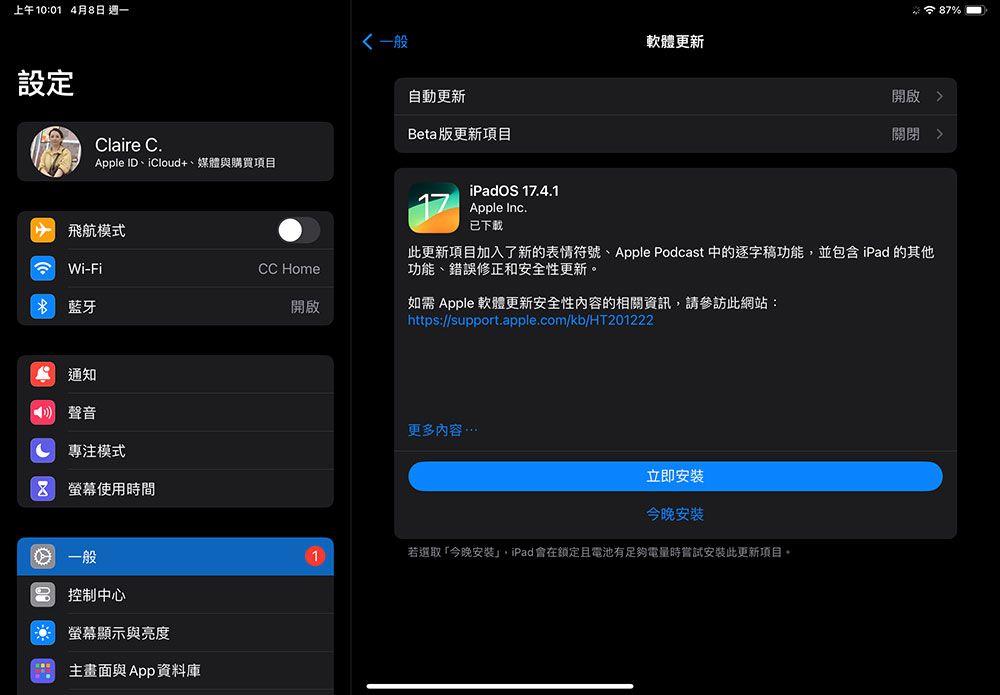
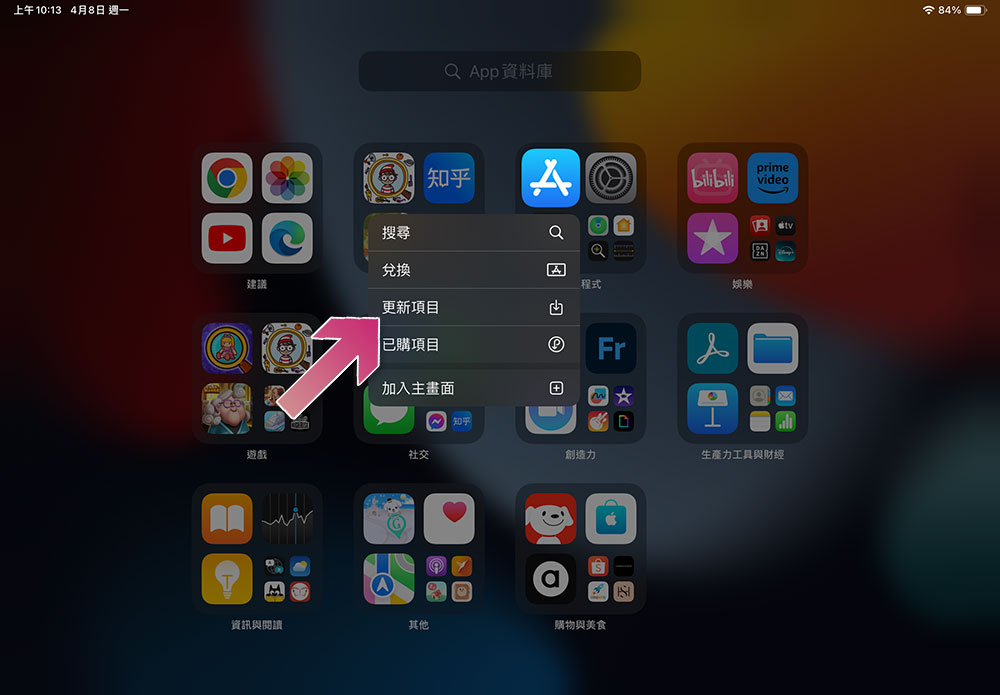
How do I update my iPad’s operating system? Go to iPad’s “Settings” and click “General” to proceed to “Software Update”. If an update is available, please continue to install it. In addition to updating iPadOS, make sure your apps are up to date. Developers update their apps to take better advantage of features like Split Display. To update your app, all you need to do is hold down the App Store icon and click “Update Items.” Keeping apps updated on your device can prevent them from running into issues with Split Display. Generally speaking, when your iPadOS and apps are up to date, you’re more likely to have a smooth, glitch-free experience when using Split Screen View and all other features on iPad.
Not using the correct gestures
Split Display is activated via a gesture that hides the iPad screen. To multitask using split display on iPad, first open the app you want to use. If the application supports split display, you can see three dots at the top (also known as the multitasking button), and click “Split Display” in the menu that appears after long pressing. Once you click “Split Display”, you can select a second app to share your screen with. You can clearly see the home screen, so feel free to swipe left or right to find the app you want, or select one directly from the Dock for faster access.

Once both apps are launched, you can resize them in split display. Simply drag the divider between two windows to give one app or another more screen space. If at any time you decide to focus on just one app, tap the multitasking button again and select the “Full Screen” option.
Settings may interfere with split display
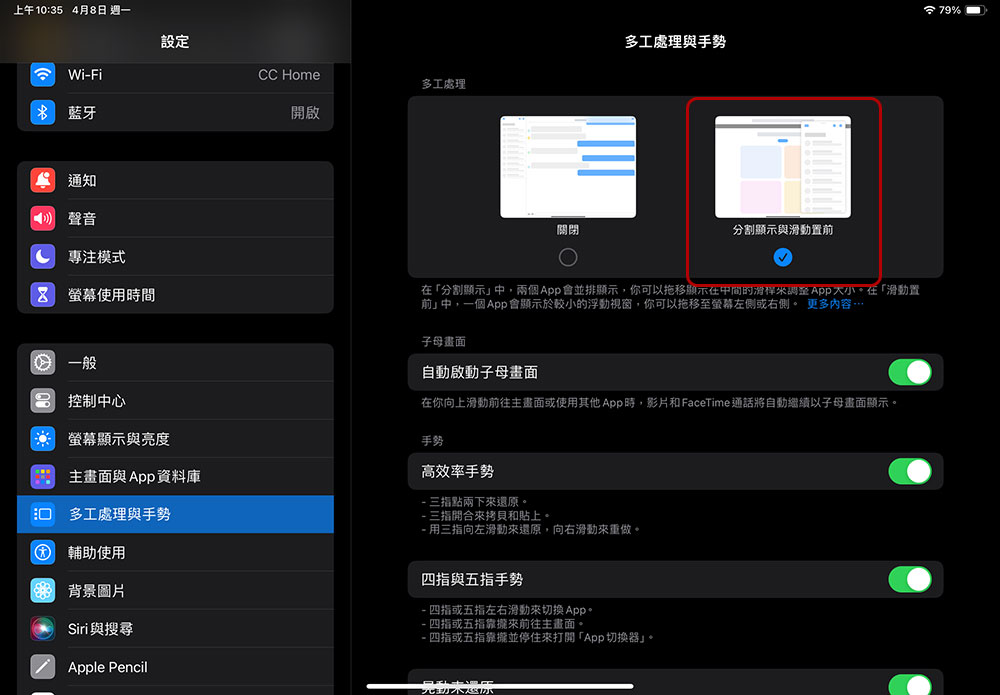
If there are no problems with the above operations but the display cannot be split normally, there may be a setting problem. You can consider changing the settings on the iPad, but it will also affect your experience. First, open the “Settings” application, enter “Multitasking Settings and Gestures”, and make sure “Split Display and Slide to Front” is enabled. This should solve the problem.
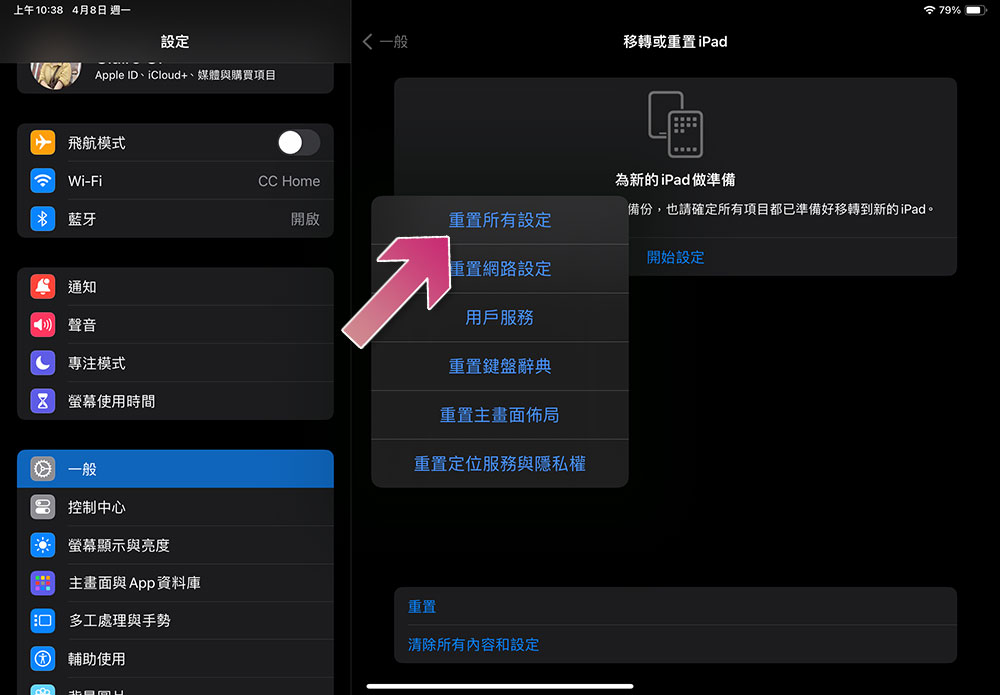
If the problem persists, resetting your iPad’s settings may help. This won’t delete your apps or data, but it will reset system settings to defaults. Go to “General” in the “Settings” app, scroll to the bottom to enter “Move or reset iPad”, click “Reset” and select “Reset All Settings”.
However, if none of the above methods work or the app freezes, restart your iPad. Restarting the device can solve a lot of problems, especially if settings changes don’t take effect immediately. Press and hold the top button until the power off slider appears, slide it to turn it off, then press and hold the top button again to turn it back on. By following any of the steps above, you should be able to use Split Display on your iPad.
Source: KOCPC Chinese