


Google Drive is one of the most important tools for improving productivity, but have you checked the remaining storage space recently? If you frequently use, create and process digital files, your cloud drive may be filled with all kinds of things, from presentation files and family matters to client contracts, invoices, etc. With so many documents, photos and other things you own, the storage space that has not been organized for a long time will definitely become a mess. It is time to organize your cloud drive.
5 organization tips to keep your Google Drive organized
Cloud drive clutter can also be an annoying problem for a number of reasons. First of all, it’s hard to find something when all the files are scattered all over the place. Although searching can be done, you have to know the exact file or folder name first for it to be useful. Secondly, it’s easy to overlook or forget about files with tight deadlines because they’re buried in clutter. Finally, this clutter can lead to inefficient storage usage, as you may be uploading duplicate files over and over because you can’t find them or forget about them. To prevent this and keep you productive, organizing your Google Drive is something you must take. This time we have put together 5 organizing tips for your reference.
Set category colors for folders
If you have a lot of files stored in your Google Drive, you’re probably dealing with a bunch of different folders. Of course, this does keep everything organized, but since the folders are all the same color, it can be a headache to just scroll through the list to find anything. A quick tip to solve this dilemma is to color-categorize your folders.
Google Drive offers 24 selectable folder colors, making it easy to find the folders you need when browsing your storage. Color adjustments are also a clever way to categorize folders instead of lumping them into one big folder. For example, you have 7 folders for work-related files and 3 folders for your personal media, just color all the work folders green and the personal folders purple so you can see who is who at a glance when you browse the folders.
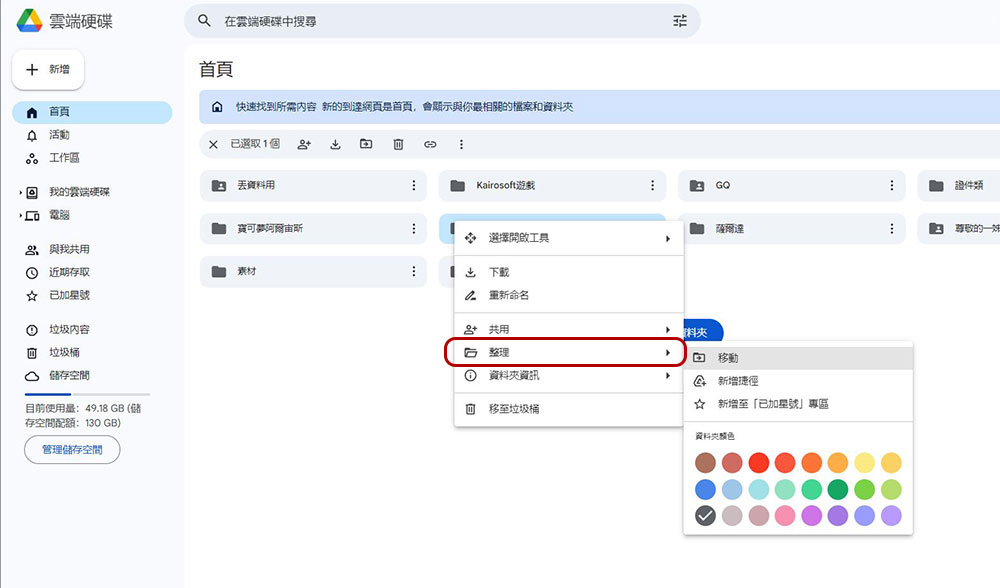
- Sign in to your account in Drive.
- Right-click the folder you want to change the color of.
- Select Organize from the menu.
- Next, select the color you want to set.
Add a description to the file
Typically, you name files in Google Drive based on their content or purpose, making it easier to search for them later. But sometimes you have no control over how files are named. For example, if a company follows specific naming rules, you need to name certain files and folders using a set of numbers, dates, or references to client projects. Unless you have a photographic memory, it may be difficult to find such files over time.
This is where profile descriptions come in handy. You can add some descriptions to the files to help you find them faster among a large number of files with strange names. Google Drive lets you add a description of up to 25,000 characters to any file or folder.
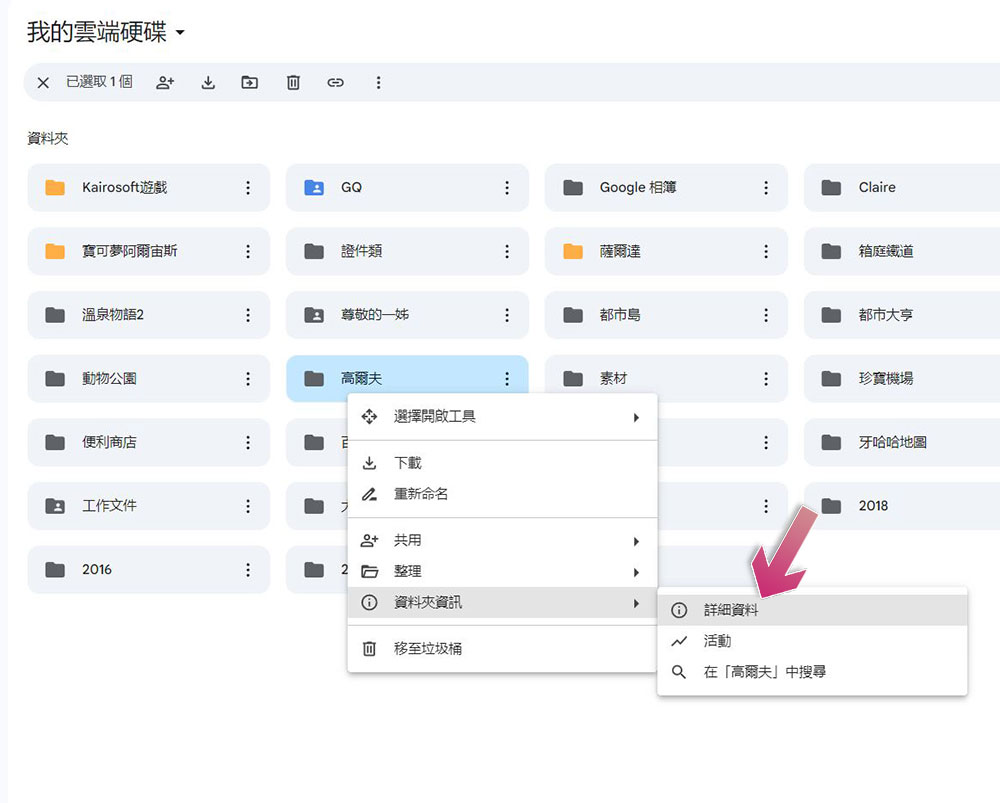
- Right-click the file or folder you want to add a description to.
- Select “Folder Information” and click “Details” in the next menu.
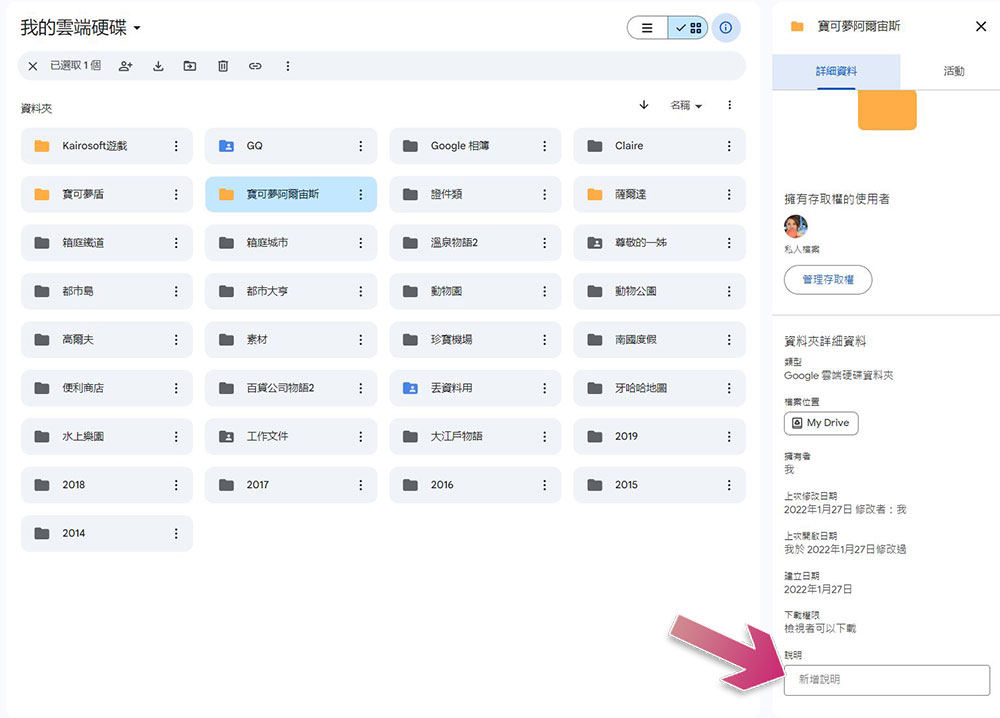
- Scroll to the bottom of the sidebar that appears to find the description field. You can write notes on the file or file here. Finally press Enter to save the description.
Once set up, the next time you search for that file and forget its actual file name, just enter some of these keywords or phrases into the search field and Google Drive will do the rest and find files or folders with descriptions that match your search.
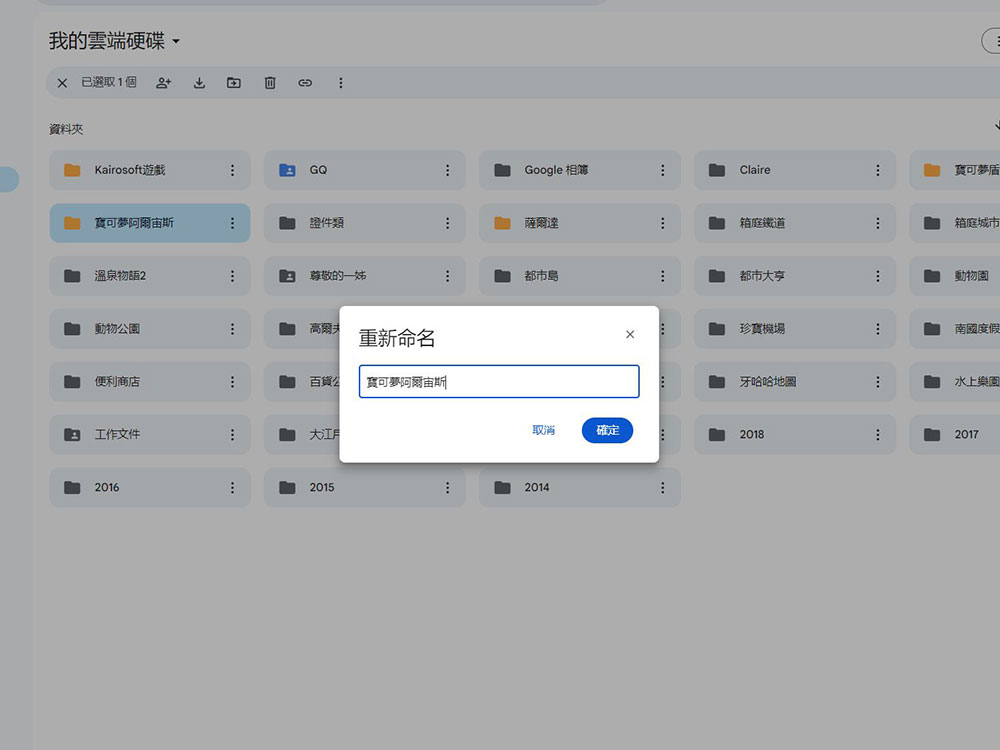
Systematically rename folders and files
You’ll usually name your folders something that’s easy to understand at a glance, or sort them alphabetically, and while this is convenient in some cases, most of the time you’ll want to sort them in a specific way, maybe by importance, frequency of use, or type. Therefore, the author also provides several naming suggestions for your reference:
- Add brackets and numeric categories before file names. For example, [01] represents work, [02] represents personal, [03] represents study, etc. Instead of just entering the name, the order of your folders from top to bottom will be work, personal and then study.
- Add some special characters or emojis to the beginning of folders or files you use frequently to push them to the top.
- Use different letter case to display the folder hierarchy. For example: the top-level folder can use all uppercase letters, sub-categories can use mixed case letters, and single files in subcategories can use lowercase letters.
Use shortcuts to shared files and folders
When it comes to the best applications for sharing large files, Google Cloud Drive is the first choice. However, you may encounter some problems when using shared files and folders in Cloud Drive. Normally, when someone shares something with you, those files are placed in the “Shared with me” category. The flexibility of this category is very limited. You can’t create new folders to organize files. If you try to update the naming, it will be reflected in the original file itself, potentially disrupting the naming rules of the file owner. Another common method is to copy the archive in Drive so that it can be freely organized and renamed, but the problem with this method is that the owner will no longer have access to it, which is somewhat counterintuitive when you are working together.
It’s not difficult to solve this problem, just use shortcuts. Essentially, shortcuts are quick links to files and folders located anywhere in Google Drive that open the original file or folder when you click the shortcut. You can create shortcuts to specific shared files or folders, then place them wherever you want on Drive and organize them to your liking. Another benefit of shortcuts is that you can freely rename the file without affecting the original file name at all. But remember, when you open a shortcut, you’re actually working on the original file, so any changes or annotations you make will be visible to anyone with access permissions.
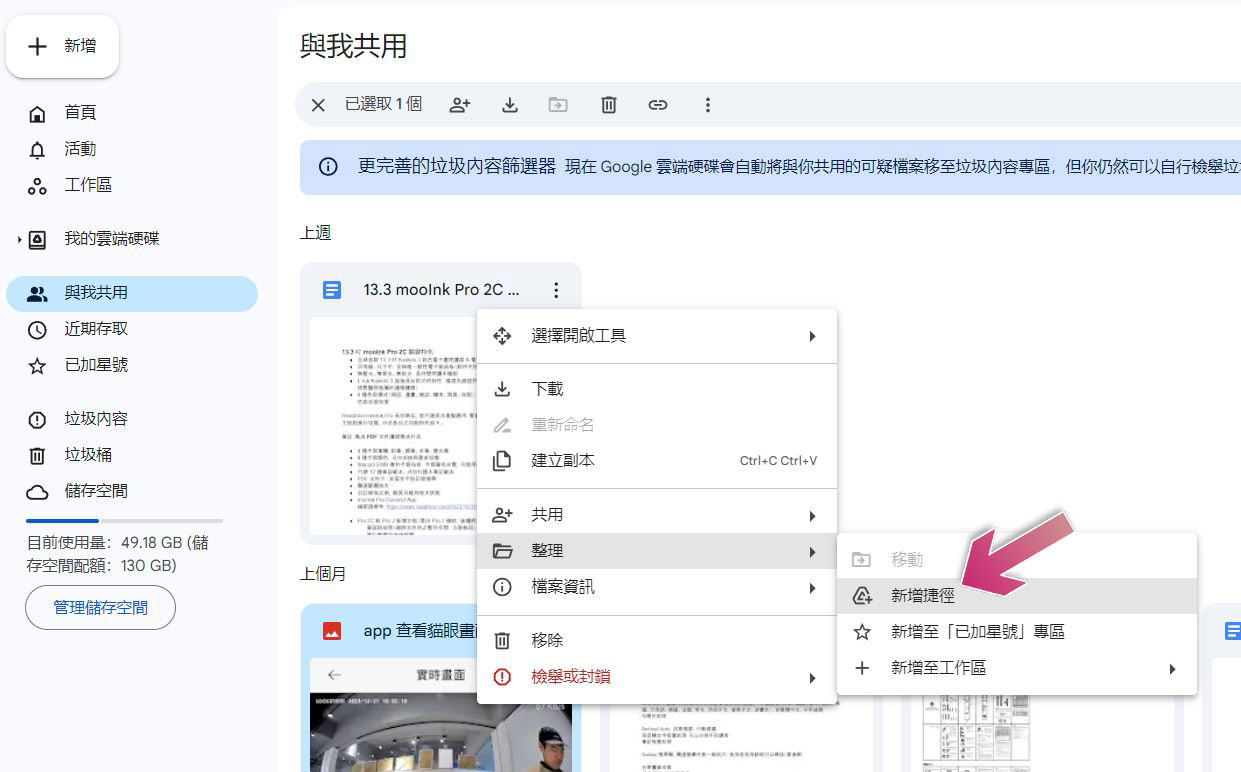
- Go to “Shared with Me” in Drive.
- Select the desired file or folder, right-click on it and select “Organize >> Add Shortcut”.
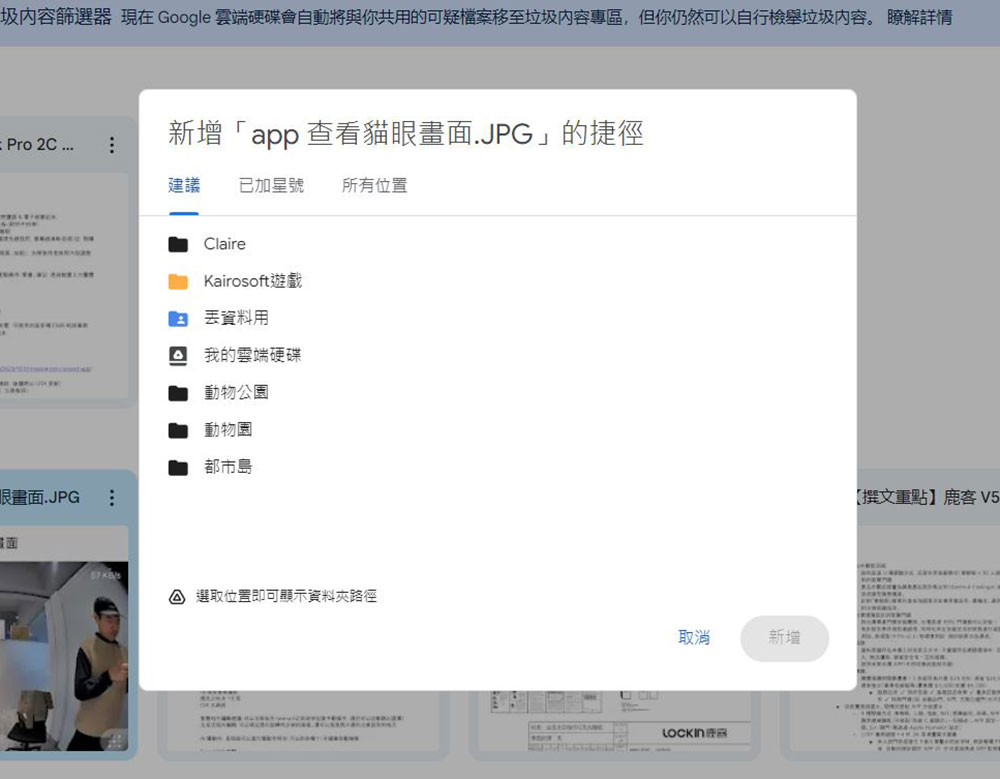
- Then select the location where you want to place the shortcut and click Add.
Customize the layout and order of files and folders
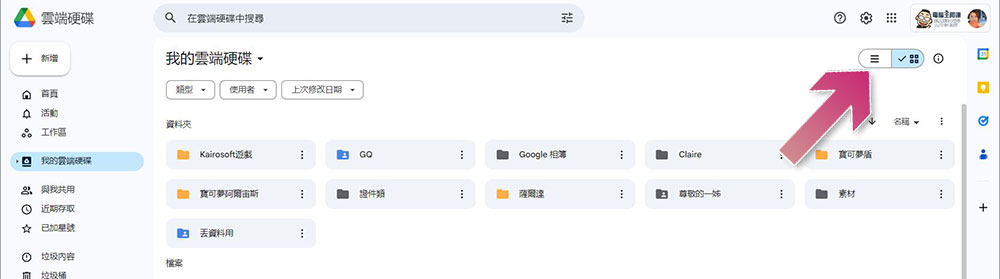
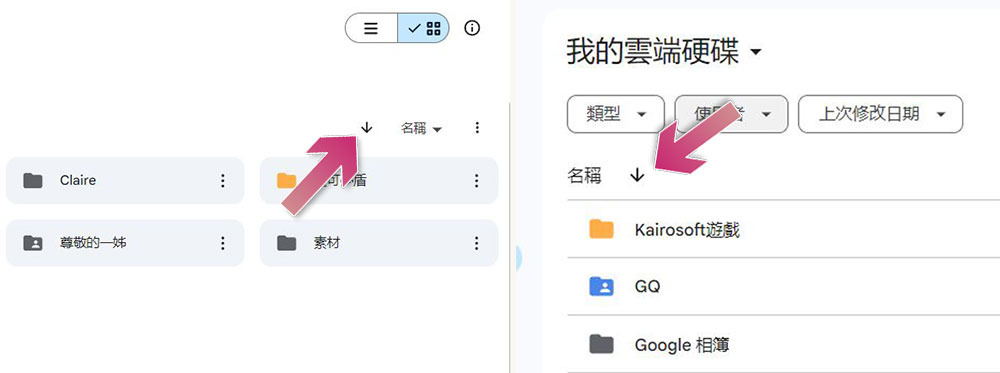
Google Drive has built-in organization features that let you change the layout and order of your files and folders, so let’s break down how to use them. First, there are two ways to view your content: list layout and grid layout. The list layout displays your files and folders in a list, along with details such as owner, last modified date and time, and size. The grid layout arranges your files and folders like a gallery, giving you a preview of your files. To switch the current layout, click the list or grid icon in the upper right corner of the Drive homepage.
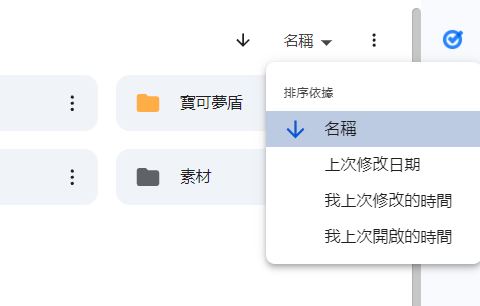
In both list and grid layouts, you’re free to reorder files and folders to suit your preferences. Several sorting options are available:
- Name: Arrange files and folders in alphabetical order. To switch between ascending (A-Z) and descending (Z-A) order, press the name (list layout) or the up/down arrows (grid layout).
- Last modified: Sort by last modified (most recently edited by anyone with access), last modified (latest file/folder you edited), or last opened (latest file/folder you opened).
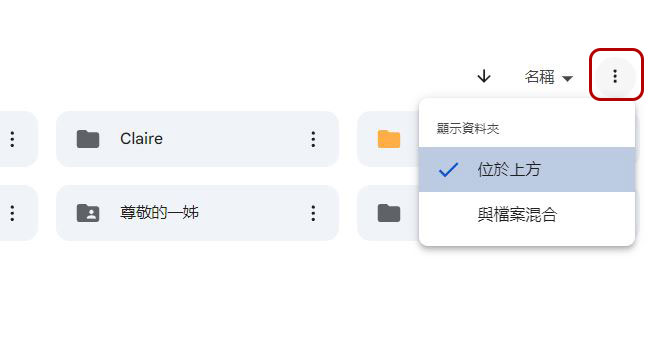
- Show folders: Change how folders are displayed in files. “On top” keeps the folder at the top of the list or grid regardless of other sorting conditions; “Mix with files” allows the folders to be sorted together with the files instead of being pulled out separately. To adjust this setting, click on the three vertical dots in the upper right corner to choose from.
Source: KOCPC Chinese