


When you’re watching English videos in your browser, you might wish someone could help translate the audio into a language you’re familiar with in real time, such as Chinese, so you don’t have to be distracted by translated subtitles and can focus on the video itself. In the Microsoft Edge 141.0.3537.13 beta version, there’s an interesting feature related to audio translation. Now, you can easily use an AI model to translate the audio of videos playing in Edge into a language you prefer, but the current language options are very limited.

Microsoft Edge on Windows 11 can now offer AI audio translation, but requires at least 12GB RAM.
According to foreign media Windows Latest According to the report, since this AI real-time audio translation feature is still in preview, you may not see it immediately after updating to the Edge beta version. In the updated Canary version, I found the real-time translation setting in “Settings,” titled
Provide assistance in translating videos on supported websites.
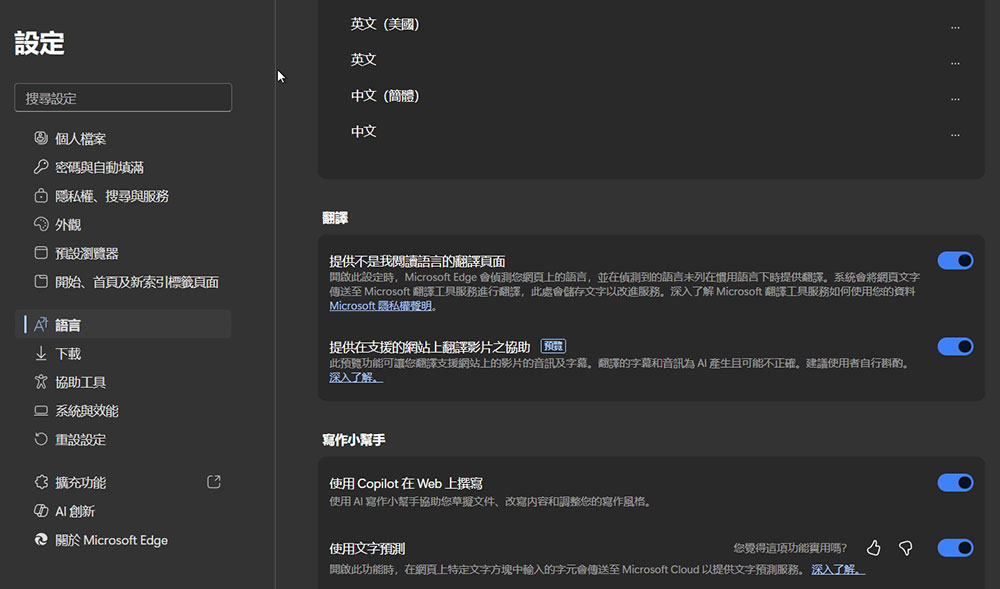
Before running the test, I checked the system requirements for this feature. Since local AI processing requires a large amount of RAM, I found that you need a fairly powerful system to run real-time translation—your computer needs at least a 4-core CPU and 12GB of RAM to use this feature. Windows 11 already uses about 25% of RAM when idle, so the AI real-time audio translation feature isn’t aimed at low-end hardware. One more thing to keep in mind: if you allocate that much RAM to Edge, it won’t leave anything for other applications while translating. It will keep using memory unless you stop it.
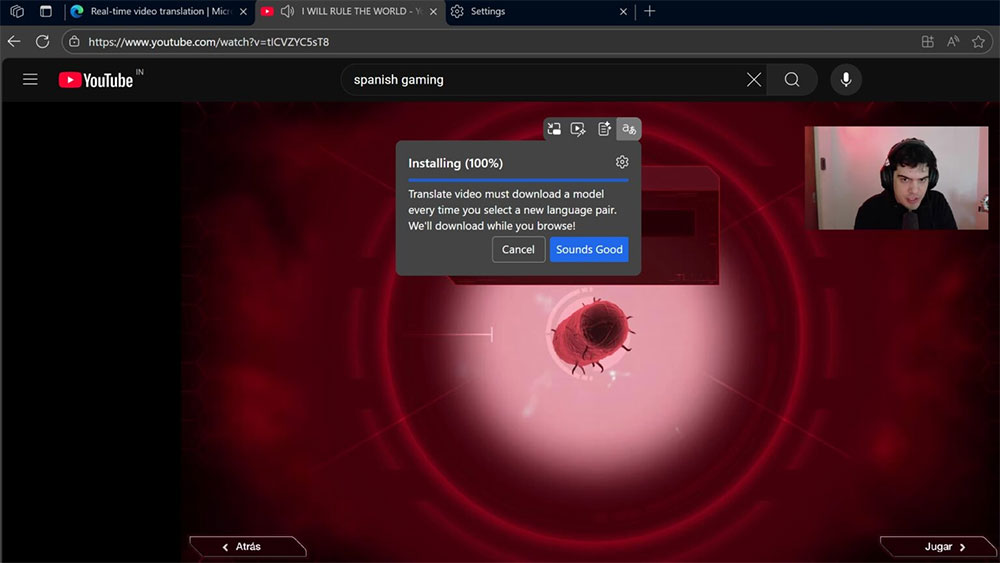
Let’s discuss the practicality of this AI audio translation feature. This new feature in Microsoft Edge currently supports very few websites, and there are very few language options available. Spanish and Korean audio sources can be translated into English, while English audio can be translated into Spanish, Hindi, and Russian, with more languages to be added in the future. Once enabled in settings, a floating toolbar will automatically appear when you hover your mouse over a video. Clicking Translate lets you choose input and output languages, and after downloading the AI model, you can mute the original audio on YouTube and start generating translated audio.
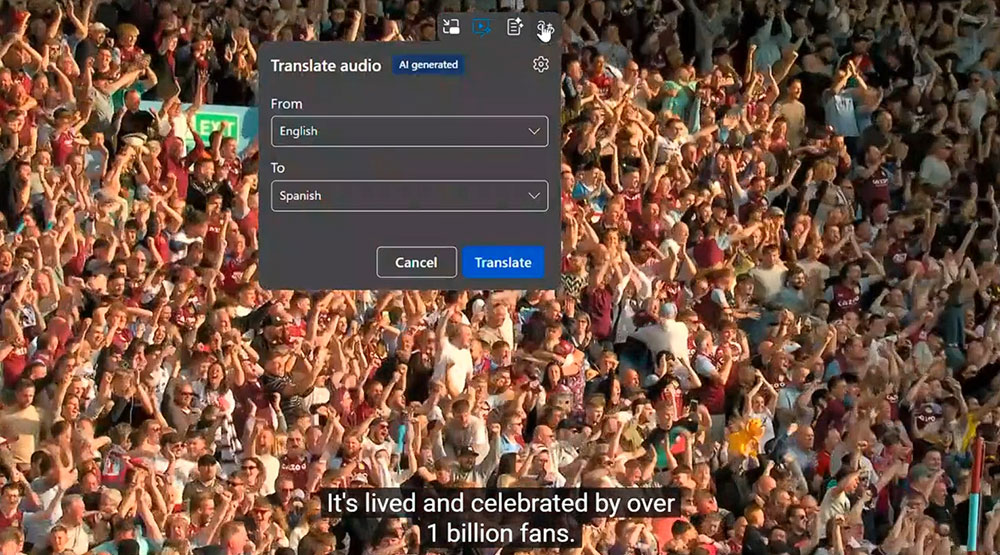
The principle behind AI real-time translation isn’t complicated — first, an AI model parses the audio and transcribes it into text, then a text-to-speech model generates the output. Since there are currently too few supported languages, and none of them happen to be ones I’m proficient in, it’s hard to make comparisons, so I can’t really tell you how accurate it is. Things might become clearer once Chinese support is added.
Source: KOCPC Chinese