


A picture is worth a thousand words, but with the raw data (EXIF, Exchangeable Image Format) that reads it, the value of the information contained in the photo itself is even higher. But what is EXIF? You can think of it as an invisible packet of information that comes in handy in certain situations, but is hidden when it’s not needed. EXIF can be viewed on computers and mobile phones, you just need to know where to look.

How to view the original data (EXIF) of a photo?
EXIF not only helps you understand the details of when and where the photo was taken, but it can also help determine the type of camera and lens used to take the photo. But it’s more important than just curiosity, as one can find copyright information and author details, an essential confirmation step before sharing a photo online that doesn’t belong to you. Checking the EXIF of a photo is easy but not that simple as different operating systems have different processing methods. Anyway, if you are looking for, editing or completely deleting the EXIF of a photo, there are several methods you can try.
View EXIF using Photoshop
Adobe’s Photoshop is the epitome of professional-grade image editing and has become one of the best apps every photographer must have installed. In addition to its incredible photo manipulation capabilities, it can also be used to view and edit the EXIF of your photos in far fewer steps than you might think:
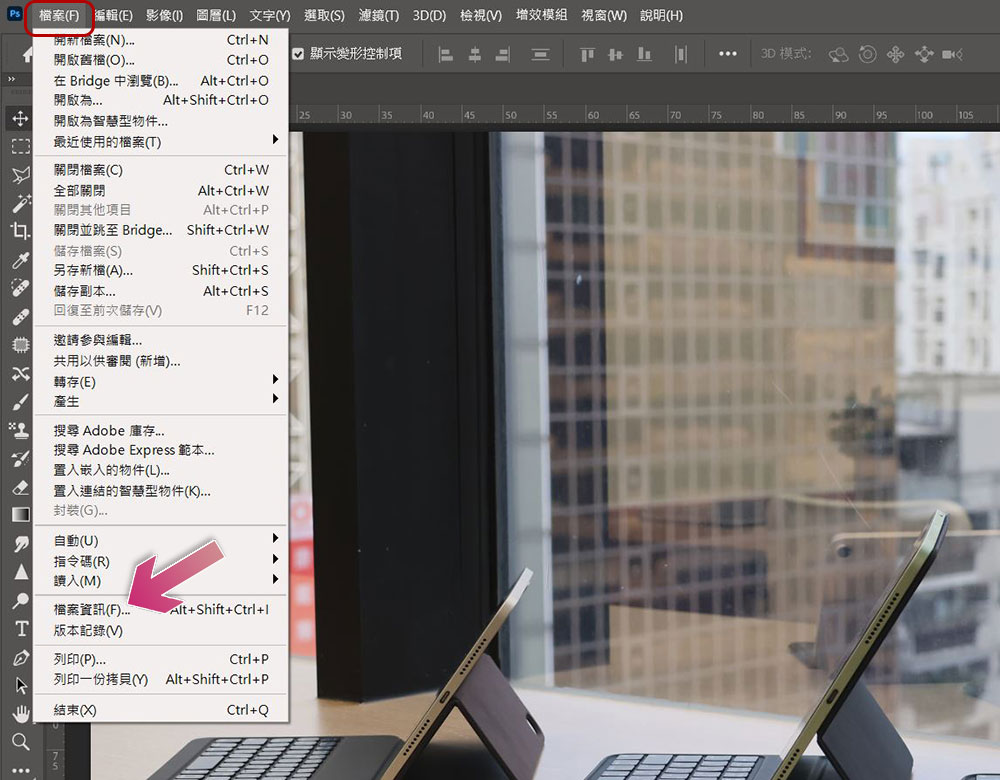
- Open the photo using Adobe Photoshop.
- Click “File” in the toolbar above and select “File Information.”
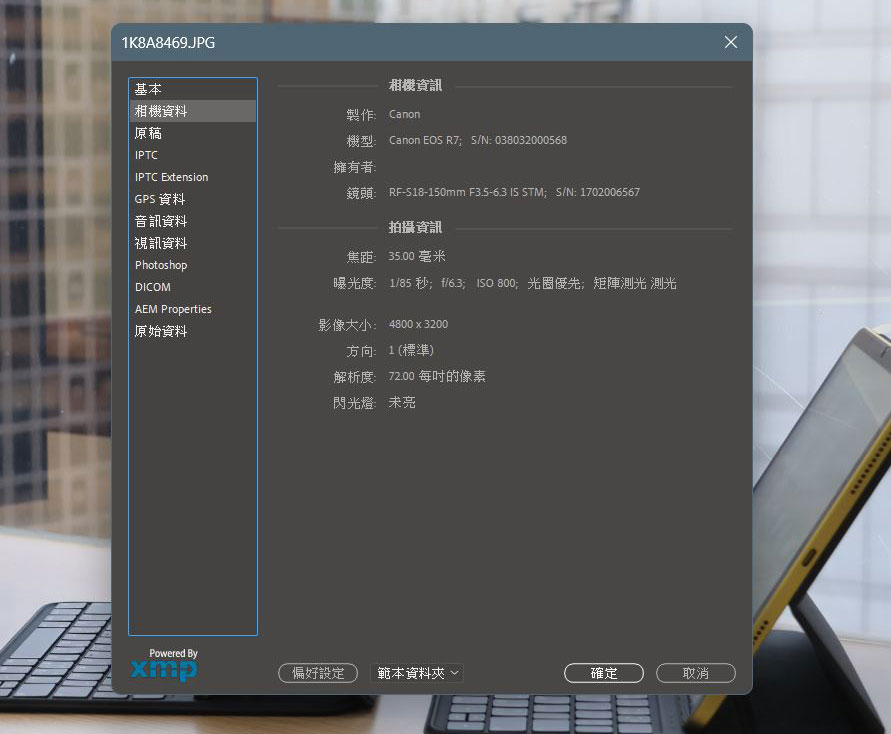
- A dialog window will appear next, which will contain relevant data about the photo, including the author’s name, camera and lens data, creation date and location, etc. You can switch tabs from the left sidebar to view different types of information.
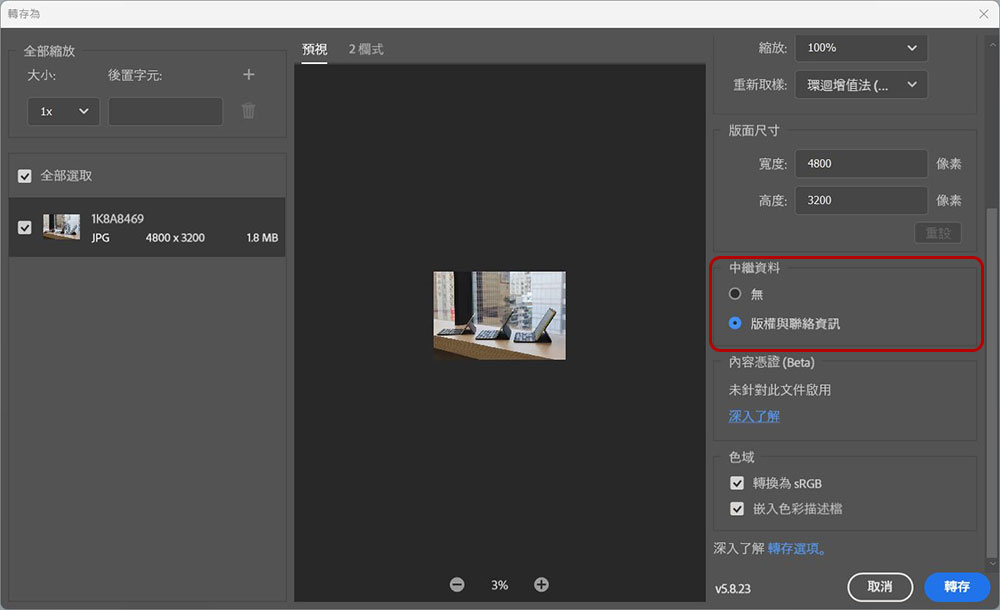
If you edited the EXIF information about the photo, you’ll need to export the image to update the content. Please execute from the path of “File >> Transfer >> Save as…” and make sure to switch the metadata section to “Copyright and Contact Information” before clicking the transfer.
View directly from Windows and macOS
If you do not have the need to edit EXIF, you can directly check the relevant data on Windows and macOS computers.
Windows
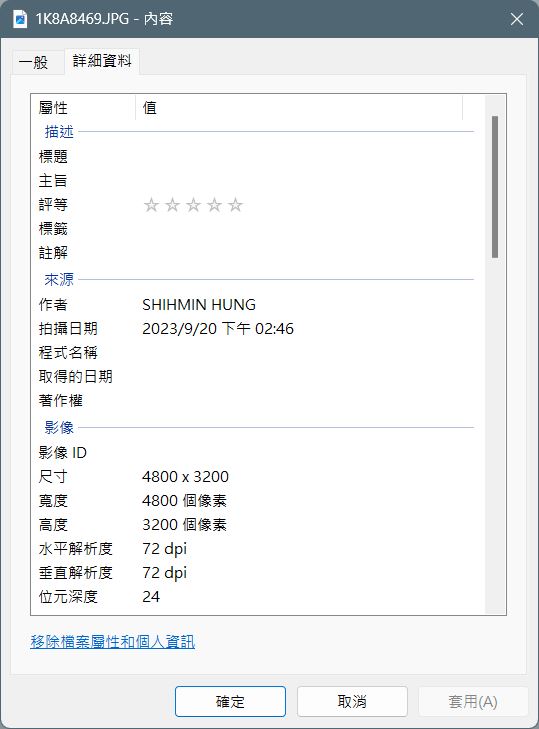
- Right-click the specified photo and select Content.
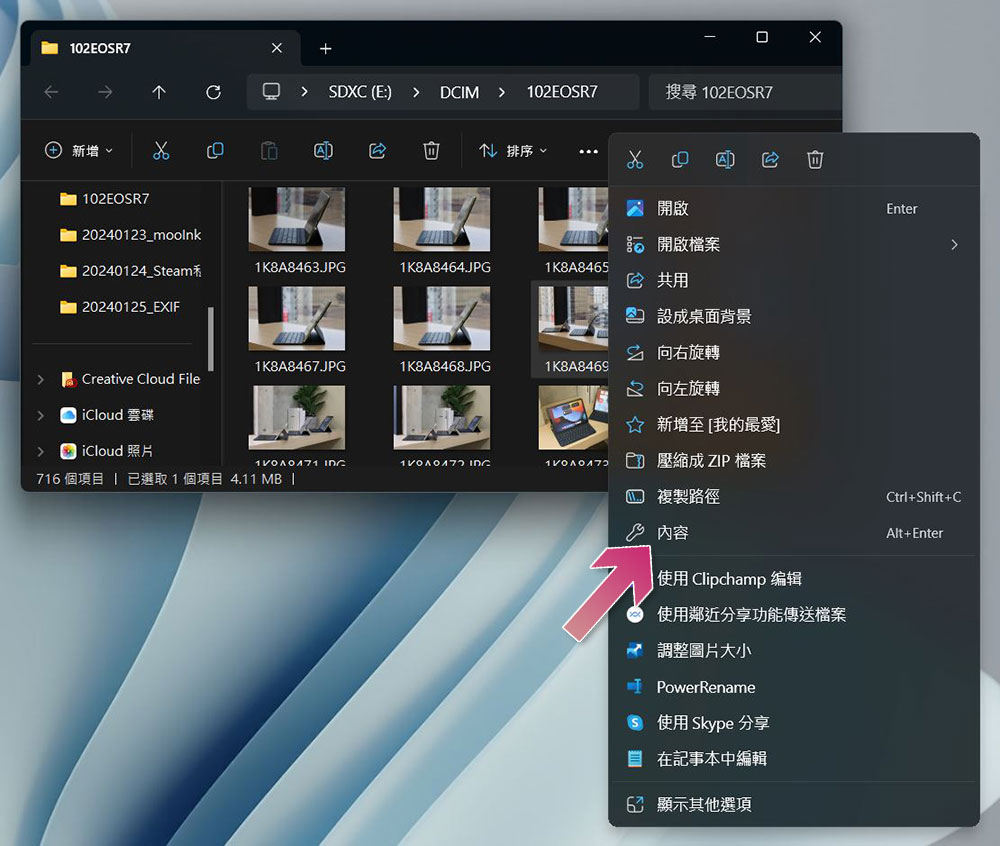
- Switch to the “Details” tab in the pop-up window to see the EXIF of this photo.
- Although you can’t edit, you can choose to delete the EXIF data about this photo.
macOS
- Open the Photos app.
- After clicking on the file in the toolbar above, select “Import…” and then select the photos you want to import.
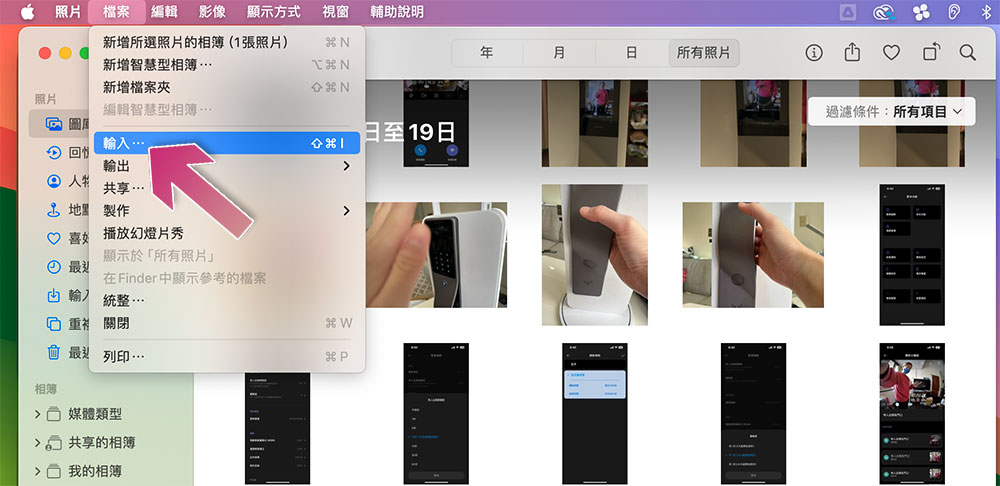
- After the photo is imported you can find it in the “Import Records” section of the left sidebar.
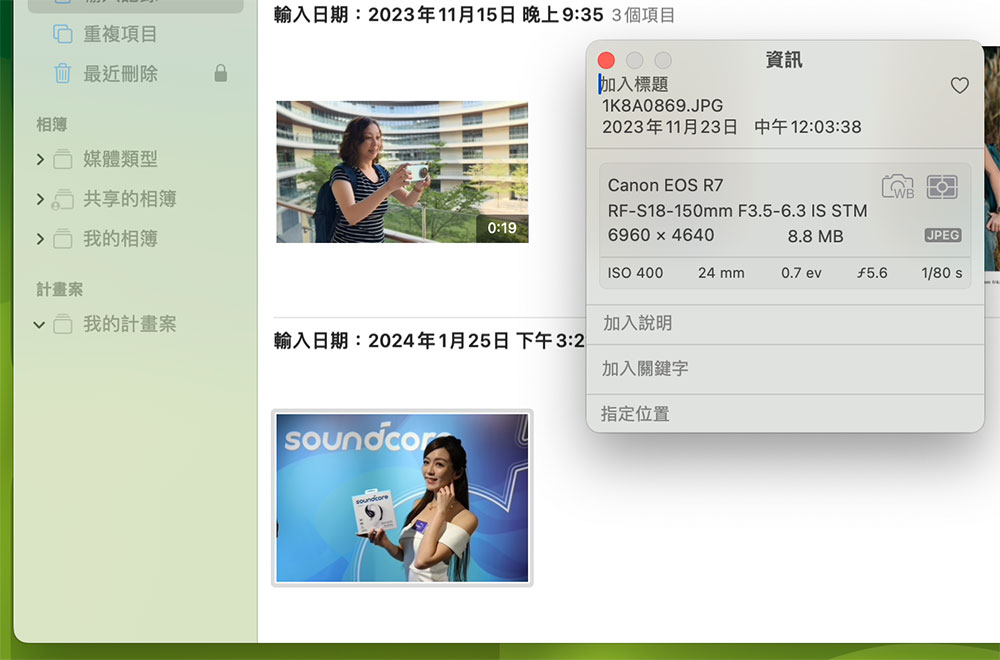
- Select the photo and right-click to call the menu and select “Get Info”.

- In the next small window you can see all the EXIF data about this photo.
View EXIF of photos on mobile phone
Regarding the raw data of photos and videos, it is stored as EXIF (Exchangeable Image Format) which, as the name suggests, is largely universal. Everything from professional DSLRs to smartphone shots store raw data in this format, so you can view it on Android and iOS devices too.
Android
- Open the Photo Album app.
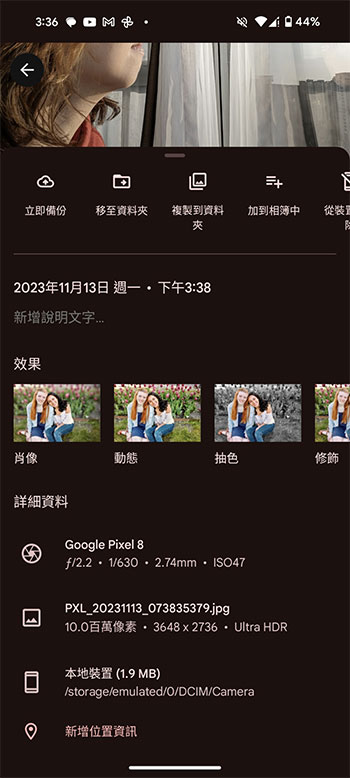
- Switch to the “Photo Library” tab and click on the photo you want to view.
- Swiping up on the screen displays more data about the image, including date, time, location, camera and lens, and more.
iPhone & iPad
- Open the Photos app and select the photo you want to view.
- Click the “i” information icon below.
- Next you can view relevant data. Unlike Android, you can click “Adjust” to customize the time, date, and location.

Source: KOCPC Chinese