


Although everyone’s work has now returned to the office, if you and your team can share, explore and collaborate online, it will save a lot of time and process of data transfer (whether online or physical storage devices) and communication. What I want to introduce to you this time is the “workspace” function built into Microsoft Edge, which not only allows you to collaborate seamlessly with team members, but also allows you to instantly understand which part everyone is working on.
What is a Microsoft Edge workspace? How to use it?
What is a Microsoft Edge workspace?
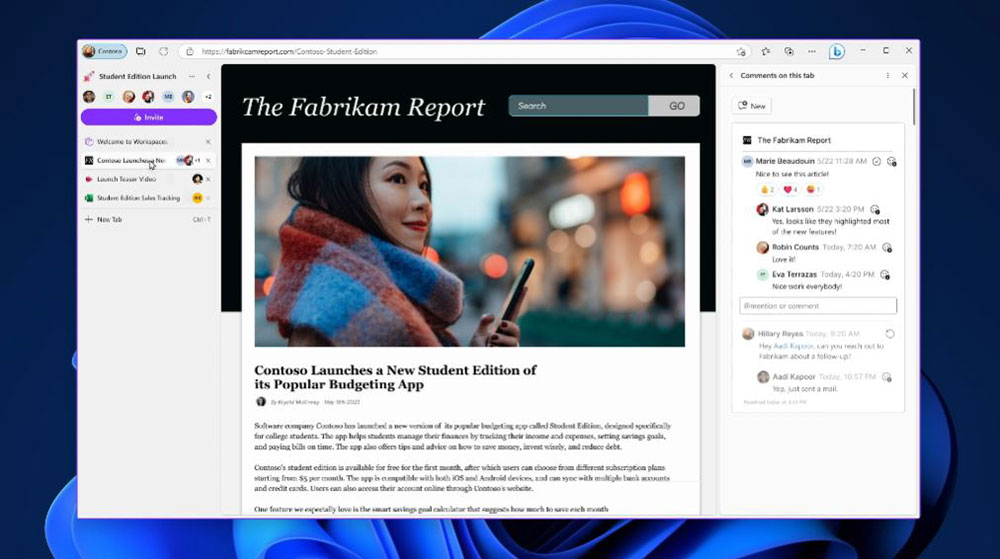
Microsoft Edge has a page grouping function that allows you to organize open page cards into categories by type. This is very convenient for viewing pages related to a specific topic or research in the same window. However, a major limitation of this feature is that you can only use it exclusively and cannot share it. This is where the Microsoft Edge workspace comes in handy! Using a Microsoft Edge workspace speeds up your work, but the biggest reason is that it allows you to manage projects more efficiently. You can post comments on specific tabs and tag relevant team members for action, eliminating the need for a separate tool to discuss projects. Additionally, pagination in the workspace updates instantly, ensuring everyone on the team is always aware of project status.
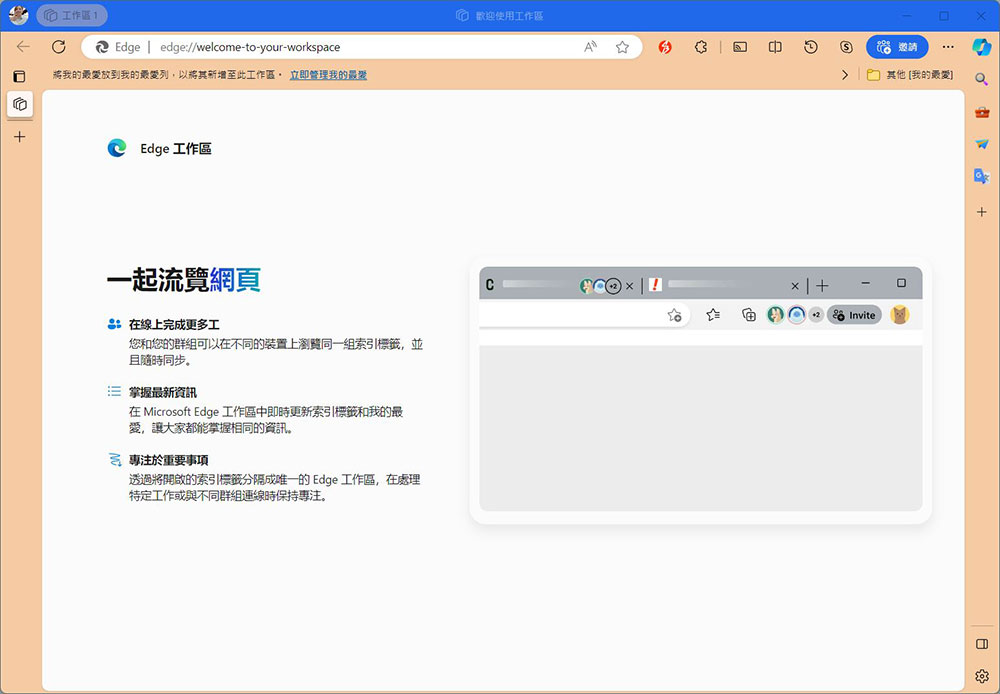
Another important feature is its privacy protection for personal content. When you open a split in a workspace that contains a personal account (such as OneDrive, Outlook, or Microsoft Word), a placeholder tab is created for everyone else. They won’t see your content, instead they’ll be prompted to log in to their account when they click on the tab. This applies to any tab that contains personal information (such as spreadsheets, documents, or emails).
How to create a workspace?
Conditions for using the Microsoft Edge workspace
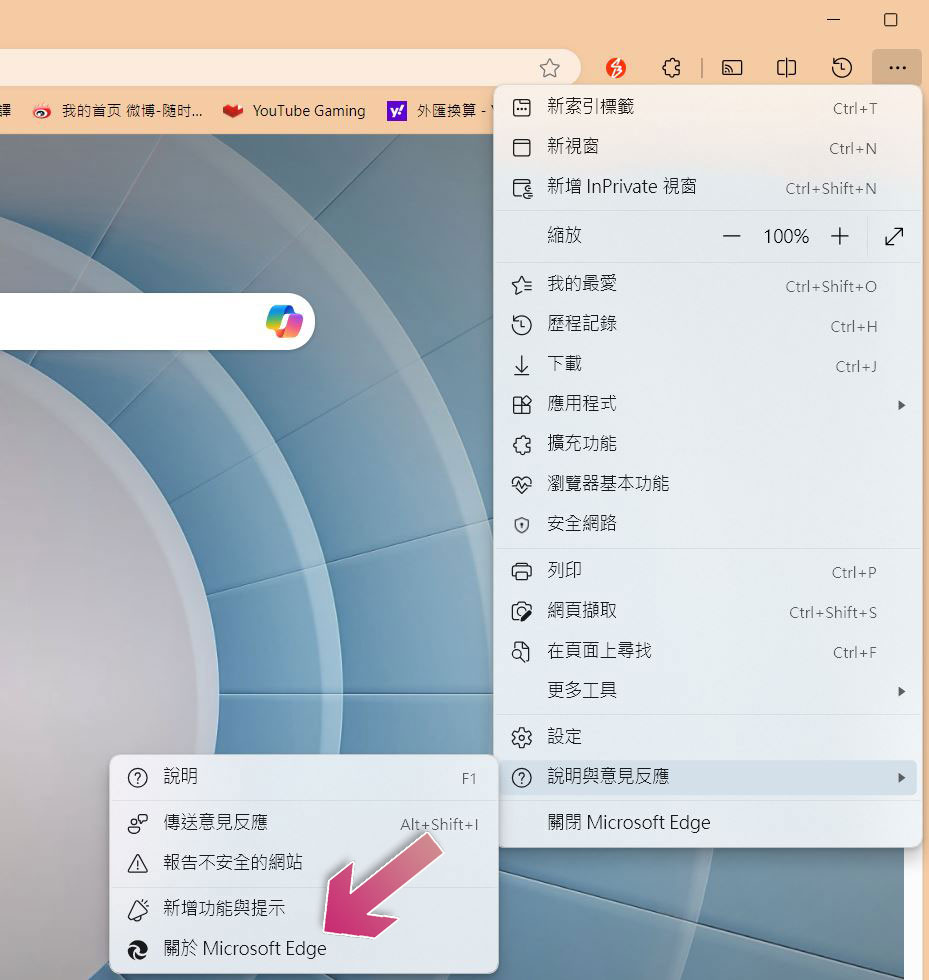
Microsoft Edge workspace requires version 111.0.1661.51 or higher. To check which version is installed on your computer, click the three-dot menu in the upper right corner, hover over Help & Feedback, and select About Microsoft Edge. If you need to update Edge, you can also do so on the About Microsoft Edge page. In addition to having the correct version, you must also be signed into your Microsoft account in Edge.
Create new workspace
Once you’ve met the above requirements, you’re ready to create your first Microsoft Edge workspace.
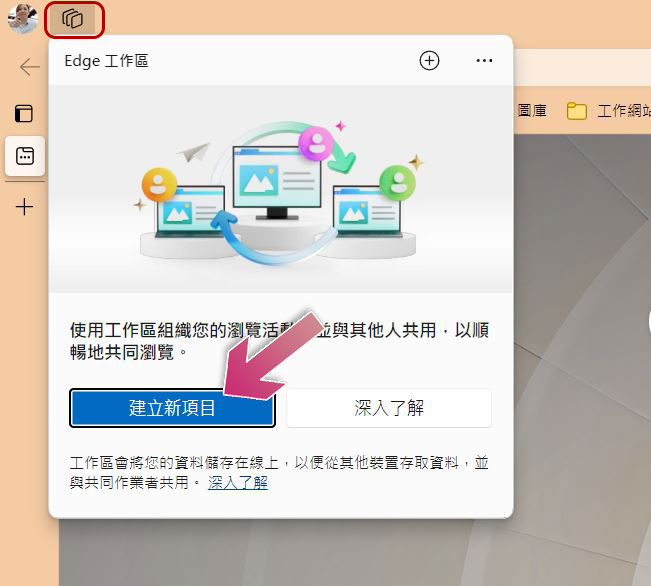
- Click the workspace icon in the upper left corner of Microsoft Edge and select Create New Project from the pop-up window.
- Choose an appropriate color and name for your new workspace and press Done.
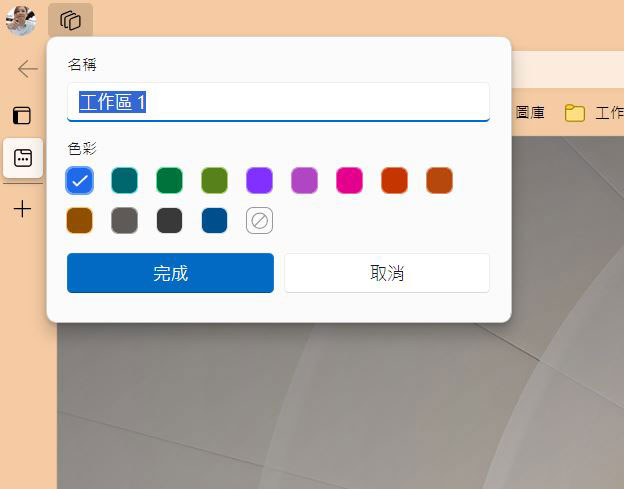
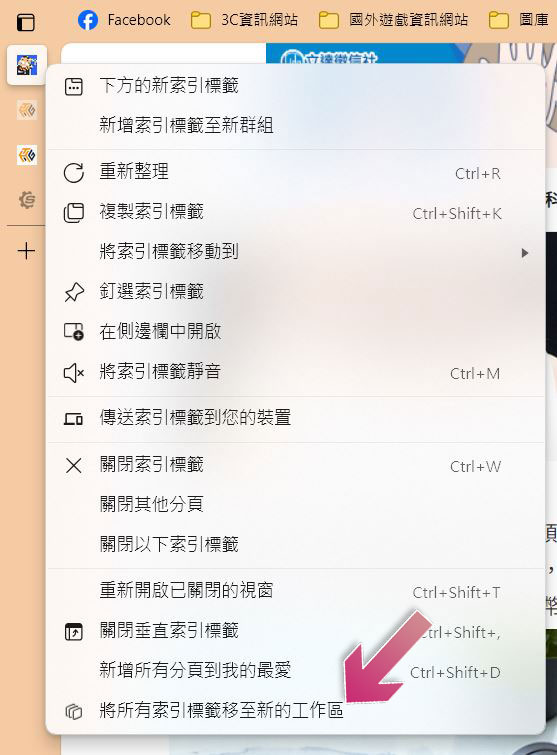
- Edge will automatically open a separate window for your workspace, and you can now open tabs within it to share with your team members. Of course, you can also create a workspace directly from the paging. Just right-click on the paging label and select “Move all index labels to new workspace”.
How to use the workspace?
Invite members to a workspace
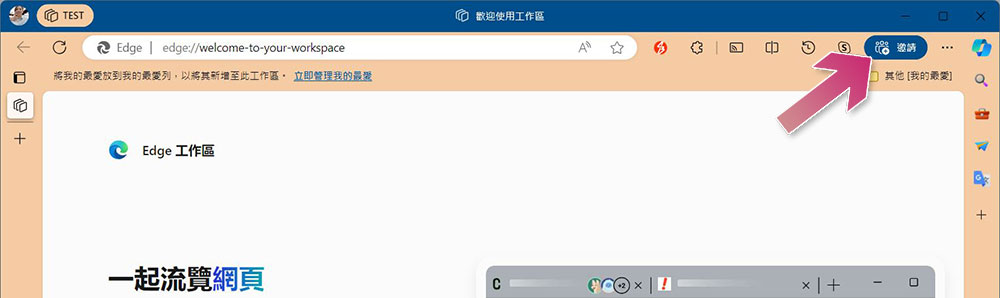
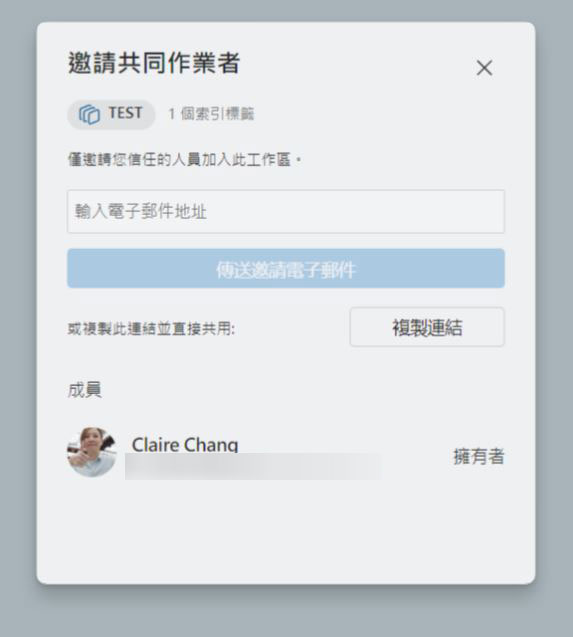
Using a workspace is as easy as creating one. Let’s start by inviting team members. After opening the workspace, click the “Invite” button in the upper column. You can invite collaborators to join the workspace in two ways. One is to enter the email address and send the workspace URL to the other party, and the other is to directly copy the workspace link and share it with them.
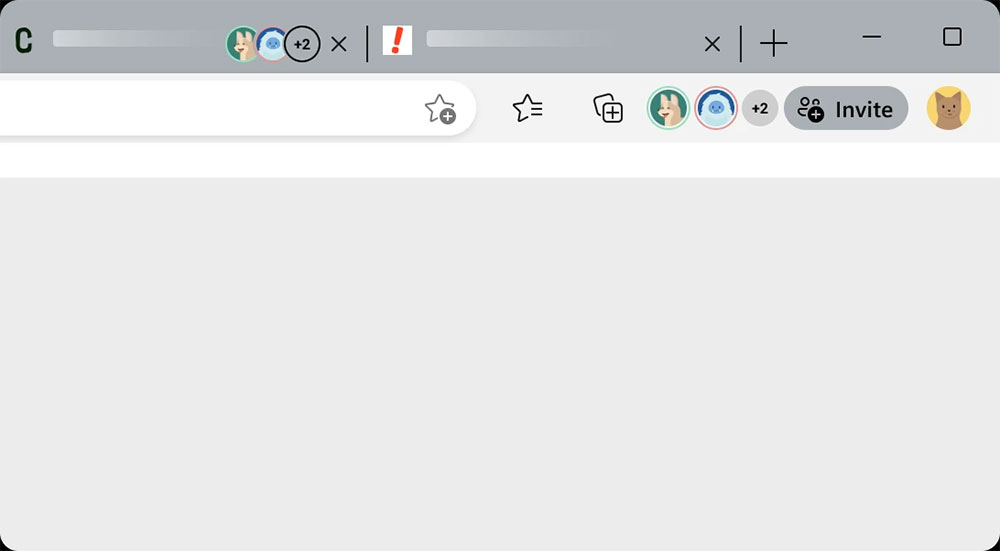
When a member joins the workspace, you can see the other person’s logo next to the paging label, as shown in the picture below.
Add annotations to the workspace
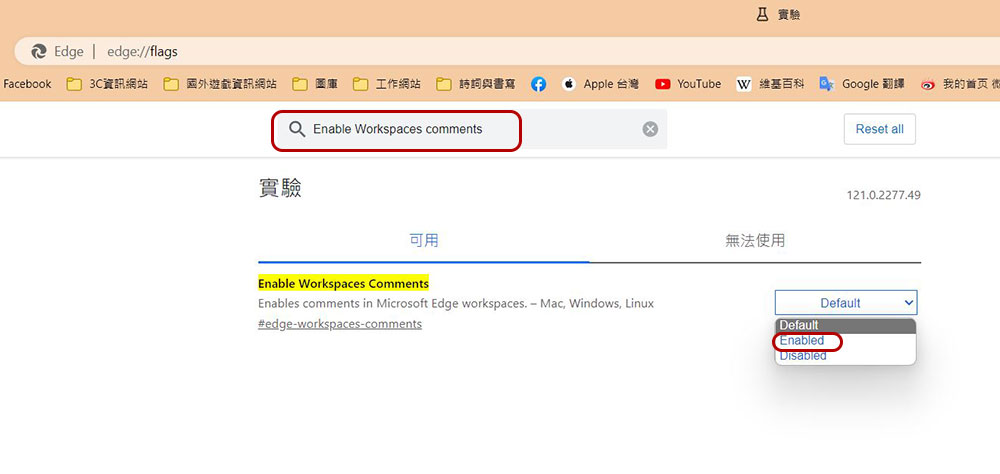
If you want to add annotations to the workspace, you need to go through one more step. First, enable the annotation function in “edge://flags”. After opening the experimental feature URL, enter “Enable Workspaces Comments” in the search field, switch it to “Enabled”, and then click the bottom to restart the browser.
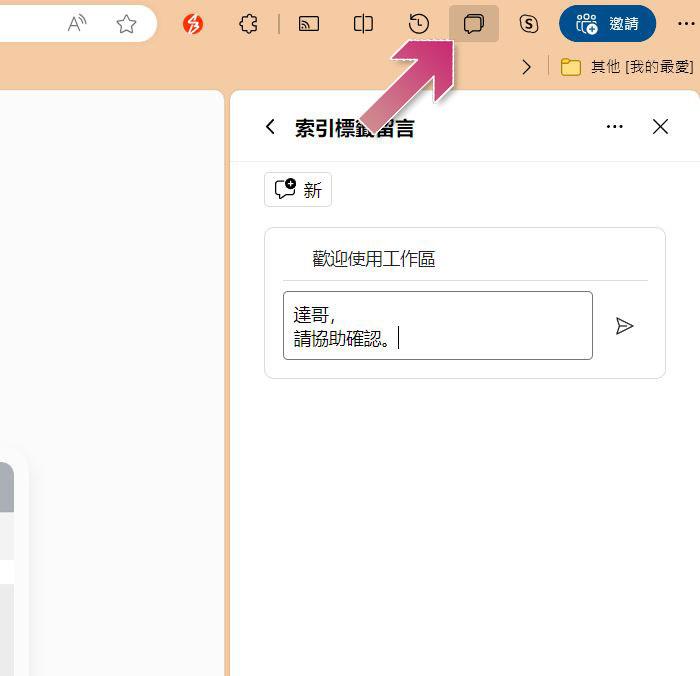
When you want to post an annotation, just click the conversation icon next to the invitation in the upper right corner, and you will immediately see an input box appear in the right sidebar, and then write your comment. Other members can switch directly to this tab and click the comment icon to reply to your comment.
Leave workspace
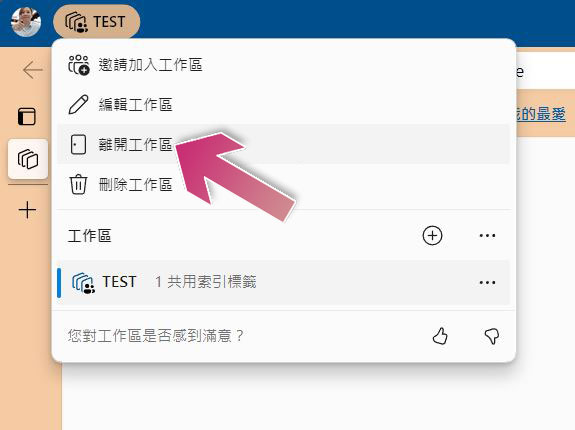
When project communication is completed and you want to leave the workspace, please left-click the name of the workspace and select “Leave Workspace”. The important thing to note is that the option to leave a workspace is only available to collaborators, and if you are the owner of the workspace, you can only choose to delete it.
Source: KOCPC Chinese