


When I get home from get off work in the evening or on weekend vacation, I open Steam excitedly and want to play a game for fun, but I find that the game cannot be started no matter how I click it. What should I do at this time? Issues such as corrupted game files, outdated drivers, a cluttered download cache, and interference from other applications can all be reasons that prevent Steam games from launching. This time the author has compiled some repair methods. If you also encounter this problem, you might as well give it a try.
Steam game won’t start? Try these fixes!
Check the game’s system requirements before attempting a fix
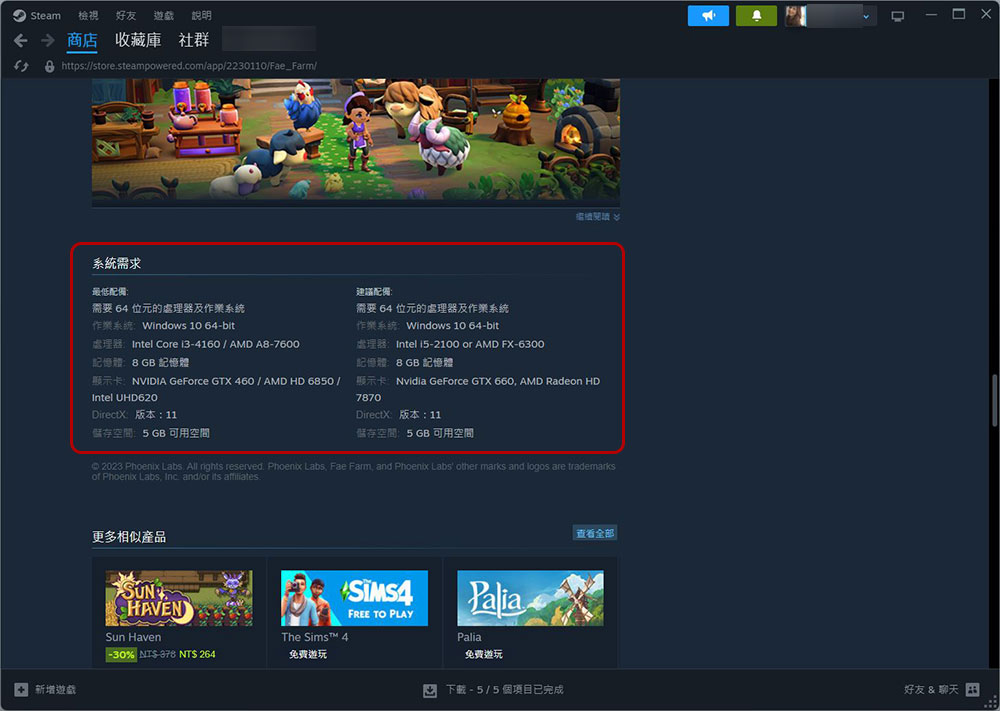
Before spending time trying to troubleshoot an issue, make sure your system meets the game’s minimum requirements. Go to the game’s Steam store page and compare the required specs with your system’s specs. If your system doesn’t meet these requirements (or barely does), lower-end hardware may be causing the problem. In this case, you have two options: upgrade your device or find a compatible version of the game. If the above two points are not within the scope of your consideration, and the game has just been purchased, downloaded and installed, you can also apply for a refund from Steam.
★Extended reading:Shit Game get lost! Teach you how to refund money on Steam? What are the restrictions?
If your system specifications are significantly better than the game’s requirements, please proceed with the fixes provided below to diagnose the issue.
Perform preliminary checks
Start by going over the project list to troubleshoot minor issues. Close any other Steam games running at the same time, pause any downloads in progress, and terminate any hacking or cheating software (if you use any). Valve recommends keeping your operating system up to date, so check for pending updates and install them.
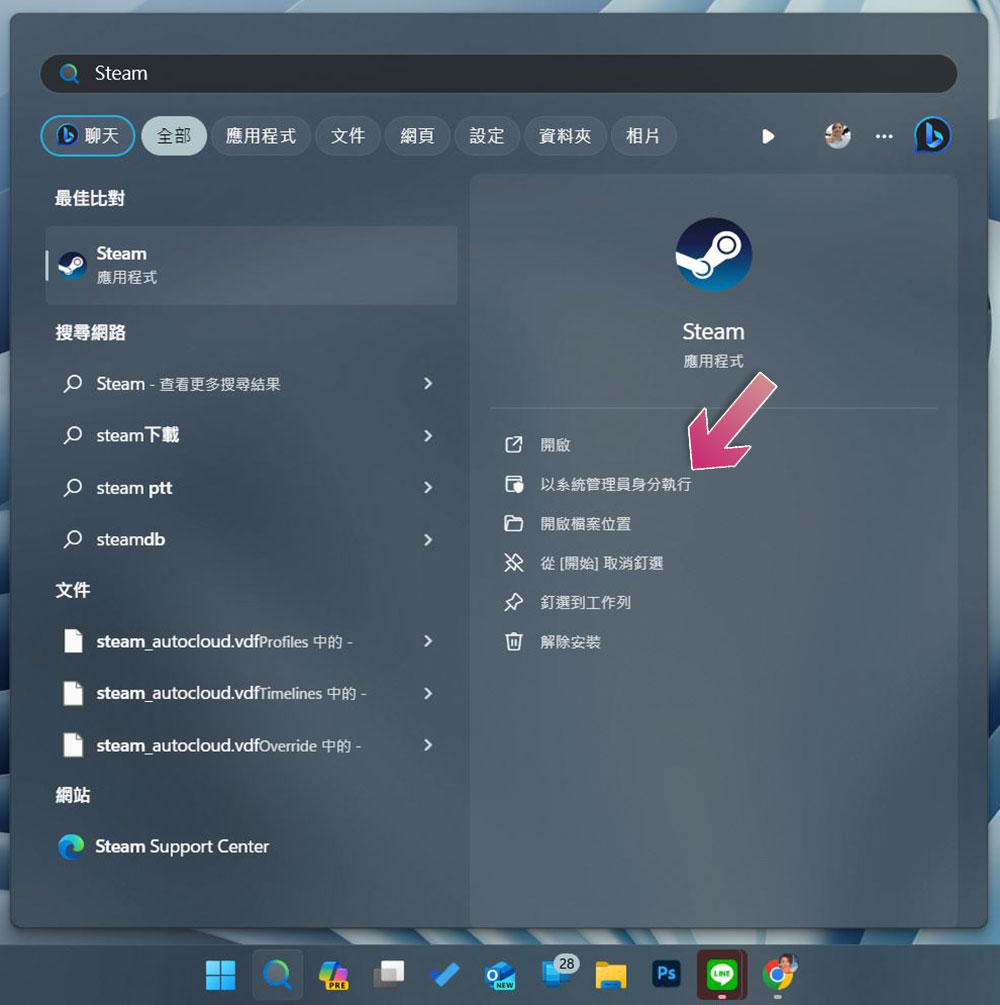
Additionally, close any resource-intensive software running with Steam to eliminate issues caused by insufficient system resources, then close the Steam client and restart as administrator. Type “Steam” into Windows Search, right-click the Steam icon, and click “Run as administrator.” If these initial checks don’t resolve the issue, move on to the next fix.
Make sure the problem isn’t with Steam itself
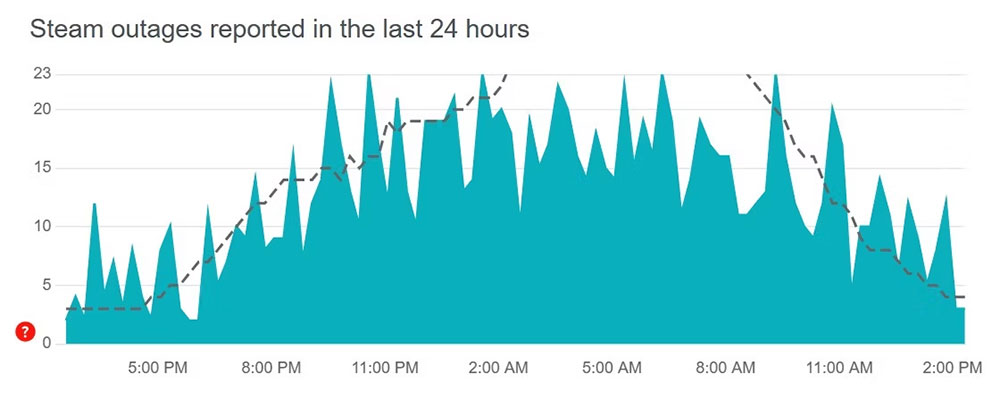
The game may not launch due to backend issues, such as server shutdown or technical issues on Steam’s side. To check this, please visit DownDetector website, type “Steam” in the search bar in the upper right corner and press Enter, then select “Steam” from the search results.
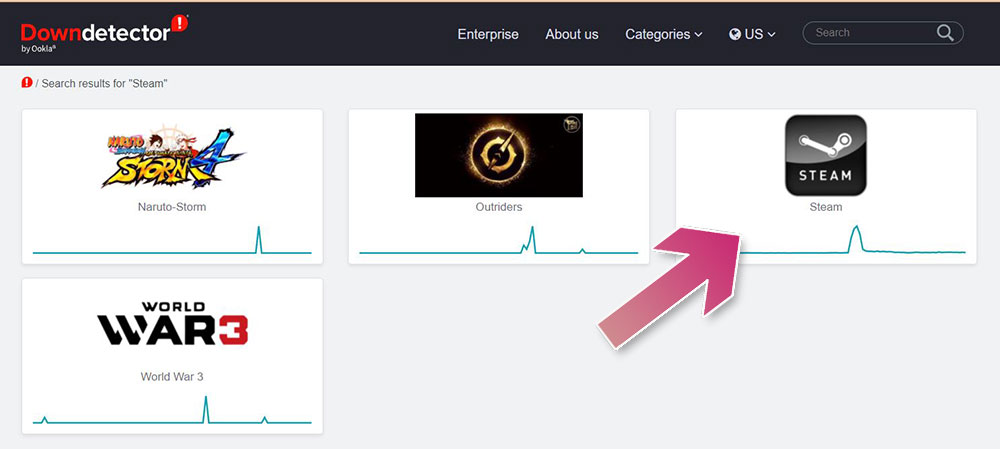
If you’re seeing a lot of reports of Steam disconnects or complaints about game launch issues, the problem may be in the backend and all you can do is wait for the developers to fix it. If no players are reporting any issues on Steam, repeat the same steps to check the status of your game servers. If the game also reports no issues, try the next fix.
Verify game file integrity
If the file is missing or corrupted, the game may not launch. Fortunately, Steam provides a built-in option to check the integrity of the game file. This feature will automatically scan for missing files and repair any corrupted game files. Performing this check may resolve game startup issues.
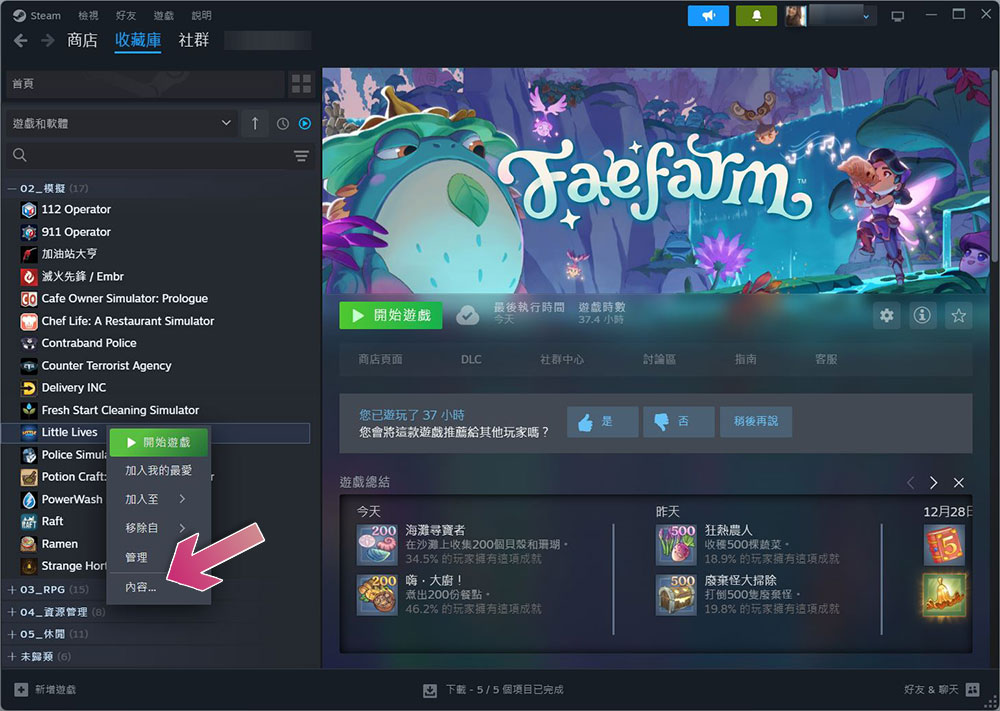
- Launch the Steam client and go to the Collection tab.
- Right-click an inactive game on the left sidebar and select “Content…”.
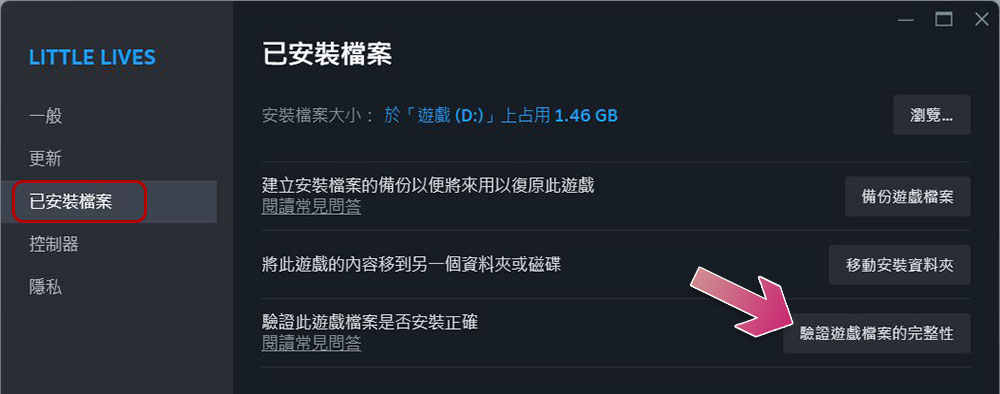
- Click “Installed Files” on the left side of the pop-up window, and then click the “Verify Integrity of Game Files” button. Wait for verification to complete and then restart the game. If the problem persists, continue to the next troubleshooting method.
Clear Steam download cache
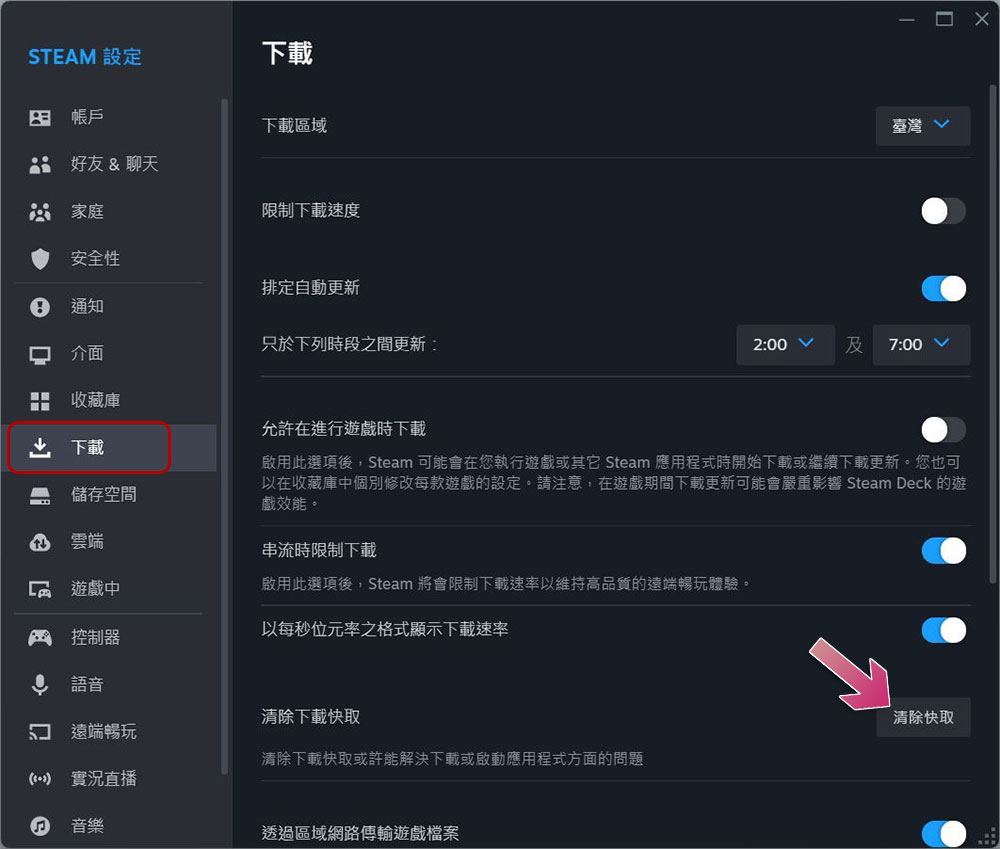
Not clearing the download cache in Steam for a long time may cause many unexpected problems to occur. Please clear the download cache regularly to ensure that it is not the cause of the game unable to launch issue. Please note that clearing your download cache will clear any incomplete downloads and delete any mods you have installed.
★Extended reading:How (and when) should you clear your download cache in Steam?
Make sure your antivirus security software is not blocking Steam or games
Interference from firewalls and anti-virus software can sometimes prevent the game from starting, so please close your anti-virus software and try again. If the problem goes away after disabling it, you’ll need to set rules for Steam and Games in your security software to instruct it not to interfere with these applications. This is because each software operates differently, so you can find the settings yourself.
Update graphics card driver
Outdated graphics card drivers can also prevent games from launching. To rule out this possibility, make sure you have the latest drivers installed. Download the latest graphics card drivers from your GPU or device manufacturer’s website. If the drivers are available as executables, just run them and they will install automatically. If it is not installed automatically, please follow the steps below to install it manually:
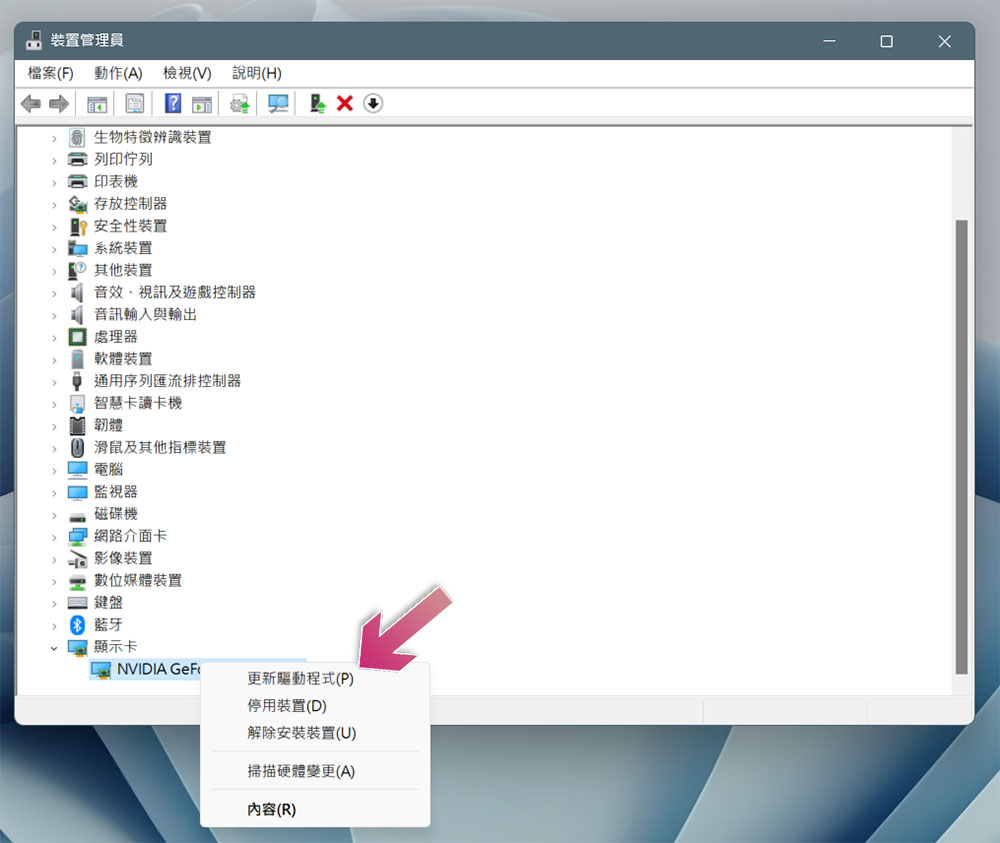
- Search for “Device Manager”, open it, expand the “Graphics Cards” category, right-click on your graphics card name, and select “Update Driver”.
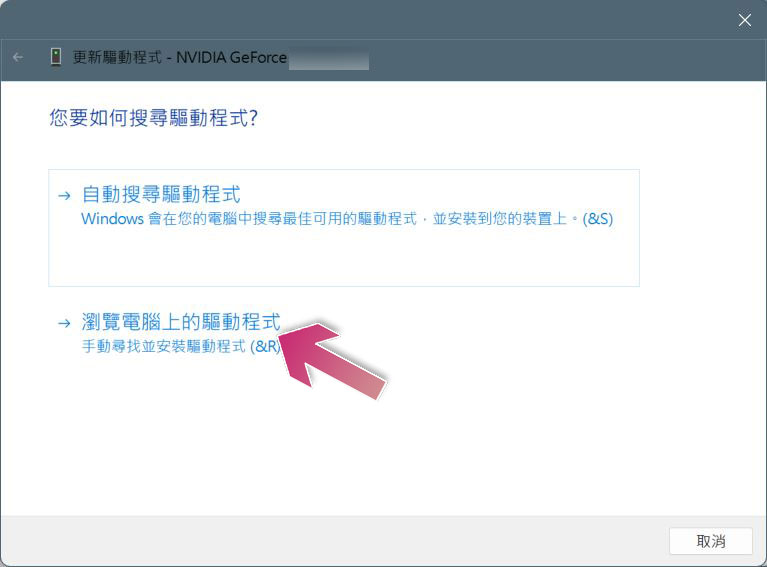
- Select “Browse for drivers on your computer” and select the latest version of the driver you have downloaded to start the installation.
Reinstall the problematic game
If only a specific game doesn’t launch, but other games do, then reinstalling that game should be your last resort. Before uninstalling, go to the game’s installation folder and copy the progress files back to a safe location to ensure you don’t lose your game progress. The author below organizes the operation process:
- Launch the Steam client and go to the Collection tab.
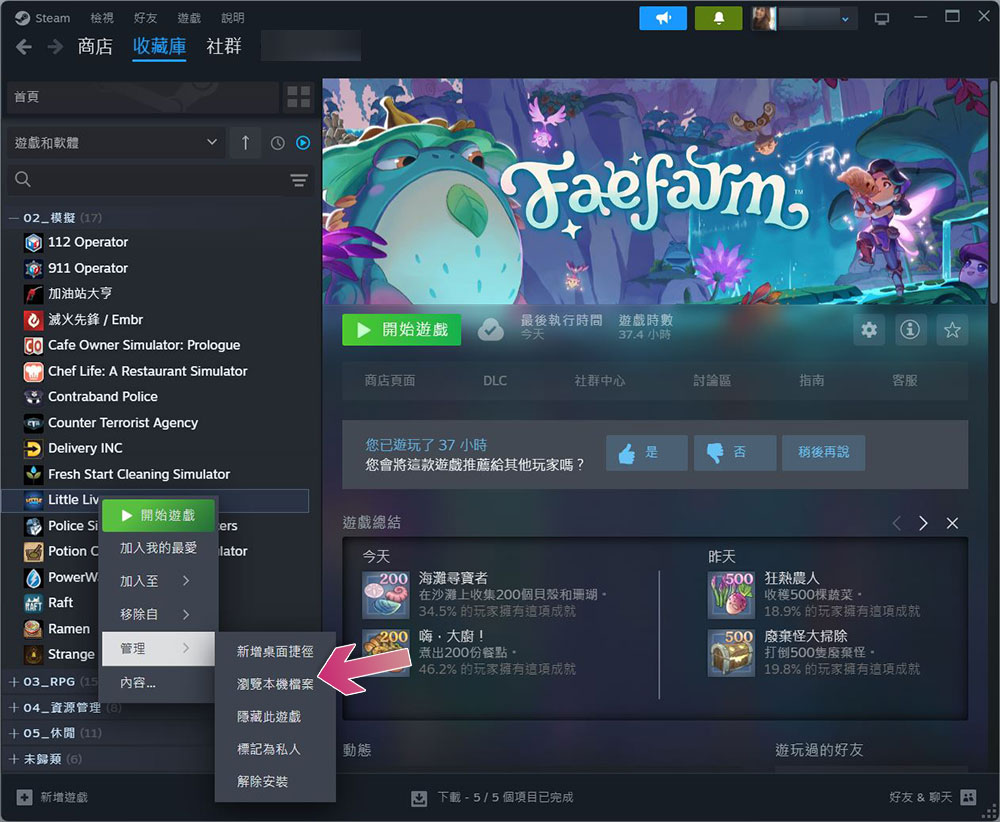
- Right-click the unactivated game on the left sidebar and select “Browse Local Files” in the submenu of “Manage”.
-
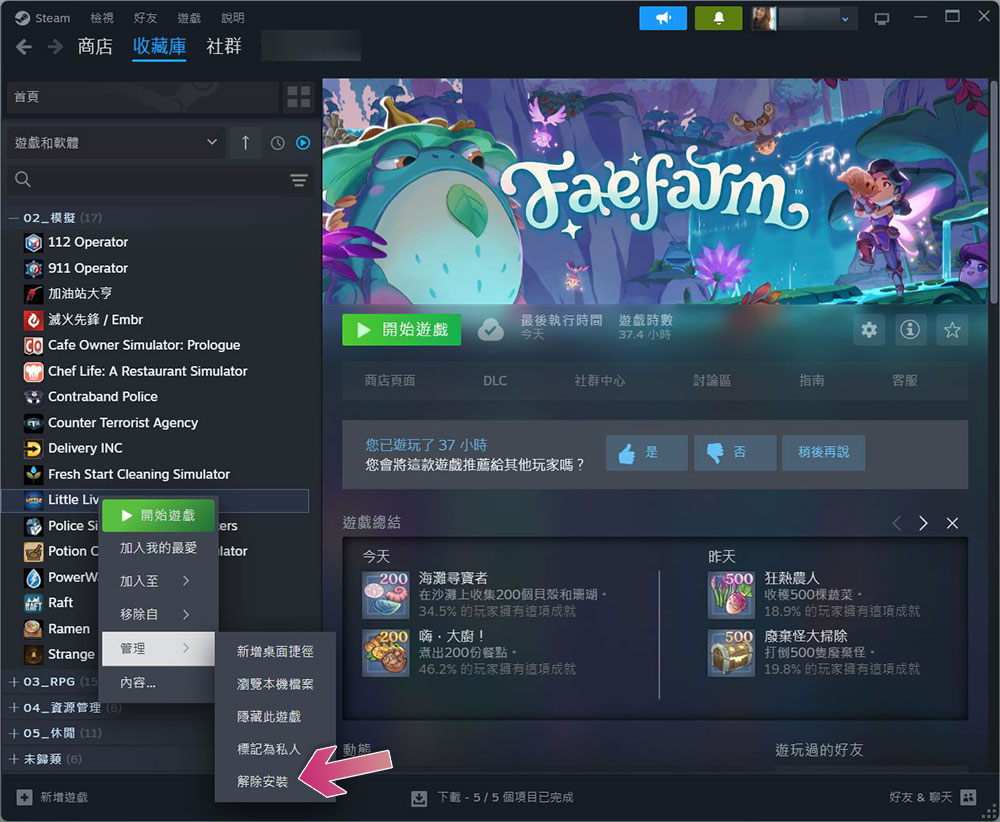
After moving the progress file, keep the installation folder open. Then, return to Steam, right-click the game name again, and select “Uninstall” from the “Manage” submenu.
- After uninstalling, switch to the game’s installation folder and delete any remaining files found there. After deleting it, find the game in the Steam game library and reinstall it.
If the problem persists after reinstalling the game, you can relocate the Steam game to a faster hard drive on your system. If the problem still doesn’t resolve, it is recommended to contact Steam or the game’s support team to report the issue.
Source: KOCPC Chinese