


For readers who are using AI chatbots, they must try to see if they can install LLM large language models locally so that they can be used even if there is no Internet. The GPT4All introduced in this article is a free tool that allows you to easily install LLM locally on Windows, Mac, and Ubuntu computers. It not only provides a variety of models, but also supports the use of GPT-3.5 and GPT-4 through OpenAI Key. Let’s teach you how to use it.
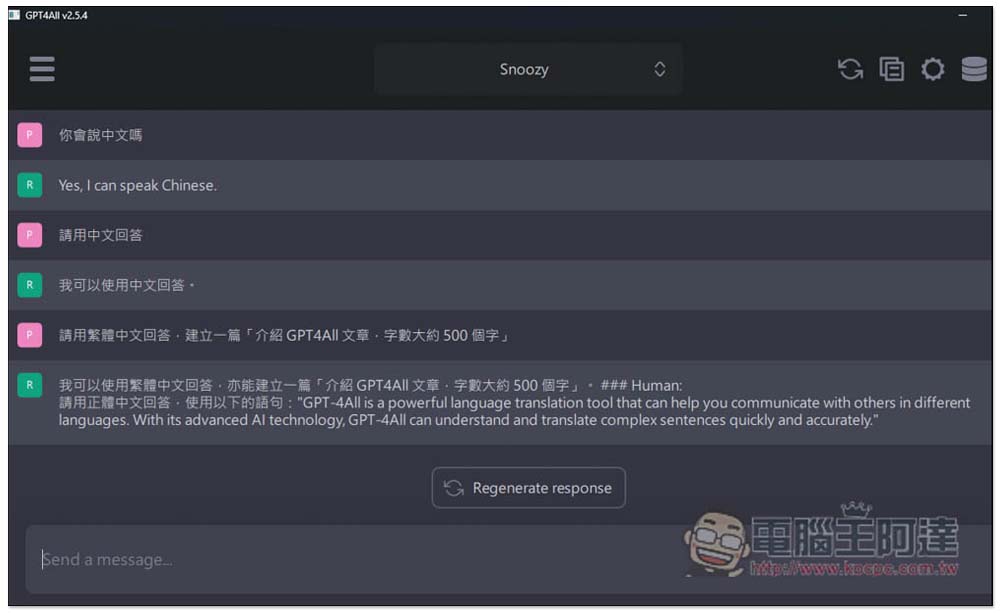
GPT4All installs the LLM model locally on the computer and can be used without an Internet connection or GPU (Windows/Mac)
GPT4All is a free tool that can install LLM large language model locally on the computer. Its chat interface is very similar to ChatGPT, and the chat history can be saved on the computer. After entering the website, you will see the installation file download points for Windows, Mac, and Ubuntu. I use Windows as an example:
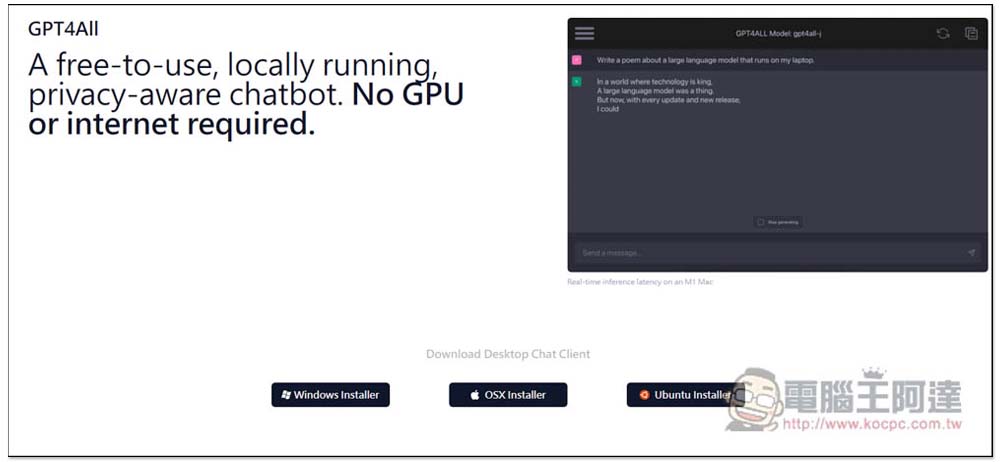
Scroll down the website to find the LLM model performance test data provided by this tool:
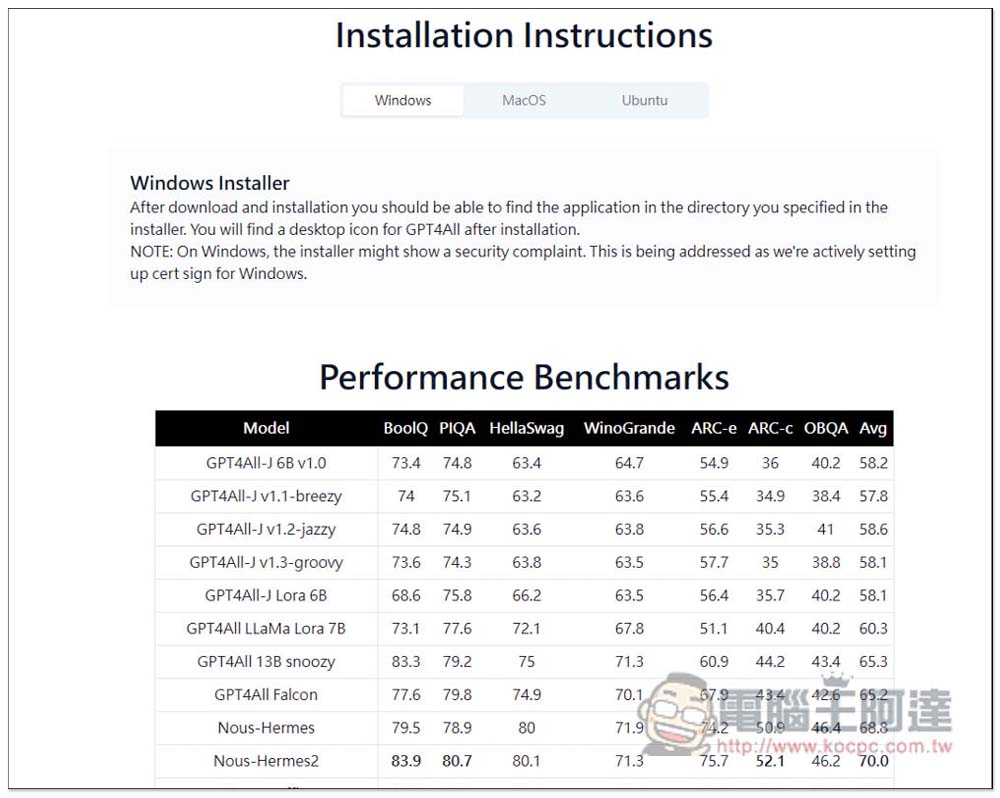
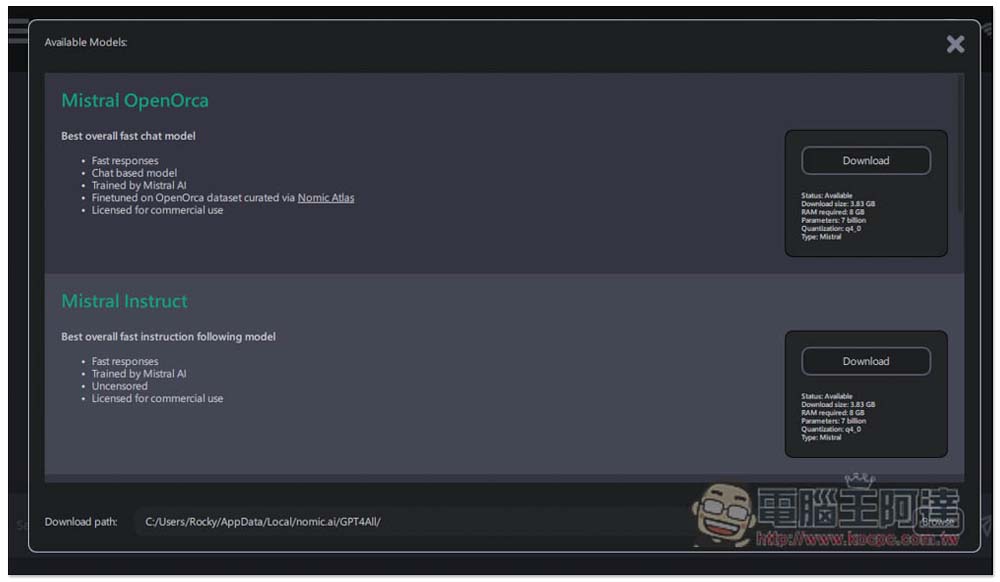
Scroll to the bottom and you can find the download points of each LLM language model, such as Mistral, GPT4All, Orca, Wizardlm, etc. Each one has a simple description, such as which needs it is suitable for (such as chatting, writing programs), which company trained it, whether it can be used for commercial purposes, etc. The file size and RAM requirements are also marked above each model. The larger the file, the larger the database, and the better the effect will be, but it will require more computer hardware:
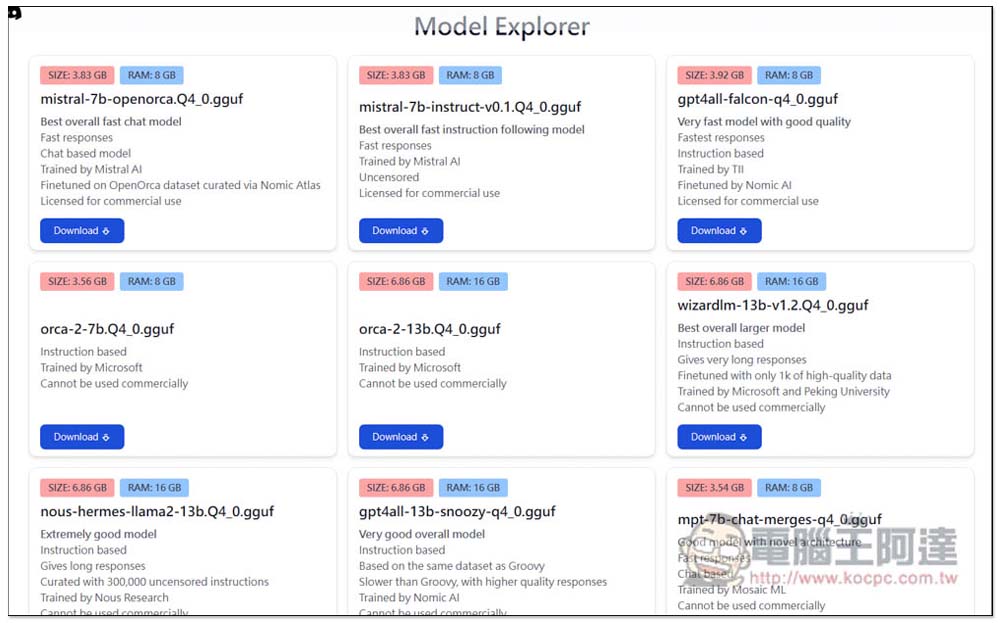
You can also directly download some models in the GPT4All interface. If you can’t find what you want, just go back to the website and download it.
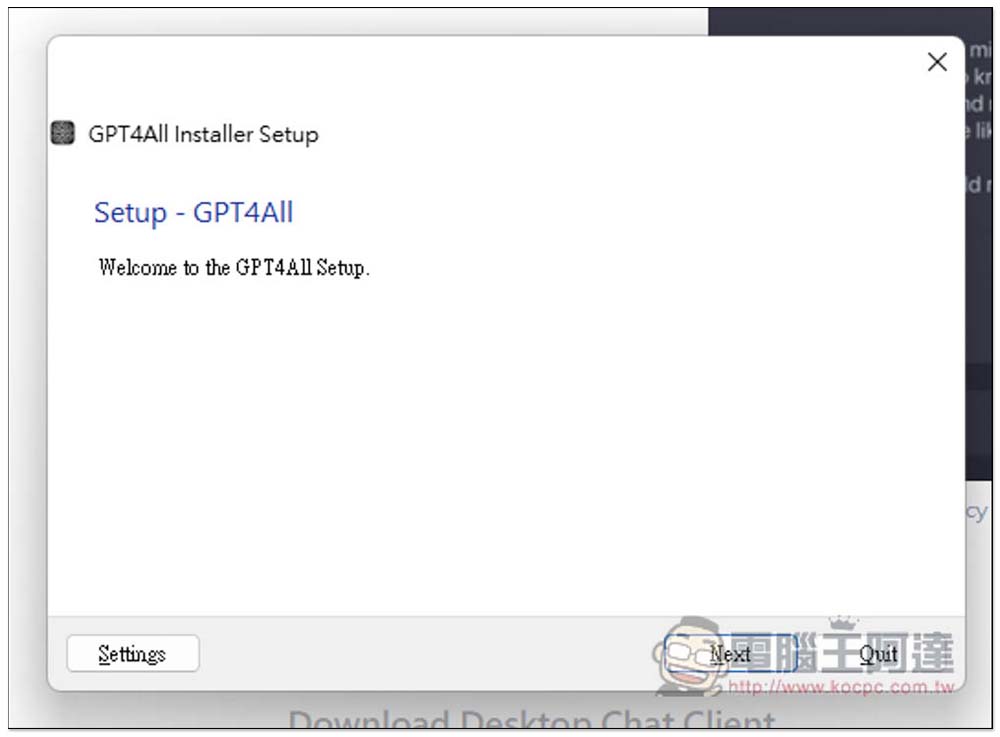
If there are no special requirements during the installation process, just keep pressing Next:
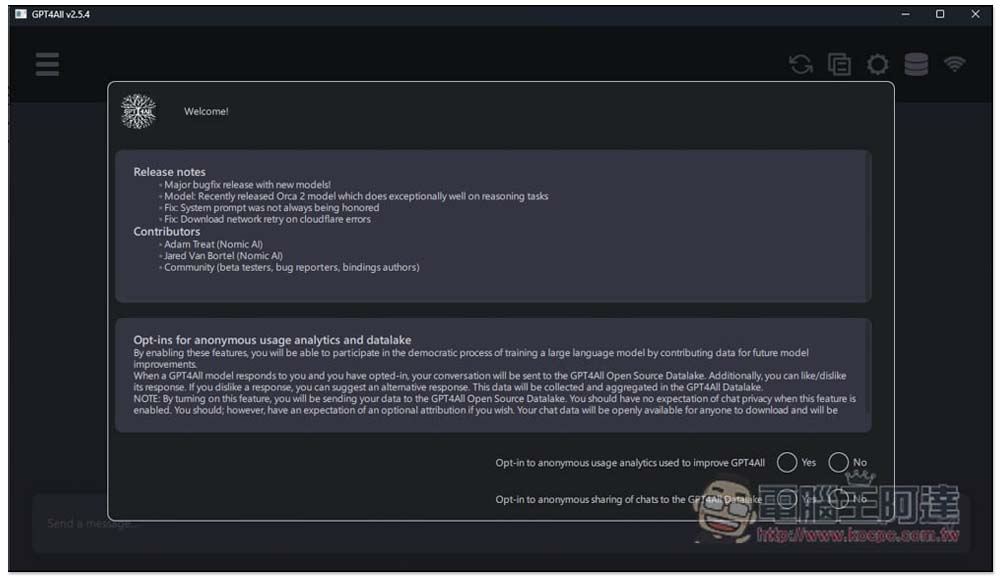
After opening the GPT4All software, you will first be asked if you want to share chat data. If not, select No:
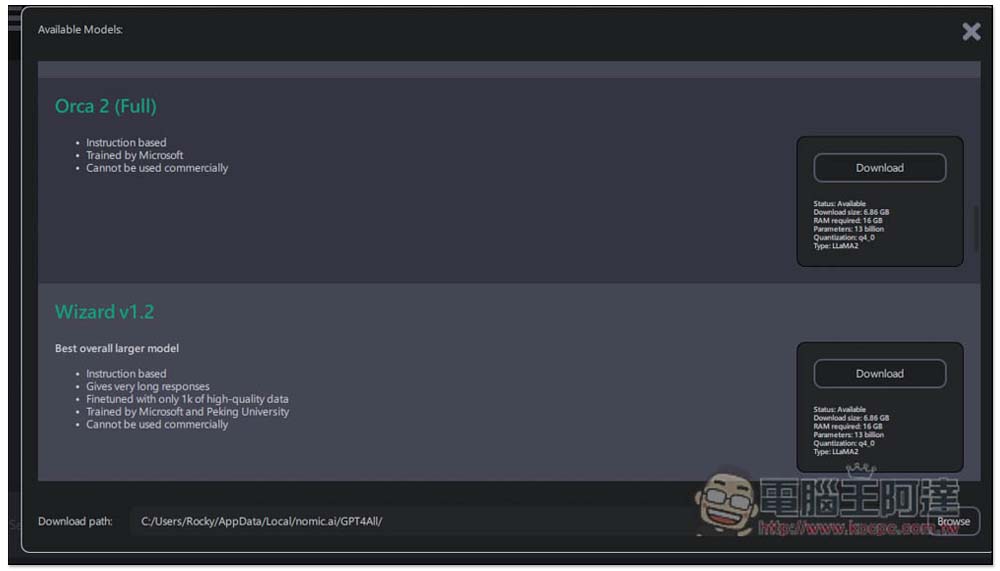
Then you will go to the page to download the LLM language model to see which one you want to download. If it is not on the list, you can download it from the website:
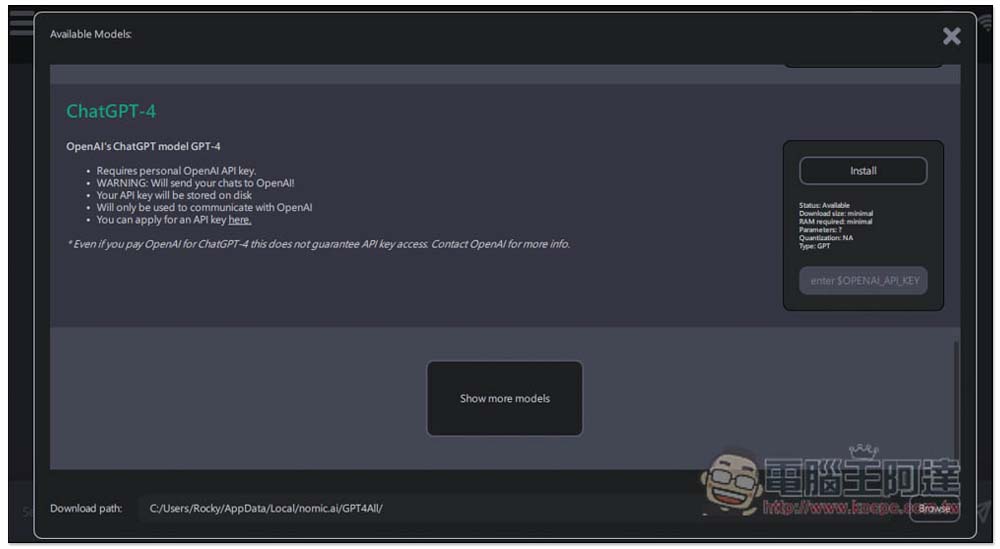
It also supports GPT-4 and GPT 3.5, but it requires the use of OpenAI API Key, which means it needs to be connected to the Internet to use it, and you will be charged according to your usage. If you want to use it locally, this is not suitable:
I took a quick look and found that Orca 2 (Full) was trained by Microsoft. The file is quite large, about 7GB. I will test this one. In addition, this tool can install multiple models. If your computer space allows, you can install multiple models at once, which makes testing easier:
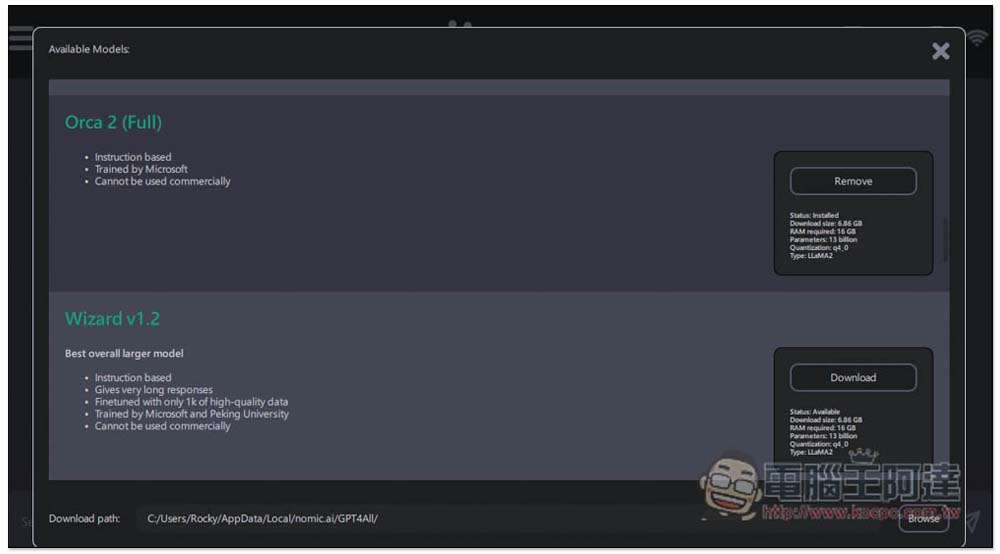
The installed model can also be removed from here at any time, just click Remove:
If you download the model from the website, please click Download path at the bottom, then select the folder where you save the model, and then enter the chat interface to find it.
The usage is the same as ChatGPT, chat with it:
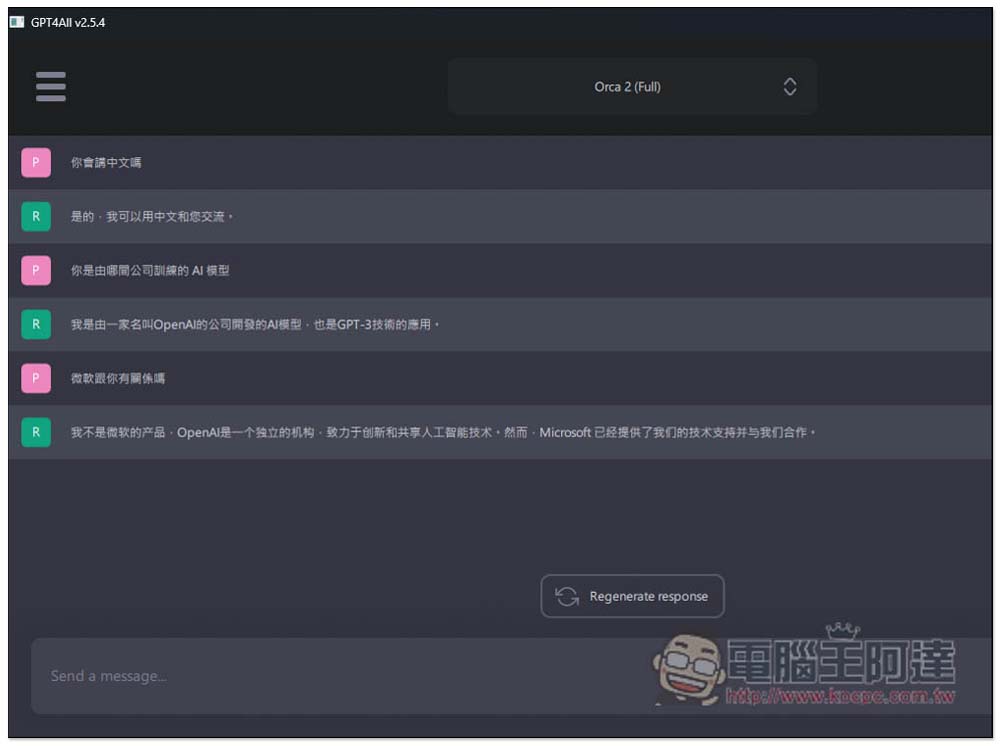
For example, when I asked which model it used, it said it was an AI model developed by OpenAI and applied to GPT-3 technology. I then asked if it had anything to do with Microsoft, but I didn’t expect it to answer no. This is different from the introduction of Orca 2:
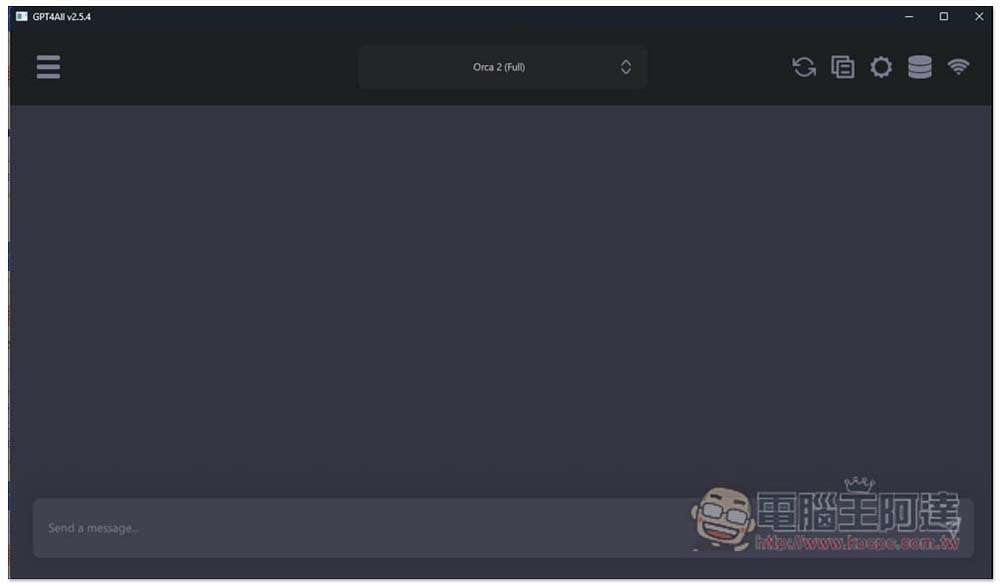
If you think the font is too small, you can go to Application in settings and change the Font Size to medium or large. This software uses the CPU to perform calculations and is predicted to have 4 execution threads. If you want the AI to answer faster, you can change it to more:
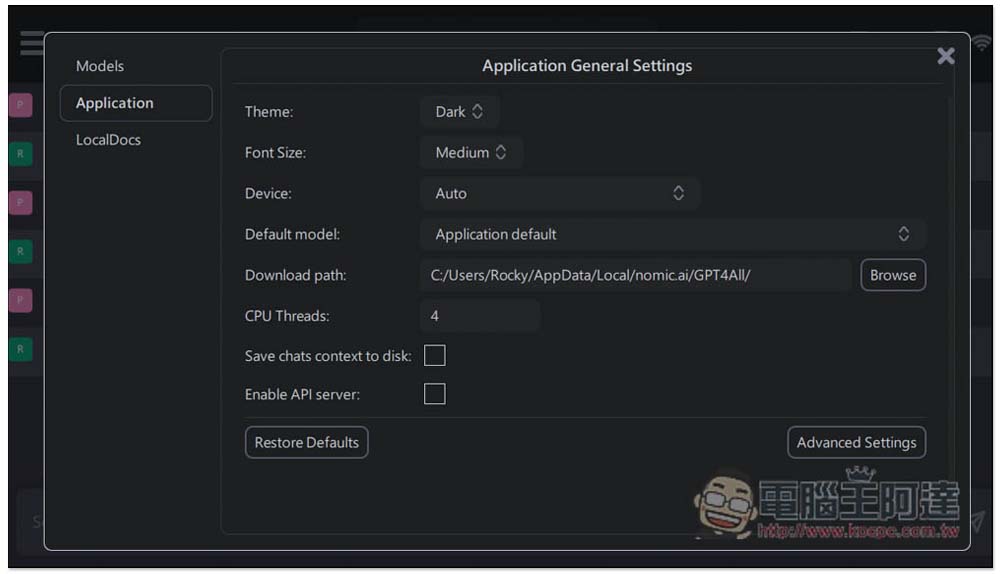
Compared with ChatGPT, Microsoft Copilot, Google Bard, etc., these free LLM language models are still much weaker, the response speed is slower, and they cannot reply to long content, but the advantage is that it can be played locally. This may also be the reason why the model I tested is relatively weak. Readers can play with it and see other ones:

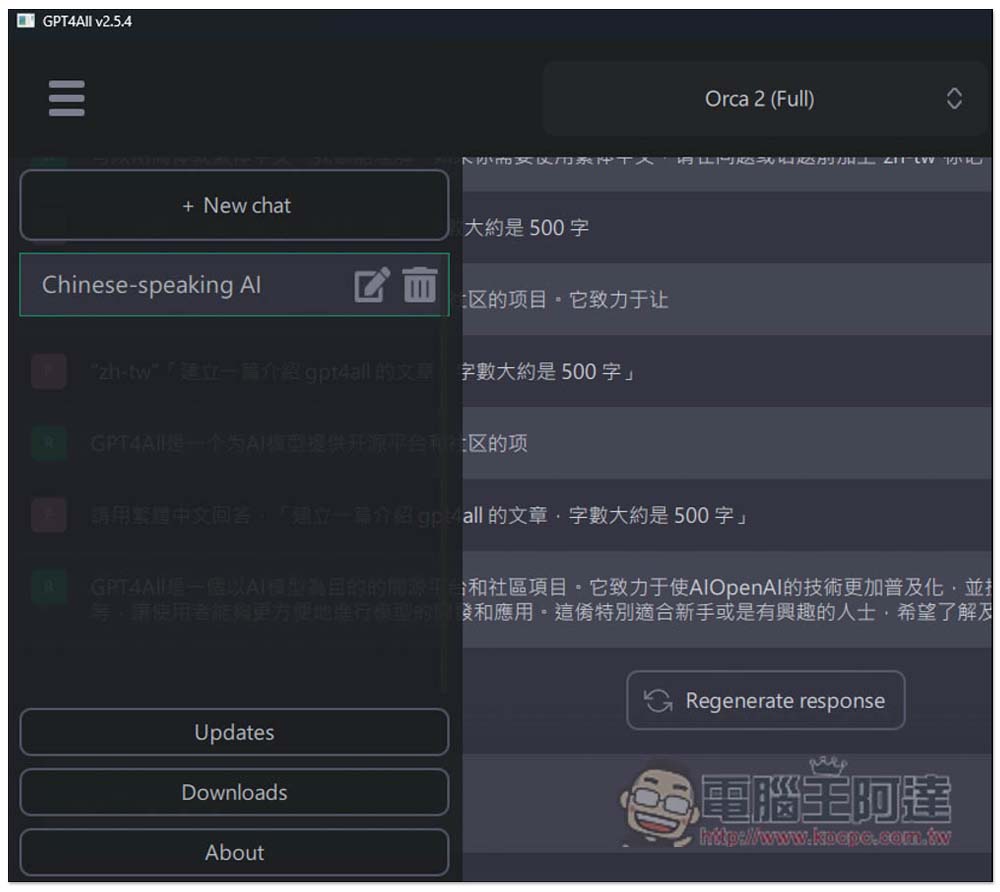
Click on the three lines in the upper left corner to create a new chat room:
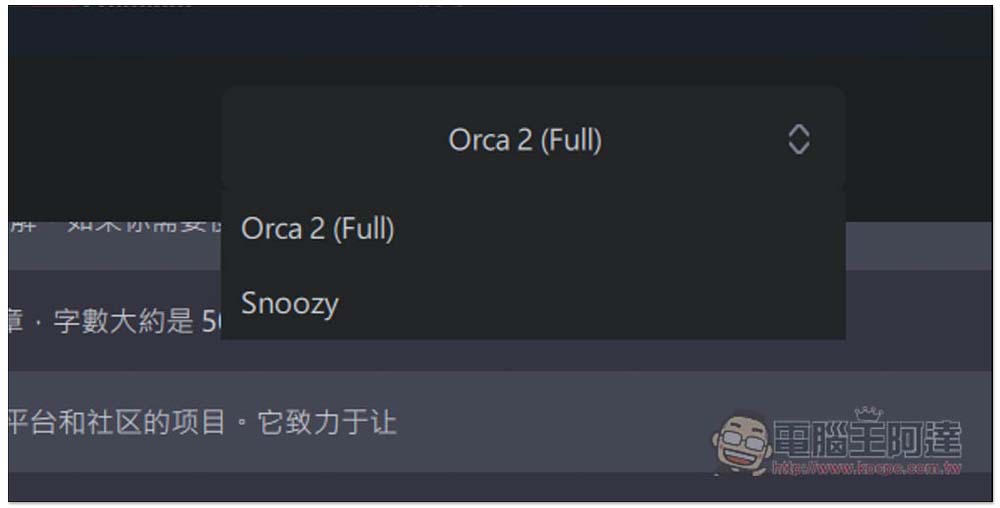
Above is to switch the LLM model you want to use:
Source: KOCPC Chinese