


Sometimes when you open the Chrome browser and go to the website you want, you find that the images are not displayed. There are many reasons why images cannot be loaded correctly, ranging from disabling JavaScript to incorrect browser settings. This time we have compiled some possible fixes. You can check and try them one by one.
Google Chrome can’t load images? Can you try any of these fixes?
Before taking further steps, let’s do some preliminary checks. First, please re-reload the web page with the problem of image loading, close the paging and then reopen it, close the browser and then restart it, or restart the computer. If these basic troubleshooting steps don’t work, then follow these next steps.
Check JavaScript and image display settings
Disabling JavaScript in your browser settings may prevent images from loading. Likewise, blocking websites from displaying images in your browser settings can cause problems. To make sure JavaScript is enabled in Chrome, do this:
- Press the three-dot menu in the upper right corner and select “Settings.”
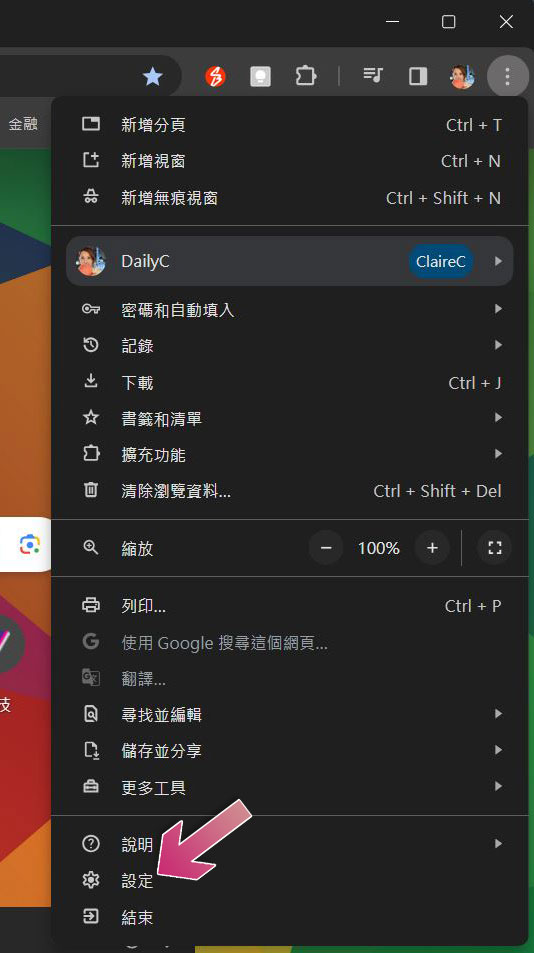
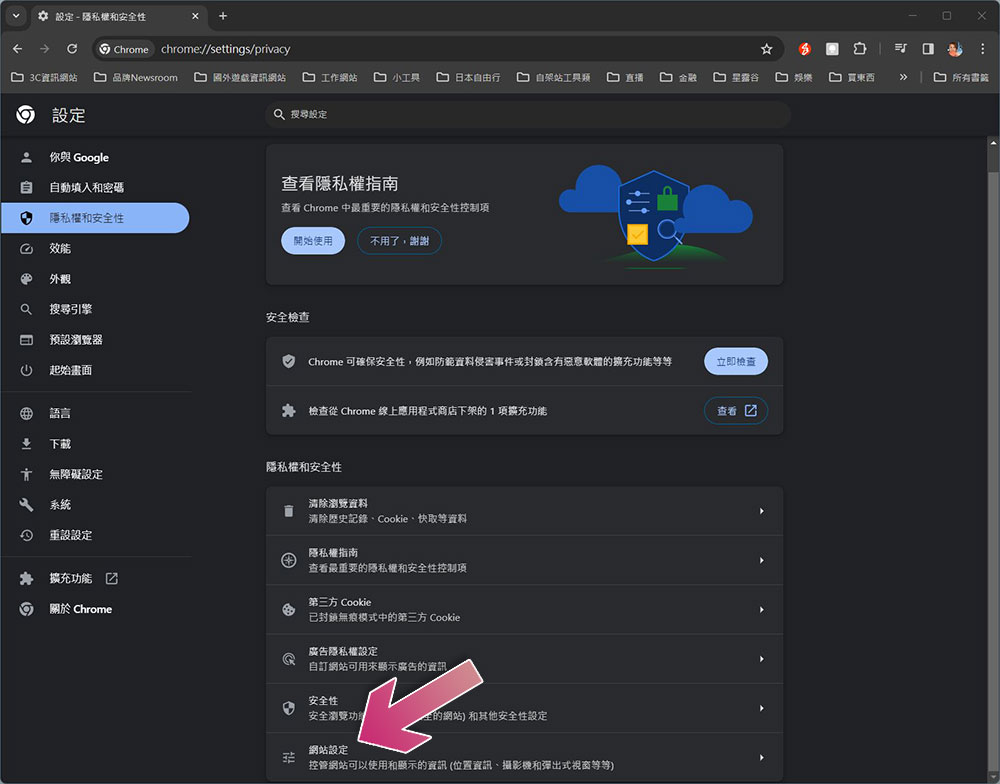
- Then, click “Privacy and Security” on the left, scroll down, and click to enter “Site Settings.”
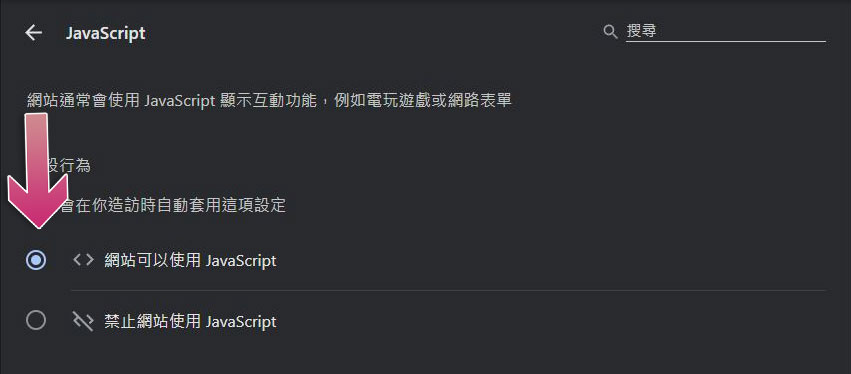
- Then, scroll down, find “JavaScript” in the content category, and click to enter.
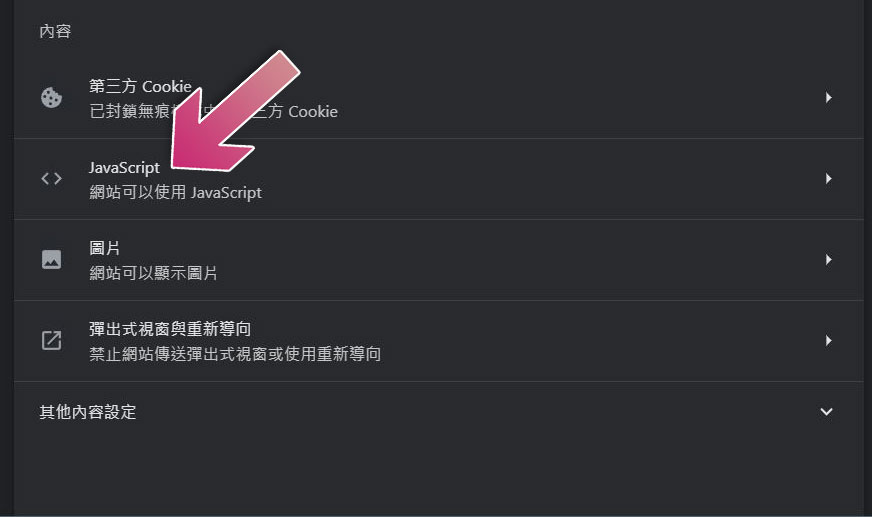
- Make sure “Site can use JavaScript” is selected.
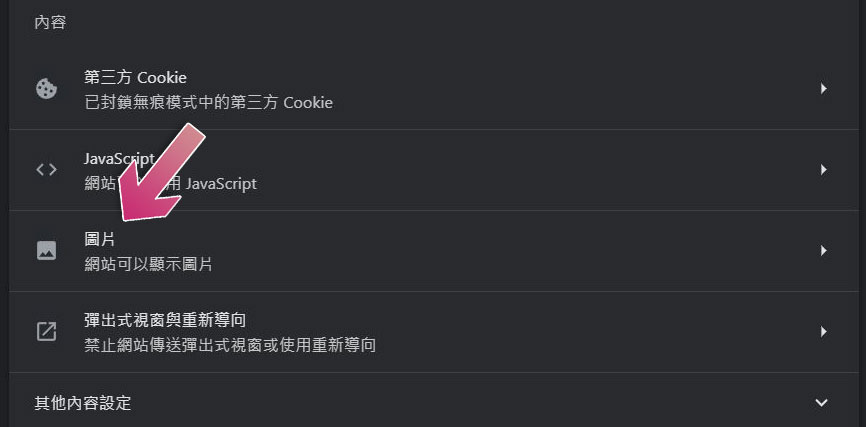
- Return to the previous page and click “Image” to set this item.
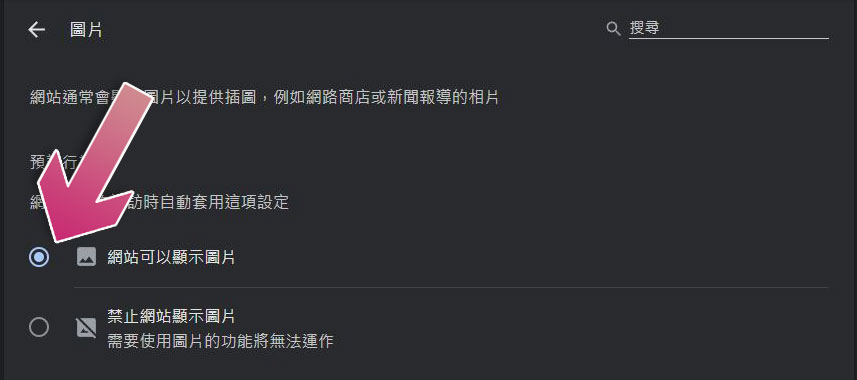
- Make sure “Site can display images” is selected.
Make sure the network connection is stable
If you’re not connected to the Internet or have an extremely slow Internet connection, Chrome may not be able to load the image. To check if you’re connected to the Internet, open a new tab and search for anything. If you see search results, your connection is fine.
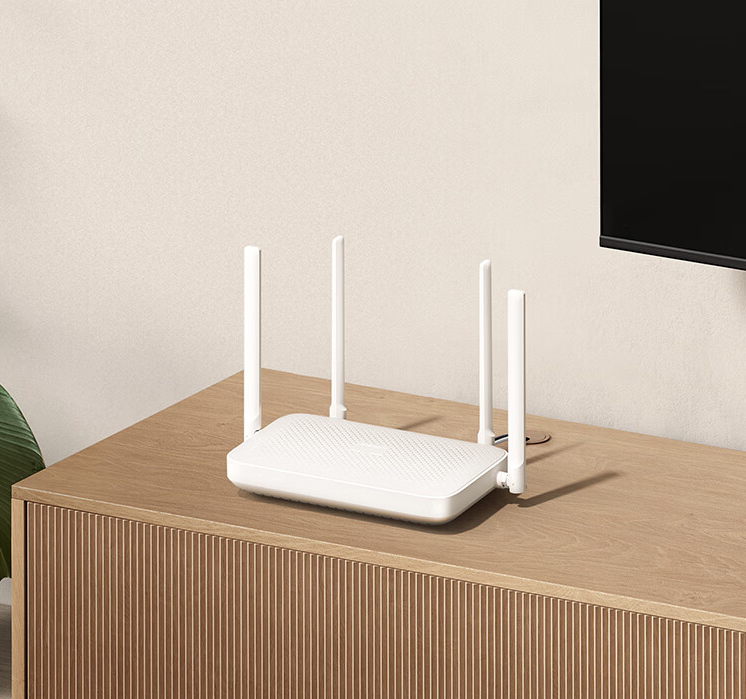
Next, make sure your internet connection is stable. To do this, go to any web page, preferably one you haven’t visited in a while, and see if the images load properly there. Alternatively, you can use something like Fast.com Use this site to confirm your internet connection speed. If images elsewhere aren’t loading or are slower than expected, try disconnecting and reconnecting your device to the router, or restarting the router and performing additional network troubleshooting steps.
The browser saves a cached copy of the web page (including images) and serves it to the user even when they are not connected to the Internet. If images seem to load on some pages but not all pages, don’t assume that the network is functioning properly. Instead, test your network connection using the ping command correctly before proceeding. If your network is down, you may need to contact your Internet service provider.
Check for site-specific issues
If the image loads successfully on other websites but only fails to load on a specific website, the root cause may lie on that website. If this is the case, please make sure that the website service is normal and has nothing to do with it. Please use something like Down for Everyone or Just Me To check the service, enter a specific website URL in the search field and press Enter (or click the or Just Me button after it).
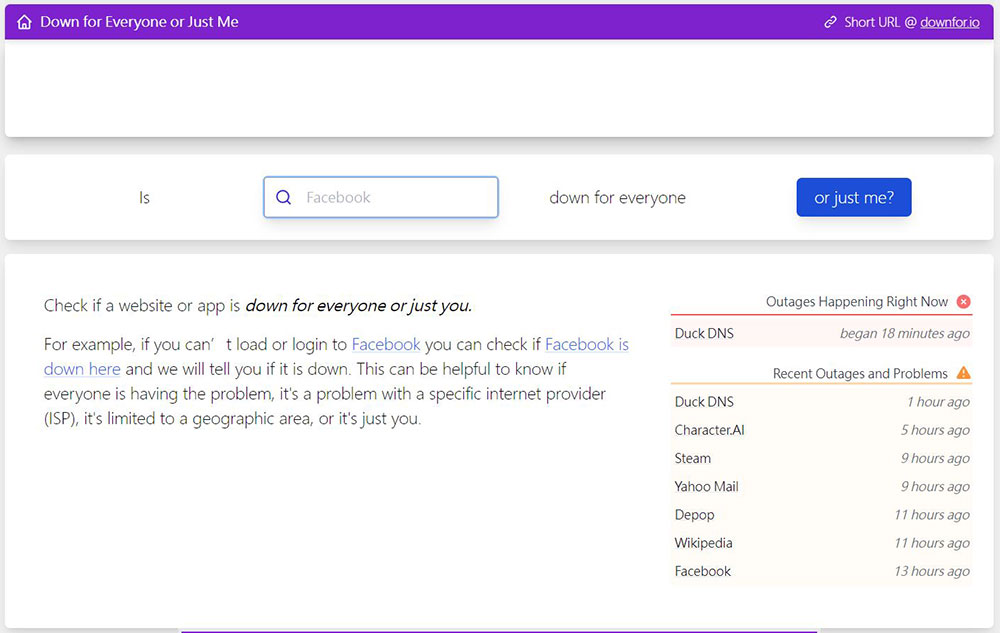
The tool will tell you if there are any issues with the site and when the last outage was detected. If you are unable to view images due to an outage, please wait patiently for the site to resolve the issue; if the site is not outage and appears to be functioning normally, please continue.
Check for extended interference
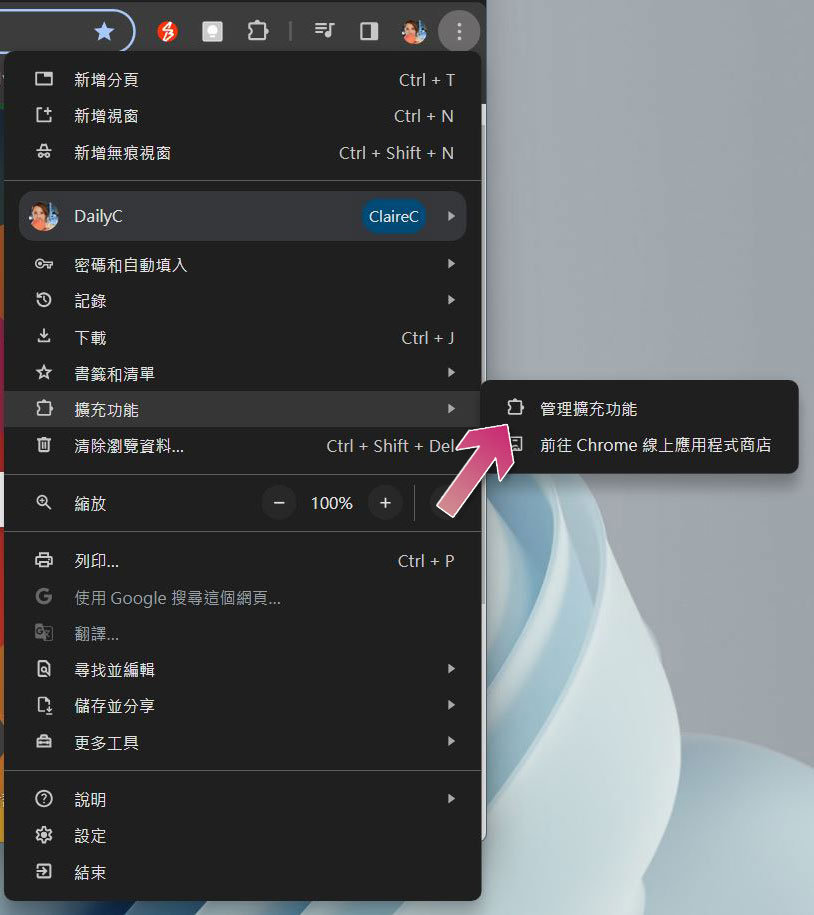
Interference from extensions, especially extensions you might use to customize Chrome’s appearance, can also stop images from loading. To rule out this possibility, close the installed extensions one at a time and reload the page after each extension. If images start loading successfully after disabling a specific extension, that extension may be the cause of the problem. Therefore, click on the three-dot menu in the upper right corner to uninstall or disable the Chrome extension. To do this, double-click the three vertical dots in the upper right corner, then click “Extensions >> Manage Extensions” and select from the inner page to remove or disable.
Disable reading mode
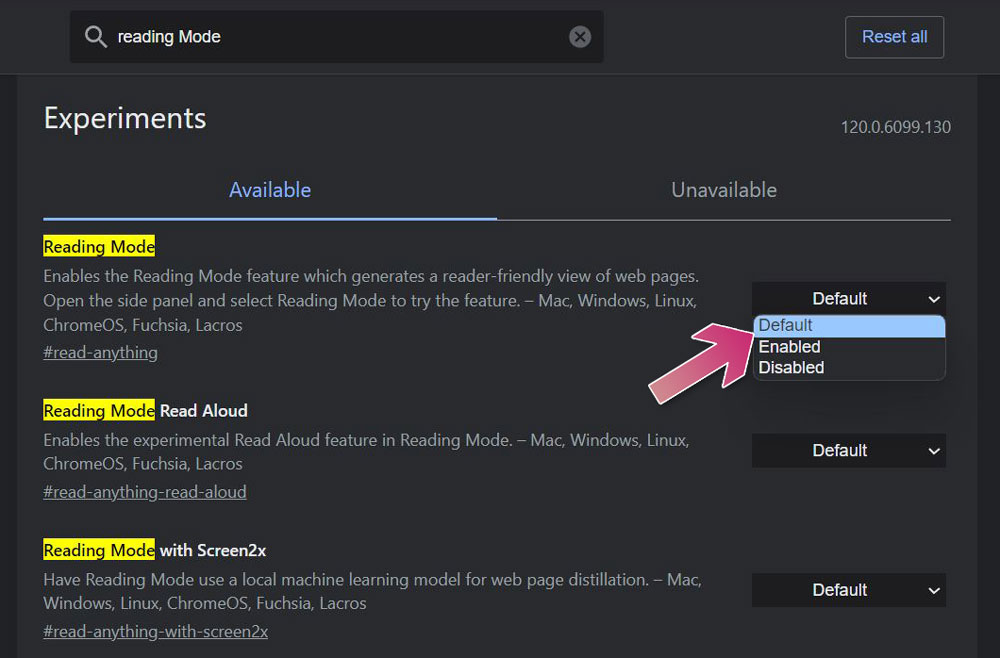
Some users have reported that enabling reading mode in Chrome’s Flags prevents Chrome from loading images, so make sure you don’t enable it.
- Enter “chrome://flags/” in the Chrome address bar and press Enter to open the Flags page.
- Enter “Reading Mode” in the search field, select “Disabled” in the drop-down menu next to the first item, and then restart the browser.
Make sure Chrome is up to date
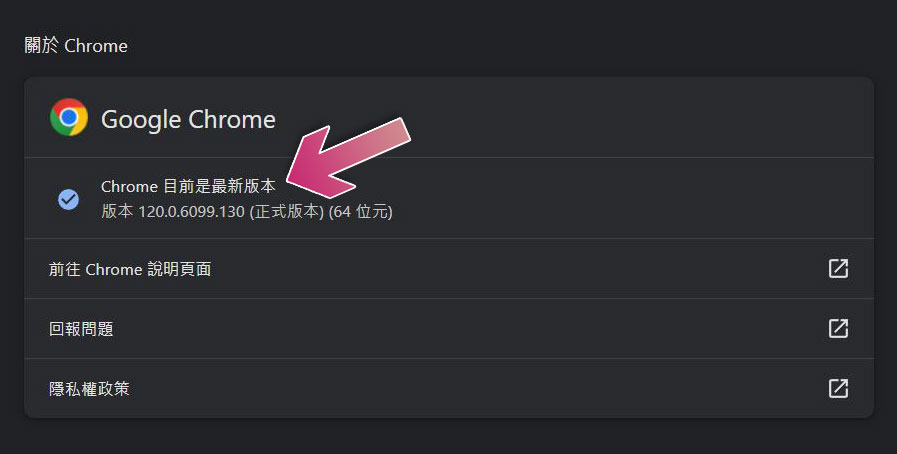
Using an outdated browser can also prevent images from loading. To make sure you have the latest version of Chrome, check it by clicking the three-dot menu in the upper right corner and clicking Help >> About Google Chrome.
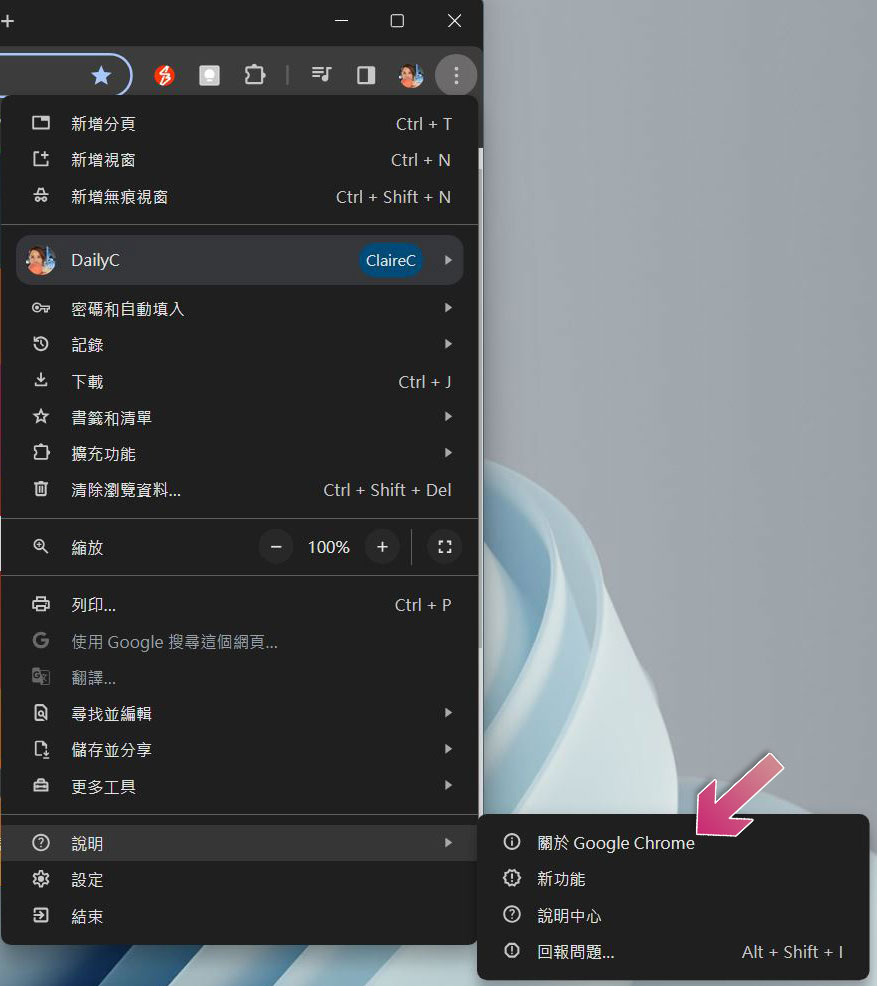
If you see that Chrome is the latest version, there is no problem. If Chrome has not installed the latest version, it will automatically update. After the update is completed, press the button on the back to restart the browser for the changes to take effect.
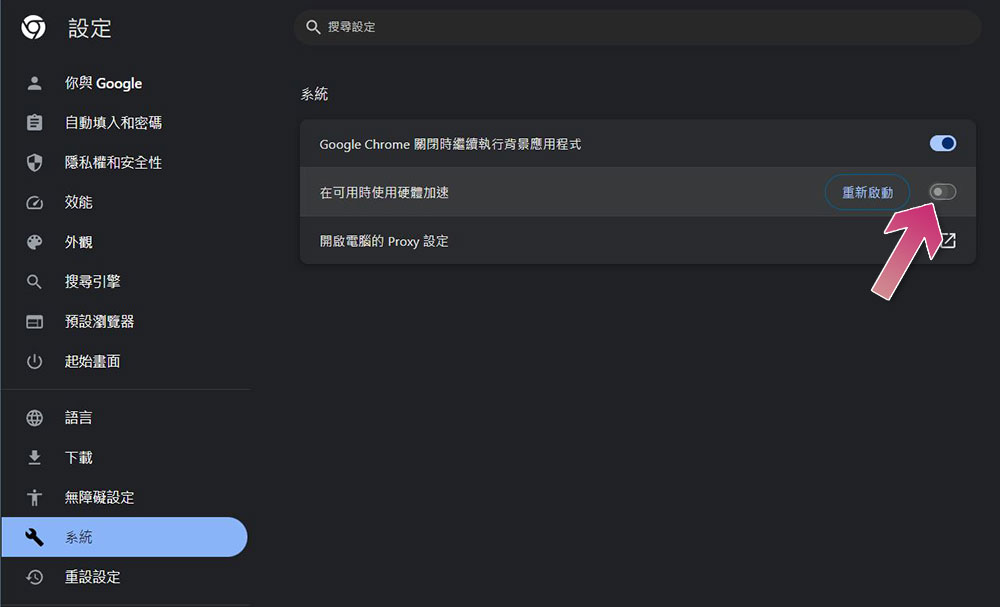
Disable hardware acceleration
Sometimes, hardware acceleration can cause Chrome to lag, freeze, or crash, and it can also prevent images from loading. So please turn this feature off to check. To turn off hardware acceleration, click the three-dot menu to enter “Settings”, select “System” on the left, then turn off the switch next to “Use hardware acceleration when available”, and then click Restart. If disabling hardware acceleration doesn’t resolve the issue, you can safely go back and enable the feature again at any time.
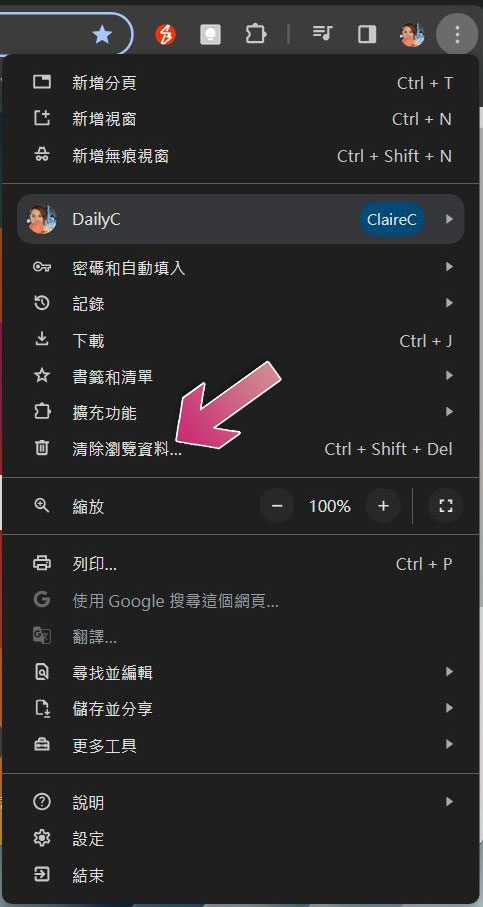
Clear your browser’s cache and cookies
Although the cache will make it load faster when you visit web pages you have visited before, if not cleared, it can cause other problems over time, so clearing it in a timely manner may help solve the problem that the image you are facing now cannot be loaded. To clear your cache, click the three-dot menu and select “Clear Browsing Data.”
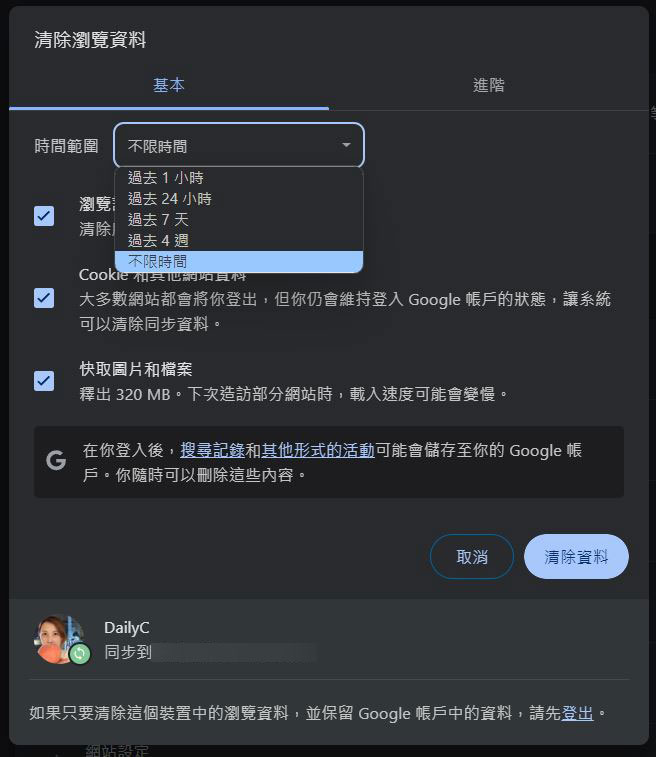
Then, select “Unlimited time” in the time range item in the “Basic” tab, select the checkboxes next to “Cookies and other site data” and “Cache images and files,” and then click “Clear Data.”
If you have tried all the above methods and still don’t work, the last resort is to use another browser (such as Firefox, Microsoft Edge) to open the specific webpage you want to go to. If there is no problem on other browsers, then the problem is equivalent to being limited to Chrome. At this time, please reset Chrome or remove and reinstall it.
Source: KOCPC Chinese