


While using Windows 11 and installing apps that you may have downloaded from the Internet, you may have noticed that some apps do not install correctly or even are not installed at all. In most cases, this is by design in Windows 11, as it may have been blocked by system administrators or Windows itself to help prevent your computer from getting viruses. But what if you just need to install it? Don’t worry, we’ll tell you how to solve it this time.
How to turn off the restriction of installing only Microsoft verified apps in Windows 11?
Microsoft has what it calls Microsoft Verified Apps, which are apps from the Microsoft Store and other sources that have passed security testing. However, if you know that the app you’re using isn’t a security threat in and of itself, and you want to bypass it to install any app you want, you can easily do so via a settings toggle.
Is it safe to close Microsoft verified apps?
As a general rule, if you download apps from a trusted place like the Microsoft Store or a trusted, legitimate file hosting site, you should have no problem disabling a Microsoft-verified app, and you won’t run into any obvious risks by closing it. This feature is mainly used as a security protection mechanism for novice users. It is turned on by default, but you can turn it off with almost no impact on your computer. However, if you share a computer with older people, children, or others who may not know how to check whether the source is legitimate, you may want to keep it enabled just in case.
How to turn off verification restrictions through settings?
Fortunately, Microsoft has not clamped down on this. Like most operations, you can turn it off from the settings.
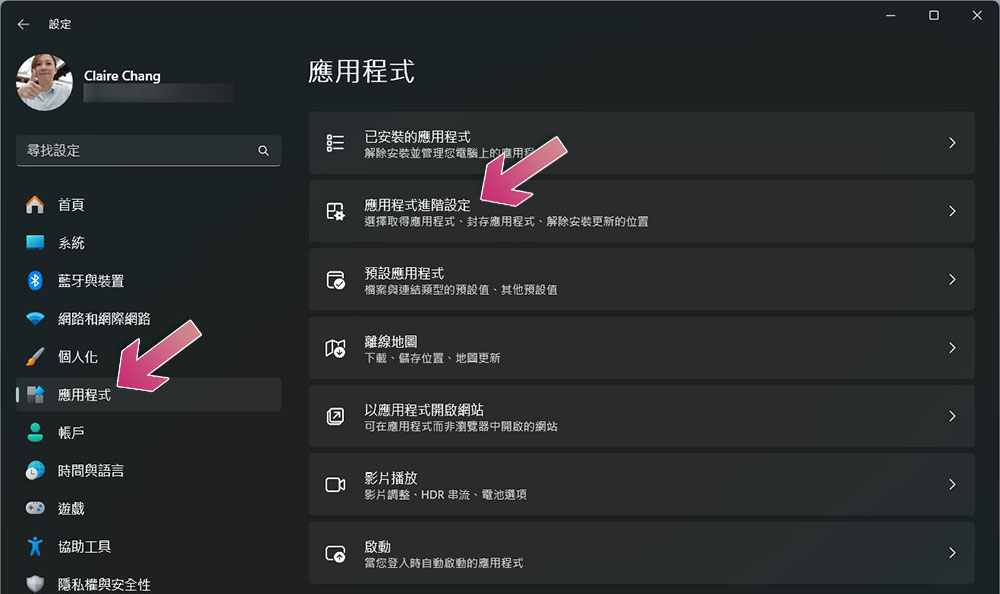
- Open the Settings app and click “Applications” on the left.
- Click to enter “Application Advanced Settings”.
- Next, the first item you will see is “Choose where you want to get the app”. At this time, select “All Locations” and then close it.
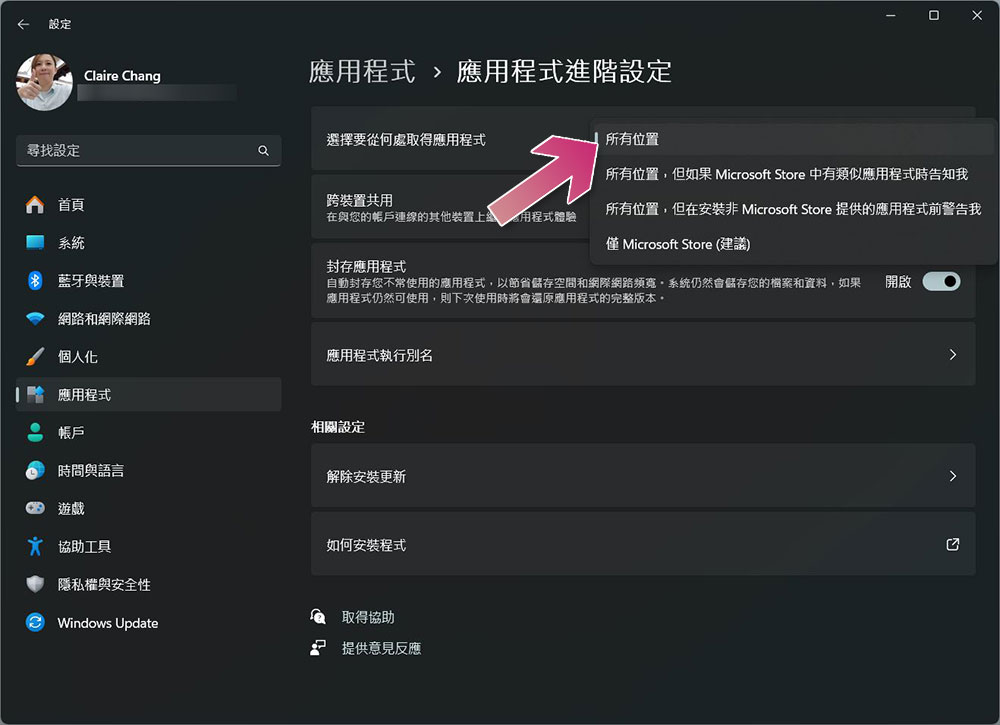
- If you share your computer with family members, children, or the elderly, it is recommended that you switch the option back to “Microsoft Store Only” after installing the required software to avoid installing harmful applications inadvertently.
Source: KOCPC Chinese