


As online threats become more diverse and more complex, the Windows 11 system that hosts a large amount of your work and information must be more robust and immune to malware attacks. Whether you have a laptop or a desktop, viruses are always waiting to infiltrate your system and compromise your computer’s integrity and performance. Regular virus scanning is not only recommended, it is a critical step in protecting your digital life. Protecting your Windows 11 system from viruses is simpler than you think, and under normal circumstances you don’t even need any third-party software. With the built-in tool Microsoft Defender provided by Microsoft, ensuring the security of your computer is so simple, clear and easy to operate.
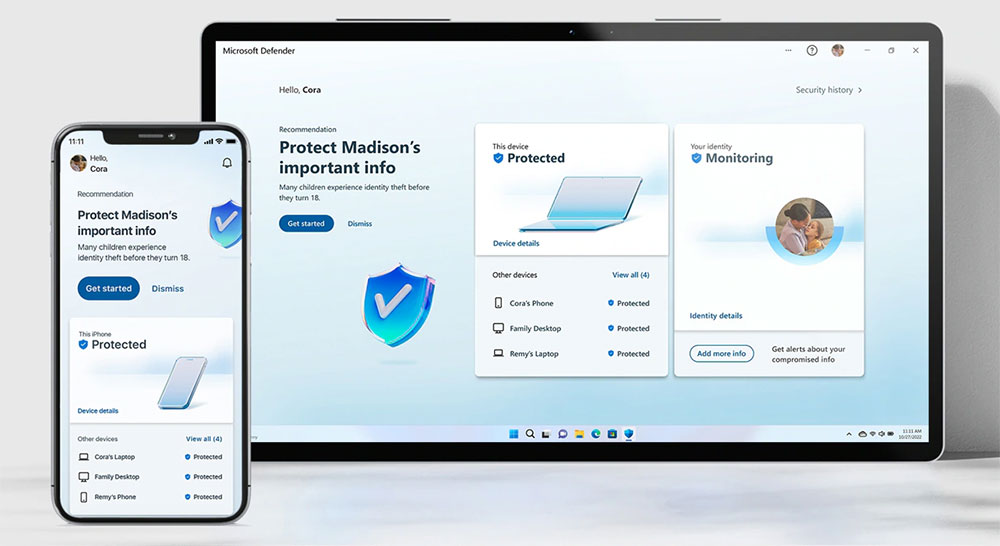
How to scan for viruses with Microsoft Defender on a Windows 11 computer?
What is a virus?
Computer viruses are destructive software that cause damage to computer operation, data integrity, and user privacy. They spread from one system to another. Viruses can replicate and are often hidden in legitimate software, making them difficult to detect. They can damage data, steal information, and even take control of your system resources. The harm caused by viruses ranges from minor annoyances to major financial and personal data losses, so it is necessary to regularly check your computer for viruses and remove them to maintain the health of your system’s digital ecosystem.

Viruses come in many forms, each with unique characteristics and threats. Common types include:
- Archive dissemination
These viruses attach themselves to executable files and spread quickly while the infected program is running, causing data corruption or loss. - macro virus
These viruses are usually hidden in Word or Excel files. They execute autonomously and are set to batch processing when opening files, which may endanger the security of your data. - boot area virus
These viruses can affect the boot area of the hard drive (a critical part of the boot process) and may cause the computer to not function properly. - polymorphic virus
These types of viruses are very complex and change their code with each infection, making them difficult to detect with standard antivirus software. - resident virus
This type of virus embeds itself into computer memory, launches when the operating system is running, and can infect multiple files at the same time.
Each of the common virus types mentioned above poses a unique threat to system security, highlighting the importance of regular virus scanning and up-to-date security measures.

Scan with Microsoft Defender in Windows 11
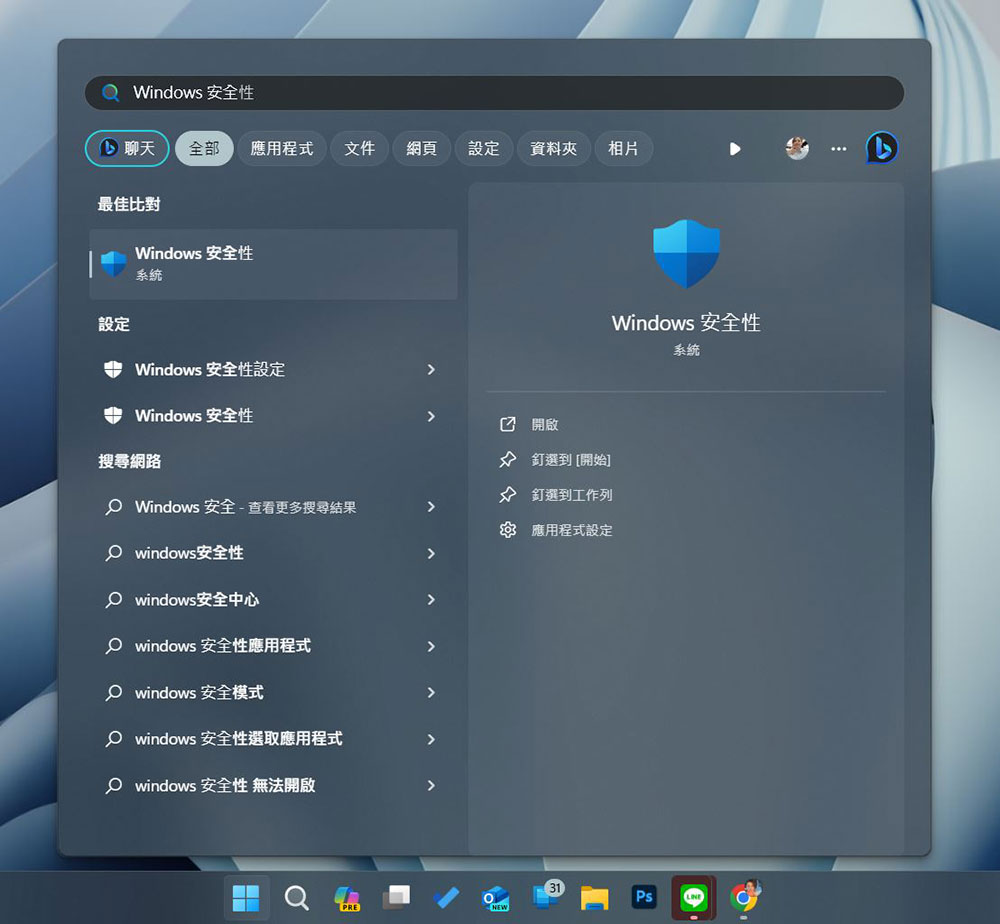
- Open the Windows Security app from the Start menu.
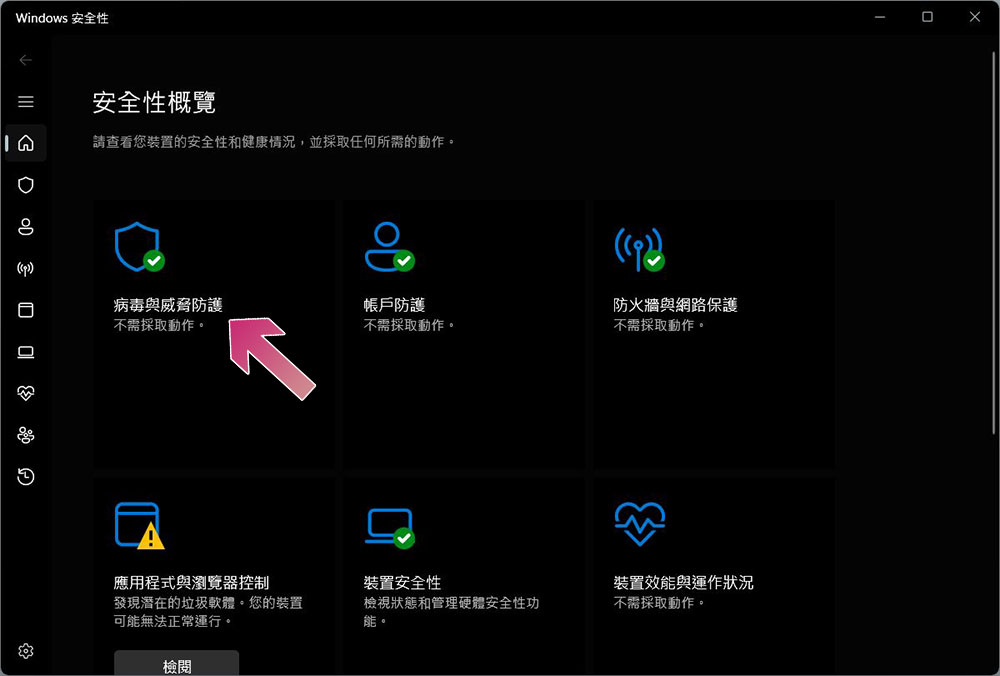
- Click “Virus & Threat Protection”.
- Click “Scan Options” to expand the list of scan types.
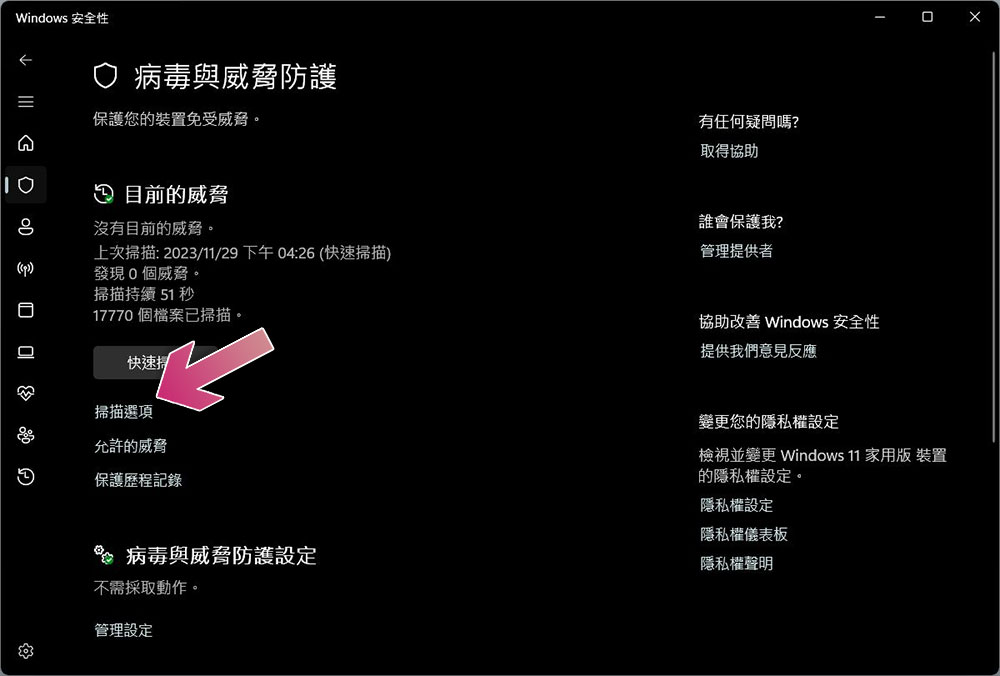
- There are four types of scan options to choose from. After selecting, click “Scan Now”:
- Quick Scan: Scan the folders that are most vulnerable to hidden threats.
- Full scan: Completely checks all files and programs of the entire computer system, which takes at least 1 hour (it is recommended to perform it before going to bed at night).
- Custom scan: You can specify the folders or files to be scanned.
- Microsoft Defender Antivirus Detection (Offline): This option uses the latest threat definitions to find and remove hard-to-remove malware offline.
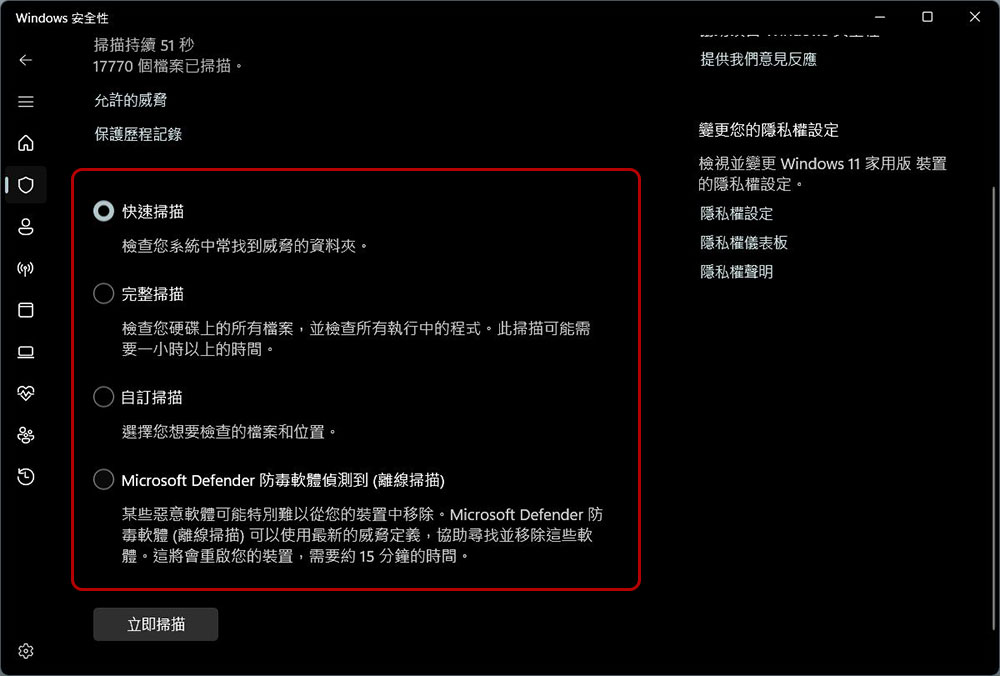
- Wait for the scan to complete and review the results to identify any identified threats and their corresponding solutions.
How to deal with detected threats
If the scan finds any threats, Windows Security will provide resolution options, ranging from eliminating the threat to taking more specific actions. Detailed guidance on virus removal,Microsoft’s support siteComprehensive resources are provided. Regular virus scans on your Windows 11 PC are an important aspect of digital health and a proactive step in protecting your personal data and keeping your devices secure. Today, as online threats continue to evolve, being proactive is your strongest defense.
Source: KOCPC Chinese