


When you download a large file on Google Chrome, but it is delayed due to the slow download speed of the browser, it makes you anxious. While speed largely depends on the quality of your Internet connection and the quality of the server your files are hosted on, there are some things you can do to make downloading files more efficient. One solution is a feature in Chrome called Parallel Downloads, which speeds up downloads of larger files.

Turn on Chrome’s “Parallel Download” feature to speed up large downloads
Parallel downloads are an experimental feature that users can enable in Google’s Chrome Flags. If you are not familiar with Chrome Flags, here is a brief explanation. Developers can test new features in Chrome Flags before the official version is officially launched to the public. Users can actively enable it and try it out. This may also be the reason why you may not have heard of parallel downloading.

While parallel downloading can go a long way in improving download speeds, it is not a solution to slow networks or, more accurately, narrow bandwidth, and it may not work for all sites, especially those that restrict connections to their servers. Download speed also largely depends on the host server speed. If you encounter high load or other technical problems, the host server may be dragged down due to too much load. But for those who have to download large files using Google Chrome, parallel downloading can save a lot of time.
What is parallel downloading?
When a user downloads a file from a website in Google Chrome, a request is sent from the device to the server where the file is located. Once the connection is established, the server begins transferring the data to the device for the user to access at any time. Parallel downloads enable a single device to maintain multiple connections to the server, thereby simultaneously downloading different files from the host server. Theoretically, the ability to establish these different connections means downloads could take much less time than a single connection would.
Of course, download speed still depends on network speed, which can be tested on various websites. If your ISP and network speed are the bottlenecks for your downloads, parallel downloads may not be effective at all. Likewise, if the file is hosted on a site that limits simultaneous connections to the server (which may be the case with large file hosting sites), then parallel downloads will not be able to circumvent this. It will also have no effect if the same host server has unusually high load or is experiencing technical issues.
How to enable parallel downloads in Chrome
To enable the parallel download feature of Google Chrome, follow the steps below:
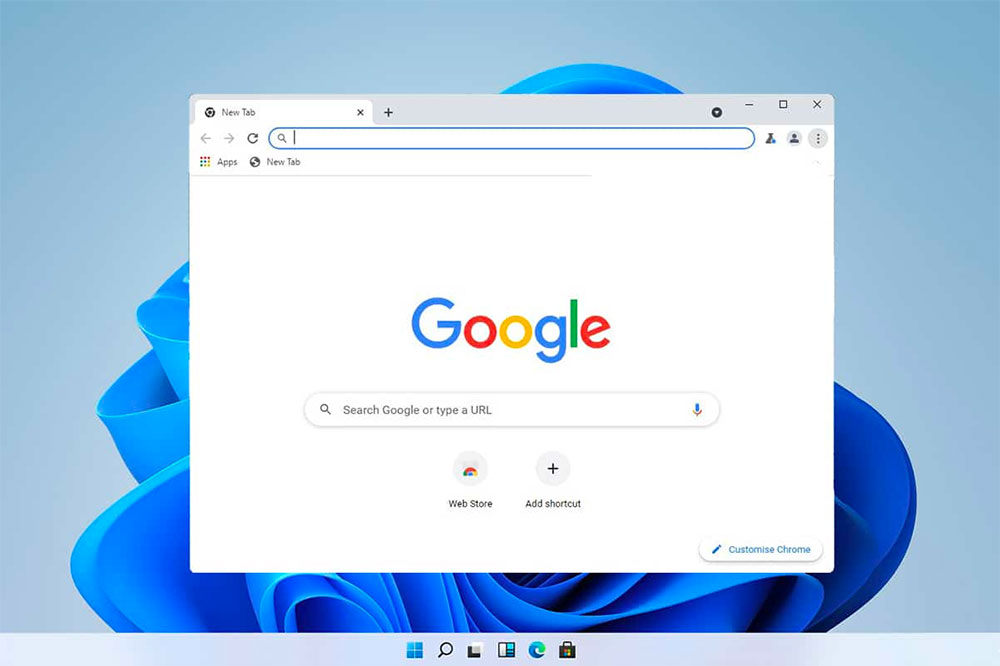
- Open the Chrome browser address bar and enter “chrome://flags」。
- Type “parallel downloading” into the search box at the top of the page.
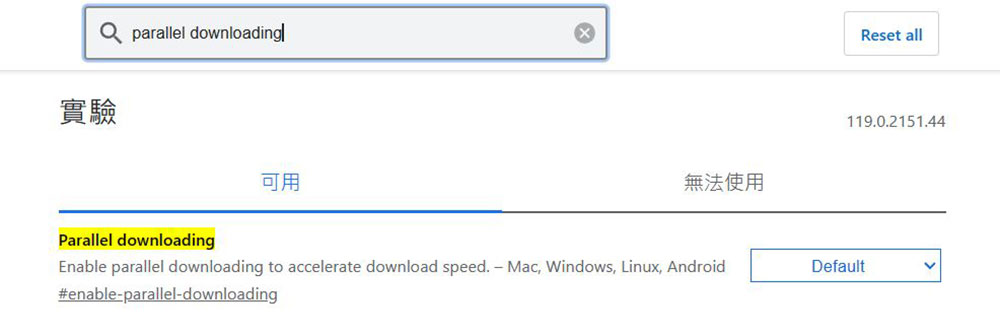
- Select “Enabled” from the drop-down menu next to it.
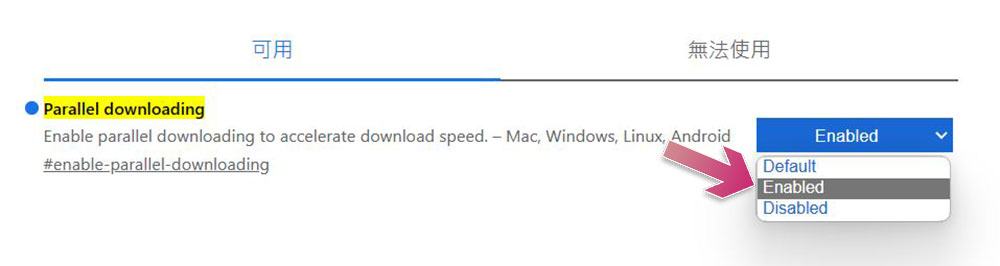
- Just click the button at the bottom to reopen the browser.
The steps to turn on parallel downloads on your mobile device are the same as on your computer. It will take effect automatically after restarting Chrome. If you want to turn off the parallel download function, please follow the steps above, but change the drop-down menu option to “Default”.
Source: KOCPC Chinese