


There is an “Accessibility Setting” (or something called accessibility) in the settings application of every Android phone. The functions here are mainly designed for people with various types of disabilities. However, some of them are useful to the general public, but they are hidden too deep and are not easy to find. The same is true for other functions, which are obviously very useful but not well known. Next, we will focus on the 7 most useful functions that you should try, which may be helpful to you.
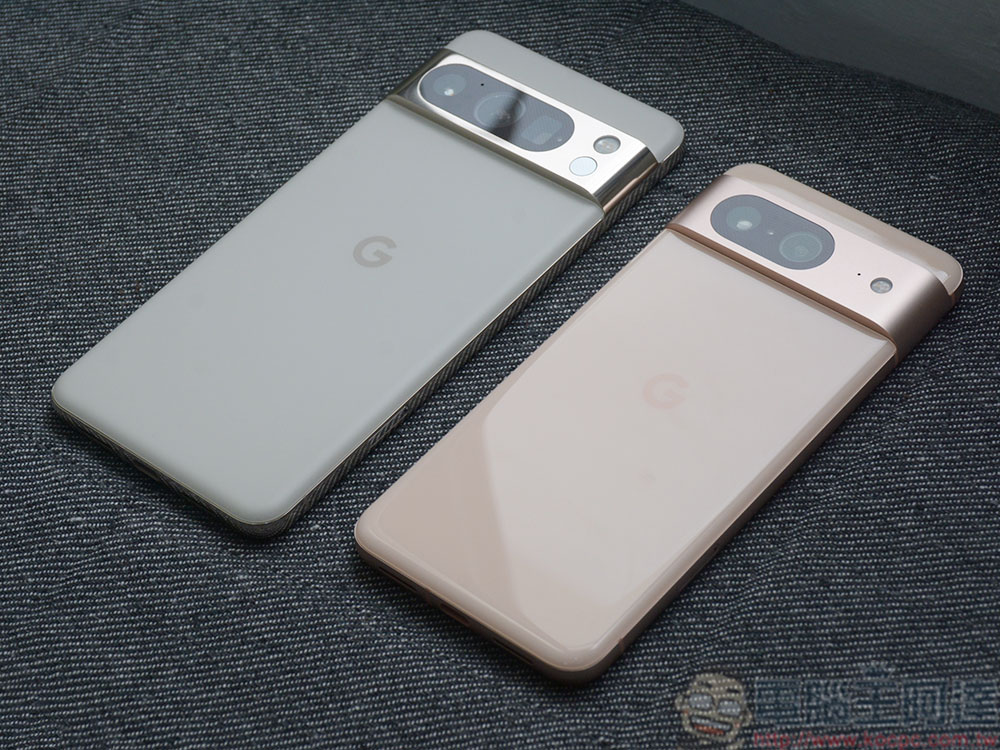
7 useful functions hidden in Android accessibility settings and system
Use read-aloud mode on Android
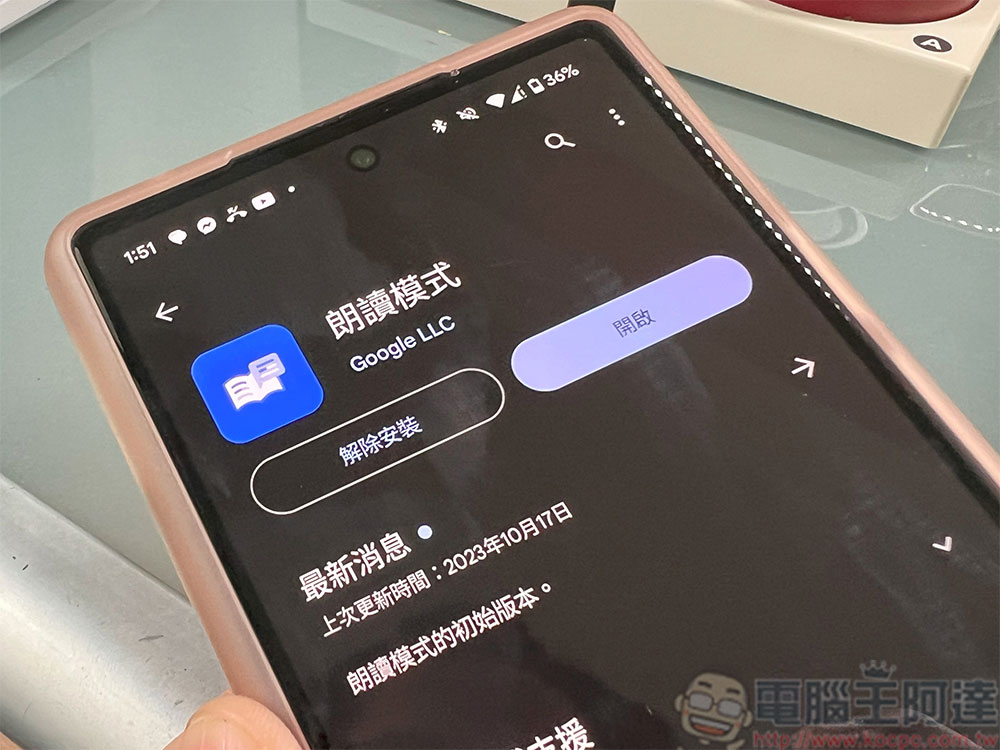
“Reading Mode” is an application officially launched by Google, which transforms online text content into an easier-to-read format to help reduce the burden on users who have difficulty reading text. The page has been stripped down to its essentials so that you see something more like an e-book, and you can adjust the font size, line spacing and color, and background color. The best part isn’t just a visual change, it also reads pages aloud and offers reading speed and language options, making Read Aloud a great portable tool for the visually impaired and anyone who wants a clear-hearing web browsing experience.
★Reading mode download:Click here
Trigger Voice Access while viewing Android phone
Voice Access is an official Google application that allows people to use their voice to open applications, navigate the user interface, and edit text. It’s suitable for people with limited physical and mental mobility, but it’s helpful for anyone who wants a hands-free phone experience. There are a few ways to use Voice Access, but arguably the most convenient is called Gaze Detection, which when enabled causes Voice Access to only listen for your commands when you’re actively looking at the monitor. Turning on Voice Access and gaze detection is simple:
- Open settings and enter accessibility settings.
- Click Voice Access, turn on the “Use Voice Access” switch, and then click “Settings” below.
- Scroll to the bottom of the setting options and click “More Option”.
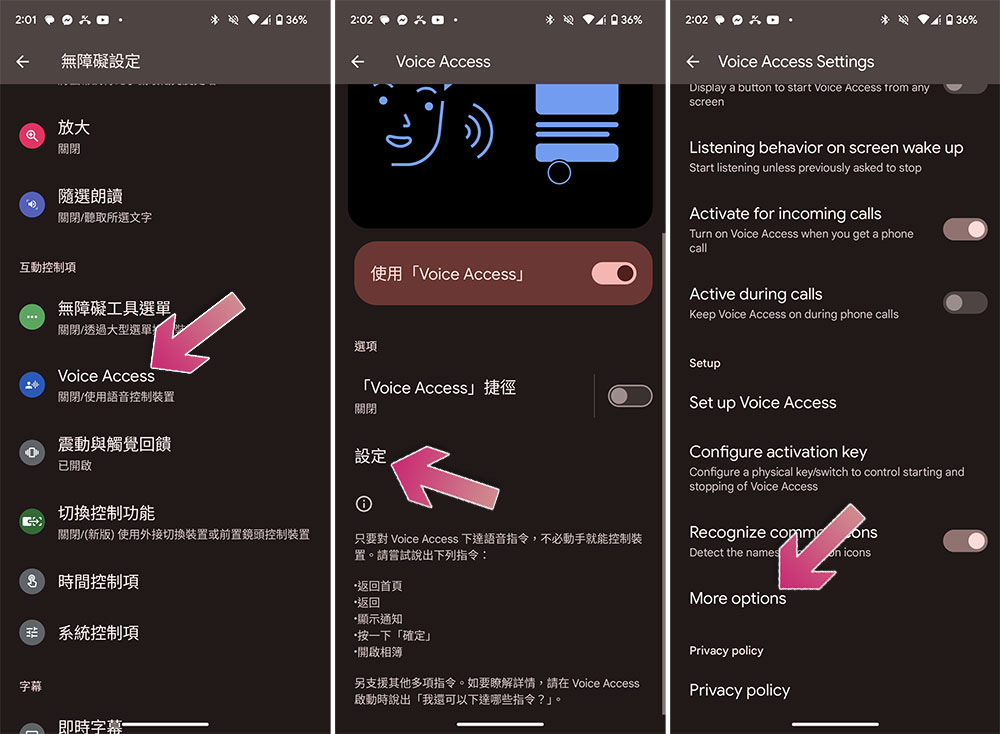
- Roll it down and turn on the “Gaze Detection” switch to turn on gaze detection.
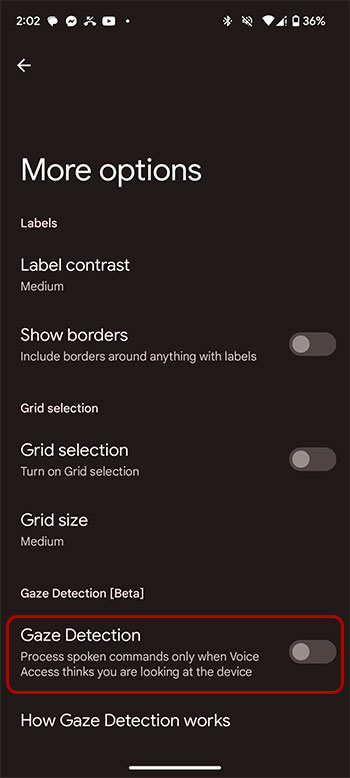
This is a great little feature for anyone who relies on voice access to control their Android smartphone. You don’t have to worry about apps listening when you’re not actively using your device. If you want to learn more about Voice Access’s capabilities, check out Google’sComplete list of instructions. Unfortunately, this feature currently only supports English, Spanish, German, Italian or French. We look forward to seeing Chinese support as soon as possible!
Change the size of text and icons
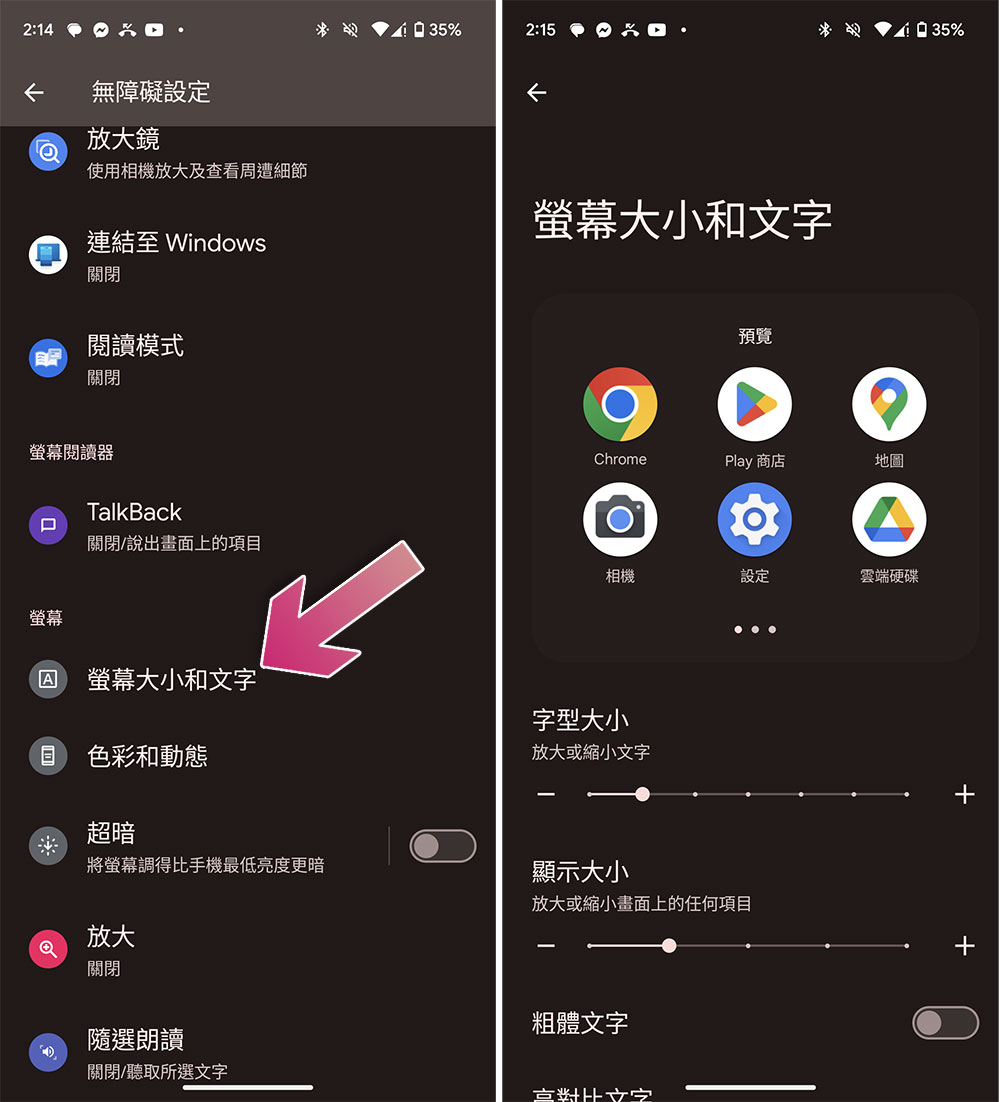
The default size of the UI on an Android phone may not meet your preferences and usage needs, possibly due to visual limitations or just personal preference, but you don’t have to swallow your anger and wrong yourself. Depending on your device, you can change the text size or even enlarge everything on the screen. Most Android devices separate “font size” and “display size” into separate settings. Font size will resize only the text portion; display size will resize the text as well as app icons, buttons, and other UI elements. If you just want to make the content easier to read, font size may be a better choice. On Pixel, you can find the “Screen size and text” function in the accessibility settings to adjust.
Use magnifying glass on Android
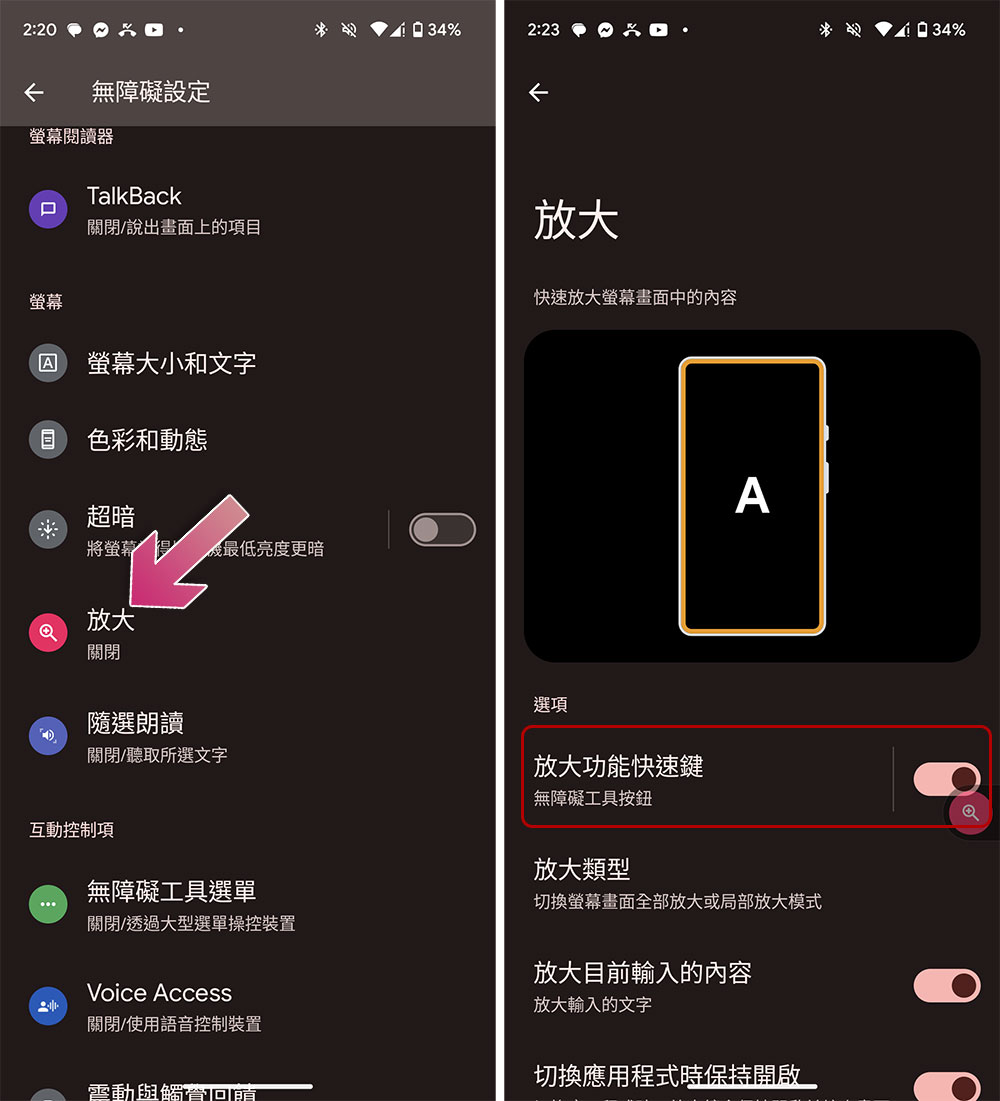
The above item is great for permanently enlarging the entire mobile UI display, but what if you just suddenly need to enlarge the page display content? There is a very convenient tool in Android that allows you to partially enlarge the screen as needed anytime, anywhere. This visual aid is simply called “Zoom” and is like having a magnifying glass in your phone. When you need to view content, you can call it using a gesture or a quick shortcut and put it away when you are done. You must enable this feature before using it:
- Open the Settings app and enter Accessibility settings.
- Click “Zoom in” and then enable the “Zoom in function shortcut key”.
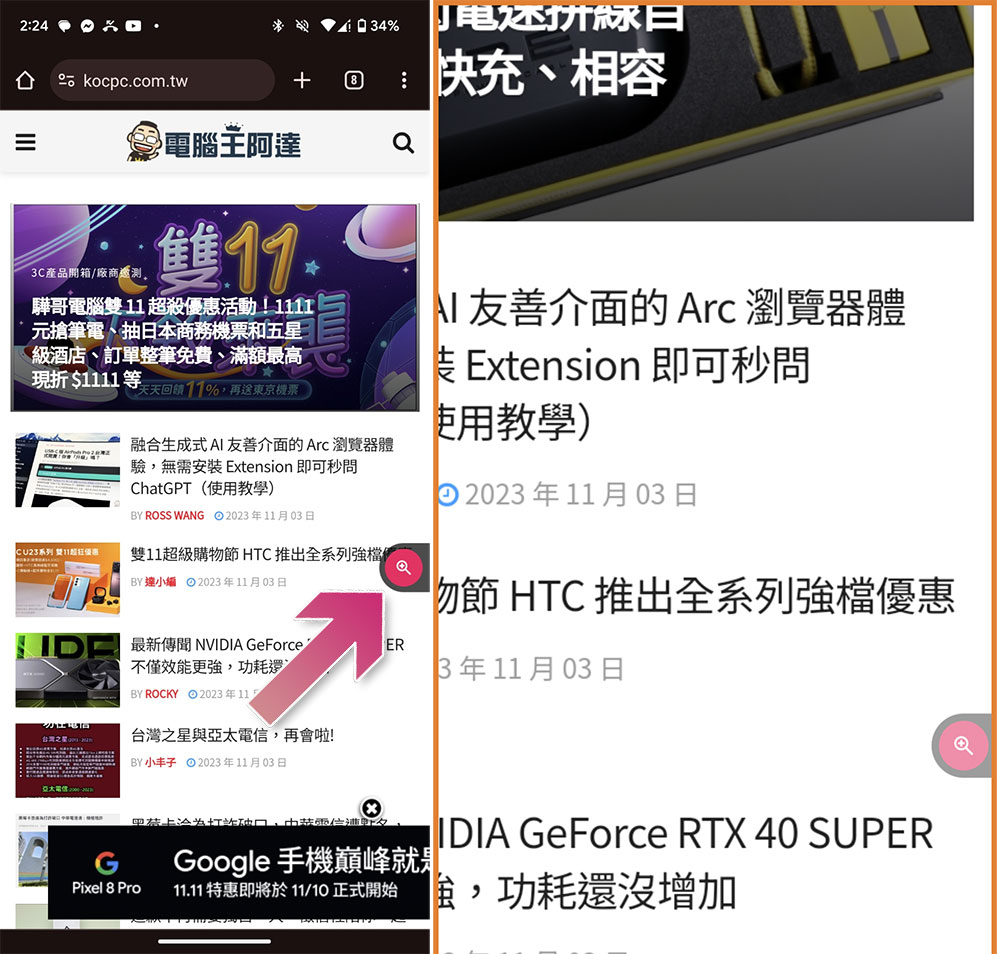
After turning on this feature, you will see quick shortcuts on the side of the screen (you can hold down and drag the position). When you are reading a web page or content, you can click to zoom in, and you can also move in zoom mode to view other content. Click again to restore it to its original appearance.
Control your Android phone with your “face”
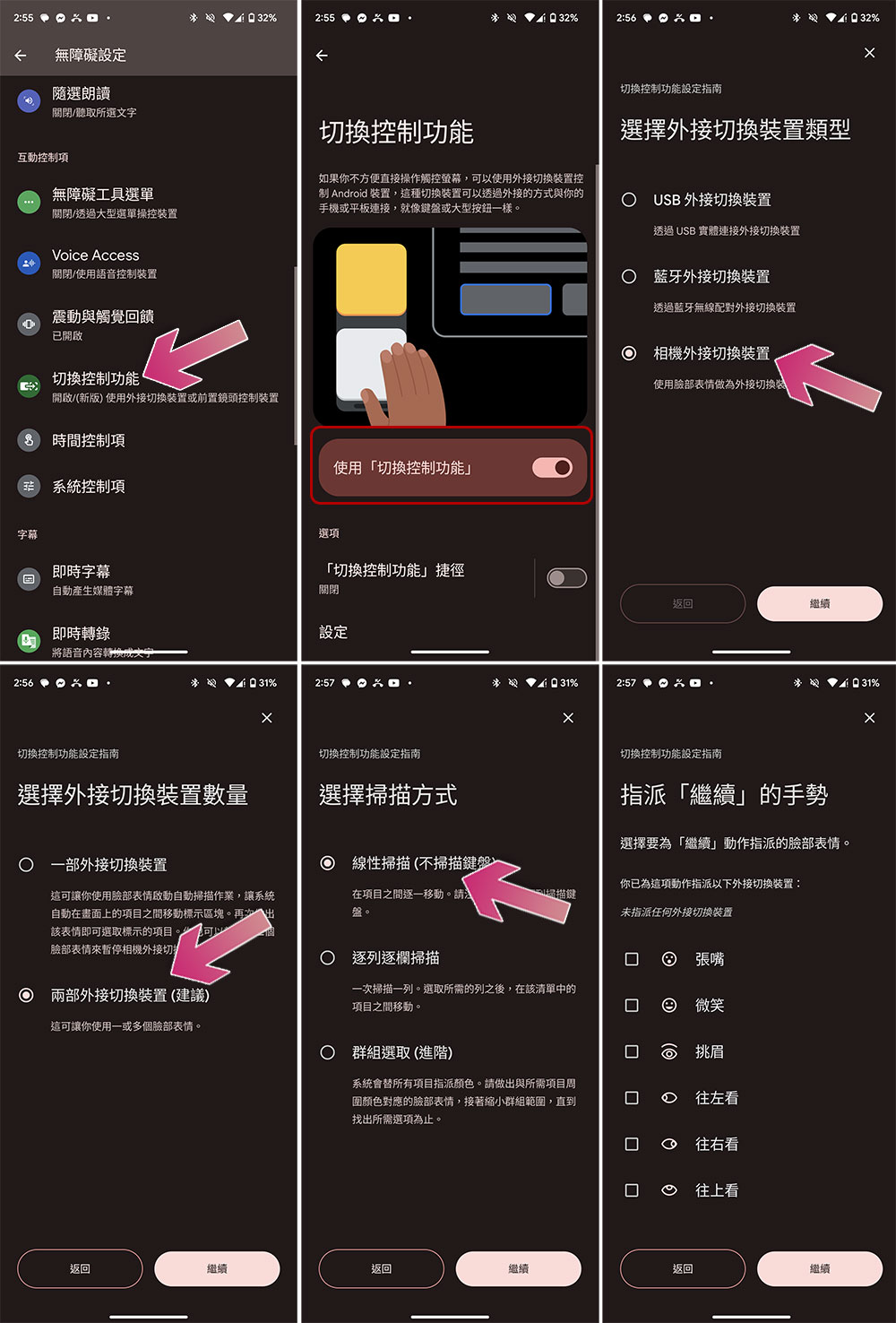
This should be regarded as one of the cool auxiliary functions in Android. We have already talked about using voice to control the phone hands-free, but you can go one step further and only use your facial expressions to control it. The feature is called Switch Control, and essentially it uses the front-facing selfie camera to detect your facial expressions. You can customize which expressions are used to perform certain actions, such as returning, selecting, and pausing. Customizable facial expressions include smiling, opening your mouth, and more.
- Open the Settings app and enter Accessibility settings.
- Click “Switch Control Function” and turn this function on.
- Select “Camera Switch”, wait for 10MB of data to download, then select “Two Switches”.
- Next select “Linear Scan”.
- You can then assign different expressions to each action.
Tap the back of your Android phone to take action
Technically, this feature isn’t listed as an accessibility feature, but it does make certain things easier. You can activate specific operations by tapping the back of the phone with your finger, and it is already a built-in function and does not require any additional downloads. Google Pixel devices have a built-in feature called Quick Tap:
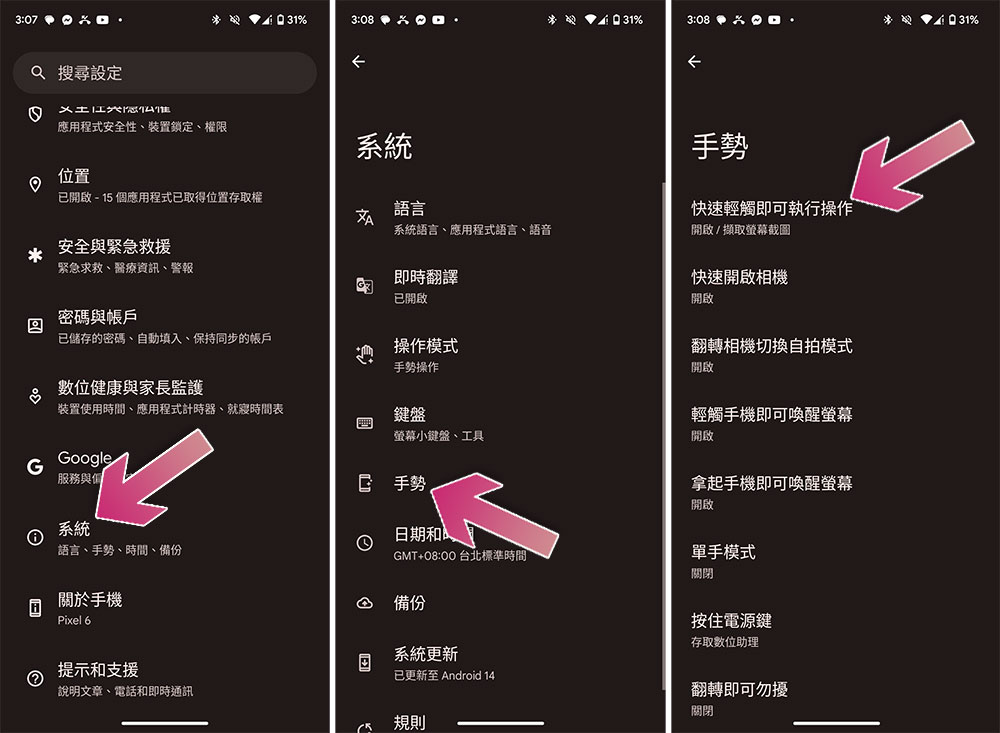
- Open Settings and enter “System”.
- Click on “Gestures”.
- Click “Quickly tap to perform actions” at the top.
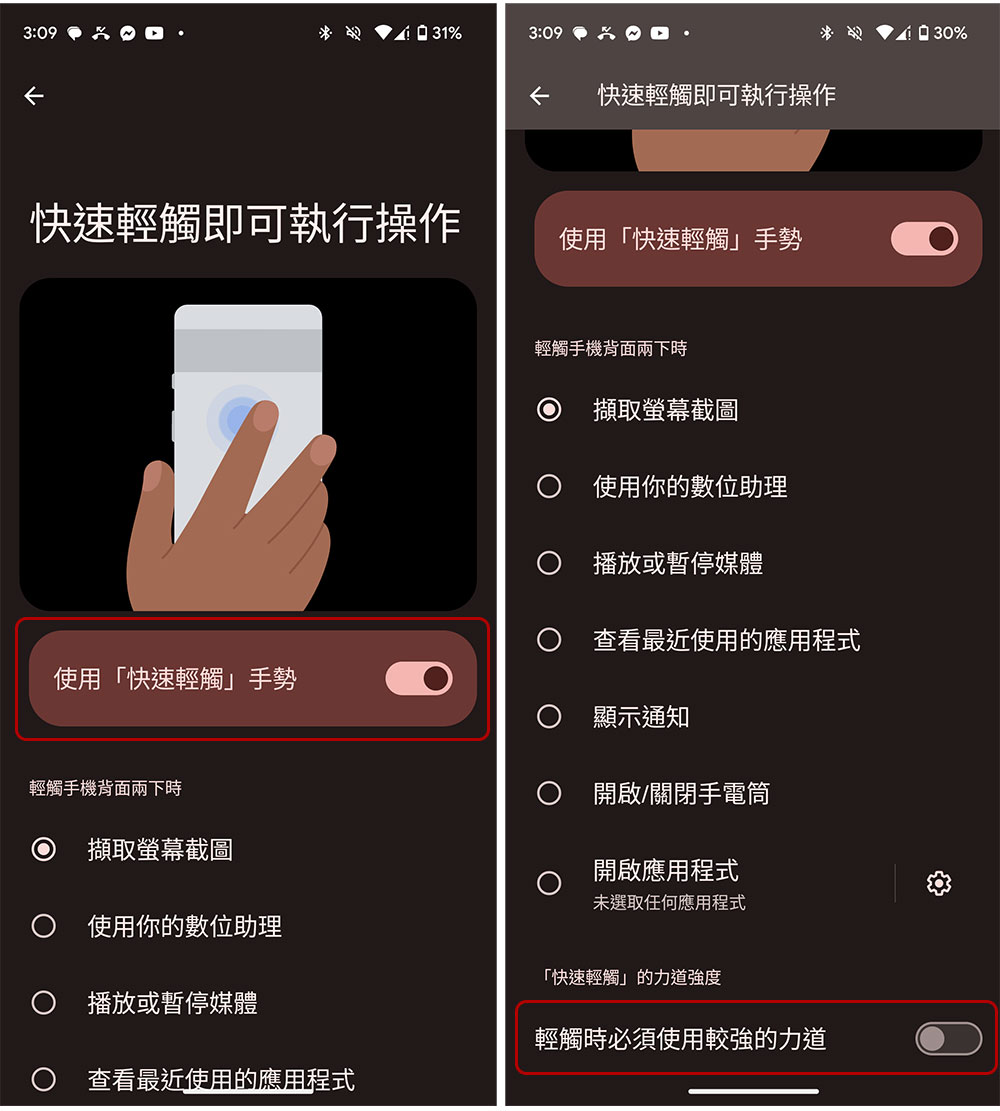
- Turn on the switch for using quick tap gestures, and then you can set the actions that can be performed when you tap the back of the phone.
- If you are worried about accidentally touching it, you can turn on the “Must use stronger force when touching lightly” switch at the bottom.
Read text messages aloud
It’s not always convenient to pick up your phone and read a text message, especially while driving, so rather than risking your life, it’s better to use Google Voice Assistant to read it aloud. The cool thing about this feature is that it works with almost any messaging app, not just the default texting app, but it can only read messages you’ve received that are still in the notification shade, not notifications you’ve closed or read. All you have to do is wake up the Google Assistant and say “Read my notifications” or “Read my text messages.”
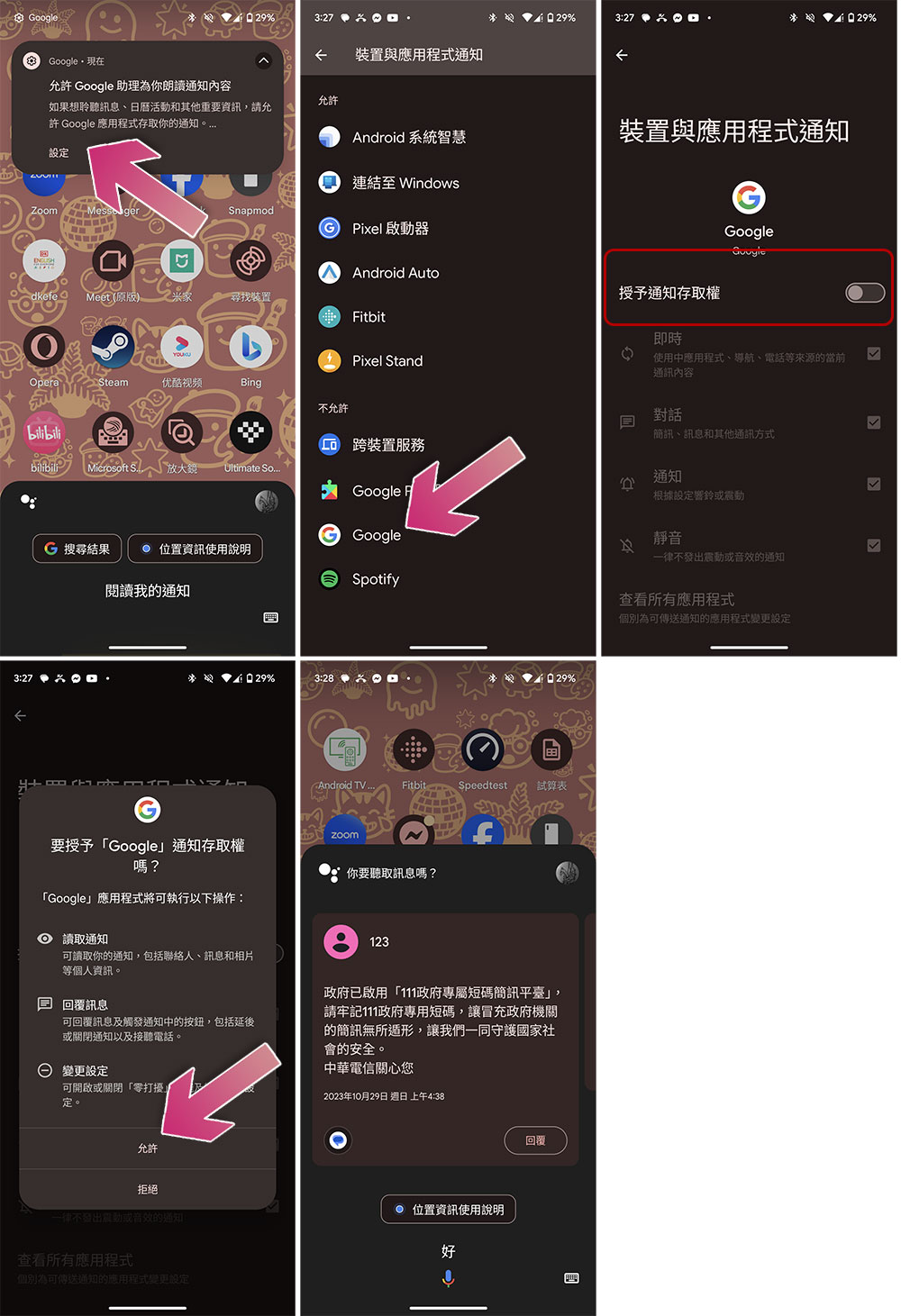
- First wake up the voice assistant, then say “Read my notifications.”
- Next, click Settings above to enable access to Google Voice Assistant notifications.
- Click on the Google app and turn on the switch for “Grant access to notifications.”
- After turning it on, you can issue a command to ask the voice assistant to read your notifications or text messages (the voice assistant will tell you how many new text messages/notifications there are and whether you want to read them out. At this time, you can reply “OK”).
Source: KOCPC Chinese