


There are many reasons for connecting to public Wi-Fi when you are out. Maybe you want to use mobile data to eat all you want, but when the amount of data is limited or when you are abroad, you want to save data usage and connect to public free Wi-Fi to ensure that you are not disconnected from the online world. No matter what the situation is, when you connect to free public Wi-Fi, there are some things you should pay special attention to, especially when it comes to personal network security. The author has listed the four most important things for your reference.

These 4 things to watch out for when using public Wi-Fi
Using public Wi-Fi networks comes with many potential security issues. Broader improvements to network security mean you don’t have to limit your activities as tightly as you did 5 or 10 years ago when connected to a public network, but there are still many different security risks to be aware of. There are ways to make doing online banking or entering login credentials for other important accounts relatively less risky, but the risk is still there. Let’s go over some things you should avoid doing to minimize your risk as much as possible.

Sensitive data transmission needs to be encrypted
In a bygone era, we would all avoid accessing online banking or logging into social media accounts when using public Wi-Fi. Now, just because you don’t have to be so intimidated doesn’t mean you shouldn’t be cautious and make sure your data has at least one layer of encryption. In the case of banking websites and social media, often the website will use HTTPS encryption, which is clearly represented by the “https://” prefix or lock in the URL bar. If you log in through the HTTPS version of the site, all data sent to and from the site is encrypted in transit. One sign you may see on an infected public network is that the “https://” prefix suddenly switches to the unencrypted “http://” when you log in. If you see this happening, disconnect from the public network as soon as possible.
You can also add a layer of encryption by routing all network traffic through a trusted VPN. While users often flock to VPNs to access geo-restricted content, security is another important reason to use a VPN, which encrypts your data while hiding your location and routing it through the servers they provide. To find a VPN you can trust, you should pay attention to the reviews of various VPNs, but Google now offers this as part of its Google One subscription, too.
Do not easily connect to unknown or password-less networks
VPNs and HTTPS aren’t the only areas where you should consider encryption, though. There’s also router-level encryption, and since it’s usually turned off by default, even well-intentioned administrators can set up legitimate public Wi-Fi networks that won’t encrypt your traffic at the router level. Not turning on the router’s encryption mechanism does not make it inherently bad. Some, such as small exhibition halls, will also provide free Wi-Fi for everyone to connect to, but the following are things you need to remember.
The key is that you still have to be careful to identify which public Wi-Fi networks you connect to. Scammers sometimes set up “free Wi-Fi networks” that don’t have passwords but look legitimate in order to intercept connected user data. As mentioned before, a telltale sign is that the “https://” URL prefix suddenly changes to “http://”.
Taking all of these factors into consideration, if you need to connect to a Wi-Fi network without a password, you should always do so through a VPN. However, if you have other options, whether it’s an LTE data connection (either directly or to another device) or an encrypted Wi-Fi network, then you should definitely choose one of them. The privacy and security of your data is definitely worth more than the extra fees you pay for metered data.
Do not set up to automatically connect to free networks
Be a hardworking bee and don’t be lazy when using free Wi-Fi. Tell the device not to automatically reconnect by turning off “Auto-reconnect” or selecting the “Forget this network” option every time you use the network. Generally speaking, you don’t want your phone to start reconnecting to any of these networks, and one reason for this is simple: it happens in the background, so if you’re not looking carefully at the wireless status icon on your device, you might not notice it right away. The other reason is technically a bit more complicated: By turning on automatic reconnect, you’re broadcasting to potential bad actors that your device is happy to treat nearby networks as secure as your home network. Because devices identify known networks by their SSID (network name), bad actors can secretly connect to your device without you knowing.
Remember to turn off public folder sharing
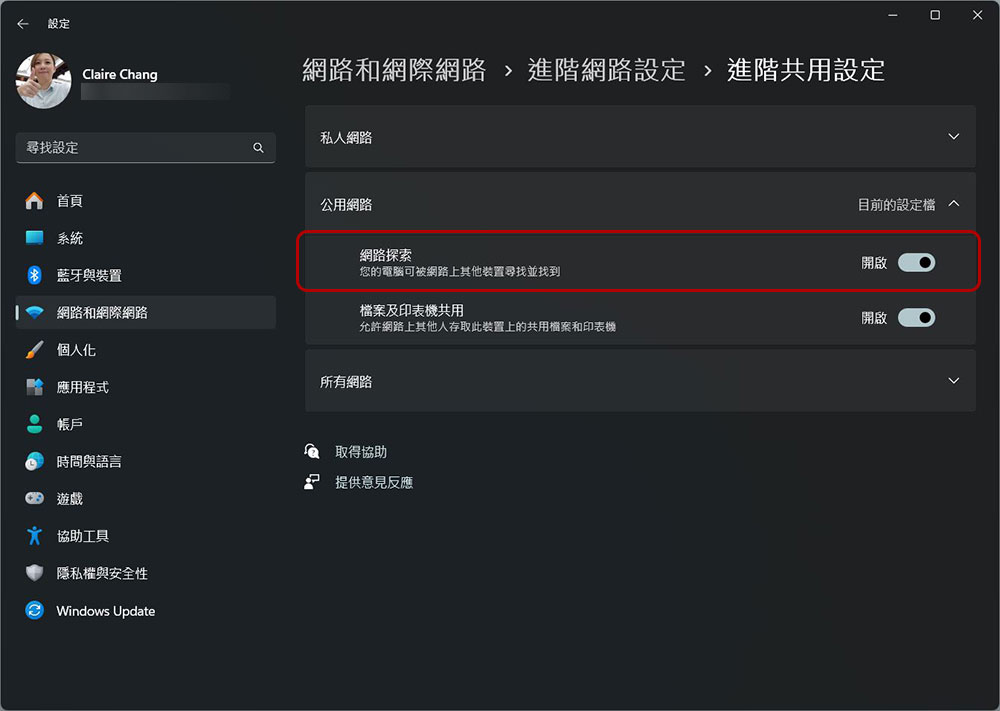
This reminder is more relevant to laptop users, but you should definitely make sure to turn off Public Folder Sharing when you’re out and about. By leaving it open, you will allow anyone else on the network to access any folders shared from that computer. It also creates another potential attack vector: Bad actors deliberately share folders containing malware and name them in a way that makes you want to take a look.
To turn off file sharing in Windows 11, go to Settings >> Network & Wireless Networks >> Advanced network settings >> Advanced sharing settings. On Windows 10, it’s in the Network and Sharing Center. Meanwhile, on macOS, at least starting with Sonoma, you just need to go to System Settings, search for “Sharing,” and make sure it’s turned off in the right column.
Source: KOCPC Chinese