


You must have encountered compressed files at some point, such as ZIP, RAR, etc. Although they have a “file” in their name, they are essentially more like a “package”, allowing users to bundle multiple files and folders together and compress them into smaller files. 7z files operate similarly to these familiar archive types and are specifically designed for use with the popular 7-Zip compression utility program. So, if ZIP and RAR were born, why would 7z be born? What is 7z? How is it different from those compressed files in the past? Let’s get to know it together.

What is the popular compressed file “7z” now? Learn how to open and convert file formats in one go
What is 7z file?
7Z is the file extension for compressed files created using 7-Zip, a free open archive compression tool. 7Z is similar to other compression formats such as ZIP, TAR, GZ, RAR, and ISO, but uses a higher compression ratio and more secure AES-256 encryption. 7Z files make it easy for everyone to send and download files over the Internet, and help free up space on your hard drive by using high compression rates when archiving. They also support ridiculous file sizes, theoretically up to 1.6 billion GB.
7-Zip is one of the more popular compression tools currently, but most people use it to open or create ZIP files instead of the more exclusive 7Z files. The main reason for this is compatibility. While almost every system has a way to open ZIP files, using 7Z files means one actually needs to install 7-Zip or another third-party application that supports handling files. Despite this, it is still a relatively reliable compression format.
How do I open the 7z file?
While most operating systems have built-in methods for handling ZIP files (and some other compression formats, such as ISO), they don’t have a built-in option for 7z files.
If you’re using Windows, the best way to open a received 7z archive is to use the free and open 7-Zip tool (Click here to download), and it is also a very popular compression tool among current Windows users. Even if you just use it for ZIP, ISO, RAR or other compression formats, it is still easy to get it.
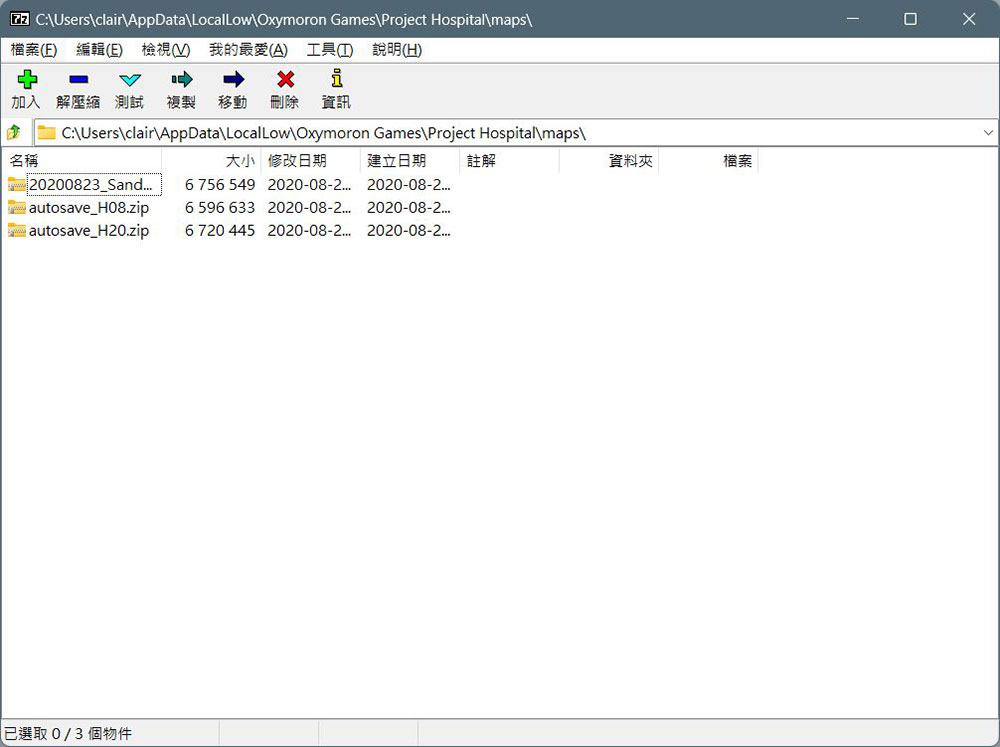
On macOS, the also free Unarchiver is a great and useful tool (Click here to download), can handle many compression formats including 7Z. If you are using Linux, you can find various 7-Zip packages for various distributions at the bottom of the 7-Zip download website (Click here to go). If none of these tools work for you, there are many other third-party apps out there that can handle 7z files on macOS and Windows.
How to use 7-Zip to open 7z files on Windows?
After you download and install 7-Zip from the official website link we provided above, the next step is to enter the stage of how to use it. The process of unzipping archives with 7-Zip is very simple and only requires two steps.
-
After downloading and installing 7-Zip, find the archive you want to open. Right-click the file icon and select “Open compressed file” from the “7-Zip” sub-menu in the menu.
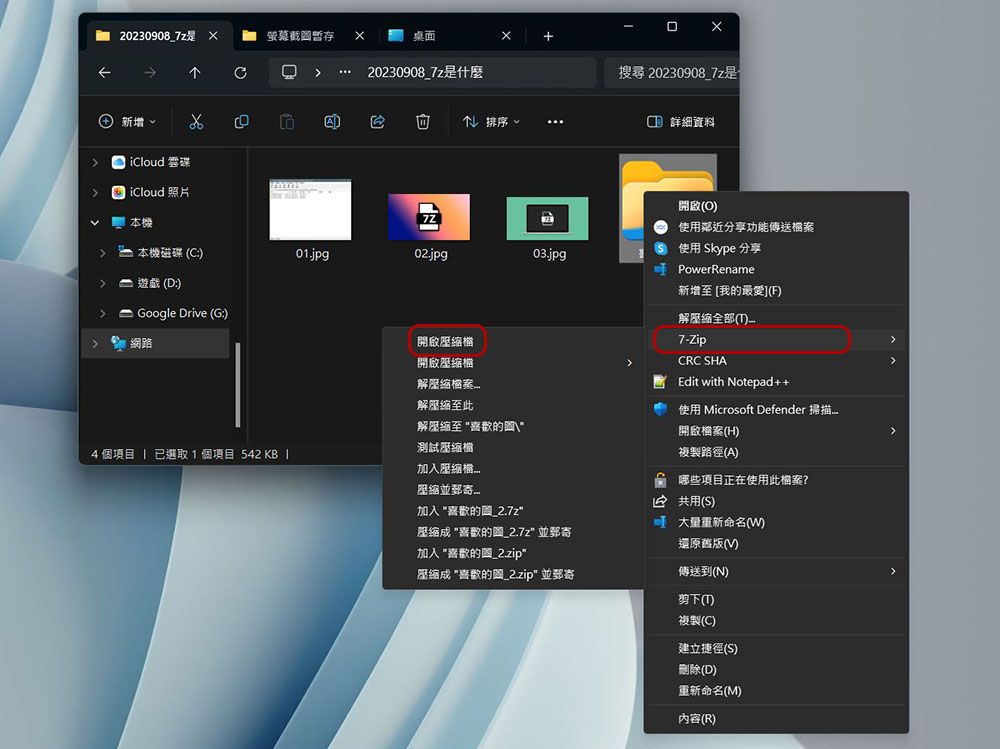
- There are two ways to access files, both of which can be used in the 7-Zip window that appears next:
- Unzip the entire package
Click the decompression icon like the minus sign at the top to specify the location of the file to be decompressed.
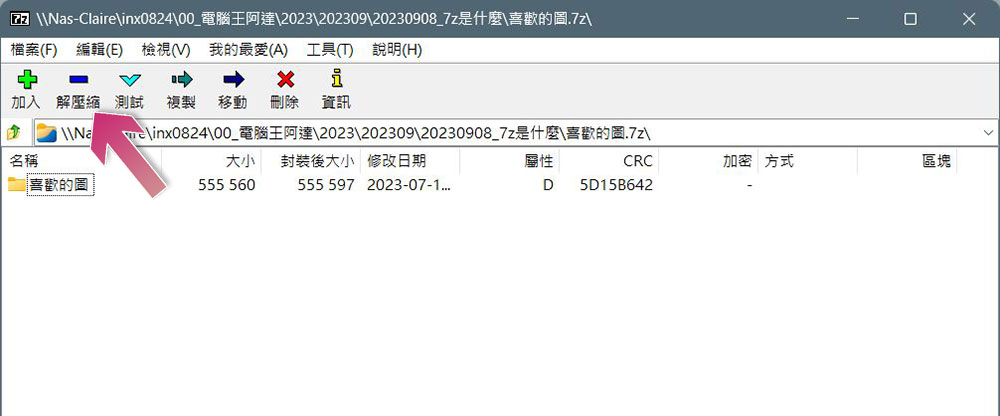
- Retrieve only part of the file
If you only need one or a few files in the compressed package and do not want to unzip the entire package, you can double-click the compressed package name and then directly drag the files inside to the folder you want to place.
- Unzip the entire package
Use the web version of the tool to extract files in 7z
If you really rarely use it, or you are using a public computer and it is inconvenient to install applications on it, you can also use the web version of the tool. What I would recommend this time is B1 Online Archiver This free web version tool is not only free, it is compatible with many compressed file formats (almost all compressed files are acceptable), and it does not save your files, so you can use it with peace of mind.
- Once you open the B1 Online Archiver website, click on the big button below.
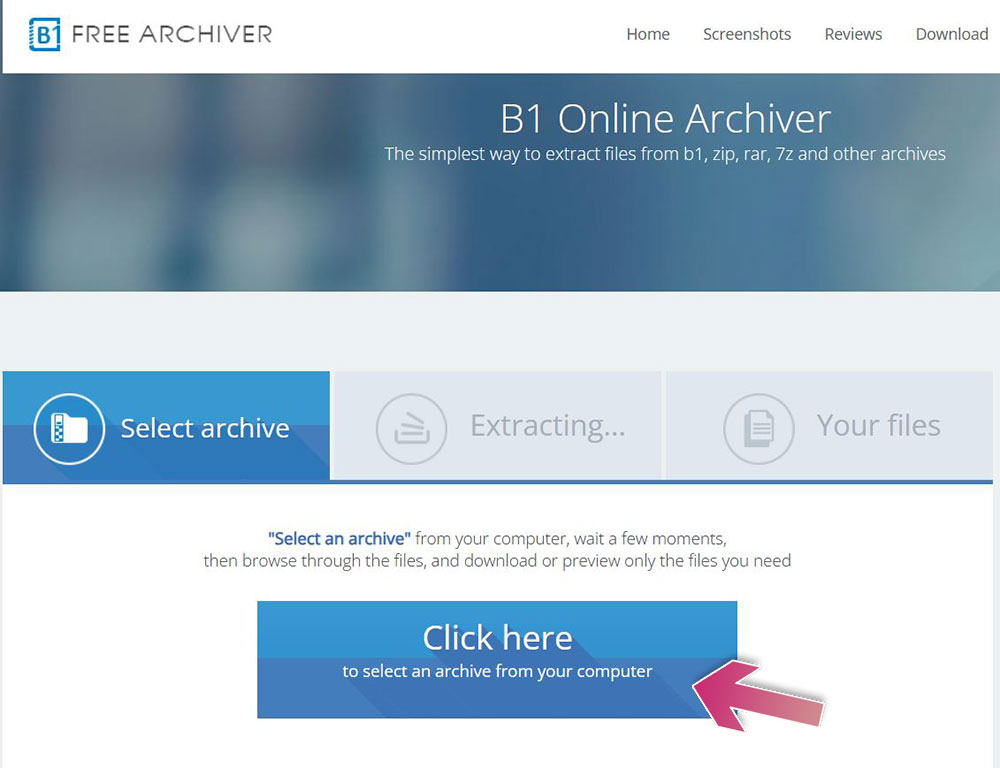
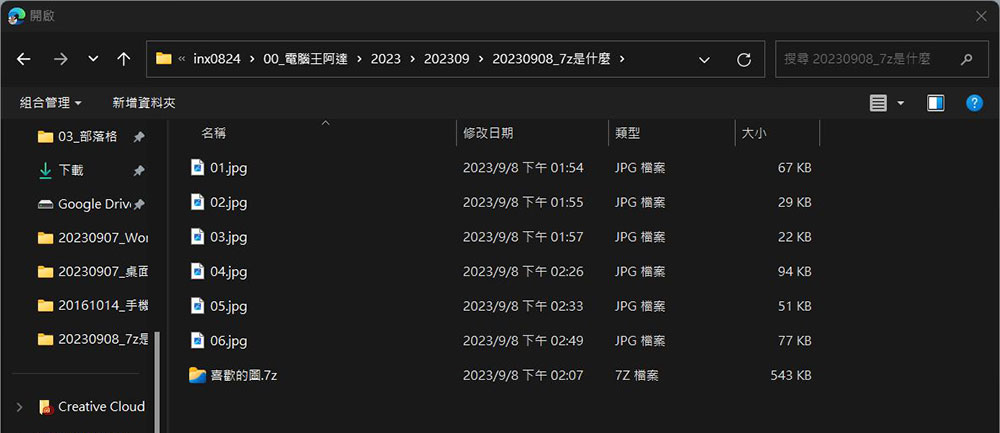
- Select the archive you want to unzip.
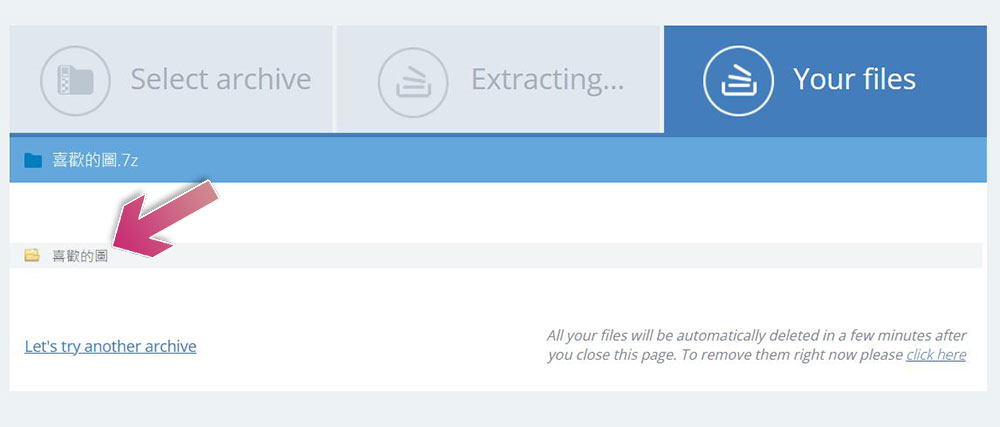
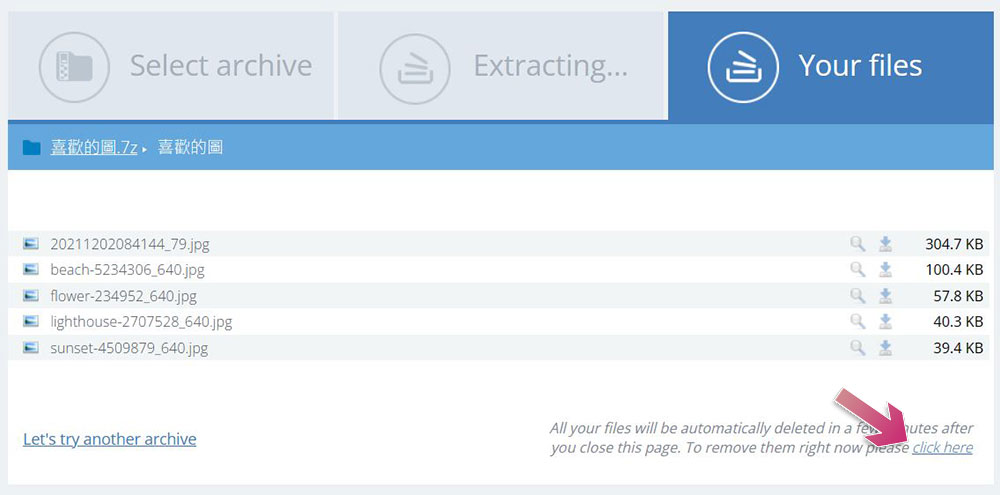
- After the file is uploaded, wait a moment and you can see that the file folder has been decompressed.
- After entering the folder, you can click the magnifying glass icon at the back to view it, or click the download icon to save the required files to your computer.
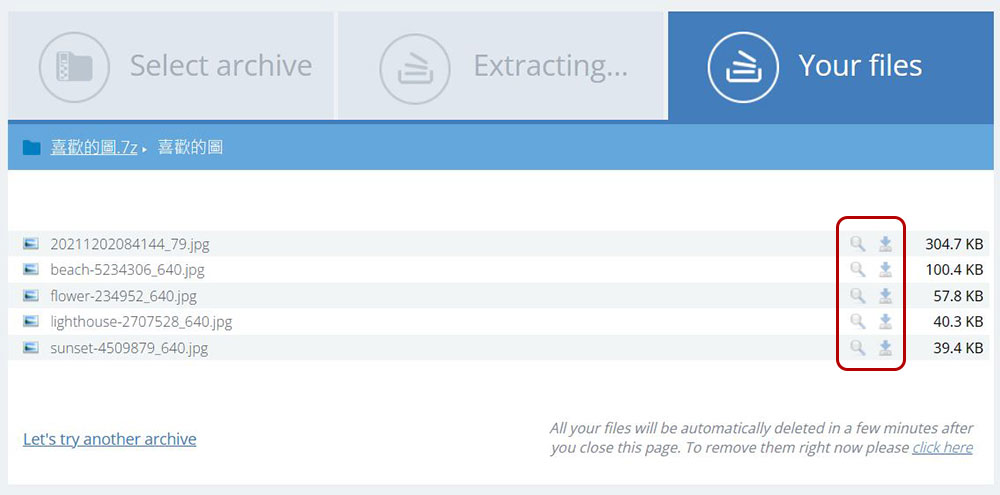
- B1 Online Archiver will delete your file within a few minutes, but if the content of your file is more private, you can click “click here” below to delete it immediately after downloading the required file.
So, how do I convert 7z to other compression formats?
The easiest and safest way to convert 7z archives to most other compression formats is to use WinRAR. You’ll find plenty of online services that allow direct conversion of 7Z to other compression formats. Most of these may be helpful, but you can never be sure what the service will do with the data you upload in these situations. Generally speaking, it’s best to keep things on your own computer and use reliable and trustworthy software, which is why I chose to use WinRAR here.
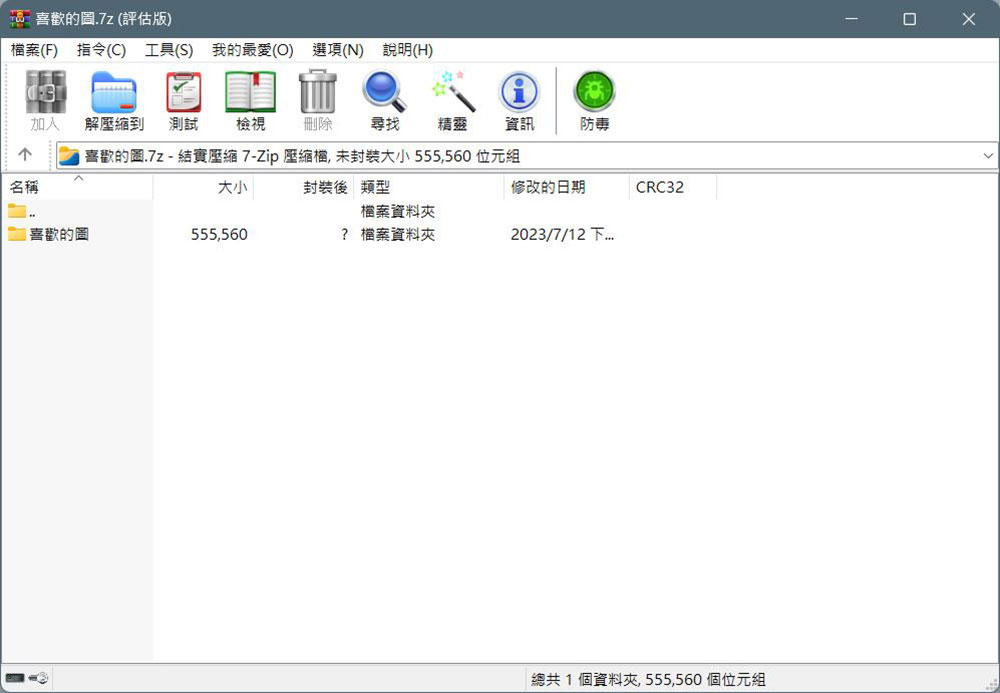
- First, open the 7z file with WinRAR, it will look like the picture below.
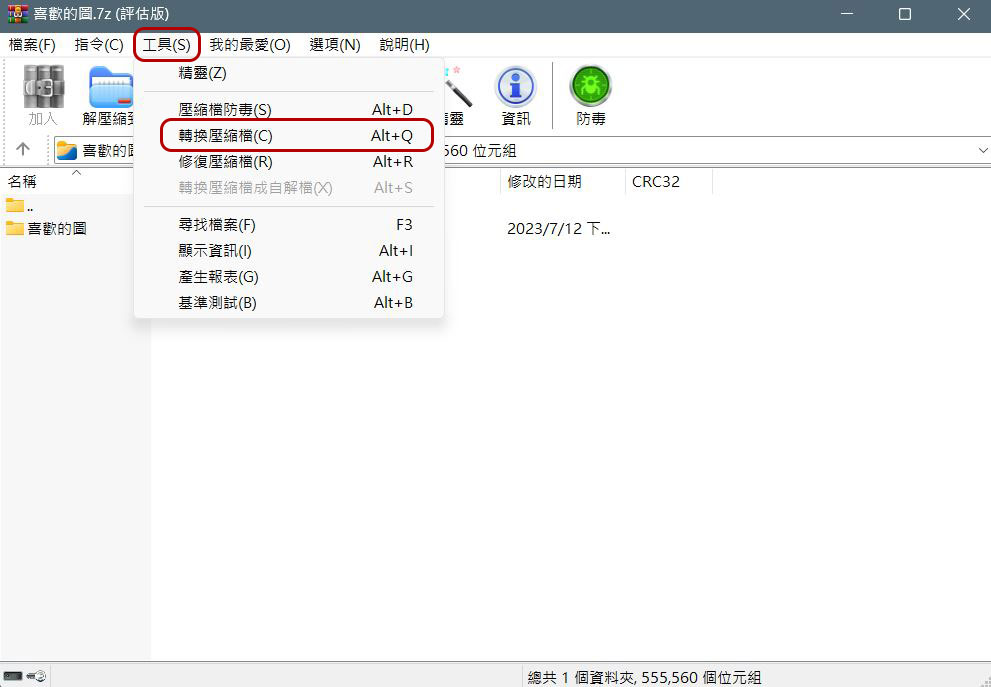
- Click “Tools” on the toolbar above and select “Convert Archive”.
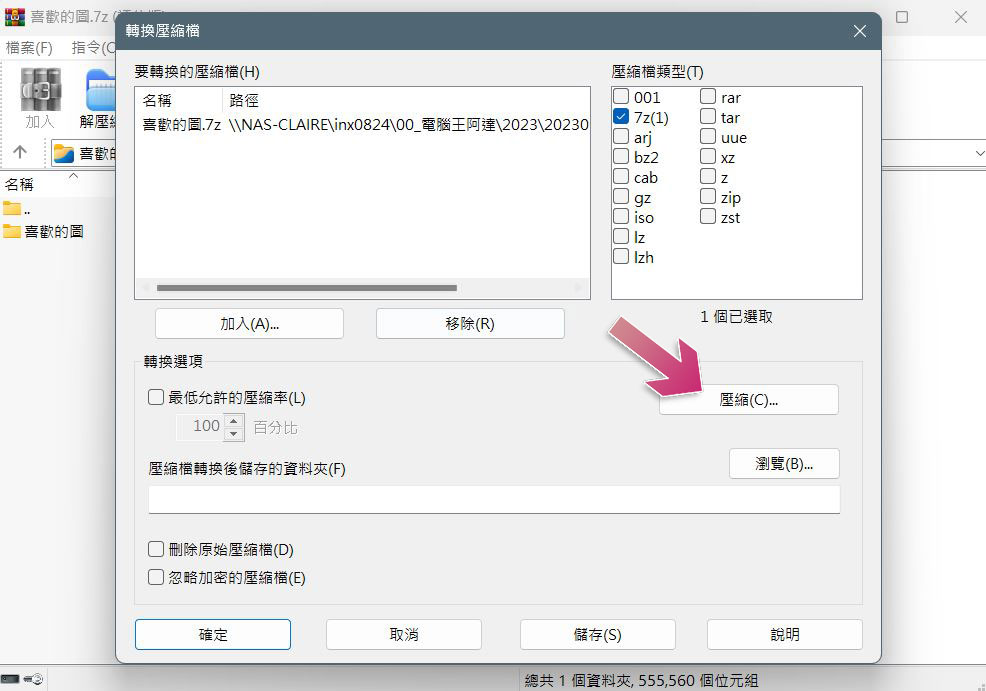
- Next you have to tell WinRAR which format you actually want to use. By default it will generate a RAR archive, but it can also generate a ZIP archive. On this page, we first click Compress directly.
- Then select the format you want to convert and compress. Here we choose ZIP, and then return to the page of the previous step and click OK.
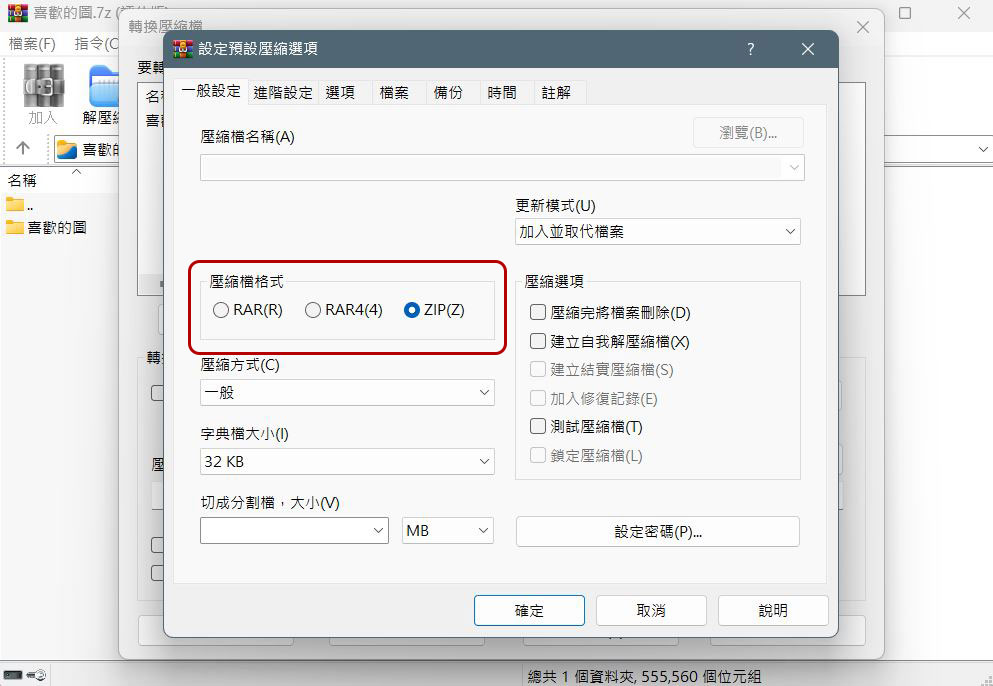
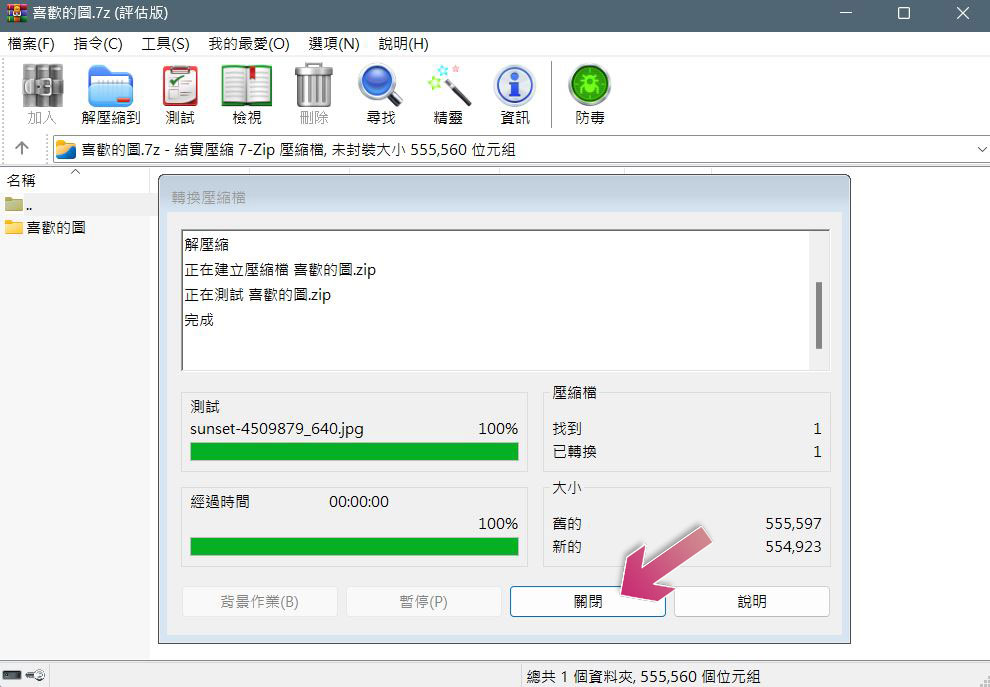
- Wait a moment for WinRAR to finish processing the compression, then click Close.
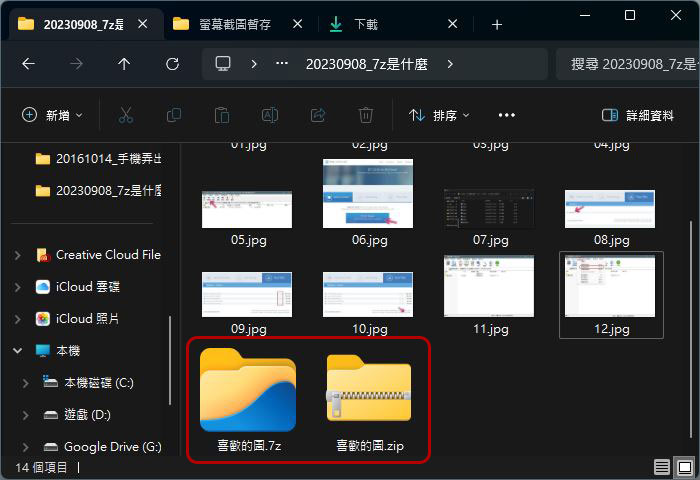
- After the conversion is completed, by default you will see an additional ZIP file next to the location where the original 7z file was placed. As long as you make sure that all the contents of the new compressed file are present and actually valid, you can delete the original 7z file.
Source: KOCPC Chinese