


Many applications and services on the Internet require you to create an account for further use, but some also provide the option to log in with a Google Account to simplify the registration and login process, thereby eliminating the trouble of creating a separate account. While this is helpful, there is an obvious but easily overlooked drawback. If you don’t control the service that granted permission, over time, more and more services and websites can access your account, which may pose some security risks.
How do I remove third-party access to my Google Account?
To reduce your risk, it’s wise to regularly check which websites have access to your Google Account and delete apps and services you no longer use or don’t need. The teachings compiled for you this time can help you do this.
Remove third-party permissions from PC web version
- Open from browser Google My Account page, sign in to your Google Account.
- Select the Security tab from the left sidebar. (If you are used to narrowing the window, it will be displayed below the avatar above)
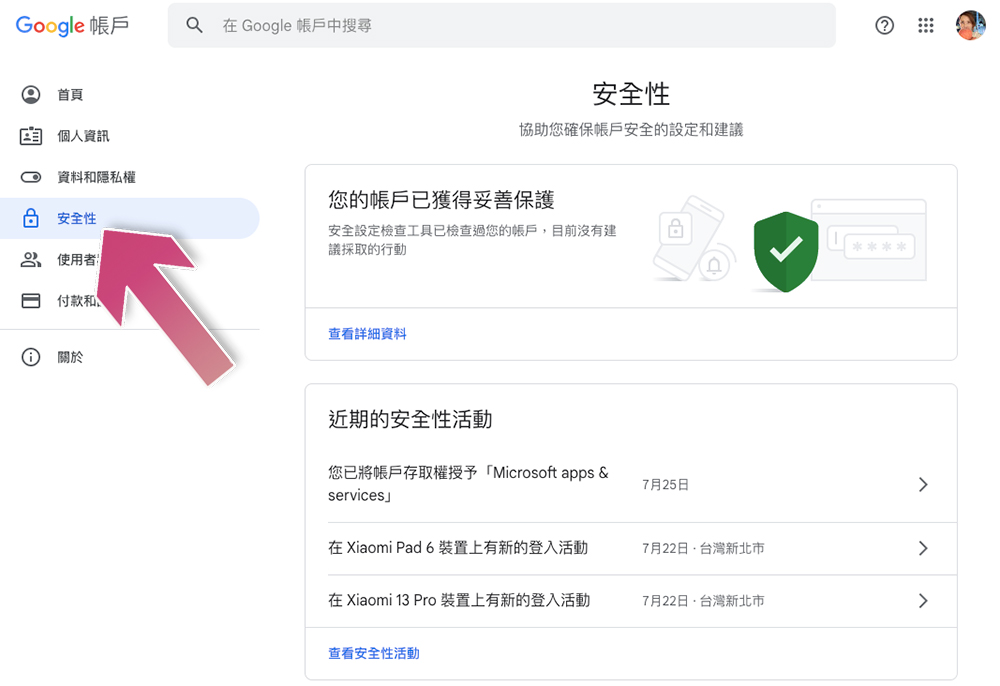
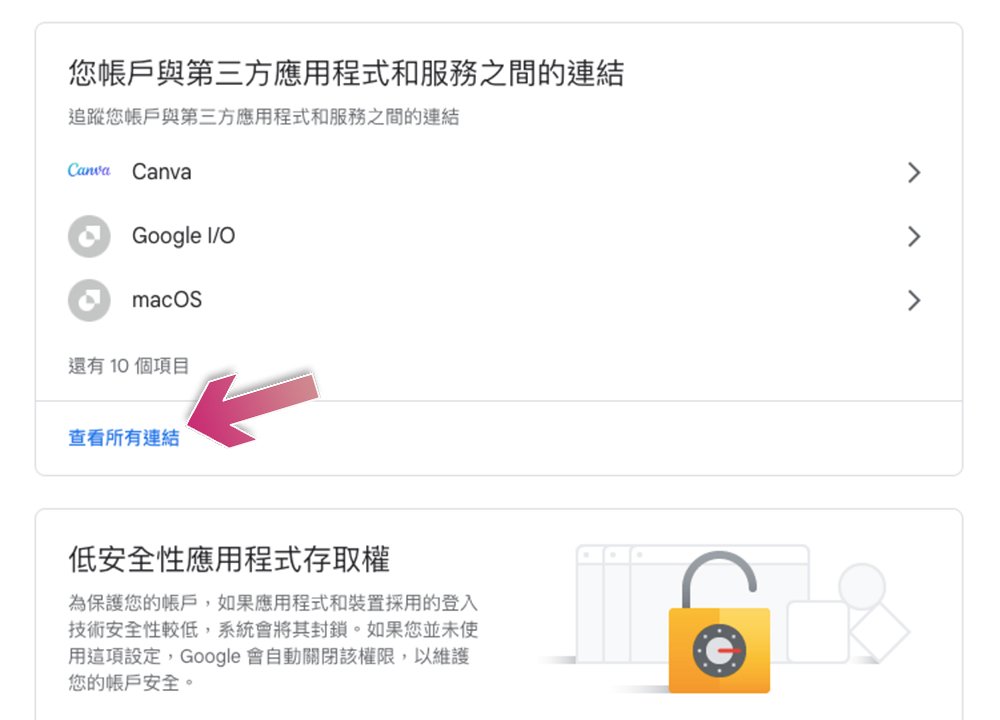
- Scroll down to the “Links between your account and third-party applications and services” section and click “See all links.”
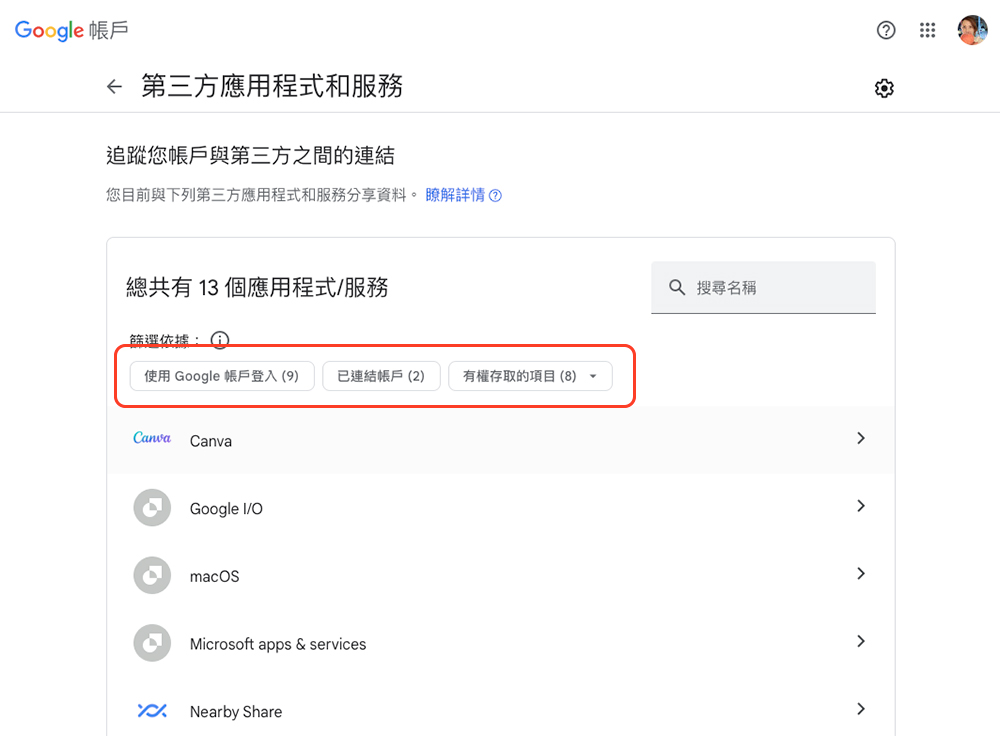
- Here you’ll see a list of apps and services that can access your Google Account, plus three filter tabs:
- Sign in with Google Account—Shows a list of apps and services you’re signed in with your Google Account?
- Linked Accounts—Shows all the apps and services that have access to different Google services (like Gmail, Drive, etc.).
- Accessibles—Displays a list of accounts that are linked to a Google Account to unlock features.
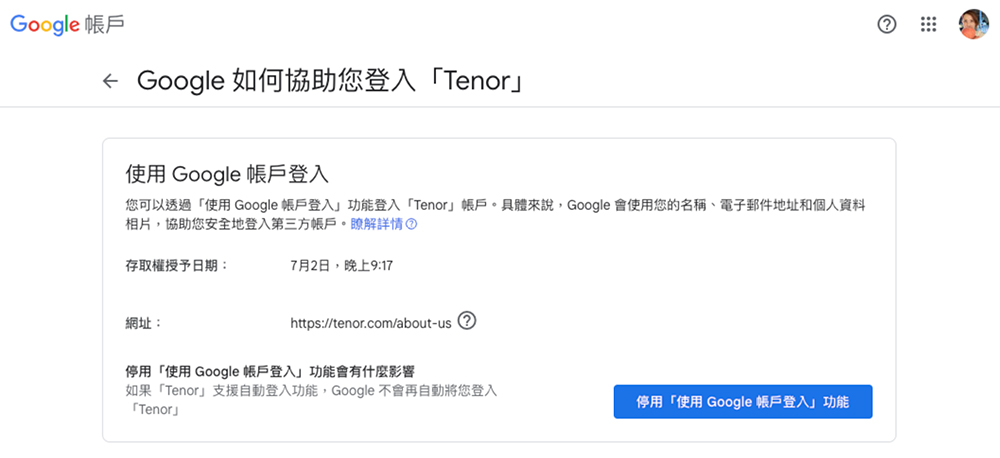
- When you decide to revoke the access permission of an application or service, after clicking it, you can check whether the application has login and access rights on the inner page. After deciding what items you want to cancel, click “View Details”.
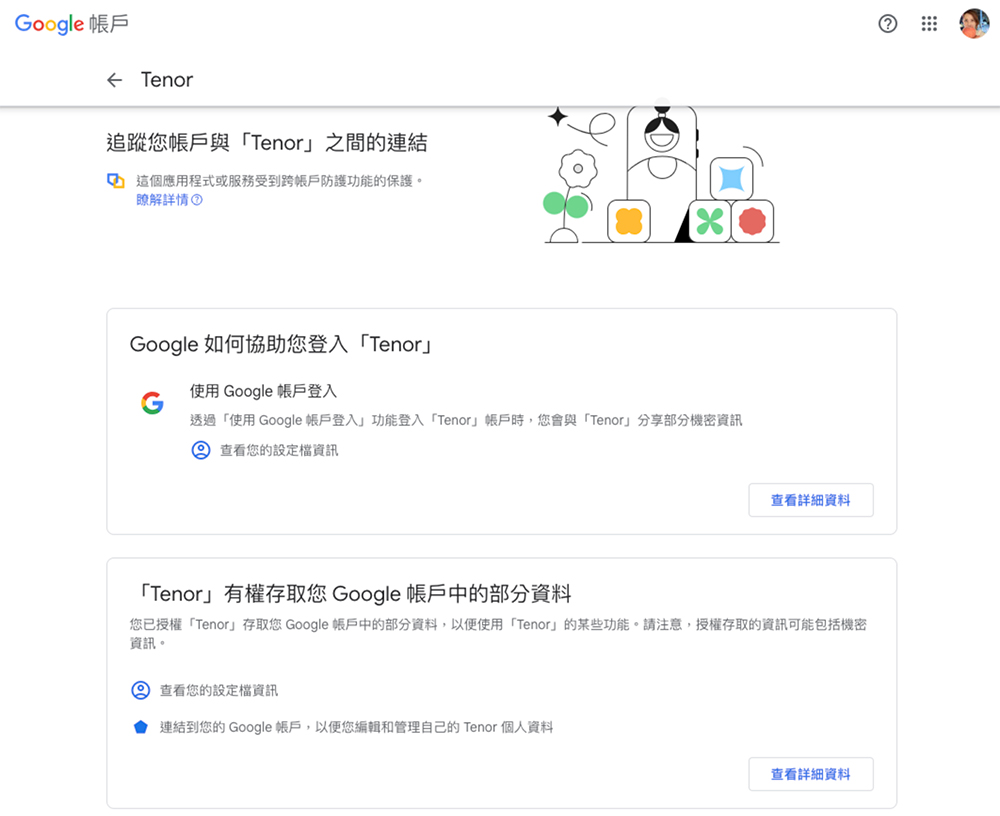
- You can then deactivate and remove access from within the page.
Remove third-party permissions from mobile device
If you don’t have a computer nearby, you can still disable access to your Google Account from third-party services and apps from your mobile device. The steps to perform these operations are the same whether on Android or iOS. The difference is that the iPhone mustDownload Google apps from the App StoreYou can proceed with further settings by following the steps below.
- Access to manage your Google Account varies slightly from system to system.
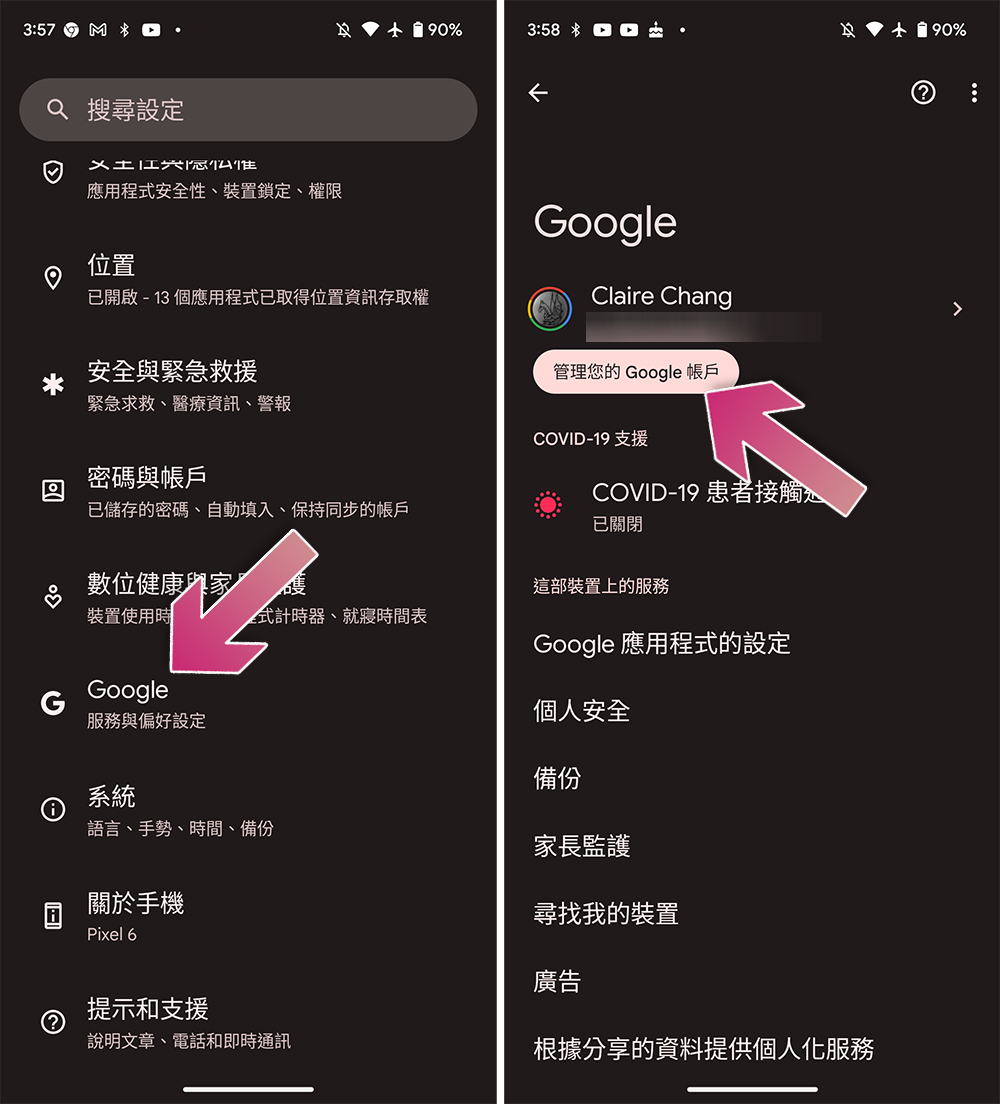
- Android: Open “Settings”, select “Google” and click “Manage your Google Account”.
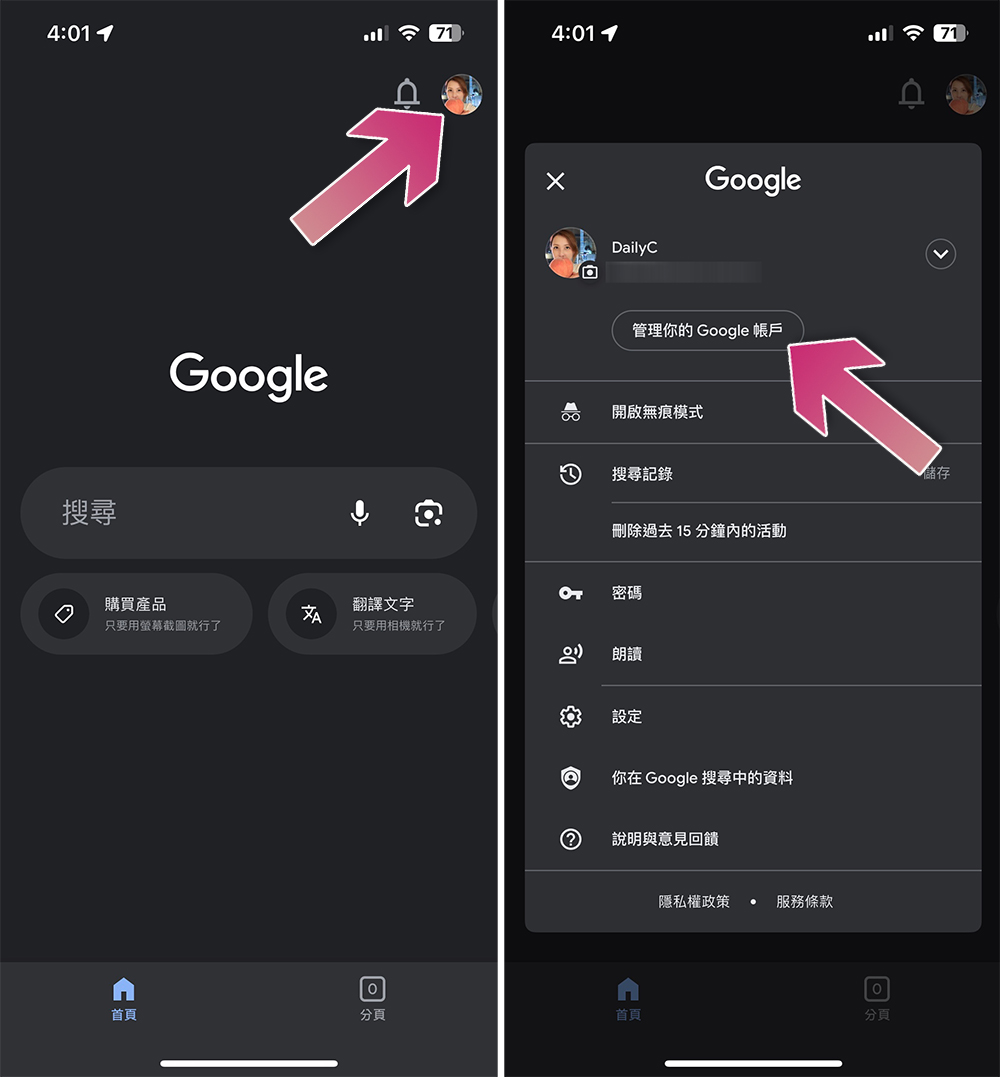
- iOS: Open the Google app, click on your profile picture and select “Manage your Google Account.”
- Android: Open “Settings”, select “Google” and click “Manage your Google Account”.
- After switching to the Security tab, scroll down to the “Links between your account and third-party apps and services” section and click “See all links.”
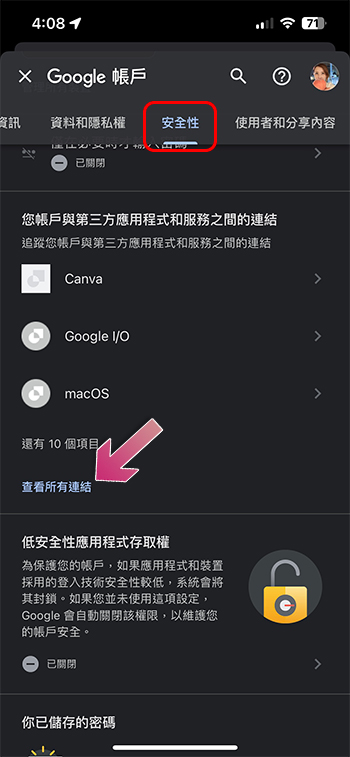
- Click on an application or service, and you can see that the internal page is divided into three sections: login, access rights, and links. Then click the “View Details” button individually to learn more about its permissions and cancel their respective permissions.
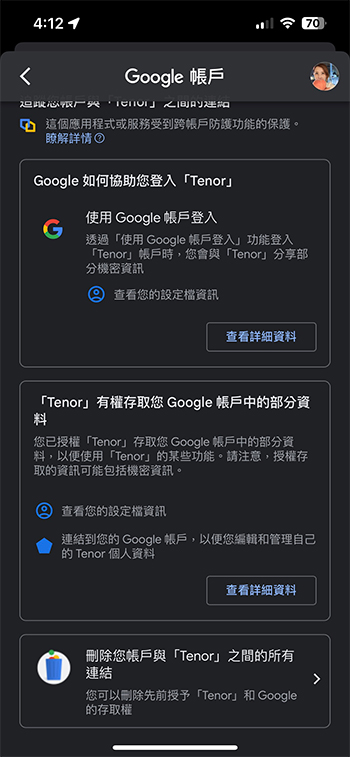
Once you’ve removed permissions from your Google Account for third-party apps and services you no longer need, you should be left with the apps and services you actually use and need, so be sure to check back regularly as a good habit going forward.
Source: KOCPC Chinese